

What reporting categories do
Reporting categories let you group products (e.g. “food”, “drinks”, “alcohol”) so that:- Sales reports break down revenue by category instead of listing every product individually.
- Your team can quickly filter products by category and sub-categories on the Products page.
When to use this
- You want to see sales broken down by different groups such as “food” vs. “drinks” in your reports.
- You want to sort, organise and filter products by category on the Products page.
Managing reporting categories
Open the sidebar and tap Menu builder > Reporting categories, or go directly to Reporting categories.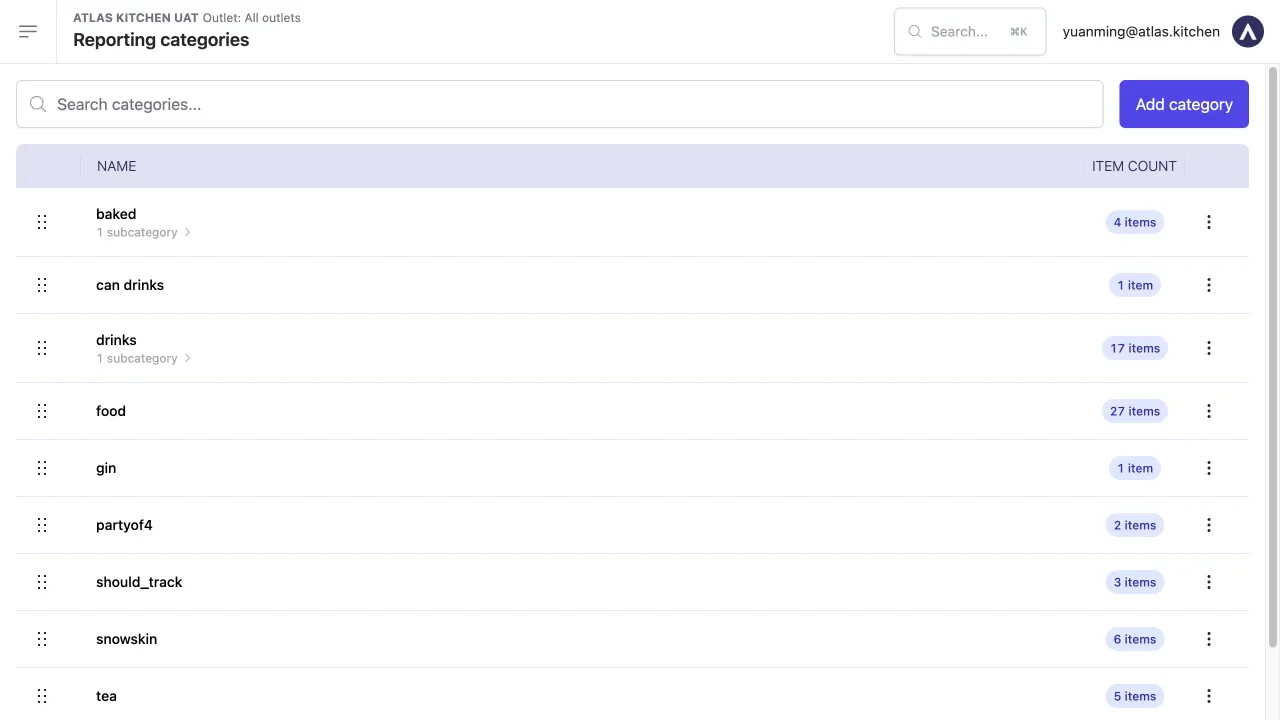
Reporting categories page showing all categories with item counts
- Name — the category name (always lowercase).
- Item count — how many products are assigned to this category. Tap the count to jump to the Products page filtered by that category.
- Drag handles — the dots on the left of each row let you drag categories to reorder them.
- Three-dot menu — tap for Edit, Remove, and Create subcategory options.
Create a new category
On the Reporting categories page, tap "Add category" in the top-right corner.
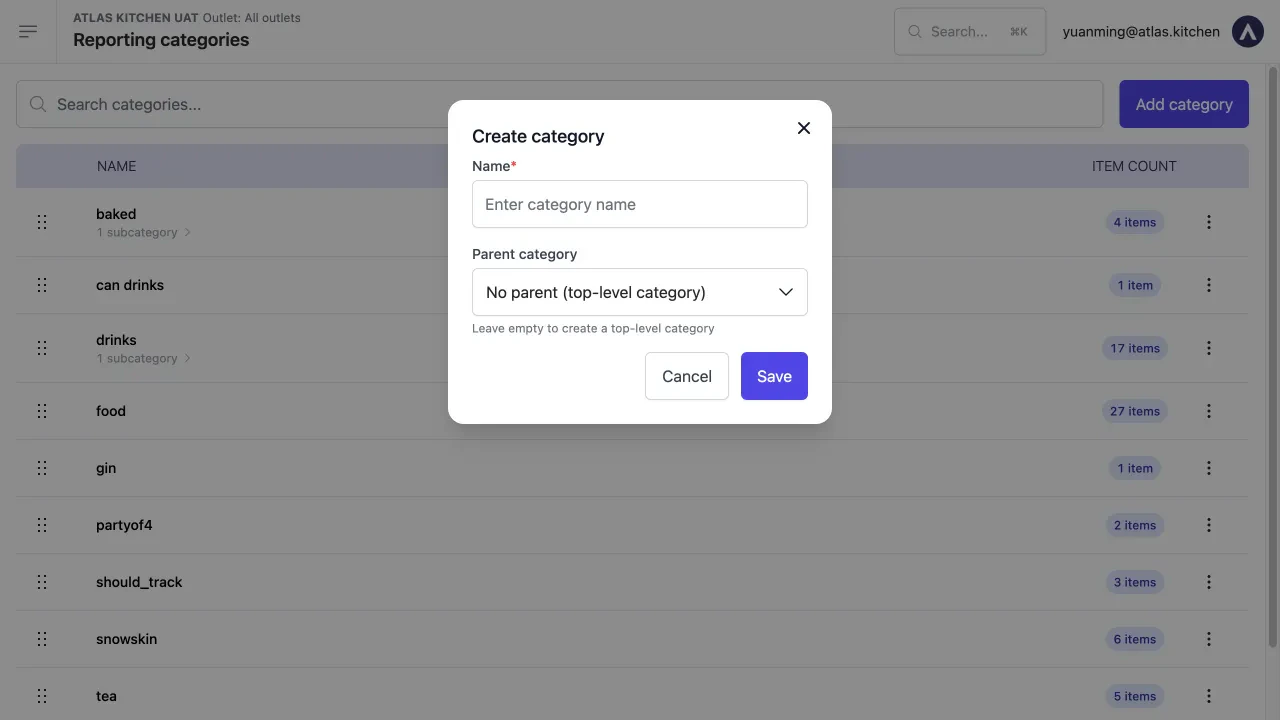
Create category modal with name and parent category fields
Enter a category name.
Choose a parent category (optional).
Tap "Save".
Edit a category
Tap the three-dot menu next to the category.
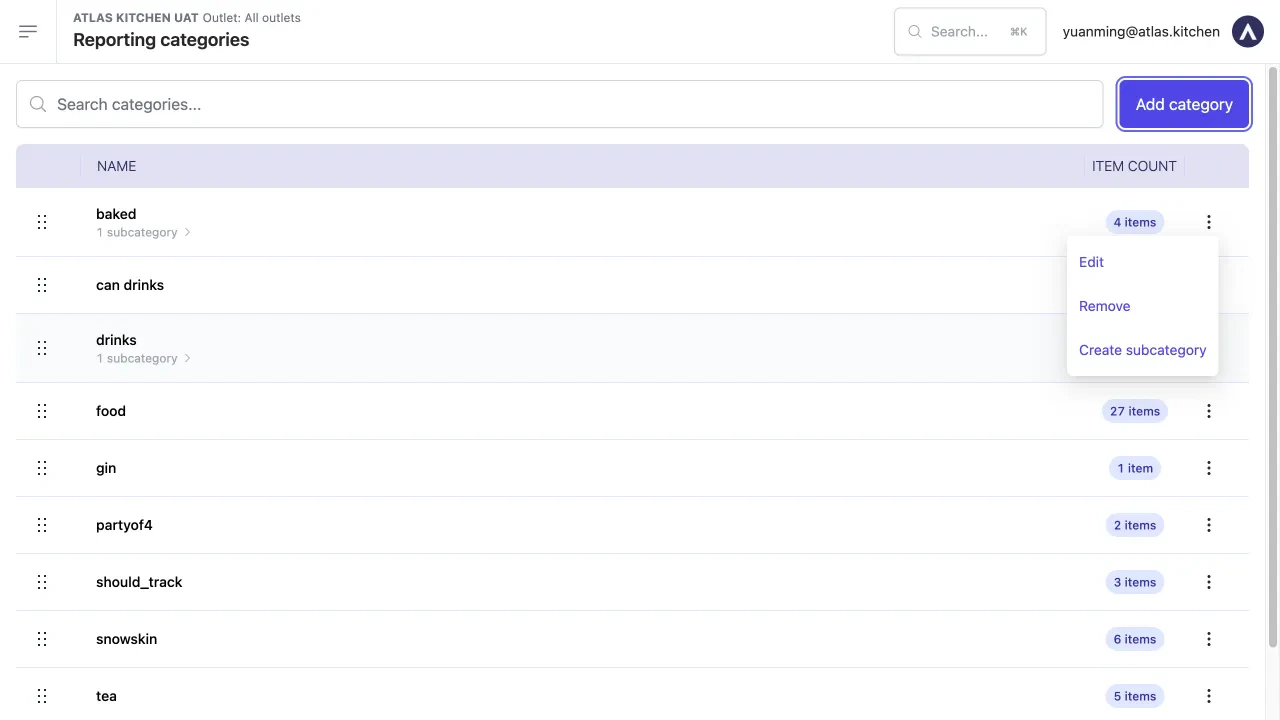
Category options menu with Edit, Remove, and Create subcategory
Tap "Edit".
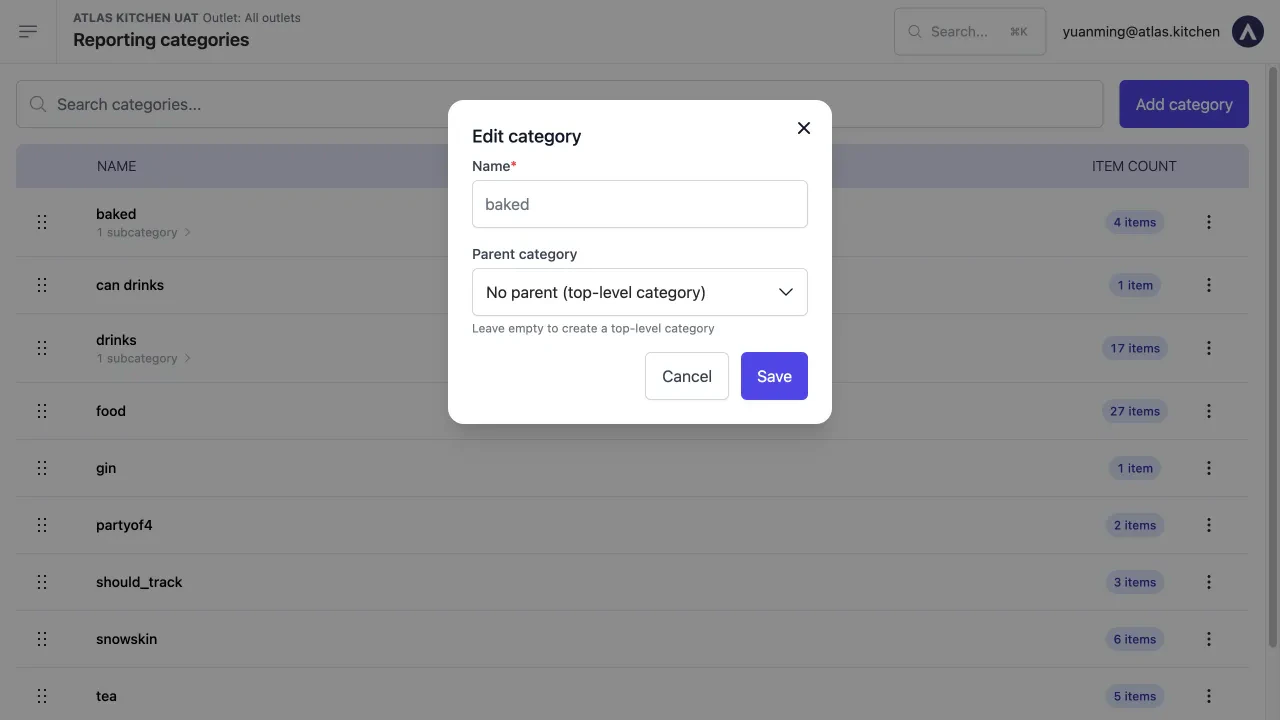
Edit category modal with name and parent category fields
Update the name or parent category, then tap "Save".
Remove a category
Tap the three-dot menu next to the category.
Tap "Remove".
Create subcategories
You can nest categories by creating subcategories under a parent.Tap the three-dot menu next to an existing category.
Tap "Create subcategory".
Enter the subcategory name and tap "Save".
Assign a reporting category to a product
You can assign a reporting category when creating or editing a product.Open a product for editing.
Scroll down to the "Reporting category" field.
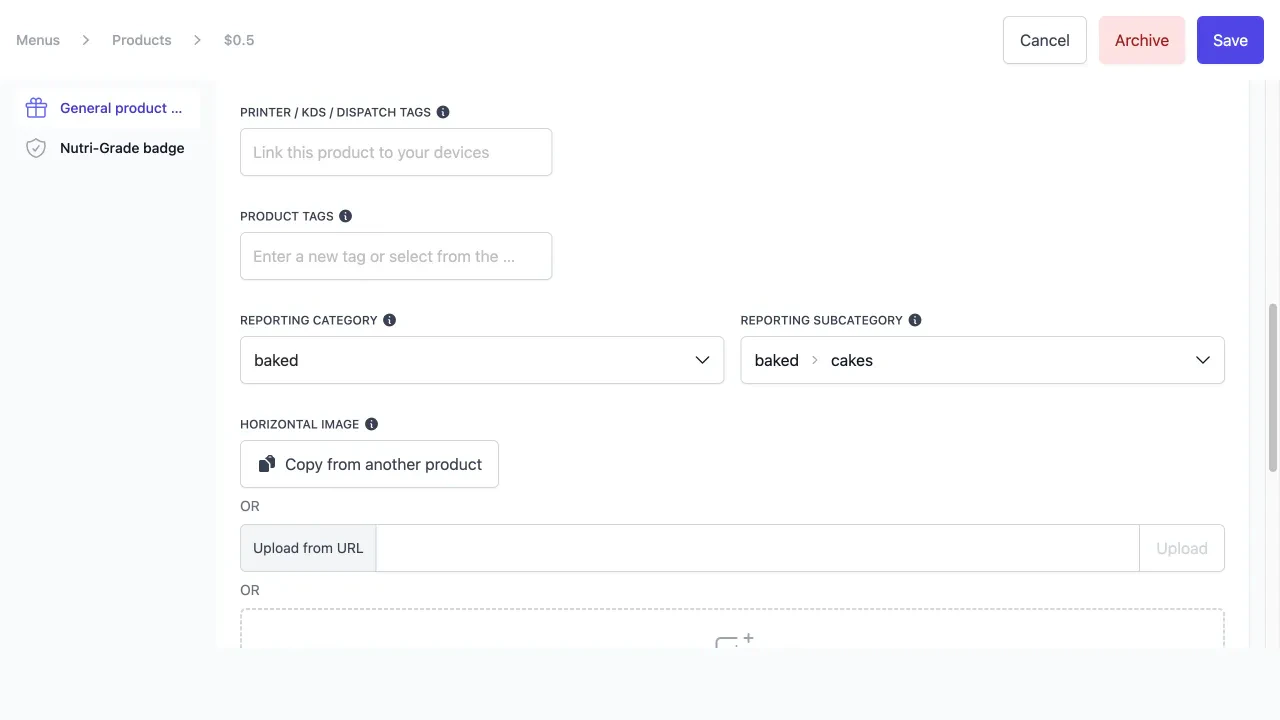
Product form showing Reporting category and Reporting subcategory dropdowns
Select a category from the dropdown.
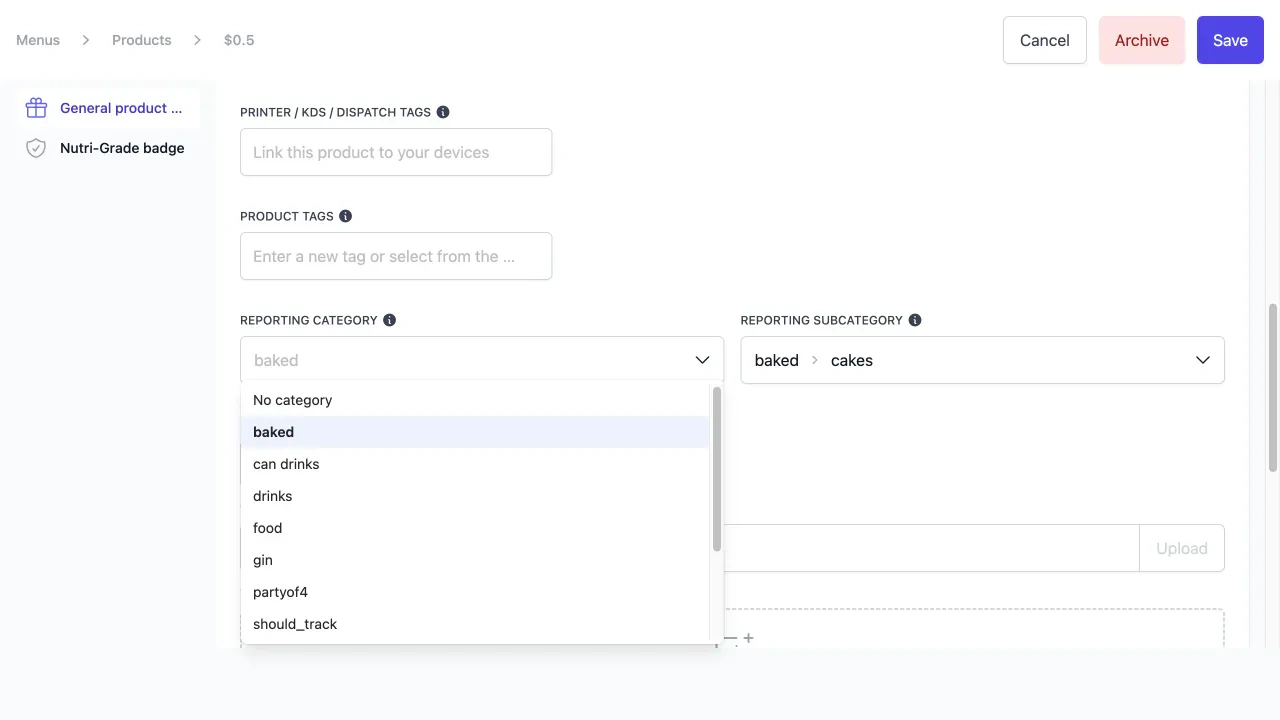
Reporting category dropdown showing available categories
(Optional) Select a reporting subcategory.
Tap "Save" at the top of the page.
View products by category
There are two ways to see which products belong to a category: From the Reporting categories page: Tap the item count badge (e.g. “27 items”) next to any category. This opens the Products page filtered to show only products in that category.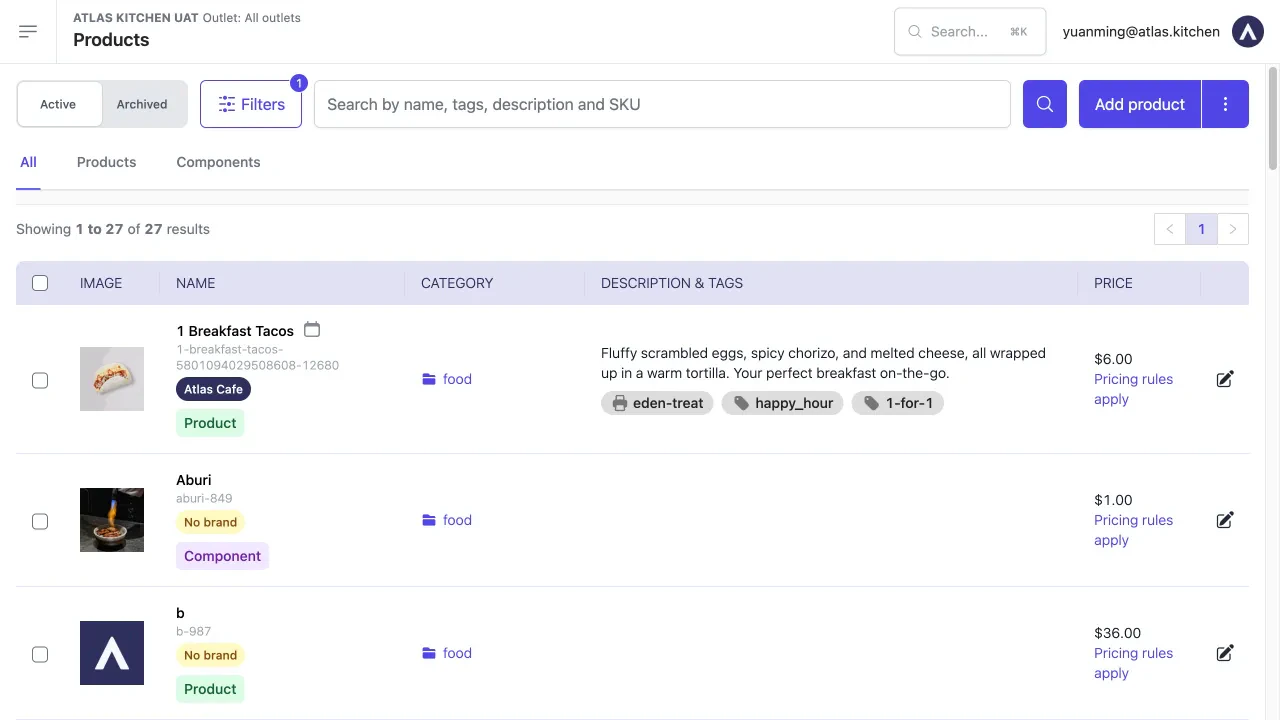
Products page filtered by a reporting category
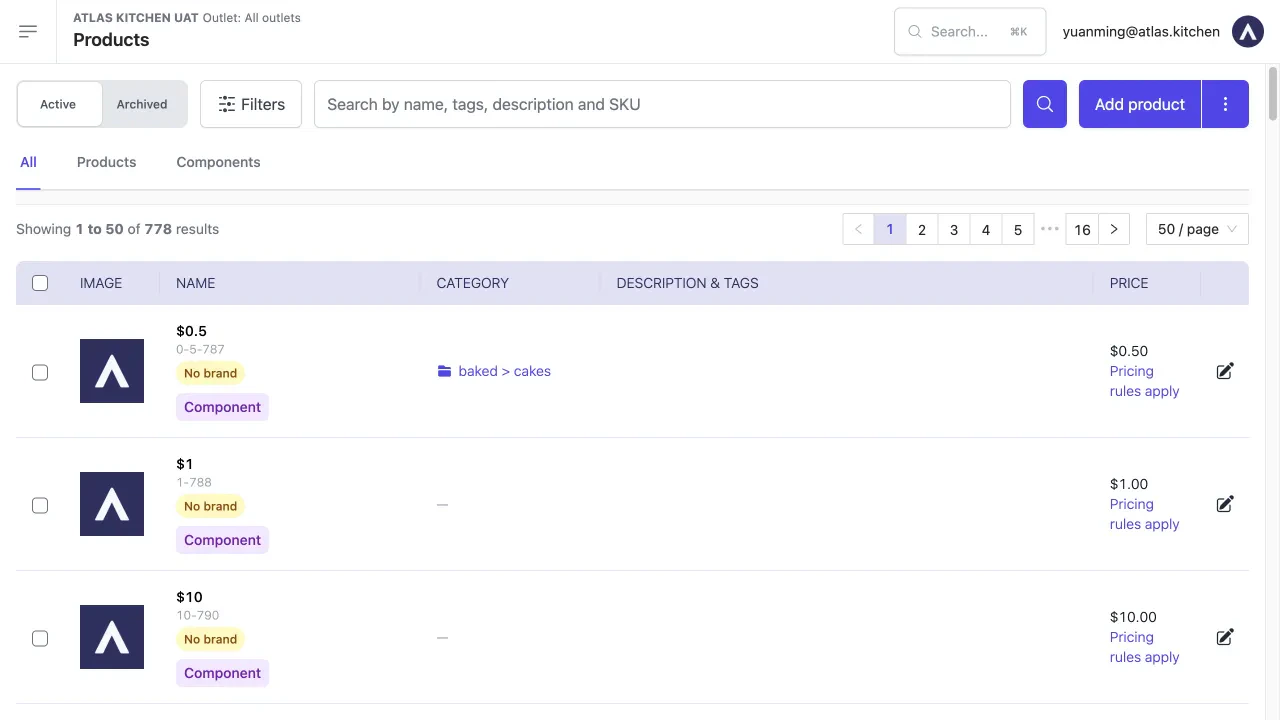
Products table showing reporting category tags in the Category column
How categories appear in reports
Reporting categories are used in several reports:- Sales summary report — breaks down sales by reporting category so you can see revenue for “food” vs. “drinks” at a glance.
- Product mix report — colour-codes products by reporting category in the quantity vs. sales chart, and includes a Product mix by reporting category table where you can expand each category to see individual products, quantities, and sales breakdowns.
- Daily outlet report (Z-report) — groups products by category in the products sold section. Products without a category appear under “uncategorised”.
What should happen
- New categories appear immediately in the categories list and in product dropdowns.
- Assigning a category to a product updates the Category column on the Products page.
- Reports generated after assignment reflect the new category groupings.
- Renaming a category updates all references automatically.
If it doesn’t work
Category not appearing in product dropdown
Category not appearing in product dropdown
- Refresh the page and try again — newly created categories may take a moment to appear.
- Check that you created the category on the Reporting categories page, not just as a product tag.
Reports not showing category breakdown
Reports not showing category breakdown
- Verify products have a reporting category assigned (check the Category column on the Products page).
- Reports only reflect categories at the time orders were placed. Assigning a category now will not retroactively change past reports.
Category shows as "uncategorised" in reports
Category shows as "uncategorised" in reports
- The product does not have a reporting category assigned. Edit the product and select one from the Reporting category dropdown.
Next steps
- Create and configure menus — learn how to build menus with sections and products.
- Sales summary report — see how category breakdowns appear in your sales data.
- POS layouts — configure how products appear on your POS screen.