

Who is this article for?
- Atlas merchants using an Atlas Pay card terminal.
- Staff taking payments at the counter or kiosk.
The terminal won’t connect or show the payment amount
If the terminal shows “no signal”, nothing appears when you tap Charge, or you see “Error occurred while initiating payment”, work through these in order.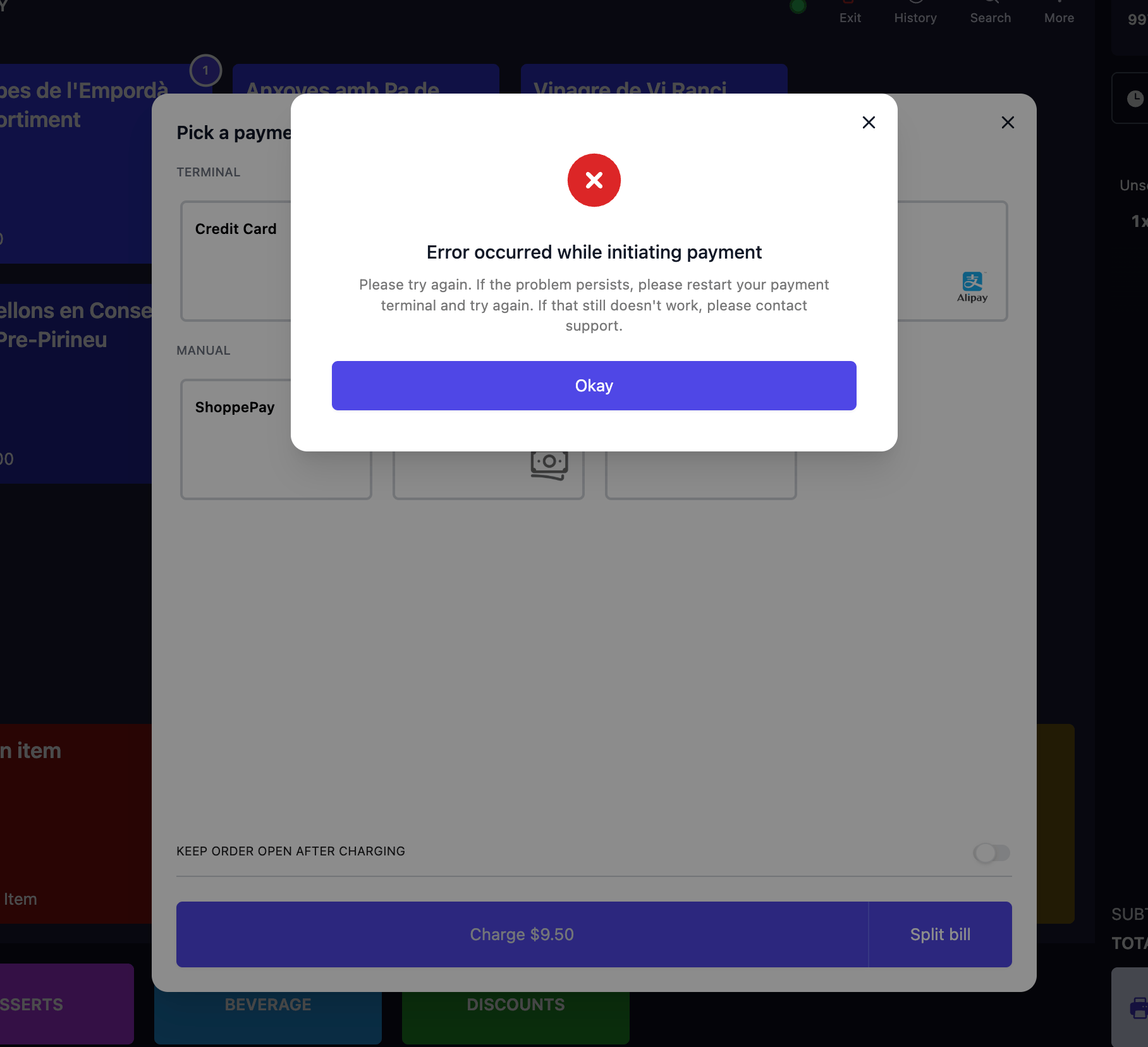
'Error occurred while initiating payment' on Atlas POS
1
Tap Okay and try again.
The error is often a one-off. Re-select the payment method and tap Charge again.
2
Switch to 4G.
If it keeps happening, the cause is usually WiFi instability. The terminal has a built-in 4G backup that is more reliable during service.On the terminal, go to Settings > Network and turn off WiFi. The terminal switches to 4G automatically. Go back to the POS and tap Charge again.
3
Restart the terminal, then the POS.
Press and hold the power button on the side of the terminal until the power options appear, then tap Restart. Once it is back on the home screen, close and reopen the Atlas POS app on the tablet, then try the charge again.
4
Run a test charge.
Create a small test order, tap Charge, select Credit Card, and confirm the amount appears on the terminal.
5
Still failing? Contact support.
Take payment with a manual method for now, then contact support (see The terminal is faulty or won’t power on).
The customer paid but the order didn’t complete
If the terminal or POS dropped connection mid-payment, the customer’s card may have gone through while the order stays open on the POS. Before charging again, confirm whether the payment actually went through.Check the payment on the terminal
- On the terminal, go to Transactions > History.
- Enter the terminal password.
- Find the transaction by time and amount, and tap it to open the details.
Force checkout
When the POS can’t confirm a payment, it shows a force checkout screen asking you to verify manually.Force checkout on Atlas POS
- If the terminal shows “Approved”: the customer paid. Tap “I understand, force checkout” to close the order.
- If it does not show Approved: the payment did not go through. Do not force checkout, and take payment again.
The terminal is frozen or the screen is black
- Press and hold the power button on the side of the terminal for about 15 seconds to force a restart. Wait for the home screen to load, then try the charge again.
- If the terminal does not respond to the power button at all, remove the cover on the back, unplug the battery, and wait about 10 seconds. Reconnect the battery, replace the cover, and power the terminal back on.
The terminal is faulty or won’t power on
Restarting won’t fix a faulty unit. Contact support for a replacement if:- The terminal won’t power on, even when plugged in.
- The battery drains in under 2 hours, or won’t charge.
- The casing or battery looks swollen or deformed.
- The card slot or tap reader is physically damaged.
- The same issue recurs across service periods despite restarting.
- The terminal serial number (on the back of the terminal, beside the barcode sticker).
- The date and time of the issue.
- The affected order number, if any.
- A photo of the terminal screen.
- What you have already tried (e.g. switched to 4G, restarted).
Other terminal errors
Terminal shows a different amount from the order
Terminal shows a different amount from the order
The terminal is usually still on a previous session. Restart the terminal. If the wrong amount appears for a specific order, void that order in Atlas POS and re-create it before charging.
PayNow QR code doesn't appear on the terminal
PayNow QR code doesn't appear on the terminal
Check that PayNow is enabled in the Merchant Portal under Settings > Payment types. If it is on, restart the terminal and try again. If the QR still doesn’t appear, contact support.
'Missing payment terminal assignment' error
'Missing payment terminal assignment' error
The POS station does not have a terminal assigned to it. This is a back-end setting, so contact support at hello@atlas.kitchen.
Next steps
- Using Atlas POS — charging orders, force checkout, and splitting bills.
- Refunds — refund or recharge an order.