Set a different price for selected products on certain channels, without editing each item by hand.
Pricing rules change the price of selected products when a condition is met, without you editing each item or creating duplicate SKUs. A rule might add a markup on delivery apps, or set a flat promotional price. Find them at Menu builder > Pricing rules, or go straight to the Pricing rules page.Rules are ranked. A rule higher in the list applies before the ones below it, which matters when more than one rule could touch the same item.
Pricing rules are still being expanded. Today they apply by channel only, and only aggregator channels (GrabFood and Foodpanda) can be selected. Support for all Atlas channels, individual outlets, time of day, and member pricing is on the way.
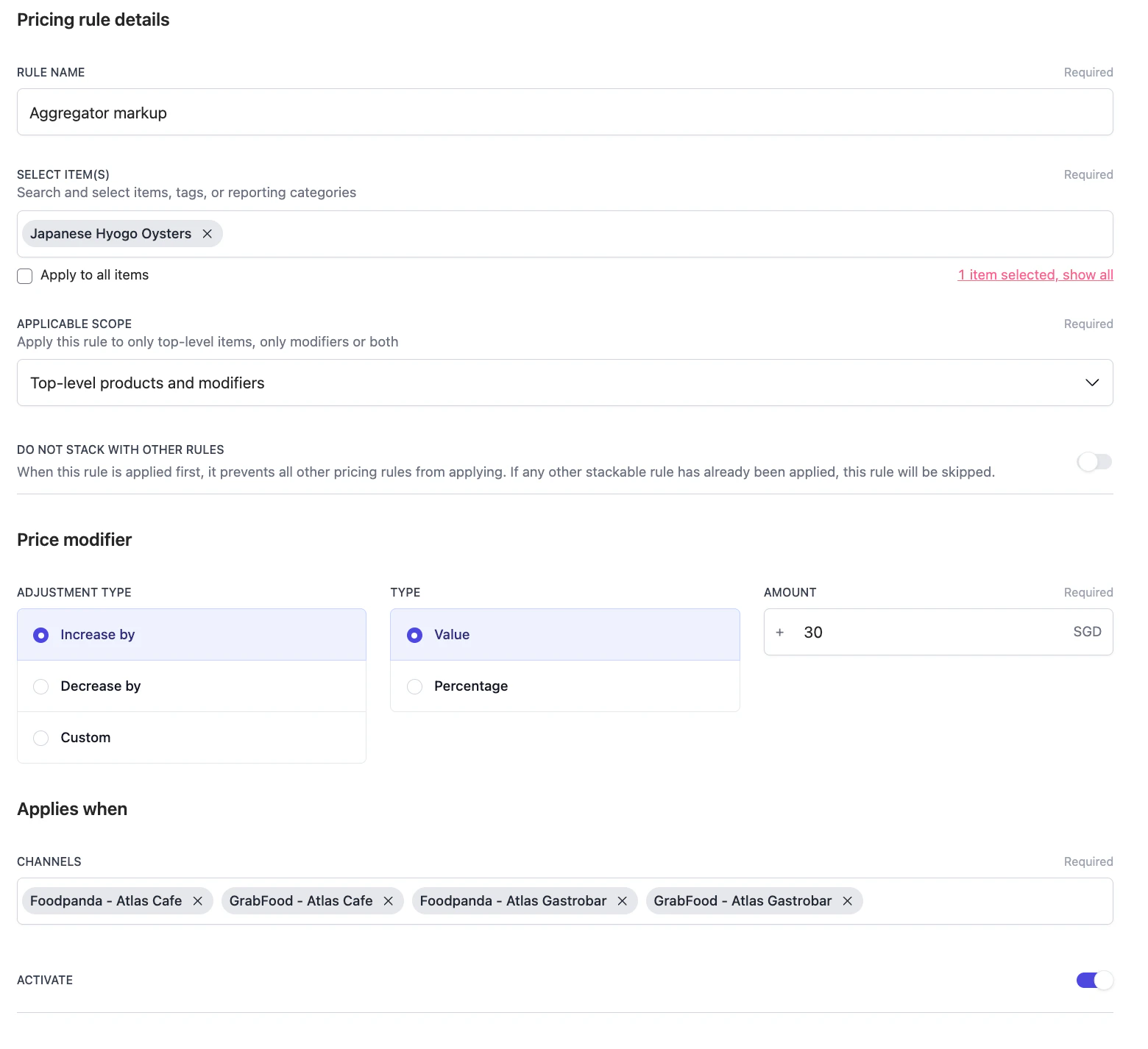
Under Applicable scope, choose what the rule touches:
Top-level products and modifiers applies to both.
Top-level products only leaves modifier prices alone.
Modifiers only changes only the modifier prices.
Applicable scope options.
4
Set the price change
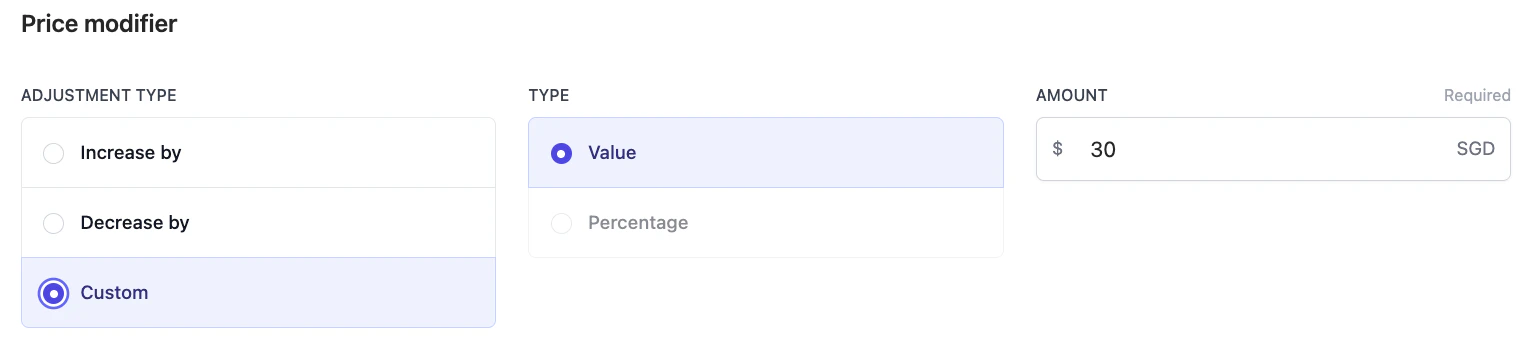
Under Price modifier, choose the Adjustment type:
Increase by or Decrease by changes the current price. Set Type to Value for a fixed amount, or Percentage for a percentage.
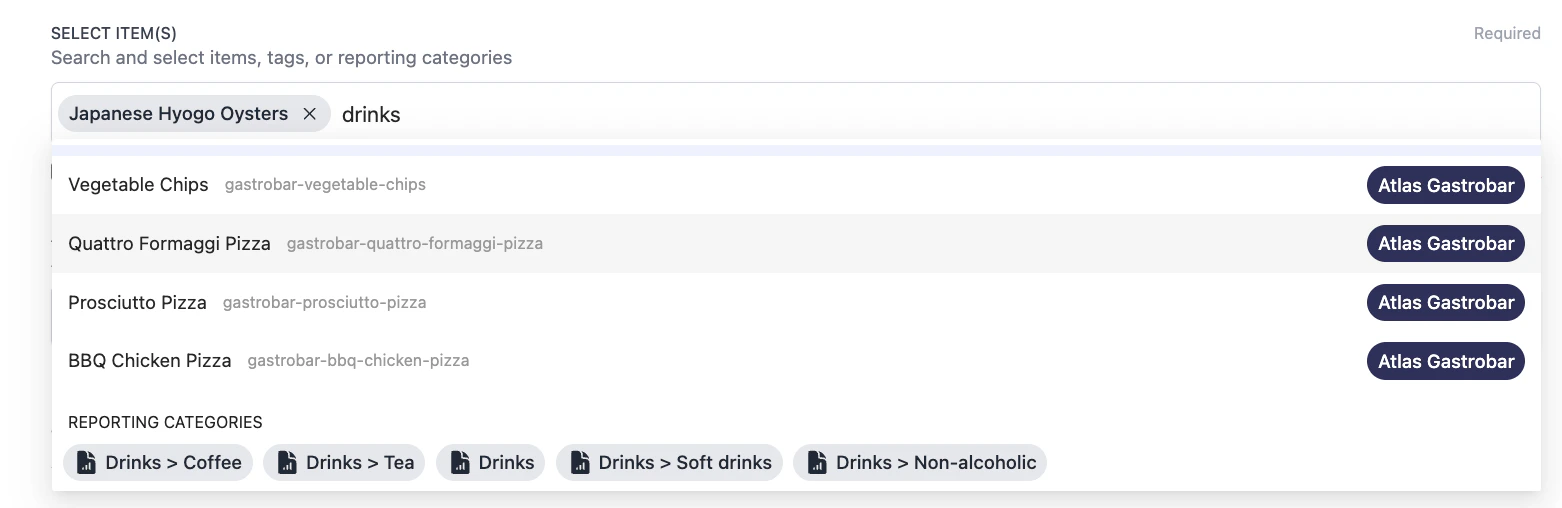
Custom sets an exact price, whatever the item’s current price is. For example, set all drinks to a flat $2 on GrabFood.
Enter the figure in Amount.
Price modifier set to a custom flat price.
5
Choose the channels
Under Applies when > Channels, add the aggregator channels the rule should run on, such as GrabFood or Foodpanda for a given brand. Channels are required, so a rule needs at least one.
6
Activate and save
Turn Activate on so the rule takes effect, then save. Leave it off to keep the rule as a draft.
By default, more than one rule can apply to the same item in rank order. Turn on Do not stack with other rules when a rule should be the final word. If it applies first, it blocks every rule below it. If a stackable rule already applied, this rule is skipped.Example. You run a flat $2 drinks price and a 10% aggregator markup, and both could land on the same coffee. To keep the coffee at $2 and not mark it up, turn Do not stack with other rules on for the $2 drinks rule and rank it above the markup. Once the $2 price applies, the markup is skipped for that drink.
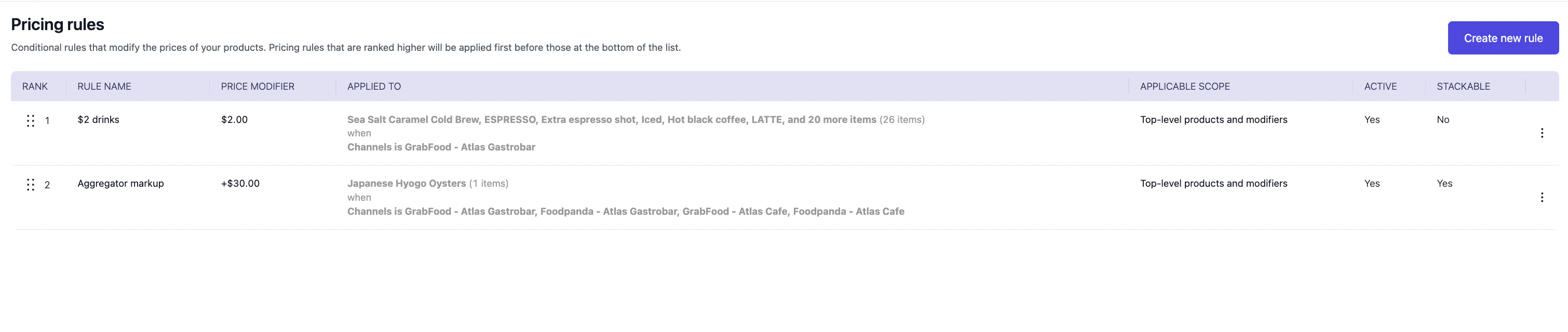
All your rules sit in one list at Menu builder > Pricing rules. Drag a rule by its handle to change its rank. A rule higher in the list applies first. The list also shows each rule’s price modifier, what it applies to, its scope, whether it’s active, and whether it stacks.
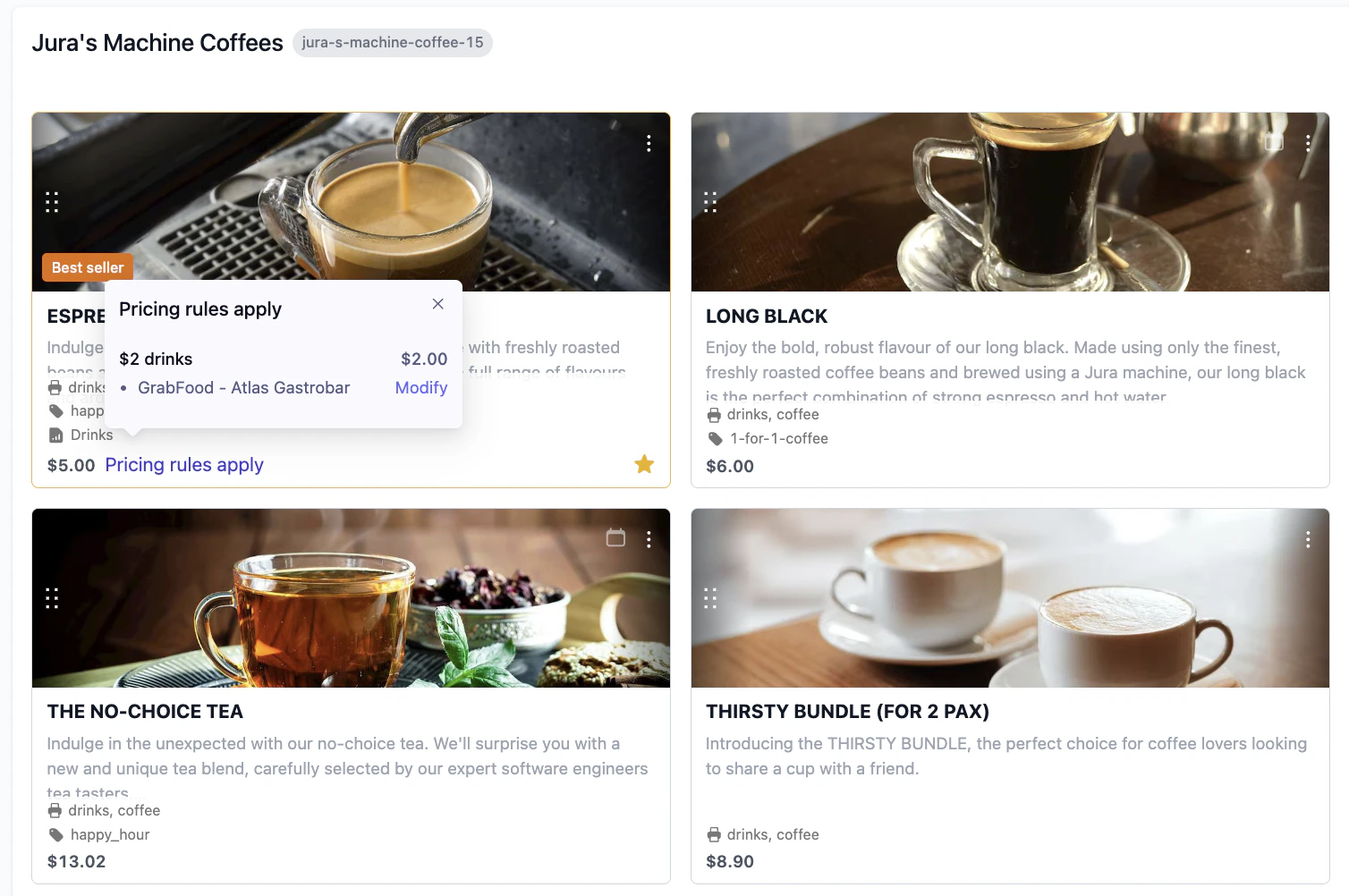
In the menu builder, a product that a rule touches shows a Pricing rules apply link by its price. Tap it to see which rules apply and on which channel, then tap Modify to open the rule.
The rule in the list at Menu builder > Pricing rules, marked Active.
A Pricing rules apply link on each affected product in the menu builder.
The adjusted price on the selected channels after you sync the menu. See Aggregator menus.
If something isn’t right, check the matching scenario below.
A rule isn't changing the price
Confirm Activate is on.
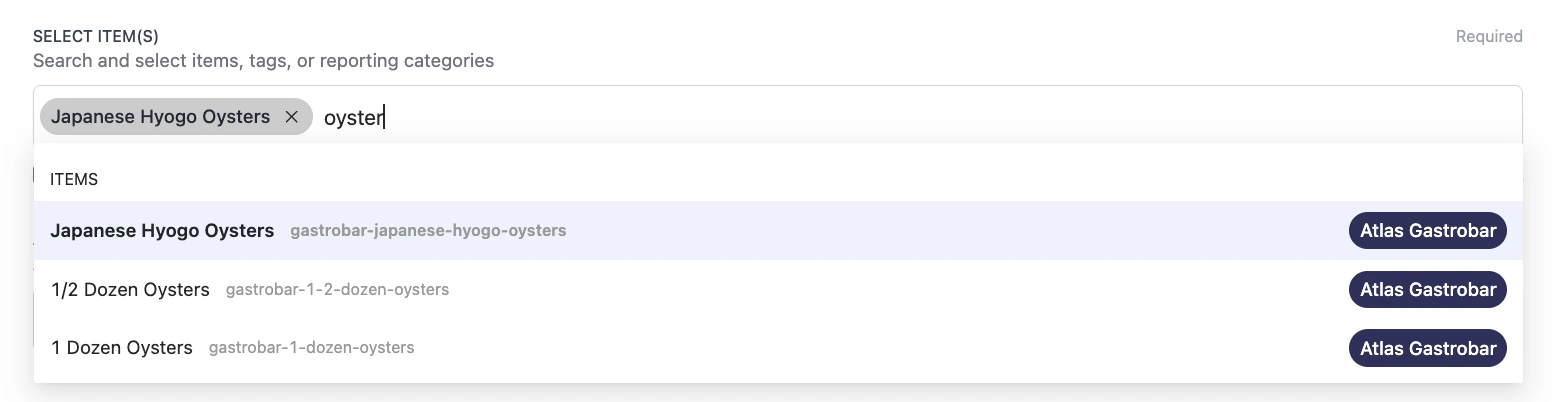
Confirm the item is in the rule, or that Apply to all items is ticked.
Confirm the Applicable scope covers the item. A product won’t change under a Modifiers only rule.
Confirm the channel you’re checking is in the rule’s Channels.
Two rules apply and the wrong price wins
Rank decides the order. A higher rule with Do not stack with other rules on blocks the rules below it. Drag the rule you want to win above the others, or adjust which rules stack.
New prices aren't showing on GrabFood or Foodpanda
Aggregator menus update after a sync. Sync the menu, then check again. See Aggregator menus.
If the issue persists, contact support at hello@atlas.kitchen with your outlet name and the rule affected.