

- Mode A: QR pairing with WeChat.
- Mode B: Manual pairing via browser (recommended).
Mode A: QR pairing with WeChat
Mode A: QR pairing with WeChat
- Connect to the outlet’s WiFi network (must be 2.4GHz).
- Download WeChat and create an account.
- Locate the small black button at the back of the printer.
- Press and hold the button for 2 seconds and release → A receipt will print.
- Repeat step 4 → A receipt will print with a QR code.
-
Open WeChat and scan the QR code.
- Note: This connects the printer to WiFi.
- Enter your WiFi password and confirm.
- Note: Ensure Bluetooth and Local Network access are enabled if needed.
- On the next screen, select the Printer network and tap Connect.
- Wait for the printer to connect and print a success receipt.
- If the connection failed receipt prints, repeat the steps or check your WiFi stability.
Mode B: Manual pairing via browser (use phone, tablet, or laptop)
Mode B: Manual pairing via browser (use phone, tablet, or laptop)
With the printer powered on, locate the small black button at the back of the printer.
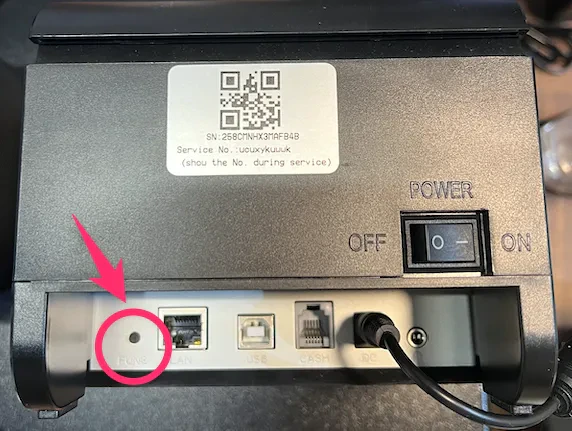
Button is very small — see the image above
Press and hold the button for 2 seconds, then release → A receipt will print with two options
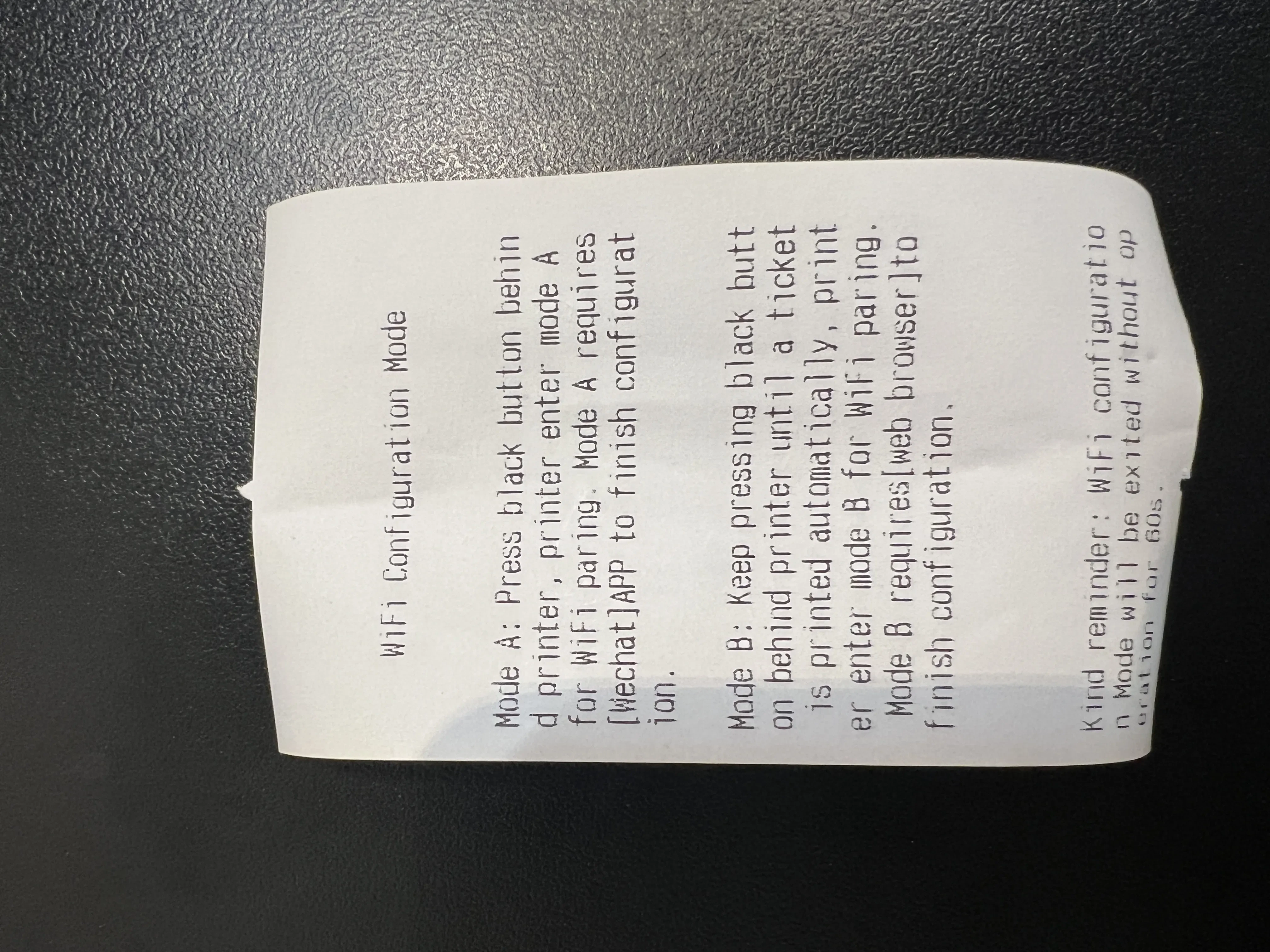
First receipt that will print
Press and hold the button again until another receipt prints. Do not release the button until it prints.
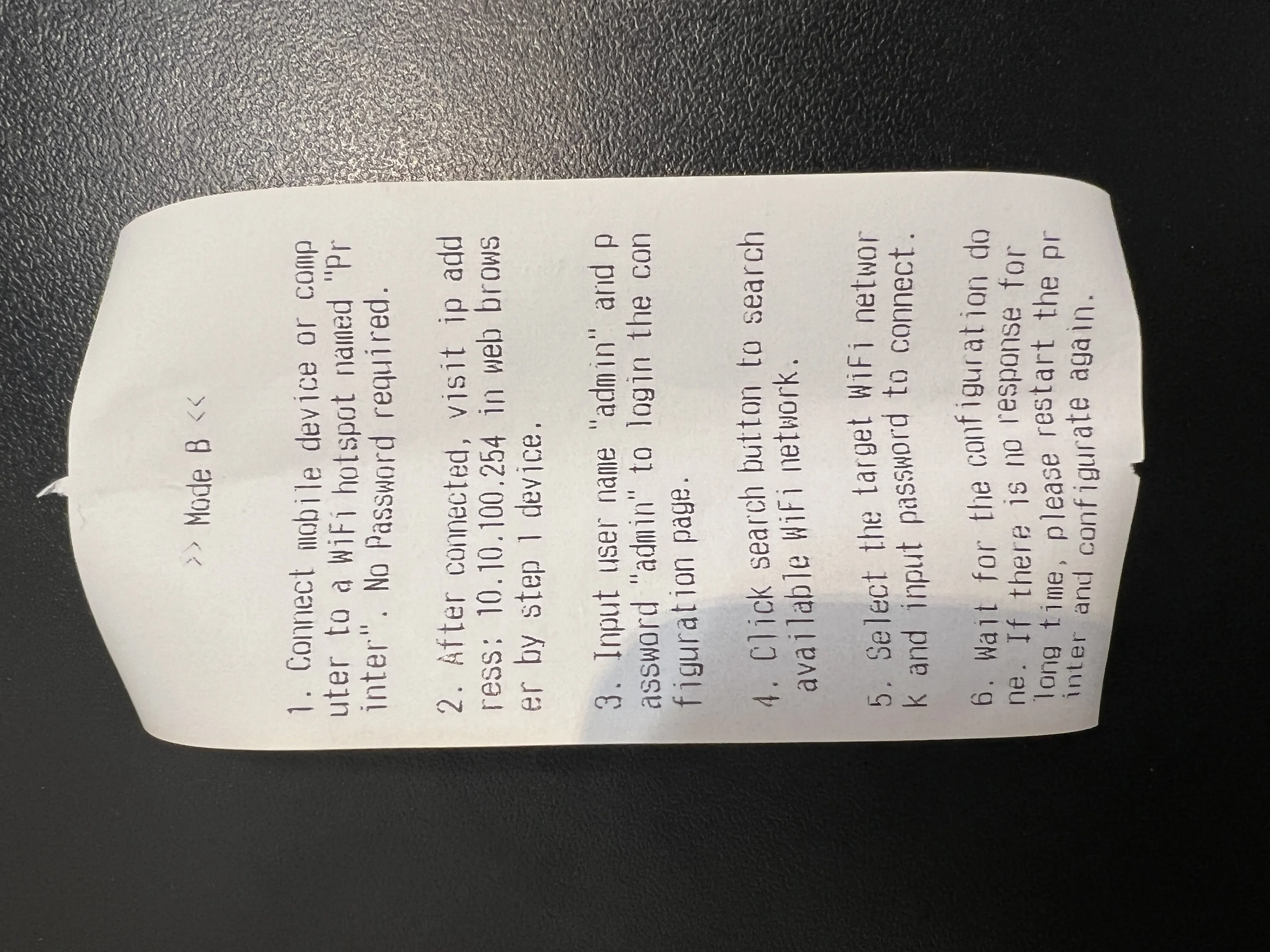
Second receipt that will print
Open your device's WiFi settings and connect to network named 'Printer'
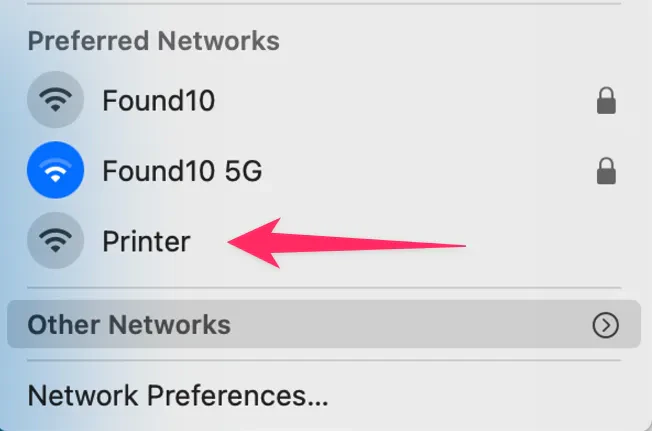
Printer network will look like this in the WiFi available networks list
Open a browser and enter 10.10.100.254 in the search bar.
When prompted, enter admin for both the username and password.
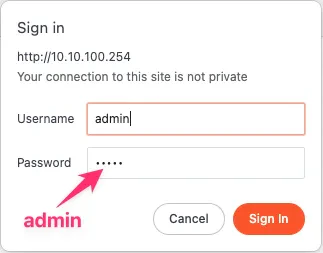
This is the prompt that will ask you to enter admin as a user and password
Once inside the printer's configuration menu, click SCAN to see the available WiFi networks
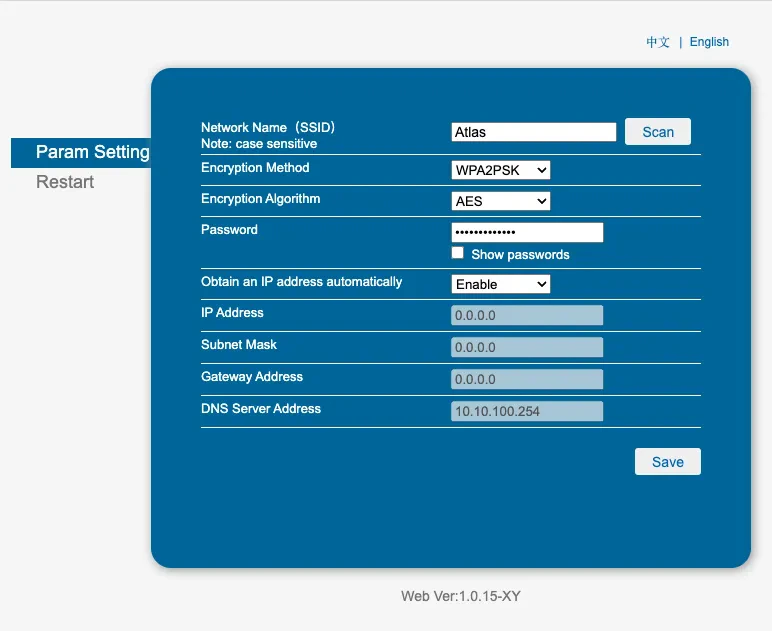
The SCAN button is located in the right corner too
Select your WiFi network, click the dial button beside it, and then press OK.
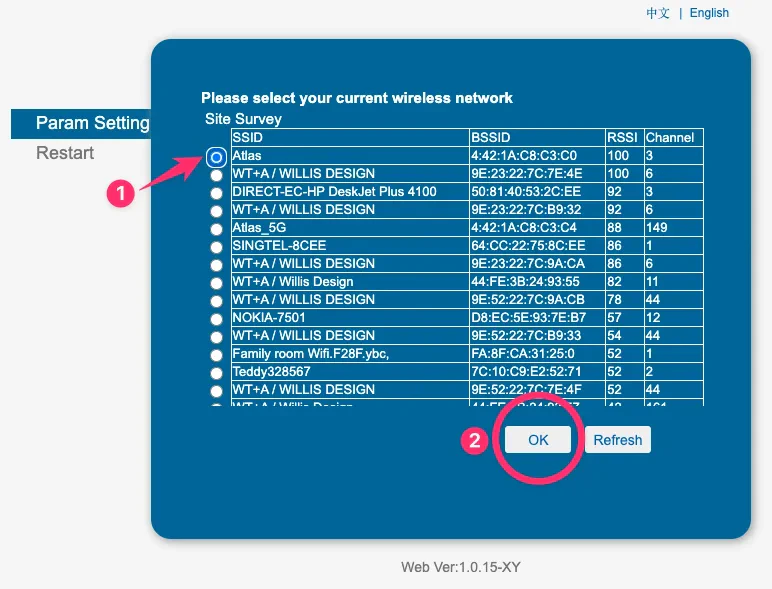
The list of available WiFi networks looks like this
Enter your WiFi password, click Show Password to confirm it's correct, and press Save.
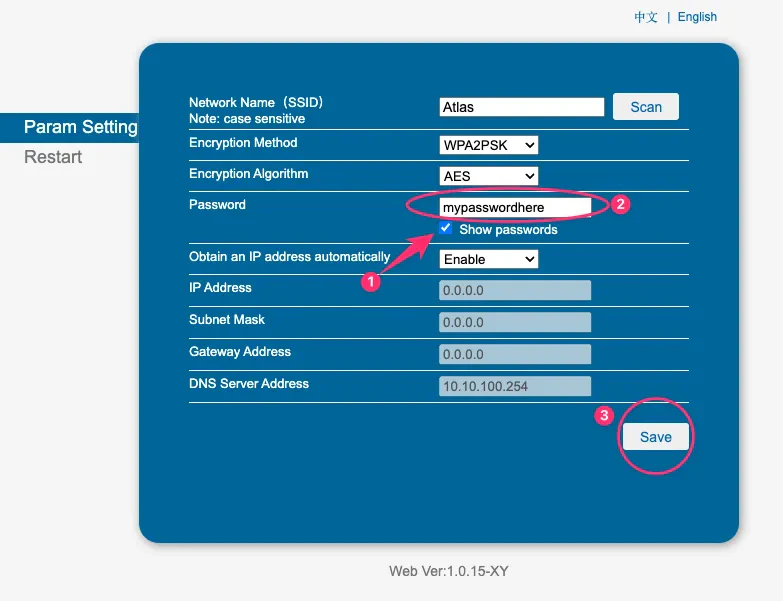
Enter your password and make sure it is correct.
Click Restart to finalise the connection.
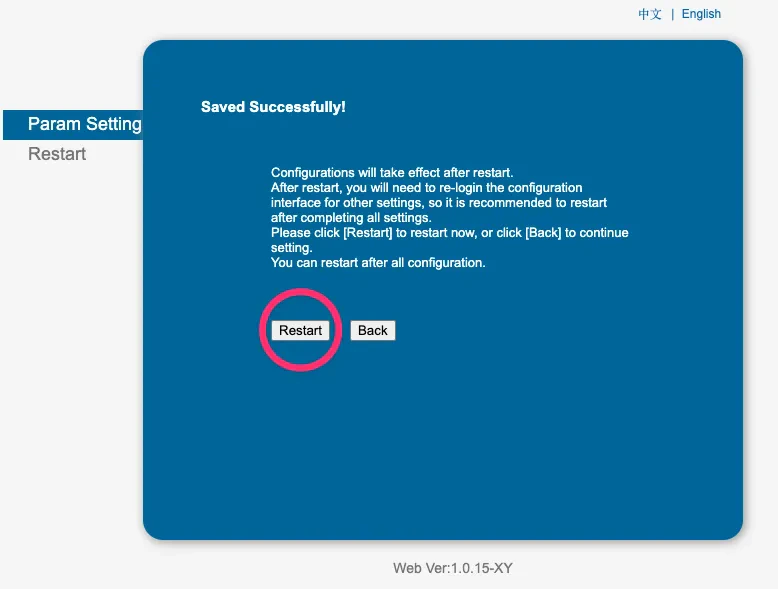
Press restart to finish this up.
What should happen
After completing the WiFi setup:- The printer prints a “Connection Successful” receipt showing it’s connected to your WiFi network
- The printer appears in Atlas Merchant Portal under your outlet’s printer settings
- You can send test prints from Atlas POS or the Merchant Portal
If it doesn’t work
Printer prints 'Connection Failed' receipt
Printer prints 'Connection Failed' receipt
- Verify your WiFi password is correct — re-enter it carefully
- Check that your WiFi network is 2.4GHz (not 5GHz) — the printer only supports 2.4GHz
- Move the printer closer to your WiFi router
- Check if your WiFi network has a captive portal (login page) — the printer cannot connect to networks requiring browser login
- Restart your WiFi router and try again
Can't connect to the 'Printer' WiFi network
Can't connect to the 'Printer' WiFi network
- Make sure you’re in Mode B (manual pairing mode) — press and hold the button until the second receipt prints
- The printer’s WiFi mode only lasts 5-10 minutes. If it timed out, press the button again to re-enter pairing mode
- Check that your phone/tablet WiFi is turned on
- If “Printer” doesn’t appear in your WiFi list, restart the printer and try again
Browser shows 'Cannot connect' when entering 10.10.100.254
Browser shows 'Cannot connect' when entering 10.10.100.254
- Make sure you’re connected to the “Printer” WiFi network (not your regular WiFi)
- Wait 10-15 seconds after connecting before opening the browser
- Type the address exactly:
10.10.100.254— no “http://” or “www” - Try a different browser if the first one doesn’t work
- Disable any VPN on your device
Login prompt asks for username/password and 'admin' doesn't work
Login prompt asks for username/password and 'admin' doesn't work
- Try lowercase
adminfor both username and password - If the printer was previously configured, it may have a different password. Factory reset the printer and try again
- Check your printer documentation for default credentials
WiFi network list is empty when clicking SCAN
WiFi network list is empty when clicking SCAN
- Wait 10-15 seconds and tap SCAN again
- Check that your WiFi router is powered on and broadcasting
- Move the printer closer to the router
- Your WiFi may be set to “hidden” — you’ll need to enter the network name manually
Printer connected but doesn't print from Atlas
Printer connected but doesn't print from Atlas
- In Atlas Merchant Portal, go to Settings > Printers and verify the printer is listed
- Check that the printer is assigned to the correct outlet and station
- Send a test print from Atlas to verify the connection
- Restart the printer and check if it reconnects
- Contact support at hello@atlas.kitchen if the printer still doesn’t appear
Next steps
- Set up Atlas POS — Install Atlas on your tablet
- Configure your outlet — Set operating hours and menu
- Start taking orders — Create your first order