

This guide is about your menu on the delivery apps. To first connect your GrabFood or Foodpanda account, see the integration setup under Integrations.
Manage your menus from Atlas
Once your menu is on the apps, make every change in Atlas, not in the GrabFood or Foodpanda merchant portals. Atlas is the source of truth, and the next sync overwrites whatever is on the app.Sync your menu
Atlas syncs your menus to the aggregators automatically once a day, at 2pm. To turn the automatic sync off, contact support. The automatic sync is not enough on its own. After any menu change, a new item, a price change, a renamed item, or a new availability condition, sync the menu yourself. Sync from the menu’s options in Menu builder > Menus (Sync to GrabFood or Sync to Foodpanda). Changes usually take 5 to 10 minutes to show on the app, depending on the platform. After a sync, check the warnings. See Sync warnings below for which ones matter.One menu, or one per platform
By default, one menu covers every platform and outlet. Most merchants only need this. Mark the one menu for both GrabFood and Foodpanda, and it serves both apps.
One menu marked for both GrabFood and Foodpanda.

Separate menus, one marked for GrabFood and one for Foodpanda.
Take a menu off an app
To stop serving a menu on GrabFood or Foodpanda, unmark the platform and sync again.- Open the menu in Menu builder > Menus.
- Under External menus, unmark the platform (e.g. GrabFood).
- Save the menu, then sync it to that platform.
What the apps support
- Nested modifiers are not supported. If a product has a nested modifier group, the whole product fails to sync and is left off the app. Remove nested modifier groups from anything you sell on aggregators. See How menus work for what counts as a nested modifier group.
- Availability conditions carry over. Set them in Atlas and they apply on the apps too. Keep your Atlas operating hours matching the operating hours on each platform, because Atlas uses operating hours to build the synced menu around your availability conditions.
- Images are handled for you. Upload one image per the Atlas guidelines. Atlas crops and adjusts it for each platform, so you don’t need separate images for GrabFood and Foodpanda.
- Nutri-Grade is handled for you. Atlas adds the Nutri-Grade score to the item photo automatically when it syncs.
Sync warnings
A sync can succeed and still show warnings. The menu still syncs. The warnings just tell you what Atlas changed to meet the apps’ rules. Tap Click here to view the warnings to read them. Most are harmless, but one is not.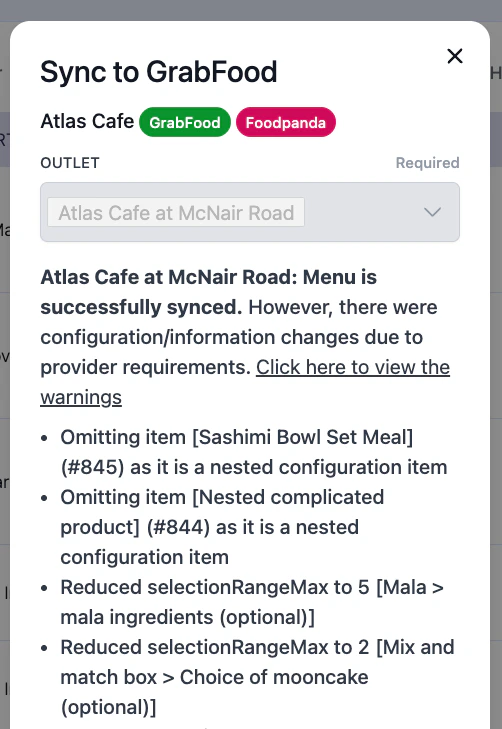
A successful sync with warnings. The omitted items are the ones to act on.
Omitting item ... as it is a nested configuration item
Omitting item ... as it is a nested configuration item
Act on this one. The item has a nested modifier group, which the apps don’t support, so it was left off the menu. Remove the nested modifier group, then sync again.
Reduced selection max for a modifier group
Reduced selection max for a modifier group
Safe to ignore. The apps limit how many options a modifier group can offer, so Atlas lowers the maximum to fit. The item still syncs.
Description shortened or cropped
Description shortened or cropped
Safe to ignore. The apps cap description length, so a long one is trimmed. The item still syncs.
FAQs
Can Atlas show diner names for GrabFood group orders?
Can Atlas show diner names for GrabFood group orders?
No. GrabFood does not send group-order participant names through its partner API. Atlas cannot add them to item notes or show them against each item.Open the order in GrabFood before packing. Match each item to the participant name shown there.If the names are missing in GrabFood, contact GrabFood support.
Next steps
- Pricing rules: charge a different price on GrabFood and Foodpanda.
- Update menu item prices: change a single price or update many at once.