- Atlas users with Admin or Manager permissions. Set permissions from Settings > Team members.
- Users subscribed to Atlas POS.
Before you begin
This guide will walk you through setting up and customising your POS layouts in Atlas. You’ll learn how to create layouts, add pages, configure different tile types, and assign layouts to specific outlets.Creating a POS layout
A POS layout organises how your menu and ordering interface appear on Atlas POS. Creating a layout allows you to customise navigation and product placement for your team. Follow these steps to set up a new layout:Open Atlas Merchant Portal and tap the "☰" button in the top-left corner.
Tap "Menu builder" > "POS layouts".
Tap "Create new POS layout".

Once the layout is created, proceed to adding pages (see next section).
Adding pages to a POS layout
Pages help organise different sections of your POS layout, allowing for easy navigation and a structured menu. Follow these steps to add new pages to your layout:Open Atlas Merchant Portal and tap the "☰" button in the top-left corner.
Tap "Menu builder" > "POS layouts".
Tap "Enter layout manager" on the layout you want to edit.

In bottom-left corner, tap "Add new page"
Navigate to the page by tapping its name in the bottom bar.
Adding tiles to your POS
Tiles represent products, discounts, or navigation folders within your POS layout. Follow these steps to add new tiles to your layout:Open Atlas Merchant Portal and tap the "☰" button in the top-left corner.
Tap "Menu Builder" > "POS layouts".
Tap "Enter layout manager" on the layout you want to edit.
Navigate to the page where you want to add the tile by tapping on its name.
In top-right corner, tap "Add new tile" , and select the type of tile to add.
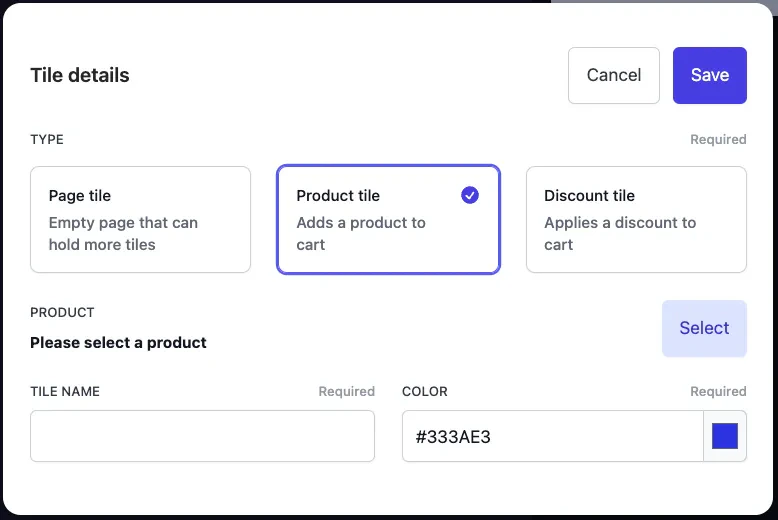
- Page tile creates an empty folder, for you to add items inside it. Click on it after you’ve created it to open it.
- Product tile links to an existing product. It’s the most common one. An additional “Select” button will display to select the right product.
- Discount tile links to an existing discount. An additional “Select” button will display to select the discount.
Enter a name and colour for the page, then tap "Save".
Assigning POS layouts to different outlets
If you manage multiple outlets, you can assign specific POS layouts to each location to ensure the correct menu and configurations are in place. Follow these steps to set up POS layout assignments:Open Atlas Merchant Portal and tap the "☰" button in the top-left corner.
Tap "Menu Builder" > "POS layouts".
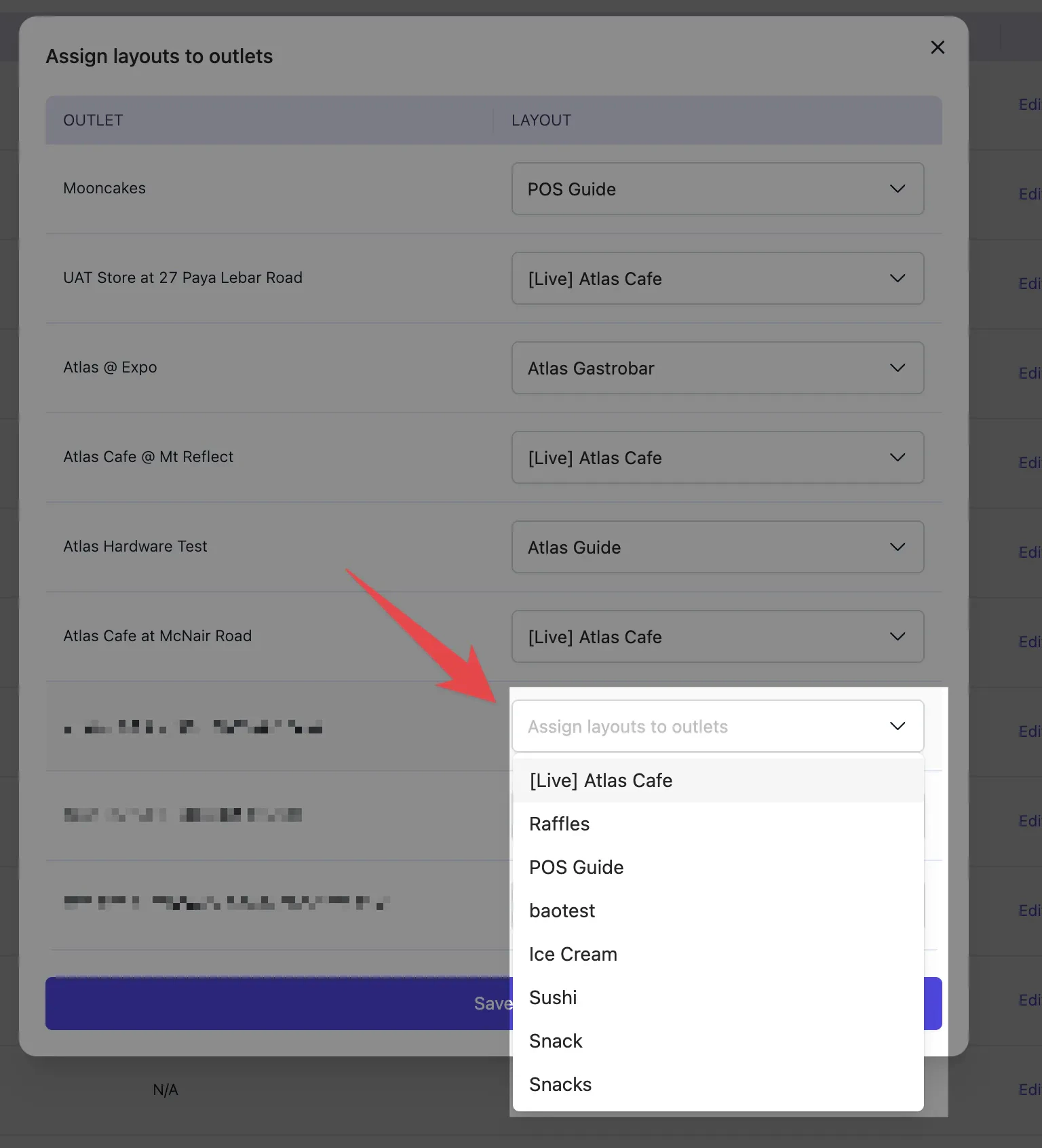
Tap "Assign layouts to outlets".

Select the correct mapping and tap "Save".