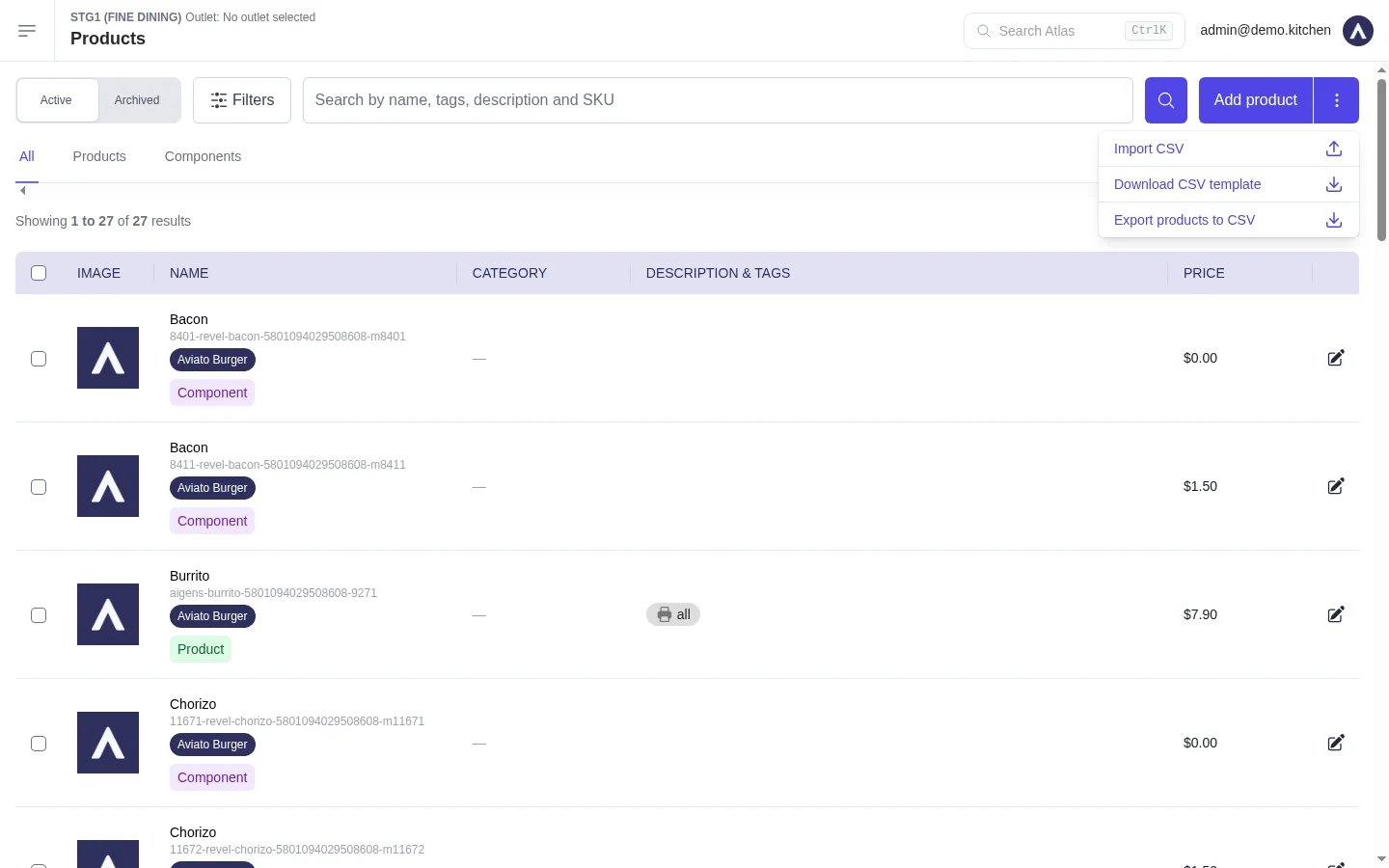
Go to Menu builder > Products. Tap the three dots in the top-right corner.
Tap Download CSV template for a blank file with the correct columns.
Or tap Export products to CSV for a file prefilled with your current products. Atlas emails you a download link when it is ready.
CSV options under the Products three-dot menu.
2
Fill in the file
Open the file in Excel or Google Sheets. Fill in one row per product.See Template columns below for what each column does.
The product CSV template in a spreadsheet.
Some exported cells start with a single quote, such as 'size/spiciness. Leave the quote in place. It stops your spreadsheet turning the value into a date. Atlas removes it during import.
3
Import the CSV
Save the file as a CSV. Go to Menu builder > Products, tap the three dots, then tap Import CSV and select your file.
4
Check the preview
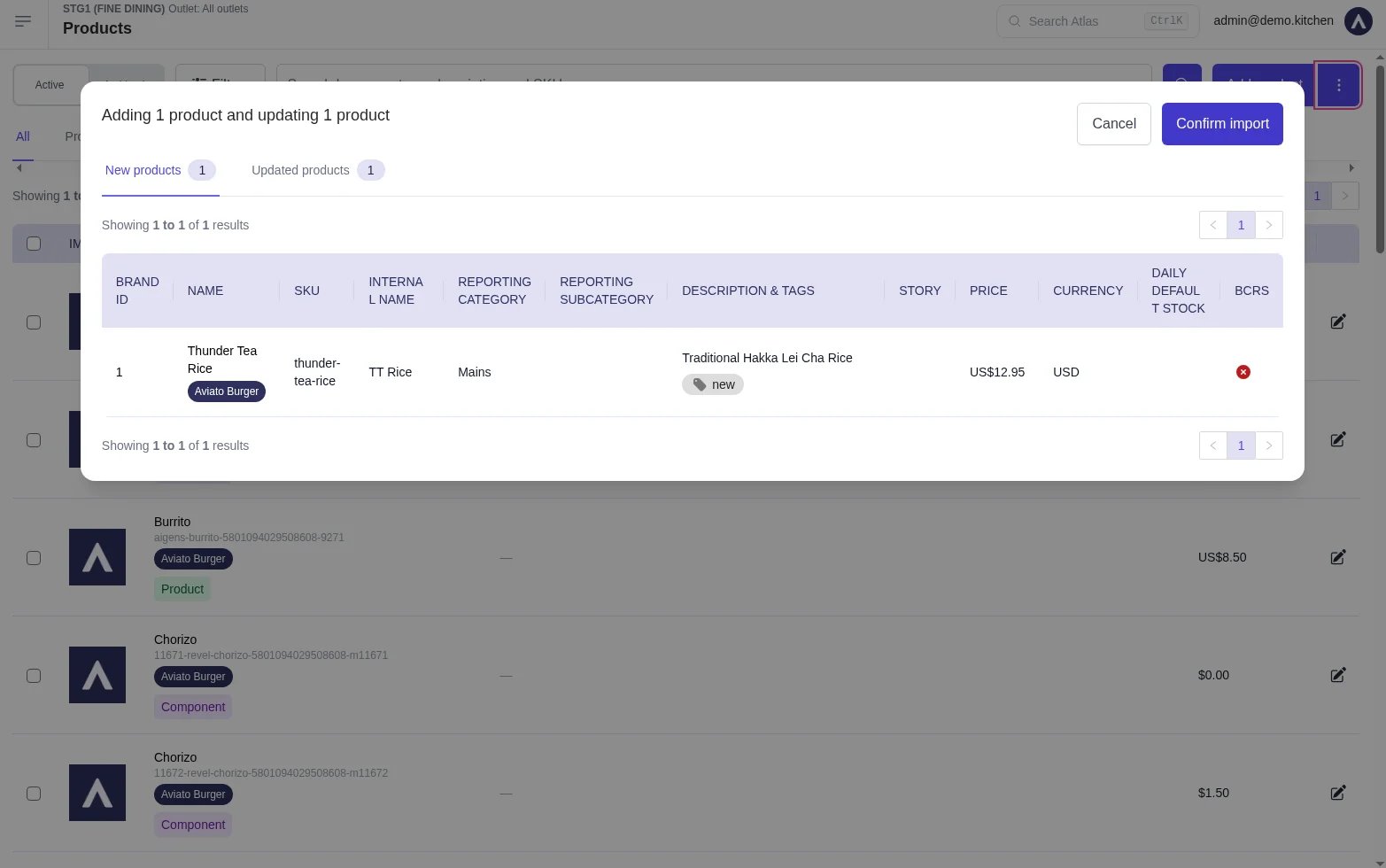
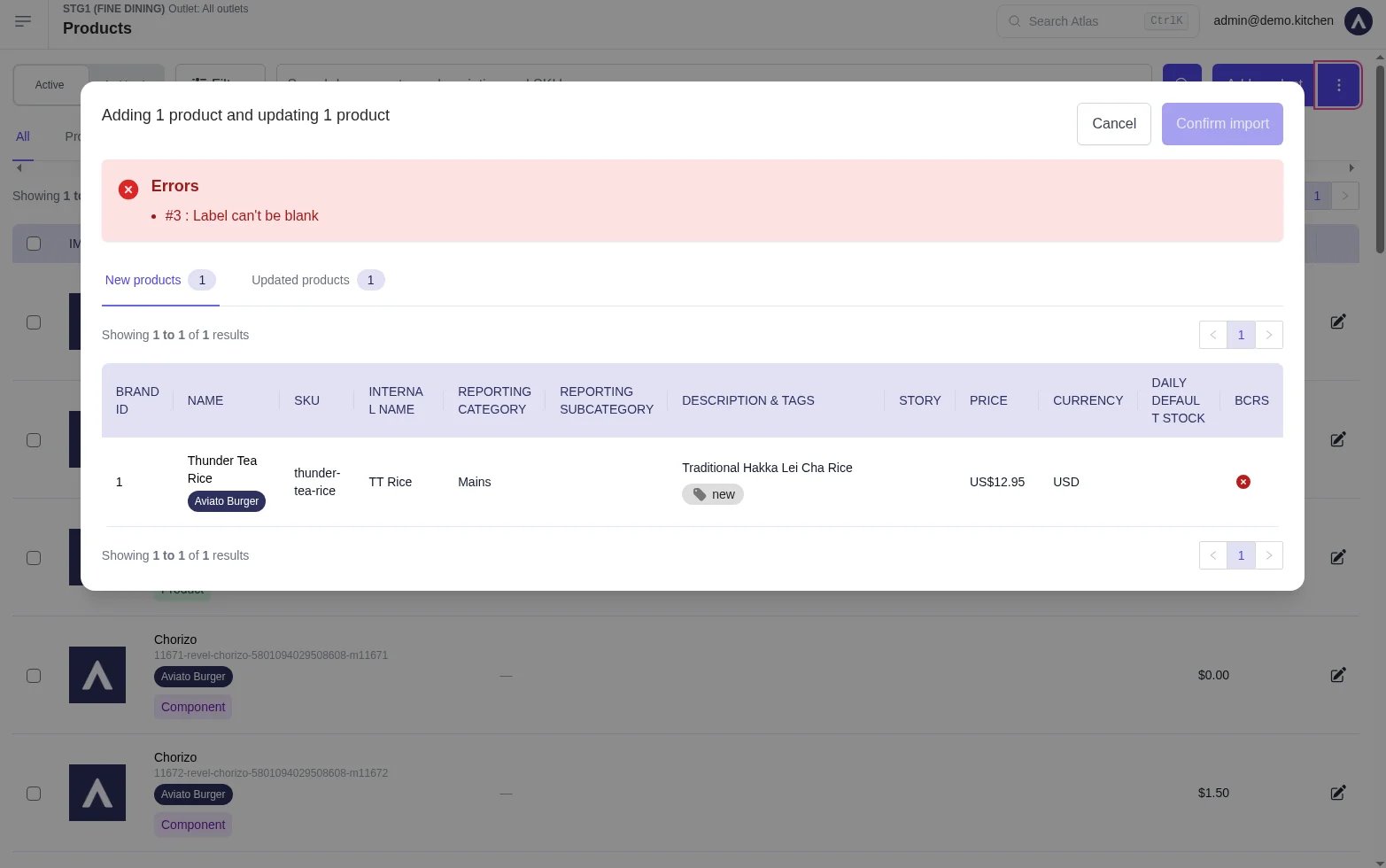
Atlas runs a preview before changing anything. The header shows what will happen, for example “Adding 1 product and updating 1 product”.
New products — rows with SKUs that do not exist yet.
Updated products — rows matched to existing products by SKU.
Errors — rows Atlas could not process, shown at the top of the modal.
The import preview, split into New products and Updated products.
5
Fix errors, then confirm
If the Errors list shows problems, the Confirm import button stays disabled. Fix the file and import again.When the preview looks right, tap Confirm import.
S/N — the row number. Keep it sequential: 1, 2, 3, and so on.
Brand ID — the number of the brand the product belongs to. Find it in the Brand ID column on the Products page or in an exported file.
Type — Product for a normal sellable item, or Component for an item used inside a bundle. Components appear under the Components tab on the Products page.
Name — the product name customers see on menus and receipts.
SKU — the product’s unique code. Atlas uses it to match each row to a product. SKUs are saved in lowercase with hyphens, so Latte L becomes latte-l.
Internal name — the name staff see on kitchen dockets and internal lists. Customers never see it.
Product content — Description, Story
Description — a short description shown on menus.
Story — longer product text. Supports simple formatting.
Pricing — Price, Cost, Currency
Price — the selling price as a decimal, such as 12.95.
Cost — what one unit costs you, used for margin reporting. Optional. Numbers only, or leave it blank.
Currency — a three-letter currency code, such as SGD. Blank cells default to SGD.
Reporting — Report category, Report subcategory
Report category — the category this product reports under. Atlas creates the category if it does not exist yet.
Report subcategory — a category nested under the report category. Also created if new.
Daily default stock — how many units are available each day. Leave blank for unlimited stock.
Printer tags — tags that route the product to a printer. Separate multiple tags with a forward slash, such as kitchen/bar.
Product tags — tags for grouping products on the Products page. Separate multiple tags with a forward slash.
Menu links — Section identifier, Modifier group identifiers
Section identifier — the identifier of the menu section to add the product to. Products join the end of the section. Find section identifiers in an exported file.
Modifier group identifiers — the modifier groups to attach, in the order they should appear. Separate identifiers with a forward slash, such as 'size/spiciness. Each one must match the Identifier of an existing modifier group.
Status — Archived, BCRS
Archived — TRUE archives the product and removes it from menus and POS layouts. FALSE keeps it active or unarchives it. Leave blank for no change.
BCRS — TRUE marks the product for the container deposit scheme. FALSE removes the marking. Leave blank for no change. Only relevant if your outlet uses BCRS. See BCRS.
"Please download the latest version of the template"
The header row does not match the current template. Download a fresh template and move your data into it. Do not rename, reorder, or delete columns.
"Invalid character (may be an apostrophe) found in row N"
The file contains a character Atlas cannot read. Re-save the file as a UTF-8 CSV, then import again. In Excel, choose CSV UTF-8 when saving.
"Duplicate identifiers found"
The same SKU appears on more than one row. Each SKU can only appear once. Remove or fix the duplicate rows.
"Invalid modifier group identifiers"
A modifier group identifier in the file does not exist in Atlas. Check the exact Identifier on the Modifier groups page, then fix the cell.
Rows show errors in the preview
The Errors list names the row and the problem, such as a missing name or a bad price. Fix those rows in the file and import again. Valid rows still cannot be confirmed until every error is resolved.
The import created duplicate products
A SKU was changed in the file, so Atlas created new products instead of updating the existing ones. Archive the duplicates, then re-import with the original SKUs in place.
If the issue persists, contact support at hello@atlas.kitchen with your outlet name and the file you tried to import.