When a price should differ by channel or outlet, for example a higher price on delivery aggregators than dine-in, use a pricing rule instead of editing each item. A rule sets the difference once and applies it automatically, so you don’t keep two prices in sync by hand.See the dedicated guide: Pricing rules.
Use a CSV when you need to change many prices at once. You export your products to a file, edit the prices in a spreadsheet, then upload the file back. For the full reference on the template columns and the import preview, see Import products via CSV.
1
Export your products to a CSV
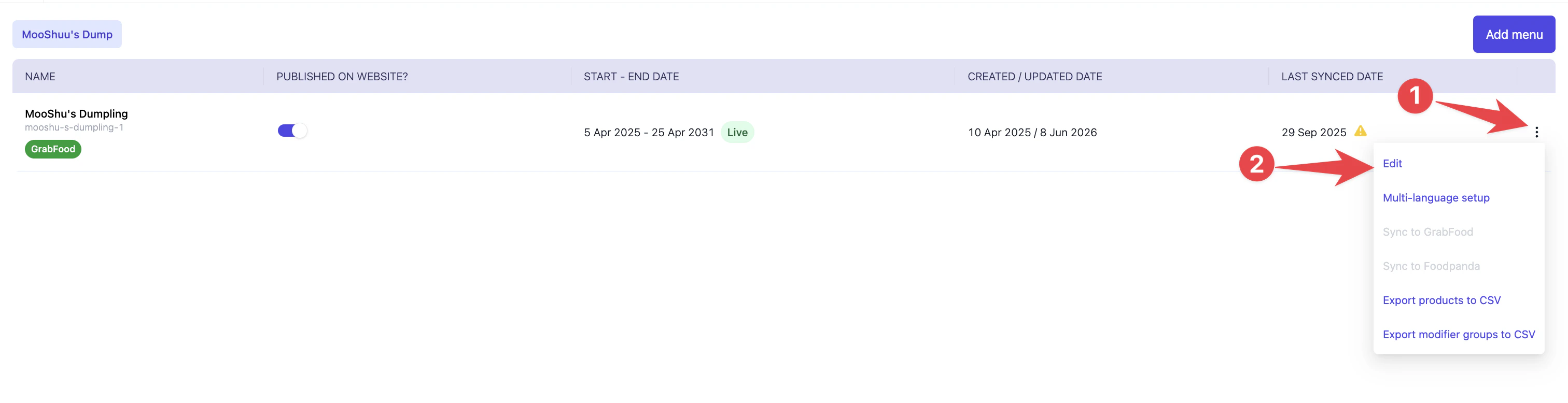
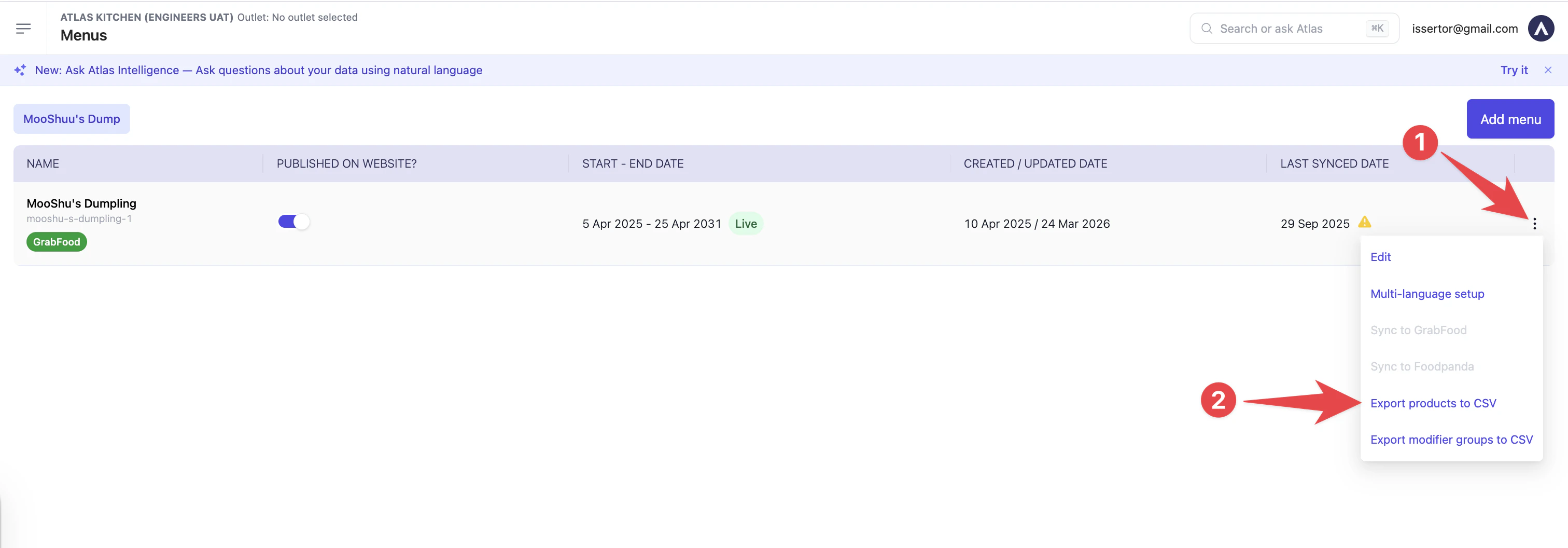
Go to Menu builder > Menus. Tap the three dots next to the menu, then tap Export products to CSV.
Export products to CSV from the menu's three-dot menu.
2
Edit the prices
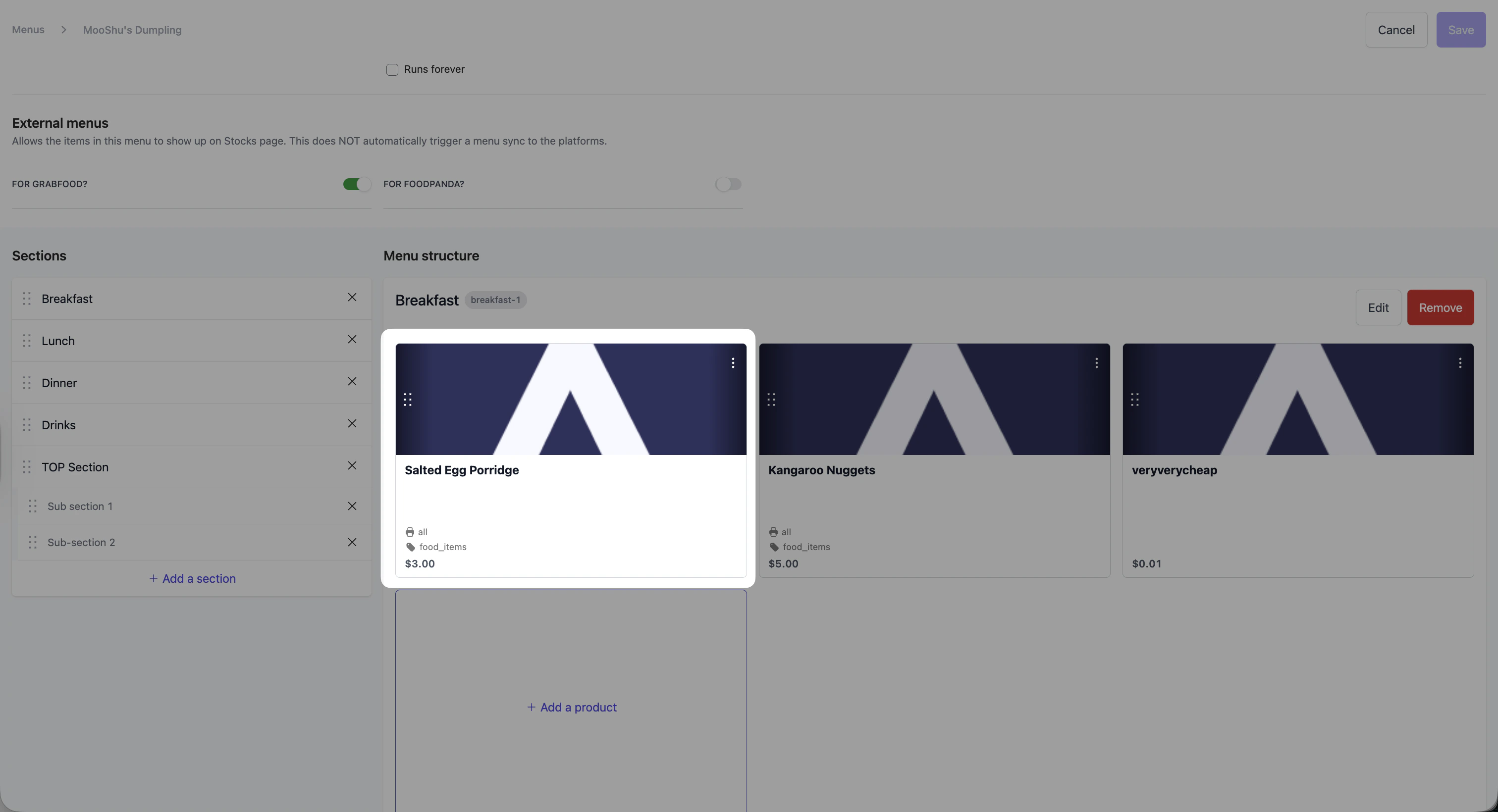
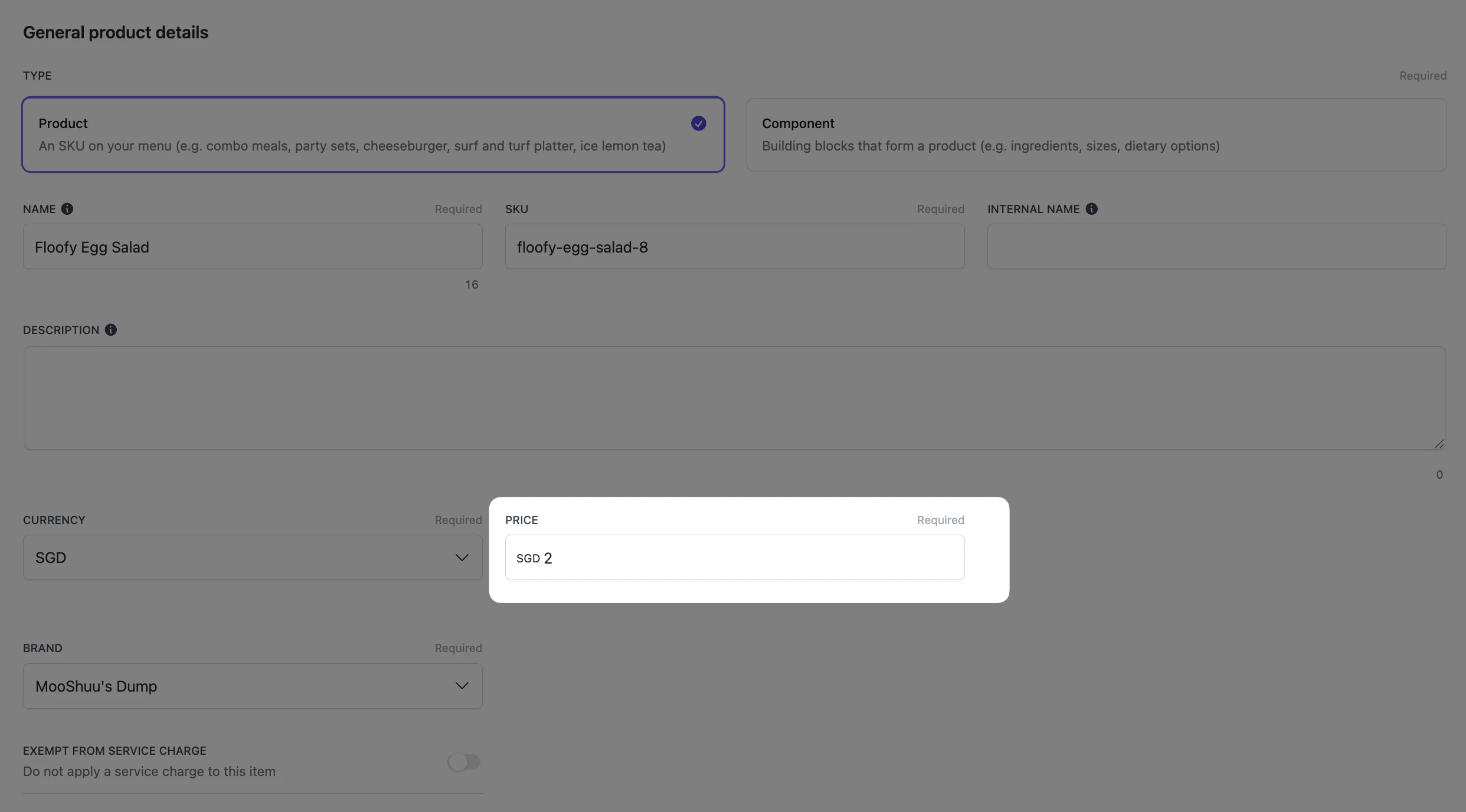
Open the file in Excel or Google Sheets. Change the values in the Price column, then save the file as a CSV.
Update the values in the Price column.
Keep the SKU column exactly as it is. Atlas matches each row to a product by its SKU. If you change a SKU, Atlas treats the row as a new product and creates a duplicate instead of updating the original.
3
Import the CSV
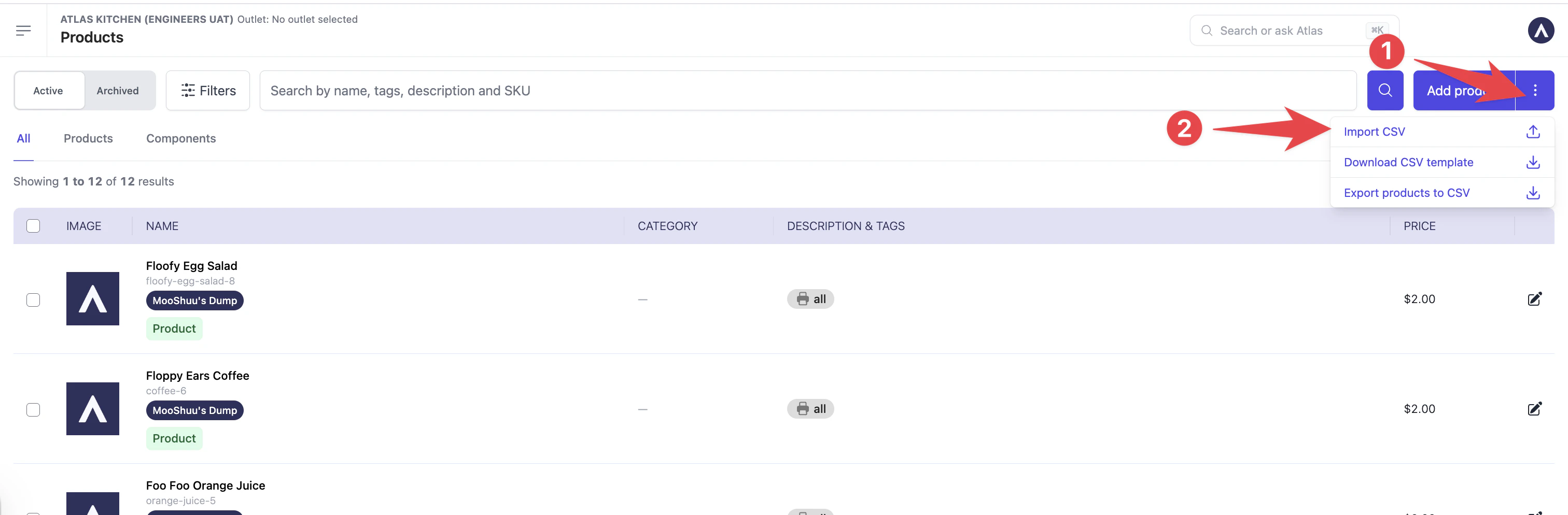
Go to Menu builder > Products. Tap the three dots in the top-right corner, then tap Import CSV and select your edited file.
Import CSV from the Products page.
4
Confirm the import
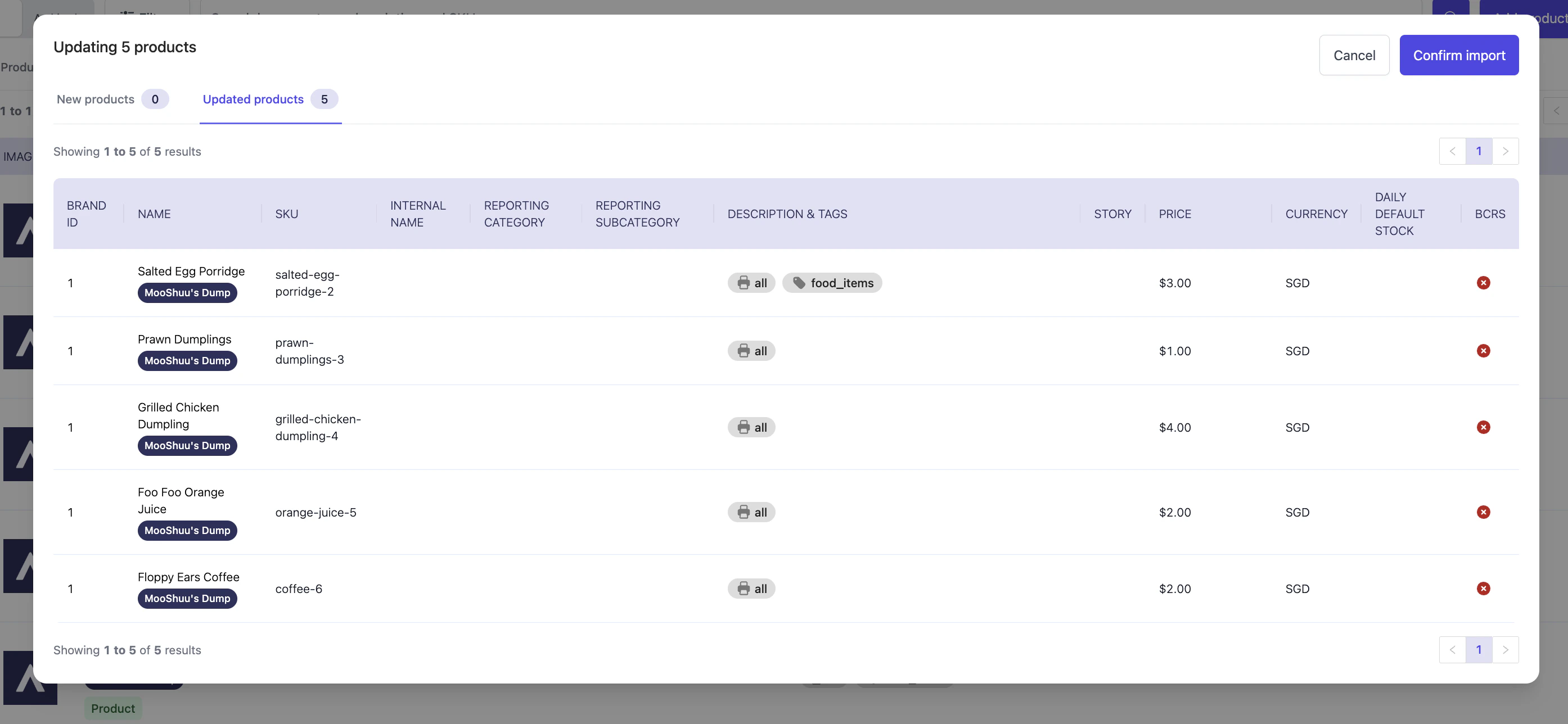
Atlas shows a preview before anything changes. Check the Updated products tab to confirm the new prices look right, and that New products is 0 unless you meant to add items. When it looks correct, tap Confirm import.
The import preview, split into New products and Updated products.
If New products shows items you expected to update, a SKU was changed in the file. Cancel, fix the SKU, and import again.
The new price on your menu straight away, once you save or confirm the import.
The new price on new orders. Orders already placed keep their old price.
Aggregator menus (GrabFood, Foodpanda) update after you sync the menu. See Aggregator menus.
If something isn’t right, check the matching scenario below.
A CSV import failed or changed the wrong things
Most import problems come from edits to the file beyond the prices. Open your exported file and check:
SKU column unchanged. A changed SKU creates a duplicate product instead of updating the original.
S/N column is a clean ascending list (1, 2, 3, and so on). A gap or out-of-order value can break the import.
Currency cells use a three-letter code (for example SGD). Blank cells default to SGD.
No columns were deleted or renamed. Atlas expects the full set of columns from the export.
No stray blank spaces were added inside cells.
Best practice: export the file and change as little as you can. Edit only the prices you need and leave everything else alone.
The import added duplicate products
A SKU was changed in the file, so Atlas created new products instead of updating the existing ones. Archive the duplicates, then re-import with the original SKUs in place.
New prices aren't showing on GrabFood or Foodpanda
Aggregator menus update after a sync. Sync the menu, then check again. See Aggregator menus.
If the issue persists, contact support at hello@atlas.kitchen with your outlet name and the item(s) affected.