

Who is this guide for?
- Atlas users subscribed to Atlas POS.
- Staff taking orders on the tablet during service.
Before you begin
Accept all kinds of payments in-store. You can also choose whether to show customers their order details on screen.Your POS tile layout is fully customisable. Set up your pages, product tiles, and discount tiles from Menu builder > POS layouts.
Taking an order
When you open the POS, you land on the ordering screen. Your menu items display as tiles on the left, and the cart displays on the right.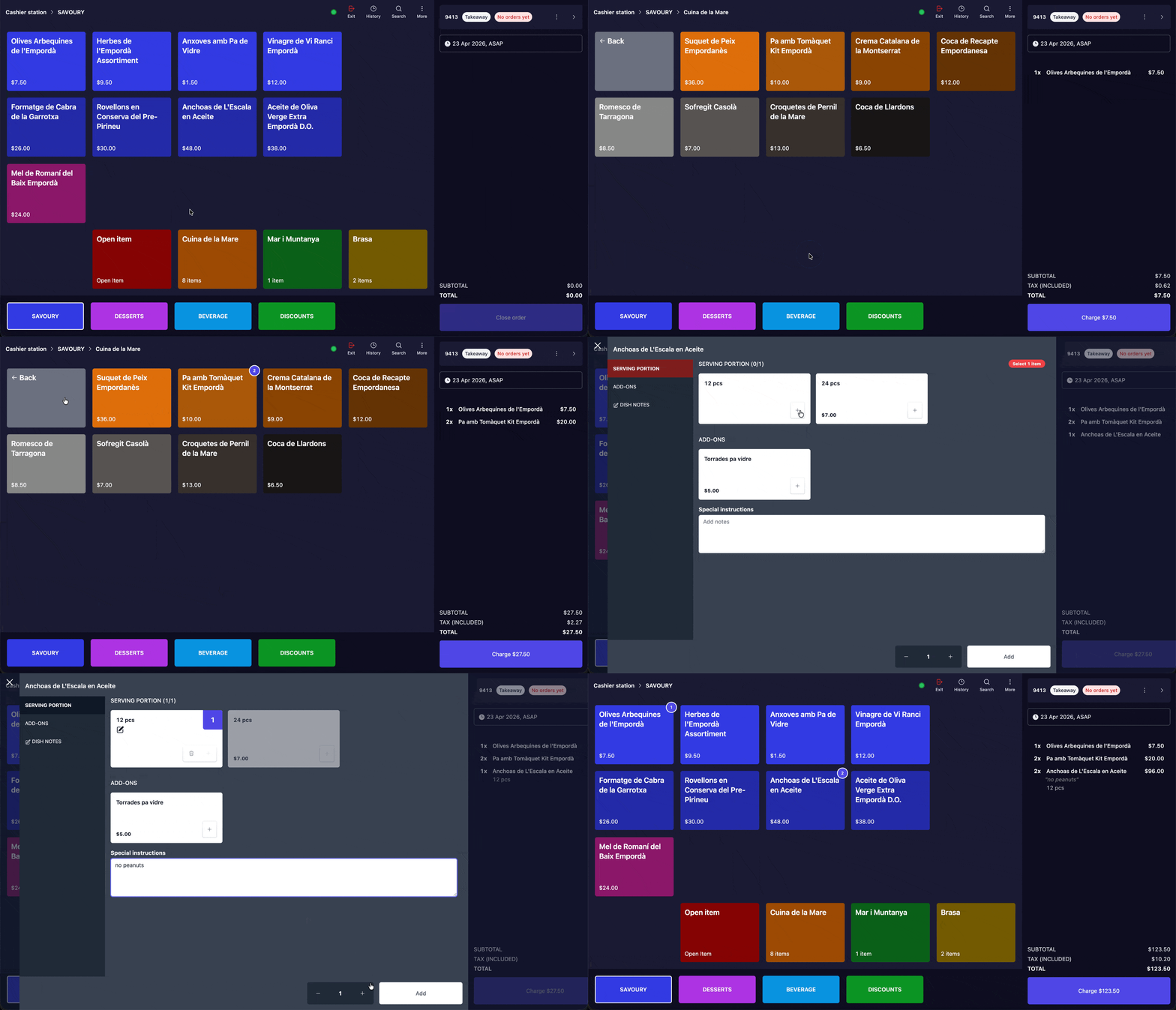
Adding items and selecting modifiers on Atlas POS
1
Tap an item to add it to the cart.
If the item has no modifiers, it adds directly to the cart.
2
If the item has modifier groups, a modal opens.
Select the required options (e.g. serving portion, add-ons). You can also:
- Add special instructions in the text field at the bottom
- Change the quantity using the - and + buttons
3
Tap "Add" to confirm and add the item to the cart.
Editing items in the cart
To modify an item already in the cart, tap the item in the cart panel on the right. A modal appears with these options: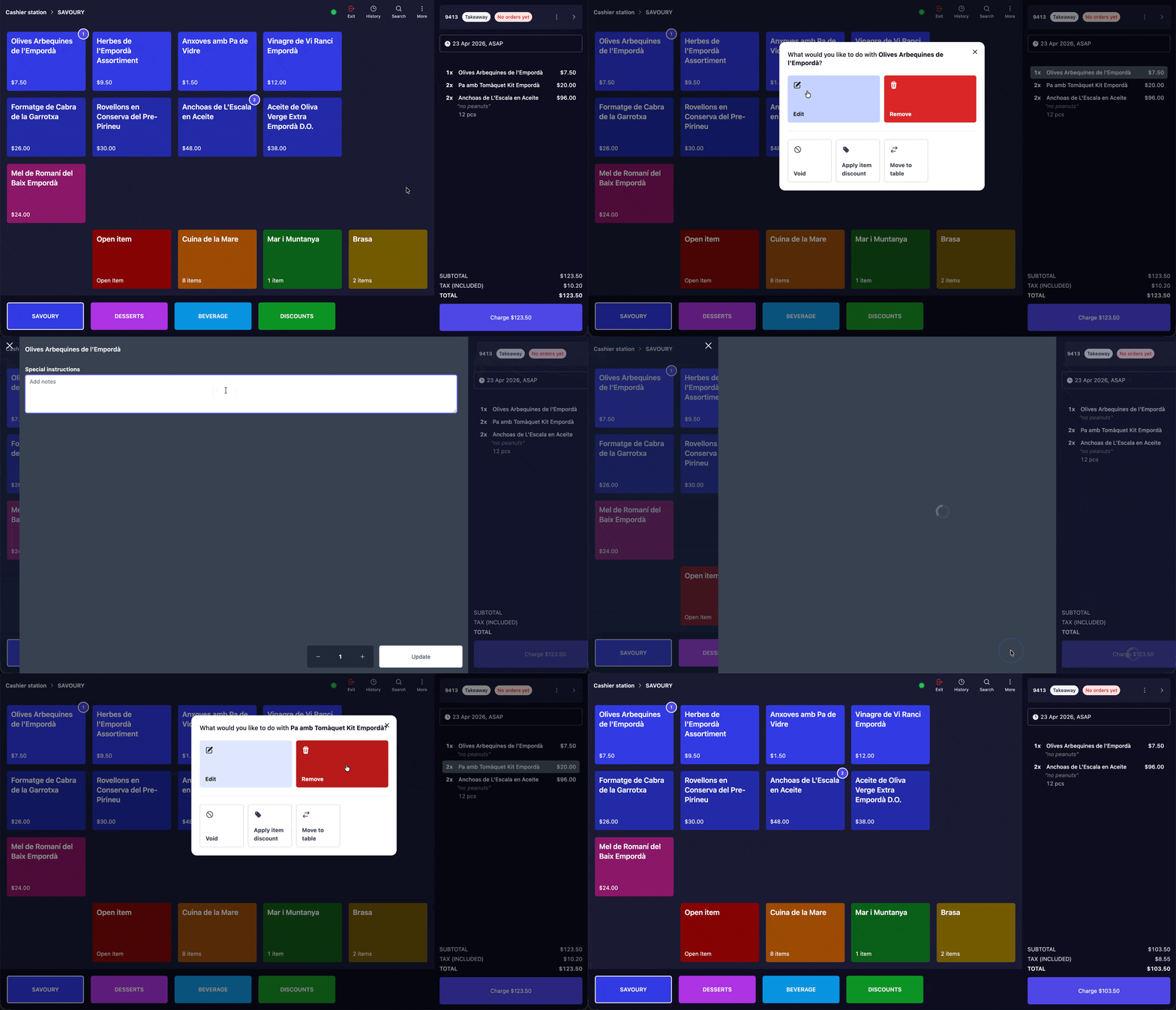
Editing an item in the cart
- Edit — change modifiers, quantities, or add item notes
- Remove — remove the item from the cart
- Void — void the item (records it as voided in reports)
- Apply item discount — apply a discount to this specific item
Order actions
For actions that apply to the whole order, tap the three dots (Ȯ) in the top-right corner of the cart panel.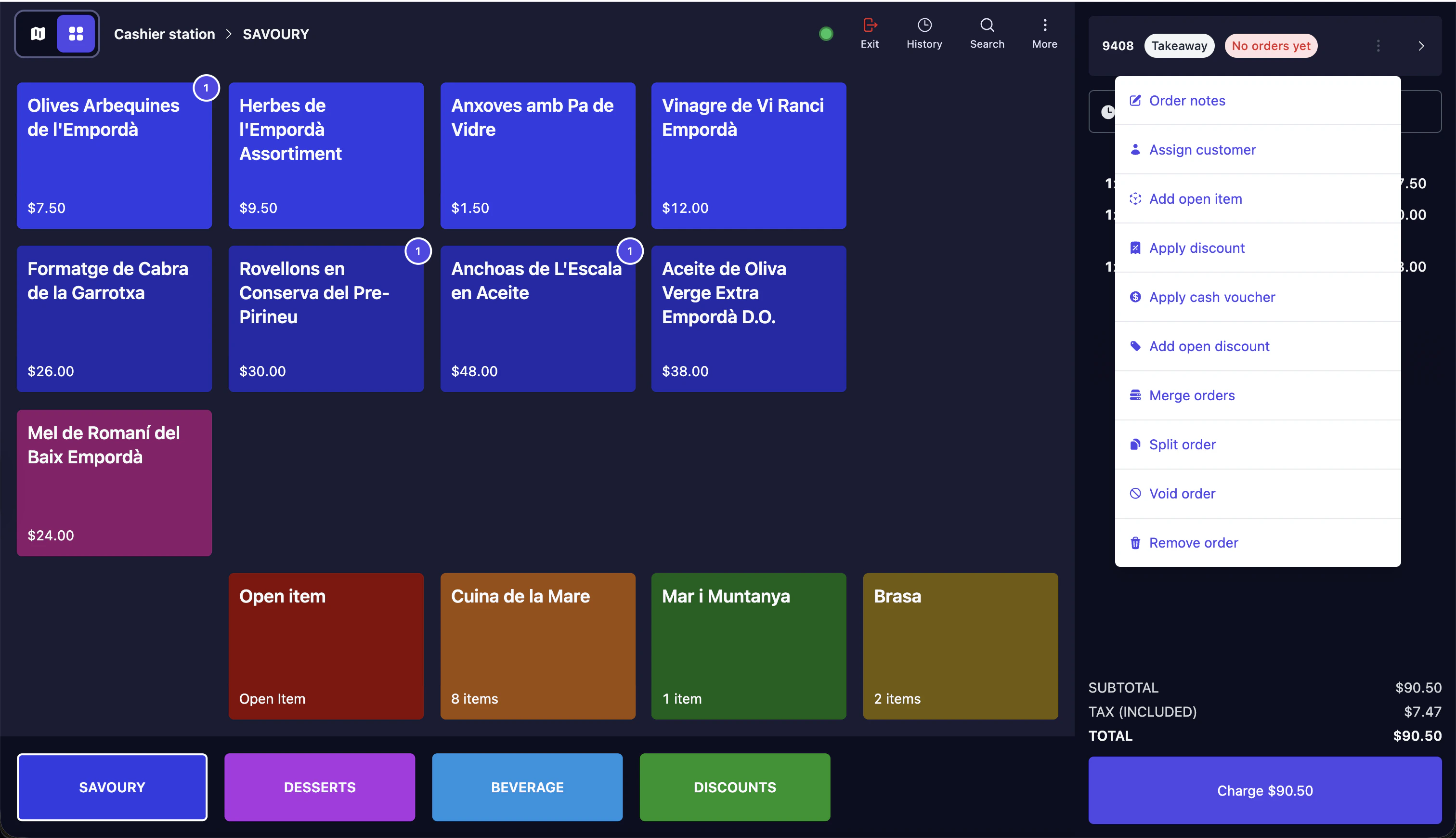
Order actions menu
- Order notes — add notes visible to the kitchen
- Assign customer — link a customer profile to the order (useful if running a loyalty programme). From the customer window, tap “View or edit profile” to open the customer’s profile — see their details, order history and average order value, or edit their details. Customers with at least one order also get AI insights on their ordering habits.
- Add open item — add a custom item not on the menu
- Apply discount — apply a discount to the entire order
- Apply cash voucher — redeem a cash voucher code
- Merge orders — combine with another open order
- Split order — split the charge across multiple payments
- Void order — void the entire order
- Remove order — delete the order completely
- Reprint kitchen receipt — print every sent course again on one kitchen docket
Reprinting kitchen receipts
Use this when the kitchen loses a docket or asks for a course again.- Whole order: Tap the three dots (Ȯ) > “Reprint kitchen receipt”. This prints every course sent to the kitchen as one docket, including held courses. The option only appears once at least one item is sent, and only if a kitchen receipt printer is linked to this POS.
- One course: Tap a sent item in the cart > “Reprint this kitchen receipt”. This works on held items too — you do not need to fire them first.
- If an item-receipt printer is linked, the option reads “Reprint this kitchen receipt and item dockets” instead. It also re-issues the fire item dockets for any fired items.
A “Reprint triggered successfully” toast means Atlas sent the job to the printer. If nothing prints, check the kitchen printer is online and has paper.
Charging an order
Atlas Pay integrates your terminal directly with the POS. The exact order amount is sent automatically — no manual keying, no reconciliation mismatches, and faster checkouts. Your terminal must be connected and online.Charging an order on Atlas POS
1
Tap "Charge" in the bottom-right corner.
The button shows the total amount (e.g. Charge $90.50).
2
Select a payment method.
Payment methods are grouped into two categories:
- Terminal — integrated payments processed through your Atlas Pay terminal
- Credit Card — the exact order amount reflects on the terminal automatically. The customer taps or inserts their card.
- PayNow, WeChat Pay, Alipay — the terminal shows a QR code for the customer to scan and pay.
- Manual — non-integrated payments you record manually (e.g. ShoppePay, Cash, Invoiced Payment)
3
Tap "Charge" to process the payment.
For terminal payments, wait for the customer to complete the payment on the terminal. The order is marked as paid automatically.
- Reprint receipt — print or reprint the receipt
- Load another order — open a different existing order
- Create new order — start the next order immediately
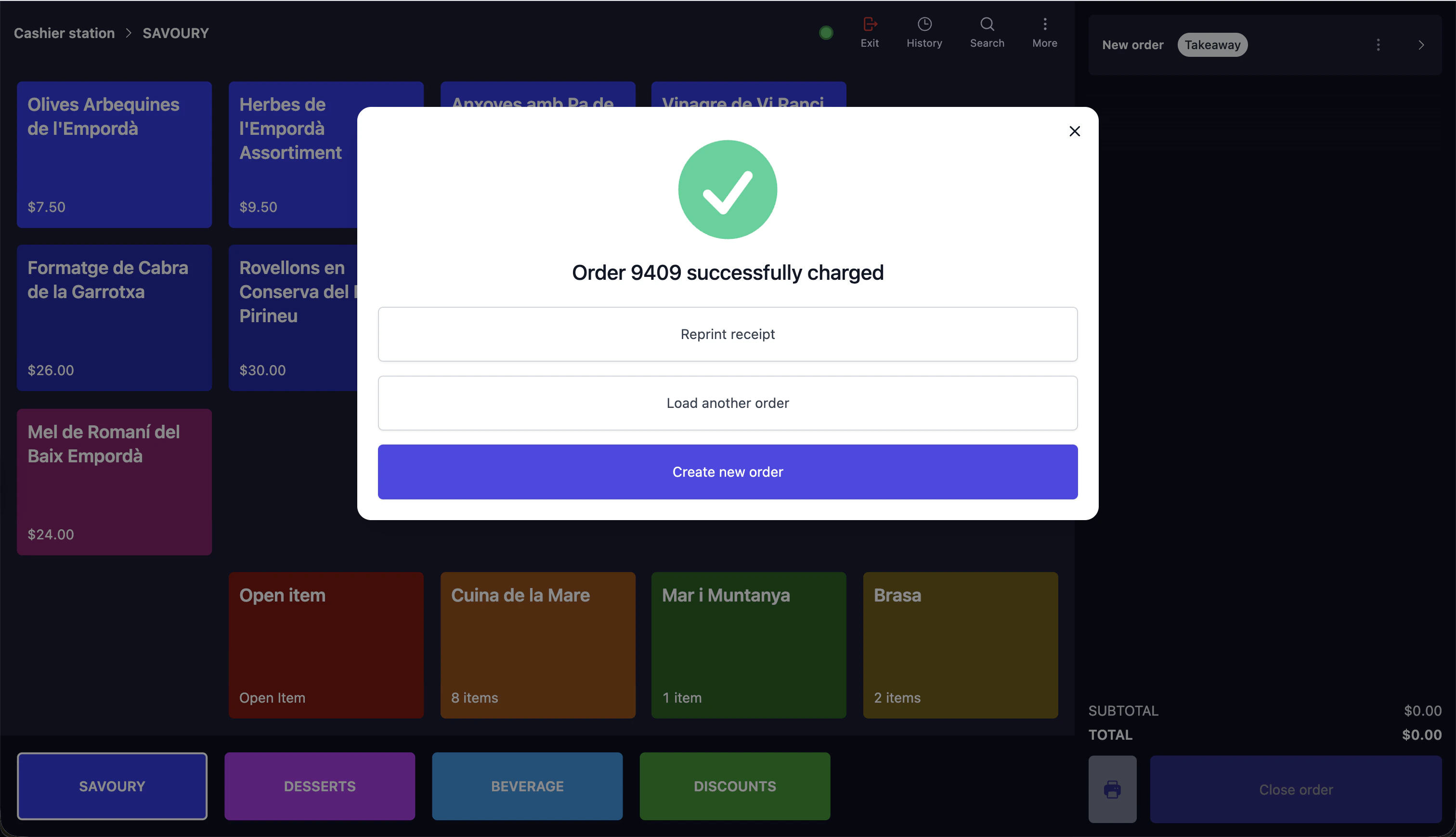
Order successfully charged
Splitting the bill
On the payment screen, tap “Split bill” in the bottom-right corner. You can split by amount or by item.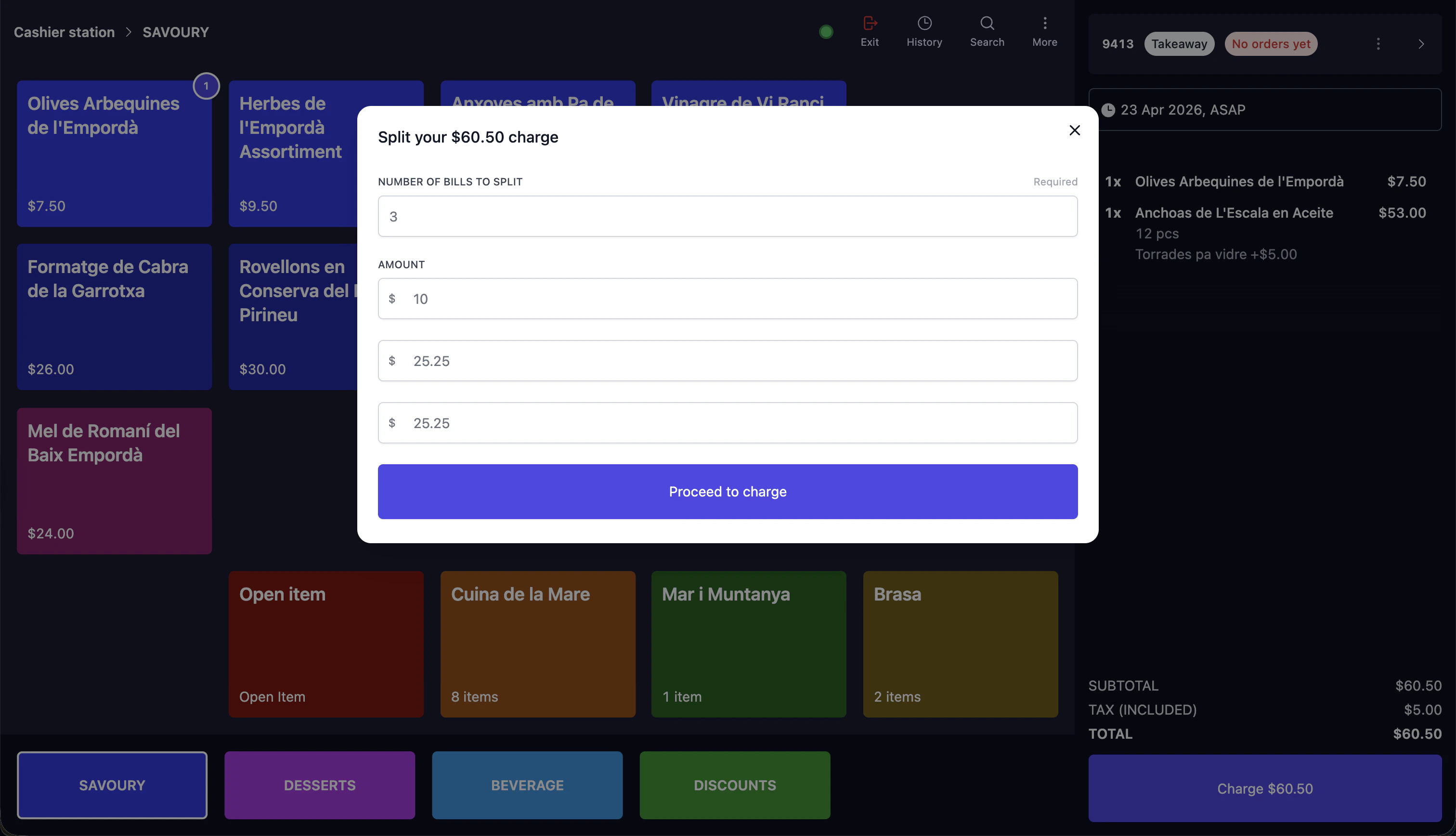
Split bill
- Enter the number of bills to split.
- Adjust the amounts if needed.
- Tap “Proceed to charge” and charge each split separately.
- Tap “Split items” on a bill.
- Select the items, then pick a bill to move them to. Tap “Create a new bill” for a separate bill.
- Tap “Proceed to charge” and charge each bill separately.
Closing a fully paid order
When every bill is charged, the remaining amount is $0 but the order can stay open. The Charge button changes to “Close order”. Tap it to close the order — it does not charge anything.Connecting your Atlas Pay terminal to WiFi
- On your Atlas Pay terminal, go to Settings > Network.
- Enter the WiFi password.
- Tap WiFi > select your network and connect.
If the terminal feels unstable or does not sync with the POS properly, switch to 4G by turning off WiFi.
Checking transactions on your Atlas Pay terminal
If a payment didn’t go through or you need to verify a charge, you can check the transaction history directly on the terminal.- On your Atlas Pay terminal, go to Transactions > History.
- Enter the terminal password.
- Scroll through the transaction list or search for the one you need.
- Tap the transaction to view more details.
Force checkout
This is a rare situation that happens when either the POS or the Atlas Pay terminal disconnects from the network mid-payment. The POS cannot confirm whether the payment went through, so it asks you to verify manually.Force checkout on Atlas POS
- Check the terminal screen — it should show “Approved” with a green checkmark.
- If unsure, go to Transactions > History on the terminal and confirm the transaction shows a green tick.
Refunding an order
Tap “History” in the top toolbar to view past orders. Search by order number or scroll through the list, then tap “View” on the order.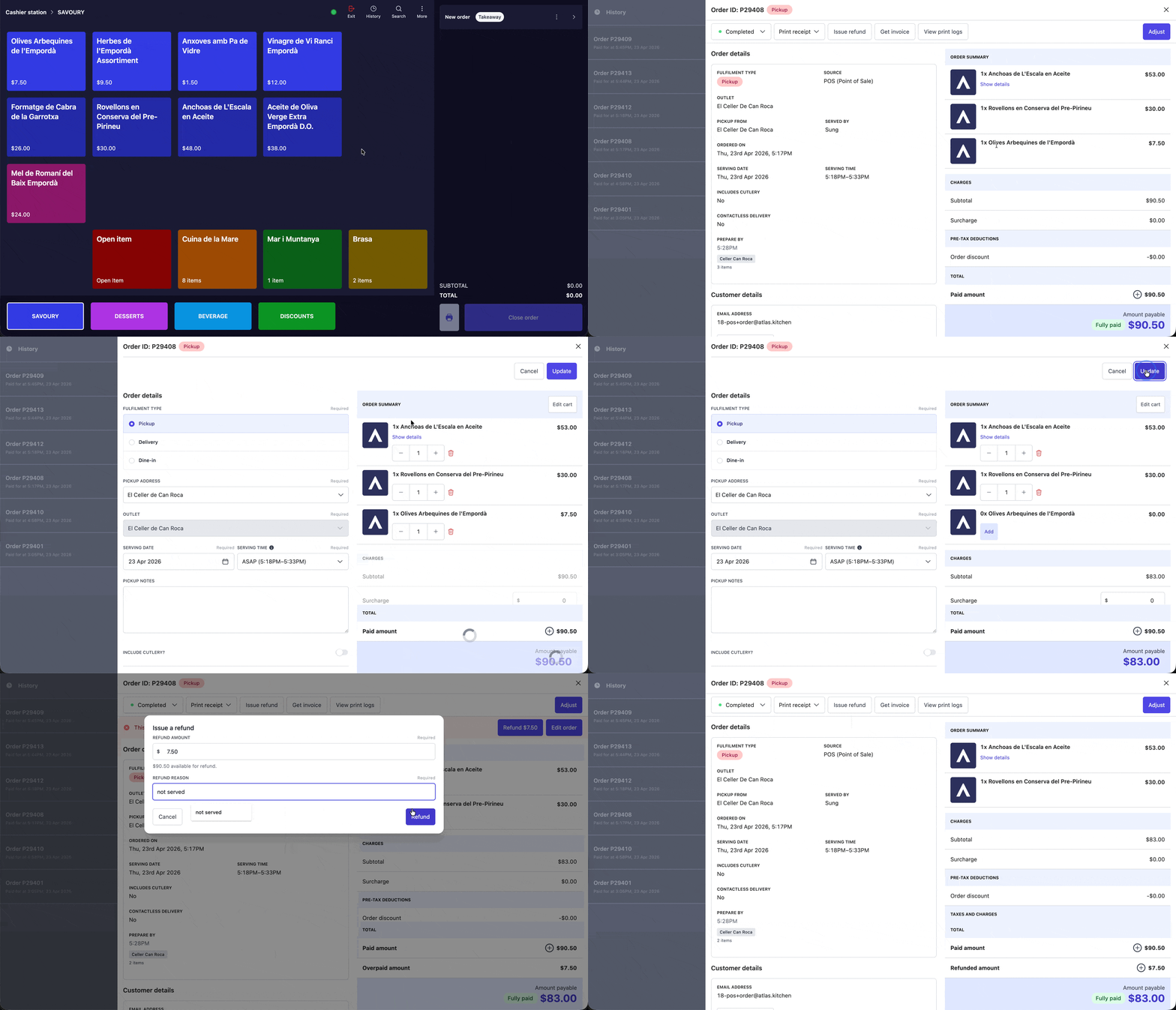
Partial refund from Atlas POS
- Tap the order history button > Tap the order.
- Alternatively: Tap the search button and key in your order number > Tap the order.
- In the order details modal: Tap “Adjust” > Tap “Edit order”.
- You will see your cart is now editable. A few things you can do from here:
- Remove an item by tapping on the remove button .
- Adjust quantity with the minus and plus buttons .
- Adjust sales quantities, scrolling down and selecting the editable boxes.
- Add and remove new items, by tapping on the top-right corner “Edit cart” button.
- Once you are done with your changes, tap “Update” in the top-right corner.
- A red banner will prompt with the calculated difference to refund. Tap “Refund”.
- In the refund confirmation page, confirm the amount and refund reason, and tap “Refund”.
Changing fulfilment type
The current fulfilment type displays in the top-right corner (e.g. Takeaway, Dine-in). Tap the label to change it. A modal lets you switch between dine-in, takeaway, or delivery.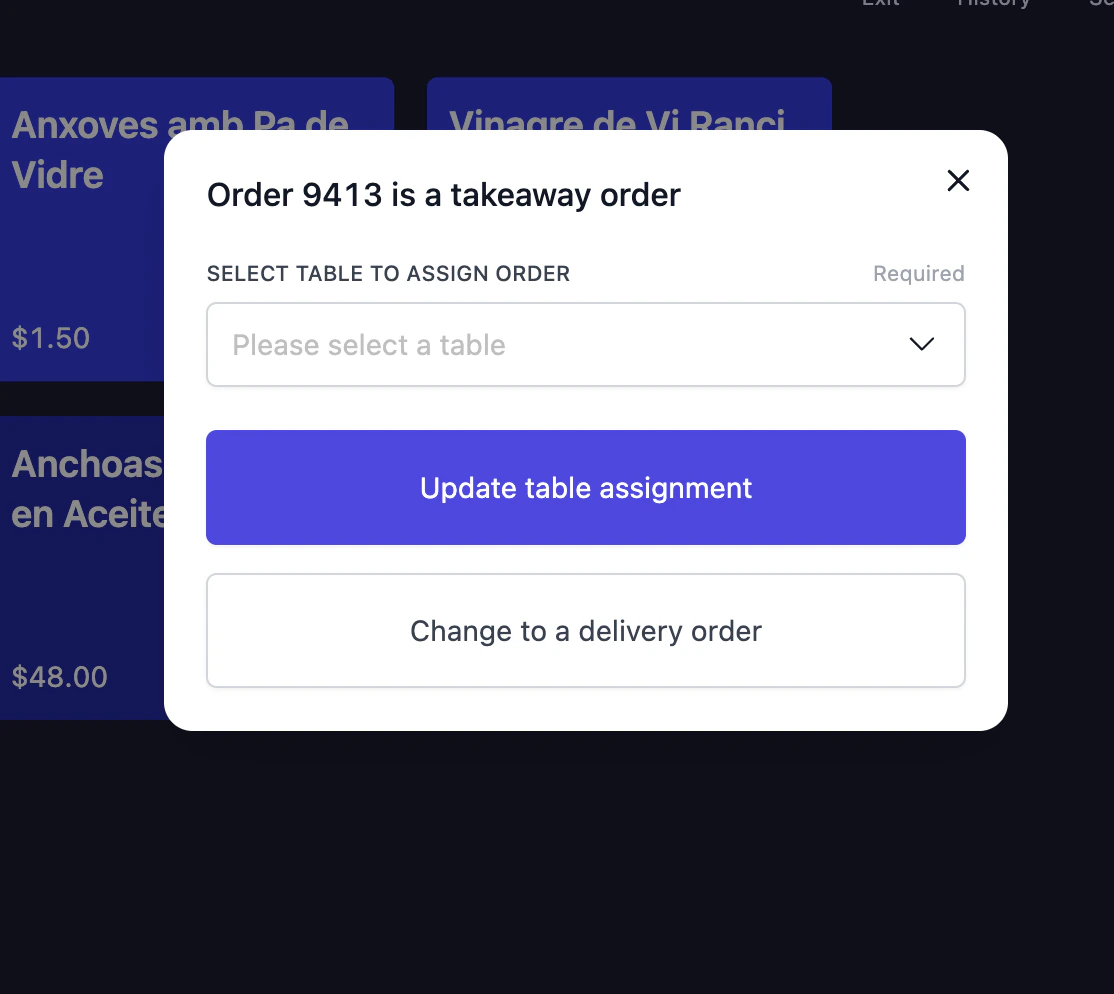
Change fulfilment type
Managing open orders
If a customer needs time to decide, you can park their order and serve the next person in line. Tap the arrow (›) in the top-right corner to expand the open orders list. All unsettled orders display here with their order number and fulfilment type. Tap any order to return to it. To start a new order while leaving the current one open, tap ”+ New order” at the bottom of the list. Tap the arrow next to it to pick a specific order type (dine-in, takeaway, or delivery).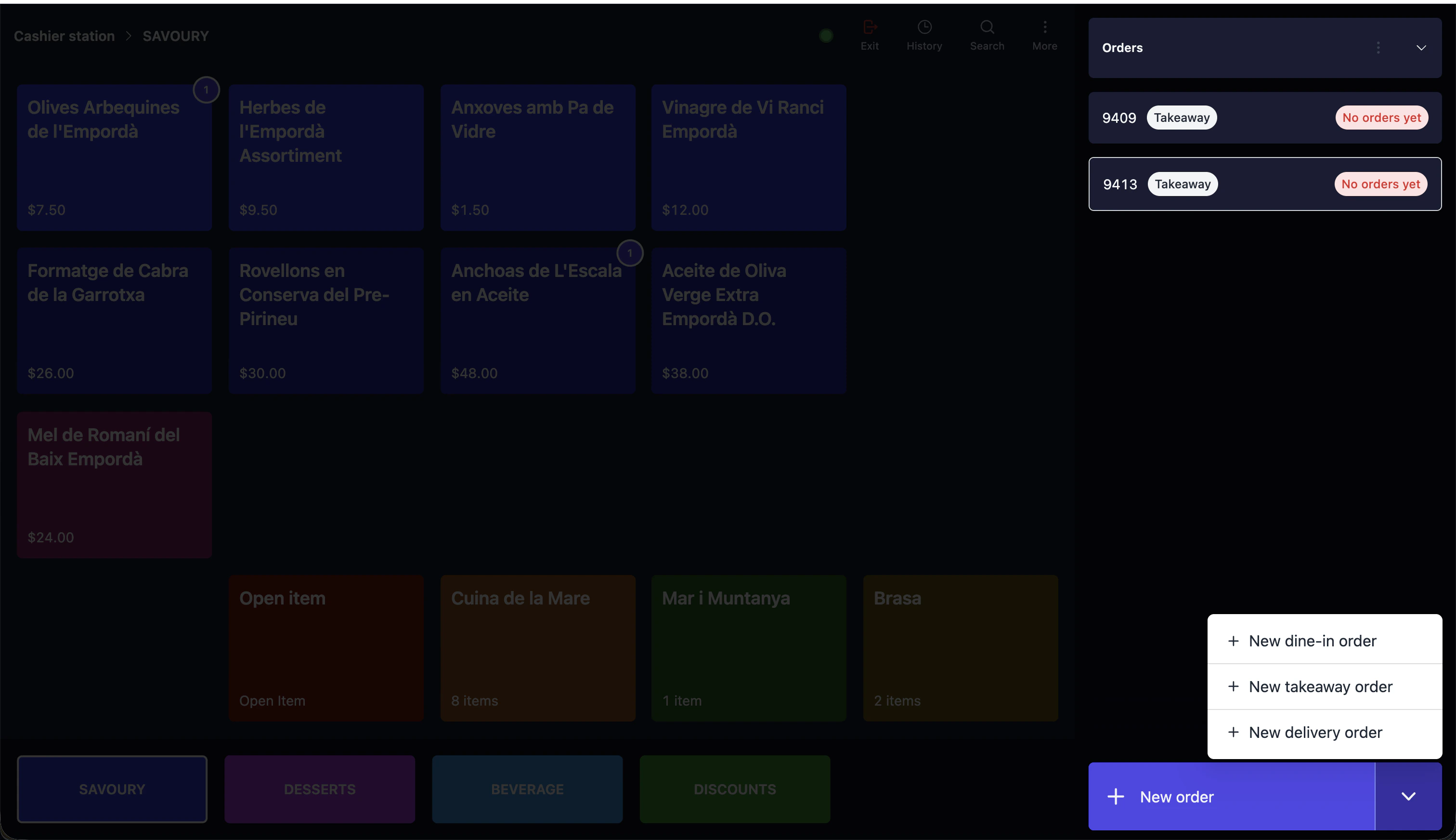
Open orders list and new order options
Keep your open orders list empty by end of day. Open orders left overnight can cause reporting discrepancies.
If it doesn’t work
Item doesn't appear in the cart after tapping
Item doesn't appear in the cart after tapping
- Check if the item opened a modifier modal — you need to complete the selection and tap “Add”
- Scroll down in the cart — the item may be below the visible area
- Verify you are on the correct order (check the order number in the top-right corner)
Terminal doesn't respond after tapping Charge
Terminal doesn't respond after tapping Charge
- Check that the terminal is powered on and connected to WiFi
- Verify the green dot in the top toolbar is green (indicates the terminal is connected)
- Try selecting the payment method again and tap “Charge”
- If the terminal still doesn’t respond, use a manual payment method instead and contact support
Can't find an order in the open orders list
Can't find an order in the open orders list
- Tap the arrow (›) in the top-right corner to expand the list
- Scroll through the list — orders are listed by order number
- Use the Search button in the top toolbar to find the order by number
- The order may have already been charged — check History instead
Wrong fulfilment type on the order
Wrong fulfilment type on the order
- Tap the fulfilment label (e.g. “Takeaway”) in the top-right corner
- Select the correct type from the modal
- If the order is already charged, you cannot change the fulfilment type — contact support
Payment charged with the wrong method
Payment charged with the wrong method
- Follow the refund and recharge steps to refund and recharge with the correct payment type
Next steps
- Customer-facing display - Set up your customer-facing display for easier checkouts
- Process refunds — Refund or cancel orders from POS
- Set up POS layouts — Customise your POS tile layout
- Manage stocks — Block or set quantities for items during service