Who is this article for?
- Restaurant managers and owners who use Atlas Kitchen Display System (KDS).
- Operations managers tracking kitchen performance and identifying bottlenecks.
Available for these roles:
Server
Cashier
Manager
Finance
Admin
This report is currently in Beta and only available to selected customers. Contact support if you’d like early access.
What this does
The production efficiency report shows how long it takes to complete kitchen tickets using data from your Kitchen Display System (KDS). Track ticket completion times, identify peak periods, and find bottlenecks in your kitchen workflow. This report uses real data from your KDS, including when tickets arrive, what items are ordered, and how long each ticket takes to complete.This report is only available if you use Atlas Kitchen Display System (KDS). Data comes from ticket interactions on your kitchen screens.
Filters
Narrow down the data to find specific insights:- Date: Serving date (when orders were fulfilled). Defaults to the current date but can be set to a custom time period.
- Outlet: Switch between outlets if you have multiple locations
- Station: Filter by specific kitchen stations (e.g., grill, fryer, prep)
- Kitchen display: View data from specific KDS screens
- Item name: Filter by specific menu items displayed on tickets
Data is refreshed hourly. The last refresh time appears at the top of the report.
Key metrics
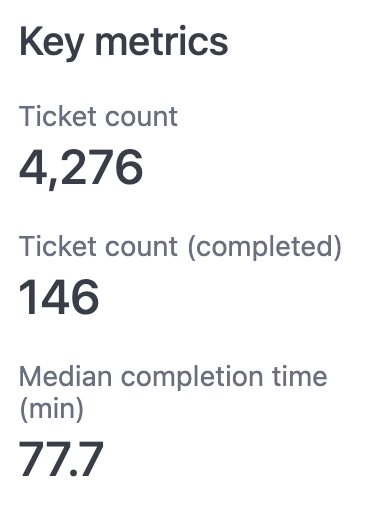
High-level performance indicators at the top of the report:- Ticket count: Total number of tickets received during the selected period
- Completed ticket count: Number of tickets marked as complete
- Median completion time: Middle value of all completion times (half of tickets were faster, half were slower)
AI insights
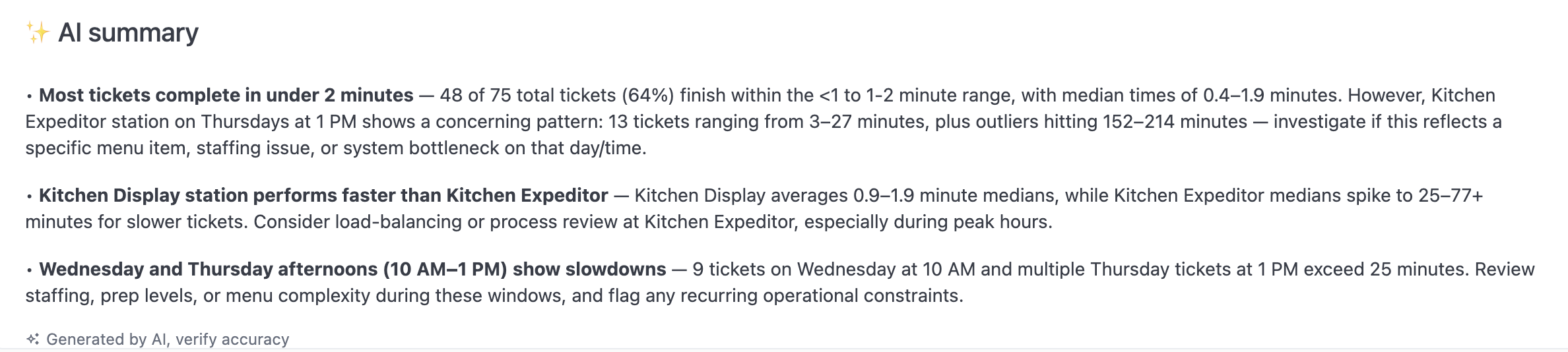
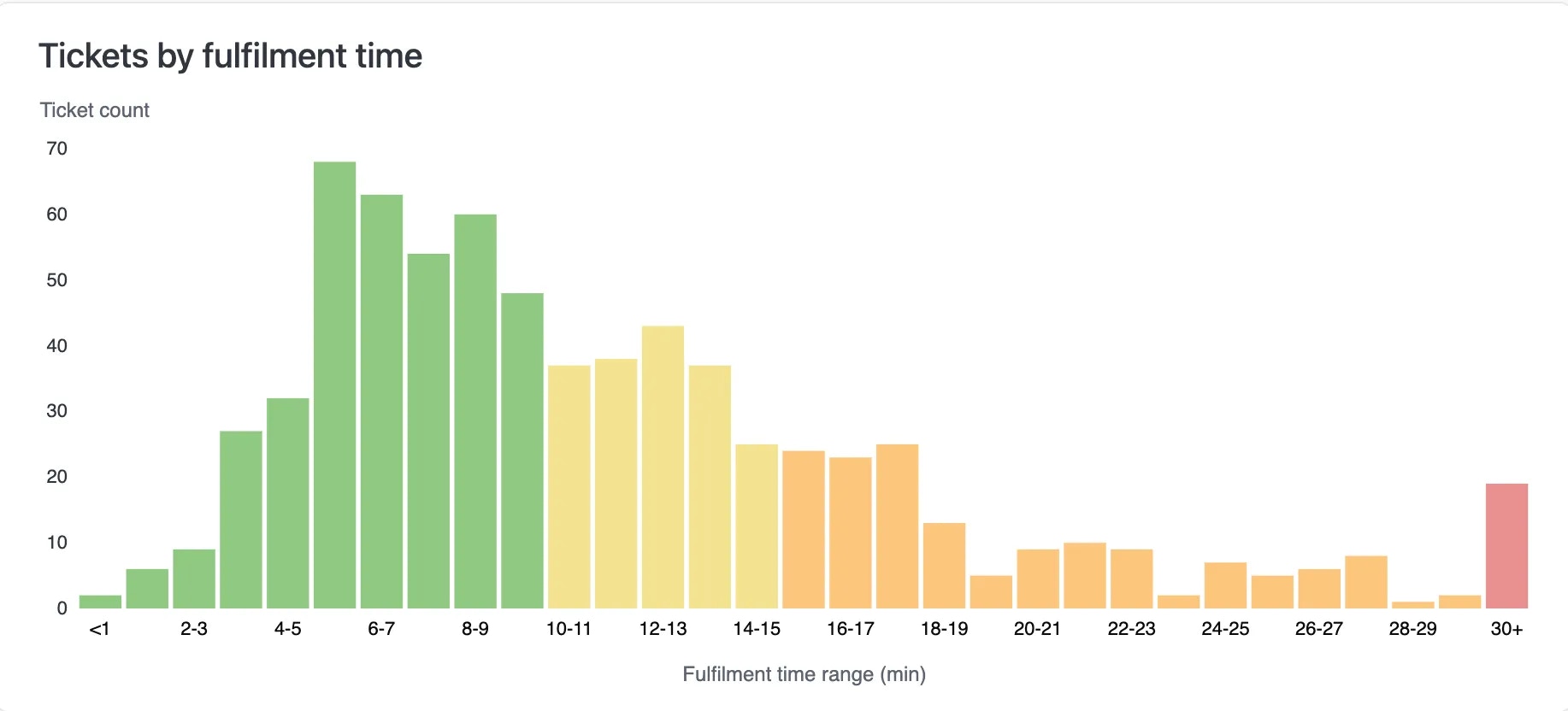
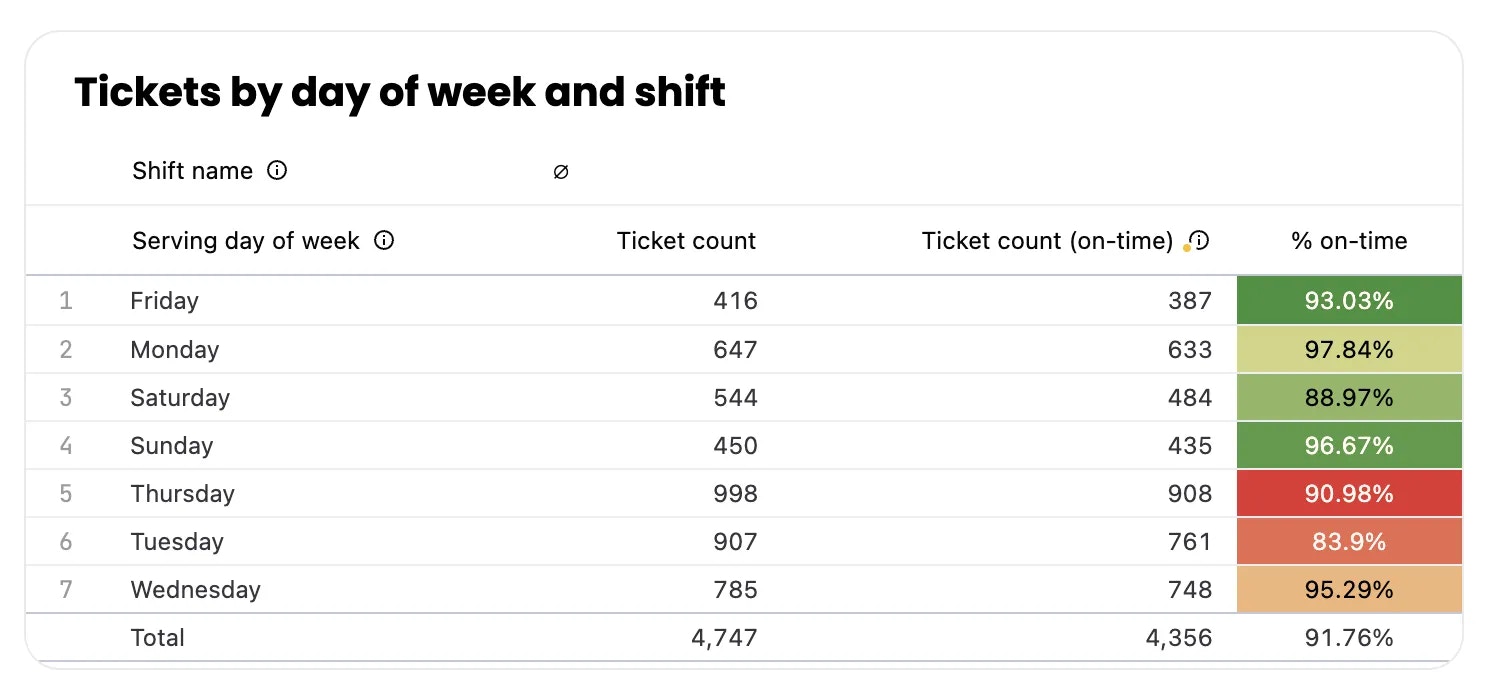
The AI summary analyzes your data and highlights key patterns or issues. This gives you a quick overview of performance trends without manually reviewing all the data.Tickets by fulfilment time

Tickets by hour
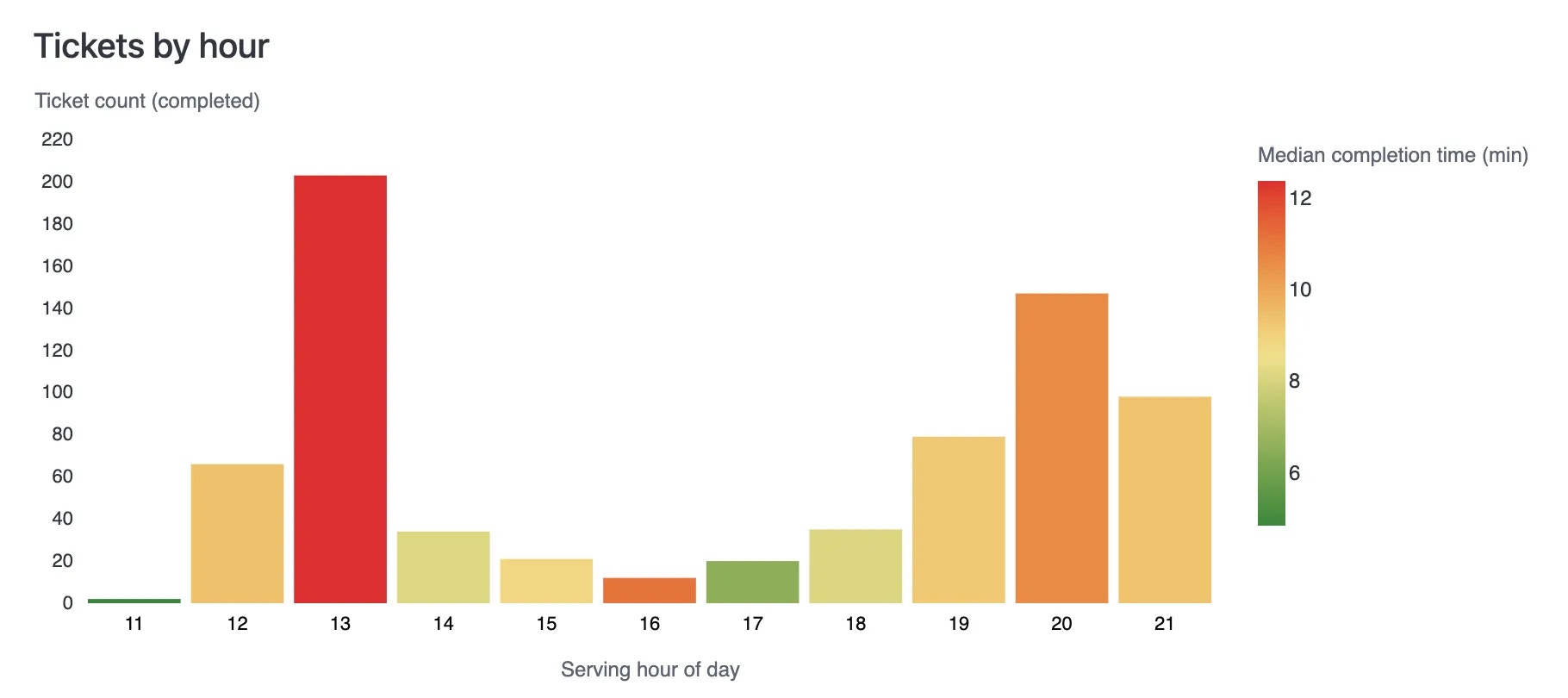
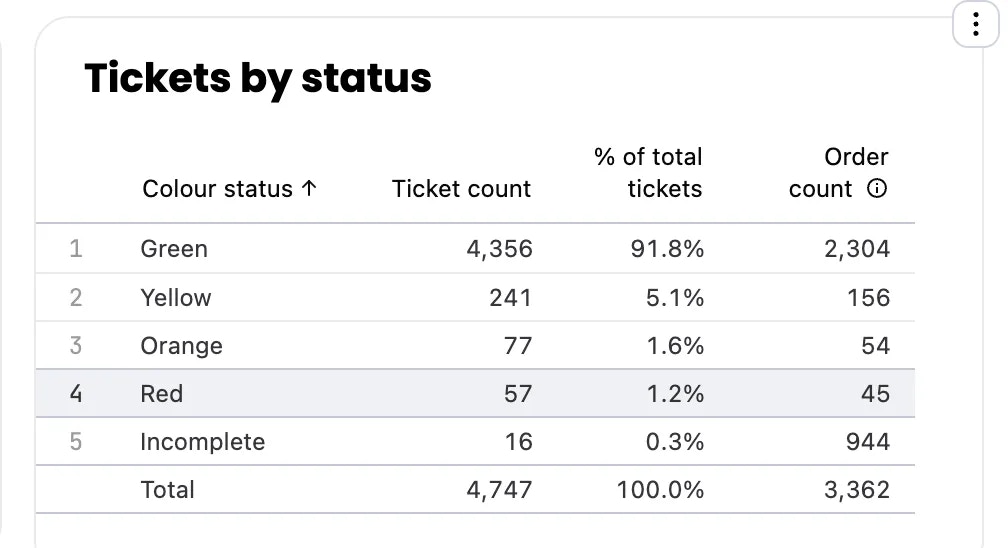
- Green: Faster
- Red: Slower
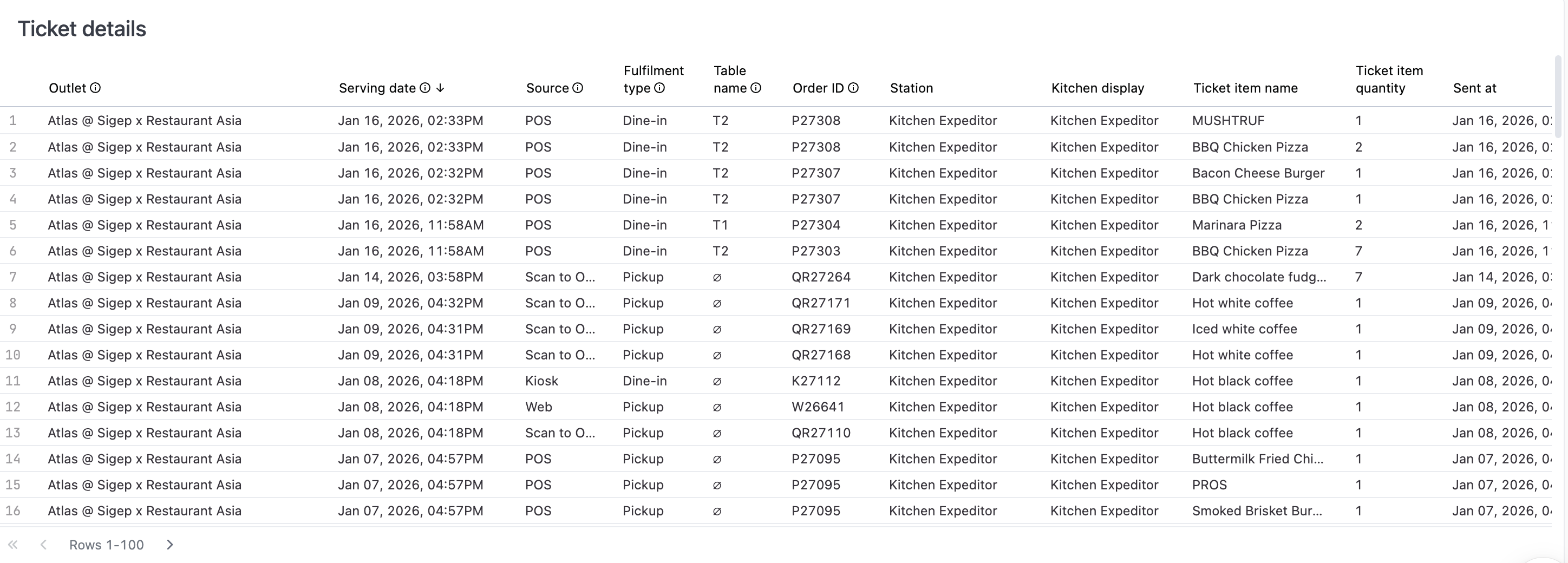
Ticket details table
A complete list of every ticket during the selected period. Use this table for detailed analysis or to investigate specific issues. Download this data to analyze patterns in spreadsheet software.Interactive features
Drill down into metrics
Click on any metric to see the underlying tickets. For example:- Click on a specific bar in “Tickets by hour”
- Select a metric like “Median completion time”
- View all tickets that match that time period and completion time range
Download data
Click the download icon on any chart or table to export the data for further analysis in Excel or Google Sheets.Copy values
Click on any metric value to copy it to your clipboard for quick sharing or reporting.Chart options
Click the three-dot menu on any chart tile to:- Talk to AI: Ask questions about the data and get insights
- Download: Export the chart data
- Set alert: Get notified when metrics change (see Alerts section)
Dashboard AI assistant
Click the AI icon in the bottom right corner to chat with AI about your entire dashboard. Ask questions like:- “What trends do you see in my data?”
- “Why was completion time higher on Tuesday?”
- “What are my slowest hours?”
What should happen
When you open the production efficiency report, you should see:- Current filters applied at the top (defaults to today’s date and all outlets)
- Three key metrics showing ticket counts and median completion time
- AI insights summarizing your performance
- Charts showing ticket distribution by completion time and hour
- A detailed table of all tickets
If it doesn’t work
No data appears in the report
- Verify you are using Atlas PDF or Kitchen Display System (KDS). This report only works with KDS data.
- Check that your selected date range includes days when you had orders
- Confirm tickets were actually processed through the KDS (not just printed)
- Contact support if you use KDS but still see no data
Completion times seem incorrect
- Check that kitchen staff are marking tickets as complete on the KDS
- Verify the selected station filter matches where your staff work
- Contact support if times are clearly wrong (e.g., showing 2 hours for a simple dish)
Can't drill down into metrics
- Refresh your browser page
- Clear your browser cache and reload
- Try using a different browser (Chrome or Firefox recommended)
- Contact support if the issue persists
- Your outlet name
- The date range you’re viewing
- A screenshot of what you’re seeing
Next steps
- Export ticket data to identify patterns and improve kitchen workflows
- Learn about other reports to track different aspects of your business