Who is this article for?
- Managers and finance staff who need to track logistics costs and performance.
Available for these roles:
Server
Cashier
Manager
Finance
Admin
What this does
Track and reconcile logistics costs for Atlas Smart Logistics deliveries. View trip details, monitor uninvoiced trips, and verify weekly invoices against actual delivery activity.When to use this
Use this report to:- Reconcile weekly logistics invoices from Atlas
- Monitor delivery costs and net margin (logistics fees minus customer delivery fees)
- Track individual trips by order, outlet, or delivery partner
- Identify uninvoiced trips before the weekly billing cycle
- Export delivery data for accounting or cost analysis
Access the logistics report
1
Navigate to Reports
In the merchant portal, go to Reports > Logistics report
2
Select your view
Choose between three tabs:
- Invoices: View weekly logistics invoices
- Uninvoiced trips: See trips not yet billed
- All trips: View all trips for the selected period
3
Set your filters
- Date range: For Invoices tab, this filters by invoice date. For Uninvoiced trips and All trips, this filters by trip date (when the delivery happened)
- Outlet: Filter by specific outlet (if you have multiple outlets)
- Brand: Filter by brand (if you have multiple brands)
What should happen
The report loads with trips or invoices for your selected filters. The summary metrics at the top update to reflect your filtered data.Understanding trips vs orders
A trip is a single logistics booking made through integrated delivery platforms (Lalamove, Pandago, or other logistics partners). One order can contain multiple trips when:- A large order requires multiple drivers
- A redelivery happens after the original trip
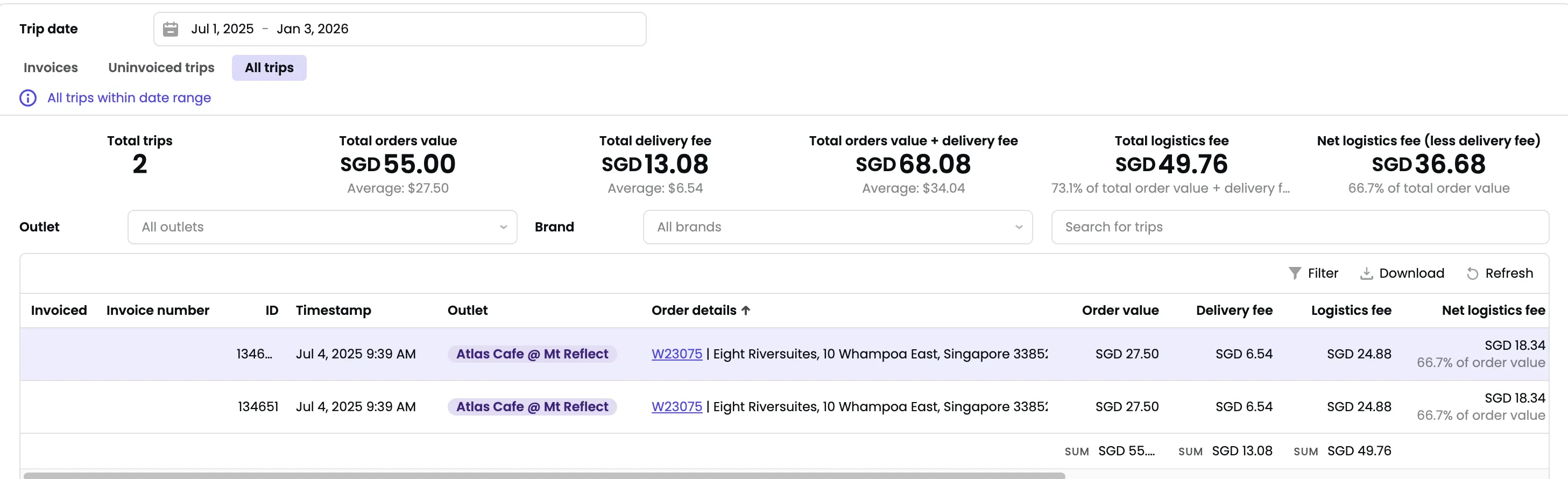
All trips tab
View every logistics trip for the selected date range with detailed cost breakdowns.Summary metrics
- Total trip count: Number of delivery trips booked
- Total order value: Combined value of all orders delivered
- Average order value: Total order value ÷ trip count
- Total delivery fee: Delivery fees charged to your customers (not what you pay to logistics partners)
- Total logistics fee: Actual costs charged to you, including:
- Platform fees (Lalamove, Pandago, etc.)
- Atlas Smart Logistics service fee (2.5% of order value)
- Net margin %: Shows delivery profitability as (Total delivery fee - Total logistics fee) ÷ Total order value. Negative percentages mean delivery costs exceed what you collect from customers.
Trip columns
- Invoiced: Shows whether this trip appears on a weekly invoice
- Invoice number: Click to view the full invoice details
- Trip ID: Unique identifier for this logistics booking
- Timestamp: When the delivery trip occurred
- Outlet: Which outlet fulfilled this order
- Order ID: Click to open the order details page
- Order value: Total value of the order
- Delivery fee: What your customer paid for delivery
- Logistics fee: What you paid to the delivery platform and Atlas (2.5% service fee)
- Net logistics fee: Logistics fee minus delivery fee. Refunded trips show negative values.
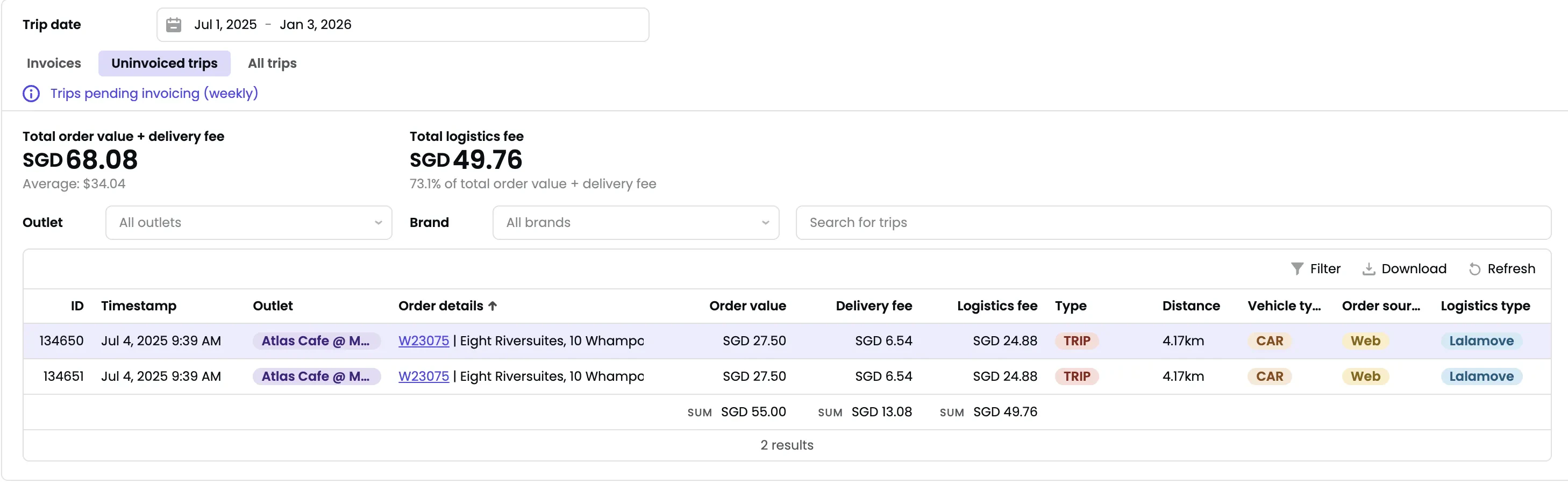
- Distance: Trip distance
- Vehicle type: Car, bike, or van
- Source: Where the order came from (usually “web” for online orders, occasionally “pos” for orders entered manually)
- Logistics type: Which delivery partner handled the trip (Lalamove, Pandago, etc.)
- Brand: Brand name (if you have multiple brands)
Refunded trips
Refunded trips appear as separate rows with negative logistics fees. This happens when:- A trip was invoiced but later canceled
- You were already billed for the trip, so a refund entry is added
Search and filter
Use the search bar to find trips by order ID, outlet name, or other details. Combine with outlet and brand filters to narrow results.Uninvoiced trips tab
View trips that have occurred but are not yet included in a weekly invoice. This helps you forecast your next logistics bill.Logistics invoices are generated weekly. All trips completed during the week will appear in the Uninvoiced trips tab until the weekly invoice is created.
- Verify trips before they’re invoiced
- Track weekly delivery costs before billing
- Identify any trips that might be missing from your records
Invoices tab
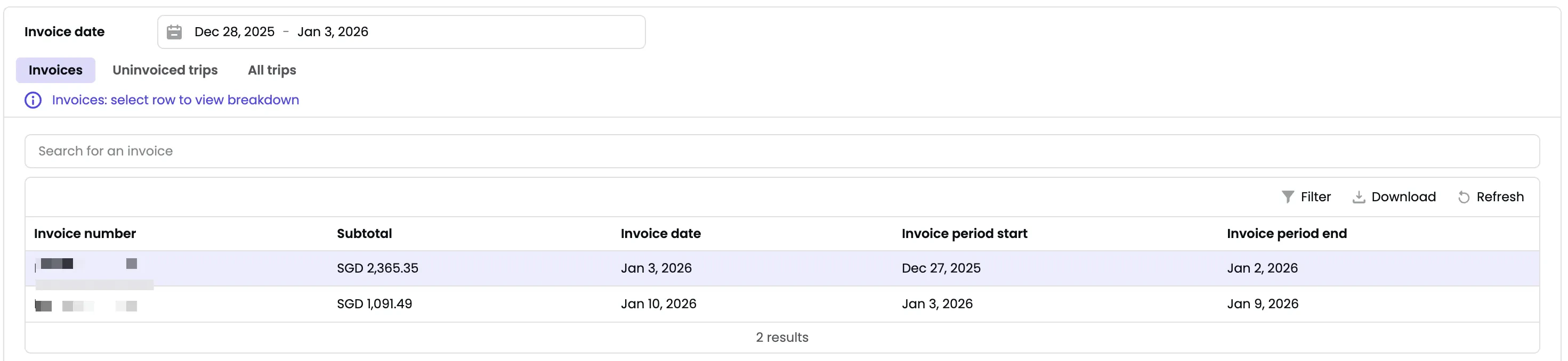
View and verify weekly logistics invoices sent by Atlas. The date range filter on this tab refers to the invoice date, not the trip date.Invoice list
Each invoice shows:- Invoice number: Unique identifier for the billing period
- Invoice date: When the invoice was generated
- Total amount: Sum of all logistics fees for trips in that period
- Trip count: Number of trips included in the invoice
Invoice details
Click any invoice to view all trips included in that billing period. Use this to:- Reconcile invoice totals against individual trip charges
- Verify that all trips for the week are included
- Export trip details for accounting records
Export options
Export trip data or invoice details to PDF for accounting records or cost analysis. The export includes all columns visible in the current view.If it doesn’t work
If trips are missing:- Check your date range filter—for All trips and Uninvoiced trips, the filter uses trip date, not order date
- Verify your outlet and brand filters aren’t excluding the trips you expect
- Confirm the order was actually delivered through Atlas Smart Logistics (not a third-party platform’s own delivery)
- Contact support if trips from integrated delivery platforms aren’t appearing within 24 hours
- Click into the invoice details to see all included trips
- Check for refunded trips (negative values) that reduce the total
- Verify the invoice date range matches your expected billing period
- Export the invoice details and compare line-by-line with your records
- Contact support if there are discrepancies you can’t explain
- Remember that one order can have multiple trips—verify you’re comparing order count vs trip count correctly
- Check that Net margin % is calculated from your filtered data, not all-time data
- Confirm delivery fees match what you charge customers (set in your delivery zone settings)
- Contact support if logistics fees don’t match platform rates you’ve agreed to
What’s next
- Set up delivery fees in Delivery fee settings