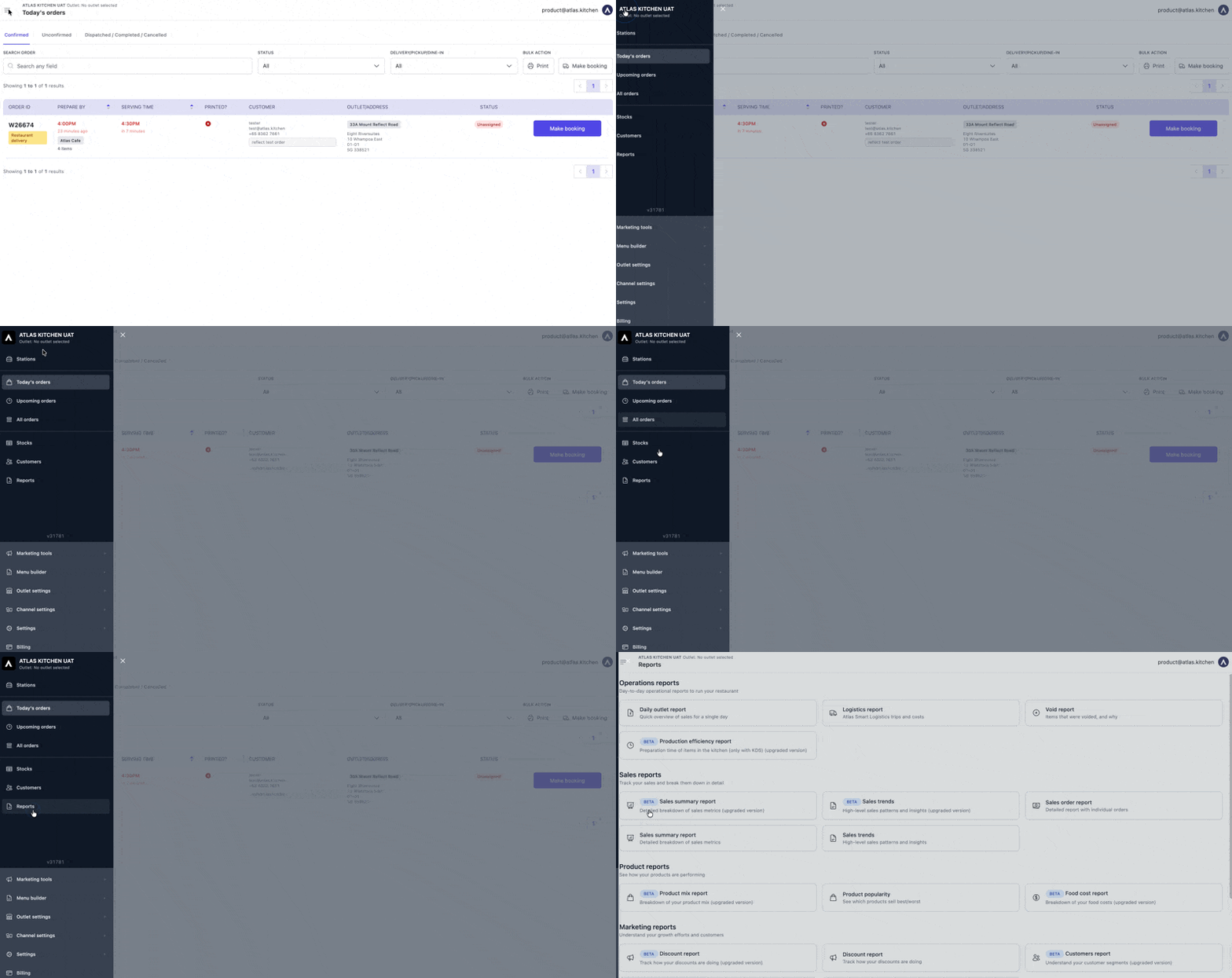
Who is this article for?
- Anyone using Atlas reports to track sales, customers, or operations
- Managers learning how to filter and export report data
- Teams needing to understand drilldowns and AI insights
What this does
All Atlas reports work the same way. This guide explains the shared features across all reports so you don’t have to relearn them for each report type. After reading this once, you’ll know how to:- Filter any report by date, outlet, or other criteria
- Download report data to spreadsheets
- Drill into charts to see individual transactions
- Interpret AI insights and recommendations
- Schedule automated report delivery
Report features
Data refresh
Reports refresh hourly. The last update time appears at the top of each report in a yellow banner (e.g., “Data in this report refreshed hourly. Last updated at 10:06 AM, 7 Jan 2026”).
Filters
All reports have two types of filters:Visible filters
These appear at the top of the report (usually 2-3 filters):- Date filter: Controls the time period (e.g., “Serving date”, “Date”, “Paid out at”)
- Outlet filter: Switch between locations if you have multiple outlets
- Primary dimension: Varies by report (e.g., “Item name”, “Promo code”, “Customer segment”)
Hidden filters
Click ”+ [number]” (e.g., ”+ 7”, ”+ 4”) to reveal additional filters like:- Fulfillment type (Dine-in, Delivery, Pickup)
- Source (POS, Web, Kiosk, Scan to Order)
- Hour of day, Day of week, Table number
- Brand, Payment method, Order status
1
Click the filter dropdown
Tap the filter you want to change (e.g., “Serving date”).
2
Select your criteria
Choose an operator (e.g., “in the past”, “between”, “is equal to”) and enter values.
3
Apply changes
Tap Update to refresh the report with your filters.
Filters are cumulative. If you set Outlet = “Main St” AND Fulfillment type = “Delivery”, only delivery orders from Main St appear.
Date filter operators
All date filters use these common operators:- “in the past”: Last X days, weeks, or months (e.g., “in the past 30 days”)
- “complete days/weeks”: Excludes today or the current week if it’s partial. Use this for apples-to-apples comparisons.
- Without “complete”: Includes today’s partial data
- “between”: Specific date range (e.g., “between Dec 1 and Dec 31”)
- “on the day”: Single day only
- “in the month”: Entire calendar month
- “anytime”: No date restriction
All dates use your account timezone. Check your timezone via the three-dot menu → Query info.
Charts and visualizations
Most reports include interactive charts:Bar charts
- Vertical bars: Usually show totals per category (e.g., sales per day, discounts per outlet)
- Horizontal bars: Usually show percentages or comparisons (e.g., % of orders with discounts)
- Combo charts: Bars + line (e.g., sales bars + order count line)
Scatter plots
- X-axis: One metric (e.g., quantity sold)
- Y-axis: Another metric (e.g., revenue)
- Dots: Individual products or items
- Color: Category grouping
Pie charts
- Show percentage breakdown by category
- Hover to see exact percentages
- Hover over bars or dots to see values
- Click on chart elements to access drilldown options
- Drag to zoom (on some charts)
Drilldowns
Drilldowns let you see the individual transactions behind a chart or metric. How to access drilldowns:1
Click a chart element
Tap a bar, dot, or metric card.
2
Choose your drill option
Select from the menu (e.g., “Drill into Quantity”, “Drill into Item sales”, “Single product view”).
3
Review the data
The modal shows all matching transactions with sortable columns.
- Order IDs
- Serving date and time
- Outlet name
- Fulfillment type (Dine-in, Delivery, Pickup)
- Source (POS, Web, etc.)
- Quantity, amount, or other metrics
- Sort columns: Click any column header to sort ascending/descending
- Run without cache: Fetch live data instead of cached results
- Download: Export drilldown data to CSV
Drilldowns respect all active filters. If you filtered to “Delivery only”, drilldowns show only delivery orders.
AI insights
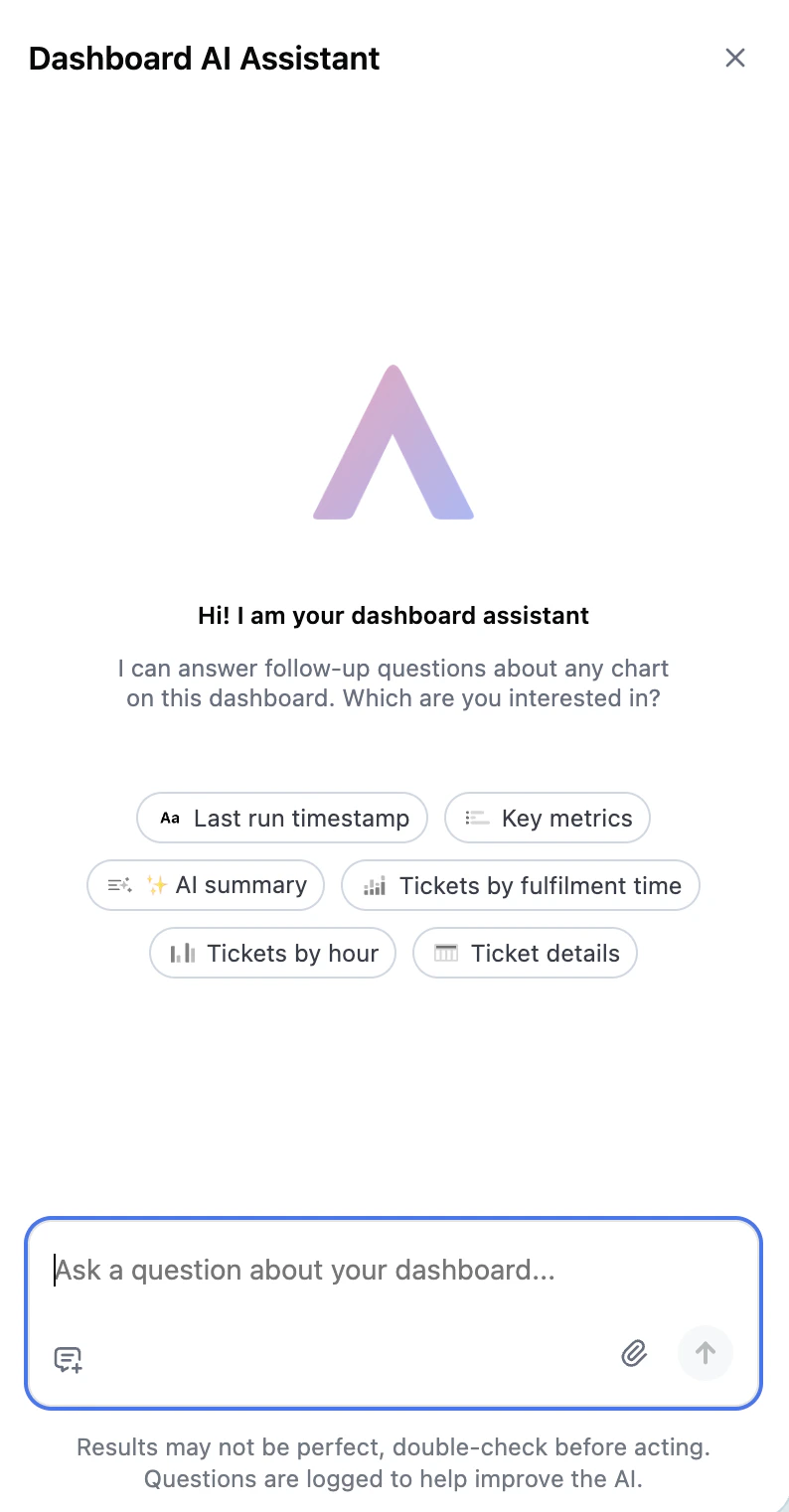
Some reports include AI-generated insights at the top. These highlight patterns like:- Top-performing items or discounts
- Pricing inconsistencies
- Customer segments at risk
- Outlet-specific performance issues
[Finding headline in bold] followed by explanation and specific numbers. Recommendation: Actionable next step.Example:
ATLAS100 dominates your discounts—it’s driven 32.86 per order. Recommendation: Consider tightening eligibility or expiry to control margin impact.
AI insights are marked “Generated by AI, verify accuracy”. Always verify against your business context before taking action.
Downloads
Export report data to spreadsheets for offline analysis. How to download:1
Open the menu
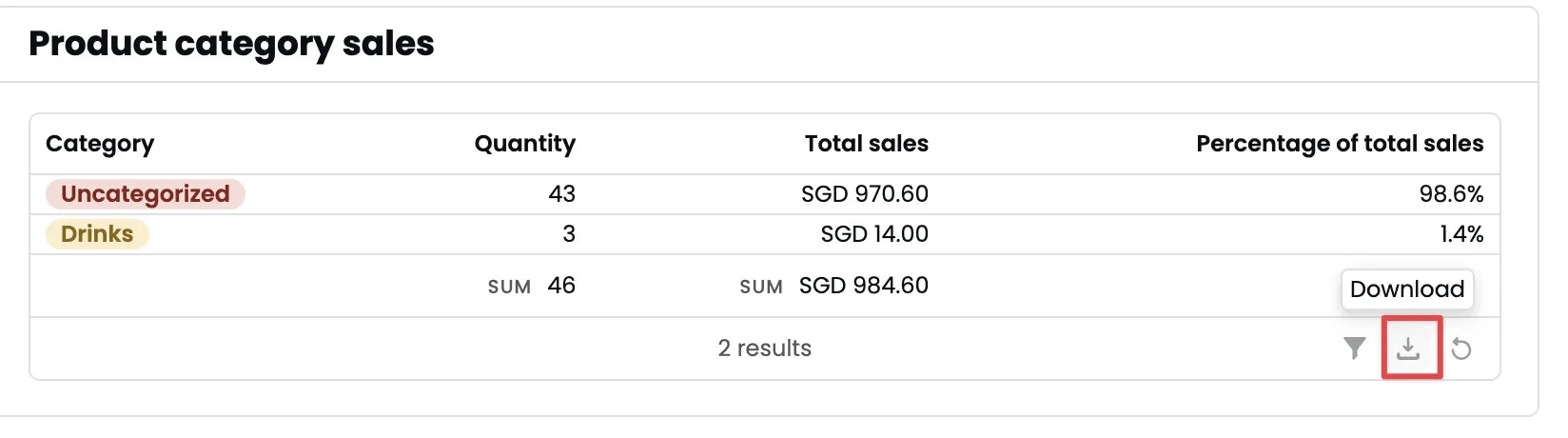
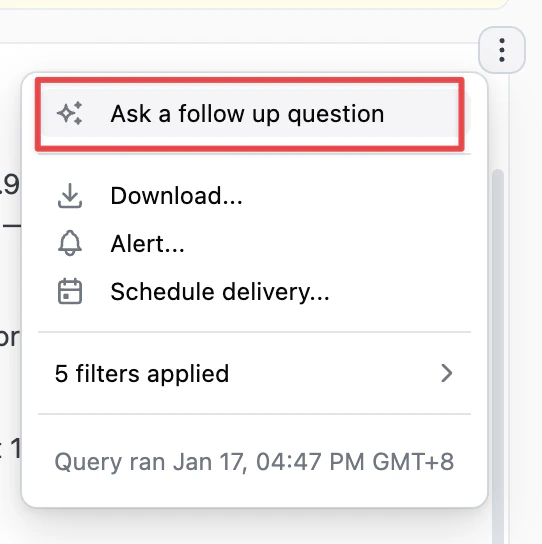
Click the three-dot menu (⋯) in the top right.
2
Select Download
Click Download… from the menu.
3
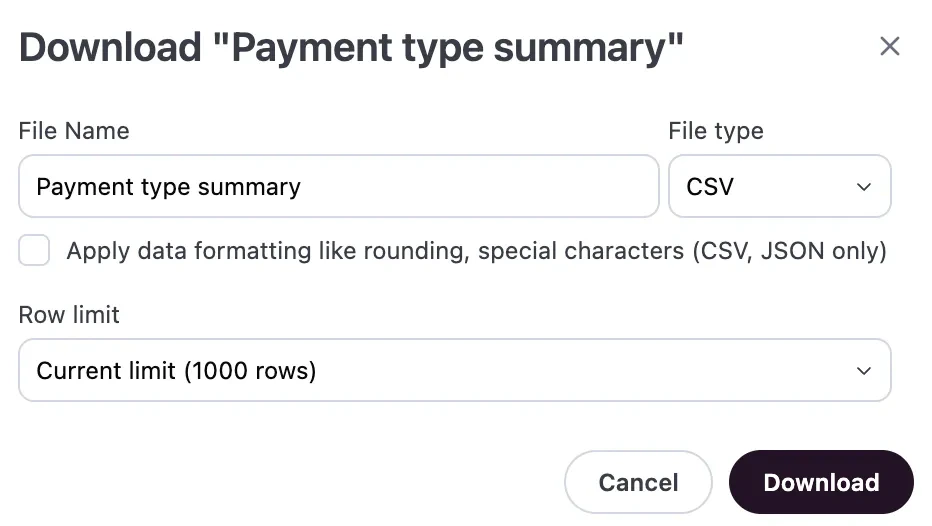
Configure export
- Edit File Name (e.g., “Sales_Jan2026”)
- Select File type (CSV is default; other formats may be available)
- Check Apply data formatting for readable numbers (recommended)
- Set Row limit if needed (default: 1,000 rows)
4
Download
Click Download.
Downloads respect all active filters. Apply filters before downloading to export only the data you need.
- Reduce Row limit to 100 or 250
- Apply filters to reduce data scope (e.g., single outlet, shorter date range)
- Refresh the page and try again
Alerts
Set up automated email alerts when metrics cross thresholds (e.g., “Alert me when daily discount spending exceeds $500”). How to set up alerts:1
Open the menu
Click the three-dot menu (⋯) in the top right.
2
Select Alert
Click Alert from the menu.
3
Configure alert
Follow the on-screen instructions to set conditions and recipients.
Contact support if you need help setting up complex alert rules.
Schedule delivery
Schedule automated report emails (e.g., weekly sales summary every Monday at 9 AM). How to schedule delivery:1
Open the menu
Click the three-dot menu (⋯) in the top right.
2
Select Schedule delivery
Click Schedule delivery from the menu.
3
Configure schedule
Set the frequency (daily, weekly, monthly), time of day, and recipients. Reports will be emailed automatically at the scheduled time.
Scheduled deliveries respect your current filters. Apply the filters you want before setting up the schedule to ensure future emails contain the right data.
Common workflows
Compare this week to last week
1
Set date range
Change the date filter to “in the past 1 complete weeks”.
2
Note the metrics
Write down key metrics (e.g., Net Sales: $12,500).
3
Change to 2 weeks
Change the date filter to “in the past 2 complete weeks”.
4
Compare the numbers
The new metrics include both weeks. Subtract week 1 from the total to get week 2.
Export data for a specific outlet
1
Apply outlet filter
Set Outlet filter to “is equal to” and select your outlet. Tap Update.
2
Verify data
Confirm the report shows only that outlet’s data.
3
Download
Click three-dot menu → Download… → Download.
Find all dine-in orders from yesterday
1
Set date
Change date filter to “on the day” and select yesterday’s date. Tap Update.
2
Filter by fulfillment type
Click + [number] to reveal hidden filters. Set Fulfillment type to “Dine-in”. Tap Update.
3
Review or download
The report now shows only dine-in orders from yesterday. Download if needed.
If it doesn’t work
Report shows no data
- Check that your date filter includes days when you had sales
- Tap Update after removing all filters to see all data
- Verify that you have sales in the selected outlet (if outlet filter is active)
- Refresh the page (Ctrl+R or Cmd+R)
- Contact support if you had sales but the report is empty
Metrics don’t match POS totals
- Check if today is included: “Complete days” excludes today’s partial sales. Change to “in the past X days” (not “complete days”) to include today.
- Check timezone: If orders are time-stamped in UTC but you’re in EST, dates may be off by a day. Verify your timezone via three-dot menu → Query info.
- Check tax handling: Some reports show “excl. tax” (excludes tax) while your POS may show “incl. tax”. Subtract tax to compare.
- Check for voided orders: “Net sales” excludes refunds and may exclude voids. Your POS might show gross sales including voids.
- Wait for third-party sync: GrabFood, Deliveroo, and Foodpanda orders may be delayed 1-2 hours.
Charts are blank
- Expand the date range: If you filtered to a narrow scope (e.g., “Dine-in only”), you might have no matching orders. Expand to “in the past 30 days” or remove filters.
- Check outlet filter: If you selected an outlet with no sales, the chart will be blank. Change to “is any value”.
- Wait for the chart to load: Charts may take 2-3 seconds to render. Refresh the page if needed.
Drilldowns show “No Results”
- Click Run without cache in the drilldown modal to fetch live data
- Check that the metric you’re drilling into has a non-zero value (you can’t drill into empty metrics)
- Verify filters aren’t too restrictive (e.g., filtering to a single hour with no orders)
Report hasn’t updated in hours
- Check the “Last updated at” time in the yellow banner at the top
- Refresh the page (Ctrl+R or Cmd+R)
- Wait until next hourly refresh (top of the hour + a few minutes)
- Contact support if data lag persists beyond 2 hours
- The report URL
- The specific metric or chart that’s not working
- The filters you applied
- A screenshot if possible
What’s next
Now that you know how reports work:- Daily outlet report - See overall sales metrics by outlet
- Sales trends - Track daily sales patterns
- Product mix report - See which products drive sales
- Discount report - Track promo code effectiveness
- Customers report - Understand customer lifetime value
- Loyalty report - Track loyalty program performance
Need help with a specific report? Check the report-specific guide or contact support at [email protected].