Reconcile your Atlas sales to the payout in your bank, and understand why your sales, payout, and P&L figures differ.
Who is this article for?
Atlas users with Finance or Admin permissions. Set permissions from Settings > Team members.
Users reconciling sales, payouts, and P&L figures across reports.
Your sales total and your bank deposit will almost never match to the cent. That is expected. Cash you collect directly is never paid out through Atlas, and card payments carry a processing cost that comes out before the transfer. This guide shows the full line-by-line walk from sales to bank, and how to reconcile your sales to your payouts.
Every figure between your sales report and your bank deposit connects through one walk. It starts from net sales, your sales after discounts, which always excludes GST:
Figure
What it is
Net sales
Sales after discounts, excluding GST
+
Service charge
+
GST
=
Expected payment
Your recorded sales
−
Payment discrepancy
Refunds and adjustments
=
Net payment
Expected payment after discrepancies
−
Manual payments
Cash etc., not paid out by Atlas
=
Net payment (Integrated)
Integrated sales your payout is based on
−
Payment processing fee
Cost of processing card payments (Visa, Mastercard, etc.)
=
Transfer amount
What Atlas pays into your bank
If your bank deposit is smaller than your sales, the difference is almost always manual payments (never collected through Atlas) and the payment processing fee (the cost of processing the card payments). The walk above accounts for both.
The payment processing fee is the cost of accepting card and digital payments (card, PayNow, GrabPay). It covers the charges from the card networks and banks, such as Visa and Mastercard, that handle each transaction. In the payout report it appears as Total payment processing fees.
Net sales always excludes GST. Atlas defines it as gross sales minus discounts minus any GST included in the price. If you price tax-inclusive, the GST baked into your menu prices is backed out to reach net sales. If you price tax-exclusive, GST is added at checkout. The walk adds GST back to net sales to reach what the customer actually paid.
Start on the Sales to payout reconciliation tab, not the Payouts tab. Comparing your sales total to a figure on the Payouts tab is the most common cause of a mismatch that isn’t real. The Sales to payout tab links your sales to their payouts and shows where every dollar goes.Go to payout report →
1
Open the Sales to payout reconciliation tab
In the payout report, open the Sales to payout reconciliation tab and set the serving date range you want to check.
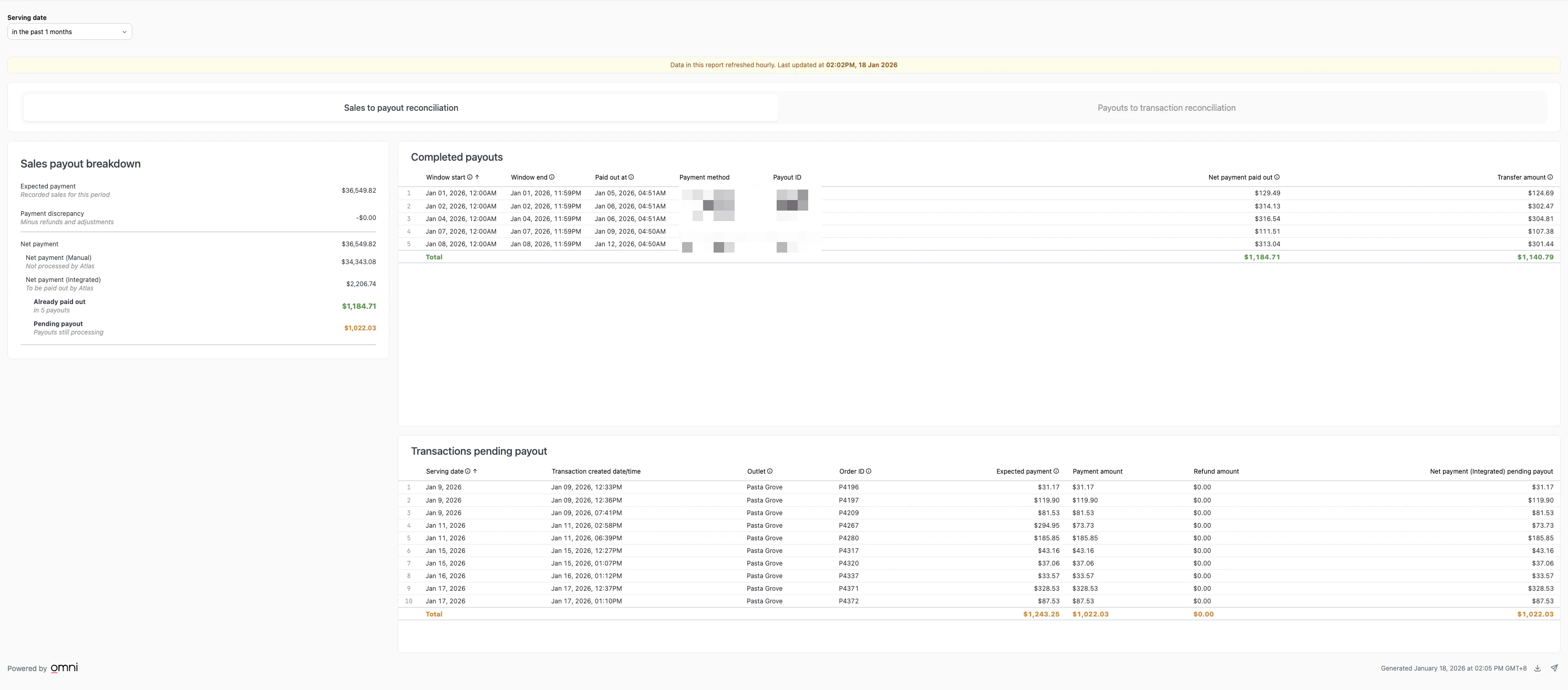
Sales payout breakdown on the Sales to payout reconciliation tab
2
Work down the sales payout breakdown
Every line is accounted for:
Expected payment — your recorded sales for the period.
Payment discrepancy — refunds and adjustments.
Net payment — expected payment after discrepancies. It splits into:
Net payment (Manual) — cash and other payments not processed by Atlas. You collect these directly, so Atlas never pays them out.
Net payment (Integrated) — the integrated sales your payout is based on, shown as Already paid out and Pending payout.
Net payment is the total of both. Only the integrated portion leads to a payout, and the amount paid into your bank (the transfer amount) is that figure minus the processing fee. A sales total that looks higher than your payouts is usually explained by manual payments and pending payouts.
3
Trace the integrated total to your bank
Net payment (Integrated) is the integrated sales your payout is based on. The payment processing fee comes out of it, and the remainder, the transfer amount, is what Atlas pays into your bank. To see the fee and transfer amount for a specific payout, open the Payouts tab, tap a payout ID, and select Single payout view.
Comparing your sales total against the Payouts tab will almost always show a gap, because that tab lists integrated payouts only. Reconcile on the Sales to payout reconciliation tab instead, where manual payments and pending payouts are shown separately.
This example uses tax-exclusive pricing and illustrative rates: a 3% payment processing fee, 9% GST, and 10% service charge. Your fee rate is set per merchant and may differ. Check your own rate in the payout report’s Single payout view.
A Tuesday with the following activity:
Item
Amount
Gross sales
$2,000.00
Discounts
−$80.00
Net sales
$1,920.00
Service charge (10% of net)
+$192.00
GST (9% of net + service charge)
+$190.08
Expected payment
$2,302.08
Of that, $100.00 was paid in cash. Cash is a manual payment, so Atlas does not pay it out. That leaves $2,202.08 as Net payment (Integrated), the figure your payout is based on.On Thursday, Atlas settles the card payments:
Timing is the usual cause. The rest are less common.Timing (most common). Sales record on the serving date. Payouts record on the settlement date, often days later. Friday’s card sales may only reach your bank on Monday. To reconcile, filter the Sales to payout reconciliation tab by serving date. It separates pending payouts from completed ones.
Payment processing fee
The sales report shows the full amount the customer paid. The transfer amount is what remains after the payment processing fee comes out. Reconcile expected payment against net payment (integrated), not against the transfer amount.
Refunds and chargebacks
A refund reduces sales on the original order’s serving date, but reduces the payout when it is processed, often on a different day and in a different payout window. Chargebacks appear as a negative adjustment in a later payout.
An old sale appears in a much later payout
Occasionally a payment for an order fails to settle on time. Atlas runs regular manual sweeps to catch these and processes the outstanding amount when found. When that happens, a sale from an earlier date can appear in a much later payout. For example, a sale from 1 May might be paid out on 23 May. It can look like earlier sales are being paid out again, but it is the previously unsettled payment being caught and paid to you for the first time.
Manual payments
Cash and other payments you collect directly appear in the sales report but never in a payout. Atlas only pays out integrated payments. To see them, check the Payment type summary in the sales report, which lists your manual payment methods alongside the integrated ones.
Aggregator orders (Grab Food, Foodpanda)
Aggregator orders are recorded in your Atlas sales, but the platforms pay you directly, not Atlas. They do not appear in the Atlas payout report. Reconcile aggregator payments against your Grab and Foodpanda statements separately.
GST and service charge
Net sales exclude GST and service charge. Expected payment and the transfer amount include them. Comparing net sales to a payout will always show a gap.
After accounting for the payment processing fee, manual payments, and pending payouts, the remaining gap should be near zero. If a meaningful amount is still unexplained, note the date range and the two figures you are comparing, then contact support.
A payout is stuck on Pending
Payouts usually settle within a few business days. If a payout shows as Pending for more than 5 business days, contact support with the payout ID.
A negative payout or chargeback you don't recognise
Chargebacks and adjustments appear as negative amounts in a later payout. If you see one you cannot trace to a refund or dispute, contact support with the payout ID.