Who is this article for?
- Restaurant owners verifying that expected payments have been received
- Finance managers tracking when payouts were processed and transferred
- Accounting teams reconciling sales reports with bank deposits
Available for these roles:
Finance
Admin
A new version of this report is availableAtlas is rolling out an upgraded Payout report with improved features and visualizations. View new report documentation →This version will remain available until the migration is complete.
What this does
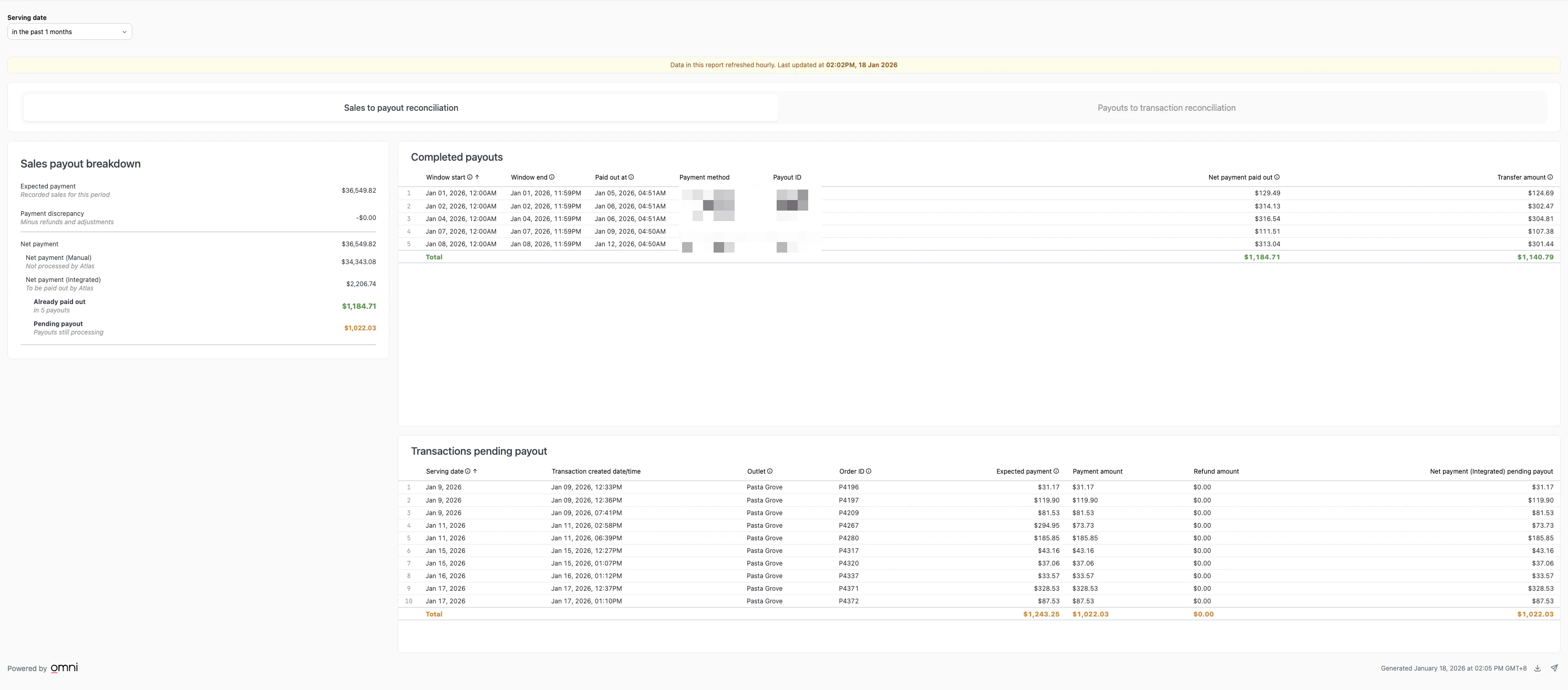
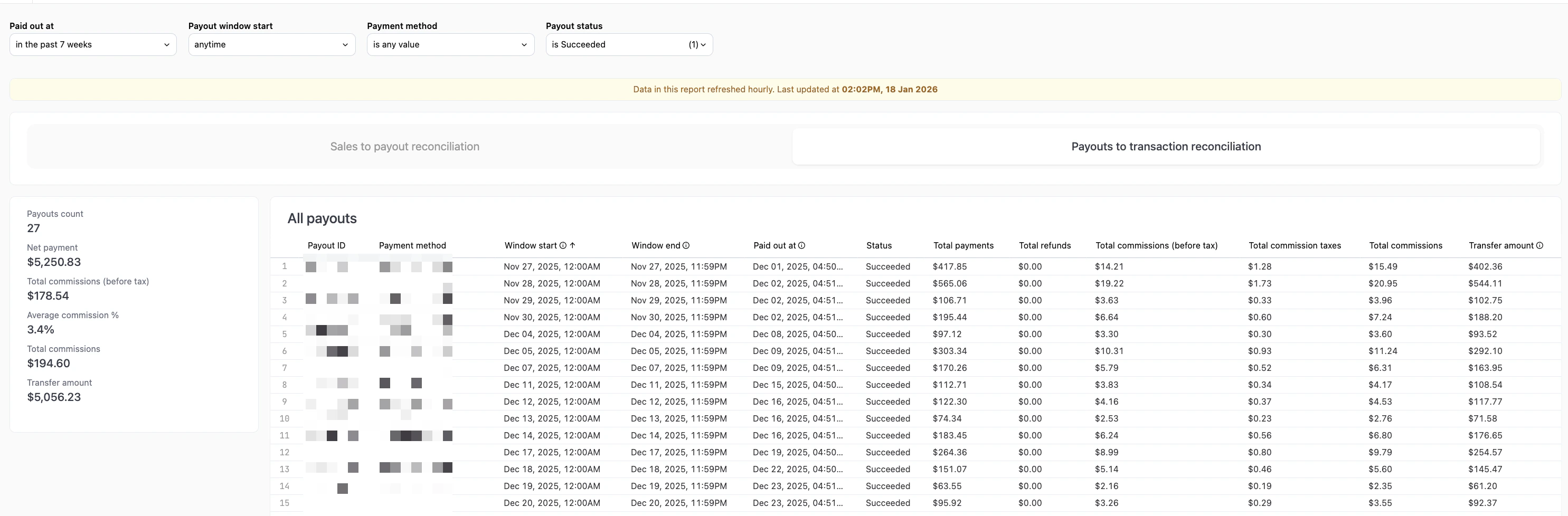
The Payout report shows all payments that have been processed and transferred to your bank account. Use this to verify that expected payments arrived, track when payouts were processed, and investigate discrepancies between sales and payouts. The report has two tabs:- Payouts: Shows completed payouts that have been processed and transferred
- Payments pending payout: Shows payments awaiting payout processing
When to use this
Use this report to answer:- Did we receive the money we’re supposed to get?
- When was a specific payout transferred to our bank account?
- Which outlet or payment processor is a payout from?
- What is the status of a payout (transferred, pending, or failed)?
- How many payouts have we received in a specific time period?
Filters
Payment processor filter
- Label: “Payment process…”
- Default: “All payment methods”
- Options: All payment methods, or specific payment processor names
- Effect: Filters the payout table to show only payouts processed through the selected payment method
Payout processed date filter
- Label: “Payout processed…”
- Default: Last 7 days (e.g., “Dec 31, 2025 - Jan 7, 2026”)
- Format: “MMM DD, YYYY - MMM DD, YYYY”
- Effect: Filters payout table to show only payouts processed within the selected date range
The “Payout processed…” date shows when Atlas processed the payout, not necessarily when funds arrived in your bank account. There may be a 1-2 business day delay.
Outlet/Payment processor filter chips
- Default: “ALL” (shows all outlets/payment processors)
- Options: Specific outlet or payment processor names (horizontally scrollable)
- Effect: Filters table to show payouts for the selected outlet/processor
Search box
- Label: “Search payouts”
- Searchable fields: Payout ID, Reference ID, Payment method name
- Effect: Filters table to show only payouts matching search term
Reports run on your account timezone. The timezone is shown at the top of the report.
Payout table
The table shows all payouts matching your filters. Columns include:- ID: Unique payout identifier (e.g., LCEP8XMT). Use this when contacting support about a specific payout.
- Payment method: Payment processor/outlet name with “(pos)” suffix for point-of-sale terminals
- Processed at: Date and time when the payout was processed by the system (format: “MMM DD, YYYY H:MM AM/PM”)
- Status: Current status of the payout
- Funds transferred (green badge): Money has been successfully processed and transferred to your bank account
- Payout reference: Reference code for the payout, may be used for bank reconciliation
- Payout: Additional payout information (amount or date)
“Processed at” is when Atlas processed the payout. There may be a 1-2 business day delay before funds appear in your bank account.
Actions
Download
Click the “Download” button to export current filtered data to CSV or Excel format. The export includes all payout records matching your filters.View payout details
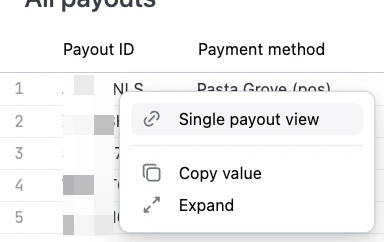
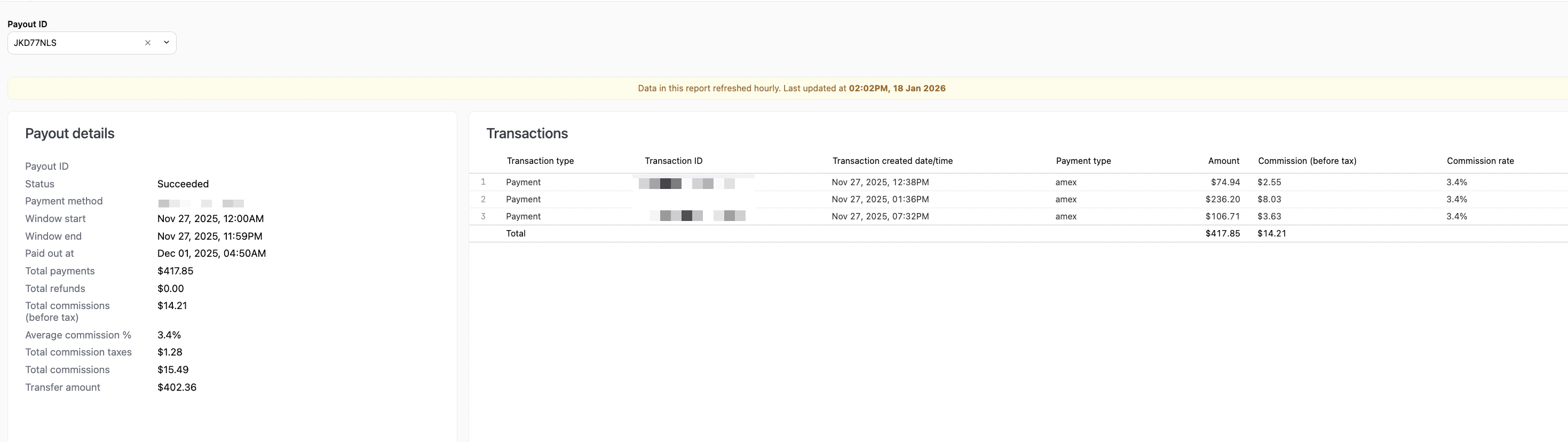
Click on a payout row to open detailed information about that payout, including fees, adjustments, and related transactions.What should happen
After applying filters, you should see:- The payout table updated to show only payouts matching your filters
- Summary metrics reflecting the filtered time period
- Status badges showing “Funds transferred” for completed payouts
- Payout IDs and processed dates for reconciliation
If it doesn’t work
If you don’t see a payout you’re expecting:- Check the “Payments pending payout” tab: The payment may be waiting for processing
- Expand the date range: Change the “Payout processed…” filter to 30 days instead of 7 days. The payout may have been processed on a different date than expected.
- Set payment processor to “All payment methods”: Ensure you’re not filtering out the payout
- Click “ALL” outlet filter chip: Ensure the correct outlet is selected
- Check your sales records: Confirm the sale was recorded in Atlas
- Wait 1-2 business days: There may be a delay between when Atlas processes the payout and when your bank credits the funds
- Check your bank account directly: Funds may have posted but not yet appeared in Atlas
- Contact your bank: Confirm they received the transfer and it’s not held for review
- If more than 3 business days have passed: Contact Atlas support with the Payout ID and processed date
- Click “Find out more”: Read the detailed explanation of recent payout adjustments
- Note the date range: The banner specifies when adjustments occurred
- Review recent payouts: Adjustments appear as additional payouts or deductions in the days after the correction
- Contact your accountant or Atlas support: If the adjustment affects your accounting, get guidance on how to record it
- Wait a few seconds: Ensure the page is fully loaded before clicking Download
- Check your browser’s popup blocker: Allow downloads from portal.atlas.kitchen
- Reduce the date range: Download fewer records if you’re getting an error
- Try a different browser: Rule out browser-specific issues
- Contact Atlas support: The download feature may be temporarily unavailable
- The report URL
- The specific payout that’s not working
- The filters you applied
- A screenshot if possible
Next steps
After reviewing your payout report:- Check the Daily outlet report to see gross sales that should match your payouts
- Review the Sales summary report to verify total sales for the same period
- Contact support at [email protected] to customize your sales day (e.g., 3AM-3AM instead of 12AM-12AM)
- Check Settings > Payouts to update bank account details if payouts are failing
Need help reconciling sales with payouts or investigating missing payments? Contact support at [email protected] with the specific Payout ID.