Configure, add, or remove the payment types your business accepts. This guide covers enabling payment types (like credit card, PayNow, and cash), creating your own manual payment types, and assigning a specific subset of payment types to an individual outlet.
Turn on the payment types you want to accept. Payment types are grouped into E-commerce payment types (Atlas Online and Scan to Order) and Terminal payment types (Atlas POS and Kiosk).
1
Log in to the Atlas merchant portal.
Open your web browser and sign in to the dashboard.
2
Navigate to Payment types.
Go to Settings > Payment types.
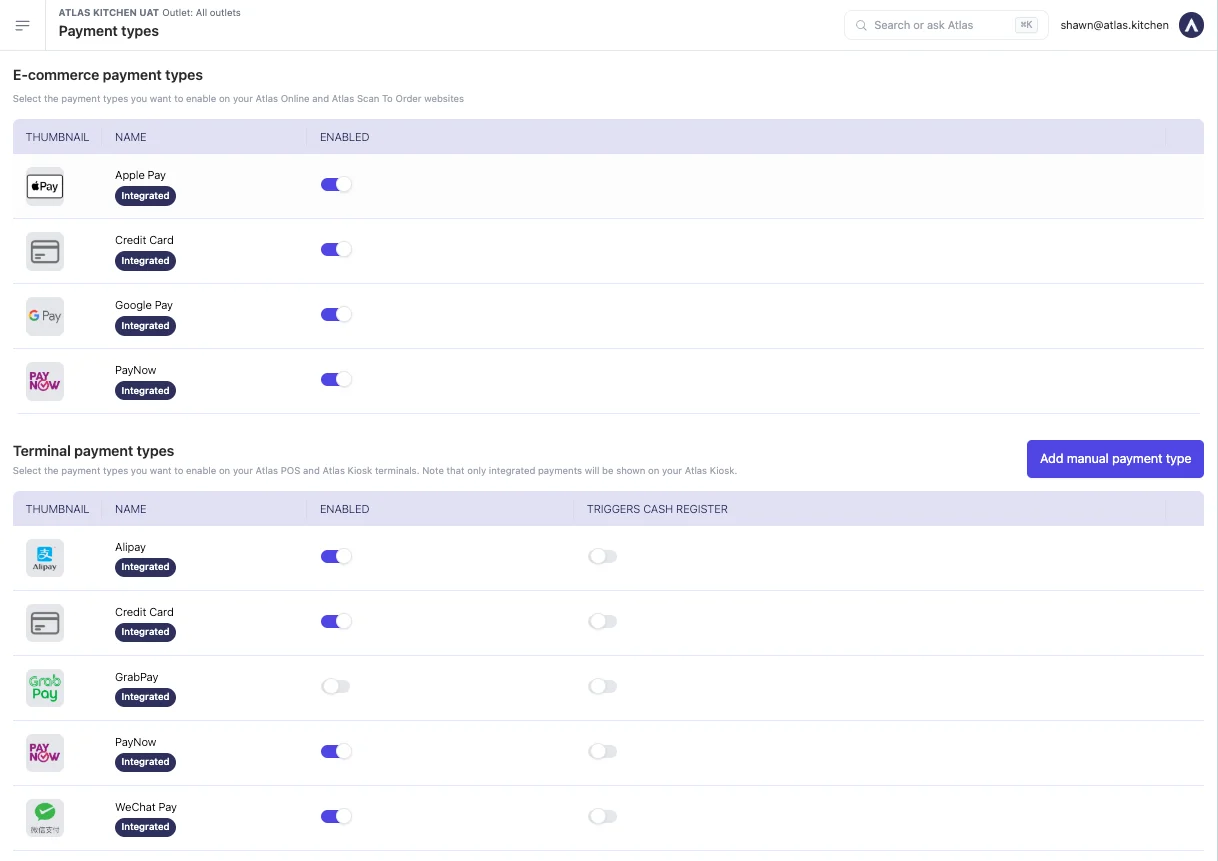
Payment types settings page in the Atlas merchant portal
3
Find the right group.
Use the E-commerce payment types section for your Atlas Online and Scan to Order websites, or the Terminal payment types section for your Atlas POS and Kiosk.
4
Turn on the payment type.
Switch the Enabled toggle on next to the payment type you want to accept (e.g. Credit card, PayNow, or Cash).
Stop accepting a payment type at checkout. Payment types are disabled, not deleted — switching a type off removes it from the relevant checkout screens while keeping it available to re-enable later.
1
Navigate to Payment types.
In the Atlas merchant portal, go to Settings > Payment types.
2
Disable the payment type.
Find the payment type you want to stop accepting and switch its Enabled toggle off.
Create a custom payment type for things Atlas doesn’t provide out of the box — physical gift cards, mall vouchers, cash vouchers, or any custom tender you accept at the till.
1
Navigate to Payment types.
In the Atlas merchant portal, go to Settings > Payment types.
2
Click 'Add manual payment type'.
In the Terminal payment types section, click the Add manual payment type button.
3
Enter the payment type details.
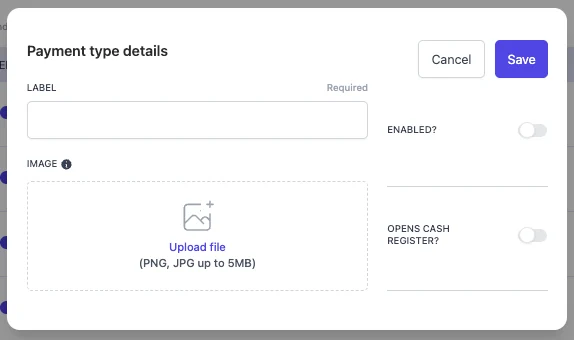
Fill in the Label (required, e.g. “Mall voucher”). You can optionally upload an Image for the payment type.
Manual payment type creation form
4
Set the options.
Switch Enabled on so the payment type is available immediately. Switch Opens cash register? on if selecting this payment type at the POS should trigger the cash drawer.
5
Save.
Save the form. Your new payment type will now appear in the Terminal payment types list and on your POS checkout screen.
If a payment type is enabled in the Atlas merchant portal but doesn’t show at the till or online:
Check the group: Make sure you enabled it in the right section — Terminal payment types for POS/Kiosk, E-commerce payment types for Atlas Online/Scan to Order.
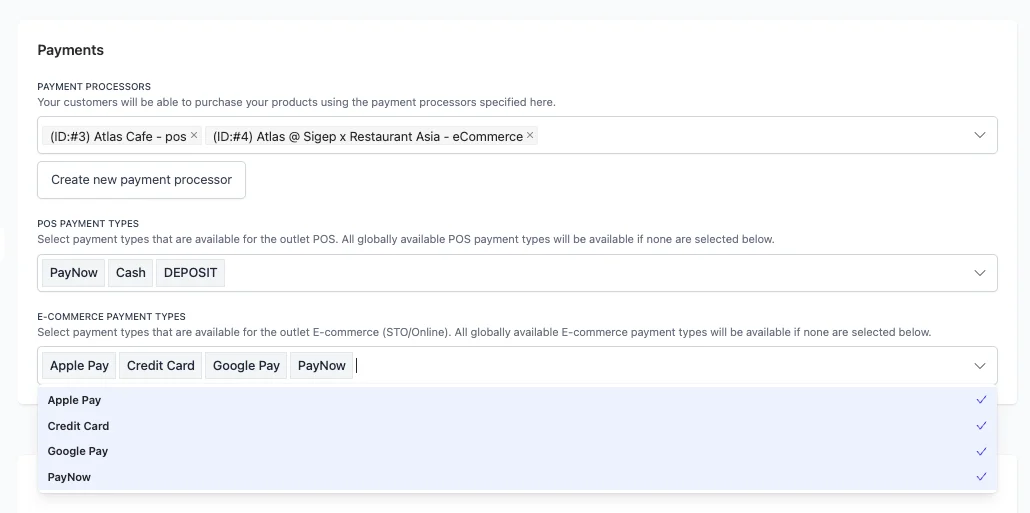
Check the outlet’s selection: If the outlet has specific payment types selected under Outlet settings > Outlets > (outlet) > Payment types, only those will show. Add the missing type, or clear the field to fall back to your global list.
Check your connection: Make sure the POS tablet is online.
Card terminal payment fails to connect
If an integrated card terminal isn’t responding, this is a hardware connection issue rather than a payment type setting. Check that the terminal is powered on and connected, then contact support if it persists.
{"docsConfig":{"theme":"mint","$schema":"https://mintlify.com/docs.json","name":"Atlas Help Center","colors":{"primary":"#4f46e5","light":"#818cf8","dark":"#473fce"},"logo":{"light":"https://mintcdn.com/atlaskitchen/toWaeAIw-C17Ei-e/logo/atlas-logo-for-light.svg?fit=max\u0026auto=format\u0026n=toWaeAIw-C17Ei-e\u0026q=85\u0026s=42ed8ebe4e4fca8e33f55859c72ca3f1","dark":"https://mintcdn.com/atlaskitchen/toWaeAIw-C17Ei-e/logo/atlas-logo-for-dark.svg?fit=max\u0026auto=format\u0026n=toWaeAIw-C17Ei-e\u0026q=85\u0026s=bb42d68eef8bc5010249ee1532a301da"},"favicon":"https://mintcdn.com/atlaskitchen/PbQq0fyxwtbdSf_o/favicon.svg?fit=max\u0026auto=format\u0026n=PbQq0fyxwtbdSf_o\u0026q=85\u0026s=9db1f5a3494b038b2e09d47174c85a20","api":{"openapi":["specs/storefront-v1.yaml","specs/admin-v1.yaml"],"mdx":{"server":"https://api.atlas.kitchen"}},"navbar":{"links":[{"href":"mailto:hello@atlas.kitchen","label":"Contact us"}],"primary":{"type":"button","label":"Log in","href":"https://portal.atlas.kitchen"}},"footer":{"socials":{"instagram":"https://www.instagram.com/eatwithatlas","website":"https://atlas.kitchen"}},"fonts":{"family":"Poppins"},"styling":{"eyebrows":"breadcrumbs","latex":true},"integrations":{"posthog":{"apiKey":"phc_qu7tvbPaS6IIkmPz45wWN0E0jBQhuxfGIywTJJNAkNb","sessionRecording":true}},"contextual":{"options":["copy","view","chatgpt","claude","perplexity"],"display":"header"},"navigation":{"pages":[]}},"deployment":{"deploymentMetadataValue":{"subdomain":"atlaskitchen","hasAudioNarration":false,"actualSubdomain":"atlaskitchen","customDomains":["help.atlas.kitchen"],"gitSource":{"type":"github","owner":"atlas-kitchen","repo":"docs","deployBranch":"master","contentDirectory":"","isPrivate":true,"mountPath":"","label":""},"chroma":{"liveDeploymentHistoryId":"6ad756aefe4769c03a8ac39e","collectionId":"95f4091f-2845-4a1b-9e6f-79056b349fd9","schemaVersion":"v3","latestBuiltDeploymentHistoryId":"6ad756aefe4769c03a8ac39e"},"feedback":{"thumbs":true},"entitlements":{"AI_CHAT":{"status":"ENABLED"},"WEB_MCP":{"status":"ENABLED"},"NARRATION":{"status":"ENABLED"}},"buildId":"6adabc34d29e993c2d1b7efc","clientVersion":"0.0.3939","searchFilterCounts":[{"language":"default","tag":"Help center","count":66},{"language":"default","tag":"Atlas Merchant Portal","count":53},{"language":"default","tag":"Atlas Connect API","count":49},{"language":"default","tag":"Admin API","count":20},{"language":"default","tag":"Storefront API","count":20},{"language":"default","tag":"Reports","count":15},{"language":"default","tag":"Cart","count":11},{"language":"default","tag":"Menu builder","count":11},{"language":"default","tag":"Orders","count":9},{"language":"default","tag":"Marketing tools","count":9}]},"assistantConfig":{"enableAskAiButton":false,"enableStarterQuestions":false,"enableContextualStarterQuestions":false,"enableAskAiSearchBar":true},"hasChatPermissions":true,"hasWebMcpPermissions":true,"toggles":[{"name":"kill-isr","enabled":true,"variant":{"name":"disabled","enabled":false,"feature_enabled":true},"impressionData":false},{"name":"agent-mintlify-slack","enabled":true,"variant":{"name":"disabled","enabled":false,"feature_enabled":true},"impressionData":false},{"name":"editor-v7-file-tree","enabled":true,"variant":{"name":"disabled","enabled":false,"feature_enabled":true},"impressionData":false},{"name":"agent-integrations-settings","enabled":true,"variant":{"name":"disabled","enabled":false,"feature_enabled":true},"impressionData":false},{"name":"automations-pr-grouping","enabled":true,"variant":{"name":"disabled","enabled":false,"feature_enabled":true},"impressionData":false},{"name":"custom-prefix","enabled":true,"variant":{"name":"disabled","enabled":false,"feature_enabled":true},"impressionData":false},{"name":"analytics-v7","enabled":true,"variant":{"name":"disabled","enabled":false,"feature_enabled":true},"impressionData":false},{"name":"user-flows-analytics","enabled":true,"variant":{"name":"disabled","enabled":false,"feature_enabled":true},"impressionData":false},{"name":"no-publish-flow","enabled":true,"variant":{"name":"disabled","enabled":false,"feature_enabled":true},"impressionData":false},{"name":"workos-onboarding","enabled":true,"variant":{"name":"disabled","enabled":false,"feature_enabled":true},"impressionData":false},{"name":"llms-txt-v2","enabled":true,"variant":{"name":"disabled","enabled":false,"feature_enabled":true},"impressionData":false},{"name":"pause-universal-search-reconcile","enabled":true,"variant":{"name":"disabled","enabled":false,"feature_enabled":true},"impressionData":false},{"name":"snapshot-serving-live","enabled":true,"variant":{"name":"disabled","enabled":false,"feature_enabled":true},"impressionData":false},{"name":"stripTemperatureMiddleware","enabled":true,"variant":{"name":"disabled","enabled":false,"feature_enabled":true},"impressionData":false},{"name":"per-site-search-delta","enabled":true,"variant":{"name":"disabled","enabled":false,"feature_enabled":true},"impressionData":false},{"name":"support-platform-pylon-zendesk","enabled":true,"variant":{"name":"disabled","enabled":false,"feature_enabled":true},"impressionData":false},{"name":"snapshot-serving","enabled":true,"variant":{"name":"disabled","enabled":false,"feature_enabled":true},"impressionData":false},{"name":"instant-rollback","enabled":true,"variant":{"name":"disabled","enabled":false,"feature_enabled":true},"impressionData":false},{"name":"granular-notifications-server","enabled":true,"variant":{"name":"disabled","enabled":false,"feature_enabled":true},"impressionData":false},{"name":"granular-notifications","enabled":true,"variant":{"name":"disabled","enabled":false,"feature_enabled":true},"impressionData":false},{"name":"editor-private-page-search","enabled":true,"variant":{"name":"disabled","enabled":false,"feature_enabled":true},"impressionData":false},{"name":"automations-fable","enabled":true,"variant":{"name":"disabled","enabled":false,"feature_enabled":true},"impressionData":false},{"name":"fixed-ai-action-pricing","enabled":true,"variant":{"name":"disabled","enabled":false,"feature_enabled":true},"impressionData":false},{"name":"automation-resolve-merge-conflict","enabled":true,"variant":{"name":"disabled","enabled":false,"feature_enabled":true},"impressionData":false},{"name":"scoped-publishing","enabled":true,"variant":{"name":"disabled","enabled":false,"feature_enabled":true},"impressionData":false},{"name":"mintql","enabled":true,"variant":{"name":"disabled","enabled":false,"feature_enabled":true},"impressionData":false},{"name":"page-level-analytics","enabled":true,"variant":{"name":"disabled","enabled":false,"feature_enabled":true},"impressionData":false},{"name":"editor-version-history-v2","enabled":true,"variant":{"name":"disabled","enabled":false,"feature_enabled":true},"impressionData":false},{"name":"editor-nav-generations","enabled":true,"variant":{"name":"disabled","enabled":false,"feature_enabled":true},"impressionData":false},{"name":"billing-page-v2","enabled":true,"variant":{"name":"disabled","enabled":false,"feature_enabled":true},"impressionData":false},{"name":"workspace-projects","enabled":true,"variant":{"name":"disabled","enabled":false,"feature_enabled":true},"impressionData":false},{"name":"assistant-v5","enabled":true,"variant":{"name":"disabled","enabled":false,"feature_enabled":true},"impressionData":false},{"name":"byok-sep-25","enabled":true,"variant":{"name":"disabled","enabled":false,"feature_enabled":true},"impressionData":false},{"name":"fork-pr-previews","enabled":true,"variant":{"name":"disabled","enabled":false,"feature_enabled":true},"impressionData":false},{"name":"revalidation-jwt","enabled":true,"variant":{"name":"disabled","enabled":false,"feature_enabled":true},"impressionData":false},{"name":"vite-origin","enabled":true,"variant":{"name":"disabled","enabled":false,"feature_enabled":true},"impressionData":false},{"name":"editor-agent-model-picker","enabled":true,"variant":{"name":"disabled","enabled":false,"feature_enabled":true},"impressionData":false},{"name":"billing-updated-9-15","enabled":true,"variant":{"name":"disabled","enabled":false,"feature_enabled":true},"impressionData":false},{"name":"hobby-abuse-scan","enabled":true,"variant":{"name":"disabled","enabled":false,"feature_enabled":true},"impressionData":false},{"name":"dashboard-inbox","enabled":true,"variant":{"name":"disabled","enabled":false,"feature_enabled":true},"impressionData":false}],"isAtlas":false,"googleFontsInlined":true},"customCss":[],"page":{"pagePath":"merchant-portal/payment-methods","slug":"/merchant-portal/payment-methods","pageMetadata":{"title":"Add or remove payment types","description":"Configure which payment types your business accepts at the POS, kiosk, and online — and set different payment types per outlet.","href":"/merchant-portal/payment-methods"},"description":{"compiledSource":"\"use strict\";\nconst {jsx: _jsx} = arguments[0];\nconst {useMDXComponents: _provideComponents} = arguments[0];\nfunction _createMdxContent(props) {\n const _components = {\n p: \"p\",\n ..._provideComponents(),\n ...props.components\n };\n return _jsx(_components.p, {\n children: \"Configure which payment types your business accepts at the POS, kiosk, and online — and set different payment types per outlet.\"\n });\n}\nfunction MDXContent(props = {}) {\n const {wrapper: MDXLayout} = {\n ..._provideComponents(),\n ...props.components\n };\n return MDXLayout ? _jsx(MDXLayout, {\n ...props,\n children: _jsx(_createMdxContent, {\n ...props\n })\n }) : _createMdxContent(props);\n}\nreturn {\n default: MDXContent\n};\n","frontmatter":{},"scope":{}},"pageType":"default","mdx":{"mdxSource":{"compiledSource":"\"use strict\";const{Fragment:_Fragment,jsx:_jsx,jsxs:_jsxs}=arguments[0];const{useMDXComponents:_provideComponents}=arguments[0];function _createMdxContent(props){const _components={a:`a`,li:`li`,p:`p`,strong:`strong`,ul:`ul`,..._provideComponents(),...props.components},{Accordion,AccordionGroup,Frame,Heading,Info,OptimizedImage,Step,Steps}=_components;if(!Accordion)_missingMdxReference(`Accordion`,true);if(!AccordionGroup)_missingMdxReference(`AccordionGroup`,true);if(!Frame)_missingMdxReference(`Frame`,true);if(!Heading)_missingMdxReference(`Heading`,true);if(!Info)_missingMdxReference(`Info`,true);if(!OptimizedImage)_missingMdxReference(`OptimizedImage`,true);if(!Step)_missingMdxReference(`Step`,true);if(!Steps)_missingMdxReference(`Steps`,true);return _jsxs(_Fragment,{children:[_jsxs(Info,{children:[_jsx(_components.p,{children:_jsx(_components.strong,{children:`Who is this article for?`})}),_jsxs(_components.ul,{children:[`\n`,_jsx(_components.li,{children:`Atlas users with Manager or Admin permissions.`}),`\n`,_jsx(_components.li,{children:`Merchants configuring which payment types they accept across Atlas POS, Kiosk, Atlas Online, and Scan to Order.`}),`\n`]})]}),`\n`,_jsx(Heading,{level:`2`,id:`what-this-does`,children:`What this does`}),`\n`,_jsx(_components.p,{children:`Configure, add, or remove the payment types your business accepts. This guide covers enabling payment types (like credit card, PayNow, and cash), creating your own manual payment types, and assigning a specific subset of payment types to an individual outlet.`}),`\n`,_jsx(Heading,{level:`2`,id:`when-to-use-this`,children:`When to use this`}),`\n`,_jsx(_components.p,{children:`Use the decision tree below to find the exact steps you need:`}),`\n`,_jsxs(_components.ul,{children:[`\n`,_jsxs(_components.li,{children:[`If you want to start accepting a payment type (card, PayNow, cash, etc.): `,_jsx(_components.a,{href:`#enable-a-payment-type`,children:`Enable a payment type`}),`.`]}),`\n`,_jsxs(_components.li,{children:[`If you want to stop accepting a specific payment type: `,_jsx(_components.a,{href:`#disable-a-payment-type`,children:`Disable a payment type`}),`.`]}),`\n`,_jsxs(_components.li,{children:[`If you need a custom payment type (gift cards, mall vouchers, cash vouchers, etc.): `,_jsx(_components.a,{href:`#add-a-manual-payment-type`,children:`Add a manual payment type`}),`.`]}),`\n`,_jsxs(_components.li,{children:[`If you want different outlets to accept different payment types: `,_jsx(_components.a,{href:`#set-payment-types-per-outlet`,children:`Set payment types per outlet`}),`.`]}),`\n`]}),`\n`,_jsx(Heading,{level:`2`,id:`when-to-use-this-2`,children:`When to use this`}),`\n`,_jsx(_components.p,{children:`Use the decision tree below to find the exact steps you need:`}),`\n`,_jsxs(_components.ul,{children:[`\n`,_jsxs(_components.li,{children:[`If you want to start accepting a payment type (card, PayNow, cash, etc.): `,_jsx(_components.a,{href:`#enable-a-payment-type`,children:`Enable a payment type`}),`.`]}),`\n`,_jsxs(_components.li,{children:[`If you want to stop accepting a specific payment type: `,_jsx(_components.a,{href:`#disable-a-payment-type`,children:`Disable a payment type`}),`.`]}),`\n`,_jsxs(_components.li,{children:[`If you need a custom payment type (gift cards, mall vouchers, cash vouchers, etc.): `,_jsx(_components.a,{href:`#add-a-manual-payment-type`,children:`Add a manual payment type`}),`.`]}),`\n`,_jsxs(_components.li,{children:[`If you want different outlets to accept different payment types: `,_jsx(_components.a,{href:`#set-payment-types-per-outlet`,children:`Set payment types per outlet`}),`.`]}),`\n`]}),`\n`,_jsx(Heading,{level:`2`,id:`steps`,children:`Steps`}),`\n`,_jsx(Heading,{level:`3`,id:`enable-a-payment-type`,children:`Enable a payment type`}),`\n`,_jsxs(_components.p,{children:[`Turn on the payment types you want to accept. Payment types are grouped into `,_jsx(_components.strong,{children:`E-commerce payment types`}),` (Atlas Online and Scan to Order) and `,_jsx(_components.strong,{children:`Terminal payment types`}),` (Atlas POS and Kiosk).`]}),`\n`,_jsxs(Steps,{children:[_jsx(Step,{title:`Log in to the Atlas merchant portal.`,children:_jsx(_components.p,{children:`Open your web browser and sign in to the dashboard.`})}),_jsxs(Step,{title:`Navigate to Payment types.`,children:[_jsxs(_components.p,{children:[`Go to `,_jsx(_components.strong,{children:`Settings`}),` > `,_jsx(_components.strong,{children:`Payment types`}),`.`]}),_jsx(Frame,{caption:`Payment types settings page in the Atlas merchant portal`,children:_jsx(OptimizedImage,{src:`https://mintcdn.com/atlaskitchen/EgGdn1x399oX-4Hr/images/CleanShot-2026-06-09-at-17.55.42.png?fit=max\u0026auto=format\u0026n=EgGdn1x399oX-4Hr\u0026q=85\u0026s=4047f90bf160d833cba87dda246a11c6`,alt:`Clean Shot 2026 06 09 At 17 55 42`,\"data-og-width\":`1218`,width:`1218`,\"data-og-height\":`861`,height:`861`,\"data-path\":`images/CleanShot-2026-06-09-at-17.55.42.png`,\"data-optimize\":`true`,\"data-opv\":`3`,srcset:`https://mintcdn.com/atlaskitchen/EgGdn1x399oX-4Hr/images/CleanShot-2026-06-09-at-17.55.42.png?w=280\u0026fit=max\u0026auto=format\u0026n=EgGdn1x399oX-4Hr\u0026q=85\u0026s=07b871847f6d5afe20b9bd448e4ad688 280w, https://mintcdn.com/atlaskitchen/EgGdn1x399oX-4Hr/images/CleanShot-2026-06-09-at-17.55.42.png?w=560\u0026fit=max\u0026auto=format\u0026n=EgGdn1x399oX-4Hr\u0026q=85\u0026s=187d383c537ecd2307d26dba22fb8a70 560w, https://mintcdn.com/atlaskitchen/EgGdn1x399oX-4Hr/images/CleanShot-2026-06-09-at-17.55.42.png?w=840\u0026fit=max\u0026auto=format\u0026n=EgGdn1x399oX-4Hr\u0026q=85\u0026s=d1b9690699c35e2426d4c23a9810caa5 840w, https://mintcdn.com/atlaskitchen/EgGdn1x399oX-4Hr/images/CleanShot-2026-06-09-at-17.55.42.png?w=1100\u0026fit=max\u0026auto=format\u0026n=EgGdn1x399oX-4Hr\u0026q=85\u0026s=5fa843c9f5a849ea7a28b76c50bb693a 1100w, https://mintcdn.com/atlaskitchen/EgGdn1x399oX-4Hr/images/CleanShot-2026-06-09-at-17.55.42.png?w=1650\u0026fit=max\u0026auto=format\u0026n=EgGdn1x399oX-4Hr\u0026q=85\u0026s=1873d199716718847e0d4442755474f8 1650w, https://mintcdn.com/atlaskitchen/EgGdn1x399oX-4Hr/images/CleanShot-2026-06-09-at-17.55.42.png?w=2500\u0026fit=max\u0026auto=format\u0026n=EgGdn1x399oX-4Hr\u0026q=85\u0026s=ebe7dfff7d0cd3289f1bcd2e3fb9ec20 2500w`})})]}),_jsx(Step,{title:`Find the right group.`,children:_jsxs(_components.p,{children:[`Use the `,_jsx(_components.strong,{children:`E-commerce payment types`}),` section for your Atlas Online and Scan to Order websites, or the `,_jsx(_components.strong,{children:`Terminal payment types`}),` section for your Atlas POS and Kiosk.`]})}),_jsx(Step,{title:`Turn on the payment type.`,children:_jsxs(_components.p,{children:[`Switch the `,_jsx(_components.strong,{children:`Enabled`}),` toggle on next to the payment type you want to accept (e.g. `,_jsx(_components.strong,{children:`Credit card`}),`, `,_jsx(_components.strong,{children:`PayNow`}),`, or `,_jsx(_components.strong,{children:`Cash`}),`).`]})})]}),`\n`,_jsx(Heading,{level:`3`,id:`disable-a-payment-type`,children:`Disable a payment type`}),`\n`,_jsx(_components.p,{children:`Stop accepting a payment type at checkout. Payment types are disabled, not deleted — switching a type off removes it from the relevant checkout screens while keeping it available to re-enable later.`}),`\n`,_jsxs(Steps,{children:[_jsx(Step,{title:`Navigate to Payment types.`,children:_jsxs(_components.p,{children:[`In the Atlas merchant portal, go to `,_jsx(_components.strong,{children:`Settings`}),` > `,_jsx(_components.strong,{children:`Payment types`}),`.`]})}),_jsx(Step,{title:`Disable the payment type.`,children:_jsxs(_components.p,{children:[`Find the payment type you want to stop accepting and switch its `,_jsx(_components.strong,{children:`Enabled`}),` toggle off.`]})})]}),`\n`,_jsx(Heading,{level:`3`,id:`add-a-manual-payment-type`,children:`Add a manual payment type`}),`\n`,_jsx(_components.p,{children:`Create a custom payment type for things Atlas doesn’t provide out of the box — physical gift cards, mall vouchers, cash vouchers, or any custom tender you accept at the till.`}),`\n`,_jsxs(Steps,{children:[_jsx(Step,{title:`Navigate to Payment types.`,children:_jsxs(_components.p,{children:[`In the Atlas merchant portal, go to `,_jsx(_components.strong,{children:`Settings`}),` > `,_jsx(_components.strong,{children:`Payment types`}),`.`]})}),_jsx(Step,{title:`Click 'Add manual payment type'.`,children:_jsxs(_components.p,{children:[`In the `,_jsx(_components.strong,{children:`Terminal payment types`}),` section, click the `,_jsx(_components.strong,{children:`Add manual payment type`}),` button.`]})}),_jsxs(Step,{title:`Enter the payment type details.`,children:[_jsxs(_components.p,{children:[`Fill in the `,_jsx(_components.strong,{children:`Label`}),` (required, e.g. “Mall voucher”). You can optionally upload an `,_jsx(_components.strong,{children:`Image`}),` for the payment type.`]}),_jsx(Frame,{caption:`Manual payment type creation form`,children:_jsx(OptimizedImage,{src:`https://mintcdn.com/atlaskitchen/EgGdn1x399oX-4Hr/images/CleanShot-2026-06-09-at-18.05.27.png?fit=max\u0026auto=format\u0026n=EgGdn1x399oX-4Hr\u0026q=85\u0026s=0404812d95705d18edb3cc2caca0bb72`,alt:`Clean Shot 2026 06 09 At 18 05 27`,\"data-og-width\":`574`,width:`574`,\"data-og-height\":`340`,height:`340`,\"data-path\":`images/CleanShot-2026-06-09-at-18.05.27.png`,\"data-optimize\":`true`,\"data-opv\":`3`,srcset:`https://mintcdn.com/atlaskitchen/EgGdn1x399oX-4Hr/images/CleanShot-2026-06-09-at-18.05.27.png?w=280\u0026fit=max\u0026auto=format\u0026n=EgGdn1x399oX-4Hr\u0026q=85\u0026s=3ca3974429ffa221b8c332cd77a36885 280w, https://mintcdn.com/atlaskitchen/EgGdn1x399oX-4Hr/images/CleanShot-2026-06-09-at-18.05.27.png?w=560\u0026fit=max\u0026auto=format\u0026n=EgGdn1x399oX-4Hr\u0026q=85\u0026s=c2c93dcf8b15d686935dcfe18969401d 560w, https://mintcdn.com/atlaskitchen/EgGdn1x399oX-4Hr/images/CleanShot-2026-06-09-at-18.05.27.png?w=840\u0026fit=max\u0026auto=format\u0026n=EgGdn1x399oX-4Hr\u0026q=85\u0026s=9ec9edd6d9f4d1d1e2de25a686b03fc9 840w, https://mintcdn.com/atlaskitchen/EgGdn1x399oX-4Hr/images/CleanShot-2026-06-09-at-18.05.27.png?w=1100\u0026fit=max\u0026auto=format\u0026n=EgGdn1x399oX-4Hr\u0026q=85\u0026s=f62e4fc8bd41ce484596311b15457a6d 1100w, https://mintcdn.com/atlaskitchen/EgGdn1x399oX-4Hr/images/CleanShot-2026-06-09-at-18.05.27.png?w=1650\u0026fit=max\u0026auto=format\u0026n=EgGdn1x399oX-4Hr\u0026q=85\u0026s=c2a03fb5d39eece56248fd9f4cdc1b56 1650w, https://mintcdn.com/atlaskitchen/EgGdn1x399oX-4Hr/images/CleanShot-2026-06-09-at-18.05.27.png?w=2500\u0026fit=max\u0026auto=format\u0026n=EgGdn1x399oX-4Hr\u0026q=85\u0026s=d3e1c8c540ec9249e49954cf5a1f8995 2500w`})})]}),_jsx(Step,{title:`Set the options.`,children:_jsxs(_components.p,{children:[`Switch `,_jsx(_components.strong,{children:`Enabled`}),` on so the payment type is available immediately. Switch `,_jsx(_components.strong,{children:`Opens cash register?`}),` on if selecting this payment type at the POS should trigger the cash drawer.`]})}),_jsx(Step,{title:`Save.`,children:_jsx(_components.p,{children:`Save the form. Your new payment type will now appear in the Terminal payment types list and on your POS checkout screen.`})})]}),`\n`,_jsx(Heading,{level:`3`,id:`set-payment-types-per-outlet`,children:`Set payment types per outlet`}),`\n`,_jsx(_components.p,{children:`Restrict an individual outlet to a specific subset of your enabled payment types — useful when locations accept different tenders.`}),`\n`,_jsxs(Steps,{children:[_jsx(Step,{title:`Navigate to Outlets.`,children:_jsxs(_components.p,{children:[`In the Atlas merchant portal, go to `,_jsx(_components.strong,{children:`Outlet settings`}),` > `,_jsx(_components.strong,{children:`Outlets`}),`.`]})}),_jsx(Step,{title:`Edit the outlet.`,children:_jsxs(_components.p,{children:[`Click `,_jsx(_components.strong,{children:`Edit`}),` next to the outlet you want to configure, then go to the `,_jsx(_components.strong,{children:`Payment types`}),` section.`]})}),_jsxs(Step,{title:`Select the payment types for this outlet.`,children:[_jsxs(_components.p,{children:[`Use the `,_jsx(_components.strong,{children:`POS Payment types`}),` and `,_jsx(_components.strong,{children:`E-commerce Payment types`}),` multi-select fields to choose which payment types this outlet accepts.`]}),_jsx(Frame,{caption:`Assigning payment types to a specific outlet`,children:_jsx(OptimizedImage,{src:`https://mintcdn.com/atlaskitchen/EgGdn1x399oX-4Hr/images/CleanShot-2026-06-09-at-18.08.03.png?fit=max\u0026auto=format\u0026n=EgGdn1x399oX-4Hr\u0026q=85\u0026s=825b1bb76f4c8a1db23a4cd8e71c797a`,alt:`Clean Shot 2026 06 09 At 18 08 03`,\"data-og-width\":`1030`,width:`1030`,\"data-og-height\":`513`,height:`513`,\"data-path\":`images/CleanShot-2026-06-09-at-18.08.03.png`,\"data-optimize\":`true`,\"data-opv\":`3`,srcset:`https://mintcdn.com/atlaskitchen/EgGdn1x399oX-4Hr/images/CleanShot-2026-06-09-at-18.08.03.png?w=280\u0026fit=max\u0026auto=format\u0026n=EgGdn1x399oX-4Hr\u0026q=85\u0026s=3aef63d00d12550a41f9bae2bf549c13 280w, https://mintcdn.com/atlaskitchen/EgGdn1x399oX-4Hr/images/CleanShot-2026-06-09-at-18.08.03.png?w=560\u0026fit=max\u0026auto=format\u0026n=EgGdn1x399oX-4Hr\u0026q=85\u0026s=85c6d0dfa12e0deb312f038e51168109 560w, https://mintcdn.com/atlaskitchen/EgGdn1x399oX-4Hr/images/CleanShot-2026-06-09-at-18.08.03.png?w=840\u0026fit=max\u0026auto=format\u0026n=EgGdn1x399oX-4Hr\u0026q=85\u0026s=ed0b7d6ebf1e6ef9209c46698a0fcb51 840w, https://mintcdn.com/atlaskitchen/EgGdn1x399oX-4Hr/images/CleanShot-2026-06-09-at-18.08.03.png?w=1100\u0026fit=max\u0026auto=format\u0026n=EgGdn1x399oX-4Hr\u0026q=85\u0026s=7f7c18f379fd89e2867b6d1996d046e4 1100w, https://mintcdn.com/atlaskitchen/EgGdn1x399oX-4Hr/images/CleanShot-2026-06-09-at-18.08.03.png?w=1650\u0026fit=max\u0026auto=format\u0026n=EgGdn1x399oX-4Hr\u0026q=85\u0026s=e626993981191ca25f2213bed23712a4 1650w, https://mintcdn.com/atlaskitchen/EgGdn1x399oX-4Hr/images/CleanShot-2026-06-09-at-18.08.03.png?w=2500\u0026fit=max\u0026auto=format\u0026n=EgGdn1x399oX-4Hr\u0026q=85\u0026s=0f99812a4c72b6b6ba75b69a4d2181bd 2500w`})})]}),_jsx(Step,{title:`Save your changes.`,children:_jsx(_components.p,{children:`Save the outlet. If you leave a field empty, the outlet uses all of your globally enabled payment types for that channel.`})})]}),`\n`,_jsx(Heading,{level:`2`,id:`what-should-happen`,children:`What should happen`}),`\n`,_jsx(_components.p,{children:`Once saved, your changes apply automatically:`}),`\n`,_jsxs(_components.ul,{children:[`\n`,_jsx(_components.li,{children:`Enabled payment types appear on the relevant checkout screens (POS, Kiosk, Atlas Online, or Scan to Order).`}),`\n`,_jsx(_components.li,{children:`Disabled payment types no longer appear at checkout.`}),`\n`,_jsx(_components.li,{children:`Outlet-specific selections override your global list for that outlet.`}),`\n`]}),`\n`,_jsx(Heading,{level:`2`,id:`if-it-doesn’t-work`,children:`If it doesn’t work`}),`\n`,_jsxs(AccordionGroup,{children:[_jsxs(Accordion,{title:`A payment type does not appear at checkout`,id:`a-payment-type-does-not-appear-at-checkout`,children:[_jsx(_components.p,{children:`If a payment type is enabled in the Atlas merchant portal but doesn’t show at the till or online:`}),_jsxs(_components.ul,{children:[`\n`,_jsxs(_components.li,{children:[_jsx(_components.strong,{children:`Check the group`}),`: Make sure you enabled it in the right section — `,_jsx(_components.strong,{children:`Terminal payment types`}),` for POS/Kiosk, `,_jsx(_components.strong,{children:`E-commerce payment types`}),` for Atlas Online/Scan to Order.`]}),`\n`,_jsxs(_components.li,{children:[_jsx(_components.strong,{children:`Check the outlet’s selection`}),`: If the outlet has specific payment types selected under `,_jsx(_components.strong,{children:`Outlet settings > Outlets > (outlet) > Payment types`}),`, only those will show. Add the missing type, or clear the field to fall back to your global list.`]}),`\n`,_jsxs(_components.li,{children:[_jsx(_components.strong,{children:`Check your connection`}),`: Make sure the POS tablet is online.`]}),`\n`]})]}),_jsx(Accordion,{title:`Card terminal payment fails to connect`,id:`card-terminal-payment-fails-to-connect`,children:_jsx(_components.p,{children:`If an integrated card terminal isn’t responding, this is a hardware connection issue rather than a payment type setting. Check that the terminal is powered on and connected, then contact support if it persists.`})})]}),`\n`,_jsxs(_components.p,{children:[`If the issue persists, contact support at `,_jsx(_components.a,{href:`mailto:hello@atlas.kitchen`,children:`hello@atlas.kitchen`}),`.`]}),`\n`,_jsx(Heading,{level:`2`,id:`next-steps`,children:`Next steps`}),`\n`,_jsxs(_components.ul,{children:[`\n`,_jsx(_components.li,{children:_jsx(_components.a,{href:`/merchant-portal/outlet-shifts`,children:`Learn how to reconcile daily shift payments`})}),`\n`,_jsx(_components.li,{children:_jsx(_components.a,{href:`/merchant-portal/team-management`,children:`Manage team members, roles, and outlet access`})}),`\n`]})]})}function MDXContent(props={}){const{wrapper:MDXLayout}={..._provideComponents(),...props.components};return MDXLayout?_jsx(MDXLayout,{...props,children:_jsx(_createMdxContent,{...props})}):_createMdxContent(props)}return{default:MDXContent};function _missingMdxReference(id,component){throw new Error(`Expected `+(component?`component`:`object`)+\" `\"+id+\"` to be defined: you likely forgot to import, pass, or provide it.\")}","frontmatter":{},"scope":{"config":{},"pageMetadata":{"title":"Add or remove payment types","description":"Configure which payment types your business accepts at the POS, kiosk, and online — and set different payment types per outlet.","href":"/merchant-portal/payment-methods"}}},"mdxSourceWithNoJs":null},"mdxExtracts":{"tableOfContents":[{"title":"What this does","slug":"what-this-does","depth":2,"children":[]},{"title":"When to use this","slug":"when-to-use-this","depth":2,"children":[]},{"title":"When to use this","slug":"when-to-use-this-2","depth":2,"children":[]},{"title":"Steps","slug":"steps","depth":2,"children":[{"title":"Enable a payment type","slug":"enable-a-payment-type","depth":3,"children":[]},{"title":"Disable a payment type","slug":"disable-a-payment-type","depth":3,"children":[]},{"title":"Add a manual payment type","slug":"add-a-manual-payment-type","depth":3,"children":[]},{"title":"Set payment types per outlet","slug":"set-payment-types-per-outlet","depth":3,"children":[]}]},{"title":"What should happen","slug":"what-should-happen","depth":2,"children":[]},{"title":"If it doesn’t work","slug":"if-it-doesn’t-work","depth":2,"children":[]},{"title":"Next steps","slug":"next-steps","depth":2,"children":[]}],"codeExamples":{}},"jsLinks":[],"subdomain":"atlaskitchen","siteName":"Atlas Help Center","title":"Add or remove payment types - Atlas Help Center","navMaps":{"firstHrefInVersion":{},"firstHrefInLanguage":{}},"lastModified":"2026-06-25T02:15:37.252Z","originalFileLocation":"merchant-portal/payment-methods.mdx"},"headHtml":"\u003cscript data-mint-head>(function(){var d=document.documentElement,p=null;if(!p){try{p=localStorage.getItem(\"isDarkMode\")}catch(e){}if(p==='true')p='dark';else if(p==='false')p='light';if(p!=='light'\u0026\u0026p!=='dark'\u0026\u0026p!=='system')p=\"system\"}var r=p==='system'?(matchMedia(\"(prefers-color-scheme: dark)\").matches?'dark':'light'):p;d.classList.remove(r==='dark'?'light':'dark');d.classList.add(r);d.setAttribute(\"data-theme-preference\",p)})();\u003c/script>\u003cmeta data-mint-head name=\"description\" content=\"Configure which payment types your business accepts at the POS, kiosk, and online — and set different payment types per outlet.\">\u003cmeta data-mint-head name=\"application-name\" content=\"Atlas Help Center\">\u003cmeta data-mint-head name=\"generator\" content=\"Mintlify\">\u003clink data-mint-head rel=\"icon\" type=\"image/png\" sizes=\"192x192\" href=\"/mintlify-assets/_mintlify/favicons/atlaskitchen/SFElnEP-Z1WcmeuX/_generated/favicon/android-chrome-192x192.png\" media=\"(prefers-color-scheme: light)\">\u003clink data-mint-head rel=\"apple-touch-icon\" type=\"image/png\" sizes=\"180x180\" href=\"/mintlify-assets/_mintlify/favicons/atlaskitchen/SFElnEP-Z1WcmeuX/_generated/favicon/apple-touch-icon.png\">\u003clink data-mint-head rel=\"icon\" type=\"image/png\" sizes=\"16x16\" href=\"/mintlify-assets/_mintlify/favicons/atlaskitchen/SFElnEP-Z1WcmeuX/_generated/favicon/favicon-16x16.png\" media=\"(prefers-color-scheme: light)\">\u003clink data-mint-head rel=\"icon\" type=\"image/png\" sizes=\"32x32\" href=\"/mintlify-assets/_mintlify/favicons/atlaskitchen/SFElnEP-Z1WcmeuX/_generated/favicon/favicon-32x32.png\" media=\"(prefers-color-scheme: light)\">\u003clink data-mint-head rel=\"shortcut icon\" type=\"image/x-icon\" href=\"/mintlify-assets/_mintlify/favicons/atlaskitchen/SFElnEP-Z1WcmeuX/_generated/favicon/favicon.ico\" media=\"(prefers-color-scheme: light)\">\u003clink data-mint-head rel=\"icon\" type=\"image/png\" sizes=\"192x192\" href=\"/mintlify-assets/_mintlify/favicons/atlaskitchen/SFElnEP-Z1WcmeuX/_generated/favicon-dark/android-chrome-192x192.png\" media=\"(prefers-color-scheme: dark)\">\u003clink data-mint-head rel=\"icon\" type=\"image/png\" sizes=\"16x16\" href=\"/mintlify-assets/_mintlify/favicons/atlaskitchen/SFElnEP-Z1WcmeuX/_generated/favicon-dark/favicon-16x16.png\" media=\"(prefers-color-scheme: dark)\">\u003clink data-mint-head rel=\"icon\" type=\"image/png\" sizes=\"32x32\" href=\"/mintlify-assets/_mintlify/favicons/atlaskitchen/SFElnEP-Z1WcmeuX/_generated/favicon-dark/favicon-32x32.png\" media=\"(prefers-color-scheme: dark)\">\u003clink data-mint-head rel=\"shortcut icon\" type=\"image/x-icon\" href=\"/mintlify-assets/_mintlify/favicons/atlaskitchen/SFElnEP-Z1WcmeuX/_generated/favicon-dark/favicon.ico\" media=\"(prefers-color-scheme: dark)\">\u003cmeta data-mint-head property=\"og:title\" content=\"Add or remove payment types - Atlas Help Center\">\u003cmeta data-mint-head property=\"og:description\" content=\"Configure which payment types your business accepts at the POS, kiosk, and online — and set different payment types per outlet.\">\u003cmeta data-mint-head property=\"og:site_name\" content=\"Atlas Help Center\">\u003cmeta data-mint-head property=\"og:url\" content=\"https://help.atlas.kitchen/merchant-portal/payment-methods\">\u003cmeta data-mint-head property=\"og:type\" content=\"website\">\u003cmeta data-mint-head property=\"og:image\" content=\"https://atlaskitchen.mintlify.app/_mintlify/api/og/v2?division=Orders\u0026amp;title=Add+or+remove+payment+types\u0026amp;description=Configure+which+payment+types+your+business+accepts+at+the+POS%2C+kiosk%2C+and+online+%E2%80%94+and+set+different+payment+types+per+outlet.\u0026amp;theme=a7a35199855caf5e20093ff4\u0026amp;signature=7e3b89a3a4348cc8a274e6090c45922cc7d3f3ed3cd8f8b95f589666fcaf7fef\">\u003cmeta data-mint-head property=\"og:image:width\" content=\"1200\">\u003cmeta data-mint-head property=\"og:image:height\" content=\"630\">\u003cmeta data-mint-head name=\"twitter:card\" content=\"summary_large_image\">\u003cmeta data-mint-head name=\"twitter:title\" content=\"Add or remove payment types - Atlas Help Center\">\u003cmeta data-mint-head name=\"twitter:description\" content=\"Configure which payment types your business accepts at the POS, kiosk, and online — and set different payment types per outlet.\">\u003cmeta data-mint-head name=\"twitter:image\" content=\"https://atlaskitchen.mintlify.app/_mintlify/api/og/v2?division=Orders\u0026amp;title=Add+or+remove+payment+types\u0026amp;description=Configure+which+payment+types+your+business+accepts+at+the+POS%2C+kiosk%2C+and+online+%E2%80%94+and+set+different+payment+types+per+outlet.\u0026amp;theme=a7a35199855caf5e20093ff4\u0026amp;signature=7e3b89a3a4348cc8a274e6090c45922cc7d3f3ed3cd8f8b95f589666fcaf7fef\">\u003cmeta data-mint-head name=\"twitter:image:width\" content=\"1200\">\u003cmeta data-mint-head name=\"twitter:image:height\" content=\"630\">\u003cmeta data-mint-head name=\"msapplication-config\" content=\"/mintlify-assets/_mintlify/favicons/atlaskitchen/SFElnEP-Z1WcmeuX/_generated/favicon/browserconfig.xml\">\u003cmeta data-mint-head name=\"apple-mobile-web-app-title\" content=\"Atlas Help Center\">\u003cmeta data-mint-head name=\"msapplication-TileColor\" content=\"#4f46e5\">\u003clink data-mint-head rel=\"canonical\" href=\"https://help.atlas.kitchen/merchant-portal/payment-methods\">\u003clink data-mint-head rel=\"alternate\" type=\"application/xml\" href=\"/sitemap.xml\">\u003clink data-mint-head rel=\"alternate\" type=\"text/markdown\" href=\"/merchant-portal/payment-methods.md\">\u003cscript data-mint-head type=\"application/ld+json\">{\"@context\":\"https://schema.org\",\"@graph\":[{\"@type\":\"Organization\",\"@id\":\"https://help.atlas.kitchen/#organization\",\"name\":\"Atlas Help Center\",\"url\":\"https://help.atlas.kitchen\",\"logo\":{\"@type\":\"ImageObject\",\"url\":\"https://mintcdn.com/atlaskitchen/toWaeAIw-C17Ei-e/logo/atlas-logo-for-light.svg?fit=max\u0026auto=format\u0026n=toWaeAIw-C17Ei-e\u0026q=85\u0026s=42ed8ebe4e4fca8e33f55859c72ca3f1\"}},{\"@type\":\"WebSite\",\"@id\":\"https://help.atlas.kitchen#website\",\"name\":\"Atlas Help Center\",\"url\":\"https://help.atlas.kitchen\",\"publisher\":{\"@id\":\"https://help.atlas.kitchen/#organization\"}},{\"@type\":\"WebPage\",\"@id\":\"https://help.atlas.kitchen/merchant-portal/payment-methods#webpage\",\"url\":\"https://help.atlas.kitchen/merchant-portal/payment-methods\",\"name\":\"Add or remove payment types\",\"description\":\"Configure which payment types your business accepts at the POS, kiosk, and online — and set different payment types per outlet.\",\"dateModified\":\"2026-06-25T02:15:37.252Z\",\"isPartOf\":{\"@id\":\"https://help.atlas.kitchen#website\"},\"breadcrumb\":{\"@id\":\"https://help.atlas.kitchen/merchant-portal/payment-methods#breadcrumb\"}},{\"@type\":\"BreadcrumbList\",\"@id\":\"https://help.atlas.kitchen/merchant-portal/payment-methods#breadcrumb\",\"itemListElement\":[{\"@type\":\"ListItem\",\"position\":1,\"name\":\"Atlas Merchant Portal\",\"item\":\"https://help.atlas.kitchen/stations/pos\"},{\"@type\":\"ListItem\",\"position\":2,\"name\":\"Orders\",\"item\":\"https://help.atlas.kitchen/merchant-portal/admin-orders\"},{\"@type\":\"ListItem\",\"position\":3,\"name\":\"Add or remove payment types\",\"item\":\"https://help.atlas.kitchen/merchant-portal/payment-methods\"}]},{\"@type\":[\"Article\",\"TechArticle\"],\"@id\":\"https://help.atlas.kitchen/merchant-portal/payment-methods#article\",\"headline\":\"Add or remove payment types\",\"name\":\"Add or remove payment types\",\"description\":\"Configure which payment types your business accepts at the POS, kiosk, and online — and set different payment types per outlet.\",\"url\":\"https://help.atlas.kitchen/merchant-portal/payment-methods\",\"mainEntityOfPage\":{\"@id\":\"https://help.atlas.kitchen/merchant-portal/payment-methods#webpage\"},\"dateModified\":\"2026-06-25T02:15:37.252Z\",\"publisher\":{\"@id\":\"https://help.atlas.kitchen/#organization\"},\"isPartOf\":{\"@id\":\"https://help.atlas.kitchen#website\"}}]}\u003c/script>\u003cscript data-mint-head type=\"application/ld+json\">{\"@context\":\"https://schema.org\",\"@type\":\"WebSite\",\"name\":\"Atlas Help Center\",\"creator\":{\"@type\":\"Organization\",\"name\":\"Mintlify\",\"url\":\"https://mintlify.com\"}}\u003c/script>","siteName":"Atlas Help Center","nav":{"global":null,"tabs":[{"tab":"Help center","pages":[{"title":"Welcome to Atlas","href":"/welcome-to-atlas"},{"group":"Get started","expanded":true,"pages":[{"title":"Onboarding process","href":"/get-started/onboarding"},{"title":"Install Atlas Merchant Portal","href":"/get-started/installing-atlas"},{"title":"Set up Atlas to earn more","href":"/get-started/sell-more"}]},{"group":"Atlas Merchant Portal","expanded":true,"pages":[{"group":"Stations","icon":"display","pages":[{"group":"POS","pages":[{"title":"How to use POS for QSR","href":"/stations/pos"},{"title":"How tips work on POS","href":"/stations/pos-tips"}]},{"group":"Customer-facing display","pages":[{"title":"Set up the customer-facing display","href":"/stations/customer-facing-display"}]}]},{"group":"Orders","icon":"bag-shopping","pages":[{"title":"How to create and charge Admin orders","href":"/merchant-portal/admin-orders"},{"title":"Update order details","href":"/merchant-portal/editing-order"},{"title":"Process refunds on Atlas","href":"/merchant-portal/refunds"},{"title":"Manage delivery drivers","description":"How Atlas Smart Logistics books and monitors drivers, what the statuses mean, how to book or cancel a driver, and what to do when there's a problem.","hidden":false,"href":"/merchant-portal/delivery-rider-management"},{"title":"Add or remove payment types","href":"/merchant-portal/payment-methods"}]},{"group":"Stocks","icon":"table","pages":[{"title":"How to use the Stocks page","description":"Manage restaurant stock in Atlas by blocking items, setting quantities, and syncing availability across all channels including aggregators.","href":"/merchant-portal/stocks"}]},{"group":"Customers","icon":"users","pages":[{"title":"How to use customers' data","href":"/merchant-portal/customers-data"}]},{"group":"Reports","icon":"file-contract","pages":[{"title":"Reports overview","href":"/reports/overview"},{"title":"Using reports","href":"/reports/using-reports"},{"group":"Operations","pages":[{"title":"Daily outlet report","href":"/reports/operations/daily-outlet-report"},{"title":"Logistics report","href":"/reports/operations/logistics-report"},{"title":"Production efficiency report","href":"/reports/operations/production-efficiency-report"}]},{"group":"Sales","pages":[{"title":"Sales summary report","href":"/reports/sales/sales-summary-report"},{"title":"Sales trends","href":"/reports/sales/sales-trends"}]},{"group":"Product","pages":[{"title":"Product mix report","href":"/reports/product/product-mix-report"}]},{"group":"Marketing","pages":[{"title":"Discount report","href":"/reports/marketing/discount-report"},{"title":"Customers report","href":"/reports/marketing/customers-report"},{"title":"Loyalty report","href":"/reports/marketing/loyalty-report"}]},{"group":"Finance","pages":[{"title":"Payout report","href":"/reports/finance/payout-report"},{"title":"Billing report","href":"/reports/finance/billing-report"},{"title":"Why your sales and payout figures don't match","href":"/reports/finance/sales-reconciliation"}]},{"group":"Legacy reports","pages":[{"title":"Legacy reports","href":"/reports/legacy/overview"}]}]},{"group":"Marketing tools","icon":"megaphone","pages":[{"group":"Discounts","pages":[{"title":"Discounts","href":"/merchant-portal/add-discounts"},{"title":"Discount use cases","href":"/merchant-portal/discount-use-cases"}]},{"title":"Setting up ads tracking for Atlas Online","sidebarTitle":"Ads tracking","href":"/merchant-portal/ads-tracking"},{"title":"Cross-sell","href":"/merchant-portal/cross-sell"},{"title":"Referrals","href":"/merchant-portal/referrals"},{"title":"Announcements","sidebarTitle":"Announcements","href":"/merchant-portal/announcements"},{"title":"Pop-ups","href":"/merchant-portal/pop-ups"},{"title":"Atlas Loyalty","href":"/merchant-portal/loyalty-signup"},{"title":"Website look and feel","sidebarTitle":"Website look and feel","href":"/merchant-portal/website-look-and-feel"}]},{"group":"Menu builder","icon":"file","pages":[{"title":"How menus work","hidden":false,"href":"/menu-builder/overview"},{"title":"Create and configure menus","href":"/menu-builder/create-menus"},{"title":"Update item prices","hidden":false,"href":"/menu-builder/draft-update-prices"},{"title":"Import products via CSV","hidden":false,"href":"/menu-builder/import-products-csv"},{"title":"Translate your menu","href":"/menu-builder/menu-translations"},{"title":"Pricing rules","hidden":false,"href":"/menu-builder/pricing-rules"},{"title":"Availability conditions","href":"/menu-builder/availability-conditions"},{"title":"Set up item routing and printers","href":"/menu-builder/printer-routing"},{"title":"Set up POS layouts","href":"/menu-builder/pos-layout"},{"title":"Set up and sync aggregator menus","hidden":false,"href":"/menu-builder/aggregator-menus"},{"title":"Reporting categories","href":"/menu-builder/reporting-categories"}]},{"group":"Outlet settings","icon":"shop","pages":[{"title":"Add operating hours and special hours","href":"/merchant-portal/operating-hours"},{"title":"Outlet shifts","href":"/merchant-portal/outlet-shifts"},{"title":"BCRS (Beverage Container Return Scheme)","href":"/merchant-portal/bcrs"},{"title":"Delivery settings, fees and minimum orders","href":"/merchant-portal/delivery-fee-minimum-order"}]},{"group":"Settings","icon":"gear","pages":[{"title":"Surcharges","href":"/merchant-portal/surcharges"}]},{"group":"Your account","icon":"user","pages":[{"title":"Change the portal language","href":"/merchant-portal/language-switcher"},{"title":"Reset POS PIN or portal password","href":"/merchant-portal/reset-pin"},{"title":"Team members and roles","href":"/merchant-portal/team-management"}]}]},{"group":"Hardware","expanded":true,"pages":[{"title":"Connect Atlas printer to WiFi","href":"/hardware/printers"},{"title":"Scan products with a Bluetooth barcode scanner","href":"/hardware/barcode-scanner"},{"title":"Troubleshooting Atlas Pay terminals","href":"/hardware/terminal-troubleshooting"}]},{"group":"Atlas Loyalty","expanded":true,"pages":[{"title":"Update diners' phone number","href":"/customer-guides/diners-phone-update"},{"title":"Using SMS with Atlas and Customer.io","href":"/guides/sms-with-customerio"}]},{"group":"Integrations","expanded":true,"pages":[{"group":"Revel","pages":[{"title":"Set up Revel POS integration","href":"/integrations/revel-setup"}]},{"group":"GrabFood","hidden":true,"pages":[]},{"group":"Foodpanda","hidden":true,"pages":[]},{"group":"Eber","hidden":true,"pages":[]},{"group":"Sevenrooms","hidden":true,"pages":[]},{"group":"OpenTable","pages":[{"title":"Connect OpenTable to Atlas","href":"/integrations/opentable"}]},{"group":"ShopBack","pages":[{"title":"Accept ShopBack payments","href":"/integrations/shopback"}]},{"group":"Deliveroo integration","hidden":true,"pages":[{"title":"Set up Deliveroo integration","href":"/integrations/deliveroo-integration"}]}]},{"group":"Product updates","hidden":true,"pages":[{"title":"Product updates","href":"/product-updates"}]},{"group":"Ask Atlas reference","hidden":true,"searchable":true,"root":{"title":"Agent","href":"/agent"},"pages":[{"title":"GST and tax settings","href":"/agent/tax-settings"}]}]},{"tab":"Atlas Connect API","pages":[{"title":"Atlas Connect API","href":"/connect/overview"}]},{"tab":"Atlas MCP","pages":[{"title":"Atlas MCP","href":"/connect/mcp/overview"}]}]},"title":"Add or remove payment types - Atlas Help Center","buildId":"dpl_5UDDZ9hnigTkoV7QtvQ39eUp84nu","deploymentId":"dpl_5UDDZ9hnigTkoV7QtvQ39eUp84nu","dynamics":["07c022d89b","a74be98ba7"],"chunks":["Frame-CUTvSGqu.js","DynamicMarkdown-BGu84FgU.js","zoom-image-lightbox-ChyC7Hte.js","PlusIcon-DXkY3IBj.js","lightbox-handle-r17bVUz3.js"]}