Documentation Index

Fetch the complete documentation index at: https://help.atlas.kitchen/llms.txt

Use this file to discover all available pages before exploring further.

Who is this article for?
  • Atlas users with Manager or above permissions. Set permissions from Settings > Team members.

What shifts do

Shifts divide your sales day into named time periods so you can:
  • Track sales by period — see how much revenue lunch generates vs. dinner.
  • Filter reports by shift — most Atlas reports let you filter by shift to compare performance across periods.
  • Reconcile at shift end — review payments, voids, and discounts for a specific period instead of waiting until end of day.
Shifts are set per outlet. Each outlet can have its own shift schedule.

When to use this

  • You want to compare lunch vs. dinner sales in reports.
  • You have different staff working different periods and want to track performance per shift.
  • You need to reconcile payments at the end of each shift, not just at the end of the day.

Setting up shifts

1

Open the sidebar and go to Outlet settings > Outlets.

Tap Edit on the outlet you want to configure.
2

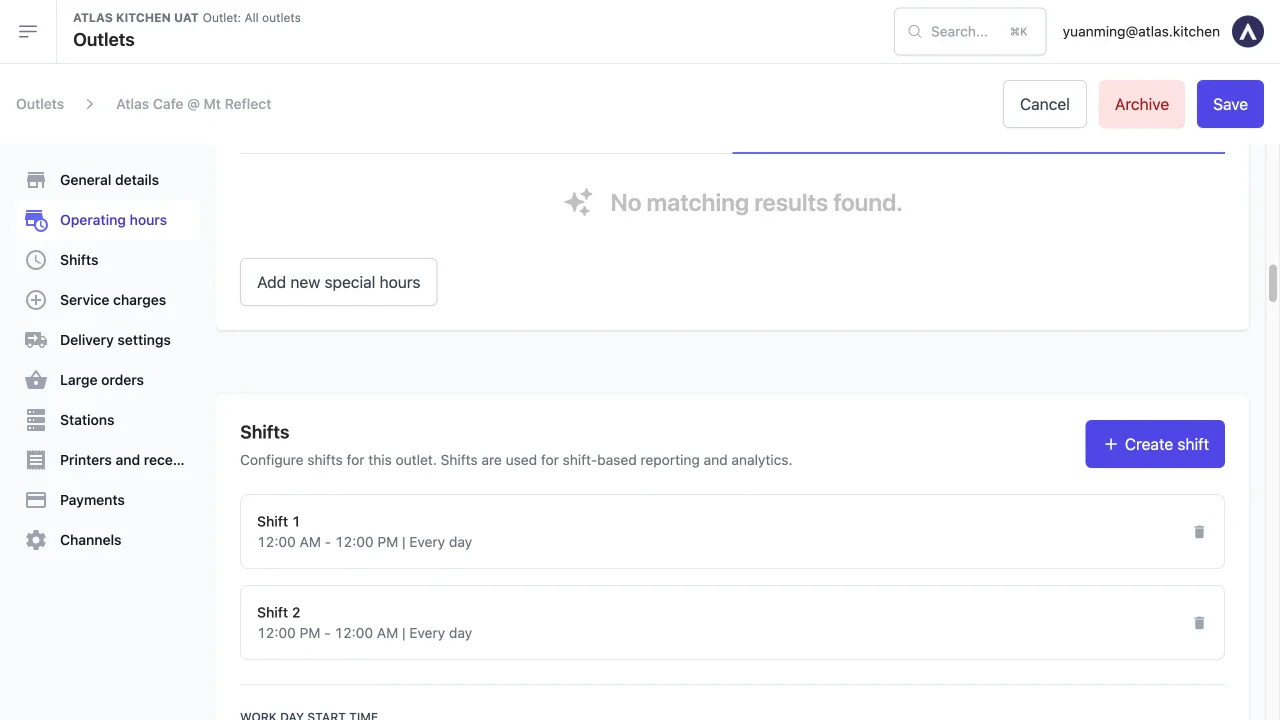
Tap "Shifts" in the left sidebar.

The Shifts section shows your current shifts. Each shift displays its name, time range, and active days.
Outlet settings page with Shifts selected in left sidebar, showing Shift 1 (12:00 AM - 12:00 PM, Every day) and Shift 2 (12:00 PM - 12:00 AM, Every day) as cards with delete icons
3

Tap "+ Create shift".

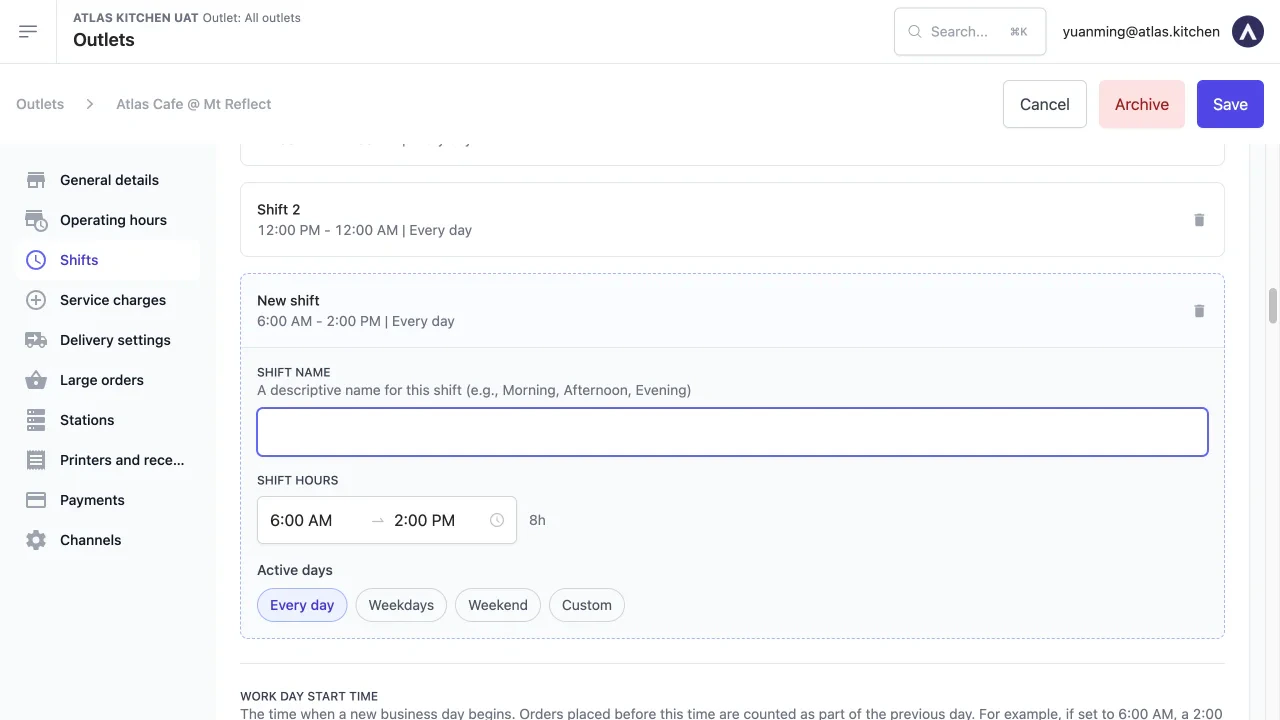
An inline form appears below your existing shifts.
New shift form showing Shift Name field with placeholder text, Shift Hours with 6:00 AM to 2:00 PM time pickers showing 8h duration, and Active days toggle buttons for Every day, Weekdays, Weekend, and Custom
4

Enter a shift name.

Use names your team already uses — e.g. “Morning”, “Afternoon”, “Evening”, “Late night”.
5

Set the shift hours.

Pick a start and end time. The duration displays automatically next to the time pickers.Shifts should cover your full operating hours without gaps. For example:
ShiftStartEndDuration
Morning6:00 AM2:00 PM8h
Afternoon2:00 PM10:00 PM8h
6

Choose active days.

Select when this shift applies:
  • Every day — the shift runs all seven days.
  • Weekdays — Monday through Friday only.
  • Weekend — Saturday and Sunday only.
  • Custom — pick specific days.
7

Tap "Save" at the top-right of the page.

The shift appears as a card in the Shifts section. Repeat for each shift you need.

Editing a shift

Changing a shift’s time range does not reassign past orders. Only orders placed after the change use the new time range.
1

Go to Outlet settings > Outlets and tap "Edit" on the outlet.

2

Tap "Shifts" in the left sidebar.

3

Tap the shift card you want to change.

The form expands inline. Update the name, time range, or active days.
4

Tap "Save".

Changes apply to future orders. Past orders keep their original shift assignment.

Removing a shift

1

Go to the Shifts section in your outlet settings.

2

Tap the trash icon on the right side of the shift card.

3

Tap "Save" to confirm.

Past orders tagged with this shift keep their shift label in reports. Future orders during that time range will have no shift assigned.

How shifts appear in reports

Once shifts are configured, you can filter most reports by shift: Use the Shift filter at the top of any report that supports it.

What should happen

  • New shifts appear immediately as cards in the Shifts section after saving.
  • Orders placed during a shift’s time range are automatically tagged with that shift.
  • Reports show the shift filter option after at least one shift is configured.
  • Shift names appear in the Daily outlet report and other filtered reports.

If it doesn’t work

  • Verify at least one shift is configured for the outlet you’re viewing.
  • Select the correct outlet in the report’s outlet filter.
  • Refresh the page — newly created shifts may take a moment to appear in filters.
  • Check the shift time ranges — there should be no gaps between shifts.
  • Orders are assigned based on when they are placed, not when they are completed.
  • If shifts overlap, the order is assigned to the first matching shift.
  • Shifts only apply to orders placed after the shift was created. Past orders are not retroactively tagged.
  • If you recently changed shift times, past orders keep their original shift assignment.
If the issue persists, contact support at hello@atlas.kitchen.

Next steps