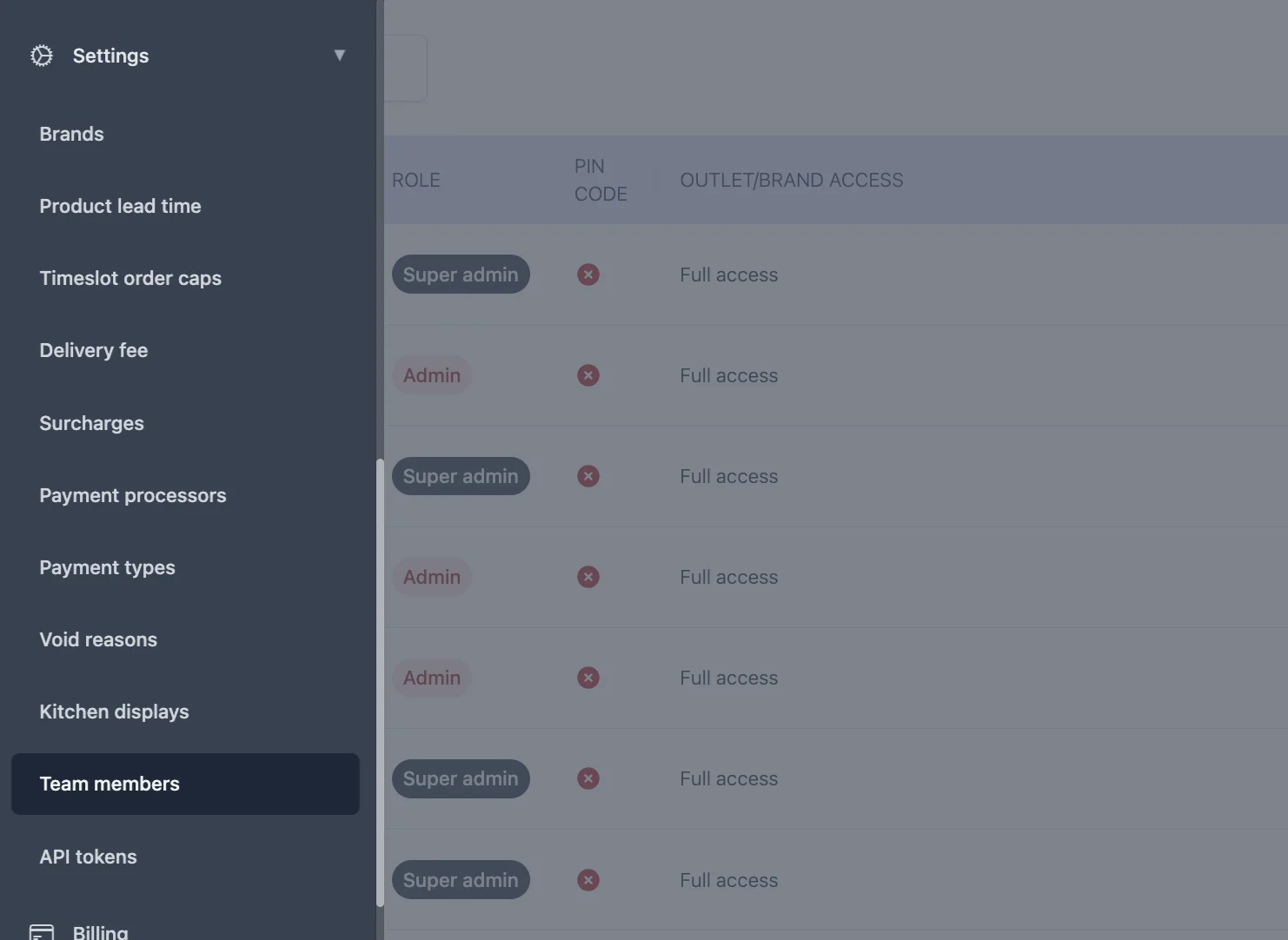
Team members are the staff who can log in to your Atlas dashboard and POS tablets. Each member has a role that controls what they can do, and outlet access that controls which outlets they work in. This page shows you how to add, update, and remove them.
Take orders, collect payment, and apply preset discounts and vouchers.
Manager
Process refunds and voids, open discounts and items, and manage menus and outlets.
Finance
Manage refunds, payment processors, and discounts and vouchers.
Admin
Full access, including team and role management.
Voiding and refunds: Managers, Finance, and Admins can void orders and process refunds. Servers and Cashiers cannot. To let someone void or refund, give them one of those roles. Voiding always requires a reason.
Need a role with a different mix of permissions? Custom roles aren’t available to set up yourself yet. Contact Atlas support at hello@atlas.kitchen and we’ll configure one for you.
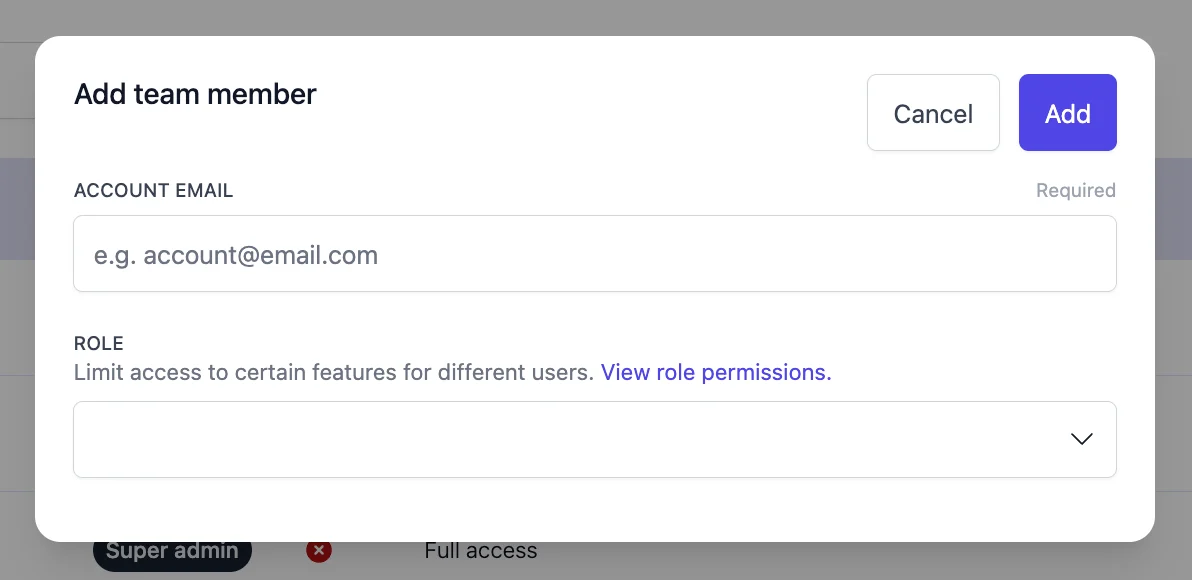
Enter the staff member’s email address and select a role from the dropdown. See the Roles table above for what each role can do.
Add to team form
4
Fill in the remaining details
Complete the rest of the staff member’s details. Admin and Finance roles can access all outlets. For other roles, select the outlets and brands they can work in. Save to create the account.
Staff reset their own password from the login page, not from Team members. On the login page, the staff member taps Forgot password and follows the email link to set a new one.
New team members appear in your team list straight away.
They can log in to the dashboard or POS based on their role. For email access, the staff member sets their password from the login page using Forgot password.
Removed team members lose access to all dashboards and tablets straight away.
{"docsConfig":{"theme":"mint","$schema":"https://mintlify.com/docs.json","name":"Atlas Help Center","colors":{"primary":"#4f46e5","light":"#818cf8","dark":"#473fce"},"logo":{"light":"https://mintcdn.com/atlaskitchen/toWaeAIw-C17Ei-e/logo/atlas-logo-for-light.svg?fit=max\u0026auto=format\u0026n=toWaeAIw-C17Ei-e\u0026q=85\u0026s=42ed8ebe4e4fca8e33f55859c72ca3f1","dark":"https://mintcdn.com/atlaskitchen/toWaeAIw-C17Ei-e/logo/atlas-logo-for-dark.svg?fit=max\u0026auto=format\u0026n=toWaeAIw-C17Ei-e\u0026q=85\u0026s=bb42d68eef8bc5010249ee1532a301da"},"favicon":"https://mintcdn.com/atlaskitchen/PbQq0fyxwtbdSf_o/favicon.svg?fit=max\u0026auto=format\u0026n=PbQq0fyxwtbdSf_o\u0026q=85\u0026s=9db1f5a3494b038b2e09d47174c85a20","api":{"openapi":["specs/storefront-v1.yaml","specs/admin-v1.yaml"],"mdx":{"server":"https://api.atlas.kitchen"}},"navbar":{"links":[{"href":"mailto:hello@atlas.kitchen","label":"Contact us"}],"primary":{"type":"button","label":"Log in","href":"https://portal.atlas.kitchen"}},"footer":{"socials":{"instagram":"https://www.instagram.com/eatwithatlas","website":"https://atlas.kitchen"}},"fonts":{"family":"Poppins"},"styling":{"eyebrows":"breadcrumbs","latex":true},"integrations":{"posthog":{"apiKey":"phc_qu7tvbPaS6IIkmPz45wWN0E0jBQhuxfGIywTJJNAkNb","sessionRecording":true}},"contextual":{"options":["copy","view","chatgpt","claude","perplexity"],"display":"header"},"navigation":{"pages":[]}},"deployment":{"deploymentMetadataValue":{"subdomain":"atlaskitchen","hasAudioNarration":false,"actualSubdomain":"atlaskitchen","customDomains":["help.atlas.kitchen"],"gitSource":{"type":"github","owner":"atlas-kitchen","repo":"docs","deployBranch":"master","contentDirectory":"","isPrivate":true,"mountPath":"","label":""},"chroma":{"liveDeploymentHistoryId":"6ad756aefe4769c03a8ac39e","collectionId":"95f4091f-2845-4a1b-9e6f-79056b349fd9","schemaVersion":"v3","latestBuiltDeploymentHistoryId":"6ad756aefe4769c03a8ac39e"},"feedback":{"thumbs":true},"entitlements":{"AI_CHAT":{"status":"ENABLED"},"WEB_MCP":{"status":"ENABLED"},"NARRATION":{"status":"ENABLED"}},"buildId":"6adabc34d29e993c2d1b7efc","clientVersion":"0.0.3939","searchFilterCounts":[{"language":"default","tag":"Help center","count":66},{"language":"default","tag":"Atlas Merchant Portal","count":53},{"language":"default","tag":"Atlas Connect API","count":49},{"language":"default","tag":"Admin API","count":20},{"language":"default","tag":"Storefront API","count":20},{"language":"default","tag":"Reports","count":15},{"language":"default","tag":"Cart","count":11},{"language":"default","tag":"Menu builder","count":11},{"language":"default","tag":"Orders","count":9},{"language":"default","tag":"Marketing tools","count":9}]},"assistantConfig":{"enableAskAiButton":false,"enableStarterQuestions":false,"enableContextualStarterQuestions":false,"enableAskAiSearchBar":true},"hasChatPermissions":true,"hasWebMcpPermissions":true,"toggles":[{"name":"kill-isr","enabled":true,"variant":{"name":"disabled","enabled":false,"feature_enabled":true},"impressionData":false},{"name":"agent-mintlify-slack","enabled":true,"variant":{"name":"disabled","enabled":false,"feature_enabled":true},"impressionData":false},{"name":"editor-v7-file-tree","enabled":true,"variant":{"name":"disabled","enabled":false,"feature_enabled":true},"impressionData":false},{"name":"agent-integrations-settings","enabled":true,"variant":{"name":"disabled","enabled":false,"feature_enabled":true},"impressionData":false},{"name":"automations-pr-grouping","enabled":true,"variant":{"name":"disabled","enabled":false,"feature_enabled":true},"impressionData":false},{"name":"custom-prefix","enabled":true,"variant":{"name":"disabled","enabled":false,"feature_enabled":true},"impressionData":false},{"name":"analytics-v7","enabled":true,"variant":{"name":"disabled","enabled":false,"feature_enabled":true},"impressionData":false},{"name":"user-flows-analytics","enabled":true,"variant":{"name":"disabled","enabled":false,"feature_enabled":true},"impressionData":false},{"name":"no-publish-flow","enabled":true,"variant":{"name":"disabled","enabled":false,"feature_enabled":true},"impressionData":false},{"name":"workos-onboarding","enabled":true,"variant":{"name":"disabled","enabled":false,"feature_enabled":true},"impressionData":false},{"name":"llms-txt-v2","enabled":true,"variant":{"name":"disabled","enabled":false,"feature_enabled":true},"impressionData":false},{"name":"pause-universal-search-reconcile","enabled":true,"variant":{"name":"disabled","enabled":false,"feature_enabled":true},"impressionData":false},{"name":"snapshot-serving-live","enabled":true,"variant":{"name":"disabled","enabled":false,"feature_enabled":true},"impressionData":false},{"name":"stripTemperatureMiddleware","enabled":true,"variant":{"name":"disabled","enabled":false,"feature_enabled":true},"impressionData":false},{"name":"per-site-search-delta","enabled":true,"variant":{"name":"disabled","enabled":false,"feature_enabled":true},"impressionData":false},{"name":"support-platform-pylon-zendesk","enabled":true,"variant":{"name":"disabled","enabled":false,"feature_enabled":true},"impressionData":false},{"name":"snapshot-serving","enabled":true,"variant":{"name":"disabled","enabled":false,"feature_enabled":true},"impressionData":false},{"name":"instant-rollback","enabled":true,"variant":{"name":"disabled","enabled":false,"feature_enabled":true},"impressionData":false},{"name":"granular-notifications-server","enabled":true,"variant":{"name":"disabled","enabled":false,"feature_enabled":true},"impressionData":false},{"name":"granular-notifications","enabled":true,"variant":{"name":"disabled","enabled":false,"feature_enabled":true},"impressionData":false},{"name":"editor-private-page-search","enabled":true,"variant":{"name":"disabled","enabled":false,"feature_enabled":true},"impressionData":false},{"name":"automations-fable","enabled":true,"variant":{"name":"disabled","enabled":false,"feature_enabled":true},"impressionData":false},{"name":"fixed-ai-action-pricing","enabled":true,"variant":{"name":"disabled","enabled":false,"feature_enabled":true},"impressionData":false},{"name":"automation-resolve-merge-conflict","enabled":true,"variant":{"name":"disabled","enabled":false,"feature_enabled":true},"impressionData":false},{"name":"scoped-publishing","enabled":true,"variant":{"name":"disabled","enabled":false,"feature_enabled":true},"impressionData":false},{"name":"mintql","enabled":true,"variant":{"name":"disabled","enabled":false,"feature_enabled":true},"impressionData":false},{"name":"page-level-analytics","enabled":true,"variant":{"name":"disabled","enabled":false,"feature_enabled":true},"impressionData":false},{"name":"editor-version-history-v2","enabled":true,"variant":{"name":"disabled","enabled":false,"feature_enabled":true},"impressionData":false},{"name":"editor-nav-generations","enabled":true,"variant":{"name":"disabled","enabled":false,"feature_enabled":true},"impressionData":false},{"name":"billing-page-v2","enabled":true,"variant":{"name":"disabled","enabled":false,"feature_enabled":true},"impressionData":false},{"name":"workspace-projects","enabled":true,"variant":{"name":"disabled","enabled":false,"feature_enabled":true},"impressionData":false},{"name":"assistant-v5","enabled":true,"variant":{"name":"disabled","enabled":false,"feature_enabled":true},"impressionData":false},{"name":"byok-sep-25","enabled":true,"variant":{"name":"disabled","enabled":false,"feature_enabled":true},"impressionData":false},{"name":"fork-pr-previews","enabled":true,"variant":{"name":"disabled","enabled":false,"feature_enabled":true},"impressionData":false},{"name":"revalidation-jwt","enabled":true,"variant":{"name":"disabled","enabled":false,"feature_enabled":true},"impressionData":false},{"name":"vite-origin","enabled":true,"variant":{"name":"disabled","enabled":false,"feature_enabled":true},"impressionData":false},{"name":"editor-agent-model-picker","enabled":true,"variant":{"name":"disabled","enabled":false,"feature_enabled":true},"impressionData":false},{"name":"billing-updated-9-15","enabled":true,"variant":{"name":"disabled","enabled":false,"feature_enabled":true},"impressionData":false},{"name":"hobby-abuse-scan","enabled":true,"variant":{"name":"disabled","enabled":false,"feature_enabled":true},"impressionData":false},{"name":"dashboard-inbox","enabled":true,"variant":{"name":"disabled","enabled":false,"feature_enabled":true},"impressionData":false}],"isAtlas":false,"googleFontsInlined":true},"customCss":[],"page":{"pagePath":"merchant-portal/team-management","slug":"/merchant-portal/team-management","pageMetadata":{"title":"Team members and roles","description":"Add staff accounts, set roles, assign outlet access, and set up POS pin codes from Settings > Team members.","href":"/merchant-portal/team-management"},"description":{"compiledSource":"\"use strict\";\nconst {jsx: _jsx} = arguments[0];\nconst {useMDXComponents: _provideComponents} = arguments[0];\nfunction _createMdxContent(props) {\n const _components = {\n p: \"p\",\n ..._provideComponents(),\n ...props.components\n };\n return _jsx(_components.p, {\n children: \"Add staff accounts, set roles, assign outlet access, and set up POS pin codes from Settings > Team members.\"\n });\n}\nfunction MDXContent(props = {}) {\n const {wrapper: MDXLayout} = {\n ..._provideComponents(),\n ...props.components\n };\n return MDXLayout ? _jsx(MDXLayout, {\n ...props,\n children: _jsx(_createMdxContent, {\n ...props\n })\n }) : _createMdxContent(props);\n}\nreturn {\n default: MDXContent\n};\n","frontmatter":{},"scope":{}},"pageType":"default","mdx":{"mdxSource":{"compiledSource":"\"use strict\";const{Fragment:_Fragment,jsx:_jsx,jsxs:_jsxs}=arguments[0];const{useMDXComponents:_provideComponents}=arguments[0];function _createMdxContent(props){const _components={a:`a`,li:`li`,p:`p`,strong:`strong`,tbody:`tbody`,td:`td`,th:`th`,thead:`thead`,tr:`tr`,ul:`ul`,..._provideComponents(),...props.components},{Accordion,AccordionGroup,Frame,Heading,Info,OptimizedImage,Step,Steps,Table}=_components;if(!Accordion)_missingMdxReference(`Accordion`,true);if(!AccordionGroup)_missingMdxReference(`AccordionGroup`,true);if(!Frame)_missingMdxReference(`Frame`,true);if(!Heading)_missingMdxReference(`Heading`,true);if(!Info)_missingMdxReference(`Info`,true);if(!OptimizedImage)_missingMdxReference(`OptimizedImage`,true);if(!Step)_missingMdxReference(`Step`,true);if(!Steps)_missingMdxReference(`Steps`,true);if(!Table)_missingMdxReference(`Table`,true);return _jsxs(_Fragment,{children:[_jsxs(Info,{children:[_jsx(_components.p,{children:_jsx(_components.strong,{children:`Who is this article for?`})}),_jsxs(_components.ul,{children:[`\n`,_jsxs(_components.li,{children:[`Atlas users with Admin permissions. Manage team members from `,_jsx(_components.strong,{children:`Settings > Team members`}),`.`]}),`\n`]})]}),`\n`,_jsx(Heading,{level:`2`,id:`what-this-does`,children:`What this does`}),`\n`,_jsx(_components.p,{children:`Team members are the staff who can log in to your Atlas dashboard and POS tablets. Each member has a role that controls what they can do, and outlet access that controls which outlets they work in. This page shows you how to add, update, and remove them.`}),`\n`,_jsx(Heading,{level:`2`,id:`when-to-use-this`,children:`When to use this`}),`\n`,_jsxs(_components.ul,{children:[`\n`,_jsx(_components.li,{children:`You’re adding a new employee who needs dashboard or POS access.`}),`\n`,_jsx(_components.li,{children:`You want to change someone’s role or which outlets they work in.`}),`\n`,_jsx(_components.li,{children:`You need to set up or change a staff member’s POS pin code.`}),`\n`,_jsx(_components.li,{children:`You’re removing access for someone who has left.`}),`\n`]}),`\n`,_jsx(Heading,{level:`2`,id:`roles`,children:`Roles`}),`\n`,_jsx(_components.p,{children:`Each role gives a different level of access:`}),`\n`,_jsxs(Table,{children:[_jsx(_components.thead,{children:_jsxs(_components.tr,{children:[_jsx(_components.th,{children:`Role`}),_jsx(_components.th,{children:`What they can do`})]})}),_jsxs(_components.tbody,{children:[_jsxs(_components.tr,{children:[_jsx(_components.td,{children:_jsx(_components.strong,{children:`Server`})}),_jsx(_components.td,{children:`Take orders, but cannot collect payment.`})]}),_jsxs(_components.tr,{children:[_jsx(_components.td,{children:_jsx(_components.strong,{children:`Cashier`})}),_jsx(_components.td,{children:`Take orders, collect payment, and apply preset discounts and vouchers.`})]}),_jsxs(_components.tr,{children:[_jsx(_components.td,{children:_jsx(_components.strong,{children:`Manager`})}),_jsx(_components.td,{children:`Process refunds and voids, open discounts and items, and manage menus and outlets.`})]}),_jsxs(_components.tr,{children:[_jsx(_components.td,{children:_jsx(_components.strong,{children:`Finance`})}),_jsx(_components.td,{children:`Manage refunds, payment processors, and discounts and vouchers.`})]}),_jsxs(_components.tr,{children:[_jsx(_components.td,{children:_jsx(_components.strong,{children:`Admin`})}),_jsx(_components.td,{children:`Full access, including team and role management.`})]})]})]}),`\n`,_jsxs(_components.p,{children:[_jsx(_components.strong,{children:`Voiding and refunds:`}),` Managers, Finance, and Admins can void orders and process refunds. Servers and Cashiers cannot. To let someone void or refund, give them one of those roles. Voiding always requires a reason.`]}),`\n`,_jsx(Info,{children:_jsxs(_components.p,{children:[`Need a role with a different mix of permissions? Custom roles aren’t available to set up yourself yet. Contact Atlas support at `,_jsx(_components.a,{href:`mailto:hello@atlas.kitchen`,children:`hello@atlas.kitchen`}),` and we’ll configure one for you.`]})}),`\n`,_jsx(Heading,{level:`2`,id:`steps`,children:`Steps`}),`\n`,_jsx(Heading,{level:`3`,id:`add-a-team-member`,children:`Add a team member`}),`\n`,_jsxs(Steps,{children:[_jsxs(Step,{title:`Open Team members`,children:[_jsxs(_components.p,{children:[`Go to `,_jsx(_components.strong,{children:`Settings > Team members`}),`.`]}),_jsx(Frame,{caption:`Sidebar navigation with Team members highlighted`,children:_jsx(OptimizedImage,{src:`https://mintcdn.com/atlaskitchen/gQmWx9jQeGDd1feE/images/CleanShot-2026-06-09-at-15.27.54@2x.png?fit=max\u0026auto=format\u0026n=gQmWx9jQeGDd1feE\u0026q=85\u0026s=0838018f0dbfa59208dc7bc20eb8b9a7`,alt:`Clean Shot 2026 06 09 At 15 27 54@2x`,\"data-og-width\":`1482`,width:`1482`,\"data-og-height\":`1082`,height:`1082`,\"data-path\":`images/CleanShot-2026-06-09-at-15.27.54@2x.png`,\"data-optimize\":`true`,\"data-opv\":`3`,srcset:`https://mintcdn.com/atlaskitchen/gQmWx9jQeGDd1feE/images/CleanShot-2026-06-09-at-15.27.54@2x.png?w=280\u0026fit=max\u0026auto=format\u0026n=gQmWx9jQeGDd1feE\u0026q=85\u0026s=f91c169e64fad151554f5e353ace6b81 280w, https://mintcdn.com/atlaskitchen/gQmWx9jQeGDd1feE/images/CleanShot-2026-06-09-at-15.27.54@2x.png?w=560\u0026fit=max\u0026auto=format\u0026n=gQmWx9jQeGDd1feE\u0026q=85\u0026s=407ca511d38e06e5e4d54574c58ccdc8 560w, https://mintcdn.com/atlaskitchen/gQmWx9jQeGDd1feE/images/CleanShot-2026-06-09-at-15.27.54@2x.png?w=840\u0026fit=max\u0026auto=format\u0026n=gQmWx9jQeGDd1feE\u0026q=85\u0026s=60507ac36cc14804af99455b25efa066 840w, https://mintcdn.com/atlaskitchen/gQmWx9jQeGDd1feE/images/CleanShot-2026-06-09-at-15.27.54@2x.png?w=1100\u0026fit=max\u0026auto=format\u0026n=gQmWx9jQeGDd1feE\u0026q=85\u0026s=c2982ca5db75458e0688bbc0182c56a7 1100w, https://mintcdn.com/atlaskitchen/gQmWx9jQeGDd1feE/images/CleanShot-2026-06-09-at-15.27.54@2x.png?w=1650\u0026fit=max\u0026auto=format\u0026n=gQmWx9jQeGDd1feE\u0026q=85\u0026s=34d39d77626a2f7628c98be53cfa7bad 1650w, https://mintcdn.com/atlaskitchen/gQmWx9jQeGDd1feE/images/CleanShot-2026-06-09-at-15.27.54@2x.png?w=2500\u0026fit=max\u0026auto=format\u0026n=gQmWx9jQeGDd1feE\u0026q=85\u0026s=cbbf173d87d43275b2cf62bb8382a73f 2500w`})})]}),_jsx(Step,{title:`Tap Add to team`,children:_jsxs(_components.p,{children:[`Tap `,_jsx(_components.strong,{children:`Add to team`}),` in the top right corner.`]})}),_jsxs(Step,{title:`Enter an email and select a role`,children:[_jsxs(_components.p,{children:[`Enter the staff member’s email address and select a role from the dropdown. See the `,_jsx(_components.a,{href:`#roles`,children:`Roles`}),` table above for what each role can do.`]}),_jsx(Frame,{caption:`Add to team form`,children:_jsx(OptimizedImage,{src:`https://mintcdn.com/atlaskitchen/gQmWx9jQeGDd1feE/images/CleanShot-2026-06-09-at-15.28.20@2x.png?fit=max\u0026auto=format\u0026n=gQmWx9jQeGDd1feE\u0026q=85\u0026s=640de21ae5e5b4ccf74986259529749a`,alt:`Clean Shot 2026 06 09 At 15 28 20@2x`,\"data-og-width\":`1192`,width:`1192`,\"data-og-height\":`580`,height:`580`,\"data-path\":`images/CleanShot-2026-06-09-at-15.28.20@2x.png`,\"data-optimize\":`true`,\"data-opv\":`3`,srcset:`https://mintcdn.com/atlaskitchen/gQmWx9jQeGDd1feE/images/CleanShot-2026-06-09-at-15.28.20@2x.png?w=280\u0026fit=max\u0026auto=format\u0026n=gQmWx9jQeGDd1feE\u0026q=85\u0026s=48dacdd951835073e1cc4161d079ba9e 280w, https://mintcdn.com/atlaskitchen/gQmWx9jQeGDd1feE/images/CleanShot-2026-06-09-at-15.28.20@2x.png?w=560\u0026fit=max\u0026auto=format\u0026n=gQmWx9jQeGDd1feE\u0026q=85\u0026s=9952bc18e5d38f666b1e5fac93605d24 560w, https://mintcdn.com/atlaskitchen/gQmWx9jQeGDd1feE/images/CleanShot-2026-06-09-at-15.28.20@2x.png?w=840\u0026fit=max\u0026auto=format\u0026n=gQmWx9jQeGDd1feE\u0026q=85\u0026s=65eb7f45ccad0d9e484ae00d51d94975 840w, https://mintcdn.com/atlaskitchen/gQmWx9jQeGDd1feE/images/CleanShot-2026-06-09-at-15.28.20@2x.png?w=1100\u0026fit=max\u0026auto=format\u0026n=gQmWx9jQeGDd1feE\u0026q=85\u0026s=c7bc0d068eabbb0cbebd64171de2ae07 1100w, https://mintcdn.com/atlaskitchen/gQmWx9jQeGDd1feE/images/CleanShot-2026-06-09-at-15.28.20@2x.png?w=1650\u0026fit=max\u0026auto=format\u0026n=gQmWx9jQeGDd1feE\u0026q=85\u0026s=d774b3453746a46b067ca3680d316fa1 1650w, https://mintcdn.com/atlaskitchen/gQmWx9jQeGDd1feE/images/CleanShot-2026-06-09-at-15.28.20@2x.png?w=2500\u0026fit=max\u0026auto=format\u0026n=gQmWx9jQeGDd1feE\u0026q=85\u0026s=6361891ad86ea0ce30b61f5a0c0fede2 2500w`})})]}),_jsx(Step,{title:`Fill in the remaining details`,children:_jsx(_components.p,{children:`Complete the rest of the staff member’s details. Admin and Finance roles can access all outlets. For other roles, select the outlets and brands they can work in. Save to create the account.`})})]}),`\n`,_jsx(Heading,{level:`3`,id:`update-a-role-or-outlet-access`,children:`Update a role or outlet access`}),`\n`,_jsxs(Steps,{children:[_jsx(Step,{title:`Open the actions menu`,children:_jsxs(_components.p,{children:[`Go to `,_jsx(_components.strong,{children:`Settings > Team members`}),`. Tap the `,_jsx(_components.strong,{children:`⋮`}),` menu on the right of the staff member’s row.`]})}),_jsx(Step,{title:`Choose what to update`,children:_jsxs(_components.ul,{children:[`\n`,_jsxs(_components.li,{children:[`Tap `,_jsx(_components.strong,{children:`Update role`}),` to change their role.`]}),`\n`,_jsxs(_components.li,{children:[`Tap `,_jsx(_components.strong,{children:`Update outlet/brand access`}),` to change which outlets and brands they can work in.`]}),`\n`]})})]}),`\n`,_jsx(Heading,{level:`3`,id:`set-up-a-pos-pin-code`,children:`Set up a POS pin code`}),`\n`,_jsx(_components.p,{children:`Staff use a 6-digit pin code to unlock and switch users on POS tablets.`}),`\n`,_jsxs(Steps,{children:[_jsx(Step,{title:`Open the actions menu`,children:_jsxs(_components.p,{children:[`Go to `,_jsx(_components.strong,{children:`Settings > Team members`}),`. Tap the `,_jsx(_components.strong,{children:`⋮`}),` menu on the right of the staff member’s row.`]})}),_jsx(Step,{title:`Tap Update pin code`,children:_jsxs(_components.p,{children:[`Tap `,_jsx(_components.strong,{children:`Update pin code`}),`. Enter a 6-digit pin code, reconfirm it, and save. The pin code must be 6 digits with no letters.`]})})]}),`\n`,_jsx(Heading,{level:`3`,id:`reset-a-password`,children:`Reset a password`}),`\n`,_jsxs(_components.p,{children:[`Staff reset their own password from the login page, not from Team members. On the login page, the staff member taps `,_jsx(_components.strong,{children:`Forgot password`}),` and follows the email link to set a new one.`]}),`\n`,_jsx(Heading,{level:`3`,id:`remove-a-team-member`,children:`Remove a team member`}),`\n`,_jsx(Info,{children:_jsx(_components.p,{children:`Removing a team member revokes their access right away. There’s no temporary deactivation. To restore access later, add them again.`})}),`\n`,_jsxs(Steps,{children:[_jsx(Step,{title:`Open the actions menu`,children:_jsxs(_components.p,{children:[`Go to `,_jsx(_components.strong,{children:`Settings > Team members`}),`. Tap the `,_jsx(_components.strong,{children:`⋮`}),` menu on the right of the staff member’s row.`]})}),_jsx(Step,{title:`Tap Remove team member`,children:_jsxs(_components.p,{children:[`Tap `,_jsx(_components.strong,{children:`Remove team member`}),` and confirm. Their access to the dashboard and POS tablets is revoked.`]})})]}),`\n`,_jsx(Heading,{level:`2`,id:`what-should-happen`,children:`What should happen`}),`\n`,_jsxs(_components.ul,{children:[`\n`,_jsx(_components.li,{children:`New team members appear in your team list straight away.`}),`\n`,_jsxs(_components.li,{children:[`They can log in to the dashboard or POS based on their role. For email access, the staff member sets their password from the login page using `,_jsx(_components.strong,{children:`Forgot password`}),`.`]}),`\n`,_jsx(_components.li,{children:`Removed team members lose access to all dashboards and tablets straight away.`}),`\n`]}),`\n`,_jsx(Heading,{level:`2`,id:`if-it-doesn’t-work`,children:`If it doesn’t work`}),`\n`,_jsxs(AccordionGroup,{children:[_jsx(Accordion,{title:`Staff member can't log in to the dashboard`,id:`staff-member-cant-log-in-to-the-dashboard`,children:_jsxs(_components.ul,{children:[`\n`,_jsx(_components.li,{children:`Check the email address on their profile is spelled correctly.`}),`\n`,_jsxs(_components.li,{children:[`Ask them to set their password from the login page using `,_jsx(_components.strong,{children:`Forgot password`}),`.`]}),`\n`,_jsx(_components.li,{children:`Confirm their account has a role that includes dashboard access.`}),`\n`]})}),_jsx(Accordion,{title:`POS pin code doesn't work on the tablet`,id:`pos-pin-code-doesnt-work-on-the-tablet`,children:_jsxs(_components.ul,{children:[`\n`,_jsx(_components.li,{children:`Make sure the pin code is 6 digits and was entered correctly.`}),`\n`,_jsx(_components.li,{children:`Check the tablet has an active internet connection.`}),`\n`,_jsx(_components.li,{children:`Confirm the staff member is assigned to that outlet.`}),`\n`]})}),_jsx(Accordion,{title:`Staff member can't see the right outlet`,id:`staff-member-cant-see-the-right-outlet`,children:_jsxs(_components.ul,{children:[`\n`,_jsxs(_components.li,{children:[`Tap the `,_jsx(_components.strong,{children:`⋮`}),` menu on the right of their row and tap `,_jsx(_components.strong,{children:`Update outlet/brand access`}),`.`]}),`\n`,_jsx(_components.li,{children:`Confirm the correct outlets and brands are selected.`}),`\n`,_jsx(_components.li,{children:`Ask them to log out and back in.`}),`\n`]})})]}),`\n`,_jsxs(_components.p,{children:[`If the issue persists, contact support at `,_jsx(_components.a,{href:`mailto:hello@atlas.kitchen`,children:`hello@atlas.kitchen`}),`.`]}),`\n`,_jsx(Heading,{level:`2`,id:`next-steps`,children:`Next steps`}),`\n`,_jsxs(_components.ul,{children:[`\n`,_jsx(_components.li,{children:_jsx(_components.a,{href:`/merchant-portal/refunds`,children:`Process refunds`})}),`\n`,_jsx(_components.li,{children:_jsx(_components.a,{href:`/merchant-portal/outlet-shifts`,children:`Managing outlet shifts`})}),`\n`,_jsx(_components.li,{children:_jsx(_components.a,{href:`/merchant-portal/operating-hours`,children:`Add operating hours and special hours`})}),`\n`]})]})}function MDXContent(props={}){const{wrapper:MDXLayout}={..._provideComponents(),...props.components};return MDXLayout?_jsx(MDXLayout,{...props,children:_jsx(_createMdxContent,{...props})}):_createMdxContent(props)}return{default:MDXContent};function _missingMdxReference(id,component){throw new Error(`Expected `+(component?`component`:`object`)+\" `\"+id+\"` to be defined: you likely forgot to import, pass, or provide it.\")}","frontmatter":{},"scope":{"config":{},"pageMetadata":{"title":"Team members and roles","description":"Add staff accounts, set roles, assign outlet access, and set up POS pin codes from Settings > Team members.","href":"/merchant-portal/team-management"}}},"mdxSourceWithNoJs":null},"mdxExtracts":{"tableOfContents":[{"title":"What this does","slug":"what-this-does","depth":2,"children":[]},{"title":"When to use this","slug":"when-to-use-this","depth":2,"children":[]},{"title":"Roles","slug":"roles","depth":2,"children":[]},{"title":"Steps","slug":"steps","depth":2,"children":[{"title":"Add a team member","slug":"add-a-team-member","depth":3,"children":[]},{"title":"Update a role or outlet access","slug":"update-a-role-or-outlet-access","depth":3,"children":[]},{"title":"Set up a POS pin code","slug":"set-up-a-pos-pin-code","depth":3,"children":[]},{"title":"Reset a password","slug":"reset-a-password","depth":3,"children":[]},{"title":"Remove a team member","slug":"remove-a-team-member","depth":3,"children":[]}]},{"title":"What should happen","slug":"what-should-happen","depth":2,"children":[]},{"title":"If it doesn’t work","slug":"if-it-doesn’t-work","depth":2,"children":[]},{"title":"Next steps","slug":"next-steps","depth":2,"children":[]}],"codeExamples":{}},"jsLinks":[],"subdomain":"atlaskitchen","siteName":"Atlas Help Center","title":"Team members and roles - Atlas Help Center","navMaps":{"firstHrefInVersion":{},"firstHrefInLanguage":{}},"lastModified":"2026-06-09T08:12:41.070Z","originalFileLocation":"merchant-portal/team-management.mdx"},"headHtml":"\u003cscript data-mint-head>(function(){var d=document.documentElement,p=null;if(!p){try{p=localStorage.getItem(\"isDarkMode\")}catch(e){}if(p==='true')p='dark';else if(p==='false')p='light';if(p!=='light'\u0026\u0026p!=='dark'\u0026\u0026p!=='system')p=\"system\"}var r=p==='system'?(matchMedia(\"(prefers-color-scheme: dark)\").matches?'dark':'light'):p;d.classList.remove(r==='dark'?'light':'dark');d.classList.add(r);d.setAttribute(\"data-theme-preference\",p)})();\u003c/script>\u003cmeta data-mint-head name=\"description\" content=\"Add staff accounts, set roles, assign outlet access, and set up POS pin codes from Settings \u0026gt; Team members.\">\u003cmeta data-mint-head name=\"application-name\" content=\"Atlas Help Center\">\u003cmeta data-mint-head name=\"generator\" content=\"Mintlify\">\u003clink data-mint-head rel=\"icon\" type=\"image/png\" sizes=\"192x192\" href=\"/mintlify-assets/_mintlify/favicons/atlaskitchen/SFElnEP-Z1WcmeuX/_generated/favicon/android-chrome-192x192.png\" media=\"(prefers-color-scheme: light)\">\u003clink data-mint-head rel=\"apple-touch-icon\" type=\"image/png\" sizes=\"180x180\" href=\"/mintlify-assets/_mintlify/favicons/atlaskitchen/SFElnEP-Z1WcmeuX/_generated/favicon/apple-touch-icon.png\">\u003clink data-mint-head rel=\"icon\" type=\"image/png\" sizes=\"16x16\" href=\"/mintlify-assets/_mintlify/favicons/atlaskitchen/SFElnEP-Z1WcmeuX/_generated/favicon/favicon-16x16.png\" media=\"(prefers-color-scheme: light)\">\u003clink data-mint-head rel=\"icon\" type=\"image/png\" sizes=\"32x32\" href=\"/mintlify-assets/_mintlify/favicons/atlaskitchen/SFElnEP-Z1WcmeuX/_generated/favicon/favicon-32x32.png\" media=\"(prefers-color-scheme: light)\">\u003clink data-mint-head rel=\"shortcut icon\" type=\"image/x-icon\" href=\"/mintlify-assets/_mintlify/favicons/atlaskitchen/SFElnEP-Z1WcmeuX/_generated/favicon/favicon.ico\" media=\"(prefers-color-scheme: light)\">\u003clink data-mint-head rel=\"icon\" type=\"image/png\" sizes=\"192x192\" href=\"/mintlify-assets/_mintlify/favicons/atlaskitchen/SFElnEP-Z1WcmeuX/_generated/favicon-dark/android-chrome-192x192.png\" media=\"(prefers-color-scheme: dark)\">\u003clink data-mint-head rel=\"icon\" type=\"image/png\" sizes=\"16x16\" href=\"/mintlify-assets/_mintlify/favicons/atlaskitchen/SFElnEP-Z1WcmeuX/_generated/favicon-dark/favicon-16x16.png\" media=\"(prefers-color-scheme: dark)\">\u003clink data-mint-head rel=\"icon\" type=\"image/png\" sizes=\"32x32\" href=\"/mintlify-assets/_mintlify/favicons/atlaskitchen/SFElnEP-Z1WcmeuX/_generated/favicon-dark/favicon-32x32.png\" media=\"(prefers-color-scheme: dark)\">\u003clink data-mint-head rel=\"shortcut icon\" type=\"image/x-icon\" href=\"/mintlify-assets/_mintlify/favicons/atlaskitchen/SFElnEP-Z1WcmeuX/_generated/favicon-dark/favicon.ico\" media=\"(prefers-color-scheme: dark)\">\u003cmeta data-mint-head property=\"og:title\" content=\"Team members and roles - Atlas Help Center\">\u003cmeta data-mint-head property=\"og:description\" content=\"Add staff accounts, set roles, assign outlet access, and set up POS pin codes from Settings \u0026gt; Team members.\">\u003cmeta data-mint-head property=\"og:site_name\" content=\"Atlas Help Center\">\u003cmeta data-mint-head property=\"og:url\" content=\"https://help.atlas.kitchen/merchant-portal/team-management\">\u003cmeta data-mint-head property=\"og:type\" content=\"website\">\u003cmeta data-mint-head property=\"og:image\" content=\"https://atlaskitchen.mintlify.app/_mintlify/api/og/v2?division=Your+account\u0026amp;title=Team+members+and+roles\u0026amp;description=Add+staff+accounts%2C+set+roles%2C+assign+outlet+access%2C+and+set+up+POS+pin+codes+from+Settings+%3E+Team+members.\u0026amp;theme=a7a35199855caf5e20093ff4\u0026amp;signature=7135b26edac99c2f2b53f99a798ab1c6defd11ecdb0533a4b310e0dadf37ebf4\">\u003cmeta data-mint-head property=\"og:image:width\" content=\"1200\">\u003cmeta data-mint-head property=\"og:image:height\" content=\"630\">\u003cmeta data-mint-head name=\"twitter:card\" content=\"summary_large_image\">\u003cmeta data-mint-head name=\"twitter:title\" content=\"Team members and roles - Atlas Help Center\">\u003cmeta data-mint-head name=\"twitter:description\" content=\"Add staff accounts, set roles, assign outlet access, and set up POS pin codes from Settings \u0026gt; Team members.\">\u003cmeta data-mint-head name=\"twitter:image\" content=\"https://atlaskitchen.mintlify.app/_mintlify/api/og/v2?division=Your+account\u0026amp;title=Team+members+and+roles\u0026amp;description=Add+staff+accounts%2C+set+roles%2C+assign+outlet+access%2C+and+set+up+POS+pin+codes+from+Settings+%3E+Team+members.\u0026amp;theme=a7a35199855caf5e20093ff4\u0026amp;signature=7135b26edac99c2f2b53f99a798ab1c6defd11ecdb0533a4b310e0dadf37ebf4\">\u003cmeta data-mint-head name=\"twitter:image:width\" content=\"1200\">\u003cmeta data-mint-head name=\"twitter:image:height\" content=\"630\">\u003cmeta data-mint-head name=\"msapplication-config\" content=\"/mintlify-assets/_mintlify/favicons/atlaskitchen/SFElnEP-Z1WcmeuX/_generated/favicon/browserconfig.xml\">\u003cmeta data-mint-head name=\"apple-mobile-web-app-title\" content=\"Atlas Help Center\">\u003cmeta data-mint-head name=\"msapplication-TileColor\" content=\"#4f46e5\">\u003clink data-mint-head rel=\"canonical\" href=\"https://help.atlas.kitchen/merchant-portal/team-management\">\u003clink data-mint-head rel=\"alternate\" type=\"application/xml\" href=\"/sitemap.xml\">\u003clink data-mint-head rel=\"alternate\" type=\"text/markdown\" href=\"/merchant-portal/team-management.md\">\u003cscript data-mint-head type=\"application/ld+json\">{\"@context\":\"https://schema.org\",\"@graph\":[{\"@type\":\"Organization\",\"@id\":\"https://help.atlas.kitchen/#organization\",\"name\":\"Atlas Help Center\",\"url\":\"https://help.atlas.kitchen\",\"logo\":{\"@type\":\"ImageObject\",\"url\":\"https://mintcdn.com/atlaskitchen/toWaeAIw-C17Ei-e/logo/atlas-logo-for-light.svg?fit=max\u0026auto=format\u0026n=toWaeAIw-C17Ei-e\u0026q=85\u0026s=42ed8ebe4e4fca8e33f55859c72ca3f1\"}},{\"@type\":\"WebSite\",\"@id\":\"https://help.atlas.kitchen#website\",\"name\":\"Atlas Help Center\",\"url\":\"https://help.atlas.kitchen\",\"publisher\":{\"@id\":\"https://help.atlas.kitchen/#organization\"}},{\"@type\":\"WebPage\",\"@id\":\"https://help.atlas.kitchen/merchant-portal/team-management#webpage\",\"url\":\"https://help.atlas.kitchen/merchant-portal/team-management\",\"name\":\"Team members and roles\",\"description\":\"Add staff accounts, set roles, assign outlet access, and set up POS pin codes from Settings > Team members.\",\"dateModified\":\"2026-06-09T08:12:41.070Z\",\"isPartOf\":{\"@id\":\"https://help.atlas.kitchen#website\"},\"breadcrumb\":{\"@id\":\"https://help.atlas.kitchen/merchant-portal/team-management#breadcrumb\"}},{\"@type\":\"BreadcrumbList\",\"@id\":\"https://help.atlas.kitchen/merchant-portal/team-management#breadcrumb\",\"itemListElement\":[{\"@type\":\"ListItem\",\"position\":1,\"name\":\"Atlas Merchant Portal\",\"item\":\"https://help.atlas.kitchen/stations/pos\"},{\"@type\":\"ListItem\",\"position\":2,\"name\":\"Your account\",\"item\":\"https://help.atlas.kitchen/merchant-portal/language-switcher\"},{\"@type\":\"ListItem\",\"position\":3,\"name\":\"Team members and roles\",\"item\":\"https://help.atlas.kitchen/merchant-portal/team-management\"}]},{\"@type\":[\"Article\",\"TechArticle\"],\"@id\":\"https://help.atlas.kitchen/merchant-portal/team-management#article\",\"headline\":\"Team members and roles\",\"name\":\"Team members and roles\",\"description\":\"Add staff accounts, set roles, assign outlet access, and set up POS pin codes from Settings > Team members.\",\"url\":\"https://help.atlas.kitchen/merchant-portal/team-management\",\"mainEntityOfPage\":{\"@id\":\"https://help.atlas.kitchen/merchant-portal/team-management#webpage\"},\"dateModified\":\"2026-06-09T08:12:41.070Z\",\"publisher\":{\"@id\":\"https://help.atlas.kitchen/#organization\"},\"isPartOf\":{\"@id\":\"https://help.atlas.kitchen#website\"}}]}\u003c/script>\u003cscript data-mint-head type=\"application/ld+json\">{\"@context\":\"https://schema.org\",\"@type\":\"WebSite\",\"name\":\"Atlas Help Center\",\"creator\":{\"@type\":\"Organization\",\"name\":\"Mintlify\",\"url\":\"https://mintlify.com\"}}\u003c/script>","siteName":"Atlas Help Center","nav":{"global":null,"tabs":[{"tab":"Help center","pages":[{"title":"Welcome to Atlas","href":"/welcome-to-atlas"},{"group":"Get started","expanded":true,"pages":[{"title":"Onboarding process","href":"/get-started/onboarding"},{"title":"Install Atlas Merchant Portal","href":"/get-started/installing-atlas"},{"title":"Set up Atlas to earn more","href":"/get-started/sell-more"}]},{"group":"Atlas Merchant Portal","expanded":true,"pages":[{"group":"Stations","icon":"display","pages":[{"group":"POS","pages":[{"title":"How to use POS for QSR","href":"/stations/pos"},{"title":"How tips work on POS","href":"/stations/pos-tips"}]},{"group":"Customer-facing display","pages":[{"title":"Set up the customer-facing display","href":"/stations/customer-facing-display"}]}]},{"group":"Orders","icon":"bag-shopping","pages":[{"title":"How to create and charge Admin orders","href":"/merchant-portal/admin-orders"},{"title":"Update order details","href":"/merchant-portal/editing-order"},{"title":"Process refunds on Atlas","href":"/merchant-portal/refunds"},{"title":"Manage delivery drivers","hidden":false,"href":"/merchant-portal/delivery-rider-management"},{"title":"Add or remove payment types","href":"/merchant-portal/payment-methods"}]},{"group":"Stocks","icon":"table","pages":[{"title":"How to use the Stocks page","href":"/merchant-portal/stocks"}]},{"group":"Customers","icon":"users","pages":[{"title":"How to use customers' data","href":"/merchant-portal/customers-data"}]},{"group":"Reports","icon":"file-contract","pages":[{"title":"Reports overview","href":"/reports/overview"},{"title":"Using reports","href":"/reports/using-reports"},{"group":"Operations","pages":[{"title":"Daily outlet report","href":"/reports/operations/daily-outlet-report"},{"title":"Logistics report","href":"/reports/operations/logistics-report"},{"title":"Production efficiency report","href":"/reports/operations/production-efficiency-report"}]},{"group":"Sales","pages":[{"title":"Sales summary report","href":"/reports/sales/sales-summary-report"},{"title":"Sales trends","href":"/reports/sales/sales-trends"}]},{"group":"Product","pages":[{"title":"Product mix report","href":"/reports/product/product-mix-report"}]},{"group":"Marketing","pages":[{"title":"Discount report","href":"/reports/marketing/discount-report"},{"title":"Customers report","href":"/reports/marketing/customers-report"},{"title":"Loyalty report","href":"/reports/marketing/loyalty-report"}]},{"group":"Finance","pages":[{"title":"Payout report","href":"/reports/finance/payout-report"},{"title":"Billing report","href":"/reports/finance/billing-report"},{"title":"Why your sales and payout figures don't match","href":"/reports/finance/sales-reconciliation"}]},{"group":"Legacy reports","pages":[{"title":"Legacy reports","href":"/reports/legacy/overview"}]}]},{"group":"Marketing tools","icon":"megaphone","pages":[{"group":"Discounts","pages":[{"title":"Discounts","href":"/merchant-portal/add-discounts"},{"title":"Discount use cases","href":"/merchant-portal/discount-use-cases"}]},{"title":"Setting up ads tracking for Atlas Online","sidebarTitle":"Ads tracking","href":"/merchant-portal/ads-tracking"},{"title":"Cross-sell","href":"/merchant-portal/cross-sell"},{"title":"Referrals","href":"/merchant-portal/referrals"},{"title":"Announcements","sidebarTitle":"Announcements","href":"/merchant-portal/announcements"},{"title":"Pop-ups","href":"/merchant-portal/pop-ups"},{"title":"Atlas Loyalty","href":"/merchant-portal/loyalty-signup"},{"title":"Website look and feel","sidebarTitle":"Website look and feel","href":"/merchant-portal/website-look-and-feel"}]},{"group":"Menu builder","icon":"file","pages":[{"title":"How menus work","hidden":false,"href":"/menu-builder/overview"},{"title":"Create and configure menus","href":"/menu-builder/create-menus"},{"title":"Update item prices","hidden":false,"href":"/menu-builder/draft-update-prices"},{"title":"Import products via CSV","hidden":false,"href":"/menu-builder/import-products-csv"},{"title":"Translate your menu","href":"/menu-builder/menu-translations"},{"title":"Pricing rules","hidden":false,"href":"/menu-builder/pricing-rules"},{"title":"Availability conditions","href":"/menu-builder/availability-conditions"},{"title":"Set up item routing and printers","href":"/menu-builder/printer-routing"},{"title":"Set up POS layouts","href":"/menu-builder/pos-layout"},{"title":"Set up and sync aggregator menus","hidden":false,"href":"/menu-builder/aggregator-menus"},{"title":"Reporting categories","href":"/menu-builder/reporting-categories"}]},{"group":"Outlet settings","icon":"shop","pages":[{"title":"Add operating hours and special hours","href":"/merchant-portal/operating-hours"},{"title":"Outlet shifts","href":"/merchant-portal/outlet-shifts"},{"title":"BCRS (Beverage Container Return Scheme)","href":"/merchant-portal/bcrs"},{"title":"Delivery settings, fees and minimum orders","href":"/merchant-portal/delivery-fee-minimum-order"}]},{"group":"Settings","icon":"gear","pages":[{"title":"Surcharges","href":"/merchant-portal/surcharges"}]},{"group":"Your account","icon":"user","pages":[{"title":"Change the portal language","href":"/merchant-portal/language-switcher"},{"title":"Reset POS PIN or portal password","description":"Change your point-of-sale login PIN or reset your Atlas merchant portal password.","href":"/merchant-portal/reset-pin"},{"title":"Team members and roles","href":"/merchant-portal/team-management"}]}]},{"group":"Hardware","expanded":true,"pages":[{"title":"Connect Atlas printer to WiFi","description":"Connect Atlas receipt printers to WiFi network. Choose manual browser pairing or QR pairing with WeChat for wireless printer setup.","href":"/hardware/printers"},{"title":"Scan products with a Bluetooth barcode scanner","href":"/hardware/barcode-scanner"},{"title":"Troubleshooting Atlas Pay terminals","href":"/hardware/terminal-troubleshooting"}]},{"group":"Atlas Loyalty","expanded":true,"pages":[{"title":"Update diners' phone number","href":"/customer-guides/diners-phone-update"},{"title":"Using SMS with Atlas and Customer.io","href":"/guides/sms-with-customerio"}]},{"group":"Integrations","expanded":true,"pages":[{"group":"Revel","pages":[{"title":"Set up Revel POS integration","href":"/integrations/revel-setup"}]},{"group":"GrabFood","hidden":true,"pages":[]},{"group":"Foodpanda","hidden":true,"pages":[]},{"group":"Eber","hidden":true,"pages":[]},{"group":"Sevenrooms","hidden":true,"pages":[]},{"group":"OpenTable","pages":[{"title":"Connect OpenTable to Atlas","href":"/integrations/opentable"}]},{"group":"ShopBack","pages":[{"title":"Accept ShopBack payments","href":"/integrations/shopback"}]},{"group":"Deliveroo integration","hidden":true,"pages":[{"title":"Set up Deliveroo integration","href":"/integrations/deliveroo-integration"}]}]},{"group":"Product updates","hidden":true,"pages":[{"title":"Product updates","href":"/product-updates"}]},{"group":"Ask Atlas reference","hidden":true,"searchable":true,"root":{"title":"Agent","href":"/agent"},"pages":[{"title":"GST and tax settings","href":"/agent/tax-settings"}]}]},{"tab":"Atlas Connect API","pages":[{"title":"Atlas Connect API","href":"/connect/overview"}]},{"tab":"Atlas MCP","pages":[{"title":"Atlas MCP","href":"/connect/mcp/overview"}]}]},"title":"Team members and roles - Atlas Help Center","buildId":"dpl_5UDDZ9hnigTkoV7QtvQ39eUp84nu","deploymentId":"dpl_5UDDZ9hnigTkoV7QtvQ39eUp84nu","dynamics":["07c022d89b","a74be98ba7"],"chunks":["Frame-CUTvSGqu.js","DynamicMarkdown-BGu84FgU.js","zoom-image-lightbox-ChyC7Hte.js","PlusIcon-DXkY3IBj.js","lightbox-handle-r17bVUz3.js"]}