Who is this article for?
- Restaurant managers doing end-of-day reconciliation (matching sales to payouts)
- Finance teams verifying revenue and payment breakdowns
- Operations staff investigating order discrepancies or refunds
Available for these roles:
Manager
Finance
Admin
What this does
The Sales order report shows every individual order placed during a selected date range. Use this to reconcile daily revenue, track payment types, investigate discounts and refunds, and understand sales by channel (Grab, POS, QR ordering, web). This report answers:- “What was our total sales for today?”
- “How much revenue did we lose to discounts?”
- “How much cash vs. card vs. digital payments did we receive?”
- “Which orders were refunded?”
- “Did a specific promotion drive sales?”
- “What was the breakdown by sales channel (Grab Food, QR, POS)?”
Data refreshes in real-time. Check the timestamp at the top for last refresh time (e.g., “Data last refreshed at: 12:44:26 PM”). Click “Refresh now” to update manually.
When to use this
Use this report to:- End-of-day reconciliation: Match sales totals to bank deposits and cash on hand
- Investigate discrepancies: Find why sales don’t match expected payout amounts
- Analyze promotional effectiveness: Filter by promo code to measure campaign impact
- Track payment methods: See cash vs. card vs. digital payment breakdowns
- Audit refunds: Review all refund transactions for the period
- Monitor sales channels: Identify which channels (Grab Food, QR, POS, Web) drive the most revenue
Filters
Serving date (required)
Date range for when orders were served. Defaults to the current date (today).- Format: Calendar picker showing start and end dates (e.g., “Jan 7, 2026 — Jan 7, 2026”)
- Range type: Inclusive on both start and end dates
- Effect: All metrics and tables update to show only orders served on selected date(s)
- How to use: Click the calendar icon, select start and end dates, click Apply
Serving date is the date the order was fulfilled, not necessarily the date it was placed. For most restaurants this is the same day, but late-night venues with custom sales day cutoffs (e.g., 3 AM) may see differences.Contact support at [email protected] to customize your sales day cutoff if needed.
Brand(s)
Multi-select dropdown to filter orders by restaurant brand or concept.- Default: All brands shown
- Values: All restaurant brands in your account (e.g., “Alt Pizza”, “Atlas Cafe”, “Kai Bakes”)
- Effect: Only orders from selected brands are included in totals and tables
- How to use: Click the dropdown, select brands, click ✕ to remove a selection
Channel(s)
Multi-select dropdown to filter orders by sales channel.- Default: All channels shown
- Values: “Scan To Order”, “Admin”, “Qr”, “Grab Food”, “Pos”, “Kiosk”, “Web”
- Effect: Only orders from selected channels appear in results
- How to use: Click the dropdown, select channels, click ✕ to remove
- Pos: Point-of-sale terminal (staff-entered orders at register)
- Qr: QR code ordering (table-side or pickup)
- Kiosk: Self-service ordering kiosk
- Web: Web-based ordering platform
- Grab Food: Grab delivery app orders
- Scan To Order: Table-side QR scanning (may overlap with Qr)
- Admin: Manual order creation by staff in Merchant Portal
Outlet(s)
Multi-select dropdown to filter orders by physical location.- Default: All outlets shown (filter shows “Outlet: All outlets” in page header)
- Values: All physical restaurant locations in your account
- Effect: Only selected outlets’ orders appear
- How to use: Click the dropdown, select outlets, click ✕ to remove
Test or sandbox outlets may appear in the list. Filter these out during reconciliation to avoid polluting live sales data.
Stations
Single-select dropdown to filter orders by kitchen station (requires POS integration).- Default: “All stations”
- Values: All kitchen stations configured in your POS
- Effect: Only orders prepared at selected station appear (if not “All stations”)
- Use case: Kitchen troubleshooting and operational metrics
Promo code
Text search field to filter orders by promotional code.- Placeholder: “Enter value”
- Values: Any promo code in your system
- Default: Empty (shows all orders, regardless of promo code)
- Effect: Only orders with matching promo code appear
- How to use: Type promo code, press Enter
Include cancelled orders
Toggle switch to include or exclude voided/cancelled orders.- Default: OFF (cancelled orders hidden)
- Effect when OFF: Only successful/completed orders shown
- Effect when ON: Includes voided, cancelled, and other non-completed orders
- How to use: Click the toggle to switch on/off
⚠️ Cancelled orders may show as negative revenue and can skew metrics. Only enable this when investigating voids or doing a full daily audit.
Merge sub payment types
Toggle switch to group granular payment types (e.g., Apple Pay, standard debit) into broader categories.- Default: ON (payment types are grouped)
- Label: “Merge sub payment types (Apple Pay, standard debit, et…)”
- Effect when ON: Payment types like “Apple Pay” and “Standard Debit” are grouped (e.g., all card payments shown as “Card”)
- Effect when OFF: Shows granular payment subtypes separately
- Affects: “Payments” tab and “Payment type summary” tab
Summary cards
The top section shows key financial metrics for the selected date range and filters.Gross sales
Total value of all orders placed, before any deductions (discounts, refunds, taxes). Breakdown:- Tax exclusive: Items with no tax or tax not yet applied
- Tax inclusive: Full amount including any embedded taxes
In Singapore, GST (7%) is typically included in item prices. “Tax inclusive” shows the gross sales with embedded GST. “Tax exclusive” would show sales for non-taxable items (if any).
Discounts
Total discount amount applied to orders (promo codes, manual discounts, loyalty redemptions). Sub-component:- Tax (incl. on discounts): Tax calculated on the discount amount itself
Platform-provided discounts (e.g., Grab promotions) are tracked separately in the “Platform sponsored discounts” card and are not included in this total.
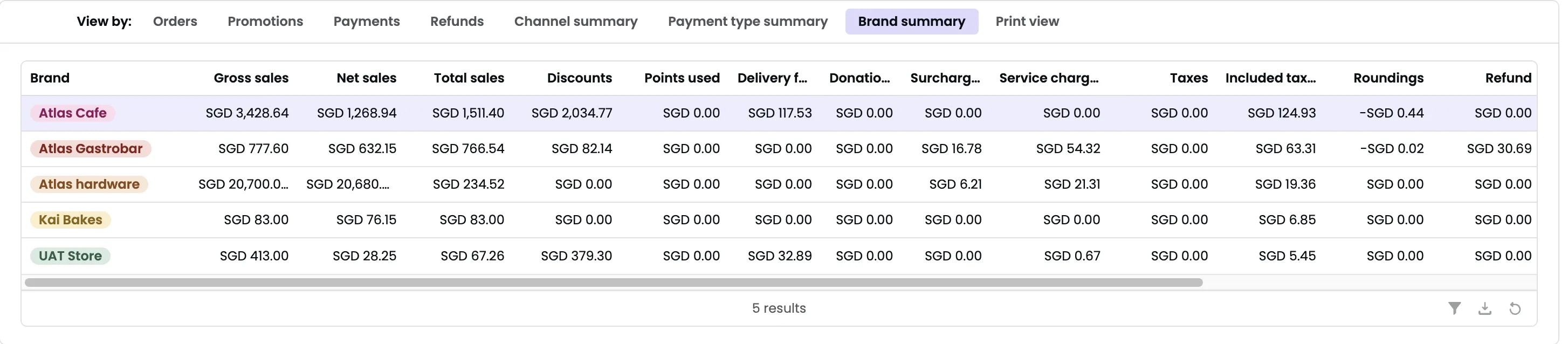
Net sales
Gross sales minus discounts. Calculation: Gross sales - Discounts Example: = $57.33 This represents revenue after promotional discounts but before adding delivery fees or service charges.Delivery fee
Fees charged to customers for delivery. Sub-component:- Tax (includ. on delivery fee): Tax on delivery fee
This is the delivery fee charged to customers. Platform fees (the portion kept by Grab or other platforms) are tracked separately in “Platform delivery fee and surcharges (excluded)”.
Service charge
Service fee or gratuity added to orders. Sub-component:- Cash rounding: Penny rounding adjustment for cash payments
Total sales
Final take-home revenue after all adjustments. Calculation: Net sales + Delivery fee + Service charge + Tax adjustments Example: = $69.62 This is the amount you should expect to be paid out (before platform fees).Platform sponsored discounts (excluded)
Discounts provided by the platform (e.g., Grab promoting your restaurant) that you don’t pay for. Example: $0.00These discounts are not included in the “Discounts” metric above. They represent promotional funding from the platform, not discounts you’re absorbing.
Platform delivery fee and surcharges (excluded)
Fees charged by platforms for delivery/logistics that go to the platform, not to you. Example: $0.00This is the platform’s take of the delivery fee (e.g., if customer paid 7, platform keeps $3). This amount is excluded from your Total sales.
Total refunds
Total amount refunded to customers (via refund requests, charge reversals). Example: $0.00 This is the cumulative refund total for the selected date range.Tabs
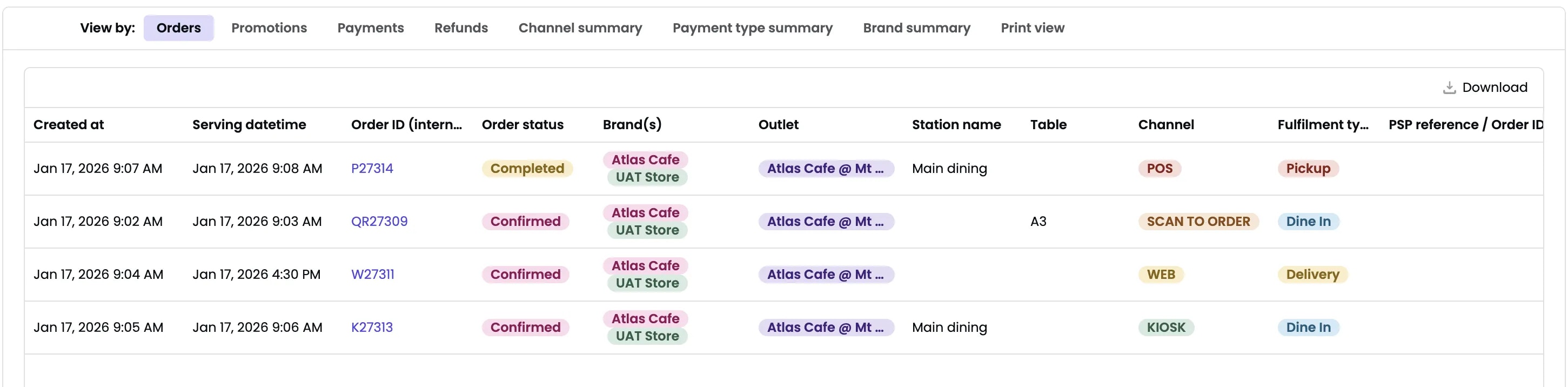
The report has multiple tabs showing different views of the same filtered data:Orders
Shows individual order line items with details:- Order number
- Order time
- Channel (Grab Food, POS, QR, etc.)
- Outlet
- Payment type
- Order total
- Status (completed, refunded, voided)
Promotions
Shows discount breakdown by promo code:- Promo code name
- Total count (number of times applied)
- Total discounted amount
Payments
Shows payment breakdown by payment type:- Payment type (Cash, Card, GrabPay, NETS, etc.)
- Transaction count
- Total amount
Refunds
Shows all refund transactions:- Order ID
- Original amount
- Refund amount
- Refund reason
- Processed by (staff member)
- Timestamp
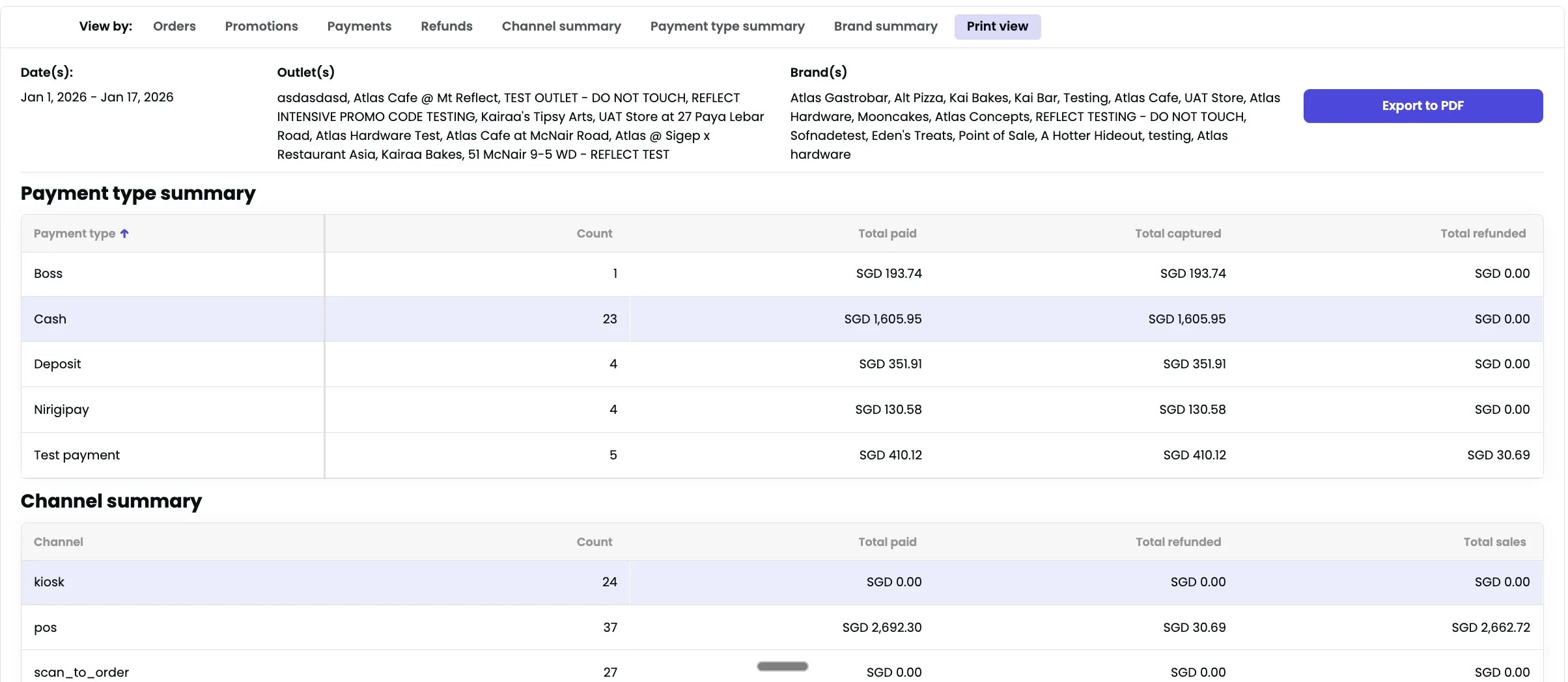
Channel summary
Shows sales breakdown by channel:- Channel (Grab Food, QR, POS, Web, etc.)
- Order count
- Total sales
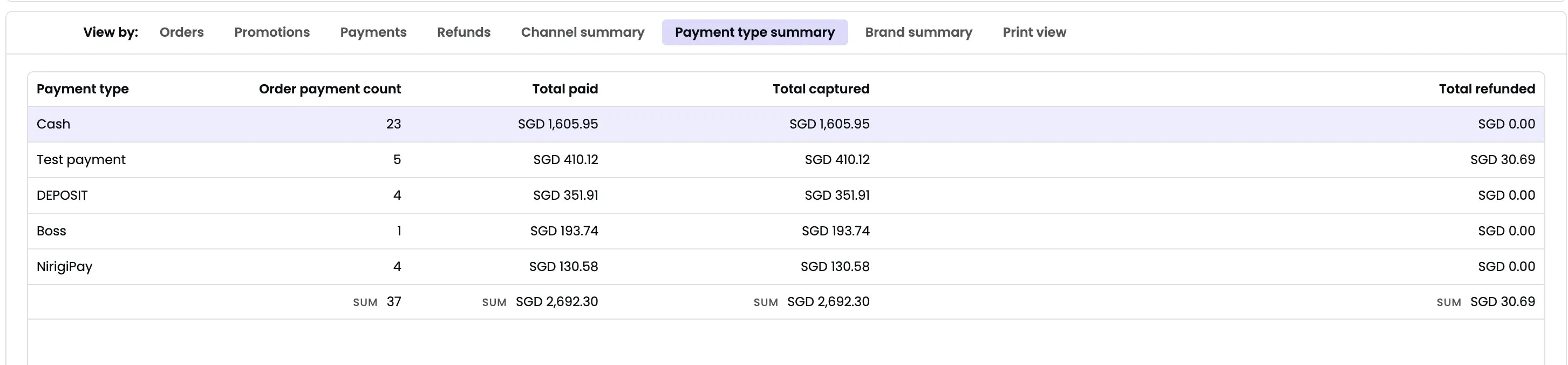
Payment type summary
Shows payment method breakdown:- Payment type
- Transaction count
- Total amount
Actions
Export to CSV
Click the “Download” button (bottom-right of table area) to export the current view.- File format: CSV, Excel (.xlsx), or PDF (format options appear on click)
- Exported data: All columns currently visible in the active tab
- Respects filters: Yes — export applies all active filters (date range, brands, channels, etc.)
- File name: Typically
sales_order_report_[date-range].csv
Use the export for accounting reconciliation, uploading to financial software, or archiving daily sales records.
What should happen
After applying filters, you should see:- Summary cards update to show totals for selected date range and filters
- Tab views (Orders, Promotions, Payments, etc.) populate with matching data
- “Refresh now” button shows last refresh timestamp
- Pagination controls appear if more than one page of results
- Browser downloads the file immediately
- File contains all rows matching current filters
- File includes all visible columns from the active tab
If it doesn’t work
Problem: “Why is Gross sales different between Sales order report and Sales summary report?”
Likely causes:- Different date ranges applied
- Different filters (e.g., Sales summary filtering out test outlets, Sales order report isn’t)
- Sales summary may exclude certain order types or channels
- “Include cancelled orders” toggle state is different
- Verify date ranges match exactly
- Compare Brand/Channel/Outlet filters — ensure they’re identical
- Check “Include cancelled orders” toggle — should be same state in both reports
- Check timestamps (“Data last refreshed at…”) — ensure data is current
- If still different, take screenshots and contact support at [email protected]
Problem: “Service charge shows $0.00 — where did our tips go?”
Likely causes:- No service charge was added to any orders in the selected date range
- Tips are tracked in a different field (e.g., under Payment type, or in a separate Tips report)
- Service charge is outlet-specific; selected outlet may not have service charge enabled
- Filter is excluding orders with service charges
- Check if service charges are enabled for your outlets (Settings > Outlet settings)
- Look at individual orders in “Orders” tab — do any show service charge line items?
- Check if there’s a separate “Tips” field or report
- Verify filters are not excluding high-value orders
Problem: “Discounts shown as 50 of promotions today”
Likely causes:- Discounts include platform-provided discounts (e.g., Grab promo)
- Discounts include employee discounts or manual adjustments
- Discounts include loyalty redemptions
- Date range is wrong (e.g., reporting yesterday instead of today)
- Check “Platform sponsored discounts (excluded)” card — this may be the Grab promos
- Click “Promotions” tab to see itemized breakdown
- Look at “Total refunds” — ensure refunds aren’t being counted as discounts
- Verify date range is correct (check calendar widget)
Problem: “Net sales doesn’t match my cash register total”
Likely causes:- Register is showing “Gross sales” or “sales before voids”
- Discounts, refunds, or voids applied after register close
- Timezone mismatch (register showing different day than reporting system)
- Register hasn’t been synced to Atlas (stale data)
- Note “Total sales” value in this report
- Open Daily outlet report for same date — compare “Net sales”
- If they match, issue is with register sync, not reporting
- Check if large refunds or voids were processed after register close
- Verify timezone setting (Settings > Account > Timezone)
Problem: “I see 4 orders in the report, but we had 10 orders today”
Likely causes:- Date range is too narrow (e.g., selected morning hours instead of full day)
- “Include cancelled orders” is OFF, hiding voided/abandoned orders
- Filters are excluding certain channels or brands
- Orders are pending and not yet in reporting system (data refresh lag)
- Check date range — should be full day (e.g., “Jan 7, 2026 — Jan 7, 2026”)
- Check filters: Are all brands, channels, outlets selected?
- Try toggling “Include cancelled orders” ON
- Click “Refresh now” button and wait 30 seconds for data to update
- Check POS — are all orders successfully closed/finalized, or are some still in draft state?
Problem: “Delivery fee shows 3.27 delivery fee charged to customer”
Likely cause: The $6.54 includes both customer delivery fee AND platform’s take. How to check:- Look for “Platform delivery fee and surcharges (excluded)” card — this is the Grab cut
- The “Delivery fee” card ($6.54) may be gross delivery fee; platform cut is deducted separately
- Reconcile with Grab’s settlement report (if available in Atlas)
- Contact support if this metric is unclear
Problem: “Tax shows as $5.75 in multiple places — am I paying tax multiple times?”
Likely cause: Tax is calculated on multiple components (Gross sales, Discounts, Delivery fee). Each line shows the tax impact of that component. How to check:- Review local tax laws (Singapore GST is 7% on most items)
- Sum all taxable components: (Gross sales - Non-taxable items) × 0.07 = expected tax
- Compare to total tax shown in the report
- If different, contact support with a screenshot
Problem: “I exported the report, but column headers are garbled or missing”
Likely causes:- Export format mismatch (CSV opened in Excel with wrong encoding)
- Some columns are hidden in the current view, so they don’t export
- Try opening CSV in a different app (Google Sheets, Numbers, or text editor)
- Ensure CSV file is UTF-8 encoded
- In Excel, use “Data → Text to Columns” if text is concatenated
- If issues persist, export as Excel (.xlsx) instead of CSV
- The report URL
- The filters you applied
- A screenshot of the error or unexpected totals
Practical workflows
Workflow 1: Daily end-of-day reconciliation
- Open Sales order report
- Set “Serving date” to today (default)
- Ensure all brands and channels are selected (default)
- Note “Total sales” value — this is revenue expected to be paid out
- Check “Total refunds” — any refunds processed today?
- Check “Discounts” — compare to discount approvals/promos to verify
- Click “Payments” tab to see breakdown by payment type
- Reconcile with actual deposits/bank feeds:
- Sum all payment types from “Payments” tab
- Should match “Total sales” minus any pending/held transactions
- Export to CSV for record-keeping: Click “Download” button
Workflow 2: Investigating discrepancy (“Sales don’t match payout”)
- Open Sales order report
- Set date range to the discrepancy date
- Note “Total sales” value
- Check if “Include cancelled orders” toggle is OFF — if ON, may show cancelled orders as negative revenue
- Look at “Discounts” card — high discounts can lower net revenue
- Look at “Platform sponsored discounts” — these may not be included in Gross sales
- Look at “Platform delivery fee and surcharges” — these are deducted from payout
- Click “Orders” tab and scroll through orders to find any with unusual amounts or marks (void, refund)
- Investigate large voids or refunds by clicking into order details
- Cross-check with Payout report to see final payout amount after platform deductions
Workflow 3: Analyzing promotional effectiveness
- Open Sales order report
- Set date range for the promo period
- Enter promo code in “Promo code” field
- Note “Gross sales” for orders with this promo
- Check “Discounts” to see how much discount was given away
- Click “Promotions” tab to see detailed breakdown of promo impact
- Calculate ROI: (Gross sales with promo) - (Discount amount) = Net revenue from promo
- Compare to baseline (run report without promo code filter)
- Export both reports for comparison analysis
Workflow 4: Identifying best-performing channel
- Open Sales order report
- Set date range (last 30 days recommended)
- Keep all outlets, brands selected
- Click “Channel summary” tab
- View sales breakdown by channel (Qr, Grab Food, Pos, Web, etc.)
- Identify highest-revenue channel
- Identify lowest-performing channel for optimization efforts
- Toggle “Merge sub payment types” OFF to see if certain channels favor certain payment methods
Workflow 5: Payment type audit (cash vs. card vs. digital)
- Open Sales order report
- Set date range
- Click “Payment type summary” tab to see breakdown
- Toggle “Merge sub payment types” to see granular vs. merged view
- Example: See total Apple Pay vs. total standard card payments
- Reconcile cash payment total with actual cash on hand (daily cash count)
Workflow 6: Refund audit and reconciliation
- Open Sales order report
- Set date range
- Click “Refunds” tab
- View all refund transactions for the period
- Each row shows: Order ID, Original amount, Refund amount, Refund reason, Processed by (staff), Timestamp
- Note “Total refunds” value at top
- Ensure all refunds are authorized/justified
- Export refund list for accounting review
Next steps
After reviewing your sales order report:- Use Sales summary report for high-level metrics and insights
- Use Payout report to reconcile final payout amounts after platform fees
- Use Discount report to analyze promotional campaign performance
- Set up new discounts to drive sales during slow periods
Need help reconciling sales or understanding discrepancies? Contact support at [email protected] with screenshots and details.