

- Atlas merchants who run delivery orders through an Atlas Online website
- Admin or Manager users configuring outlet delivery settings
Where delivery fees are set
Delivery fees are managed under Settings → Delivery fee, and assigned to each outlet from Outlet settings → Delivery fee settings in Atlas Merchant Portal.Go to Outlet settings
Select your outlet
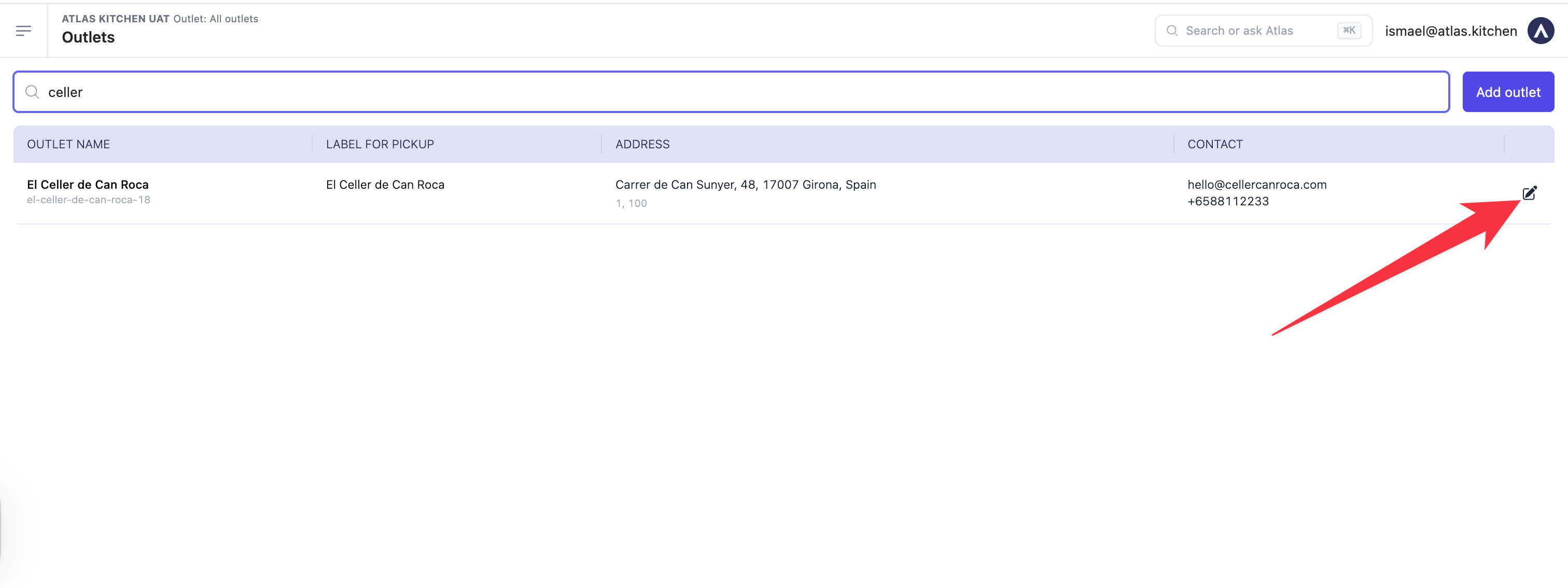
Open an outlet from Outlet settings → Outlets
Find the delivery settings section
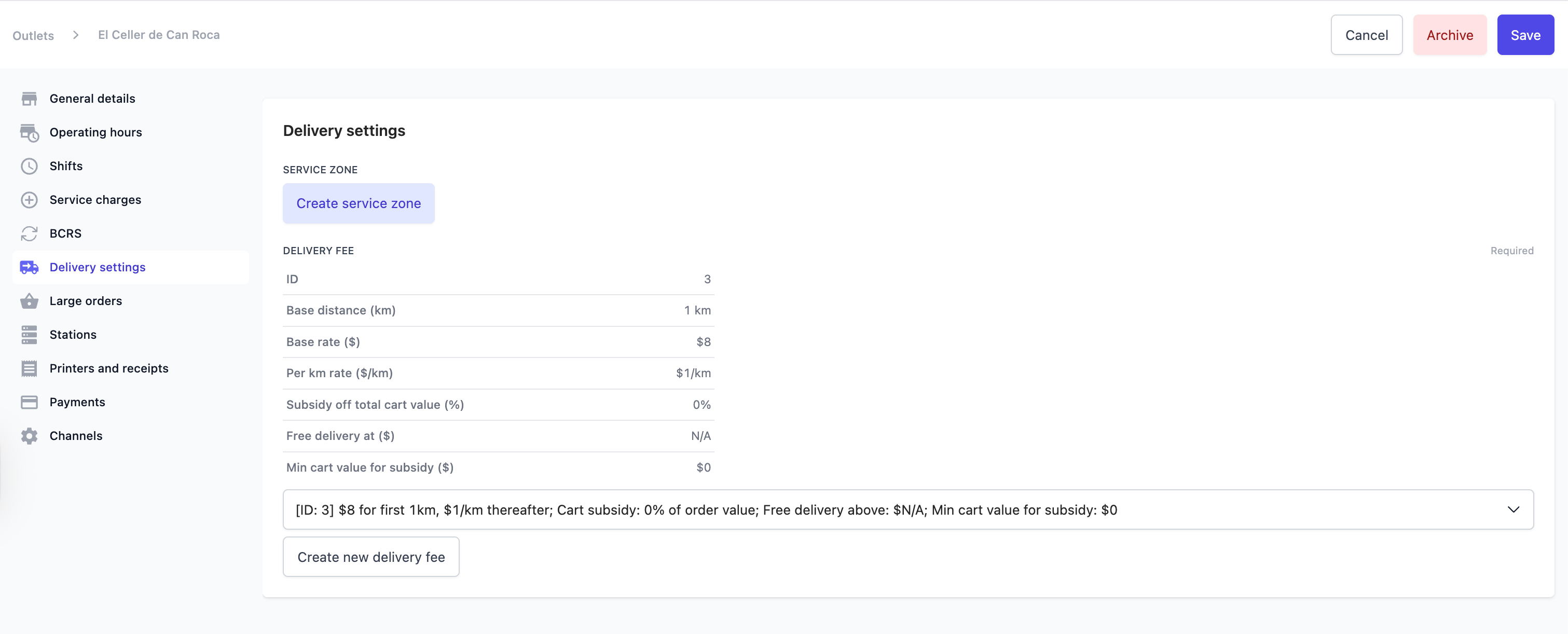
Delivery settings section in Outlet settings
Assign or create a delivery fee config
Save
Fee structures
Atlas builds your delivery fee the way last-mile couriers like Lalamove, GrabExpress, and PandaGo price a trip: a base fee that covers a set distance, then a per-kilometre rate beyond it. The most common setup is a base rate for a base distance, plus a per km rate for anything further (e.g. 1/km after that). You can also offer free delivery in two ways: a % subsidy that covers more of the fee as the customer’s cart grows, or a flat free delivery threshold that drops the fee to zero once the cart reaches a set amount. Each field is explained below.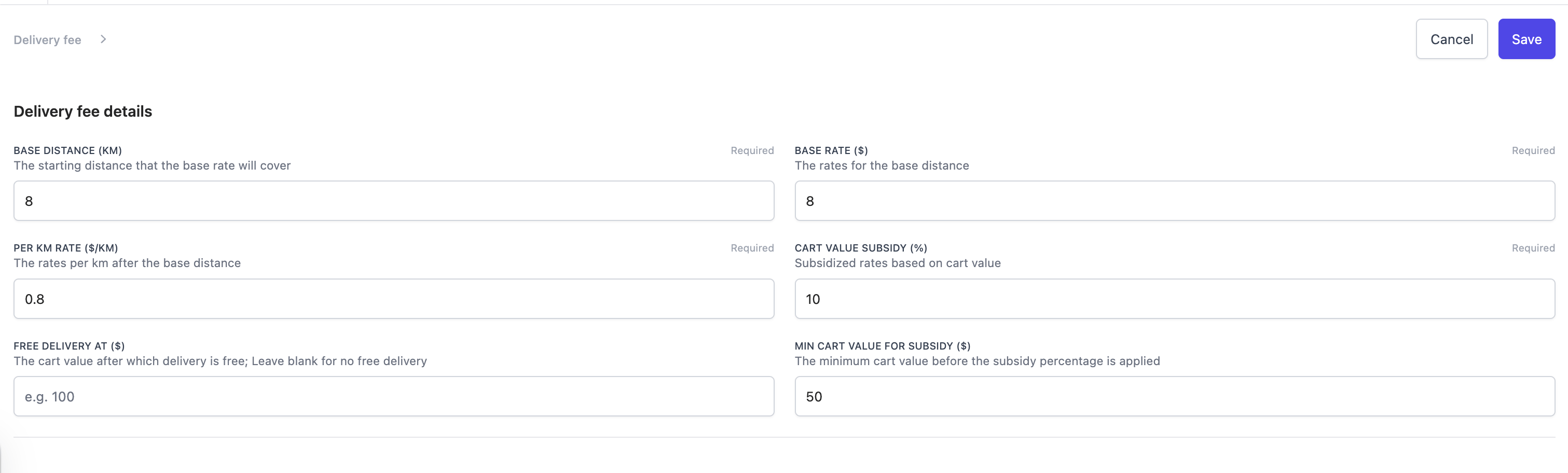
Delivery fee details form
Base distance and base rate
These two work as a pair. The base rate is the flat fee a customer pays for any delivery within the base distance. It is the starting price that covers the first stretch of the trip, whatever the exact distance within it. Example: base distance = 3 km, base rate = $5.00 → every delivery up to 3 km costs $5.00.Per km rate
Beyond the base distance, this rate is added for each extra kilometre. It is what makes the fee grow for customers who live further away. Example: base distance 3 km, base rate $5.00, per km rate $1.00. An order 5 km away pays $5.00 + (2 km × $1.00) = $7.00.Cart value subsidy (%)
A discount you put towards the customer’s delivery fee, sized as a percentage of their order value. The bigger the order, the bigger the discount, so delivery gets cheaper as customers spend more. Once the discount covers the whole fee, delivery is free. Example: cart value subsidy = 20% → the customer gets $20 off delivery for every $100 of order. A $100 cart takes $20 off the delivery fee; a $200 cart takes $40 off. What customers see: at the Atlas Online checkout, a progress bar shows how much more to spend to lower the delivery fee, and the discounted fee updates as they add items.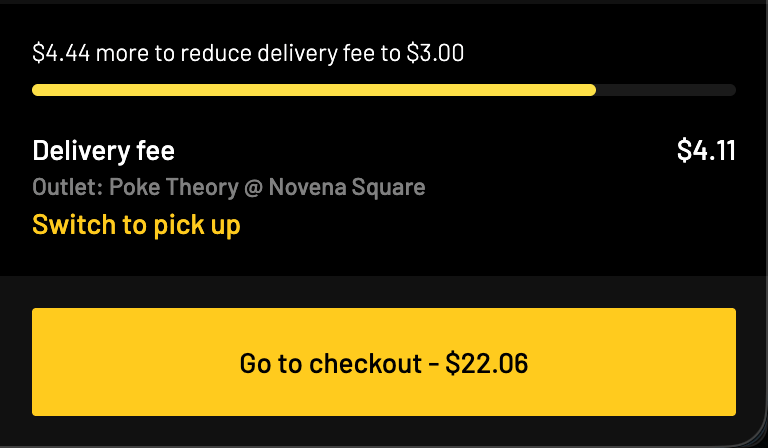
Cart value subsidy shown at the Atlas Online checkout
Min cart value for subsidy ($)
The amount a cart must reach before the subsidy starts to apply. Below this, the customer pays the full delivery fee. Leave it blank to apply the subsidy to every order. Example: min cart value for subsidy = $50 → only orders of $50 or more get the subsidy.Free delivery at ($)
The cart value at which delivery becomes completely free, regardless of distance. Leave it blank to never offer free delivery. Example: free delivery at = $100.00 → any cart of $100.00 or more ships free. What customers see: a progress bar on the checkout page shows how close they are to the free delivery threshold.Setting a minimum order amount
The minimum order amount for Atlas Online is set per brand, not in the delivery fee config. It applies to delivery orders only; pickup orders are not affected.Go to Brands
Edit your brand
Set the minimum order value
Save
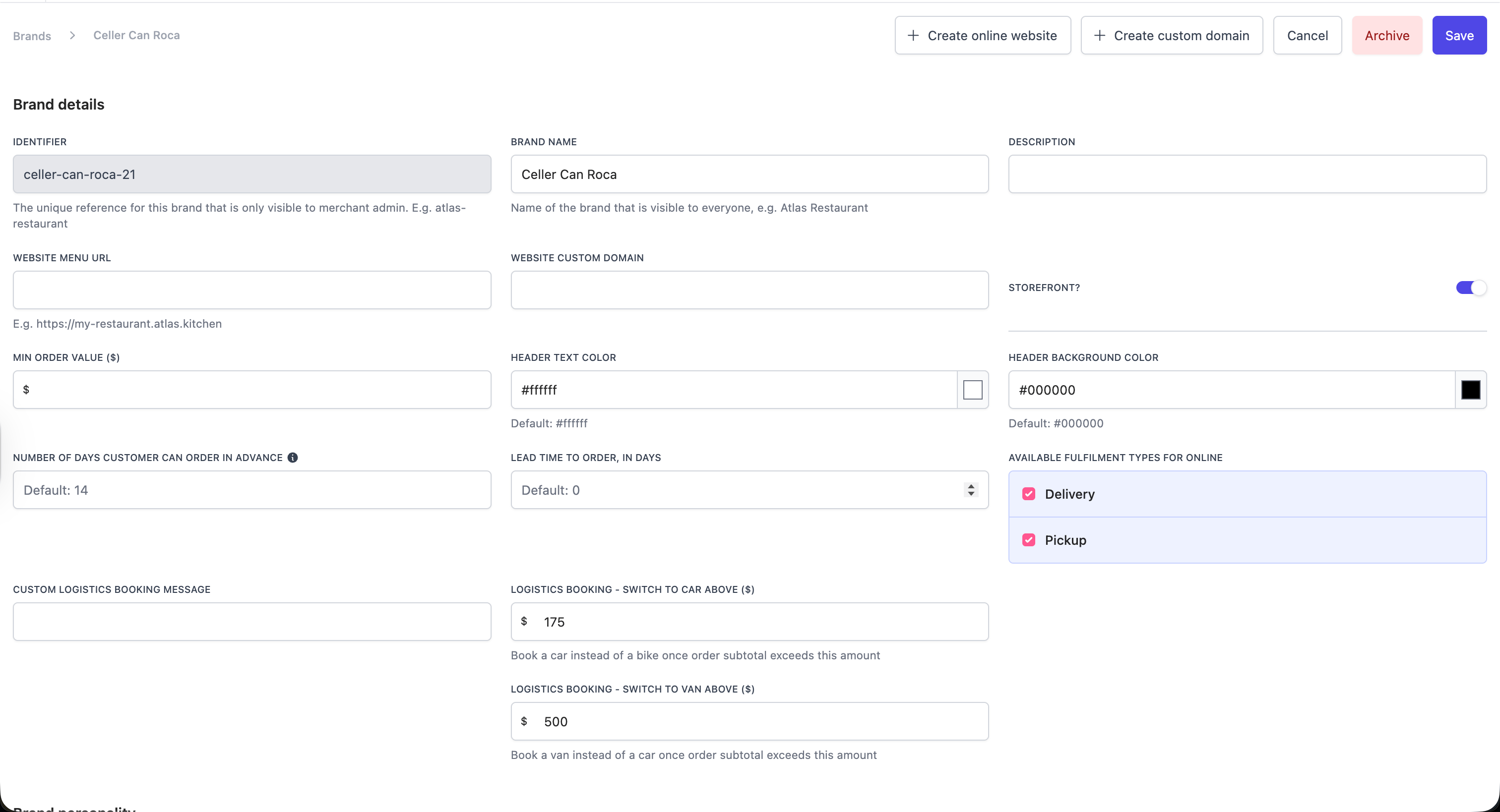
Min order value on the Brand details page (Settings → Brands)
Large order lead time
Large orders need more prep time. Large order lead time automatically adds extra time to the kitchen’s estimate once an order passes a value you set, so customers get a realistic ready time and the kitchen isn’t caught short.Open the outlet's Delivery settings
Set the threshold and extra time
Save
![The Large order lead time panel showing 'Orders above [SGD] will require an additional 90 Minutes' with a Save button.](https://mintcdn.com/atlaskitchen/5GkVM2TY1bzqc72r/images/merchant-portal/delivery-large-order-lead-time.png?fit=max&auto=format&n=5GkVM2TY1bzqc72r&q=85&s=c16ff313420e35c372b257307ab29605)
Large order lead time in the outlet's Delivery settings
Delivery vehicle auto-assignment
For Atlas-managed delivery, Atlas books the right vehicle based on the order subtotal, so larger orders go out in something that can carry them. These thresholds are on the same Brand details page (Settings → Brands, then edit your brand).- Logistics booking — switch to car above ($) — book a car instead of a bike once the order subtotal passes this amount (e.g. $175).
- Logistics booking — switch to van above ($) — book a van instead of a car once the order subtotal passes this amount (e.g. $500).
- Custom logistics booking message — an optional note passed to the courier as part of the logistics booking through Atlas Smart Logistics (e.g. building access, unit number, or handling instructions).
Testing the configuration before going live
Before your next service, verify the delivery fee settings are working correctly.Open your online store
yourbrand.atlas.kitchen) in a private browser window.Add items to cart
Check the checkout screen
If the delivery fee looks wrong
Customers see $0 delivery but there should be a fee
Customers see $0 delivery but there should be a fee
Delivery fee is not showing on some orders
Delivery fee is not showing on some orders
Outlet says no delivery fee config found
Outlet says no delivery fee config found
Changes are not showing on the storefront
Changes are not showing on the storefront
Next steps
- Surcharges — add a temporary fee for holidays, weekends, or peak periods
- Managing operating hours — set when your outlet accepts delivery orders
- Adding discounts — set promotional discounts separate from delivery fee subsidies