Who is this article for?
- Restaurant managers optimizing menus and deciding which products to feature or discontinue
- Category owners tracking product performance across channels and outlets
- Inventory planners identifying bestsellers to ensure stock availability
Available for these roles:
Manager
Finance
Admin
What this does
The Product popularity report shows which menu items sell best and worst by quantity and revenue. View product performance broken down by order source (QR, web, POS, kiosk), fulfillment type (dine-in, takeaway, delivery), outlet, time of day, product tags, or SKU variants. Use this to identify bestsellers, understand channel-specific preferences, and make data-driven menu decisions.When to use this
Use this report to:- Find your top-selling products by quantity and revenue (e.g., “Which item generates the most revenue?”)
- Identify channel-specific bestsellers (e.g., “Do QR orders prefer different items than POS orders?”)
- Compare product performance across outlets (e.g., “Which location sells the most of a specific item?”)
- Understand time-of-day trends (e.g., “Which products peak during lunch vs. dinner?”)
- Analyze fulfillment type patterns (e.g., “Which items sell more for dine-in vs. takeaway?”)
- Review product tag performance (e.g., “How do spicy items perform vs. vegetarian items?”)
- Make menu optimization decisions (promote bestsellers, discontinue low performers)
Report layout
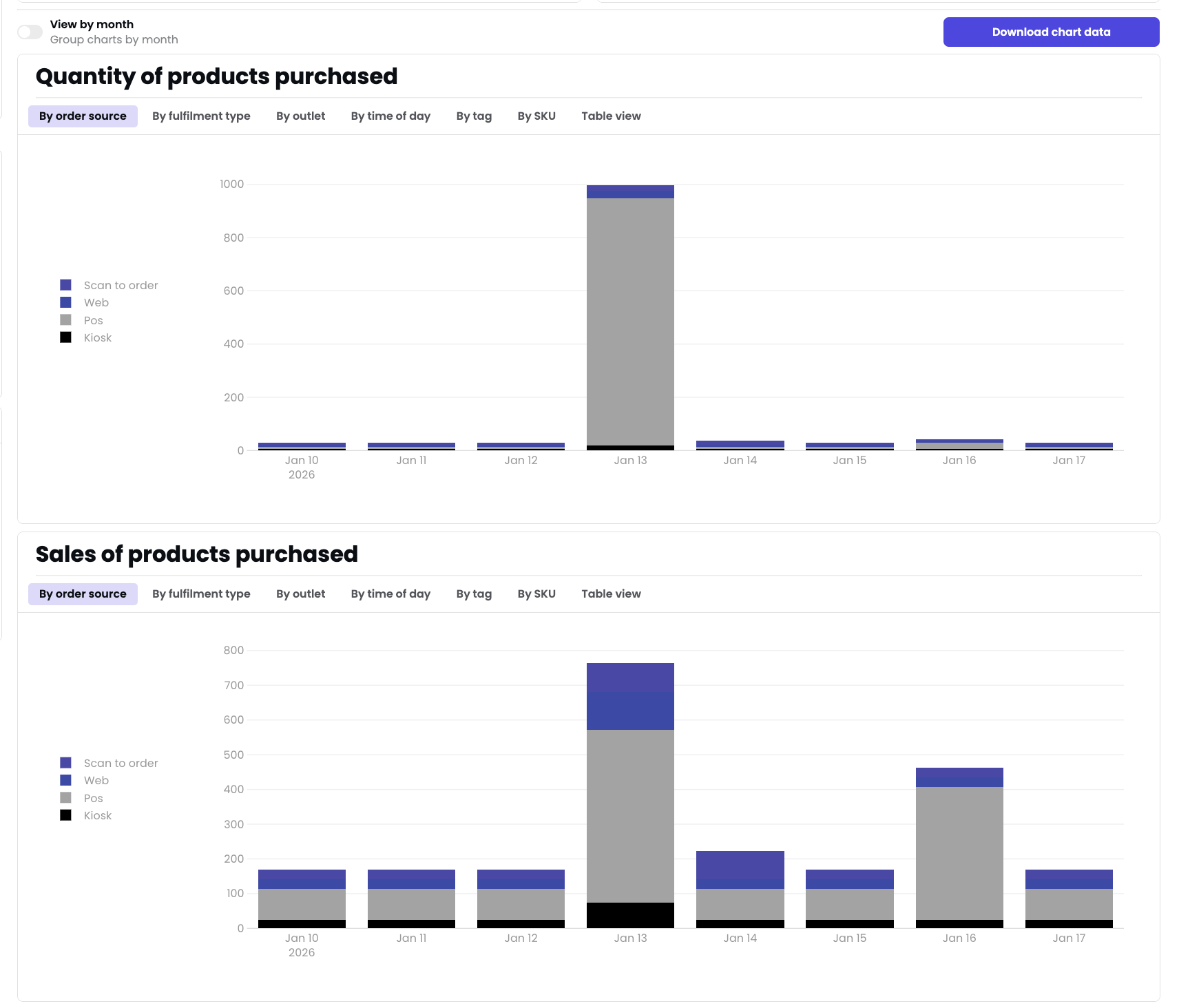
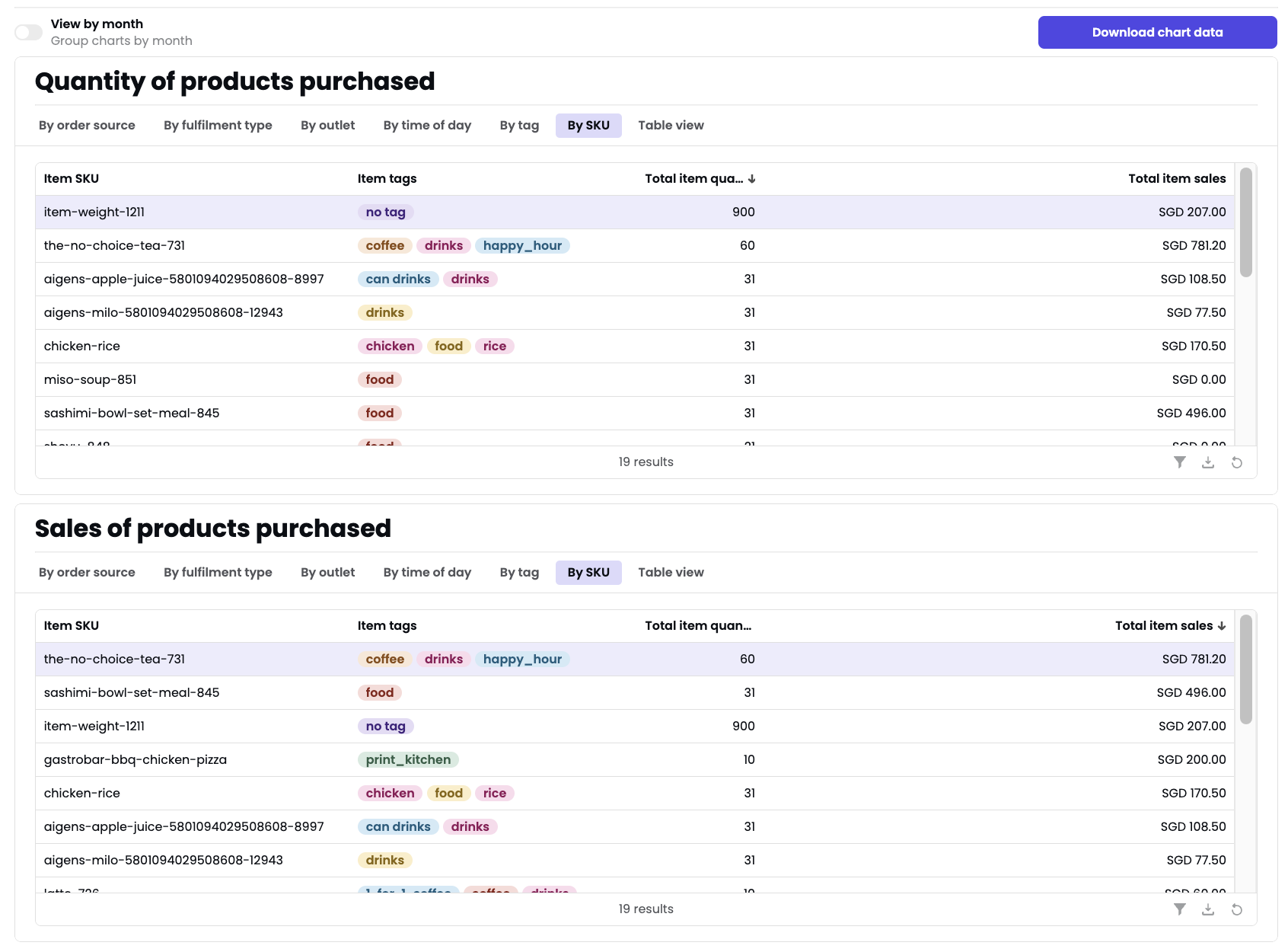
The report displays two stacked bar charts:- Quantity of products purchased: Count of units sold
- Sales of products purchased: Revenue from product sales
- By order source (default)
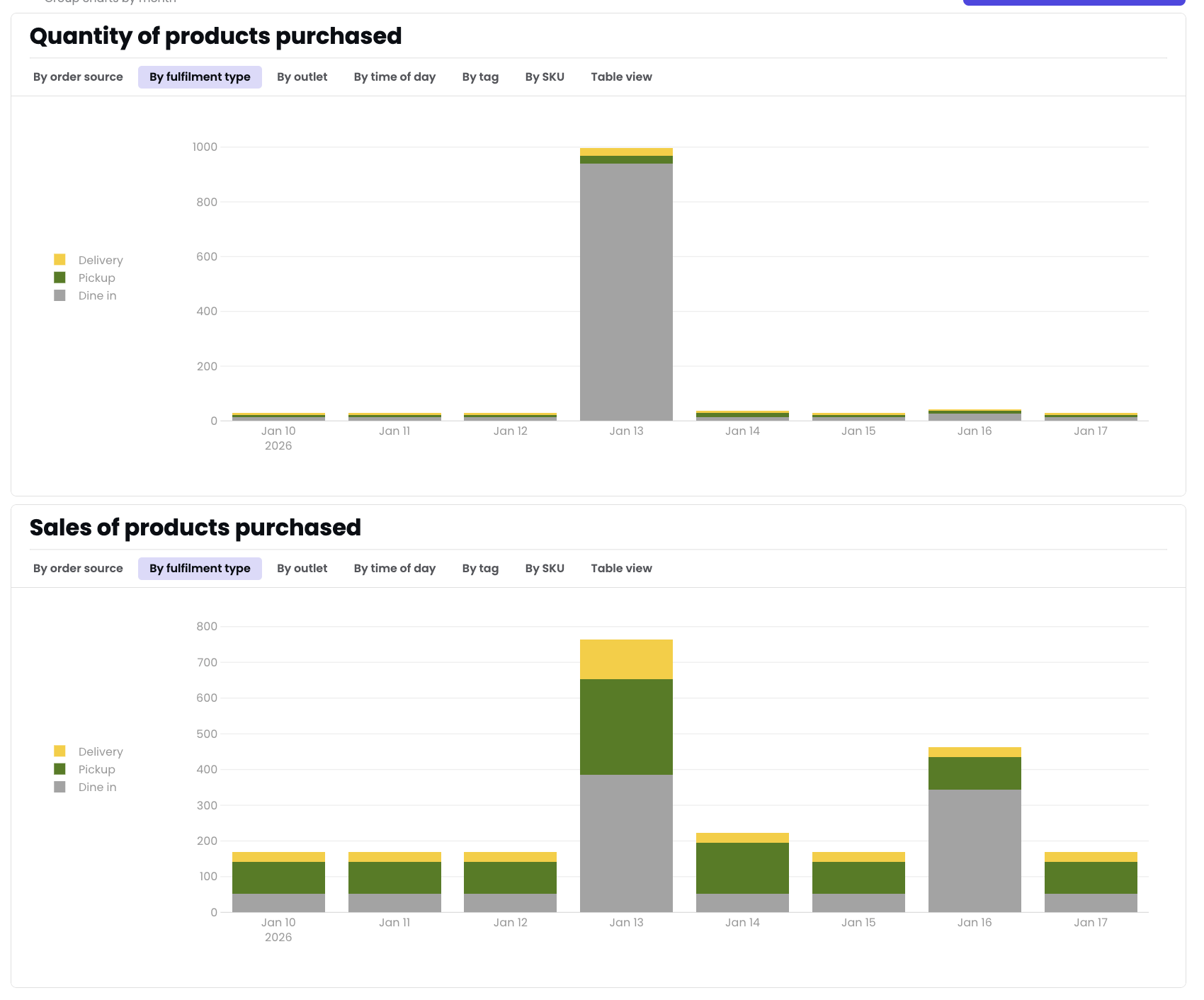
- By fulfillment type
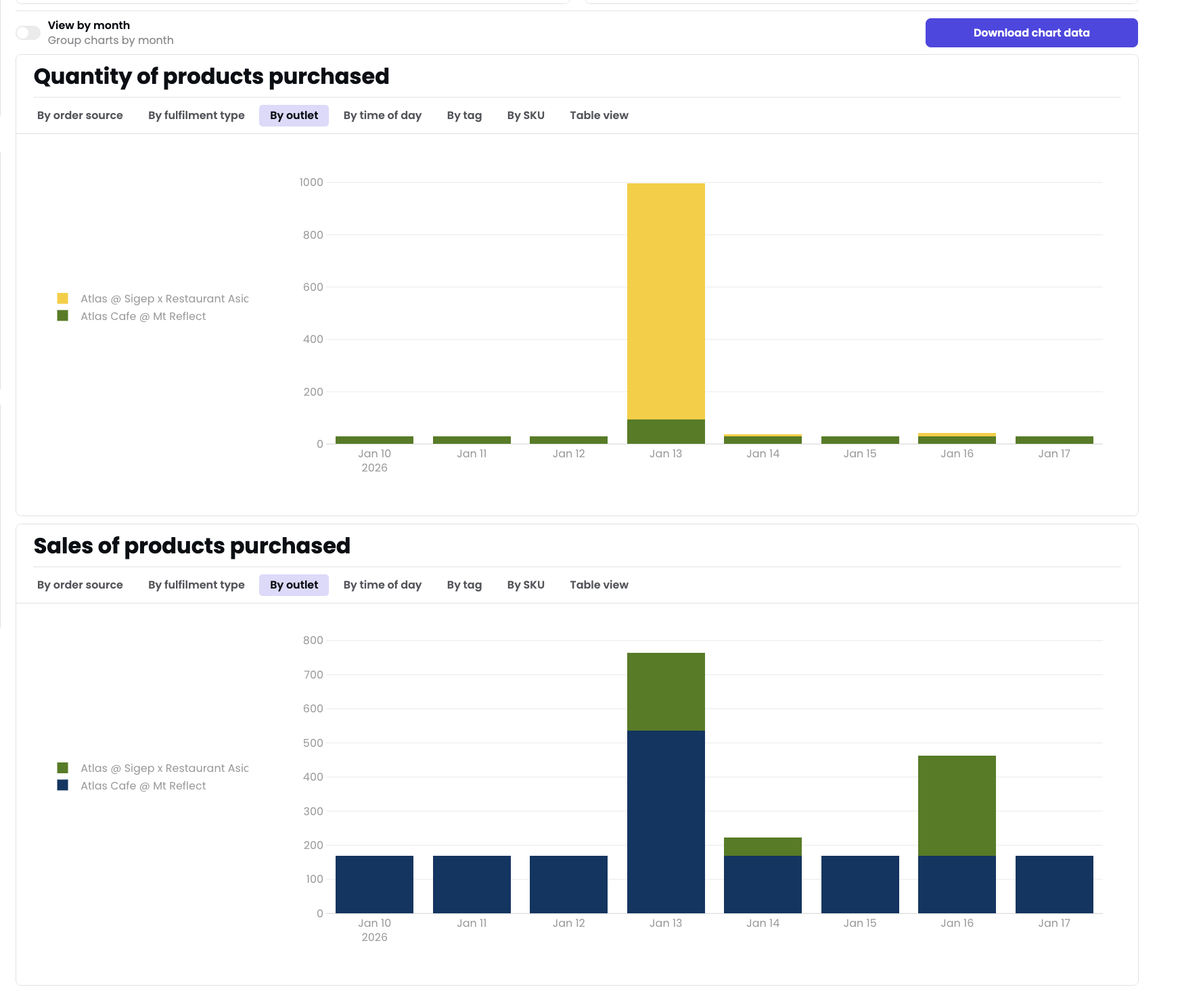
- By outlet
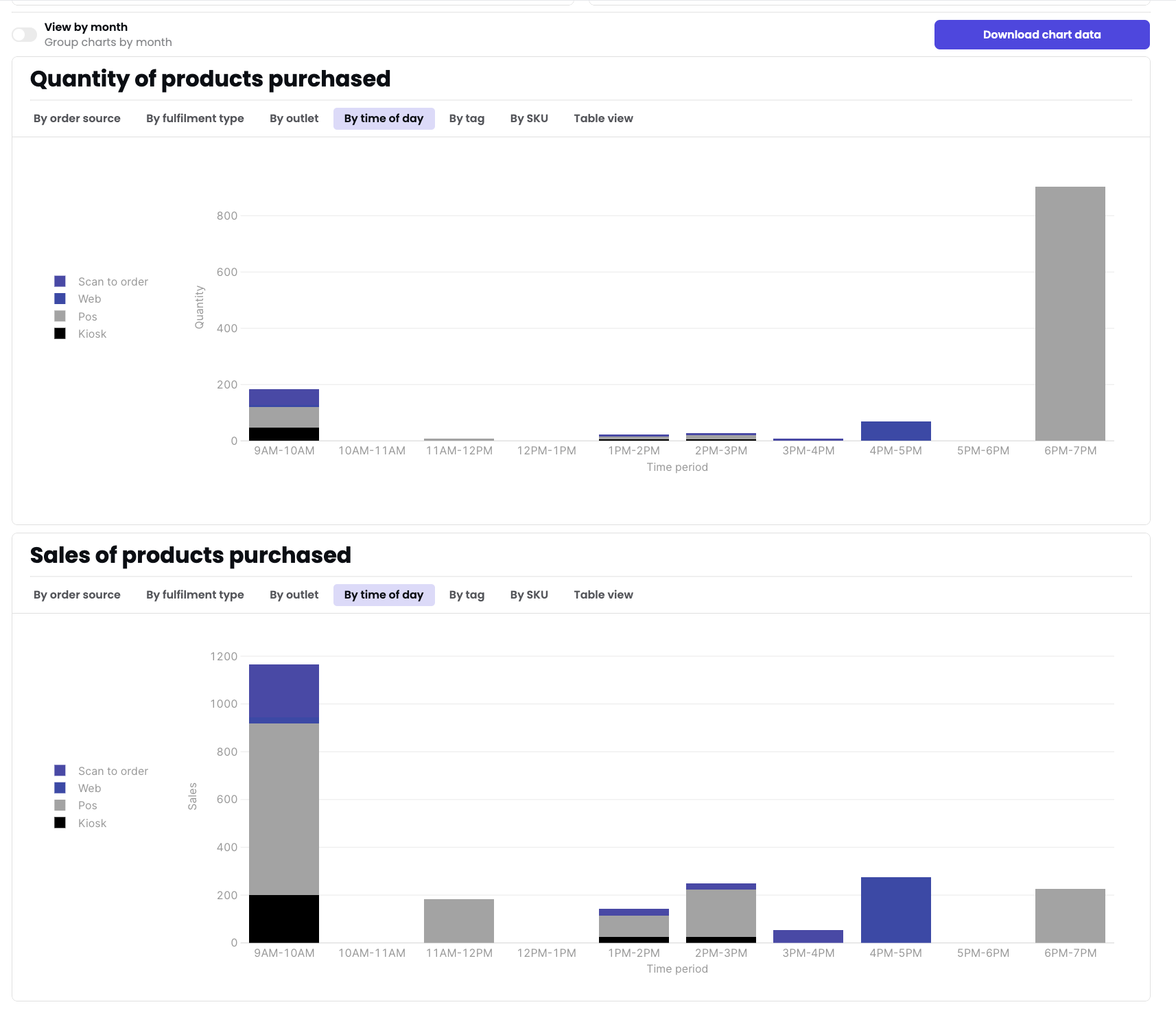
- By time of day
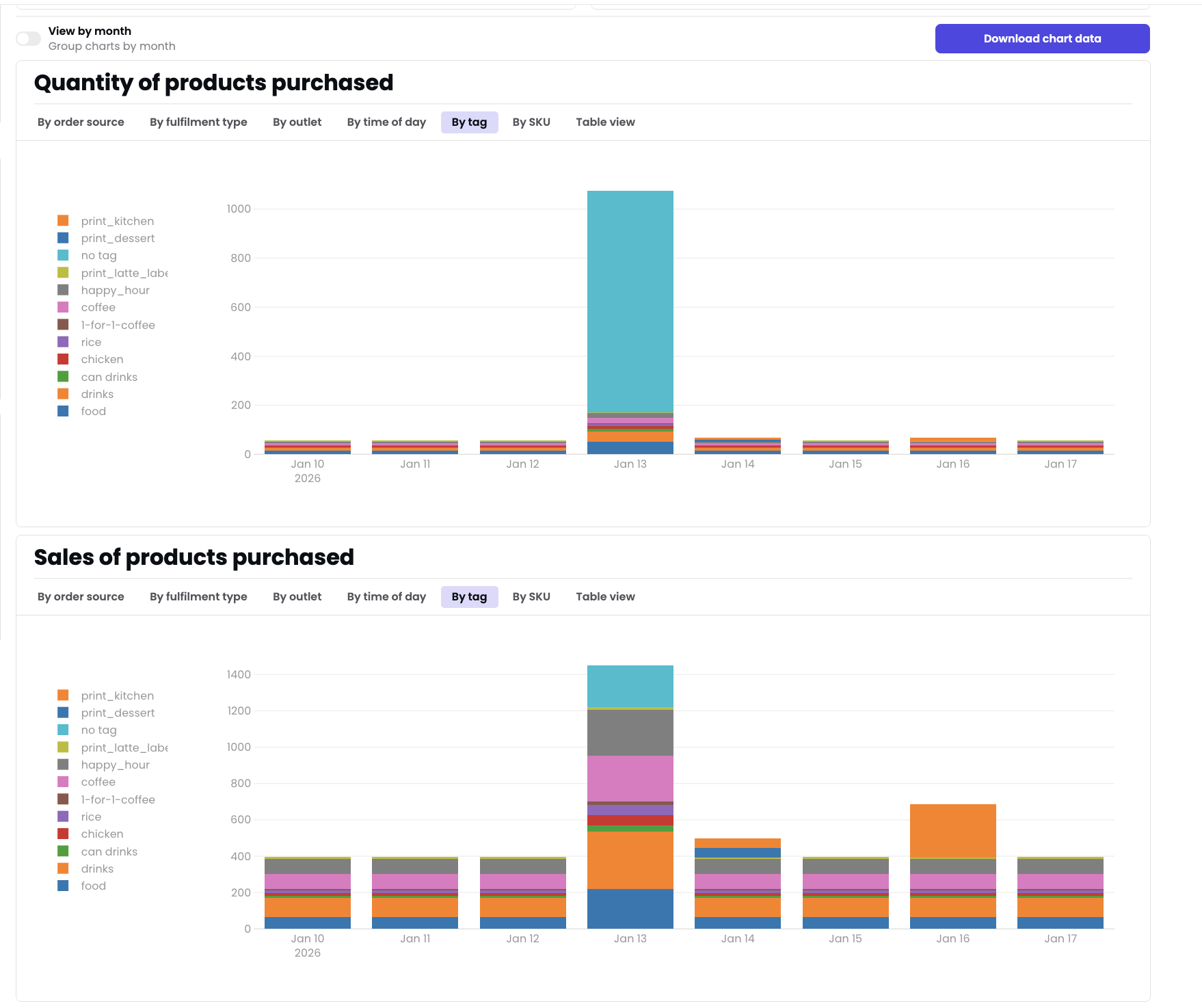
- By tag
- By SKU
Filters
Date range
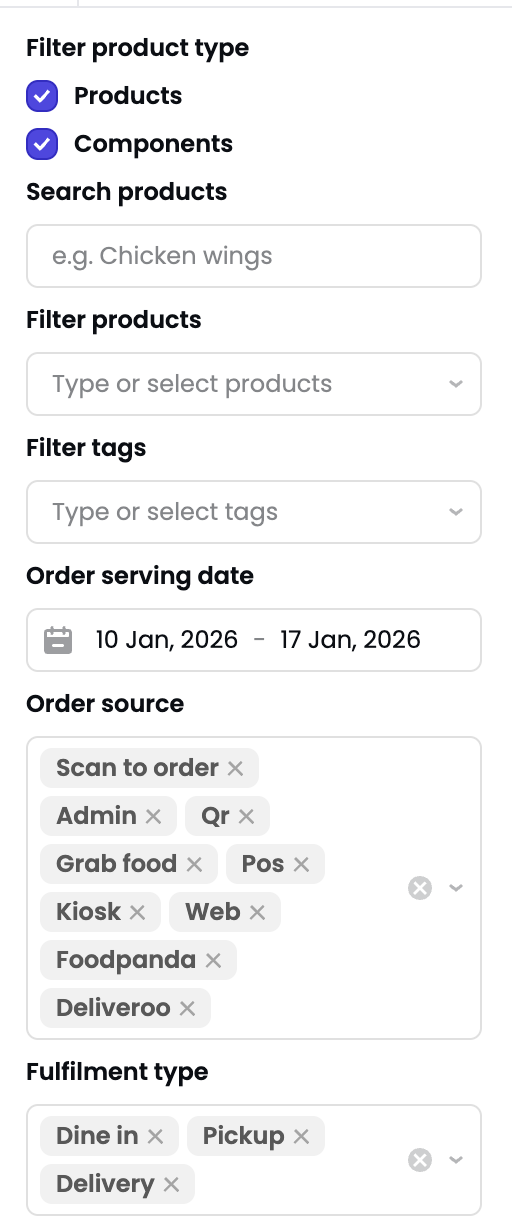
Set the time period for viewing product sales data.- Location: Gray date picker controls above the charts
- Default: Last 7 days (e.g., Jan 1–7, 2026)
- Effect: Both Quantity and Sales charts update to show data for the selected date range
- How to use: Click the date picker to select a custom range or use preset options
Date range appears to use your account’s default timezone. Contact support at [email protected] if you need to change your account timezone.
Product filter (sidebar)
Multi-select filter to narrow results to specific products.- Location: Left sidebar, displayed as removable chips
- Default: All products (or pre-filtered based on recent sales)
- Values: Product names displayed as truncated chips (e.g., “Testi…”, “Atla…”, “UAT”)
- How to use: Click the X button on a product chip to remove it from the filter
- Effect: Charts show only selected products
Product names are truncated in the sidebar. Hover over a chip to see the full product name.
Outlet filter (sidebar)
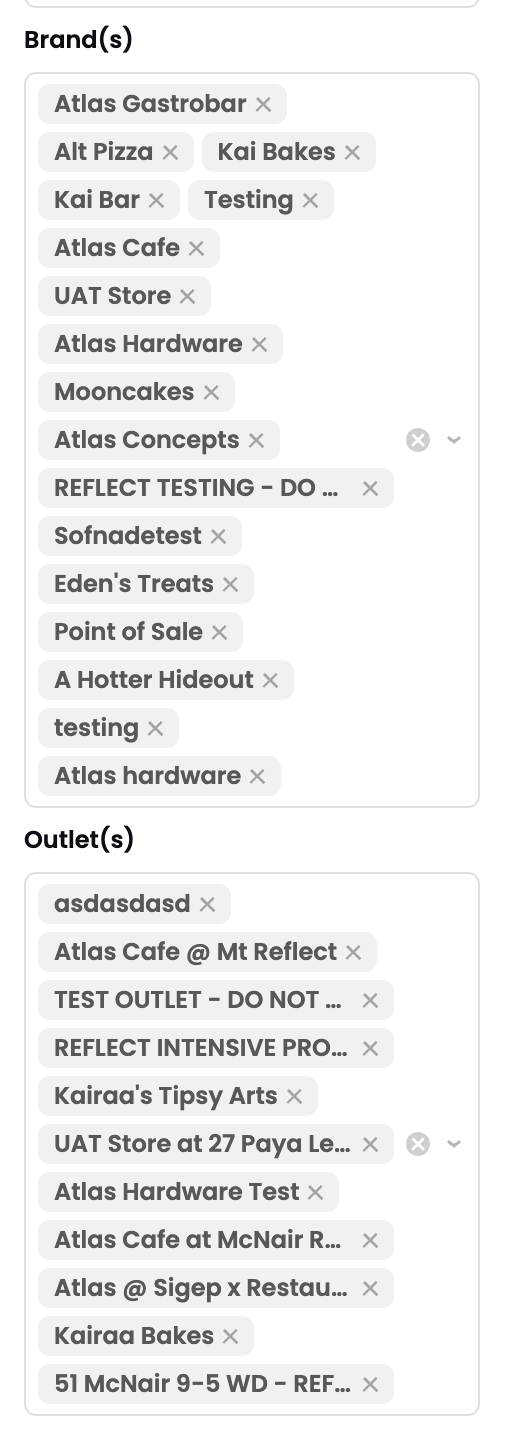
Multi-select filter to view data for specific restaurant locations.- Location: Left sidebar under “Outlet(s)” section header
- Default: All outlets
- Values: All physical restaurant locations (e.g., asd, Atla, TEST, REFL, Kair, UAT)
- How to use: Click the X button on an outlet to remove it from the filter
- Effect: Charts show only data from selected outlets
Advanced query builder
Filter icon button that opens additional filtering options for more specific queries.- Location: Triangle/funnel icon in the top right of the chart area
- Filter type selector: Dropdown showing “Item name” (default), likely includes other options like Category, SKU, Price range
- Operator selector: Dropdown showing “includes” (default), likely includes “is”, “is not”, “excludes”, “contains”
- Value input: Text field to enter the filter value
- Actions:
- ”+ Add” button to stack multiple filter conditions (AND logic)
- “Clear filters” link (red) to remove all query filters
- Effect: Filters apply on top of sidebar filters
View by month toggle
Switch between daily and monthly data aggregation.- Location: Below the first chart control area
- Label: “View by month” with sub-text “Group charts by month”
- Default: Off (daily view)
- Effect when enabled: Both Quantity and Sales charts aggregate data into monthly buckets instead of daily
- Use case: View long-term trends for date ranges longer than 30-60 days
Chart dimensions (tabs)
Click tabs above each chart to change how data is segmented:By order source (default)
Segments data by the channel customers used to place orders:- Scan to order (blue): QR code table ordering (dine-in)
- Web (blue): Website or online ordering portal (may include third-party delivery)
- Pos (gray): Point-of-sale terminal orders (staff-entered, counter orders)
- Kiosk (black): Self-service kiosk orders
By fulfillment type
Segments data by how orders are fulfilled:- Dine-in
- Takeaway
- Delivery
Exact fulfillment type labels may vary based on your outlet configuration.
By outlet
Segments data by restaurant location. Use this view to: Compare product performance across outlets (e.g., “Which location sells the most of this signature dish?”)By time of day
Segments data by meal period or time bucket. Use this view to: Identify peak selling hours for specific products (e.g., “Does this breakfast item perform during lunch hours?”)Time of day segments may be fixed meal periods (breakfast, lunch, dinner) or hourly buckets. Contact support for details on how your account is configured.
By tag
Segments data by product tags or categories (e.g., “spicy”, “vegetarian”, “signature”). Use this view to: Analyze category-level performance (e.g., “How do vegetarian items perform compared to meat-based items?”)By SKU
Segments data by individual product variants (size, flavor, etc.). Use this view to: Compare variant performance (e.g., “Do customers prefer Medium or Large size?”)Some tabs may show empty charts if no data exists for that dimension. The right arrow icon after the “By SKU” tab suggests additional dimensions may be available by scrolling.
Chart controls
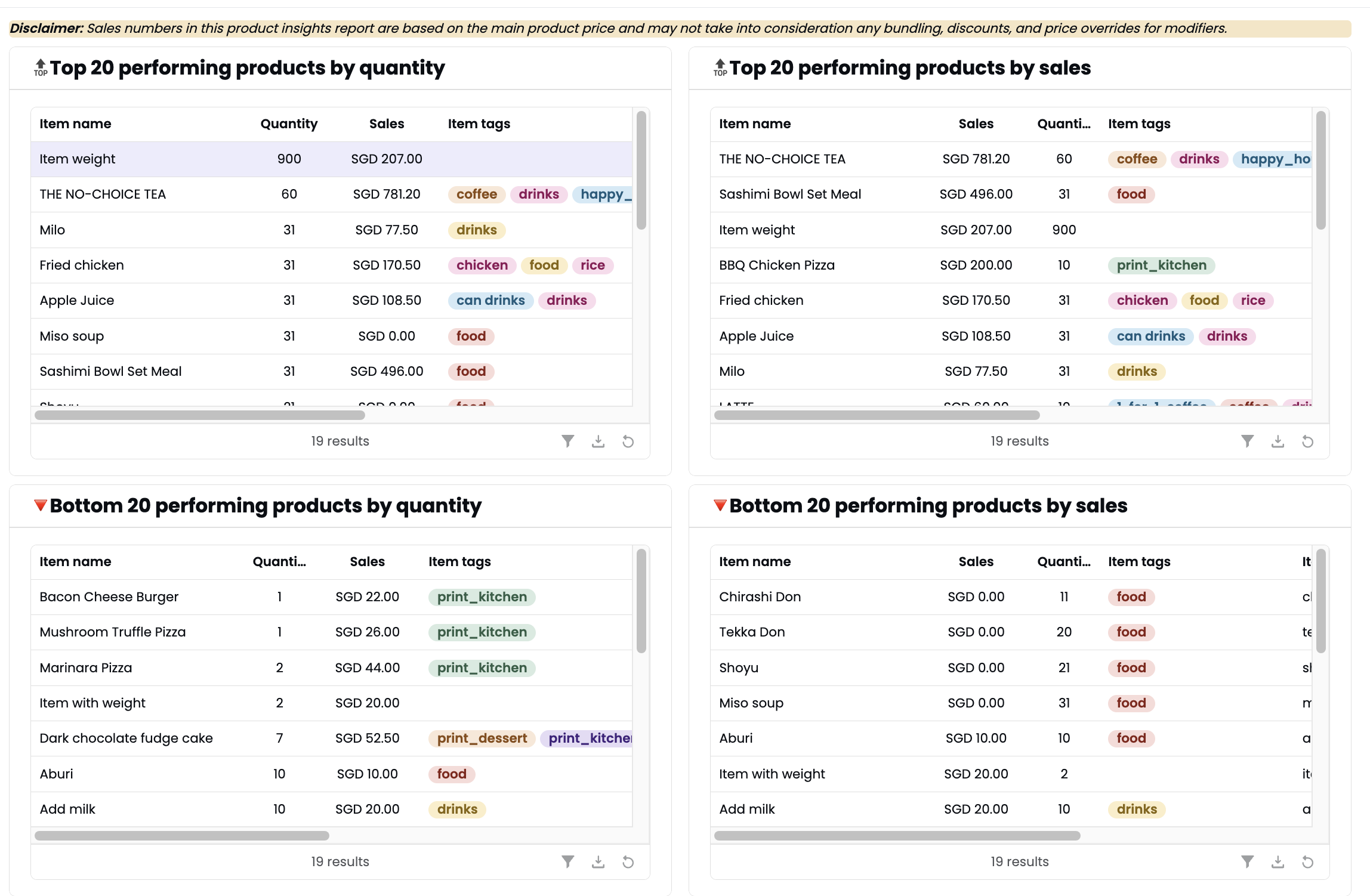
Above each chart, you’ll see:Results count
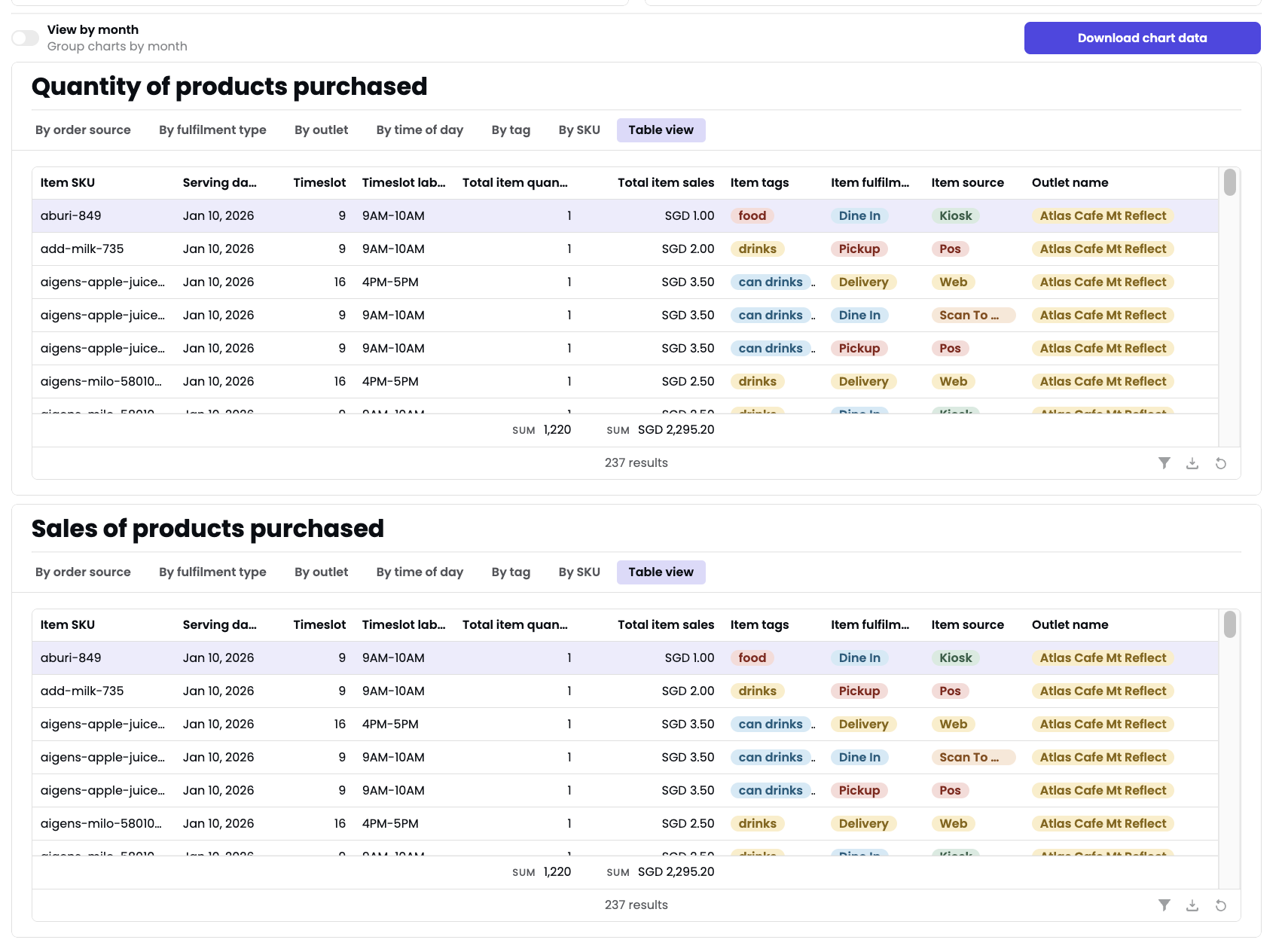
Display showing the number of items in the underlying dataset (e.g., “20 results”).- Clickable: May open a detailed data table below the chart when clicked
- Use this to: See the exact count of products included in the current view
Filter icon (funnel)
Opens or closes the advanced query builder.- Color changes: Icon color may change when filters are active
- Use this to: Access more specific filtering options beyond sidebar filters
Download icon (arrow)
Downloads visible chart data to a file.- Format: Likely CSV or Excel format
- Scope: Respects current filters and view selection
- Use this to: Export data for further analysis in spreadsheet software
Refresh icon (circular arrow)
Refreshes chart data from the server.- Processing time: May take 2-5 seconds to complete
- Use this to: Update data if new orders were placed since the page loaded
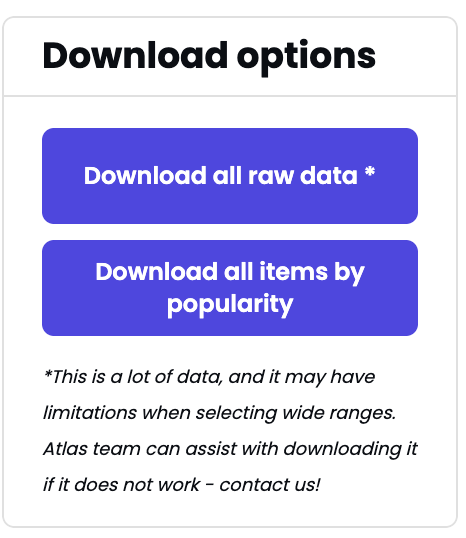
Download chart data
Blue button in the top right corner that exports all chart data.- File format: CSV or Excel (.xlsx)
- File name: Auto-generated (likely
product-popularity-[date].csv) - Exported fields: Date/Period, Product name, Quantity, Sales, Order source breakdown, Outlet, and other dimension-specific columns
- Respects filters: Yes — only exports data matching your current filters (date range, products, outlets)
- Use this to: Create custom reports or analysis in Excel, Google Sheets, or BI tools
Export includes all data for the selected filters, not just what’s visible on screen.
Metrics explained
Quantity of products purchased
Definition: Count of individual product units sold within the selected date range.How it’s calculated: Sum of product quantity across all matching orders.Scope: Respects all filters (date, outlet, product, order source).Important notes:
- Does not include voided items (unless toggled to include them)
- May not include refunded items
- Bundle/kit counting logic may vary (single unit vs. individual components)
Sales of products purchased
Definition: Total revenue from product sales within the selected date range.How it’s calculated: Sum of
(product_unit_price × quantity) or order_item_total across matching orders.Currency: Uses your account’s default currency (e.g., SGD).Important notes:- May be gross sales (before discounts) or net sales (after discounts) — clarify with support if needed
- Treatment of service charge, tax, and tips may vary
- Does not include refunded amounts
Order source definitions
- Scan to order: QR code scanning at table (typically dine-in orders)
- Web: Orders placed via website or online ordering portal (may include third-party delivery platforms like Grab, Deliveroo)
- Pos: Point-of-sale terminal (staff-entered orders, counter orders, phone-in orders)
- Kiosk: Self-service kiosk orders (common in quick-service restaurants)
What should happen
After applying filters and selecting a chart dimension:- Both Quantity and Sales charts update to show matching data
- Chart bars display in chronological order (oldest date on left)
- Color-coded segments show breakdown by selected dimension (order source, outlet, etc.)
- Results count indicator shows the number of items in the dataset
- Legend shows all active segments with color keys
- Charts instantly redraw with new segmentation
- All sidebar filters remain applied
- Both Quantity and Sales charts update together
- Browser downloads a file immediately
- File contains all data matching current filters
- File includes date, product name, quantity, sales, and dimension-specific columns
If it doesn’t work
Problem: Charts are empty or show “0 results”
Likely cause: Filters are too restrictive (date range too narrow, products filtered out, no sales for selected dimension). How to fix:- Expand the date range to cover a longer period (e.g., last 30 days instead of last 7 days)
- Check sidebar Product filter — click X to remove products you may have accidentally filtered out
- Click “Clear filters” in the advanced query builder to reset any additional filters
- Verify the selected outlet has sales data during the date range
- Switch to a different tab dimension (e.g., from “By SKU” to “By order source”)
- Click the refresh icon to reload data
Problem: Product names are truncated in the sidebar
This is expected behavior for space reasons. How to see full names: Hover over a product chip to see the full product name in a tooltip.Problem: Quantity and Sales charts don’t match
This is expected behavior. High-quantity items may not generate the most revenue, and vice versa. Example: A low-priced drink may have high quantity but low sales. A premium dish may have low quantity but high sales. Use this insight to: Optimize menu pricing or prioritize promotion of high-revenue items.Problem: “By time of day” dimension shows unexpected segments
Likely cause: Your account’s meal period configuration may differ from what you expect. How to fix: Contact support at [email protected] to confirm or adjust your meal period settings (e.g., breakfast 6–11am, lunch 11am–3pm, dinner 3–11pm).Problem: Download button doesn’t work or file is empty
Likely cause: No data matches current filters OR browser blocked the download. How to fix:- Verify at least one bar appears in the charts before downloading
- Check browser download settings (look for download notification or blocked popup banner)
- Try exporting a smaller date range (e.g., last 7 days instead of last 90 days)
- Refresh the page and try again
- Try a different browser if the issue persists
Problem: Data appears to be missing for some days
Likely cause: No sales occurred on those days, or data is still processing. How to fix:- Click the refresh icon to reload data
- Verify the outlet was open on those days (check Operating hours)
- Confirm no system outages occurred (contact support for historical data issues)
- Check if the “View by month” toggle is enabled (may hide daily granularity)
- The report URL
- The date range and filters you applied
- A screenshot of the empty or unexpected chart state
Practical workflows
Workflow 1: Find today’s best-selling product by revenue
- Open the Product popularity report
- Set the date range to today only using the date picker
- Look at the “Sales of products purchased” chart (second chart)
- The tallest bar represents the highest sales period
- Click on the results count (e.g., “20 results”) under the Sales chart to view the product-level table
- Sort the table by Sales (highest first) to identify the top product
- Note the product name, total sales amount, and order source breakdown
Workflow 2: Compare bestseller quantities across outlets
- From the Product popularity report, click the “By outlet” tab on the Quantity chart
- Charts now show quantity by outlet instead of by order source
- The tallest bar shows the outlet with the highest quantity sold
- For outlet-specific deep dive:
- In the left sidebar under “Outlet(s)”, click X to remove all outlets except one
- Charts refresh to show only that outlet’s data
- Return to the “By order source” tab to see that outlet’s channel mix
- Repeat for other outlets to compare
- Note differences in product mix across locations (useful for menu optimization)
Workflow 3: Identify peak sales hours for a specific product
- Open the Product popularity report
- In the sidebar, filter to show only the product you want to analyze (remove all other product chips)
- Click the “By time of day” tab on the Sales chart
- Chart segments show sales by meal period (breakfast, lunch, dinner) or time buckets
- The tallest segment shows the highest-revenue meal period for that product
- Use this insight for: Staffing planning, inventory prep, promotional timing
Workflow 4: Analyze product performance by order channel
- Product popularity opens with “By order source” selected by default
- View both Quantity and Sales charts
- Compare colored segments:
- If Scan to order (blue, bottom segment) dominates, dine-in orders are strong for this product
- If Web (blue) is large, online orders are significant
- If Kiosk (black, top segment) is visible, self-order kiosks are being used
- To see which products sell via which channel:
- Click the results count to open the data table
- Look for the Product name column and see the order source breakdown
- Or use the query builder to filter by order source: “Order source” “is” “Web” (then observe which products appear)
- Use this for: Channel-specific menu curation, channel growth analysis
Workflow 5: Export sales data for analysis in Excel
- Apply desired filters (date range, outlet, product)
- Select the chart dimension you want to analyze (e.g., “By order source”)
- Click “Download chart data” button (blue, top right)
- File downloads to your computer
- Open the file in Excel, Google Sheets, or your preferred spreadsheet software
- Data includes date, product name, quantity, sales, and breakdowns by selected dimension
- Create pivot tables or charts for further analysis
Workflow 6: Troubleshoot missing sales data for a specific product
- If a product isn’t showing in the chart:
- Check sidebar: Ensure the product is not filtered out (should be visible in the Product chip list)
- If missing, click “Clear filters” in the query builder to reset
- Verify the date range includes the expected sales dates
- If sales look unexpectedly low:
- Check the outlet filter — ensure the correct outlet is selected
- Verify the order source — is data coming from the expected channels?
- Expand to “All outlets” and “All products” to check if the issue is localized
- Click the refresh icon to reload data
- If the product still doesn’t appear, it may have zero sales for the selected filters
Next steps
After reviewing your product performance:- Set up discounts for underperforming products to boost sales
- View the Product mix report to analyze category-level performance
- Check the Sales trends report to understand overall revenue patterns
- Review the Daily outlet report for broader operational metrics
Need help interpreting product data or making menu decisions? Contact support at [email protected] for guidance.