Who is this article for?
  • Restaurant managers building customer mailing lists for marketing campaigns
  • Customer service teams finding customer contact details
  • Loyalty managers investigating customer sign-up trends
Available for these roles: Manager Finance Admin
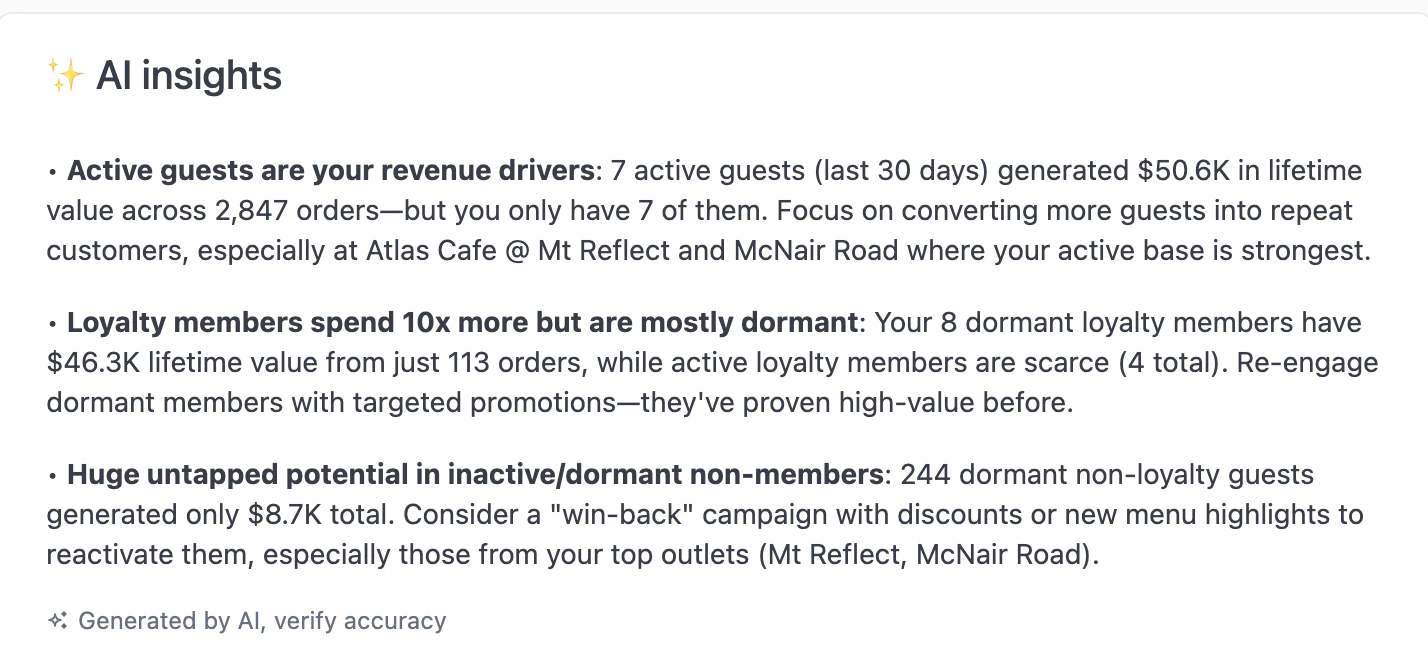
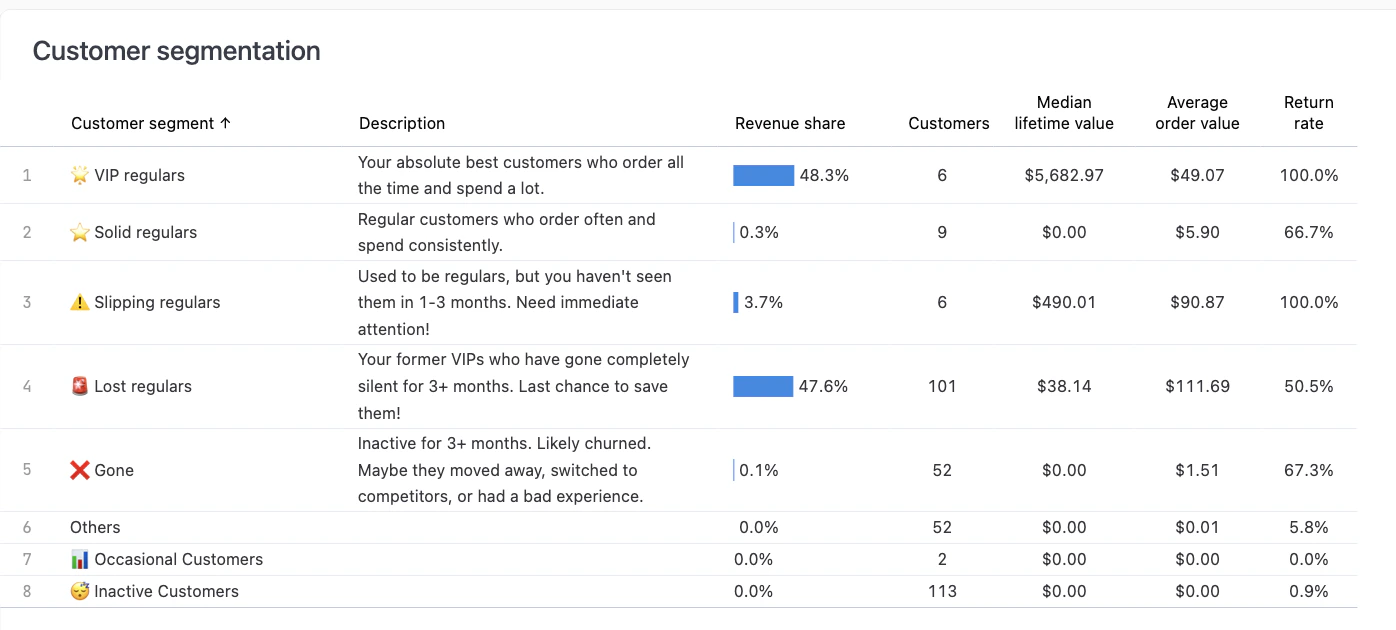
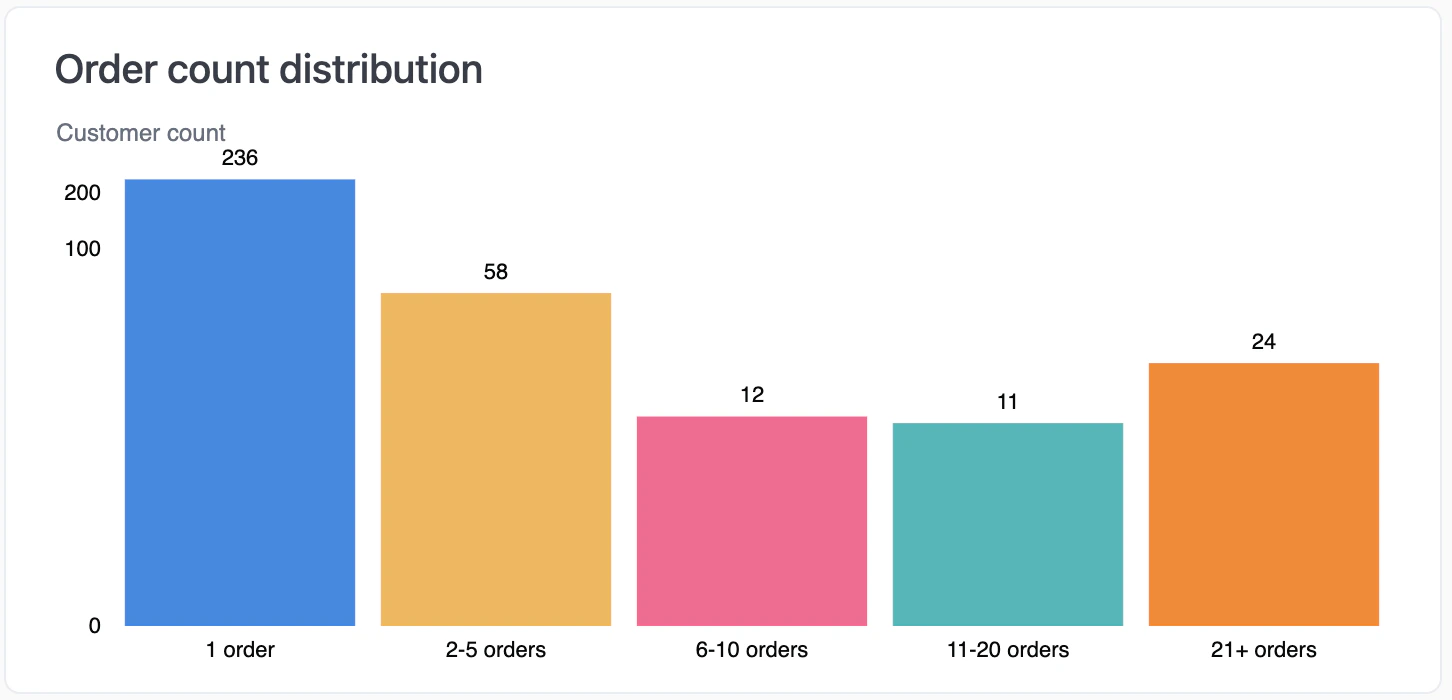
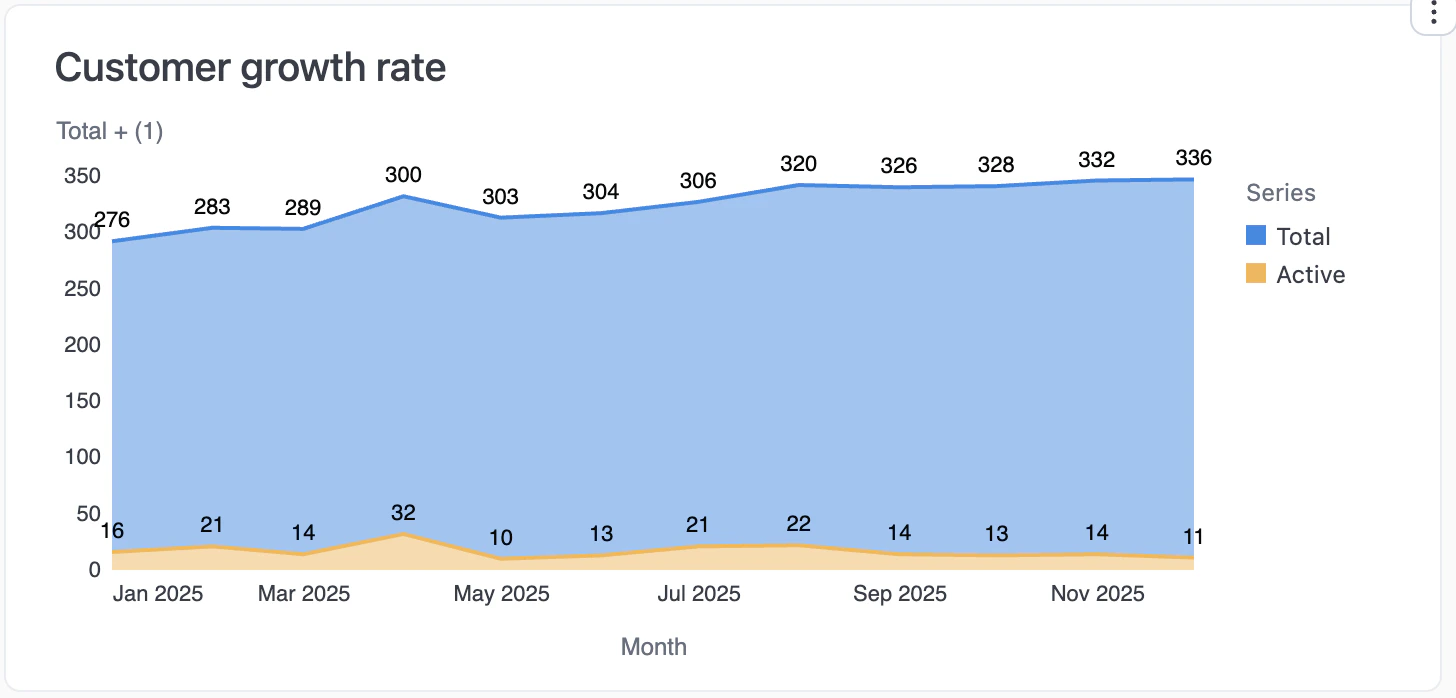
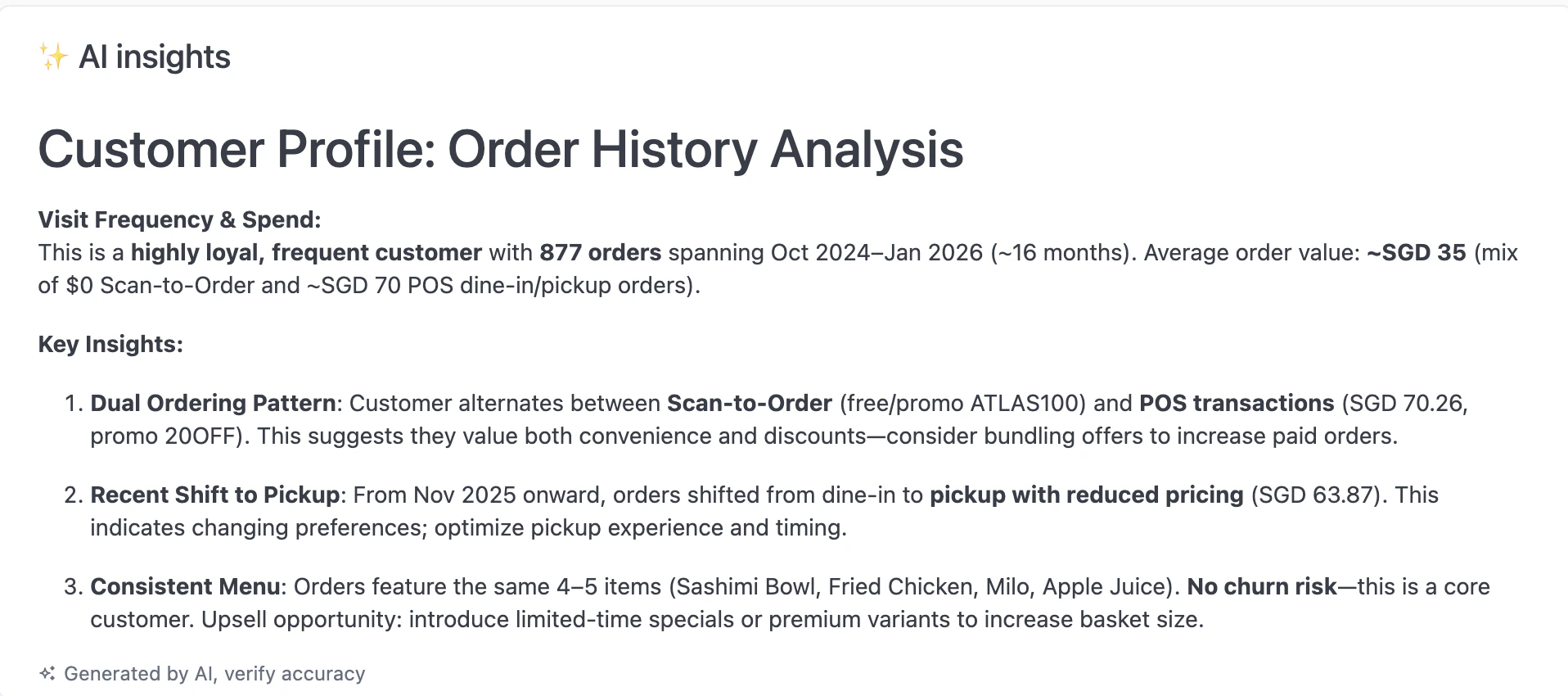
A new version of this report is availableAn upgraded Customers report with AI insights and customer segmentation is now in BETA. View upgraded report documentation →This standard version remains available and fully supported.

What this does

The Customers report shows your customer master list with contact details (name, email, phone number). Use this to export customer lists for email campaigns or SMS marketing. You can filter by sign-up date, first order date, outlet, and brand.
Data in this report refreshes hourly. Check the banner at the top for the last update time.

When to use this

Use this report to:
  • Build customer mailing lists for marketing campaigns (e.g., export all customers who signed up in the last 30 days)
  • Find customer contact details (email, phone) for customer service follow-ups
  • Track how many new customers signed up this month
  • Understand customer distribution across outlets or brands
  • Investigate first-time customer acquisition trends

Filters

Sign up date

Date range for when customer accounts were created in Atlas. Defaults to the last 31 days.
  • Format: Calendar date picker showing start and end dates (e.g., “Dec 7, 2025 - Jan 7, 2026”)
  • Range type: Inclusive on both start and end dates
  • Effect: Only shows customers who created accounts within this date range

First order date

Date range for when customers placed their first order. Defaults to the last 31 days.
  • Format: Calendar date picker showing start and end dates
  • Range type: Inclusive on both start and end dates
  • Effect: Only shows customers whose first order falls within this date range
Sign up date and first order date may differ. A customer can register an account but not order immediately, or order as a guest first then register later.

Outlets

Multi-select dropdown to filter customers by outlet location.
  • Default: Pre-selected outlets (typically your default outlet or all outlets)
  • Values: All physical restaurant locations (e.g., “Oribox Trading”, “McNair Road”, “Alt Pizza”)
  • Effect: Only shows customers associated with selected outlets
  • How to use: Click the dropdown, select outlets, click the ✕ to remove a selection

Brands

Multi-select dropdown to filter customers by restaurant brand.
  • Default: Pre-selected brand (typically your default brand or all brands)
  • Values: All restaurant brands/concepts (e.g., “Alt Pizza”, “Atlas Cafe”)
  • Effect: Only shows customers associated with selected brands
  • How to use: Click the dropdown, select brands, click the ✕ to remove a selection

Include guest users

Checkbox toggle to include or exclude POS and third-party platform accounts.
  • Default: Unchecked (guest accounts are hidden)
  • Effect when unchecked: Filters out accounts with emails containing atlas.kitchen (POS terminals, Grab/Deliveroo integration accounts, internal test accounts)
  • Effect when checked: Shows all accounts including system/platform accounts
  • When to check: Only check this if you need to export system accounts for analytics or troubleshooting
What are guest users?Guest users include:
  • POS system terminal accounts
  • Third-party delivery platform accounts (Grab, Deliveroo, Foodpanda)
  • Internal Atlas test accounts
These are not real paying customers, so they’re hidden by default. The info banner states: “Customers with email containing atlas.kitchen are filtered out by default.”

Search by any value

Text search box to filter the customer list by name, email, or phone number.
  • How to use: Click the search box, type the customer’s email, phone, or name, press Enter
  • Search behavior: Searches across all visible columns (name, email, mobile number)
  • Case sensitivity: Not case-sensitive

Table columns

The customer list table shows:
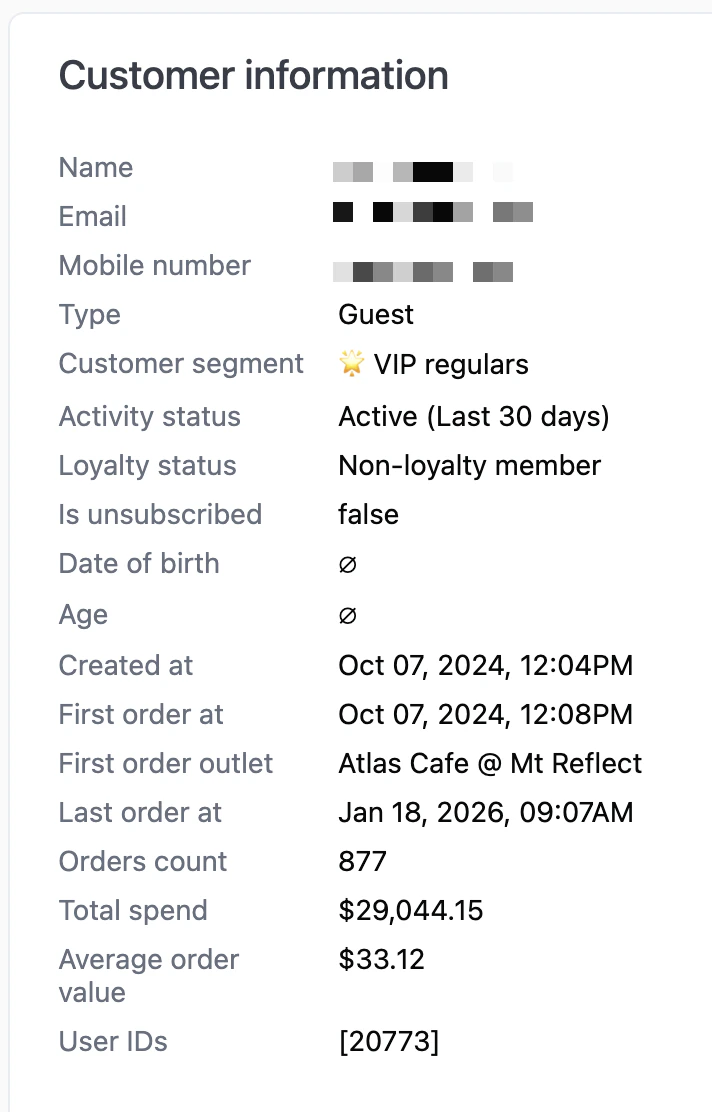
  1. Segments: Customer segment badge/tag (e.g., VIP regulars, Solid regulars, Slipping regulars, Lost regulars, Gone, Others)
  2. Name: Customer’s full name as registered in Atlas
  3. Email: Customer’s email address
  4. Mobile number: Customer’s phone number
Some customers may have blank email or phone fields. This happens when:
  • Customers signed up via QR code without providing contact info
  • Accounts were created through POS (walk-in orders)
  • Guest accounts created for delivery orders

Actions

Export to CSV

Click the “Export to CSV” button to download the filtered customer list.
  • File format: CSV (comma-separated values)
  • File name: Typically customers_report_[date].csv
  • Exported fields: All visible columns (Segments, Name, Email, Mobile number) plus hidden metadata (sign-up date, first order date, outlet, brand)
  • Respects filters: Yes — the export only includes customers matching your current filters (date range, outlet, brand, guest user setting)
Use the CSV export in email platforms like Gmail, Mailchimp, Klaviyo, or SMS marketing tools.

Pagination

The table shows pagination controls at the bottom:
  • Results count: “Showing X results”
  • Page navigation: Numbered page buttons, Previous/Next arrows
  • Rows per page: Set automatically based on screen size

What should happen

After applying filters, you should see:
  • Customer list table populated with customers matching your filters (or “No rows found” if no customers match)
  • Pagination controls showing total result count
  • Filter badges showing active filter count (e.g., “Filters (1)”)
  • Search box available for quick name/email/phone lookup
When you export to CSV:
  • Browser downloads a CSV file immediately
  • File contains all customers matching current filters
  • File includes all contact details and metadata

If it doesn’t work

Problem: “Showing 0 results” but I know I have customers

Likely cause: Filters are too restrictive (date range too narrow, outlet not matching, guest users excluded). How to fix:
  1. Expand the Sign up date range to cover a longer period (e.g., all of 2025 or “Last 12 months”)
  2. Check “Include guest users” to ensure POS accounts aren’t being hidden (if you expect to see them)
  3. Click “Outlets” and select “All outlets” if currently filtering by a specific outlet
  4. Click “Brands” and select all brands if currently filtering by a specific brand
  5. Clear the “Search by any value” box if a search term is active
  6. Click “Filters (1)” to review and reset any advanced filters you may have set

Problem: Email or phone columns showing empty values

Likely cause: Customers didn’t provide phone/email during sign-up, or accounts were created via QR code (guest accounts). This is expected behavior for some customer segments. Prioritize customers with filled-in contact info for campaigns. Consider:
  • Sending SMS to customers with phone but no email
  • Inviting them to provide email via follow-up (in-person or through receipt QR codes)

Problem: “Customers with email containing atlas.kitchen are filtered out by default” — what does this mean?

Likely cause: These are not real customers but system accounts (POS terminals, Grab/Deliveroo integration accounts). How to fix: Leave “Include guest users” unchecked unless you specifically need to export these accounts for analytics. They don’t represent paying customers.

Problem: Export to CSV didn’t download or file is empty

Likely cause: No data matches current filters (see “Showing 0 results”) OR browser blocked the download. How to fix:
  1. Check that at least one row appears in the table before exporting
  2. Check browser download settings (look for download notification or blocked popup)
  3. Try exporting a smaller date range if the file is too large (e.g., last 30 days instead of all time)
  4. Refresh the page and try again

Problem: Dates are showing in a different timezone or format

Likely cause: Your account timezone is set to a different timezone than you expect. How to fix: Contact Atlas support at [email protected] to change your account timezone in Settings.

Problem: Drill-down to customer details not working

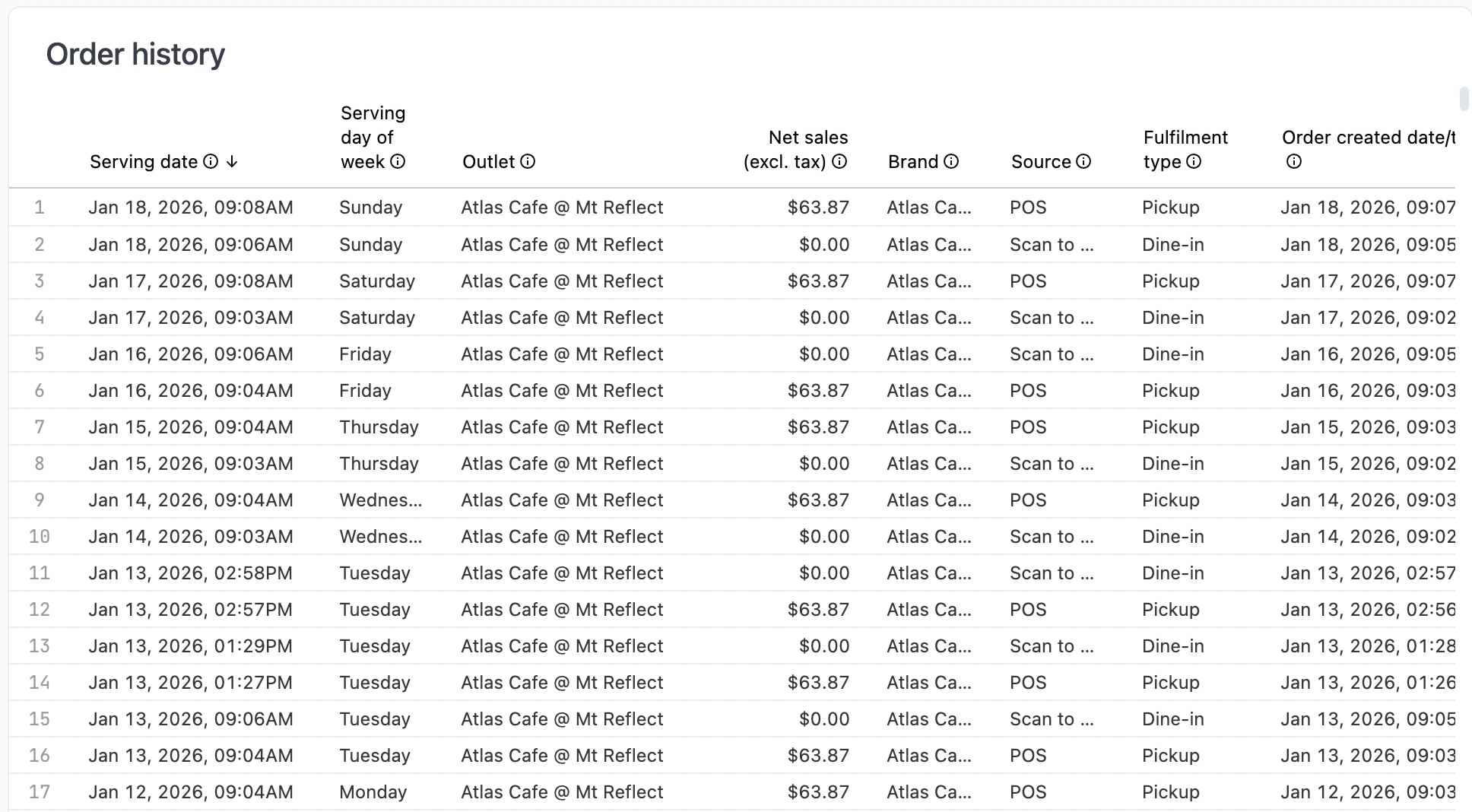
Known limitation: Customer row drill-down (clicking a customer row to see detailed order history) is not currently enabled in this version of the report. Alternative: Use the upgraded Customers report (BETA) which includes customer segment drill-downs and AI insights. If the issue persists, contact support at [email protected] with:
  • The report URL
  • The filters you applied
  • A screenshot of the “No rows found” message or error state

Practical workflows

Workflow 1: Find all customers who signed up in the last 30 days

  1. Open the Customers report
  2. The Sign up date is pre-filtered to the last 31 days (e.g., Dec 7 - Jan 7)
  3. Review the customer list in the table
  4. Click “Export to CSV” to download the filtered list
  5. Use the CSV in your email platform (Gmail, Mailchimp, Klaviyo)

Workflow 2: Filter customers by outlet and export for email campaign

  1. Open the Customers report
  2. Click “Outlets” dropdown and select your specific outlet (e.g., “Oribox Trading”)
  3. Click “Brands” dropdown and select the brand if needed
  4. Set Sign up date range to target new customers (e.g., last 60 days)
  5. (Optional) Check “Include guest users” if you need to email all accounts including POS accounts
  6. Click “Export to CSV” to download the filtered list
  7. Upload the CSV to your email platform for campaign targeting

Workflow 3: Search for a specific customer by phone or email

  1. Click the “Search by any value” box at the top of the table
  2. Type the customer’s email or phone number
  3. Press Enter or wait for live search to filter the table
  4. View the customer’s details in the filtered results
  5. (Optional) Export the single-customer result to CSV if needed

Workflow 4: Investigate why no customers are showing (“No rows found”)

  1. Notice “Showing 0 results” in the customer list
  2. Read the info banner: “Customers with email containing atlas.kitchen are filtered out by default”
  3. Check “Include guest users” checkbox to temporarily show POS/platform accounts if needed
  4. Review active filters by clicking “Filters (1)” button
  5. Expand Sign up date range to cover a longer period (e.g., all of 2025)
  6. Select “All outlets” and all brands to remove outlet/brand filtering
  7. Clear the search box if a search term is active
  8. Uncheck “Include guest users” again to return to real customer view

Next steps

After exporting your customer list:
Need help building a customer campaign or understanding your customer segments? Contact support at [email protected] for guidance.