

What this does
The language switcher changes all interface text in the Atlas Merchant Portal — menus, buttons, labels, and page headings — to your selected language. Your language preference is saved to your browser. It stays set even after you log out and log back in, as long as you use the same browser.Supported languages
How to switch languages
1
Tap your email address or avatar in the top-right corner.
The account menu opens with options for Profile, Language, Reload app, and Log out.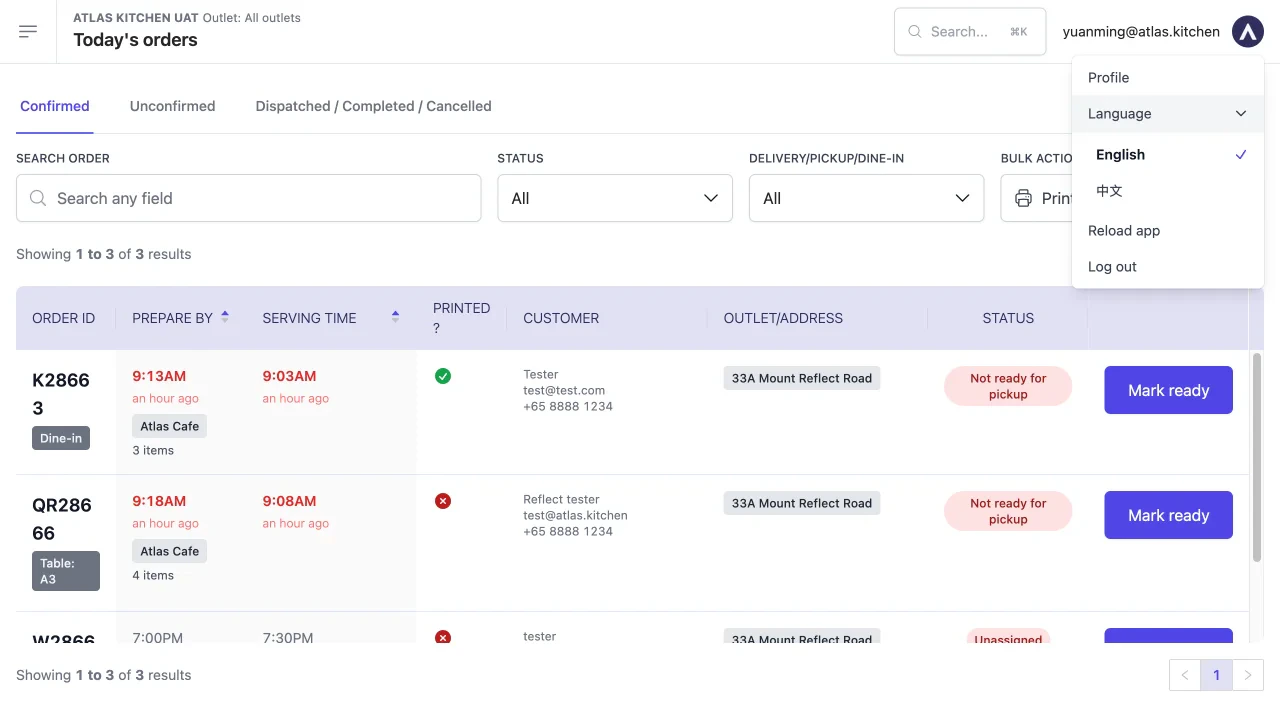
Account menu showing the Language option with an expand arrow
2
Tap "Language".
The menu expands to show the available languages. The current language has a checkmark next to it.
3
Tap your preferred language.
The change is instant — the entire interface switches to your selected language.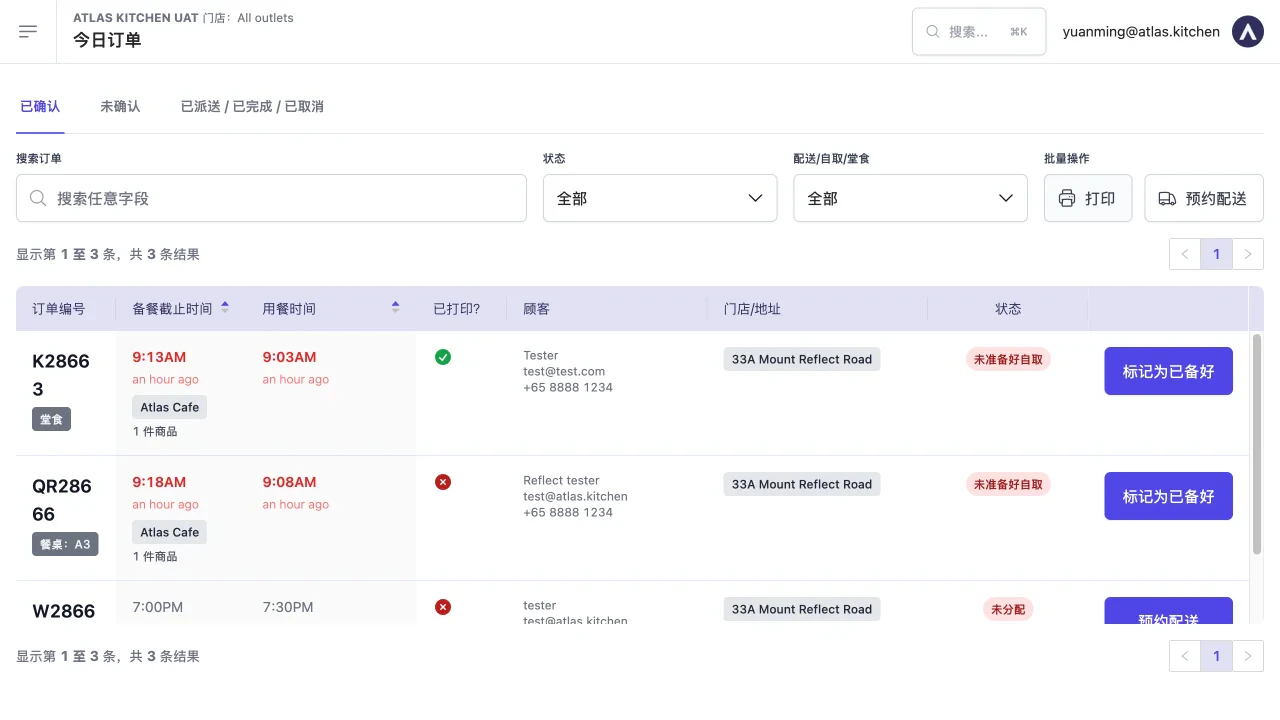
Portal interface after switching to Chinese
What changes and what doesn’t
Changes with the language switcher:- Sidebar menu and navigation labels
- Button text and form labels
- Page headings, column headers, and tab names
- Filter labels and status badges
- Your own data — product names, category names, outlet names, and customer details stay as entered.
- Order data — order IDs, addresses, and contact information are not translated.
- Help centre — the documentation site is in English only.
What should happen
- The portal interface switches to your selected language immediately.
- Your preference persists across sessions in the same browser.
- All navigation, buttons, and system labels display in the selected language.
If it doesn’t work
Some text still appears in the old language
Some text still appears in the old language
- Product names, category names, and other merchant-entered data are not translated — this is expected.
- If system labels (buttons, menus) are still in the old language, try a hard refresh (Ctrl+Shift+R or Cmd+Shift+R).
- Clear your browser cache if the issue persists.
Language resets after logging in again
Language resets after logging in again
- Your preference is stored in the browser. If you switch browsers or clear browser data, the preference resets to English.
- Use the same browser to keep your language preference.
Next steps
- Get started with Atlas — set up your account and outlets.
- View your orders — manage incoming orders from the portal.