

Who is this article for?
- Atlas users setting up specific promotional campaigns
- Users who prefer copy-and-adapt configurations over building from scratch
Customer acquisition
Get new customers through the door.First order discount
First order discount
Give new customers a reason to try you out. Offer $10 off their first order with a minimum spend to make sure it’s worth it.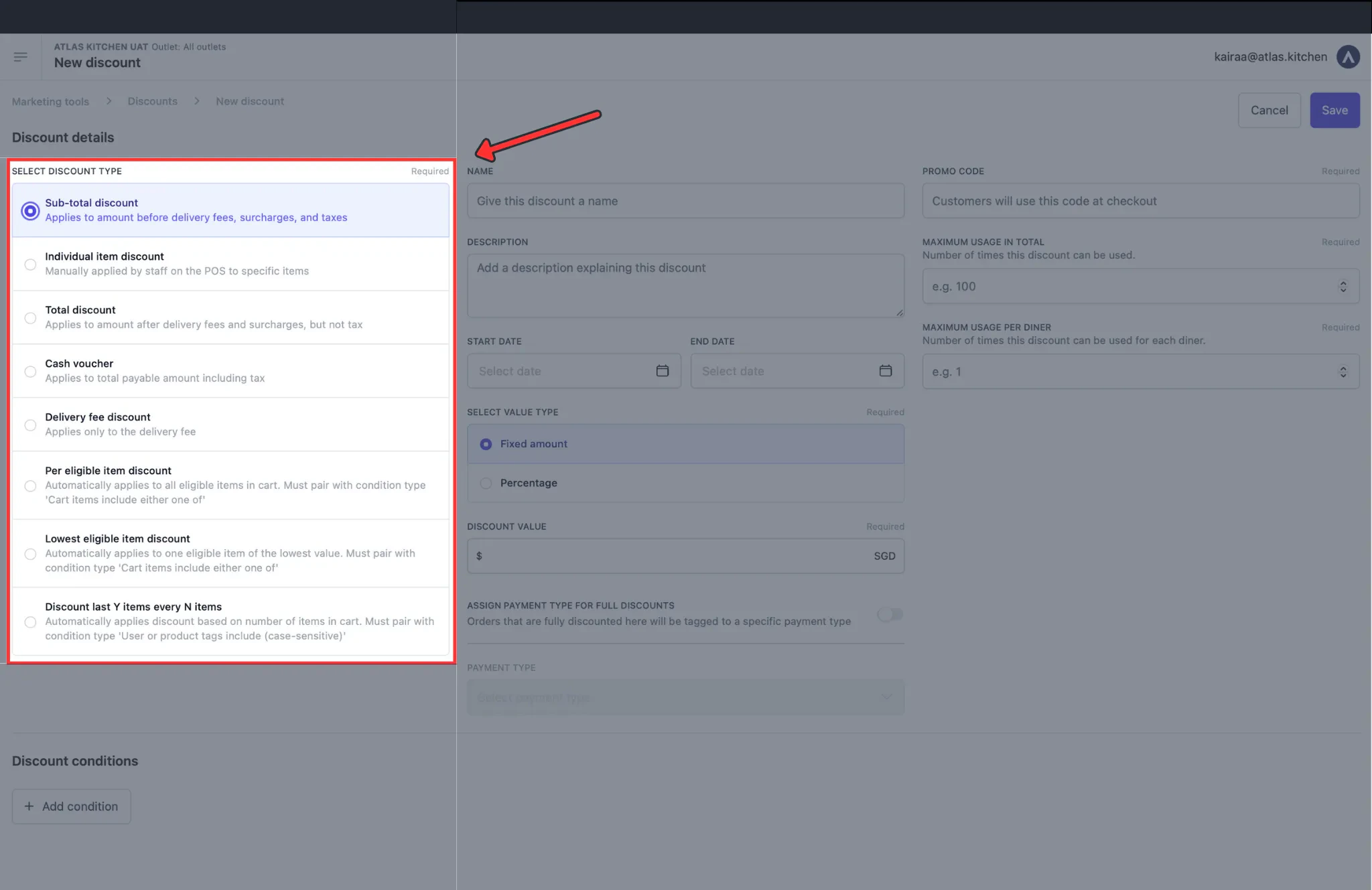
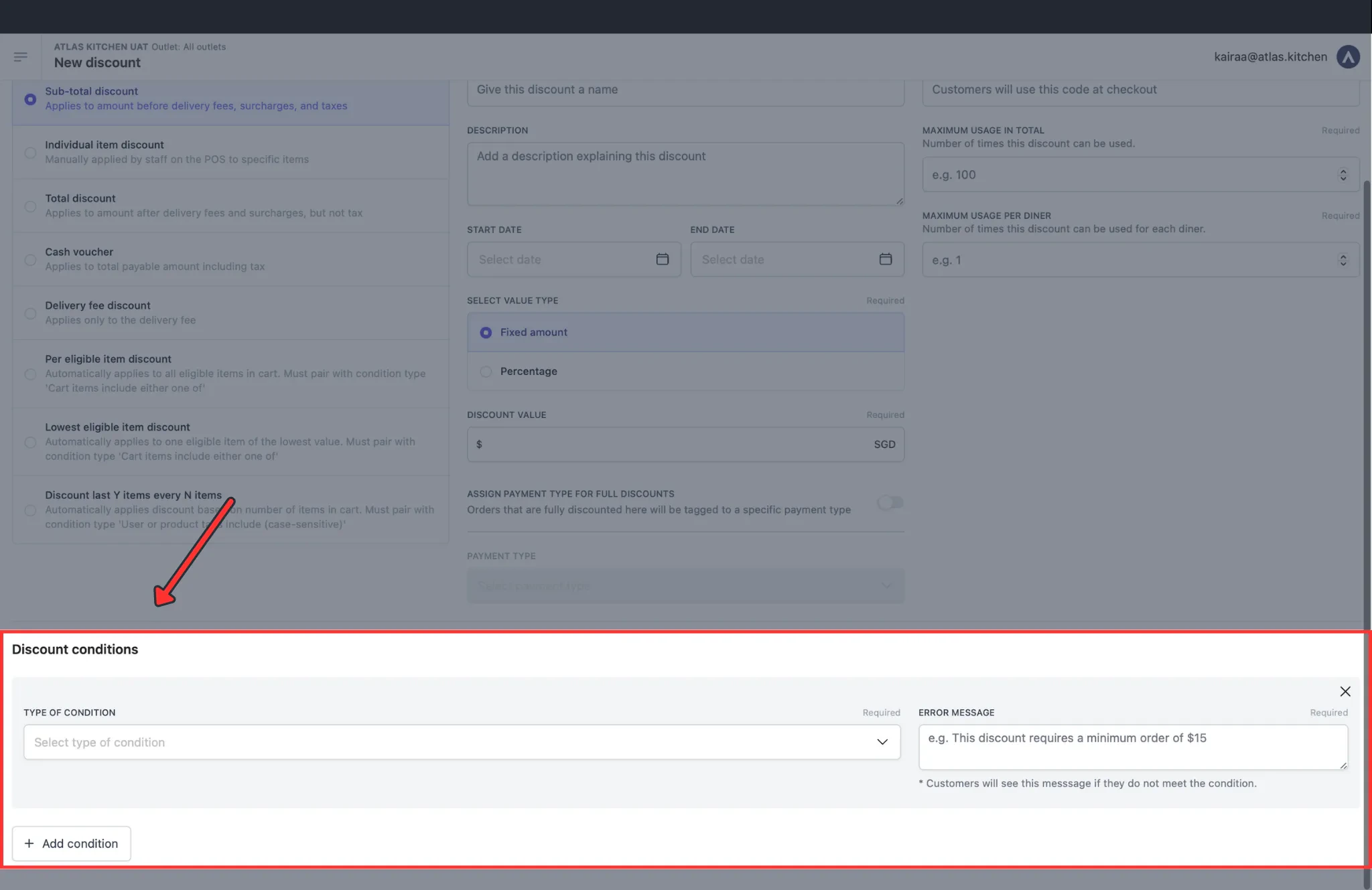
WELCOME10 and limit usage to 1 per diner.Add these conditions so only first-time customers can use it:- User is registered = Yes (required to track order history)
- Number of orders is less than = 1 (ensures it’s their first order)
- Cart total minimum spend = $30 (optional, prevents abuse on small orders)
Free delivery for new customers
Free delivery for new customers
Delivery fees put people off. Waive them on the first order to remove that barrier.Setup: Create a Delivery fee discount named “Free Delivery - First Order” with a percentage of 100%. Set the promo code to
FREEDELIVERY.Add these conditions:- User is registered = Yes
- Number of orders is less than = 1
- Fulfilment type is = Delivery
Loyalty & rewards
Keep your regulars coming back.Free delivery for members
Free delivery for members
Reward logged-in customers with free delivery on every order. This gives people a good reason to create accounts.Setup: Create a Delivery fee discount named “Member Free Delivery” with a percentage of 100%. Set the promo code to
MEMBER or leave it blank for POS-only.Add these conditions:- User is registered = Yes
- Fulfilment type is = Delivery
Birthday month discount
Birthday month discount
Customers like being remembered. Give them 15% off during their birthday month.Setup: Create a Sub-total discount named “Birthday Treat - 15% Off” with a percentage of 15% and a value cap of $20. Set the promo code to
BIRTHDAY and limit usage to 1 per diner.Add these conditions:- User is registered = Yes
- Serving date (calendar month) = matches birth month
Minimum spend discount
Minimum spend discount
“Spend $50, get $10 off” — customers often add extra items to hit the threshold.Setup: Create a Sub-total discount named “Spend 50 Get 10 Off” with a fixed amount of $10. Set the promo code to
SPEND50.Add this condition:- Cart total minimum spend = $50
Time-based promotions
Fill slower periods or create buzz around specific times.Happy hour
Happy hour
Discount drinks between 5-8pm on weekdays.Setup: Create a Per eligible item discount named “Happy Hour 20% Off Drinks” with a percentage of 20% and an optional value cap of $10 per item. Set the promo code to
If you have too many drinks and don’t want to add them 1 by 1, you could also do a setup this way:Setup: Create a Discount last Y items every N items named “Happy Hour 20% Off Drinks”. Set **Last Y items = 1 andEvery N items ** = 1. Use a percentage of 20%. Set the promo code to
HAPPYHOUR or leave it blank for POS-only.Add these conditions:- Cart items include either one of = (select all drink items)
- Serving time is between = 17:00 - 20:00
- Serving day of the week is = Mon, Tue, Wed, Thu, Fri
If you have too many drinks and don’t want to add them 1 by 1, you could also do a setup this way:Setup: Create a Discount last Y items every N items named “Happy Hour 20% Off Drinks”. Set **Last Y items = 1 andEvery N items ** = 1. Use a percentage of 20%. Set the promo code to
HAPPYHOUR or leave it blank for POS-only.Add these conditions:- User or product tags include = happy-hour
- Serving time is between = 17:00 - 20:00
- Serving day of the week is = Mon, Tue, Wed, Thu, Fri
1-for-1 promotion
1-for-1 promotion
Buy one, get one free. Common for beers and appetizers during happy hour.Setup: Create a Discount last Y items every N items discount named “1-for-1 Beer”. Set Last Y items = 1 and Every N items = 2. Use a percentage of 100% and turn Discount modifiers OFF. Optionally set Max redemptions per use = 2 to limit free items per order.Add these conditions:
- User or product tags include = 1for1-beer
- Serving time is between = 17:00 - 20:00 (optional)
- 2 beers → cheapest one free
- 4 beers → 2 cheapest free
- 3 beers → 1 free (odd one is full price)
Weekend special
Weekend special
15% discount on Saturday and Sunday.Setup: Create a Sub-total discount named “Weekend Special 15% Off” with a percentage of 15% and a value cap of $20. Set the promo code to
WEEKEND15.Make it work: Add this condition:- Serving day of the week is = Saturday, Sunday
Channel & location
Target specific channels or outlets.Pickup only promotion
Pickup only promotion
10% off for customers self-collecting their online orders. Encourage people to pick up directly the food in seasons where is difficult to find a driver.Setup: Create a Sub-total discount named “Dine-in Special 10% Off” with a percentage of 10%. Set the promo code to
PICKUP10.Make it work: Add this condition:- Fulfilment type is = Pickup
Outlet grand opening
Outlet grand opening
30% off at a new location. Set an end date and cap the discount to protect margins.Setup: Create a Sub-total discount named “Grand Opening 30% Off” with a percentage of 30% and a value cap of $30. Set the promo code to
GRANDOPEN and set a Redemption end date for when the promotion ends.Make it work: Add this condition:- Outlet is = (select your new outlet)
Staff & corporate
Discounts for employees and partners.Staff discount
Staff discount
Give staff a discount when they self-order at any of your channels. They log in with their work email and enter the promo code.Setup: Create a Sub-total discount named “Staff Discount” with a percentage of 25%. Set the promo code to
STAFF25 or leave it blank for POS-only.Make it work: Add these conditions:- User is registered = Yes
- User’s email domain contains = @yourcompany.com
Corporate partner discount
Corporate partner discount
Give partners a promo code to share with their team.Setup: Create a Sub-total discount named “Partner Discount” with a percentage of 15%. Set the promo code to
PARTNER15.Make it work: Add these conditions:- User is registered = Yes
- User’s email domain contains = @partnercompany.com
Operational
Day-to-day discounts for your team.Complimentary item (service recovery)
Complimentary item (service recovery)
Let staff comp items when something goes wrong. No manager code needed.Setup: Create an Individual item discount named “Complimentary Item” with a percentage of 100%. Leave the promo code blank.How staff use it:
- Add the item to the order
- Tap the “Complimentary Item” discount tile on POS
- Select which item to comp
- Item shows as free on the receipt
Exclude alcohol from promotion
Exclude alcohol from promotion
Run a 20% off promotion on everything except alcohol items.Setup: Create a Sub-total discount named “20% Off Food” with a percentage of 20%. Set the promo code to
If you have too many alcoholic drinks and don’t want to add them 1 by 1, you could also do a setup this way:Setup: Create a Discount last Y items every N items named “20% Off Food”. Set Last Y items = 1 andEvery N items = 1. Use a percentage of 20%. Set the promo code to
SAVE20.Make it work: Add this condition:- Cart items exclude all of = (select all alcohol items)
If you have too many alcoholic drinks and don’t want to add them 1 by 1, you could also do a setup this way:Setup: Create a Discount last Y items every N items named “20% Off Food”. Set Last Y items = 1 andEvery N items = 1. Use a percentage of 20%. Set the promo code to
FOOD20 or leave it blank for POS-only.Add these conditions:- User or product tags include = food20