

- Atlas users with Manager or above permissions. Set permissions from Settings > Team members.
- Users managing menu item visibility across times, dates, outlets, and fulfilment types.
What this does
This feature allows you to control the availability of your menu sections and/or products automatically. You can restrict items based on time of day, calendar dates, specific outlets, or fulfilment types. This ensures customers can only order items when they are active.When to use this
Use availability rules to show sections or products only when you want customers to order them. You can set rules by:- Time of day. For example, breakfast platters before 11am or lunch deals from 12–3pm.
- Specific dates. For one-off events, holidays, or seasonal menus that turn on and off automatically.
- Outlet. Show items only at certain outlets (for example, a bar menu only at your flagship location).
- Fulfilment type. Show items only for dine-in, pickup, or delivery (for example, hide sharing platters from delivery).
Steps
Open the Availability panel
Follow these steps to access the Availability panel:Open the menu builder
Edit the menu
Edit the section or product
- For a section. Tap the Edit button on the section header.
- For a product. Tap the three-dot menu on the product card and select Edit.
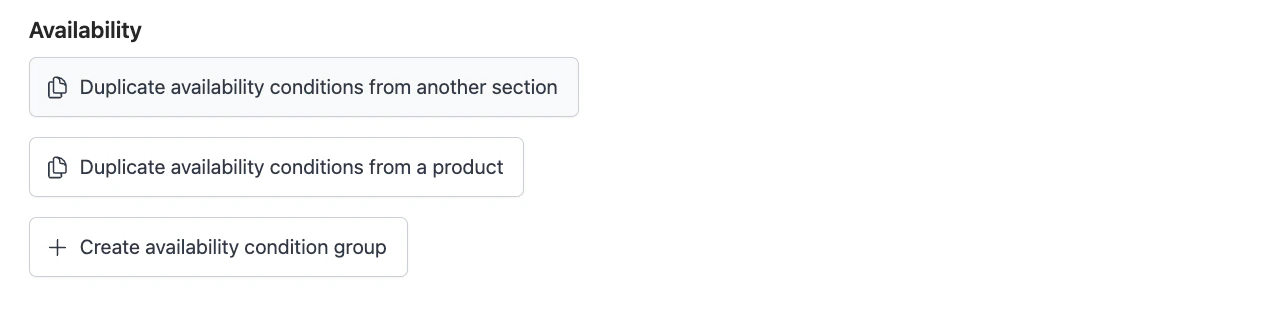
- Duplicate availability conditions from another section. Copy rules from a section that already has them set up.
- Duplicate availability conditions from a product. Copy rules from a product that already has them set up.
- Create availability condition group. Start fresh and build your own rules.
Fill in the availability fields
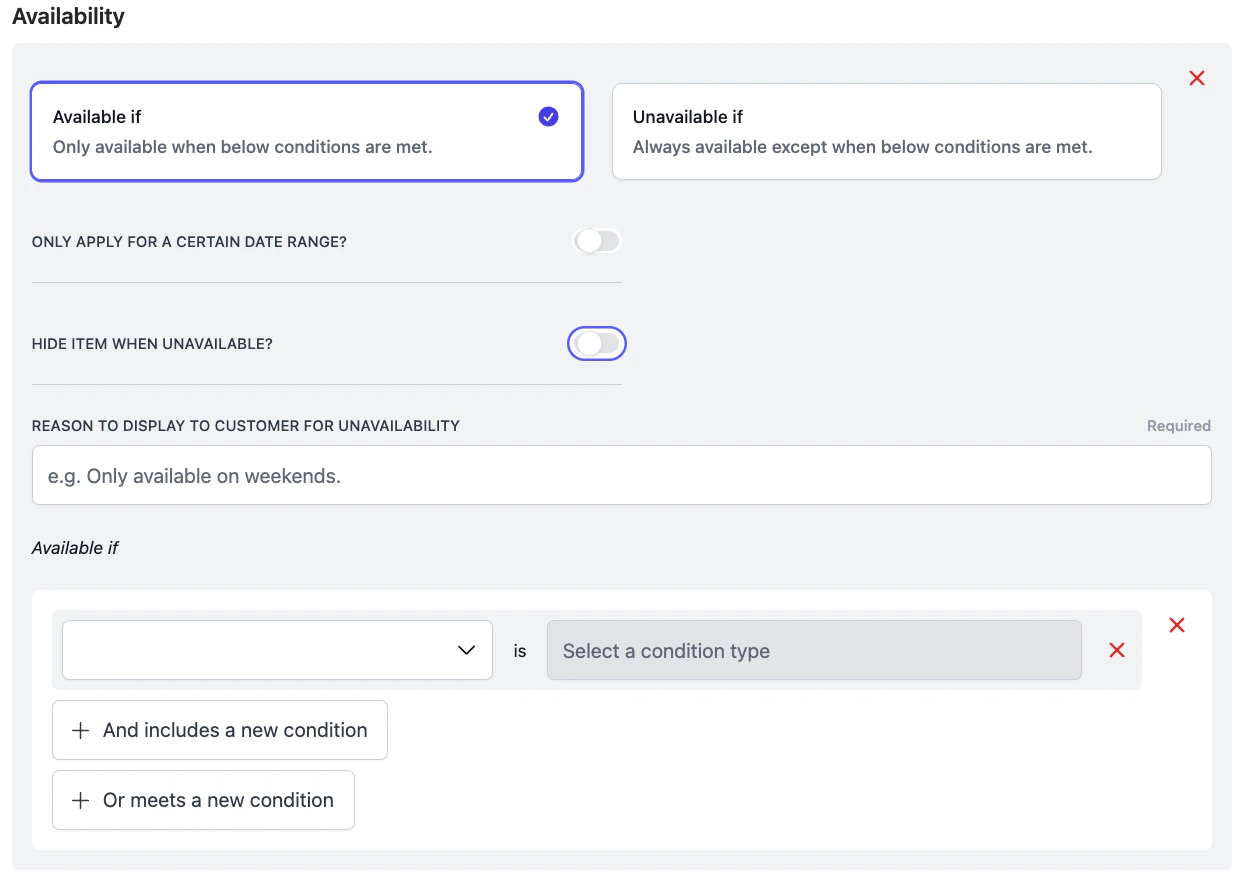
- Available if / Unavailable if. Pick the logic that matches your goal:
- Available if. The item shows only when your conditions are met.
- Unavailable if. Hides the item when your conditions are met. Must be paired with an empty Available if group. See the warning below.
- Only apply for a certain date range?. Toggle on to run the rule only between specific dates (for example, a Christmas menu from 1 Dec to 31 Dec).
- Hide item when unavailable?. Toggle on to remove the item from the menu entirely when unavailable. Leave off to keep it visible but greyed out and not orderable.
- Reason to display to customer for unavailability. Required when Hide item is off. Write a short, clear message customers will see. Be specific so they understand why the item isn’t available.
- Good: Only available at McNair outlet, Monday to Friday.
- Avoid: Not available right now.
Build your conditions
Add one or more conditions under Available if (or Unavailable if). Each condition has a type (Outlet, Fulfilment type, Serving day of week, time of day, and so on) and a value.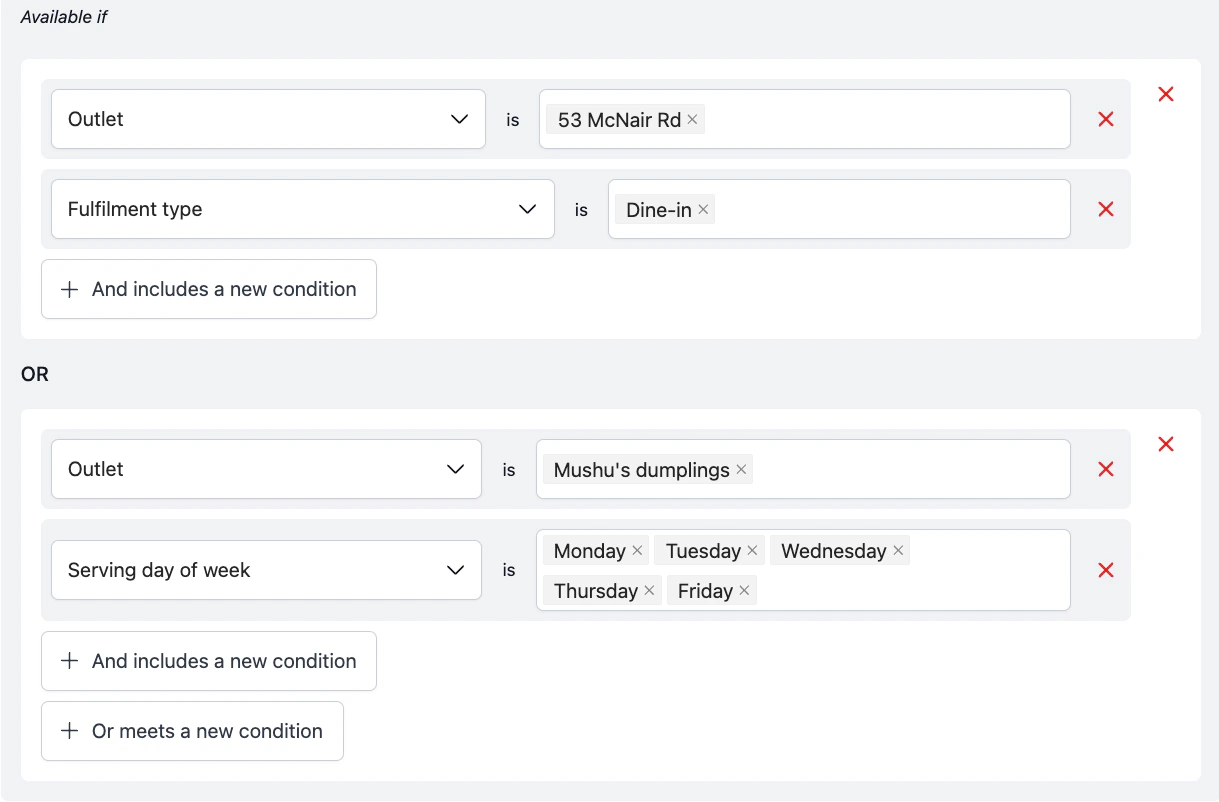
- + And includes a new condition. Adds a condition that must also be true. Use and when every condition in the group needs to be met (for example, outlet is McNair Rd and fulfilment is dine-in).
- + Or meets a new condition. Adds a separate condition group joined by or. The item is available if any group is fully satisfied. Use or when you want alternative combinations to qualify.
Save your changes
Tap Save to apply the rules. Changes take effect immediately on POS and QR ordering. Connected aggregators (such as GrabFood and Foodpanda) may take a few minutes to sync.Common examples
Happy hour section (weekday evenings)
Happy hour section (weekday evenings)
- Logic. Available if
- Hide item when unavailable?. On
- Conditions (joined by and):
- Serving day of week is Monday, Tuesday, Wednesday, Thursday, Friday
- Serving time of day is between 5:00pm and 7:00pm
Seasonal items for Mother's Day week
Seasonal items for Mother's Day week
- Logic. Available if
- Only apply for a certain date range?. On. Set 10 May to 16 May.
- Hide item when unavailable?. On
- Conditions. Leave blank to make the section available throughout that window, or add a Serving day of week condition if you want to restrict further (for example, only the final weekend).
Outlet-exclusive items inside a shared section
Outlet-exclusive items inside a shared section
Lunch and dinner sections in the same menu
Lunch and dinner sections in the same menu
Items that can't be delivered (alcohol, cakes, fragile items)
Items that can't be delivered (alcohol, cakes, fragile items)
- Logic. Unavailable if
- Hide item when unavailable?. Off (so customers on dine-in or pickup still see it, and customers on delivery see a clear reason instead)
- Reason to display. Not available for delivery. Please choose dine-in or pickup.
- Conditions. Fulfilment type is Delivery
Weekend brunch menu
Weekend brunch menu
New menu launch on a future date
New menu launch on a future date
What should happen
Once you save, the rule applies as follows:- Diner-facing storefronts (Kiosk, QR, Atlas Online). Fully sync to your rules. Items appear, hide, or grey out exactly as configured.
- POS (staff-facing). Rules do not apply. Staff always see the item and decide whether to serve it on the spot. Use the POS for in-the-moment availability calls (for example, an item runs out mid-service).
- Aggregators (GrabFood, Foodpanda, etc.). Only time-based conditions (such as serving time of day or day of week) sync to the aggregator. Outlet and fulfilment-type conditions are handled by the aggregator’s own setup, not by Atlas rules.
- Stocks page. When a rule makes an item unavailable, it’s also hidden from the Stocks page during that period, so staff aren’t shown items they can’t actually toggle.
If it doesn’t work
Why is my item still showing or hiding when it shouldn't?
Why is my item still showing or hiding when it shouldn't?
- Menu not published. If you configured rules on a draft item, you must publish the menu changes before they take effect.
- Timezone mismatch. Ensure your outlet timezone is configured correctly under Settings > Outlet settings. Rules use the local outlet timezone.
- Inherited rules. Check if the section containing the product has a rule. Products inherit rules from their parent section.
- Aggregator sync delayed. External channels like GrabFood and Foodpanda may take up to 10 minutes to sync and reflect changes.
The item shows on POS but not on Kiosk, QR, or Atlas Online. Is that a bug?
The item shows on POS but not on Kiosk, QR, or Atlas Online. Is that a bug?
My outlet or fulfilment-type rule isn't working on GrabFood / Foodpanda
My outlet or fulfilment-type rule isn't working on GrabFood / Foodpanda
My item is unavailable but I can't find it in the Stocks page
My item is unavailable but I can't find it in the Stocks page
My AND/OR conditions aren't behaving how I expected
My AND/OR conditions aren't behaving how I expected
- And stacks conditions inside the same group. Every condition in that group must be true.
- Or creates a separate group. The item is available if any group is fully satisfied.
- If you mix them up, the rule may either be too strict (and-ed too much) or too loose (or-ed alternatives you didn’t intend). Read each group out loud as a sentence to sanity-check it.
I duplicated conditions from another section/product but they're not working
I duplicated conditions from another section/product but they're not working
- Review the copied conditions and adjust any outlet, time, or date values that should differ.
- Tap Save on the section or product. Duplicating doesn’t auto-save.
What happens if a diner adds items to their cart when available, then tries to check out after they become unavailable?
What happens if a diner adds items to their cart when available, then tries to check out after they become unavailable?
My "Unavailable if" rule made the item disappear completely. What went wrong?
My "Unavailable if" rule made the item disappear completely. What went wrong?
Can I set availability rules on modifiers or components?
Can I set availability rules on modifiers or components?