ShopBack is a cashback and rewards app. Customers pay through the app using a linked card or wallet, and earn cashback at your store.With this integration, ShopBack appears as a payment type on your Atlas POS and Kiosk. When ShopBack is selected at checkout, a QR code appears on your Atlas Pay terminal. The customer scans the code with the ShopBack app and pays. Atlas marks the order as paid automatically.
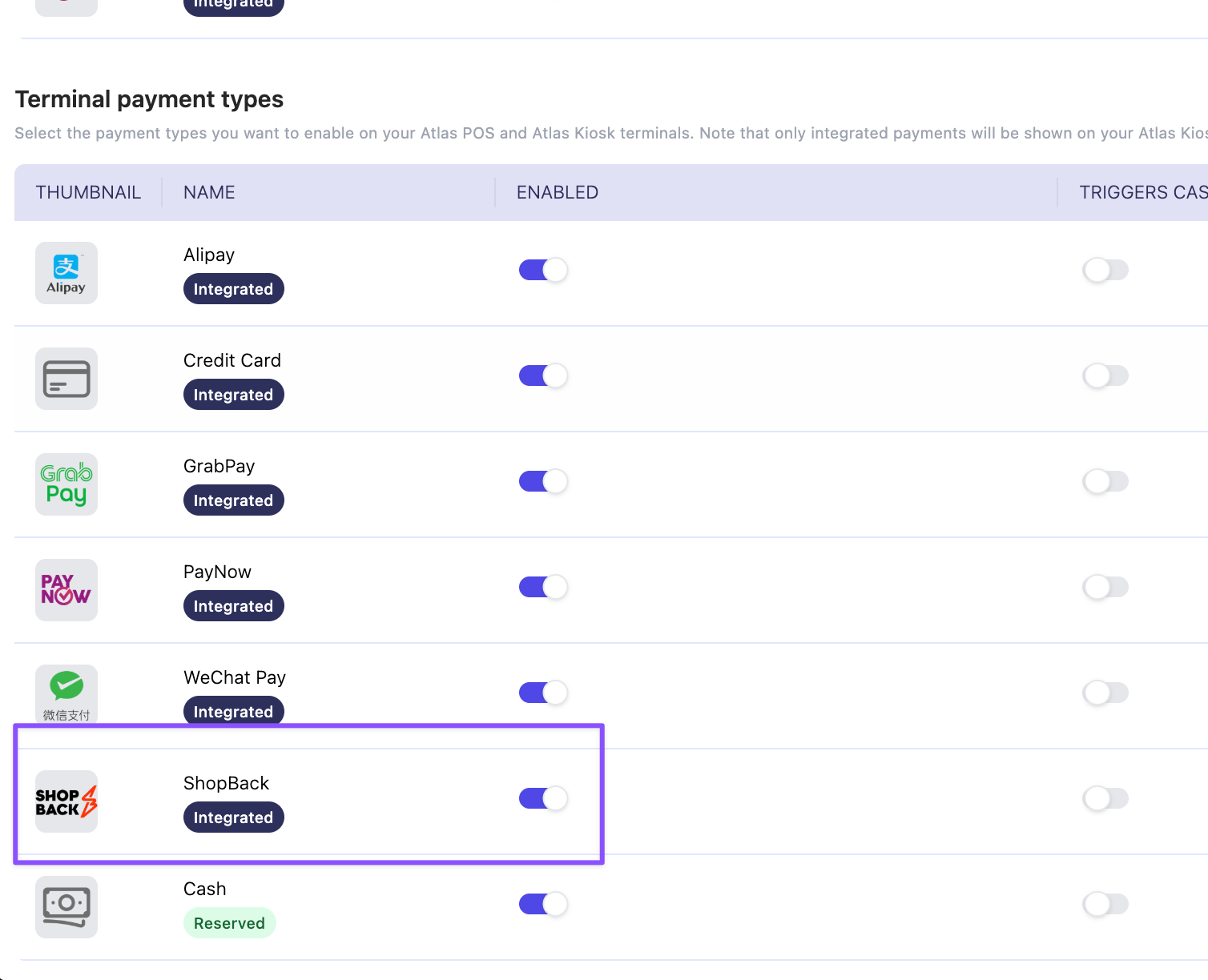
Enabling the payment type is only half the setup. The Atlas team must also connect your account to ShopBack. Until both are done, ShopBack is greyed out on the POS and does not show on the kiosk.
ShopBack needs an Atlas Pay terminal, because the QR code is shown on the terminal screen. Stations without a terminal cannot take ShopBack payments.
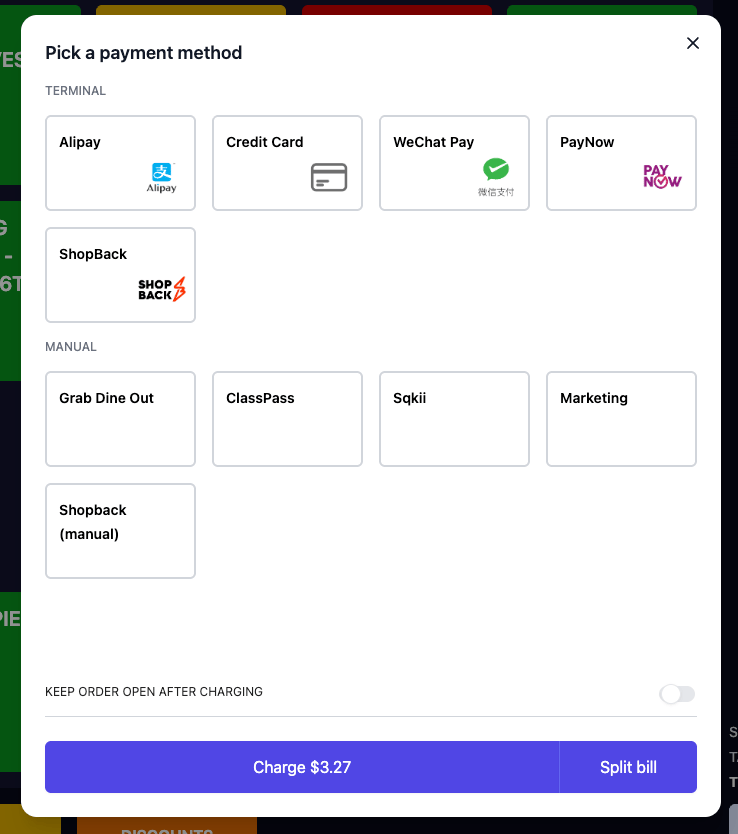
Take the order as usual. Tap Charge, then select ShopBack as the payment method.
Selecting ShopBack on the POS payment method screen
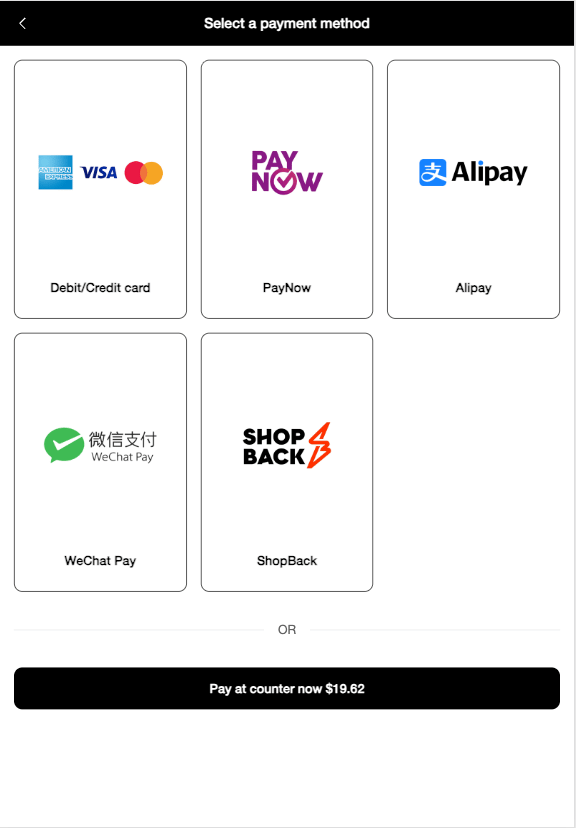
On the kiosk, the customer selects ShopBack on the payment screen themselves.
ShopBack on the kiosk payment method screen
2
Ask the customer to scan the QR code
A QR code appears on the Atlas Pay terminal. It does not appear on the POS or kiosk screen.The customer scans the code with the ShopBack app and confirms the payment in the app.
3
The terminal shows Approved
After the customer pays, the terminal takes a couple of seconds to show Approved. Atlas then marks the order as paid. Print receipts and fire the order as usual.
Payment limits: ShopBack accepts payments between $0.10 and $9,999. For totals outside this range, ShopBack cannot be selected at checkout.
Where it works: ShopBack is available on Atlas POS and Kiosk only. It is not available on Atlas Online or Scan to Order.
Refunds: Refund the order in Atlas as usual. The refund is triggered on ShopBack automatically. See Issue refunds.
Payouts: ShopBack pays you directly, under your ShopBack agreement. ShopBack payments are not included in your Atlas payouts, and Atlas does not deduct a payment processing fee on them.
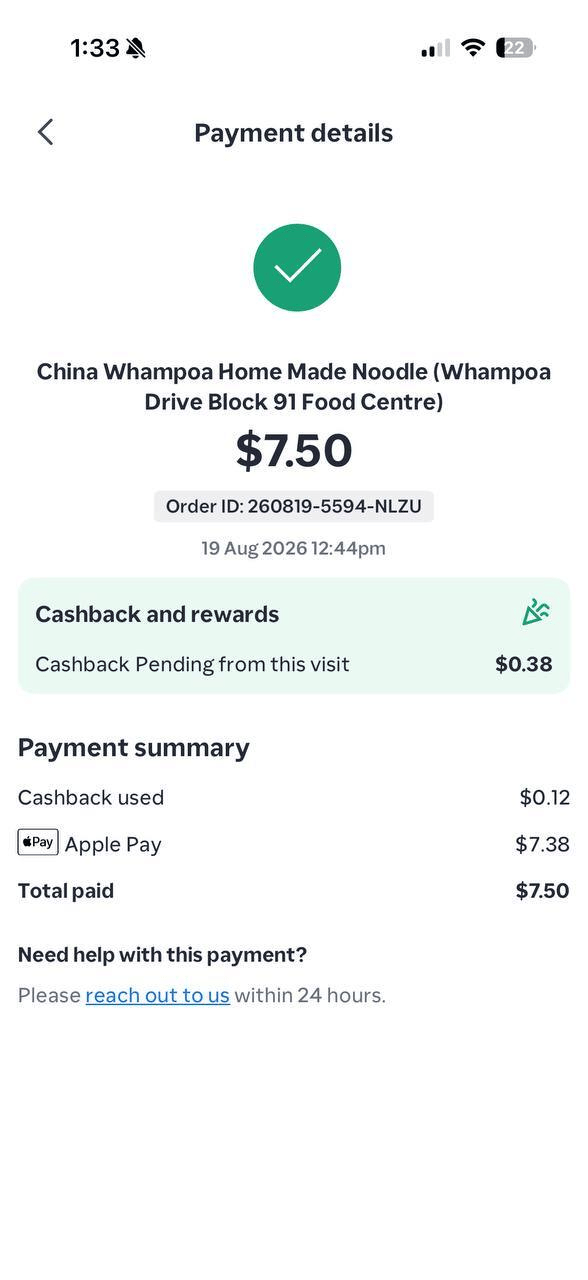
ShopBack discounts and cashback: These are handled inside the ShopBack app. They do not appear on the POS and do not change the order total in Atlas.
If some of your outlets take ShopBack and others do not, limit it per outlet.
If an outlet has no POS payment types selected, it uses all your globally enabled payment types, including ShopBack. To exclude ShopBack, you must select every payment type the outlet does accept.
1
Edit the outlet
In the merchant portal, go to Outlet settings > Outlets. Click Edit next to the outlet, then find the Payments section.
2
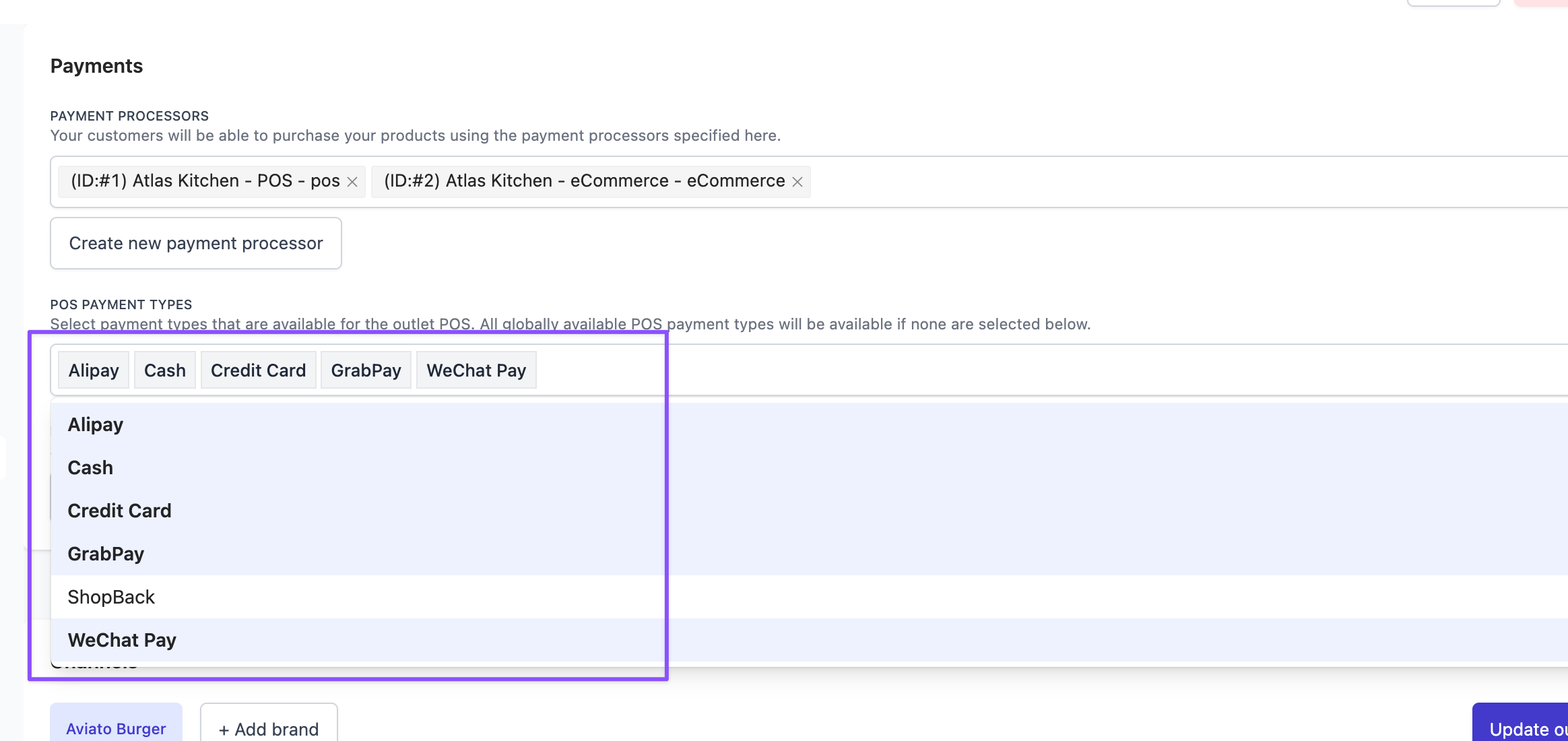
Select every payment type except ShopBack
Under POS payment types, select all the payment types this outlet accepts, and leave ShopBack out.
Selecting every POS payment type except ShopBack for an outlet
3
Save the outlet
Click Update outlet. ShopBack no longer appears at checkout for this outlet.