> ## Documentation Index
> Fetch the complete documentation index at: https://help.atlas.kitchen/llms.txt
> Use this file to discover all available pages before exploring further.
# Set up item routing and printers
> How Atlas decides which printer prints which item, how to set up your kitchen, bar, and counter printers, and how to fine-tune each receipt type.
Atlas sends each item on an order to the right printer using **Printer / KDS / Dispatch tags**. You add tags to your products. You add the same tags to your printers. When the tags match, that printer fires.
This page covers how routing works, walks through a simple setup end-to-end, then covers the additional settings you can use to fine-tune behaviour.
## How printing works in Atlas
Every item on your menu can carry one or more tags (for example `print_food`, `print_drinks`, `print_retail`). Every printer in an outlet is set to listen for one or more tags. When an order comes in, Atlas checks each item against each printer — every item prints on every printer where the tags match.
Three rules cover almost every setup:
* **Match = print.** If an item carries any tag the printer is listening for, that printer prints it. No match, no print.
* **A printer with no tags is a catch-all.** Leave the tag list blank and the printer will print every item on every order. This is how your customer receipt printer keeps the receipt complete.
* **One tag, three jobs.** The same tags drive your printers, your Kitchen Display Screens (KDS), and your delivery dispatch — that's why the field is called *Printer / KDS / Dispatch tags*. Set them once on the product, they work everywhere.
Tags are free text and **case-sensitive**: `print_drinks`, `Print_Drinks`, and `print-drinks` are three different tags. Use lowercase with underscores and apply the same convention across every outlet.
## A simple setup: Sunny Beans café
Sunny Beans runs three prep stations, each with its own Atlas printer:
| Station | What it prepares | Tag the printer listens for |
| ------- | ------------------------ | --------------------------- |
| Bar | Coffees and other drinks | `print_drinks` |
| Kitchen | Hot food and pastries | `print_food` |
| Counter | Retail and merch | `print_retail` |
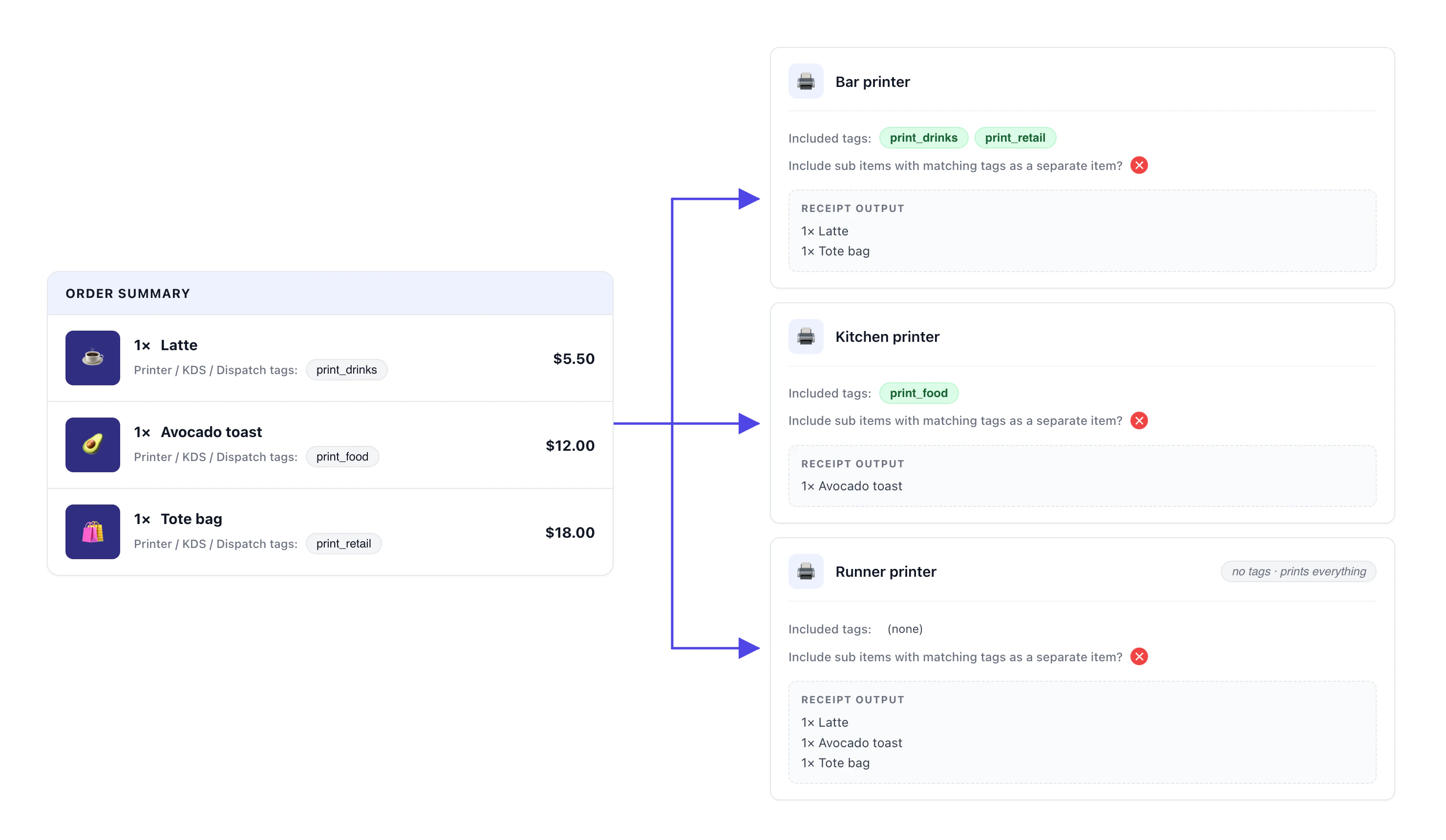
Every product on Sunny Beans' menu carries exactly one tag — drinks get `print_drinks`, food gets `print_food`, retail gets `print_retail`. A customer orders a **latte, an avocado toast, and a tote bag**. Three items, three tags. Atlas sends each item to the station that prepares it:
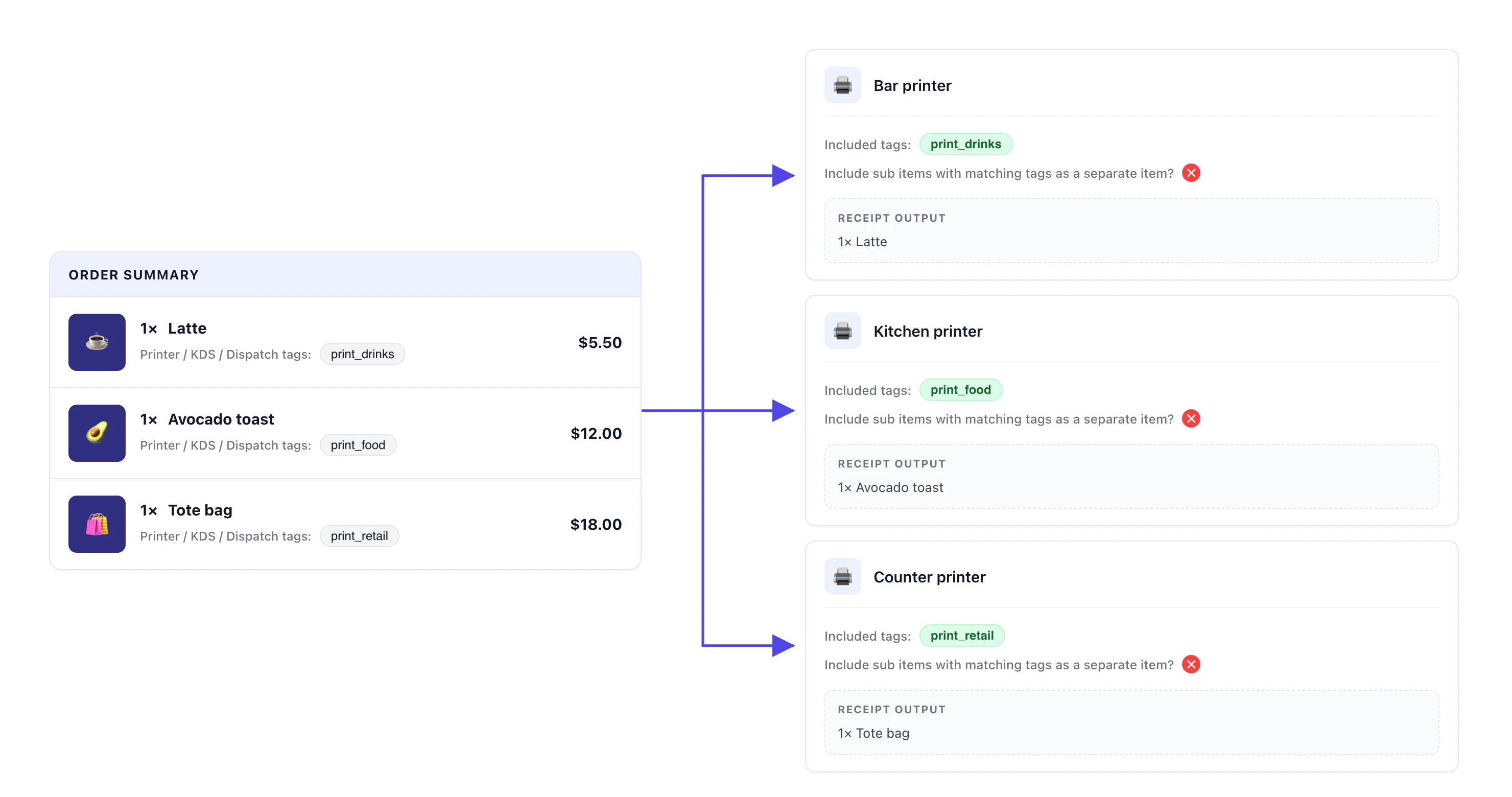 **How to read the diagram:** the **order summary** on the left lists what the customer ordered, with each item's tag underneath. On the right are the three **printer setups** — each card shows the tags that printer is listening for (its *Included tags*) and the **receipt output** it actually prints. The arrows show how each item flows from the order to its matching printer.
The rest of this guide covers how to replicate this kind of setup, then the settings you can adjust once you outgrow the simple case.
**Running a setup like this and something isn't printing where you expect?** Most often the cause is a missing tag on the item — no station is listening for it. Open the product and check the **Printer / KDS / Dispatch tags** field first.
## Setting up a printer on Atlas
Decide one tag per printer destination. Use lowercase with underscores:
* `print_drinks` for the bar
* `print_food` for the kitchen
* `print_retail` for the counter
Tags are case-sensitive: `print_drinks` and `Print Drinks` won't match. Choose one convention and use it across every outlet.
Tags live on the product, not on the menu — once a product is tagged, the tag follows it onto every menu it appears in.
**How to read the diagram:** the **order summary** on the left lists what the customer ordered, with each item's tag underneath. On the right are the three **printer setups** — each card shows the tags that printer is listening for (its *Included tags*) and the **receipt output** it actually prints. The arrows show how each item flows from the order to its matching printer.
The rest of this guide covers how to replicate this kind of setup, then the settings you can adjust once you outgrow the simple case.
**Running a setup like this and something isn't printing where you expect?** Most often the cause is a missing tag on the item — no station is listening for it. Open the product and check the **Printer / KDS / Dispatch tags** field first.
## Setting up a printer on Atlas
Decide one tag per printer destination. Use lowercase with underscores:
* `print_drinks` for the bar
* `print_food` for the kitchen
* `print_retail` for the counter
Tags are case-sensitive: `print_drinks` and `Print Drinks` won't match. Choose one convention and use it across every outlet.
Tags live on the product, not on the menu — once a product is tagged, the tag follows it onto every menu it appears in.
- Go to your menu and open the product. See the Create menus guide if you're new to editing products.
- On the Product details dialog, scroll down to the Printer / KDS / Dispatch tags field.
- Type the tag (or pick an existing one) and confirm. Repeat for additional tags if the item belongs on more than one printer.
- Save.
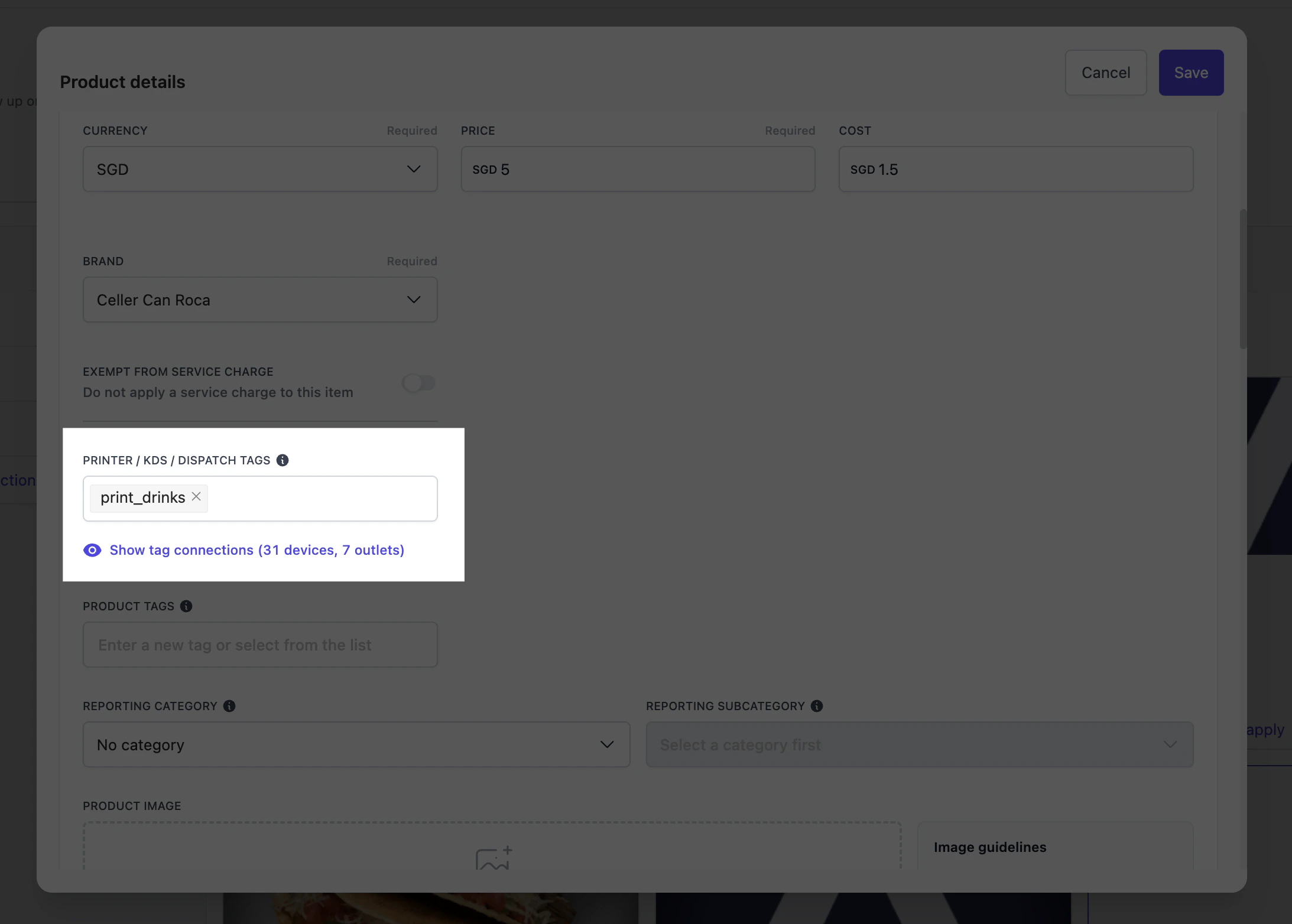 **Take note:** a product with no tag will only print on **catch-all** printers (printers whose tag list is empty). It will not reach any tagged printer. If your only kitchen printer is tagged, an untagged item won't print there at all.
Each outlet manages its own printers.
**Take note:** a product with no tag will only print on **catch-all** printers (printers whose tag list is empty). It will not reach any tagged printer. If your only kitchen printer is tagged, an untagged item won't print there at all.
Each outlet manages its own printers.
- Go to Outlet settings → Outlets and open the outlet you want to configure.
- Open the Printers & receipts tab from the left side menu.
- Click Create new printer.
- Fill in the brand, name (e.g. "Bar printer"), and serial number (printed on the back of the printer, usually below a QR code). See Connect Atlas printer to WiFi if you haven't connected the device yet.
- Toggle Print on POS checkout and/or Print on Online checkout depending on which channels should trigger this printer.
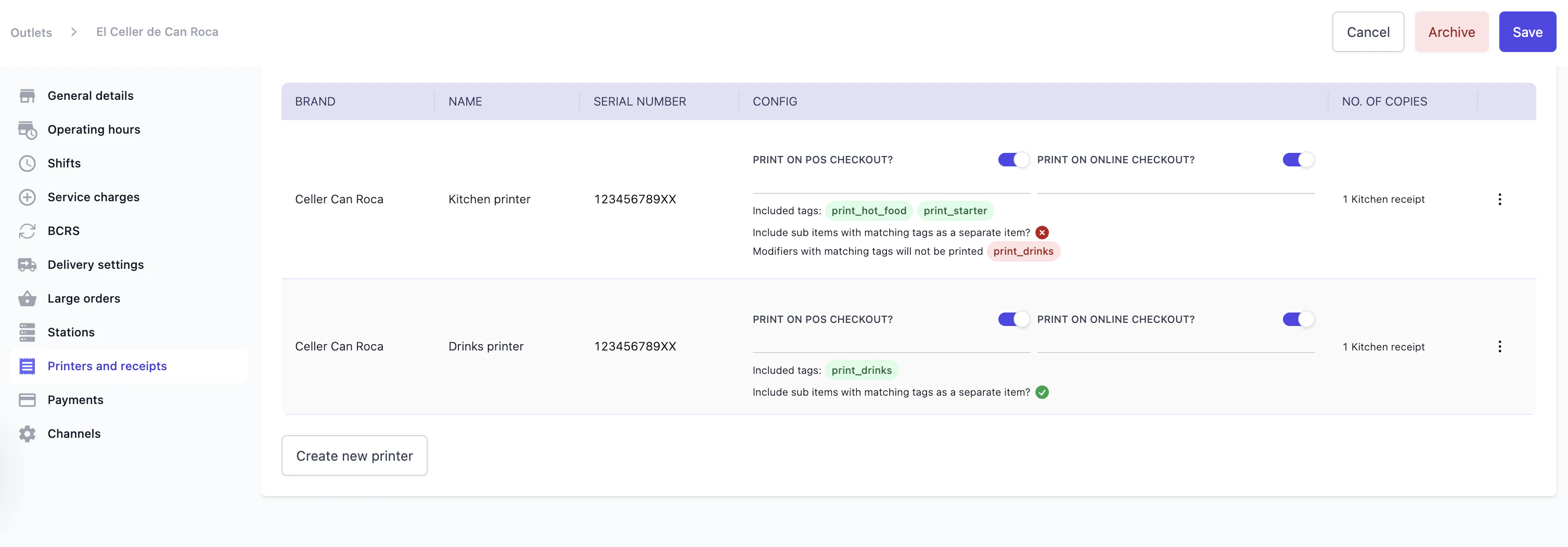 **Not seeing this page or the Create new printer button?** Printer settings are restricted by role. If you can't add or edit printers, ask an account owner to make the change — or reach out to [Atlas support](mailto:hello@atlas.kitchen).
Scroll to **Products to be printed**. Add the tag(s) this printer should listen for under **Tag list** and leave **Include/Exclude products** on **Include tagged products**.
**Not seeing this page or the Create new printer button?** Printer settings are restricted by role. If you can't add or edit printers, ask an account owner to make the change — or reach out to [Atlas support](mailto:hello@atlas.kitchen).
Scroll to **Products to be printed**. Add the tag(s) this printer should listen for under **Tag list** and leave **Include/Exclude products** on **Include tagged products**.
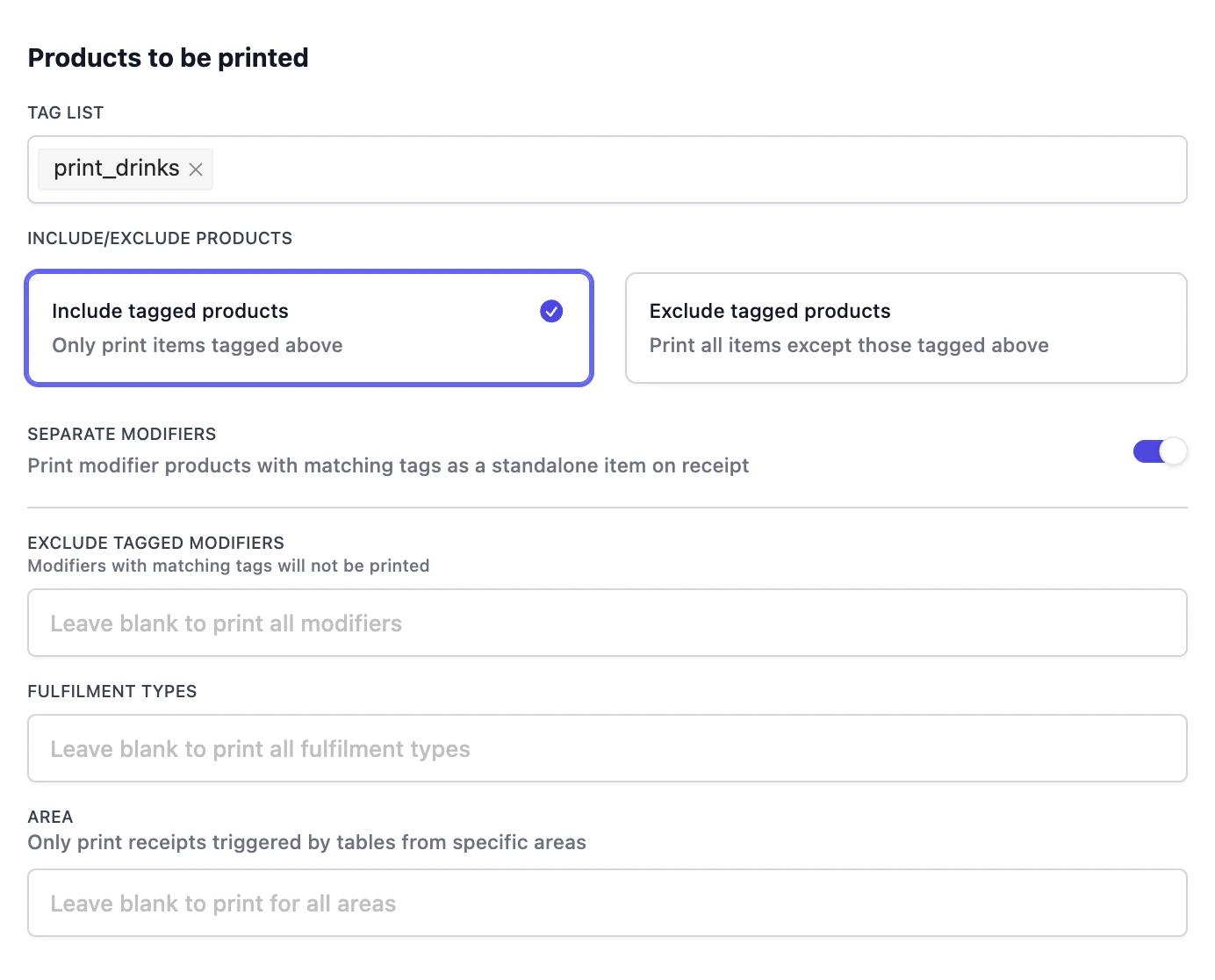 Save. The other fields on this modal are for fine-tuning — see [Routing tags configuration](#routing-tags-configuration).
A single printer can produce more than one kind of receipt — a customer receipt, a kitchen prep ticket, etc. Toggle on the formats you need.
Save. The other fields on this modal are for fine-tuning — see [Routing tags configuration](#routing-tags-configuration).
A single printer can produce more than one kind of receipt — a customer receipt, a kitchen prep ticket, etc. Toggle on the formats you need.
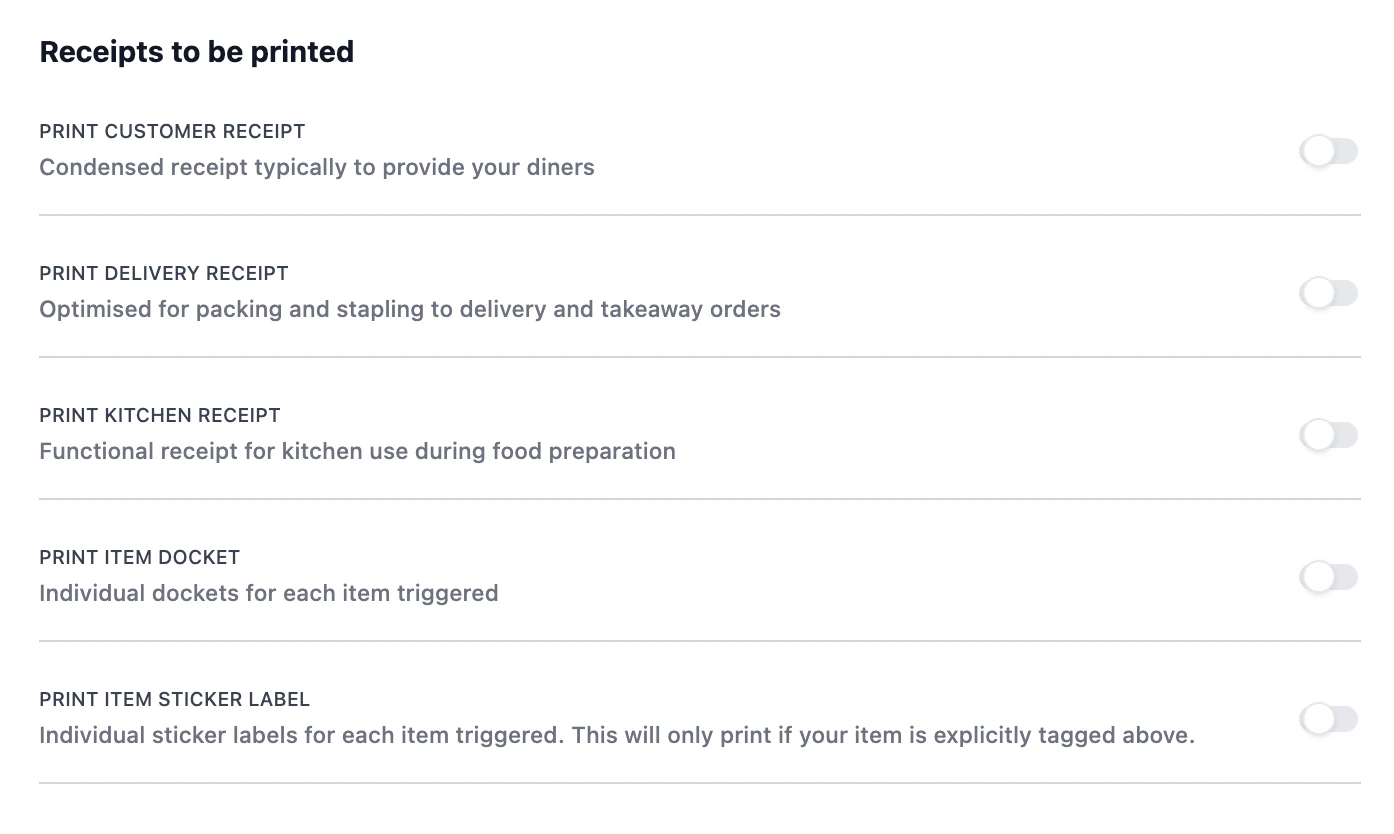 For a basic kitchen printer (bar, kitchen, or counter), enable **Print kitchen receipt**.
Each receipt type you enable gets its own settings panel below, where you can adjust font size, headers, item sorting, and what's shown on the slip. See [Receipt types and their settings](#receipt-types-and-their-settings).
Create a new test order, fire it or charge it with a manual payment, and verify the receipts. If nothing prints, fix the connection before going further.
## Routing tags configuration
The **Products to be printed** modal has five settings beyond the tag list. The tag list is what you need for the basic case; the rest are for layered or unusual setups.
### Tag list: include vs exclude
For a basic kitchen printer (bar, kitchen, or counter), enable **Print kitchen receipt**.
Each receipt type you enable gets its own settings panel below, where you can adjust font size, headers, item sorting, and what's shown on the slip. See [Receipt types and their settings](#receipt-types-and-their-settings).
Create a new test order, fire it or charge it with a manual payment, and verify the receipts. If nothing prints, fix the connection before going further.
## Routing tags configuration
The **Products to be printed** modal has five settings beyond the tag list. The tag list is what you need for the basic case; the rest are for layered or unusual setups.
### Tag list: include vs exclude
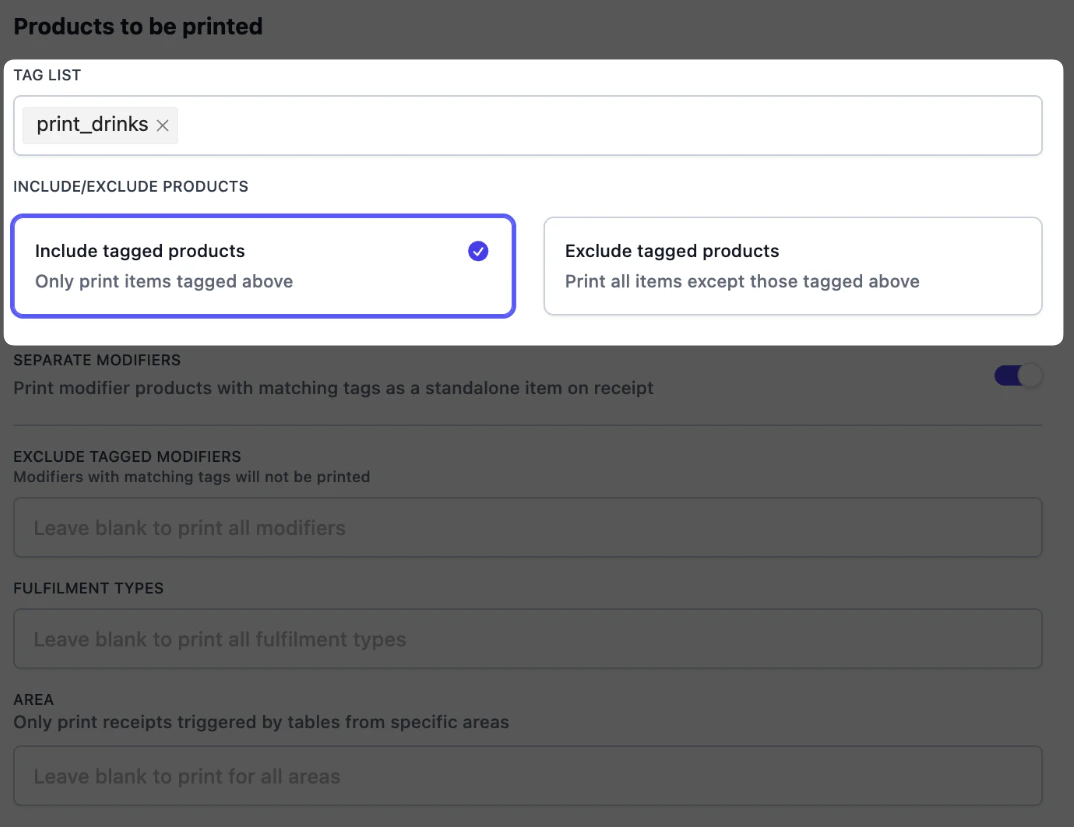 The toggle below the tag list flips how the tag list is read.
* **Include tagged products**: print only items whose tags match. Use this on every station printer (bar, kitchen, counter).
* **Exclude tagged products**: print everything *except* items whose tags match. Use this on catch-all printers that should print most items but skip one category.
**Example.** A back-office printer prints every order but should not print retail items (collected at the counter, not the back). On that printer, switch to **Exclude tagged products** and add `print_retail`. The printer prints everything except retail items.
**Exclude** mode prints anything that isn't tagged. A new product added without a tag will start printing on every exclude-mode printer immediately.
### Separate modifiers
The toggle below the tag list flips how the tag list is read.
* **Include tagged products**: print only items whose tags match. Use this on every station printer (bar, kitchen, counter).
* **Exclude tagged products**: print everything *except* items whose tags match. Use this on catch-all printers that should print most items but skip one category.
**Example.** A back-office printer prints every order but should not print retail items (collected at the counter, not the back). On that printer, switch to **Exclude tagged products** and add `print_retail`. The printer prints everything except retail items.
**Exclude** mode prints anything that isn't tagged. A new product added without a tag will start printing on every exclude-mode printer immediately.
### Separate modifiers
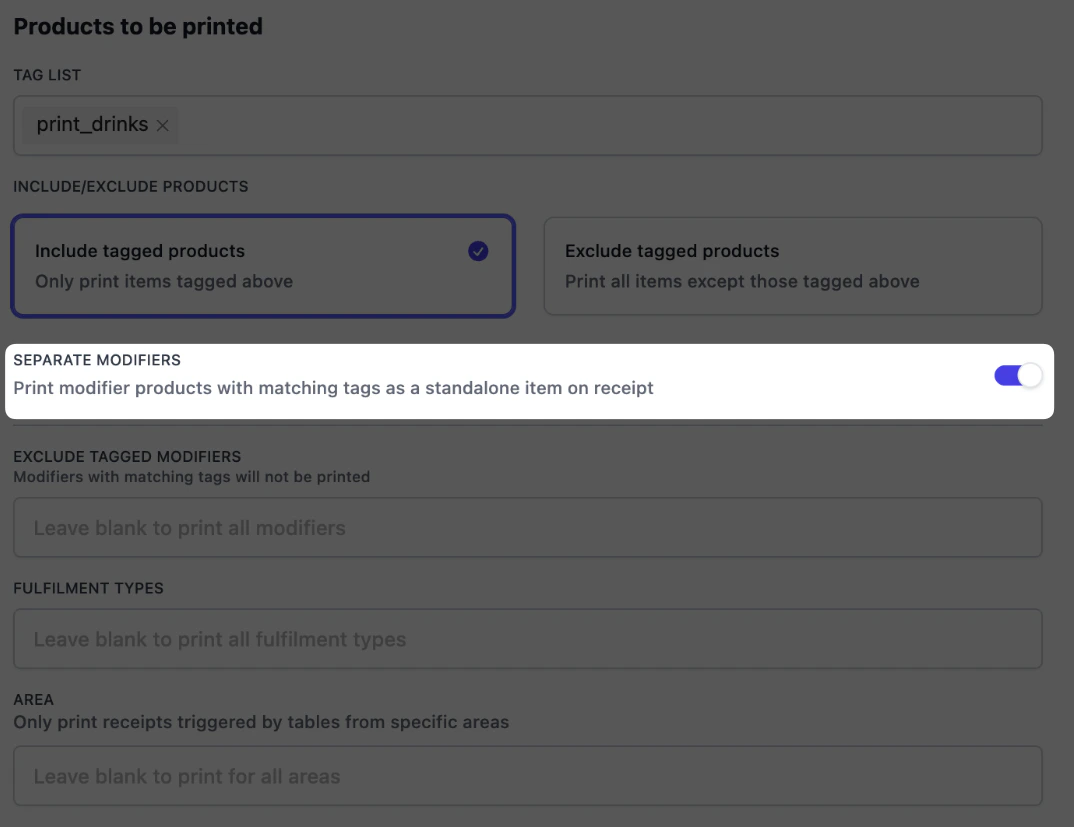 Modifiers (the choices on a product — "add cheese", "extra hot", "add a milkshake") follow their parent item by default. If a modifier has no tag of its own, it prints indented under the parent — that's how most restaurants run, and you don't need to touch anything.
Turn **Separate modifiers** on only when a tagged modifier should print as its own line on this printer, typically because it's handled by a different station from its parent.
**Example.** A cheeseburger is tagged `print_food` and goes to the kitchen. One of its modifiers, "Add chocolate milkshake", is tagged `print_drinks`. With **Separate modifiers** turned on at the bar printer, the bar receives the milkshake as its own line. The kitchen still receives the burger ticket without it. If **Separate modifiers** wasn't turn on, nothing would print at the Bar printer, as only top level items are matched.
Modifiers (the choices on a product — "add cheese", "extra hot", "add a milkshake") follow their parent item by default. If a modifier has no tag of its own, it prints indented under the parent — that's how most restaurants run, and you don't need to touch anything.
Turn **Separate modifiers** on only when a tagged modifier should print as its own line on this printer, typically because it's handled by a different station from its parent.
**Example.** A cheeseburger is tagged `print_food` and goes to the kitchen. One of its modifiers, "Add chocolate milkshake", is tagged `print_drinks`. With **Separate modifiers** turned on at the bar printer, the bar receives the milkshake as its own line. The kitchen still receives the burger ticket without it. If **Separate modifiers** wasn't turn on, nothing would print at the Bar printer, as only top level items are matched.
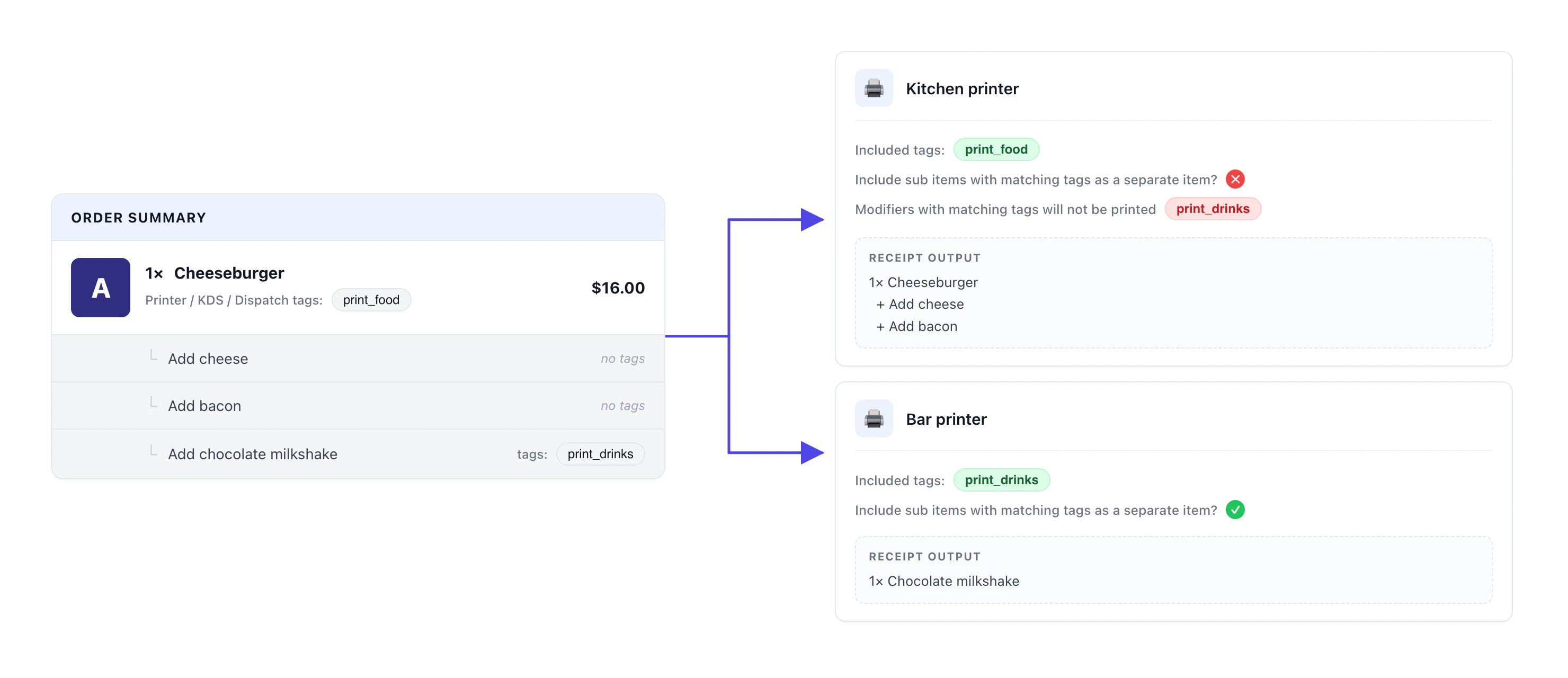 Untagged modifiers always stay with their parent. **Separate modifiers** only affects modifiers that carry a tag the printer is listening for.
**Before enabling, check your modifier tags in Menu builder.** Only modifiers prepped at a different station from their parent should carry a station tag. Every tagged modifier will fire separately.
### Exclude tagged modifiers
Untagged modifiers always stay with their parent. **Separate modifiers** only affects modifiers that carry a tag the printer is listening for.
**Before enabling, check your modifier tags in Menu builder.** Only modifiers prepped at a different station from their parent should carry a station tag. Every tagged modifier will fire separately.
### Exclude tagged modifiers
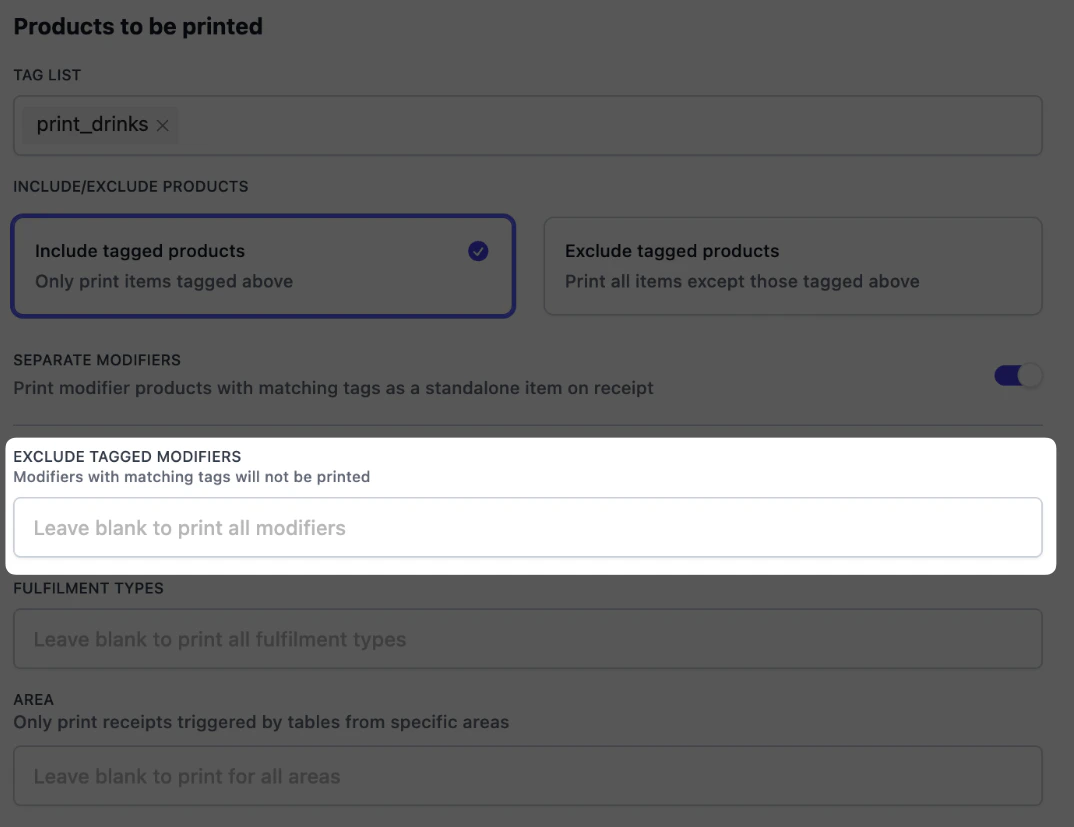 Modifiers carrying any tag listed here are **dropped** from this printer's receipts. Use this to keep noise off a printer that doesn't care about certain modifiers. Leave blank to print every modifier.
**Example.** A bar printer should show ice level and sugar level but not kitchen modifiers like "no onions". Add the kitchen-modifier tag(s) here and they will be stripped from bar tickets.
### Fulfilment types and area
Modifiers carrying any tag listed here are **dropped** from this printer's receipts. Use this to keep noise off a printer that doesn't care about certain modifiers. Leave blank to print every modifier.
**Example.** A bar printer should show ice level and sugar level but not kitchen modifiers like "no onions". Add the kitchen-modifier tag(s) here and they will be stripped from bar tickets.
### Fulfilment types and area
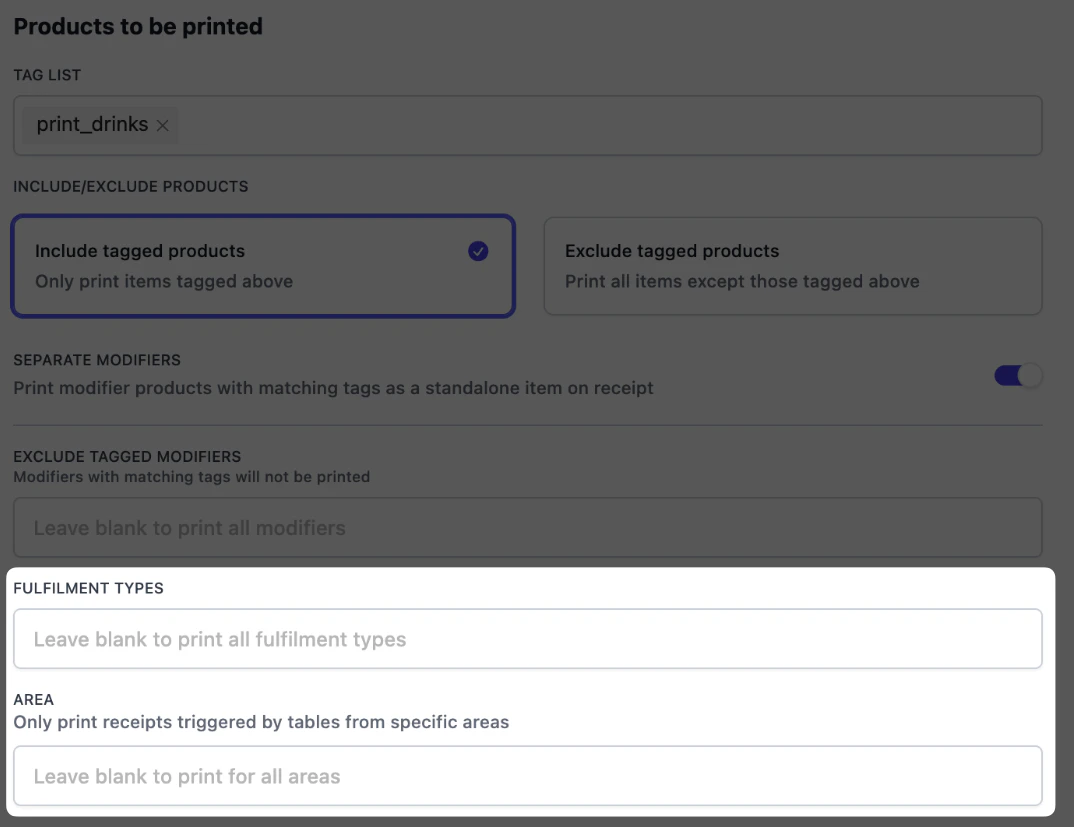 Both fields narrow *which orders* fire this printer.
**Fulfilment types** restrict the printer to specific order types. Atlas supports:
* **Dine-in** — orders linked to a table.
* **Pickup / takeaway** — customer collects in-store.
* **Delivery** — your own delivery or third-party aggregators (foodpanda, Deliveroo, etc.).
Leave blank to print for all fulfilment types.
**Area** is dine-in only. Restrict the printer to specific table areas (for example "Patio", "Second floor", "Private dining"). Use this when one outlet has multiple kitchens or bars serving different parts of the venue.
**Example.** A two-floor restaurant with a downstairs bar and an upstairs bar routes patio orders to the patio bar printer and indoor orders to the main bar printer. A separate label printer set to **Pickup** and **Delivery** only labels bags, so dine-in plates do not get a sticker.
* Pickup and delivery orders bypass the Area filter — they aren't tied to a table.
## Receipt types and their settings
Each receipt type enabled on a printer has its own formatting panel: copies, sorting, fonts, what to show on the slip, and so on. These are independent of routing: routing decides *which items* reach a receipt; these settings decide *how the receipt looks*.
Enable a receipt type in **Receipts to be printed**, and the matching settings panel appears below it on the same page.
Both fields narrow *which orders* fire this printer.
**Fulfilment types** restrict the printer to specific order types. Atlas supports:
* **Dine-in** — orders linked to a table.
* **Pickup / takeaway** — customer collects in-store.
* **Delivery** — your own delivery or third-party aggregators (foodpanda, Deliveroo, etc.).
Leave blank to print for all fulfilment types.
**Area** is dine-in only. Restrict the printer to specific table areas (for example "Patio", "Second floor", "Private dining"). Use this when one outlet has multiple kitchens or bars serving different parts of the venue.
**Example.** A two-floor restaurant with a downstairs bar and an upstairs bar routes patio orders to the patio bar printer and indoor orders to the main bar printer. A separate label printer set to **Pickup** and **Delivery** only labels bags, so dine-in plates do not get a sticker.
* Pickup and delivery orders bypass the Area filter — they aren't tied to a table.
## Receipt types and their settings
Each receipt type enabled on a printer has its own formatting panel: copies, sorting, fonts, what to show on the slip, and so on. These are independent of routing: routing decides *which items* reach a receipt; these settings decide *how the receipt looks*.
Enable a receipt type in **Receipts to be printed**, and the matching settings panel appears below it on the same page.
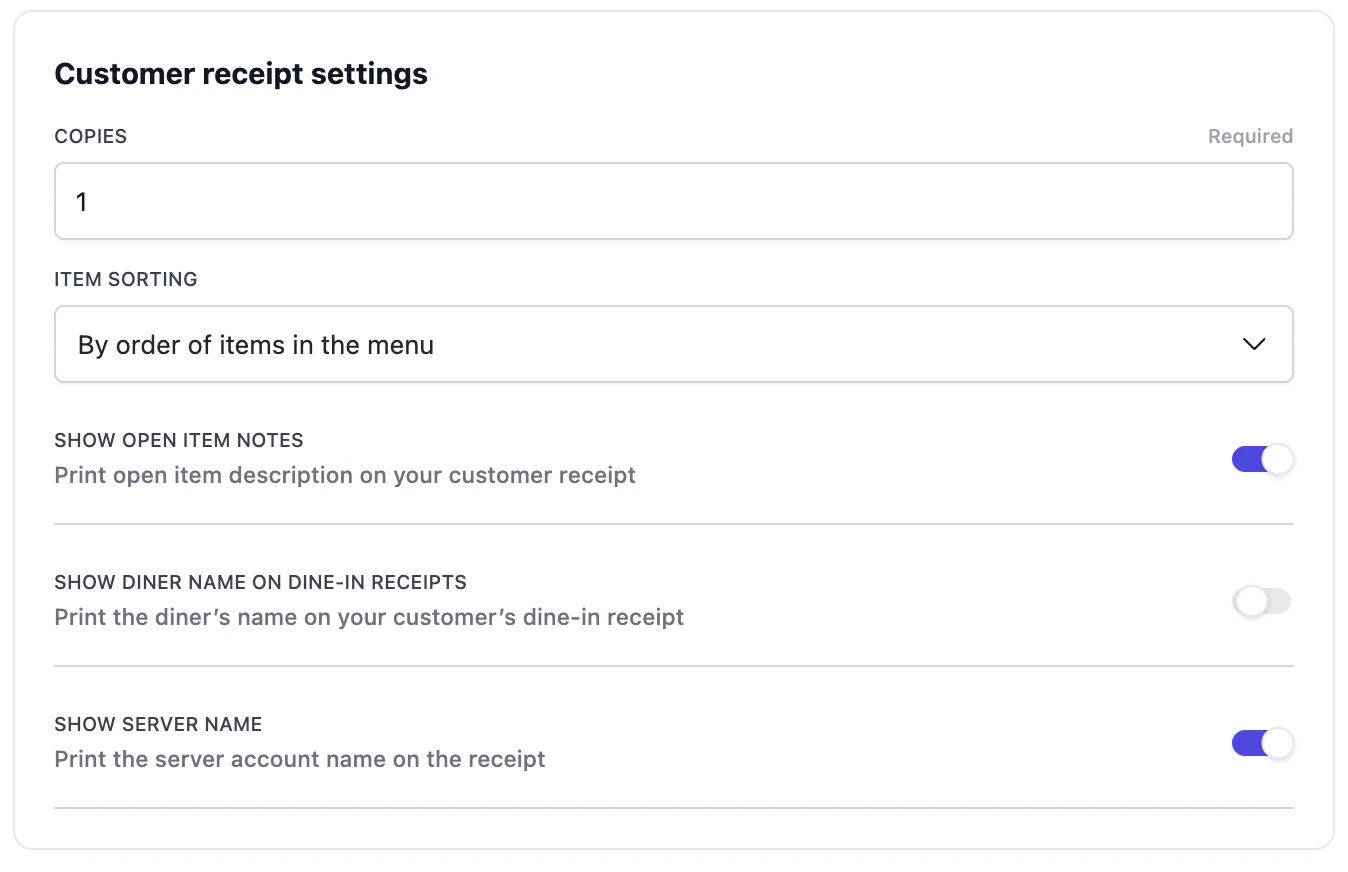 Options:
* **Number of copies**
* **Item sorting**: You can choose to sort: i) by when the item was added, ii) by how items are sorted in the menu, iii) by order of printing tags or iv) with configurable items to the end.
* **Show open item notes**: print free-text notes you add at checkout.
* **Show diner name on dine-in receipts**: useful for quick service restaurants calling diners by name.
* **Show server name**: adds the staff member who took the order.
Options:
* **Number of copies**
* **Item sorting**: You can choose to sort: i) by when the item was added, ii) by how items are sorted in the menu, iii) by order of printing tags or iv) with configurable items to the end.
* **Show open item notes**: print free-text notes you add at checkout.
* **Show diner name on dine-in receipts**: useful for quick service restaurants calling diners by name.
* **Show server name**: adds the staff member who took the order.
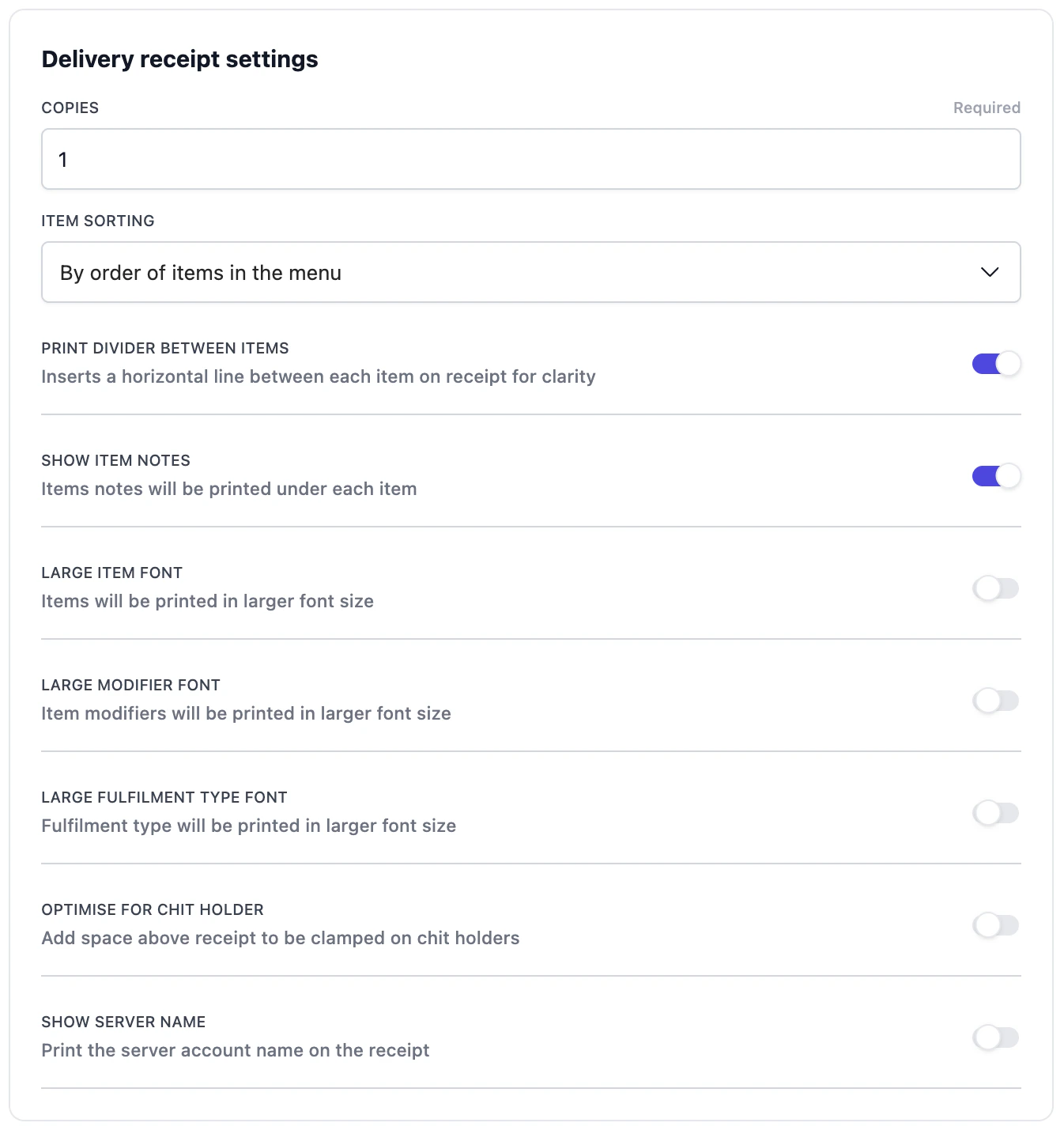 Key options unique to delivery:
* **Print divider between items**: adds a horizontal line between items for legibility while packing.
* **Larger item / modifier / fulfilment type font**: easier to read at speed.
* **Optimise for chit holder**: adds space at the top so the slip can be clamped without obscuring text.
Key options unique to delivery:
* **Print divider between items**: adds a horizontal line between items for legibility while packing.
* **Larger item / modifier / fulfilment type font**: easier to read at speed.
* **Optimise for chit holder**: adds space at the top so the slip can be clamped without obscuring text.
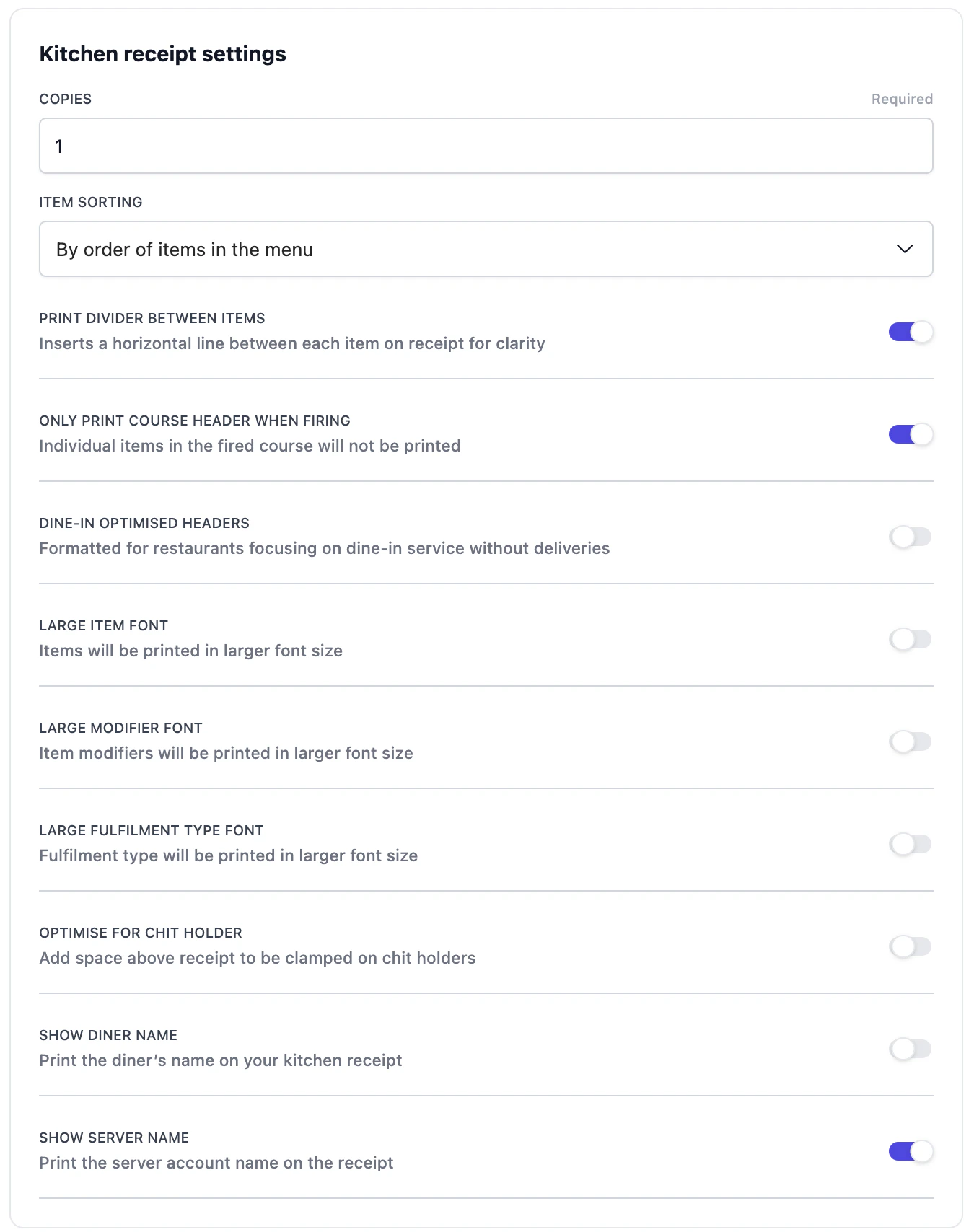 Key options unique to kitchen tickets:
* **Only print course header when firing**: for course-fired service, prints just the header line for the course rather than every item again.
* **Dine-in optimised headers**: strips delivery-only fields for restaurants without takeaway.
* **Optimise for chit holder**: adds space at the top so the slip can be clamped without obscuring text.
* **Larger item / modifier / fulfilment type font**: easier to read at speed.
* **Add line between tagging group**: when sorting by printing tags is selected, this option adds a line between each tagging group.
Key options unique to kitchen tickets:
* **Only print course header when firing**: for course-fired service, prints just the header line for the course rather than every item again.
* **Dine-in optimised headers**: strips delivery-only fields for restaurants without takeaway.
* **Optimise for chit holder**: adds space at the top so the slip can be clamped without obscuring text.
* **Larger item / modifier / fulfilment type font**: easier to read at speed.
* **Add line between tagging group**: when sorting by printing tags is selected, this option adds a line between each tagging group.
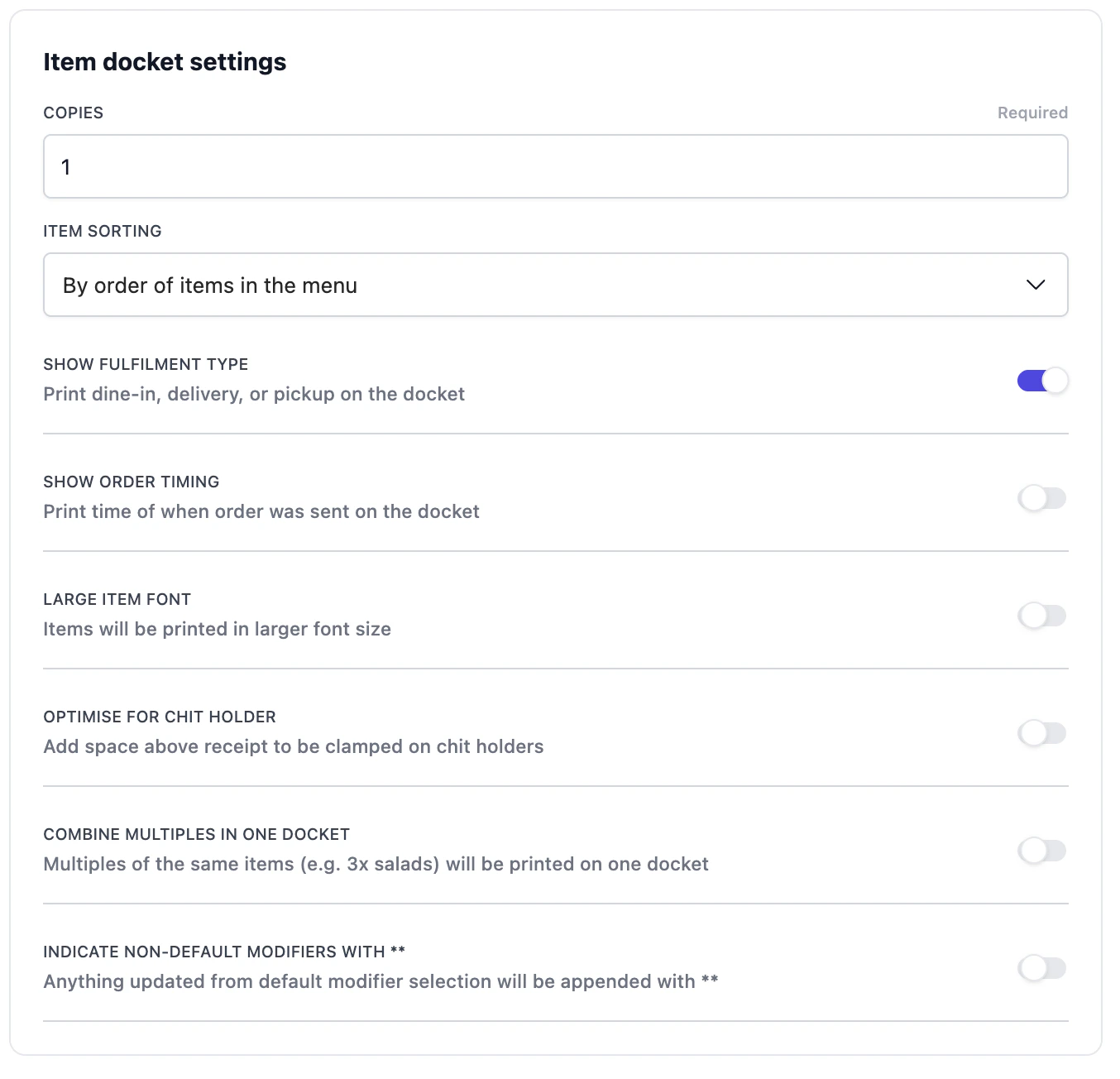 Key options unique to dockets:
* **Combine multiples in one docket**: three of the same drink print on one slip instead of three.
* **Indicate non-default modifiers with `**`**: flags any modifier the diner changed from the default, so prep staff can spot customisations at a glance.
* **Show order timing**: prints when the item was fired.
Key options unique to dockets:
* **Combine multiples in one docket**: three of the same drink print on one slip instead of three.
* **Indicate non-default modifiers with `**`**: flags any modifier the diner changed from the default, so prep staff can spot customisations at a glance.
* **Show order timing**: prints when the item was fired.
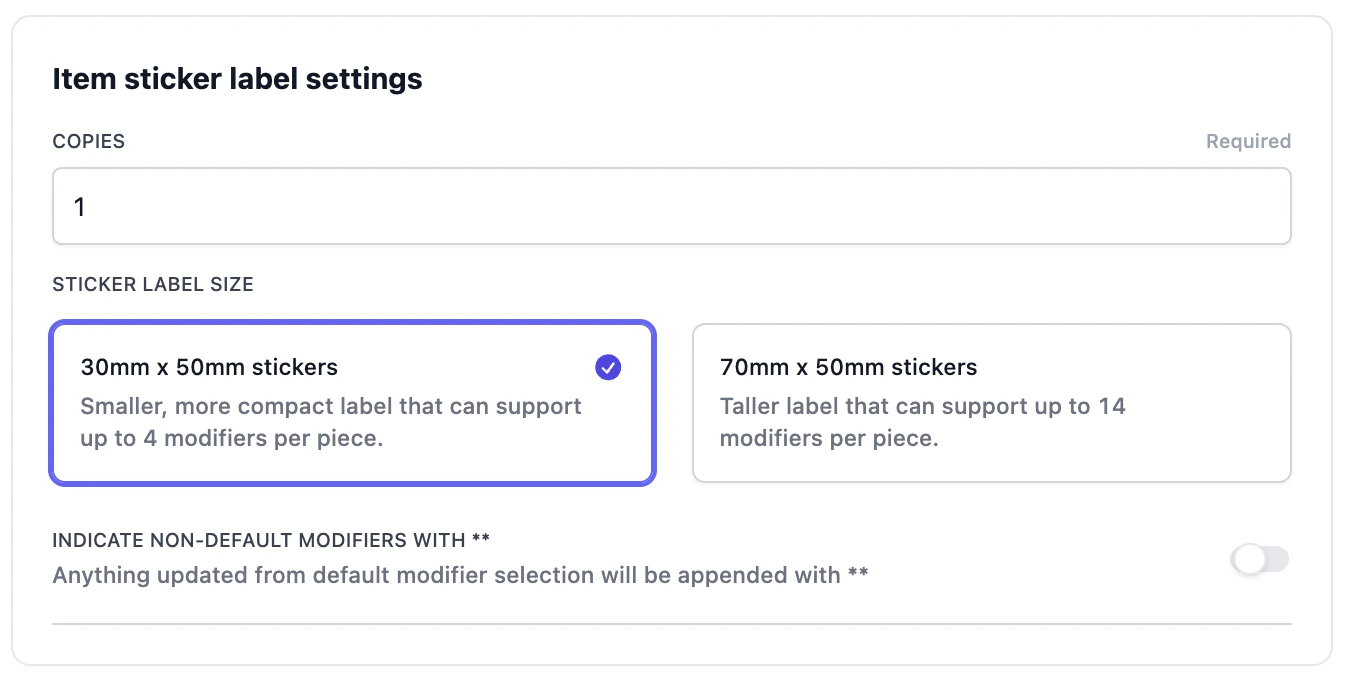 Key options:
* **Sticker label size**: 30×50mm (up to 4 modifiers per label) or 70×50mm (up to 14 modifiers).
* **Indicate non-default modifiers**: same convention as item dockets.
Stickers print only for items that explicitly carry a tag the printer is listening for. Untagged items never produce a sticker, even on a catch-all printer.
## Real-world setups
Four setups that combine several of the features above. Use them as templates if your operation looks similar.
### Bar station, kitchen station and runner station
Printing tags can be combined when multiple items must show on different places. Two common patterns:
* **Multiple tags on one printer.** A small kitchen with no separate bar can listen for `print_food` AND `print_drinks` on a single printer. Everything that needs preparation goes there.
* **A catch-all "runner" printer.** A printer with a blank tag list acts as a complete fallback and prints every item on every order. Useful as a backup at the pass, or while you're rolling out tags gradually.
Key options:
* **Sticker label size**: 30×50mm (up to 4 modifiers per label) or 70×50mm (up to 14 modifiers).
* **Indicate non-default modifiers**: same convention as item dockets.
Stickers print only for items that explicitly carry a tag the printer is listening for. Untagged items never produce a sticker, even on a catch-all printer.
## Real-world setups
Four setups that combine several of the features above. Use them as templates if your operation looks similar.
### Bar station, kitchen station and runner station
Printing tags can be combined when multiple items must show on different places. Two common patterns:
* **Multiple tags on one printer.** A small kitchen with no separate bar can listen for `print_food` AND `print_drinks` on a single printer. Everything that needs preparation goes there.
* **A catch-all "runner" printer.** A printer with a blank tag list acts as a complete fallback and prints every item on every order. Useful as a backup at the pass, or while you're rolling out tags gradually.
 ### Combining different type of receipts
A restaurant runs a dedicated **salad station** (printing item dockets for every salad) and a **drinks station** (printing item sticker labels). Salads and drinks can be ordered standalone *or* as modifiers inside a main course (for example, a steak with "Add side salad" and "Add iced coffee"). The kitchen handles the hot mains. Salads and drinks should not show on the kitchen ticket because they are prepped elsewhere.
### Combining different type of receipts
A restaurant runs a dedicated **salad station** (printing item dockets for every salad) and a **drinks station** (printing item sticker labels). Salads and drinks can be ordered standalone *or* as modifiers inside a main course (for example, a steak with "Add side salad" and "Add iced coffee"). The kitchen handles the hot mains. Salads and drinks should not show on the kitchen ticket because they are prepped elsewhere.
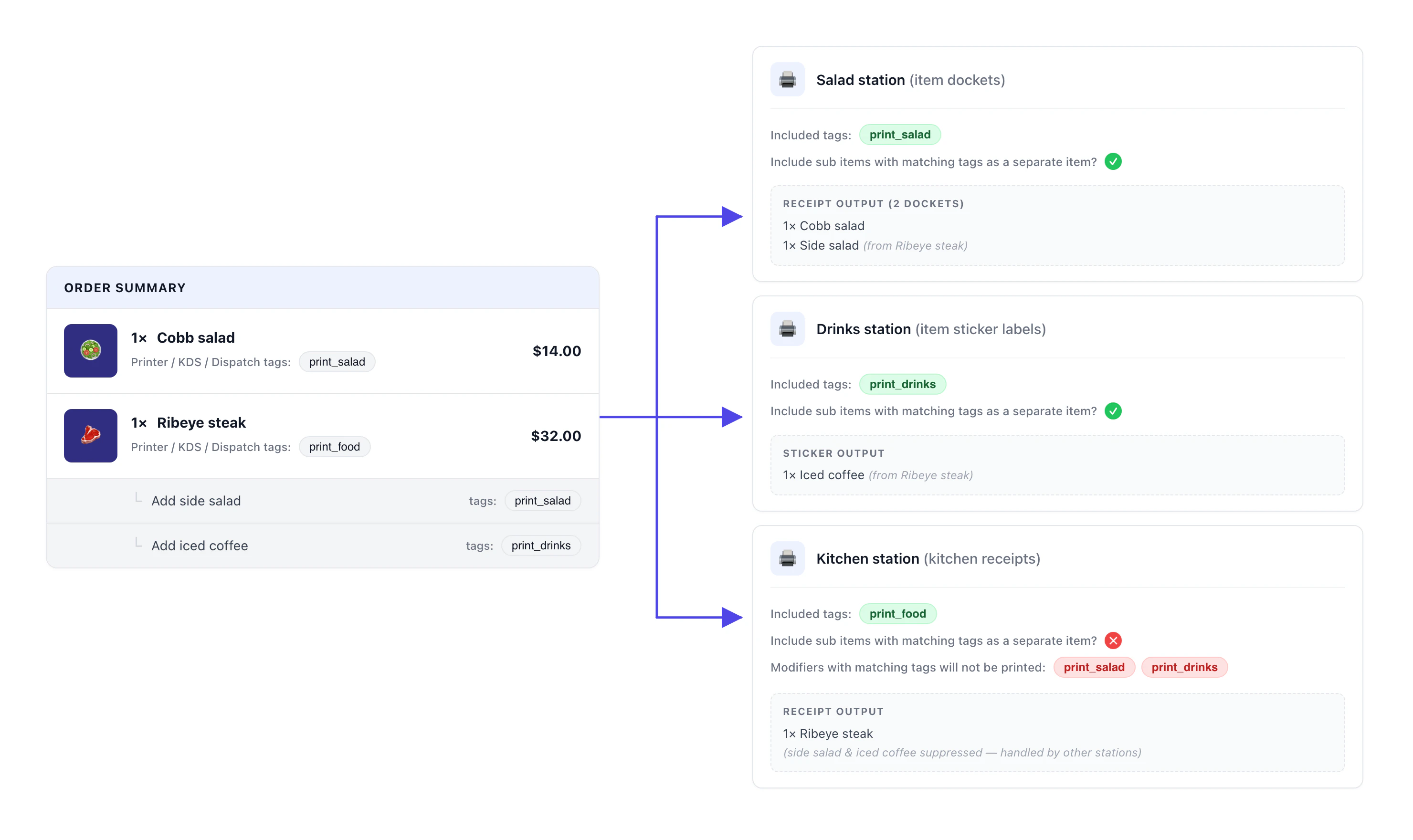 The salad and drinks station printers both turn **Separate modifiers** on, so tagged modifiers pull out as their own dockets and stickers. The kitchen printer pairs **Exclude tagged modifiers** with `print_salad` and `print_drinks`, so those same modifiers do not reprint under the steak on the kitchen ticket. Separate-on-the-station and exclude-from-the-kitchen always travel together.
### Cafe with receipts split by fulfilment type
A cafe needs different outputs depending on whether a coffee is being made for **takeaway** or **dine-in**. Takeaway orders get a **sticker label** on the cup plus a **delivery receipt** attached to the bag. Dine-in orders need only a **kitchen receipt** for the barista. The two receipt formats run on the same physical bar-side receipt printer.
The salad and drinks station printers both turn **Separate modifiers** on, so tagged modifiers pull out as their own dockets and stickers. The kitchen printer pairs **Exclude tagged modifiers** with `print_salad` and `print_drinks`, so those same modifiers do not reprint under the steak on the kitchen ticket. Separate-on-the-station and exclude-from-the-kitchen always travel together.
### Cafe with receipts split by fulfilment type
A cafe needs different outputs depending on whether a coffee is being made for **takeaway** or **dine-in**. Takeaway orders get a **sticker label** on the cup plus a **delivery receipt** attached to the bag. Dine-in orders need only a **kitchen receipt** for the barista. The two receipt formats run on the same physical bar-side receipt printer.
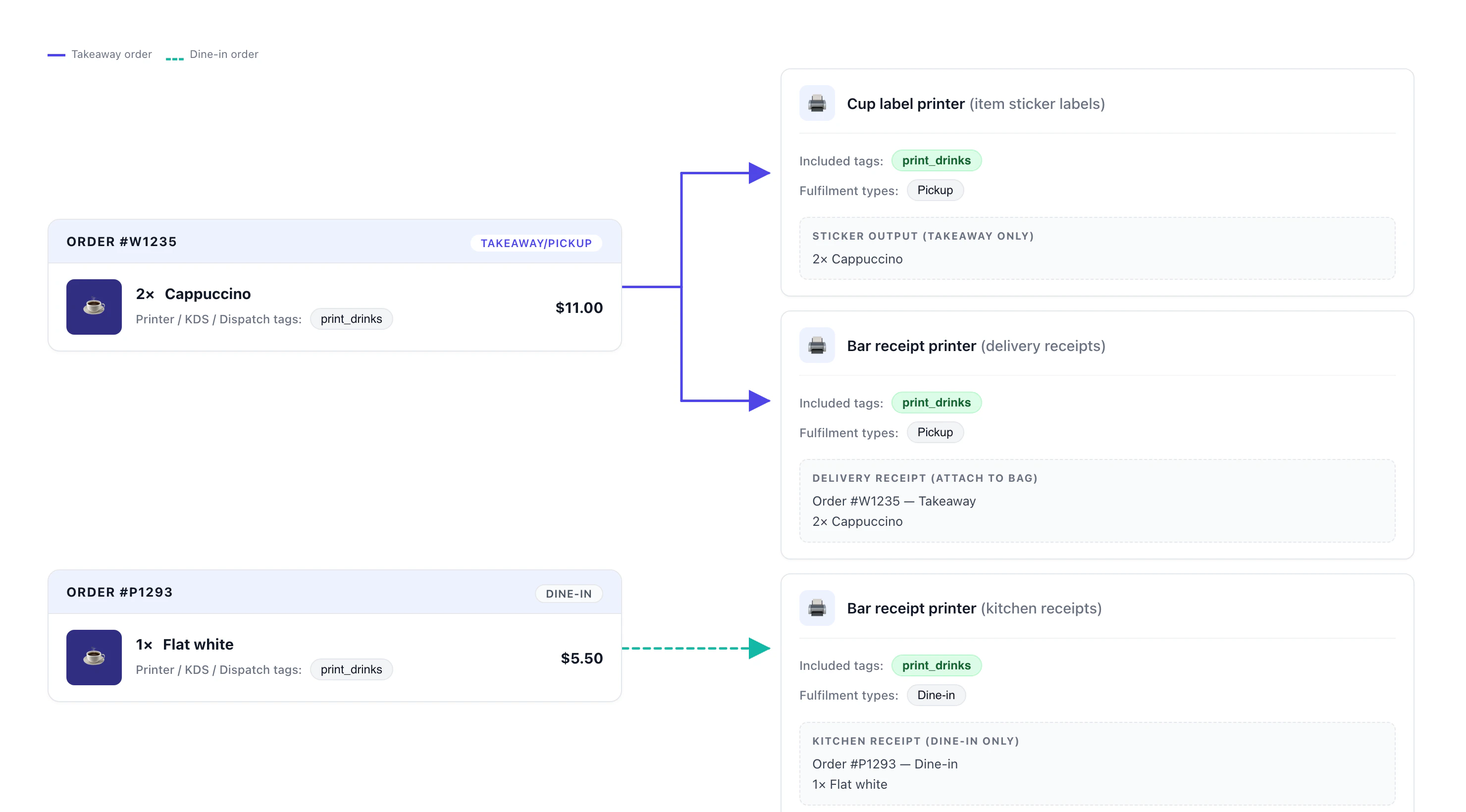 The two bar receipt printer cards in the diagram are **two configs pointing at the same physical device**, differentiated by **Fulfilment types**. The first config has Takeaway selected and emits a delivery receipt; the second has Dine-in selected and emits a kitchen receipt. Atlas evaluates each config independently per order, so one bar-side printer ends up producing the right slip for each fulfilment type.
### Fine-dining restaurant with a 5-course menu
A fine-dining restaurant sells a **5-course menu** where each course is a modifier under one parent product. The kitchen needs every course to print as its **own top-level line on the kitchen ticket, in course order**. The diner's customer receipt should show only the parent ("1× Degustation menu"), with none of the courses underneath.
The two bar receipt printer cards in the diagram are **two configs pointing at the same physical device**, differentiated by **Fulfilment types**. The first config has Takeaway selected and emits a delivery receipt; the second has Dine-in selected and emits a kitchen receipt. Atlas evaluates each config independently per order, so one bar-side printer ends up producing the right slip for each fulfilment type.
### Fine-dining restaurant with a 5-course menu
A fine-dining restaurant sells a **5-course menu** where each course is a modifier under one parent product. The kitchen needs every course to print as its **own top-level line on the kitchen ticket, in course order**. The diner's customer receipt should show only the parent ("1× Degustation menu"), with none of the courses underneath.
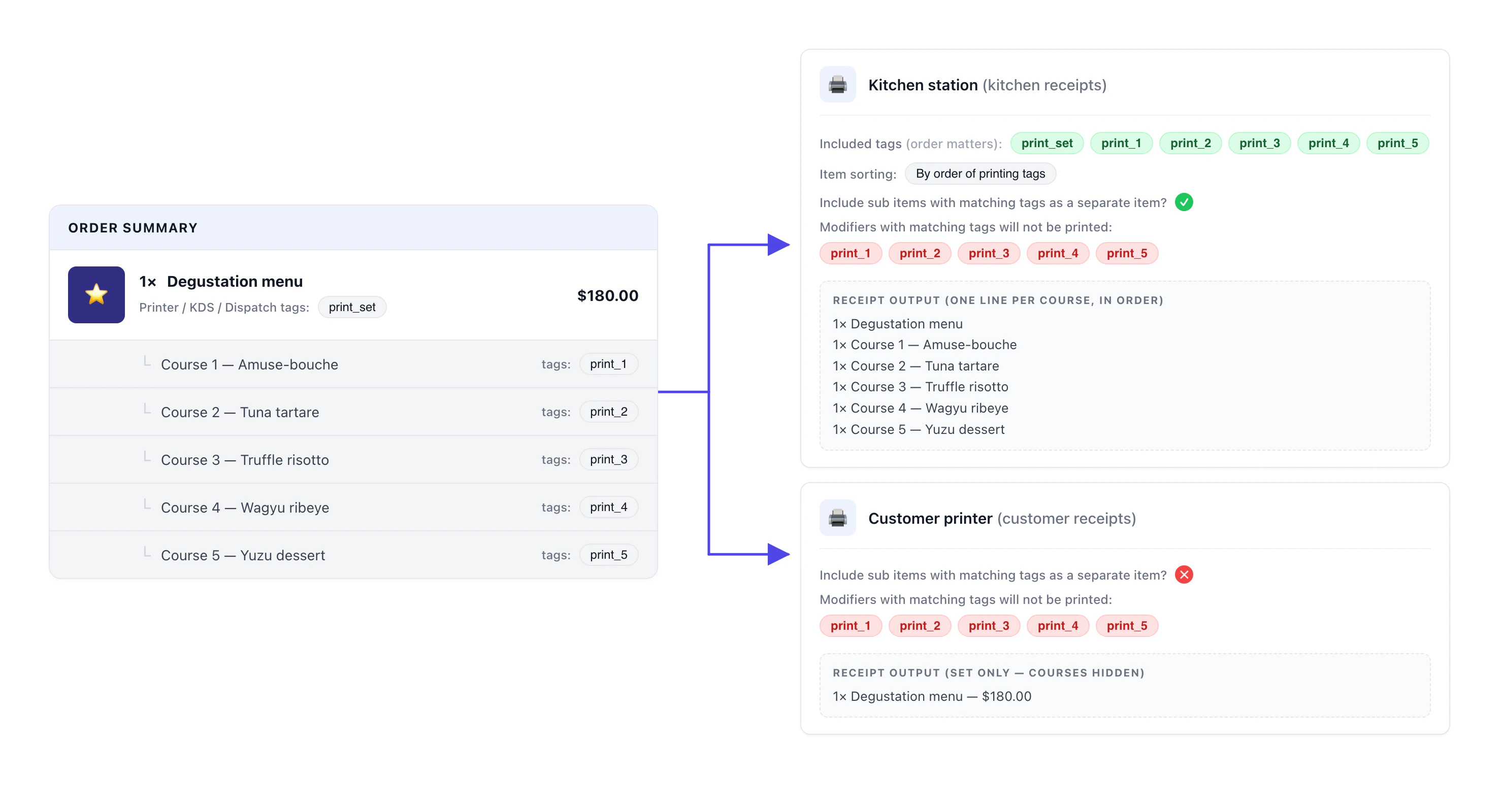 Three settings work together on the kitchen printer.
- Include sub items as a separate item is on, so each course modifier promotes to its own top-level line.
- Exclude tagged modifiers lists the same course tags — that strips them from being printed nested under the parent, so each course appears exactly once.
- Item sorting is set to By order of printing tags, which means the order of the tag list in the printer config is the order they print in.
print\_set first, then print\_1 → print\_5 in sequence.
The customer printer is the mirror image: **Separate modifiers** is off and the course tags appear in **Exclude tagged modifiers**, so the diner sees only "1× Degustation menu" without the course list. Same tag scheme, opposite intent.
## Behaviours to know
A few behaviours catch people out. Review these before going live.
A blank **Tag list** means "accept all items". This is intentional and is how the main customer receipt printer works. It also means a kitchen printer added without tags will print every item on every order.
The receipt given to the customer needs to show the full order. Leave that printer's tag list blank. Adding any tag turns the customer receipt into a filtered ticket, and the customer gets an incomplete receipt.
In Include mode, an untagged product goes nowhere — visible to the operator. In Exclude mode, an untagged product goes **everywhere** silently. Use Include mode unless you have a specific reason for the inverse.
The same tag system controls Kitchen Display Screens and delivery dispatch routing. That's why the field is *Printer / KDS / Dispatch tags*. You don't need separate tag schemes for KDS and printers.
## Troubleshooting
After setup, a working printer should:
* Show a **green status dot** in **Printers & receipts**.
* Output immediately on a test print.
* Receive only the items whose tags match in a live test order.
* Show the full order on the customer receipt; only matching items on station printers.
If something isn't behaving as expected, check the matching scenario below.
1. Confirm at least one receipt type is enabled in **Receipts to be printed**. A printer with no enabled receipts has nothing to output.
2. Check the tag list. In Include mode, the products you expect to print must carry at least one of the printer's tags.
3. Check **Print on POS checkout** and **Print on Online checkout**. If the channel the order came from is toggled off, the printer won't fire.
4. Check **Fulfilment types**. If you set this and the test order's type isn't in the list, nothing prints.
5. Send a test print from the printer's row in **Printers & receipts**. If the test slip prints, the connection is fine and the issue is routing.
6. Power-cycle the printer.
1. Open the product and check its tags. If it carries the printer's tag, it will print there.
2. If you're using **Exclude tagged products**, check the tag list. Exclude mode prints anything not tagged, so any new untagged product starts printing automatically.
3. Check **Separate modifiers**. If it's on, any modifier carrying a matching tag prints as its own line on this printer.
Symptom: a tagged modifier appears twice on the same printer's slip — once indented under its parent, and once as its own top-level line.
Cause: the parent product and the modifier share a tag the printer is listening for, and **Separate modifiers** is on. The modifier breaks out as a standalone line *and* still rides under the parent.
Fix one of two ways:
1. **If you don't need the modifier to appear separately**, remove the tag from the modifier. Untagged modifiers ride with their parent automatically.
2. **If you need the modifier to print separately** (typical for course-fired or station-routed modifiers), add that tag to **Exclude tagged modifiers** on this printer so the modifier doesn't also reprint under the parent. The [Degustation menu](#degustation-menu) example uses this pattern.
The most common cause is a tag in the customer receipt printer's tag list. Open that printer's settings and clear the **Tag list** field.
1. To stop a tagged modifier from appearing as its own line on the wrong printer, turn **Separate modifiers** off on that printer, or remove the tag from the modifier.
2. To strip a noisy modifier from a station printer (for example, kitchen modifiers showing up on the bar), add that modifier's tag to **Exclude tagged modifiers**.
Symptom: an item silently misroutes — it doesn't reach the station it's tagged for and only appears on catch-all printers (or doesn't print at all).
Cause: the tag on the product and the tag on the printer don't match character-for-character. `print_drinks`, `Print_Drinks`, `print-drinks`, and `print_drinks ` (with a trailing space) are four different tags.
Fix:
1. Open the product and the printer side by side. Compare the tags character by character.
2. Copy-paste rather than retyping. Tags are case-sensitive and whitespace-sensitive.
3. When typing a tag on a product, pick the exact existing suggestion from the dropdown rather than creating a new one by accident.
1. Confirm the order is **dine-in** with a table assigned. Pickup and delivery orders bypass the Area filter.
2. Confirm the table is assigned to one of the printer's listed areas.
3. If the printer is set as a station's primary printer, the Area filter is intentionally bypassed for that printer.
Email support at [hello@atlas.kitchen](mailto:hello@atlas.kitchen) with:
* Your outlet name.
* The printer name.
* A screenshot of the printer's **Products to be printed** panel.
* The order ID that misprinted (if any).
## Next steps
* [Connect Atlas printer to WiFi](/hardware/printers) — if you're setting up a new device.
* [Create menus](/menu-builder/create-menus) — for adding products and tagging them.