> ## Documentation Index
> Fetch the complete documentation index at: https://help.atlas.kitchen/llms.txt
> Use this file to discover all available pages before exploring further.
# Set up the customer-facing display
> Show customers their order, let them log in for rewards, and choose how they get their receipt.
## What this does
The customer-facing display (CFD) is a second screen that faces your customers during checkout. It shows them their order in real time as items are added at the POS.
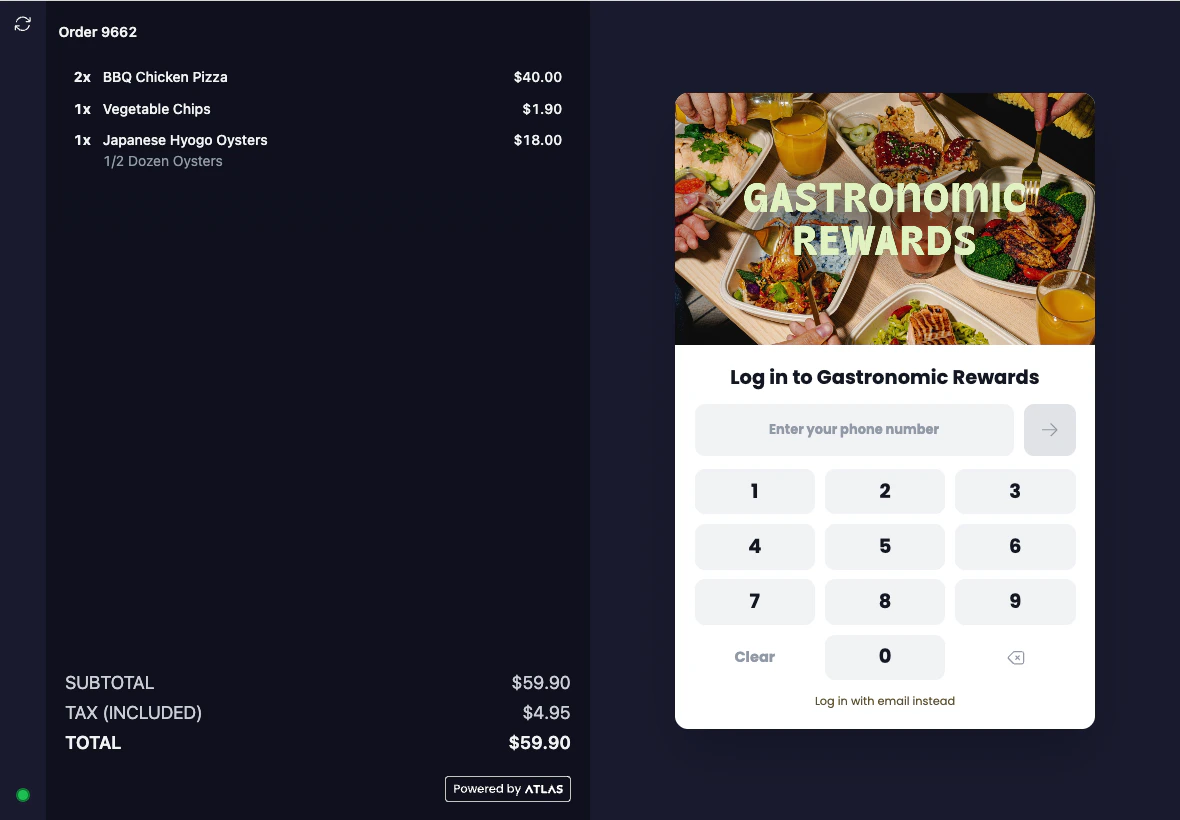 With additional features enabled, customers can also:
* **Log in** with their phone number to earn loyalty rewards
* **Choose their receipt** — email, print, or no receipt
## Getting started
The CFD needs to be set up by the Atlas team. Contact support at [hello@atlas.kitchen](mailto:hello@atlas.kitchen) or reach out to your Atlas Whatsapp group to get it enabled for your outlet.
Once enabled, the display pairs with your POS station and shows the live cart automatically.
## Diner login for loyalty
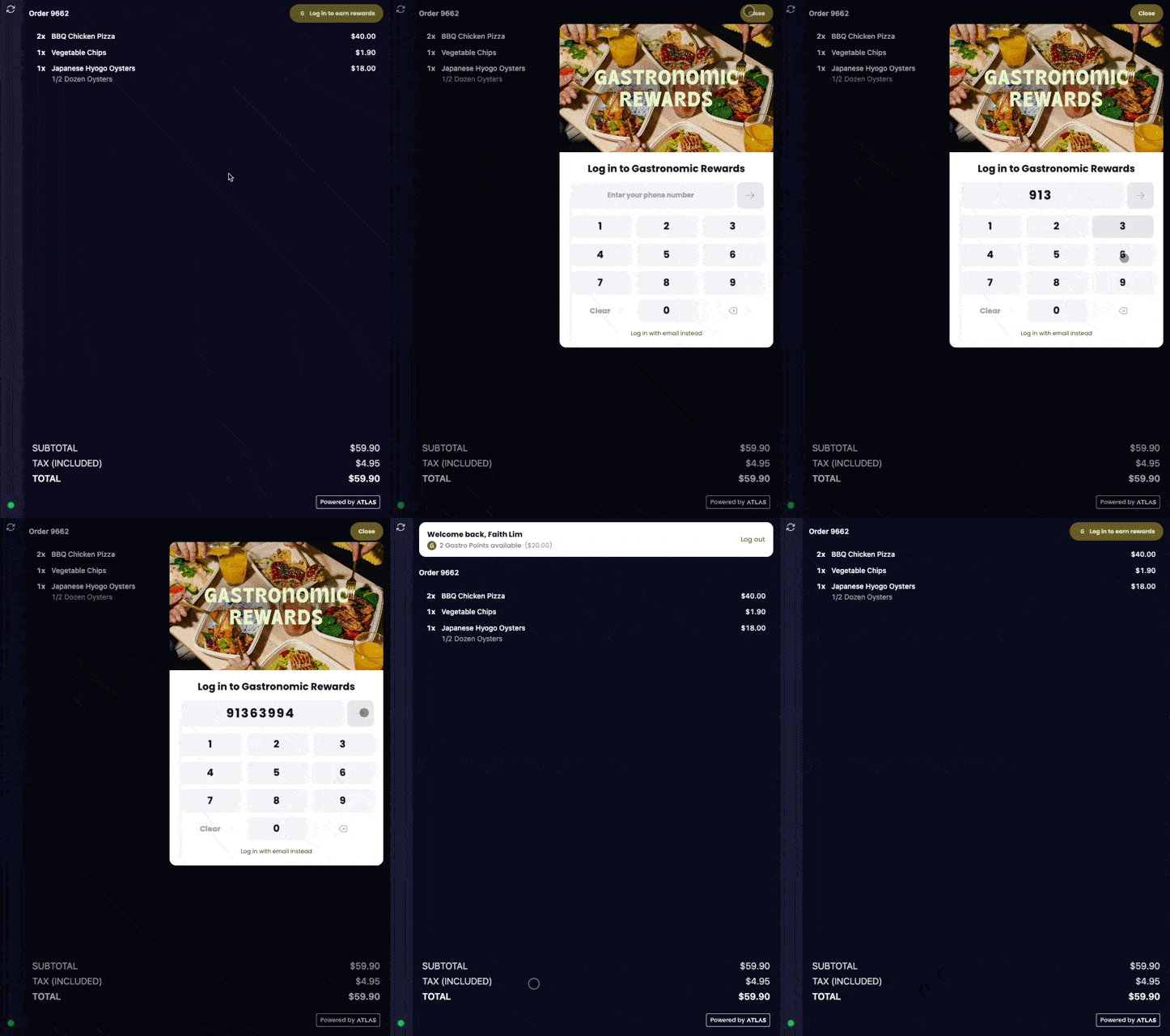
If your outlet has a loyalty programme enabled, customers see a login prompt on the CFD during ordering.
On a wide screen, the login panel appears on the right side. On a narrow screen, a "Log in to earn rewards" button opens a login overlay.
Atlas searches for their account.
The code is sent automatically by SMS. They can also request the code by email instead.
Their loyalty points or cashback balance appears on the display. Rewards are applied to their order automatically.
With additional features enabled, customers can also:
* **Log in** with their phone number to earn loyalty rewards
* **Choose their receipt** — email, print, or no receipt
## Getting started
The CFD needs to be set up by the Atlas team. Contact support at [hello@atlas.kitchen](mailto:hello@atlas.kitchen) or reach out to your Atlas Whatsapp group to get it enabled for your outlet.
Once enabled, the display pairs with your POS station and shows the live cart automatically.
## Diner login for loyalty
If your outlet has a loyalty programme enabled, customers see a login prompt on the CFD during ordering.
On a wide screen, the login panel appears on the right side. On a narrow screen, a "Log in to earn rewards" button opens a login overlay.
Atlas searches for their account.
The code is sent automatically by SMS. They can also request the code by email instead.
Their loyalty points or cashback balance appears on the display. Rewards are applied to their order automatically.
 {/* Screenshot needed: OTP entry screen */}
The login prompt only appears if loyalty is enabled for your outlet. Contact support to set up a loyalty programme.
## Receipt selection
After payment, customers can choose how to receive their receipt — instead of printing one automatically.
{/* Screenshot needed: OTP entry screen */}
The login prompt only appears if loyalty is enabled for your outlet. Contact support to set up a loyalty programme.
## Receipt selection
After payment, customers can choose how to receive their receipt — instead of printing one automatically.
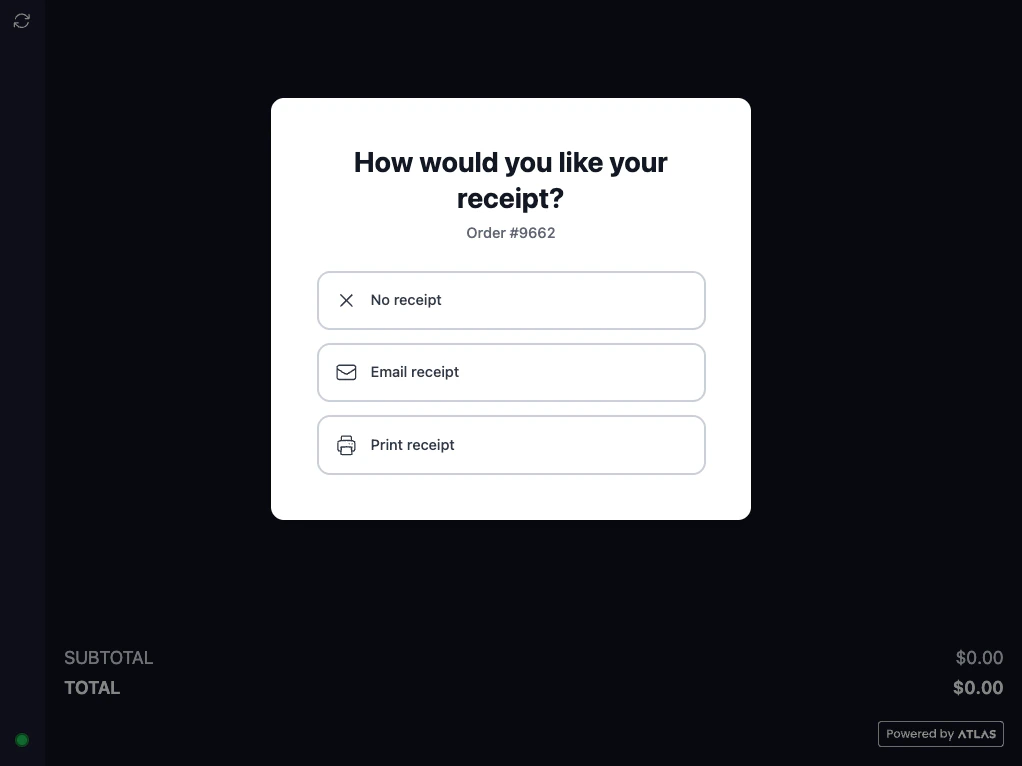 **Email receipt**, **Print receipt**, or **No receipt**.
Logged-in customers see their email pre-filled. Guests type their email and tap send.
The display resets for the next customer after a few seconds.
### Enable or disable receipt selection
**Email receipt**, **Print receipt**, or **No receipt**.
Logged-in customers see their email pre-filled. Guests type their email and tap send.
The display resets for the next customer after a few seconds.
### Enable or disable receipt selection
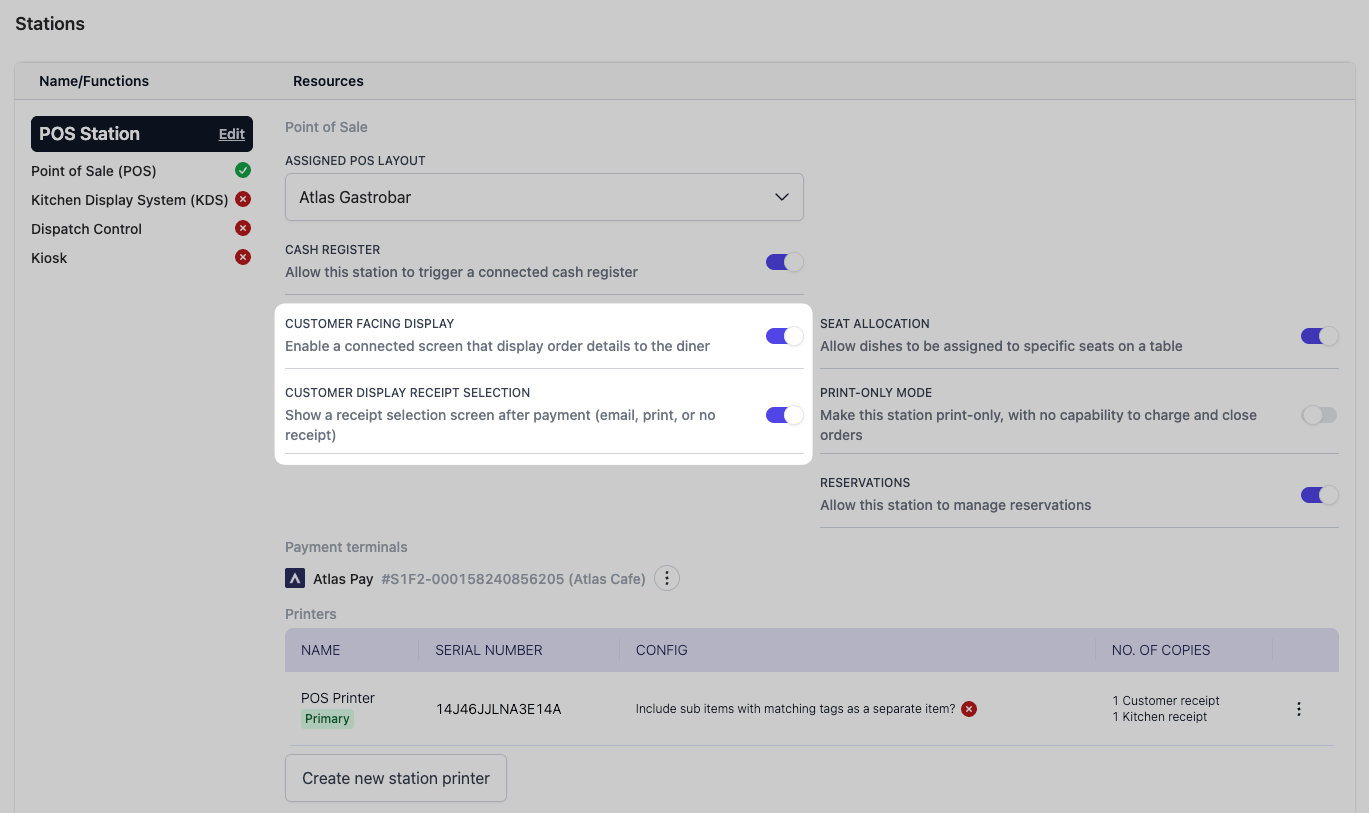 Go to **Settings > Outlets**.
Find the POS station that has the CFD paired.
When enabled, customers choose their receipt on the display. When disabled, receipts print automatically as before.
## Managing the display
Go to **Settings > Outlets**.
Find the POS station that has the CFD paired.
When enabled, customers choose their receipt on the display. When disabled, receipts print automatically as before.
## Managing the display
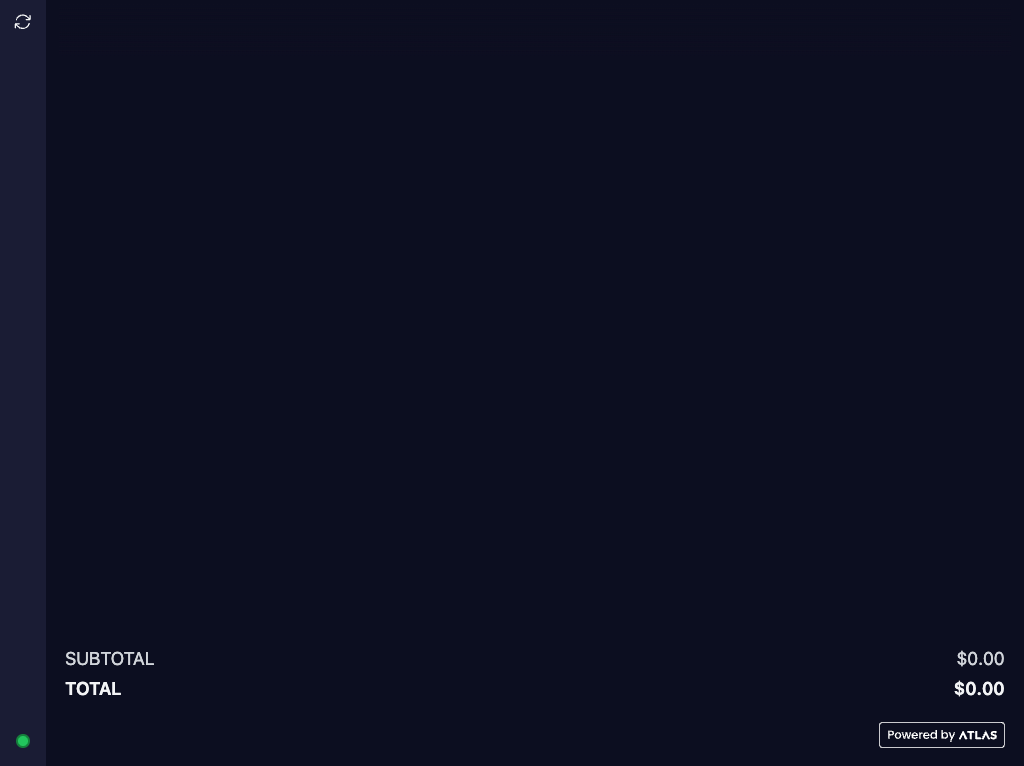 ### Status indicator
A small dot in the corner of the display shows the connection status:
* **Green** — connected to the POS and working normally
* **Yellow (pulsing)** — connecting to the POS
* **Red** — disconnected from the POS. Check the Wi-Fi connection or restart the display
### Reload
Tap the reload button on the left sidebar to refresh the display and re-sync with the POS.
### Exit the display
Hold the status indicator dot for 5 seconds. A confirmation dialog appears — confirm to exit. This is intentionally hidden so customers cannot accidentally exit the display.
## What should happen
* Cart items appear on the display in real time as the cashier adds them.
* If loyalty is enabled, customers see a login prompt during ordering.
* After payment, customers see receipt options (if enabled).
* The display resets automatically when the cashier starts a new order or logs out.
## If it doesn't work
* **Display is blank or not showing the cart** — check that the display is paired to the correct POS station and connected to Wi-Fi.
* **Login prompt not appearing** — check that loyalty is enabled for the outlet. Contact support if unsure.
* **Receipt selection not appearing after payment** — check the "CFD receipt selection" toggle in station settings.
* **Display stuck on a previous order** — start a new order on the POS to reset the display. If it stays stuck, tap the reload button on the left sidebar.
* **Status dot is red** — the display lost connection. Check the Wi-Fi or restart the display.
If the issue persists, contact support at [hello@atlas.kitchen](mailto:hello@atlas.kitchen).
### Status indicator
A small dot in the corner of the display shows the connection status:
* **Green** — connected to the POS and working normally
* **Yellow (pulsing)** — connecting to the POS
* **Red** — disconnected from the POS. Check the Wi-Fi connection or restart the display
### Reload
Tap the reload button on the left sidebar to refresh the display and re-sync with the POS.
### Exit the display
Hold the status indicator dot for 5 seconds. A confirmation dialog appears — confirm to exit. This is intentionally hidden so customers cannot accidentally exit the display.
## What should happen
* Cart items appear on the display in real time as the cashier adds them.
* If loyalty is enabled, customers see a login prompt during ordering.
* After payment, customers see receipt options (if enabled).
* The display resets automatically when the cashier starts a new order or logs out.
## If it doesn't work
* **Display is blank or not showing the cart** — check that the display is paired to the correct POS station and connected to Wi-Fi.
* **Login prompt not appearing** — check that loyalty is enabled for the outlet. Contact support if unsure.
* **Receipt selection not appearing after payment** — check the "CFD receipt selection" toggle in station settings.
* **Display stuck on a previous order** — start a new order on the POS to reset the display. If it stays stuck, tap the reload button on the left sidebar.
* **Status dot is red** — the display lost connection. Check the Wi-Fi or restart the display.
If the issue persists, contact support at [hello@atlas.kitchen](mailto:hello@atlas.kitchen).