> ## Documentation Index
> Fetch the complete documentation index at: https://help.atlas.kitchen/llms.txt
> Use this file to discover all available pages before exploring further.
# Using reports
> How to filter, export, and set up scheduled report deliveries.
## New vs legacy reports
Reports powered by [Omni](https://omni.co) have replaced legacy versions with more features like scheduled deliveries and alerts. Legacy reports are marked **LEGACY** and will be removed by 1 June 2026.
If you see different numbers between a new and legacy report for the same data, contact support at [hello@atlas.kitchen](mailto:hello@atlas.kitchen).
## Accessing reports
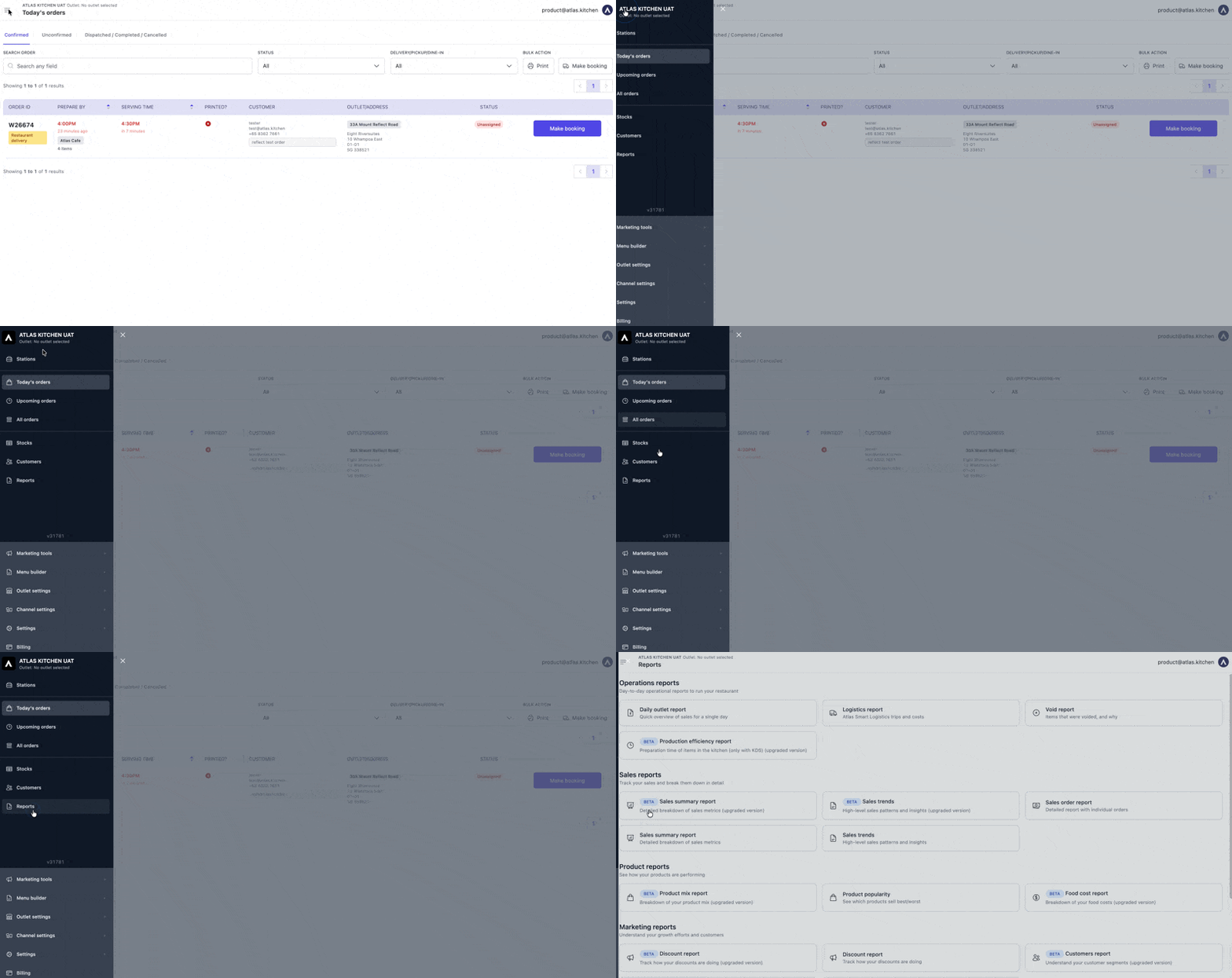
Go to [**Reports**](https://portal.atlas.kitchen/reports) in the Atlas Merchant Portal sidebar. You'll see a directory of all available reports organised by category.
 ## Filtering reports
Most reports have filters at the top to narrow down your data. Common filters include date range, outlet, and shift. Adjust these to see the data you need.
## Exporting and downloading
### Analytics reports
## Filtering reports
Most reports have filters at the top to narrow down your data. Common filters include date range, outlet, and shift. Adjust these to see the data you need.
## Exporting and downloading
### Analytics reports
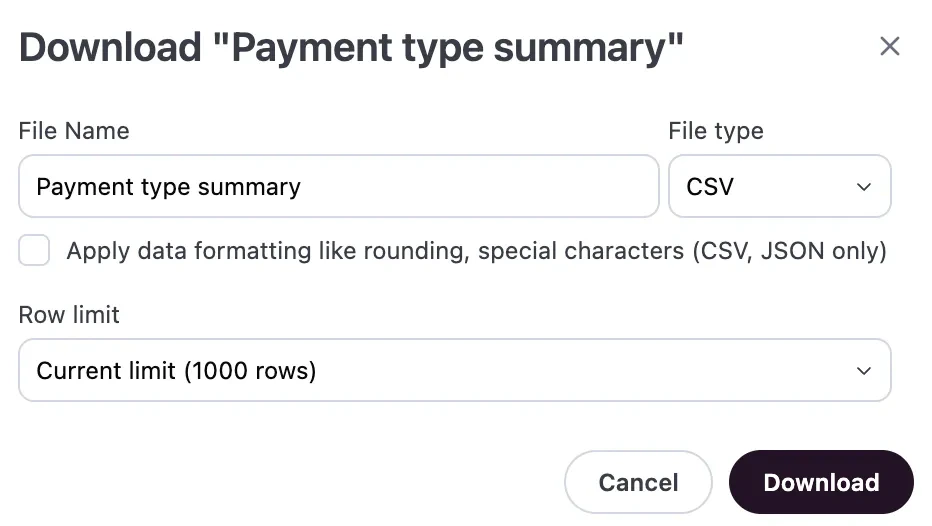 **Two ways to download:**
* **Single tile**: Click the three-dot menu (⋯) on any chart or table
* **Entire dashboard**: Click the download icon at the bottom right of the report
**Format options:** PNG, PDF, XLSX, or CSV
Downloads respect all active filters. Apply filters before downloading to export only the data you need.
### Legacy reports
Most tiles have a download icon to export that section's data.
**Two ways to download:**
* **Single tile**: Click the three-dot menu (⋯) on any chart or table
* **Entire dashboard**: Click the download icon at the bottom right of the report
**Format options:** PNG, PDF, XLSX, or CSV
Downloads respect all active filters. Apply filters before downloading to export only the data you need.
### Legacy reports
Most tiles have a download icon to export that section's data.
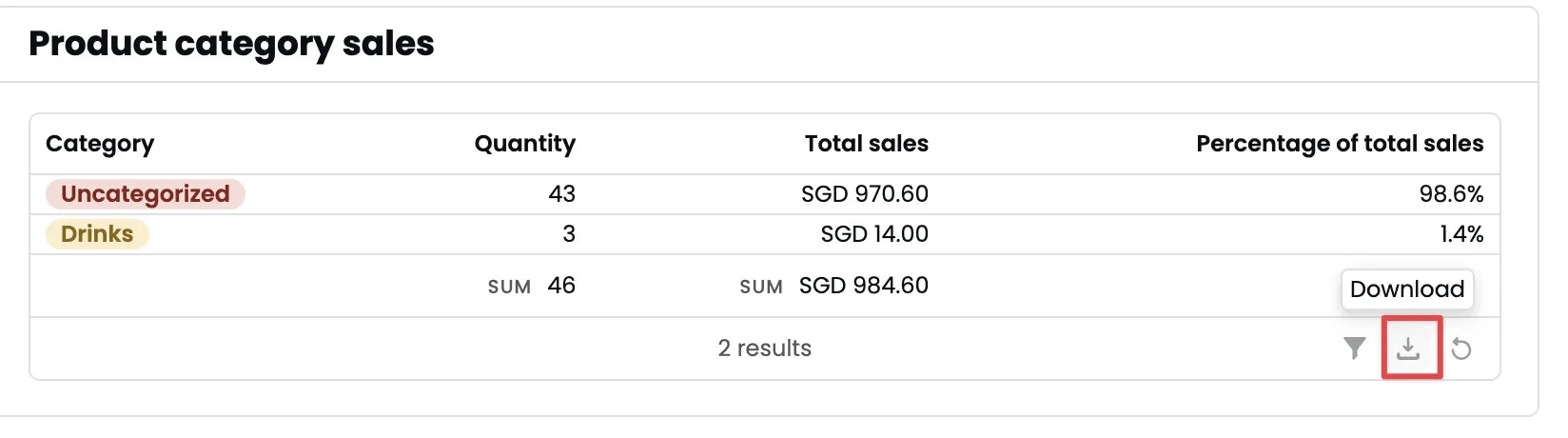 Some reports also have buttons to export the entire report or selected sections to PDF or CSV.
## AI assistant
Only available for analytics reports.
Ask questions about your data using the built-in AI assistant. There are two ways to access it:
Click the AI icon in the bottom right corner to open the dashboard assistant. Select a chart or table, then ask questions about that data.
Some reports also have buttons to export the entire report or selected sections to PDF or CSV.
## AI assistant
Only available for analytics reports.
Ask questions about your data using the built-in AI assistant. There are two ways to access it:
Click the AI icon in the bottom right corner to open the dashboard assistant. Select a chart or table, then ask questions about that data.
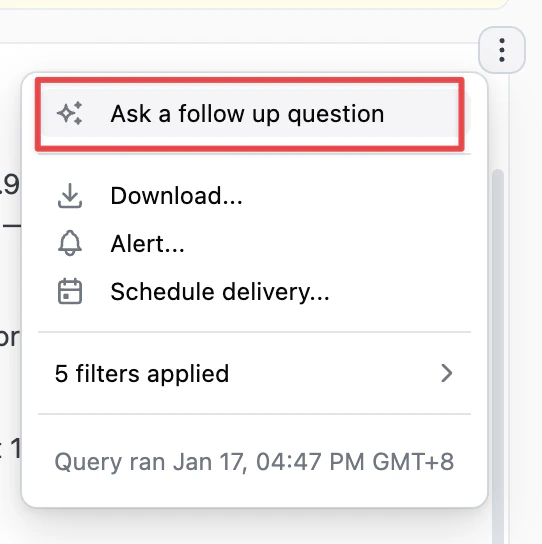
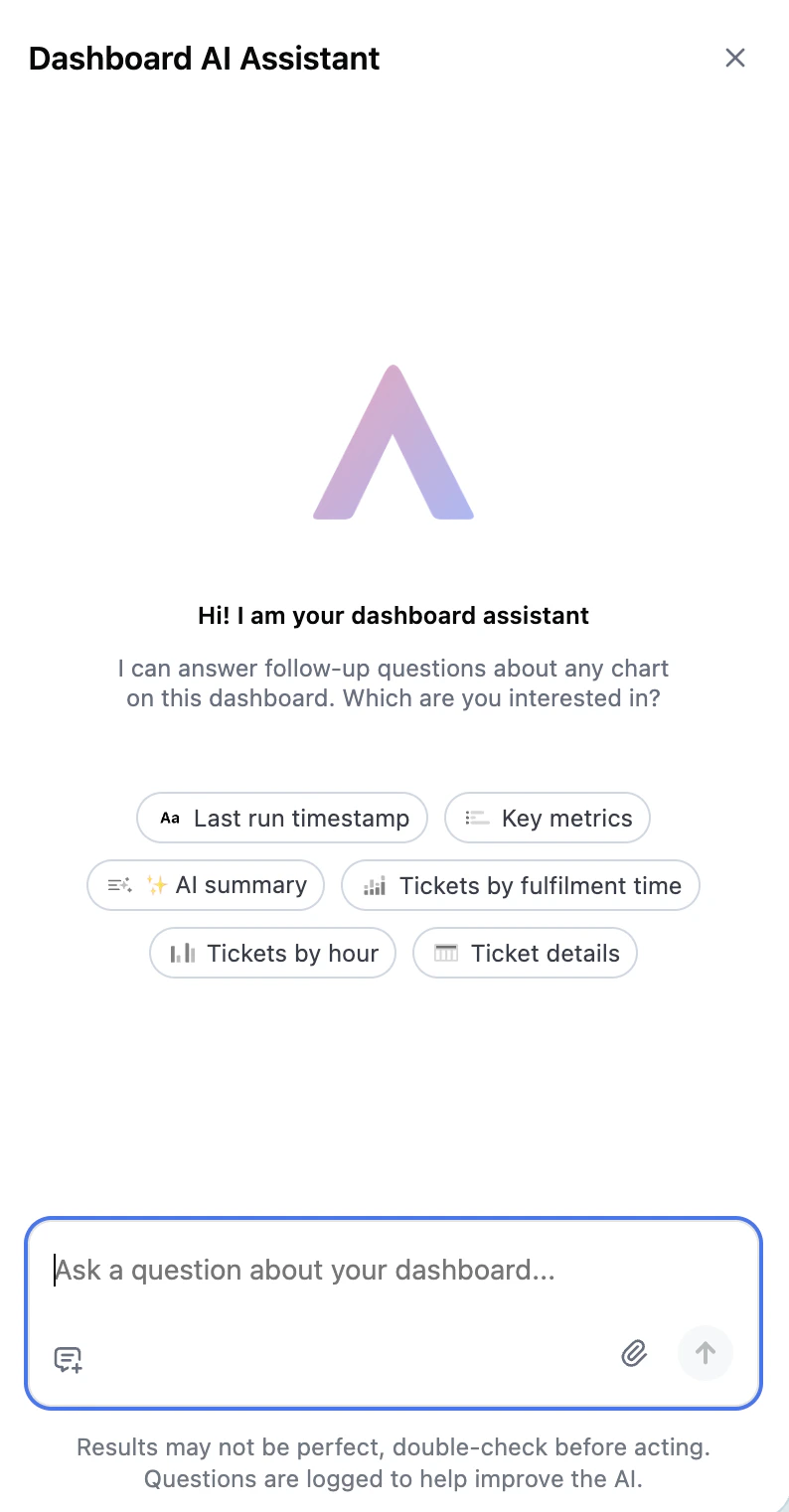 Click the three-dot menu (⋯) on any chart or table and select **Ask a follow up question**. This opens the assistant with that tile's context already loaded.
 AI results may not be perfect. Double-check before acting on insights.
## Scheduled deliveries and alerts
Only available for analytics reports.
Automate report delivery to keep your team informed. There are two options:
* **Schedules** — Deliver reports at specified frequencies (e.g., daily, weekly)
* **Alerts** — Deliver reports only when specific conditions are met
Reports can be delivered via [email](https://docs.omni.co/share/deliveries/email), [SFTP](https://docs.omni.co/share/deliveries/sftp), or [webhooks](https://docs.omni.co/share/deliveries/webhooks).
For setup instructions, click on each of the links above.
AI results may not be perfect. Double-check before acting on insights.
## Scheduled deliveries and alerts
Only available for analytics reports.
Automate report delivery to keep your team informed. There are two options:
* **Schedules** — Deliver reports at specified frequencies (e.g., daily, weekly)
* **Alerts** — Deliver reports only when specific conditions are met
Reports can be delivered via [email](https://docs.omni.co/share/deliveries/email), [SFTP](https://docs.omni.co/share/deliveries/sftp), or [webhooks](https://docs.omni.co/share/deliveries/webhooks).
For setup instructions, click on each of the links above.