> ## Documentation Index
> Fetch the complete documentation index at: https://help.atlas.kitchen/llms.txt
> Use this file to discover all available pages before exploring further.
# Payout report
> Reconcile sales to payouts and trace payouts back to transactions.
**Available for:** Finance Admin
[Go to report →](https://portal.atlas.kitchen/analytics/payout)
## What this report shows
Two reconciliation views: forward (sales → payouts) and backward (payouts → transactions). Use this to verify payouts match expected sales and trace any discrepancies.
Data refreshes hourly. Last refresh time appears at the top.
## Views
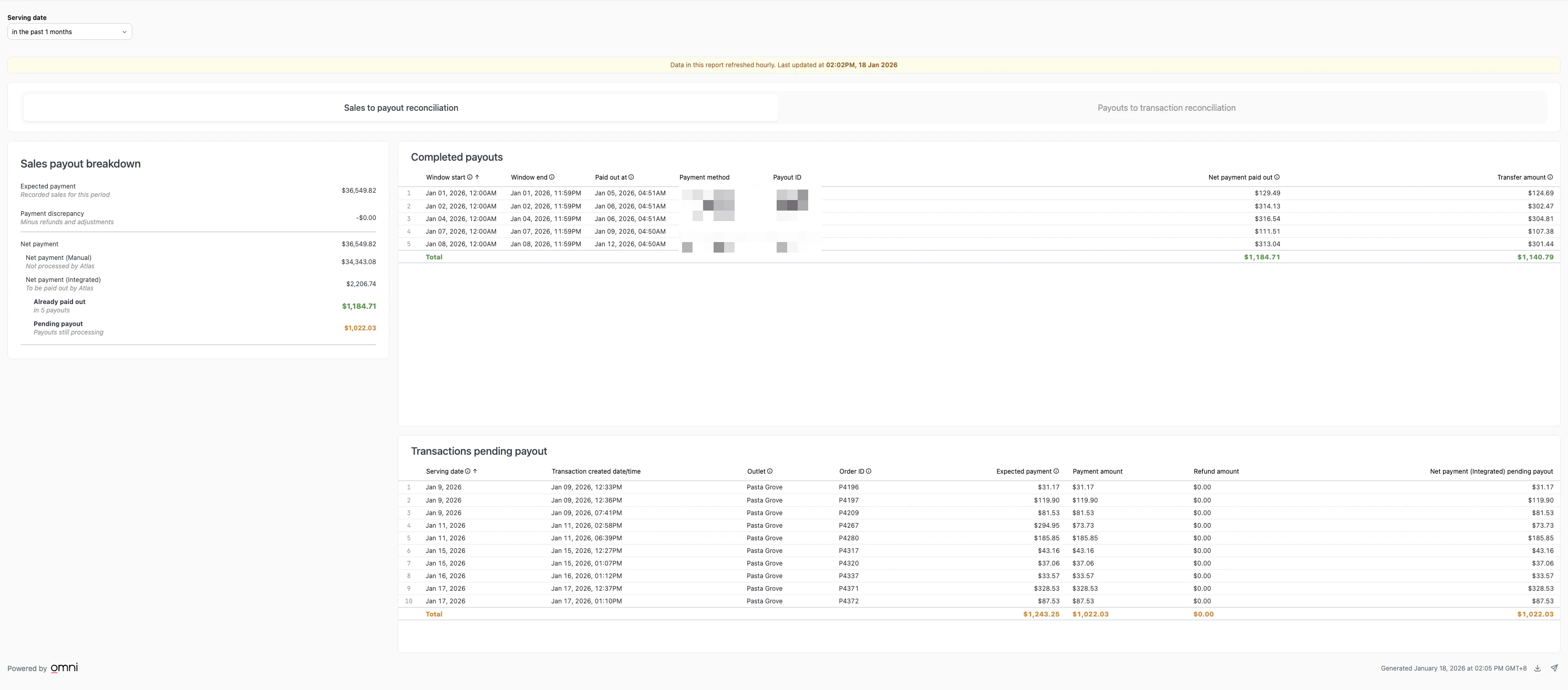
Start from sales for a time period and trace forward to payouts.
 ### Filters
* **Serving date** — Date range for sales.
### Sales payout breakdown
Shows the flow from expected sales to actual payouts:
* **Expected payment** — Recorded sales for this period.
* **Payment discrepancy** — Minus refunds and adjustments.
* **Net payment** — Expected payment after discrepancies.
* **Net payment (Manual)** — Not processed by Atlas.
* **Net payment (Integrated)** — To be paid out by Atlas.
* **Already paid out** — Completed payouts.
* **Pending payout** — Payouts still processing.
### Completed payouts
Payouts that have been processed for the selected period. Shows window start/end, paid out date, payment method, payout ID, net payment paid out, and transfer amount.
### Transactions pending payout
Individual transactions awaiting payout. Shows serving date, transaction date, outlet, order ID, expected payment, payment amount, refund amount, and net payment pending.
Start from payouts and trace backward to the transactions they came from.
### Filters
* **Serving date** — Date range for sales.
### Sales payout breakdown
Shows the flow from expected sales to actual payouts:
* **Expected payment** — Recorded sales for this period.
* **Payment discrepancy** — Minus refunds and adjustments.
* **Net payment** — Expected payment after discrepancies.
* **Net payment (Manual)** — Not processed by Atlas.
* **Net payment (Integrated)** — To be paid out by Atlas.
* **Already paid out** — Completed payouts.
* **Pending payout** — Payouts still processing.
### Completed payouts
Payouts that have been processed for the selected period. Shows window start/end, paid out date, payment method, payout ID, net payment paid out, and transfer amount.
### Transactions pending payout
Individual transactions awaiting payout. Shows serving date, transaction date, outlet, order ID, expected payment, payment amount, refund amount, and net payment pending.
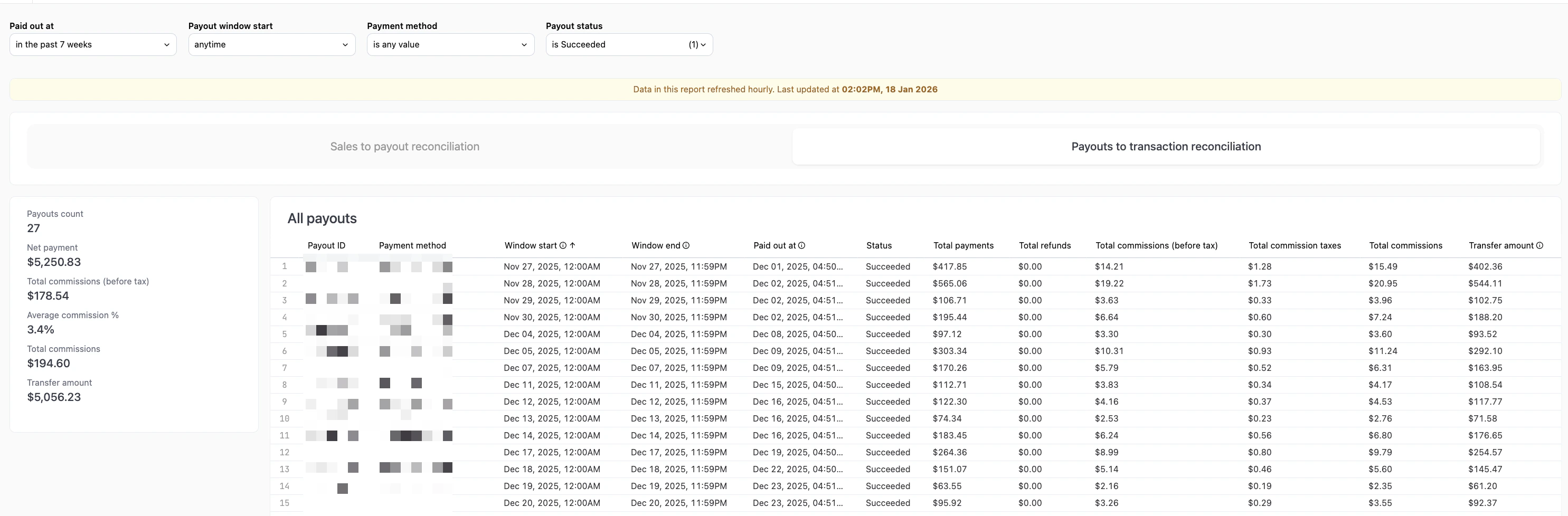
Start from payouts and trace backward to the transactions they came from.
 ### Filters
* **Paid out at** — When the payout was sent.
* **Payout window start** — Start of the payout period.
* **Payment method** — Filter by payment method.
* **Payout status** — Filter by status (Succeeded, etc.).
### Summary metrics
* **Payouts count** — Number of payouts in the filtered period.
* **Net payment** — Total net payment amount.
* **Total payment processing fees (before tax)** — Payment processing fees before tax.
* **Average payment processing fee %** — Average payment processing fee rate.
* **Total payment processing fees** — Total payment processing fees including tax.
* **Transfer amount** — Amount actually transferred.
### All payouts
Complete list of payouts with payout ID, payment method, window start/end, paid out date, status, total payments, refunds, payment processing fees, and transfer amount.
## Single payout view
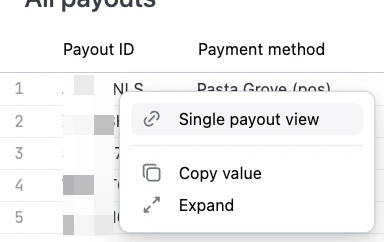
Click any payout ID in the All payouts table, then select **Single payout view** to see the specific transactions that make up that payout.
### Filters
* **Paid out at** — When the payout was sent.
* **Payout window start** — Start of the payout period.
* **Payment method** — Filter by payment method.
* **Payout status** — Filter by status (Succeeded, etc.).
### Summary metrics
* **Payouts count** — Number of payouts in the filtered period.
* **Net payment** — Total net payment amount.
* **Total payment processing fees (before tax)** — Payment processing fees before tax.
* **Average payment processing fee %** — Average payment processing fee rate.
* **Total payment processing fees** — Total payment processing fees including tax.
* **Transfer amount** — Amount actually transferred.
### All payouts
Complete list of payouts with payout ID, payment method, window start/end, paid out date, status, total payments, refunds, payment processing fees, and transfer amount.
## Single payout view
Click any payout ID in the All payouts table, then select **Single payout view** to see the specific transactions that make up that payout.
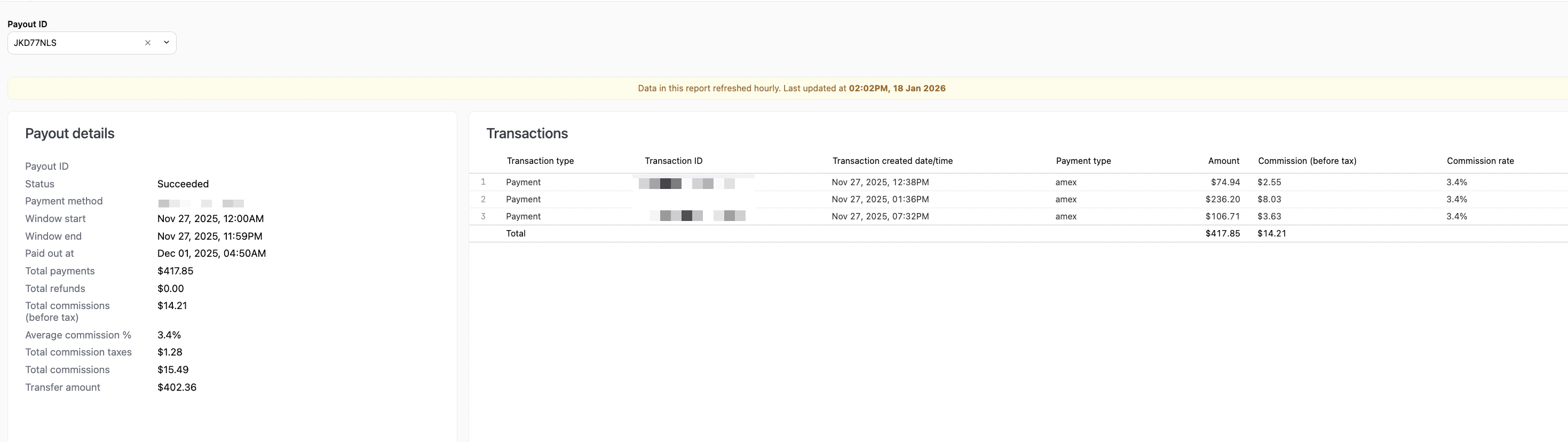 The single payout view shows:
**Payout details:**
* Payout ID, status, payment method
* Window start and end dates
* Paid out date
* Total payments, refunds, payment processing fees
* Transfer amount
**Transactions:**
* Individual transactions included in this payout
* Transaction type, ID, date/time, payment type
* Amount, payment processing fee, and payment processing fee rate per transaction
## Interactive features
* **Drill down** — Click any metric or table row to see underlying data.
* **Download** — Export data from any chart or table.
* **Copy values** — Click any metric to copy to clipboard.
* **AI assistant** — Ask questions about your data. See [Using reports](/reports/using-reports#ai-assistant).
The single payout view shows:
**Payout details:**
* Payout ID, status, payment method
* Window start and end dates
* Paid out date
* Total payments, refunds, payment processing fees
* Transfer amount
**Transactions:**
* Individual transactions included in this payout
* Transaction type, ID, date/time, payment type
* Amount, payment processing fee, and payment processing fee rate per transaction
## Interactive features
* **Drill down** — Click any metric or table row to see underlying data.
* **Download** — Export data from any chart or table.
* **Copy values** — Click any metric to copy to clipboard.
* **AI assistant** — Ask questions about your data. See [Using reports](/reports/using-reports#ai-assistant).