> ## Documentation Index
> Fetch the complete documentation index at: https://help.atlas.kitchen/llms.txt
> Use this file to discover all available pages before exploring further.
# Surcharges
> Add a temporary fee to orders for a specific period, outlet, or fulfilment type, as a fixed amount or a percentage.
**Who is this article for?**
* Atlas users with Admin permissions.
* Merchants adding a temporary charge for holidays, weekends, or peak periods.
A surcharge adds an extra charge to orders during a period you choose. You decide whether it is a **fixed amount** or a **percentage**, and which **outlet**, **brand**, and **fulfilment types** it applies to. While it is active, it is added automatically, and customers see it at checkout before they pay.
## Add a surcharge
In the left sidebar, go to **Settings → Surcharges**. Existing surcharges are listed here.
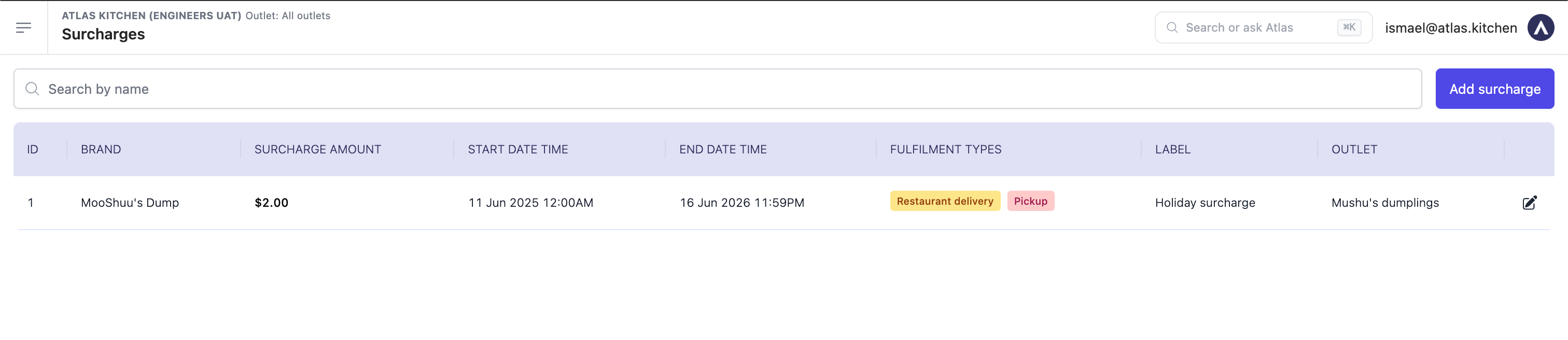 Find the **Add surcharge** button in the top-right corner.
* **Label** — what customers see at checkout (e.g. "Holiday surcharge").
* **Value type** — choose **Fixed amount** or **Percentage**.
* **Surcharge amount** — the dollar amount (fixed) or the percentage.
* **Start date time** and **End date time** — when the surcharge is active.
* **Outlet** — which outlet it applies to.
* **Brand** — which brand it applies to.
* **Fulfilment types** — which order types it applies to (e.g. Delivery, Pickup).
Find the **Add surcharge** button in the top-right corner.
* **Label** — what customers see at checkout (e.g. "Holiday surcharge").
* **Value type** — choose **Fixed amount** or **Percentage**.
* **Surcharge amount** — the dollar amount (fixed) or the percentage.
* **Start date time** and **End date time** — when the surcharge is active.
* **Outlet** — which outlet it applies to.
* **Brand** — which brand it applies to.
* **Fulfilment types** — which order types it applies to (e.g. Delivery, Pickup).
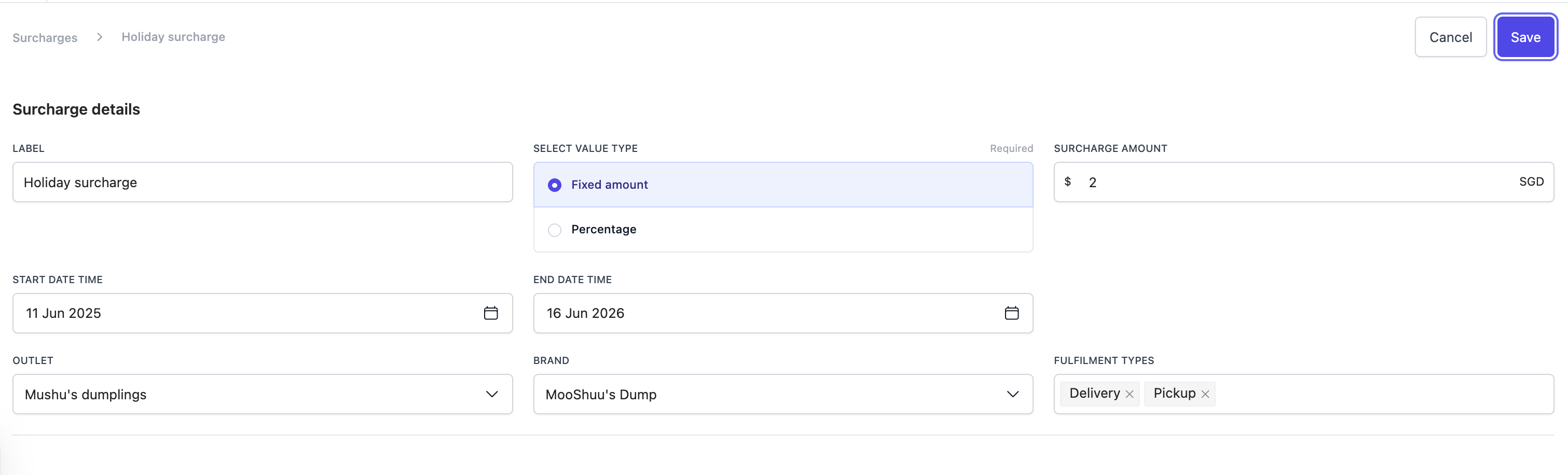 Click **Save**.
## What should happen
* The surcharge appears in the Surcharges list.
* While it is active, it is added automatically to orders that match the outlet, brand, and fulfilment types you set.
* Customers see the label and amount on the checkout screen before they pay.
## Next steps
* [Delivery settings, fees and minimum orders](/merchant-portal/delivery-fee-minimum-order) — configure delivery pricing and order rules.
Click **Save**.
## What should happen
* The surcharge appears in the Surcharges list.
* While it is active, it is added automatically to orders that match the outlet, brand, and fulfilment types you set.
* Customers see the label and amount on the checkout screen before they pay.
## Next steps
* [Delivery settings, fees and minimum orders](/merchant-portal/delivery-fee-minimum-order) — configure delivery pricing and order rules.