> ## Documentation Index
> Fetch the complete documentation index at: https://help.atlas.kitchen/llms.txt
> Use this file to discover all available pages before exploring further.
# How to use the Stocks page
> Manage restaurant stock in Atlas by blocking items, setting quantities, and syncing availability across all channels including aggregators.
Who is this guide for?
* Atlas users with any permissions. Set permissions from **Settings > Team members**.
* Users managing orders from Atlas POS, Scan to Order, Kiosk, Online, or Aggregator platforms.
## Before you begin
From Atlas you can handle all your restaurant stocks in one place, and block or 86 products to avoid operational issues. The Stocks page works across all Atlas products:
* Atlas POS
* Atlas Online
* Atlas Scan to Order
* Atlas Kiosk
* Atlas Aggregator (integrating with all your 3rd party platform stocks)
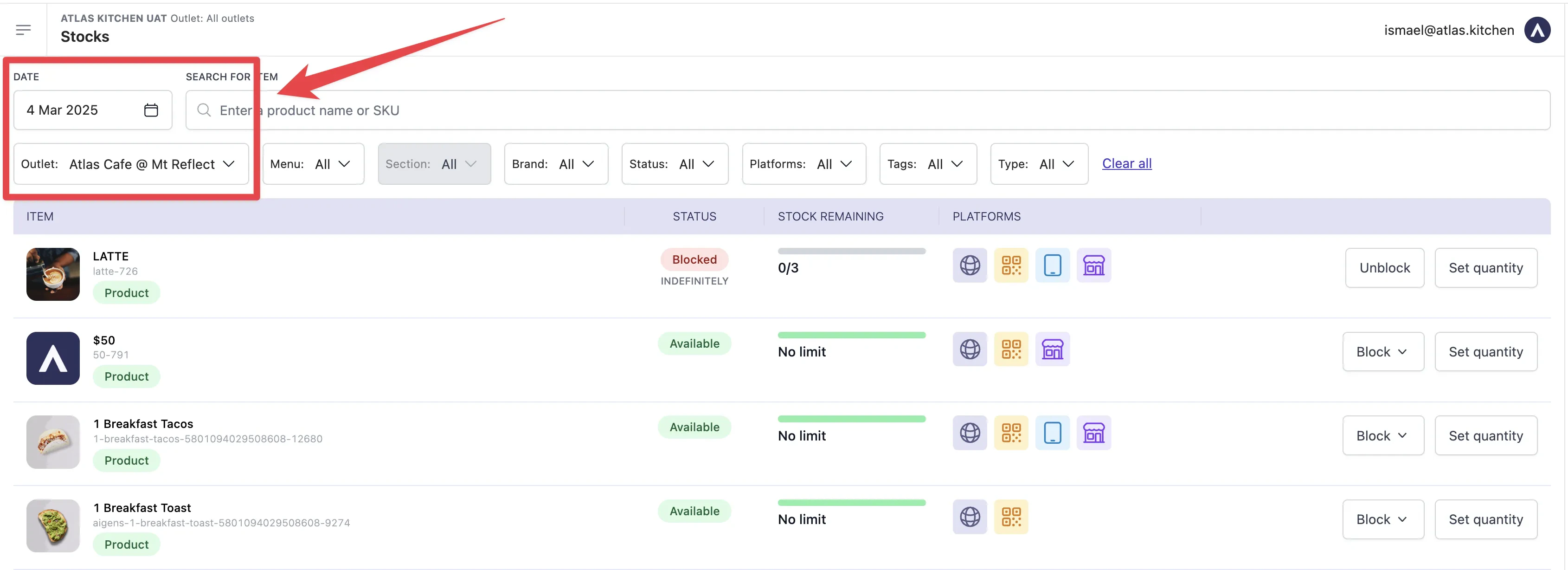 If you have multiple outlets, please make sure to be in the correct outlet and date. This is automatically set to the current date at your default outlet.
## How to block and unblock items
Follow these steps to block or unblock items in the Stocks page to manage availability and prevent operational issues:
If you have multiple outlets, please make sure to be in the correct outlet and date. This is automatically set to the current date at your default outlet.
## How to block and unblock items
Follow these steps to block or unblock items in the Stocks page to manage availability and prevent operational issues:
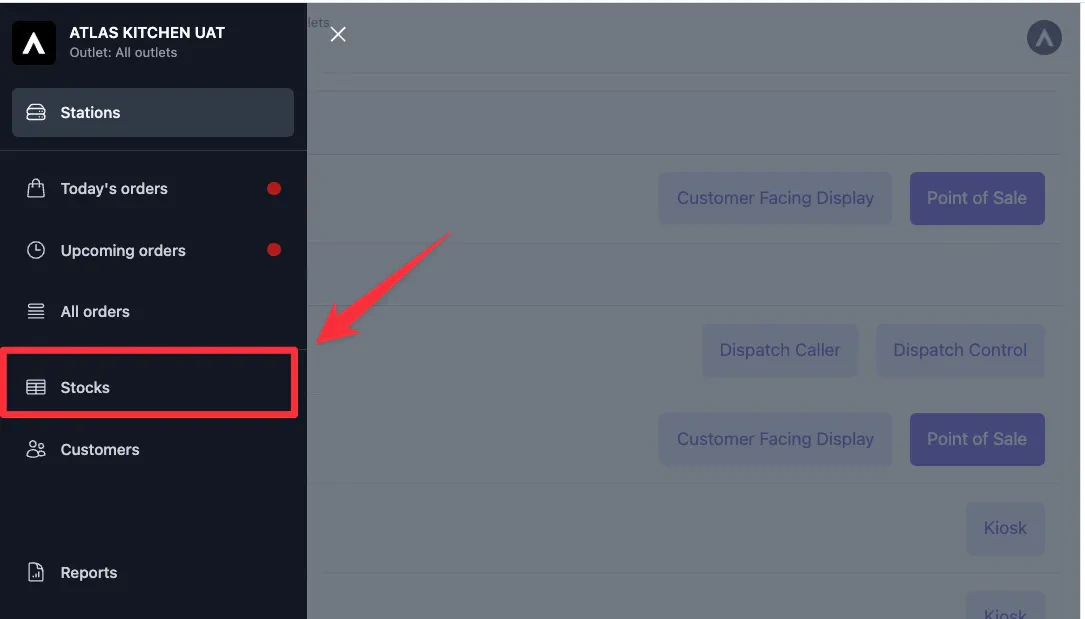 * To use the "Sections" filter, first select a menu from the "Menu" filter.
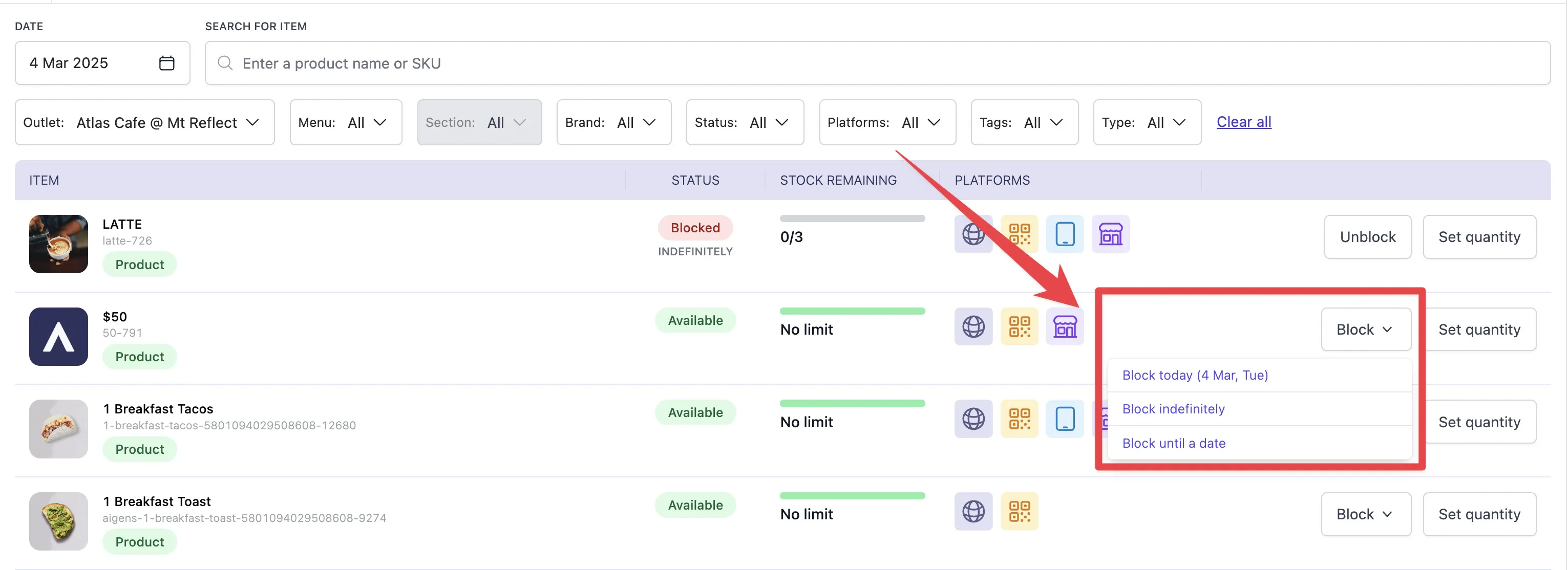 Items blocked today or until a date will remain blocked for that period, and will unblock automatically after that. For items you have blocked indefinitely, tap "Unblock" to manually make them available again.
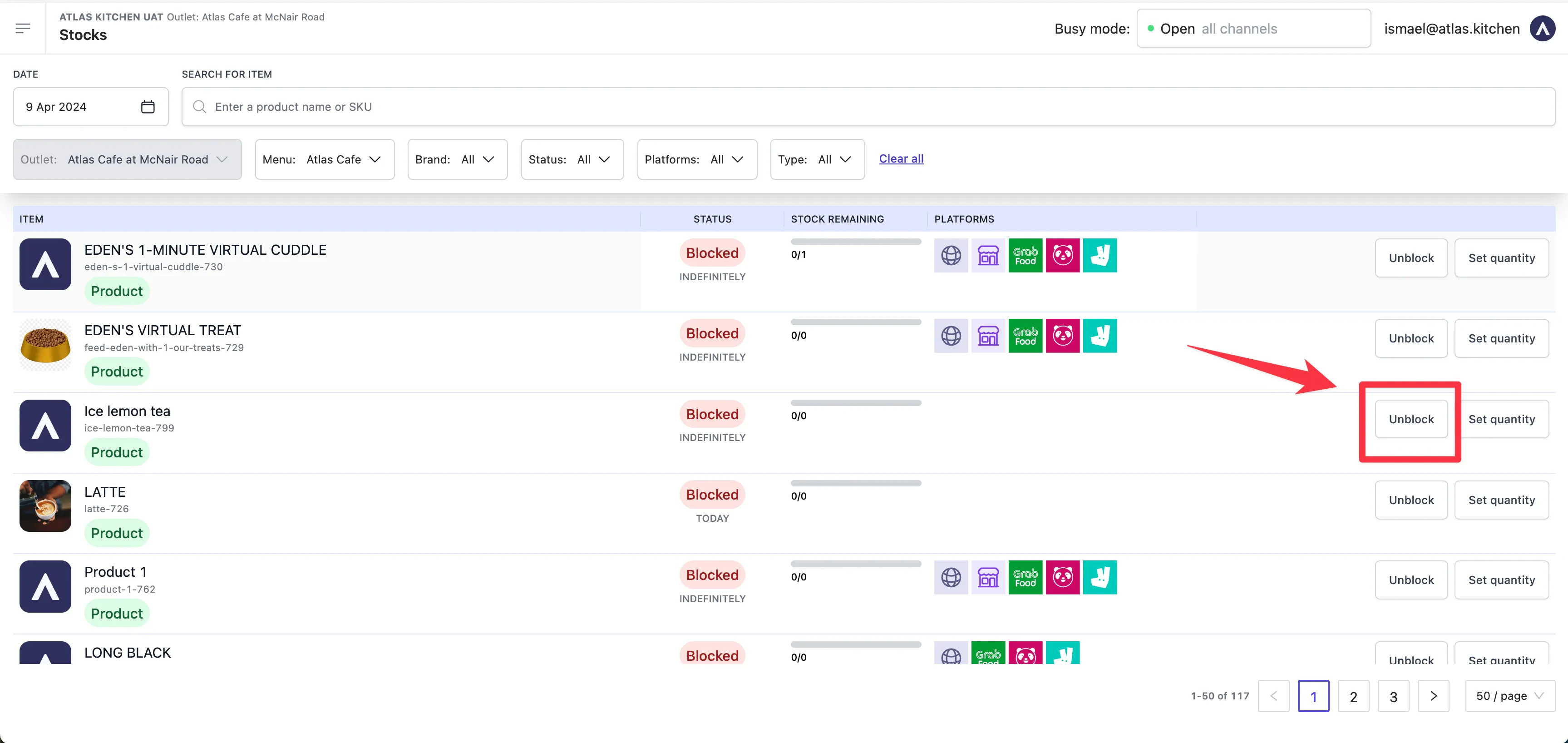 ## How to set product quantities
Use these steps to set and update product quantities, ensuring accurate stock tracking and automatic deductions:
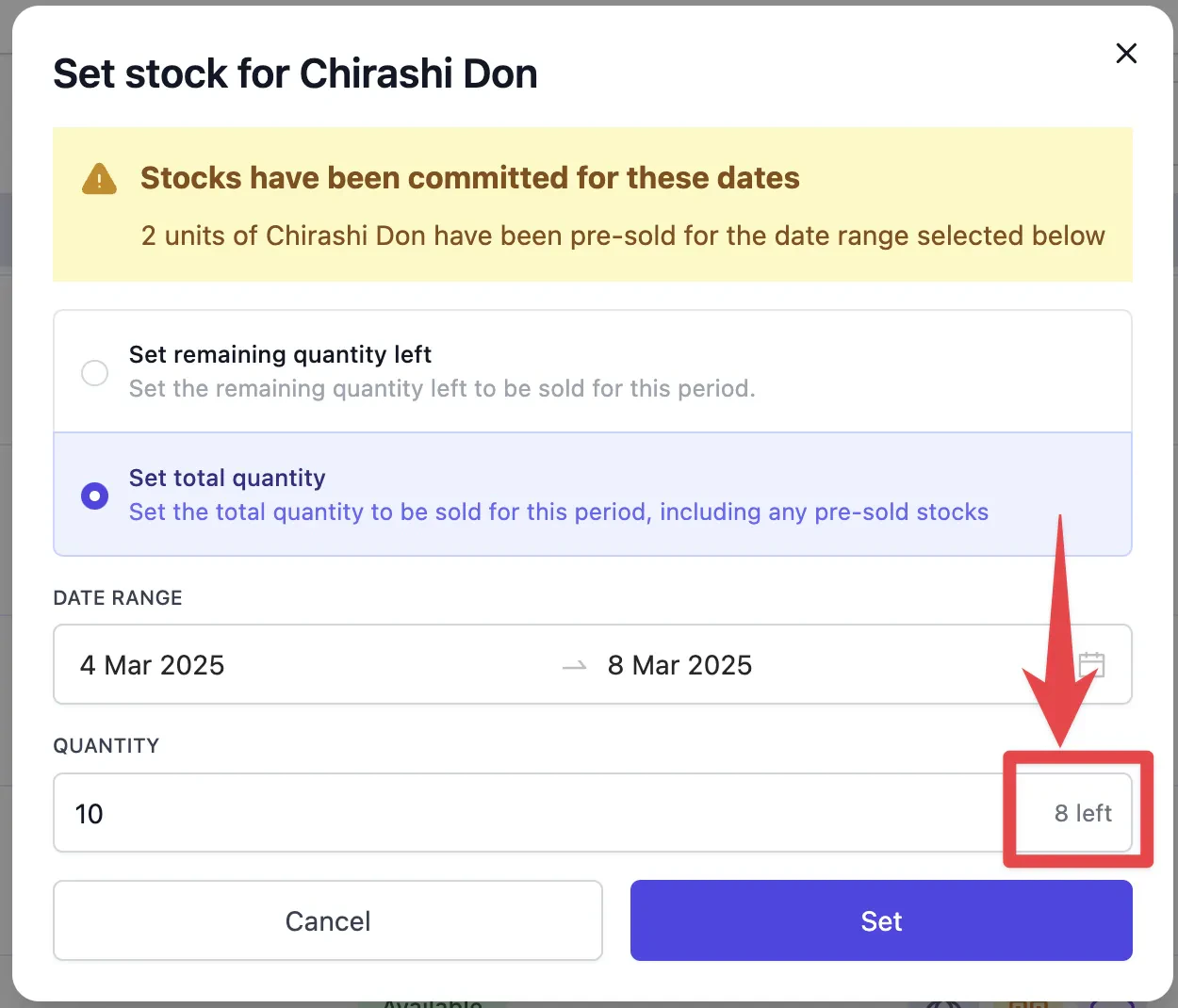
* "Set remaining quantity left", sets the remaining quantity left to be sold for this period. It does not take into account any existing pre-orders.
* "Set total quantity", sets the total quantity to be sold for this period, including any pre-sold stocks already booked. You will see a remaining quantity left calculation too.
## How to set product quantities
Use these steps to set and update product quantities, ensuring accurate stock tracking and automatic deductions:
* "Set remaining quantity left", sets the remaining quantity left to be sold for this period. It does not take into account any existing pre-orders.
* "Set total quantity", sets the total quantity to be sold for this period, including any pre-sold stocks already booked. You will see a remaining quantity left calculation too.
 Your quantities will now deduct automatically after each order, and once they reach 0, the item will become "Blocked".
If you need to manually update a quantity in the meantime, follow the same steps above, but tap on "Update quantity" on step 3 instead.
## Setting quantities for GrabFood, Foodpanda and Deliveroo
* Even if you set quantities on Atlas for these integrated platforms, you might still receive an order with more items than you had left.
* These platforms don't read from Atlas what quantity is left, and will assume you always have stock, unless the item is "Blocked".
* If an order with an item quantity higher than the current one comes from one of these aggregators, Atlas will block the item immediately.
* This is a rare situation that only happens for these three integrated platforms with quantities set.
## Blocking items for GrabFood, Foodpanda and Deliveroo
**Always block items from Atlas, not from the aggregator platforms.** Blocking items directly on GrabFood, Foodpanda, or Deliveroo can break the sync and stop orders from reaching Atlas.
In rare situations, you may still receive an order for a blocked item. This can happen when:
* The Aggregator platform assigns a driver to an order placed before you blocked the item
* During busy times, there's a delay between when customers order and when the platform sends the order to Atlas
* A customer ordered the item 1 hour ago when it was available, but the order only reaches you after you've blocked it
If this happens, check that the item is blocked on your Aggregator platform. If it's not blocked there, contact our team via WhatsApp.
## What should happen
After blocking or setting quantities:
* **Blocked items**: The item moves to the "Blocked" section at the top of the Stocks page
* **Items with quantities**: The remaining quantity displays next to the item name and decreases with each order
* **When quantity reaches 0**: The item automatically becomes blocked
* **Across channels**: Changes sync to Atlas POS, Online, Scan to Order, and Kiosk
* **Aggregator platforms**: Changes sync to GrabFood, Foodpanda, and Deliveroo (may take a few moments)
## If it doesn't work
1. Refresh the Stocks page and verify the item shows as "Blocked"
2. On POS: Tap the refresh button or close and reopen the station
3. On Online/Kiosk/Scan to Order: Clear the browser cache and reload
4. Wait 30 seconds — changes may take a moment to sync
1. Check that the item is blocked on the aggregator platform directly
2. This can happen when customers placed orders before the block synced
3. The delay between order placement and delivery notification can be 30-60 minutes
4. If blocks aren't syncing at all, contact support via WhatsApp
1. Verify you set the quantity for the correct date range
2. Check that you're viewing the correct outlet and date on the Stocks page
3. Refresh the page to see the latest quantity
4. For aggregator orders: Quantities may not sync perfectly — see the note above about quantity limitations
1. Use the search bar to search by item name
2. Check the Menu filter — the item may be in a different menu
3. Check the Sections filter — select the correct section after choosing a menu
4. If the item is a modifier, it may not appear in the Stocks page — contact support
## Next steps
* [Create and manage menus](/menu-builder/create-menus) — Add or remove items from your menu
* [View today's orders](/merchant-portal/admin-orders) — Check incoming orders
* [Set operating hours](/merchant-portal/operating-hours) — Control when customers can order
Your quantities will now deduct automatically after each order, and once they reach 0, the item will become "Blocked".
If you need to manually update a quantity in the meantime, follow the same steps above, but tap on "Update quantity" on step 3 instead.
## Setting quantities for GrabFood, Foodpanda and Deliveroo
* Even if you set quantities on Atlas for these integrated platforms, you might still receive an order with more items than you had left.
* These platforms don't read from Atlas what quantity is left, and will assume you always have stock, unless the item is "Blocked".
* If an order with an item quantity higher than the current one comes from one of these aggregators, Atlas will block the item immediately.
* This is a rare situation that only happens for these three integrated platforms with quantities set.
## Blocking items for GrabFood, Foodpanda and Deliveroo
**Always block items from Atlas, not from the aggregator platforms.** Blocking items directly on GrabFood, Foodpanda, or Deliveroo can break the sync and stop orders from reaching Atlas.
In rare situations, you may still receive an order for a blocked item. This can happen when:
* The Aggregator platform assigns a driver to an order placed before you blocked the item
* During busy times, there's a delay between when customers order and when the platform sends the order to Atlas
* A customer ordered the item 1 hour ago when it was available, but the order only reaches you after you've blocked it
If this happens, check that the item is blocked on your Aggregator platform. If it's not blocked there, contact our team via WhatsApp.
## What should happen
After blocking or setting quantities:
* **Blocked items**: The item moves to the "Blocked" section at the top of the Stocks page
* **Items with quantities**: The remaining quantity displays next to the item name and decreases with each order
* **When quantity reaches 0**: The item automatically becomes blocked
* **Across channels**: Changes sync to Atlas POS, Online, Scan to Order, and Kiosk
* **Aggregator platforms**: Changes sync to GrabFood, Foodpanda, and Deliveroo (may take a few moments)
## If it doesn't work
1. Refresh the Stocks page and verify the item shows as "Blocked"
2. On POS: Tap the refresh button or close and reopen the station
3. On Online/Kiosk/Scan to Order: Clear the browser cache and reload
4. Wait 30 seconds — changes may take a moment to sync
1. Check that the item is blocked on the aggregator platform directly
2. This can happen when customers placed orders before the block synced
3. The delay between order placement and delivery notification can be 30-60 minutes
4. If blocks aren't syncing at all, contact support via WhatsApp
1. Verify you set the quantity for the correct date range
2. Check that you're viewing the correct outlet and date on the Stocks page
3. Refresh the page to see the latest quantity
4. For aggregator orders: Quantities may not sync perfectly — see the note above about quantity limitations
1. Use the search bar to search by item name
2. Check the Menu filter — the item may be in a different menu
3. Check the Sections filter — select the correct section after choosing a menu
4. If the item is a modifier, it may not appear in the Stocks page — contact support
## Next steps
* [Create and manage menus](/menu-builder/create-menus) — Add or remove items from your menu
* [View today's orders](/merchant-portal/admin-orders) — Check incoming orders
* [Set operating hours](/merchant-portal/operating-hours) — Control when customers can order