> ## Documentation Index
> Fetch the complete documentation index at: https://help.atlas.kitchen/llms.txt
> Use this file to discover all available pages before exploring further.
# Add operating hours and special hours
> Set up regular restaurant hours and special hours for holidays. Control when customers can order for dine-in, pickup, and delivery across Atlas channels.
**Who is this article for?**
* Atlas users with Manager or above permissions. Set permissions from **Settings > Team members**.
* Users managing menus for Atlas POS, Scan to Order, Kiosk, Online, or Aggregator platforms.
## Before you begin
Operating hours are your restaurant's regular opening hours and are synced across all your integrated Atlas channels.
Special hours are used when your regular hours are affected for a day—like on public holidays or special occasions.
Note: For third-party platforms like GrabFood, Deliveroo, or Foodpanda, you'll still need to manually update operating and special hours in their respective restaurant portals.
## Add operation hours
Set up your restaurant's regular operating hours so customers know when you're open for Dine-in, Pickup, or Delivery. You can add multiple time ranges for each day and preview how they appear to diners.
Follow these steps to add operating hours:
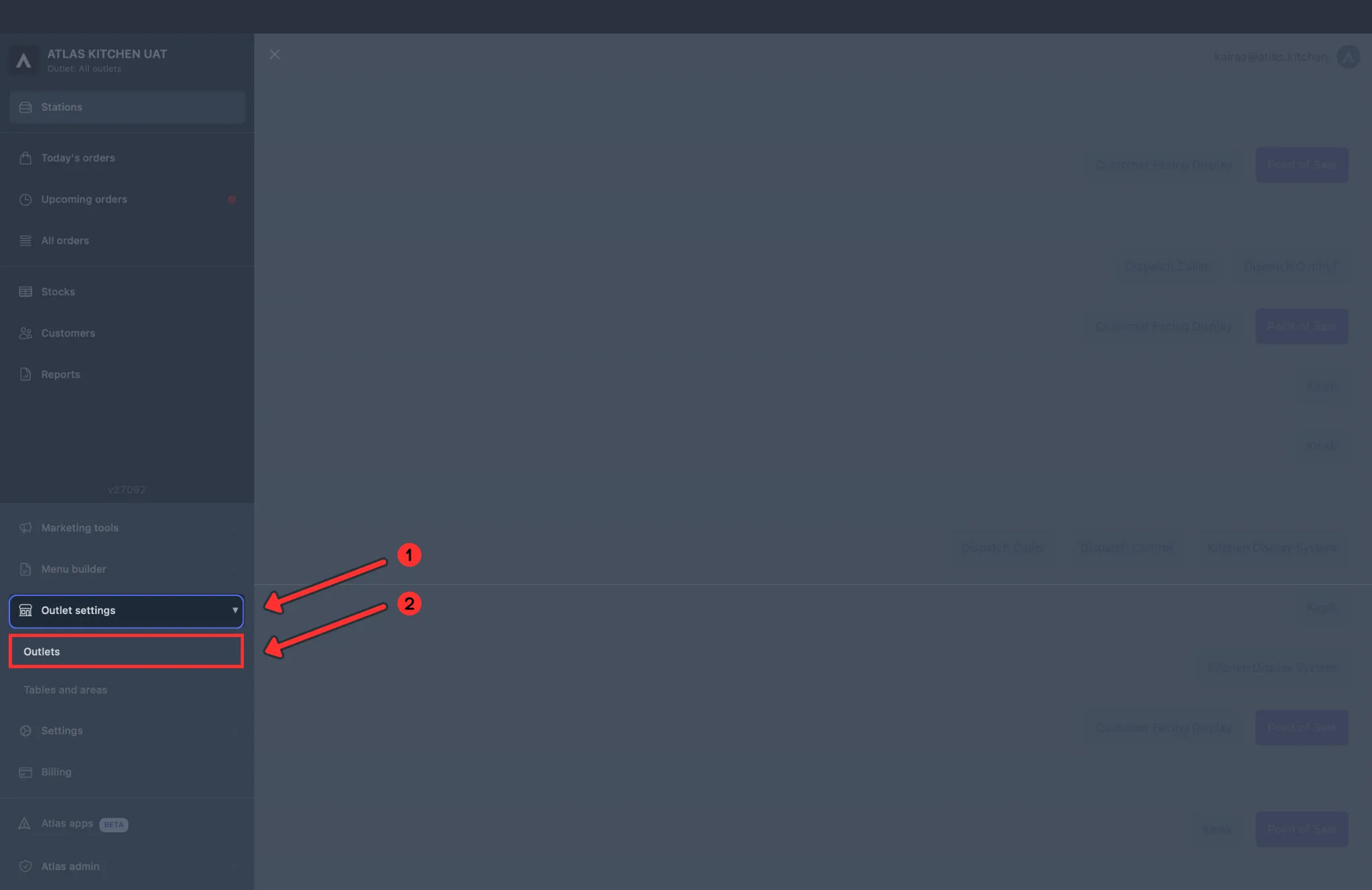
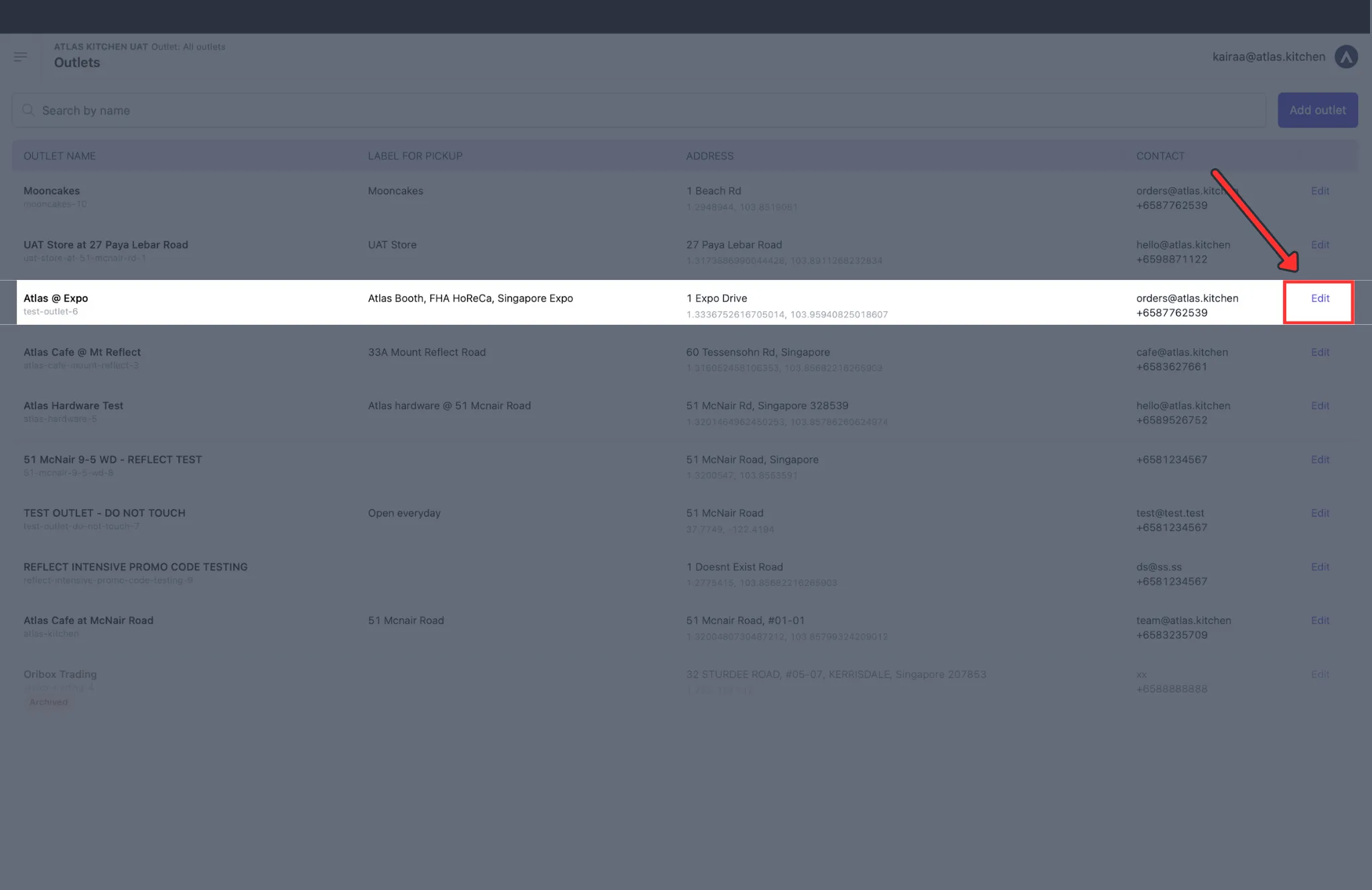
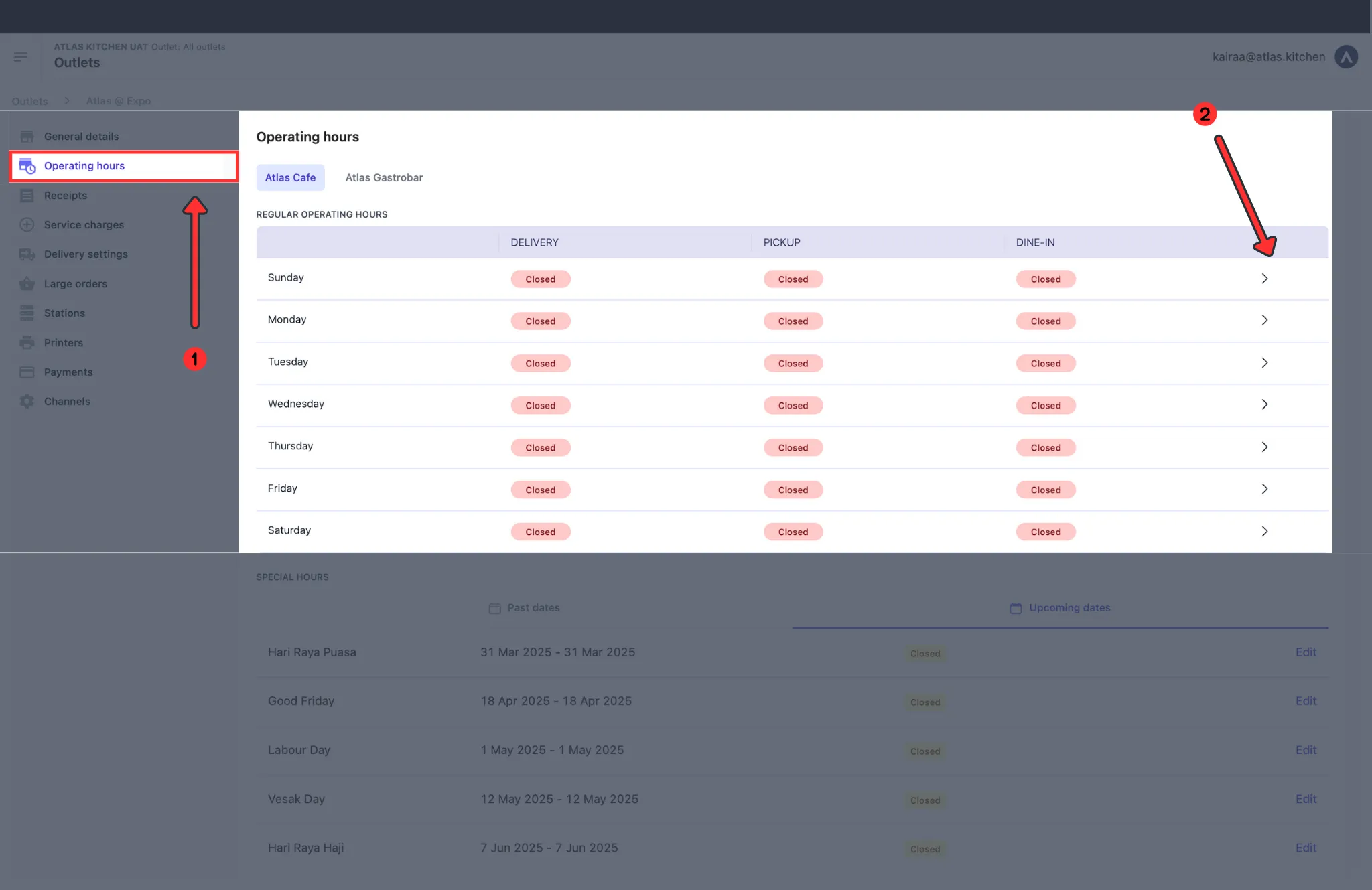
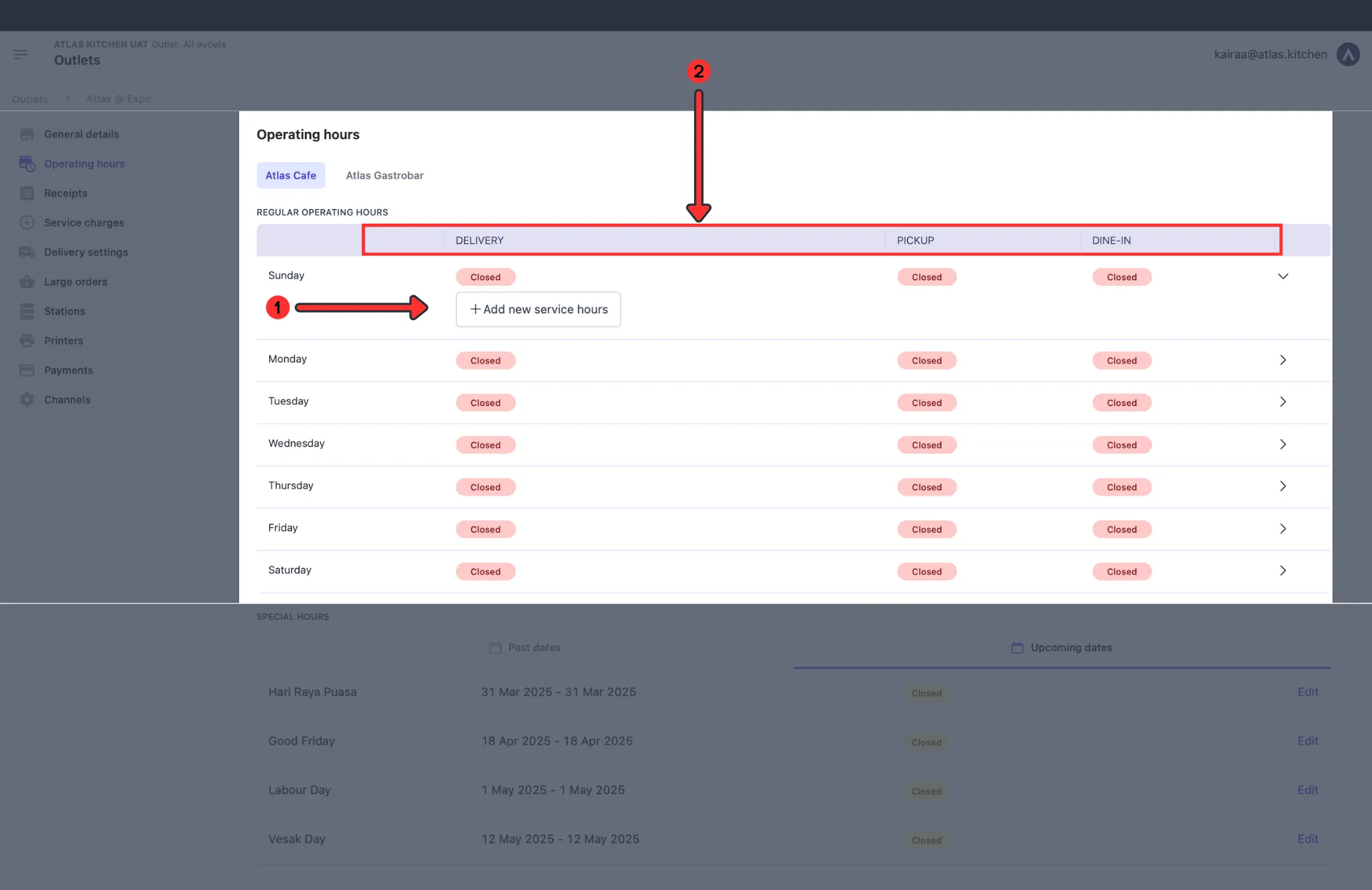
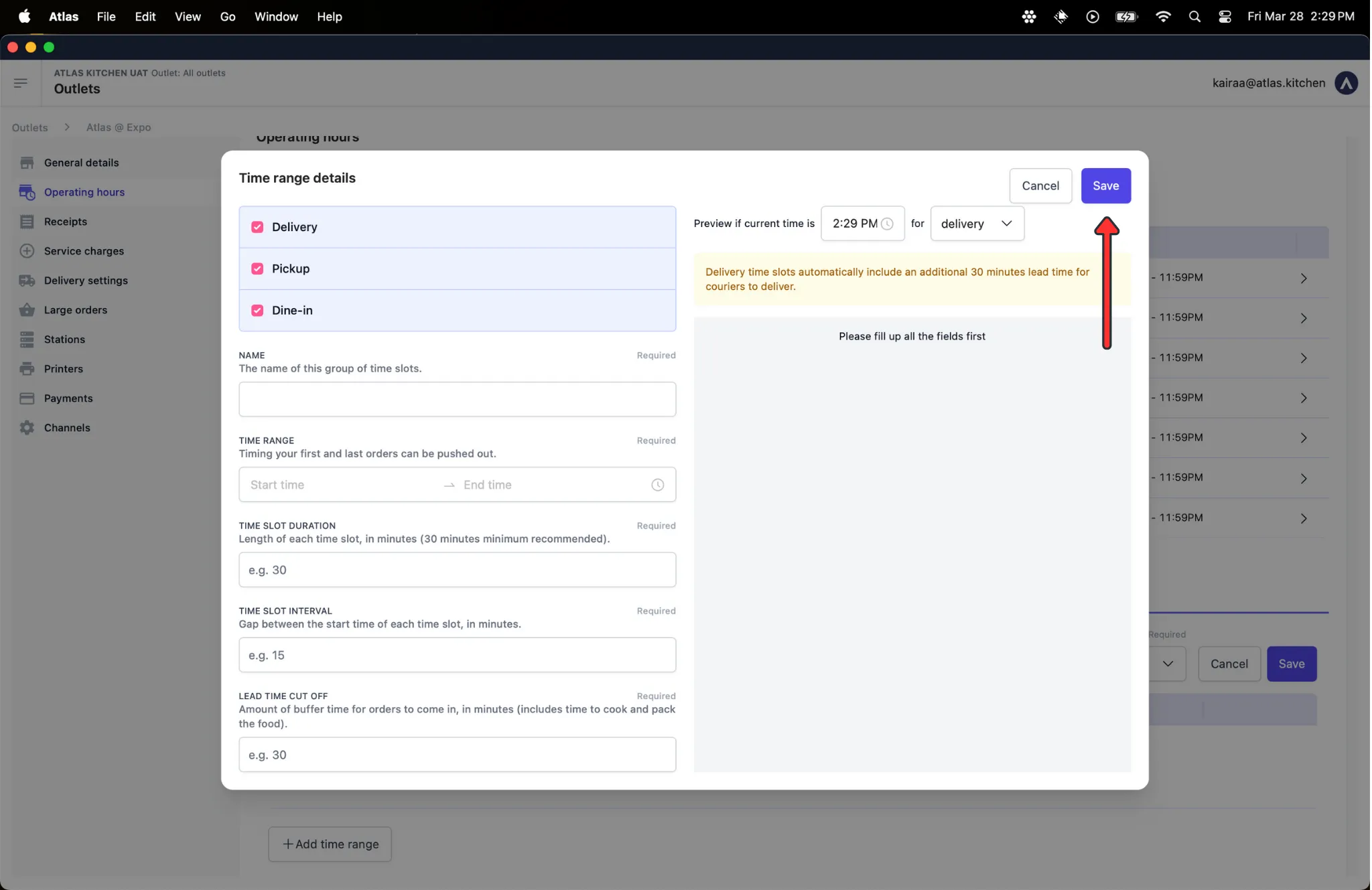
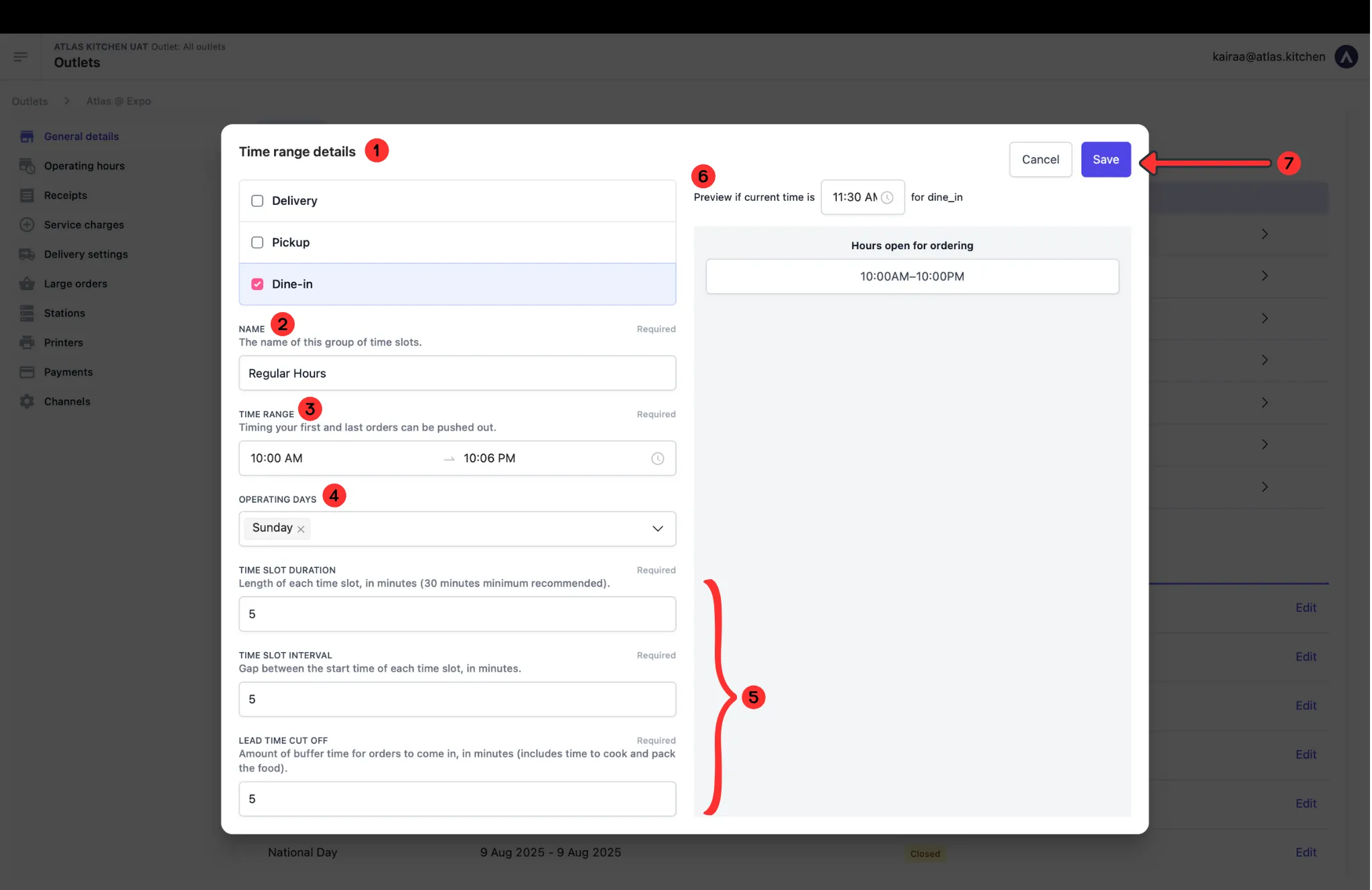 * **Time range details** : Tick the option you wish to adjust the operation hours (Dine-in, Pickup, Delivery) - can tick multiple
* **Name**: Give a name for your time slots. (Regular, Lunch, Dinner etc)
* **Time range**: Select the opening and closing time
* **Operating days**: You may choose more than days if you wish the same time set to be applied to multiple days
* **Time slot adjustments**
* **Preview**: This will show how your customers view your operation hours. You may need to adjust 3 and 5 to get the correct timing.
**Extra note:** If your restaurant closes in the middle of the day and resume operation in the evening, you can tap on **"Add new service hours"** after above step is done to add another time slot.
## Edit operation hours
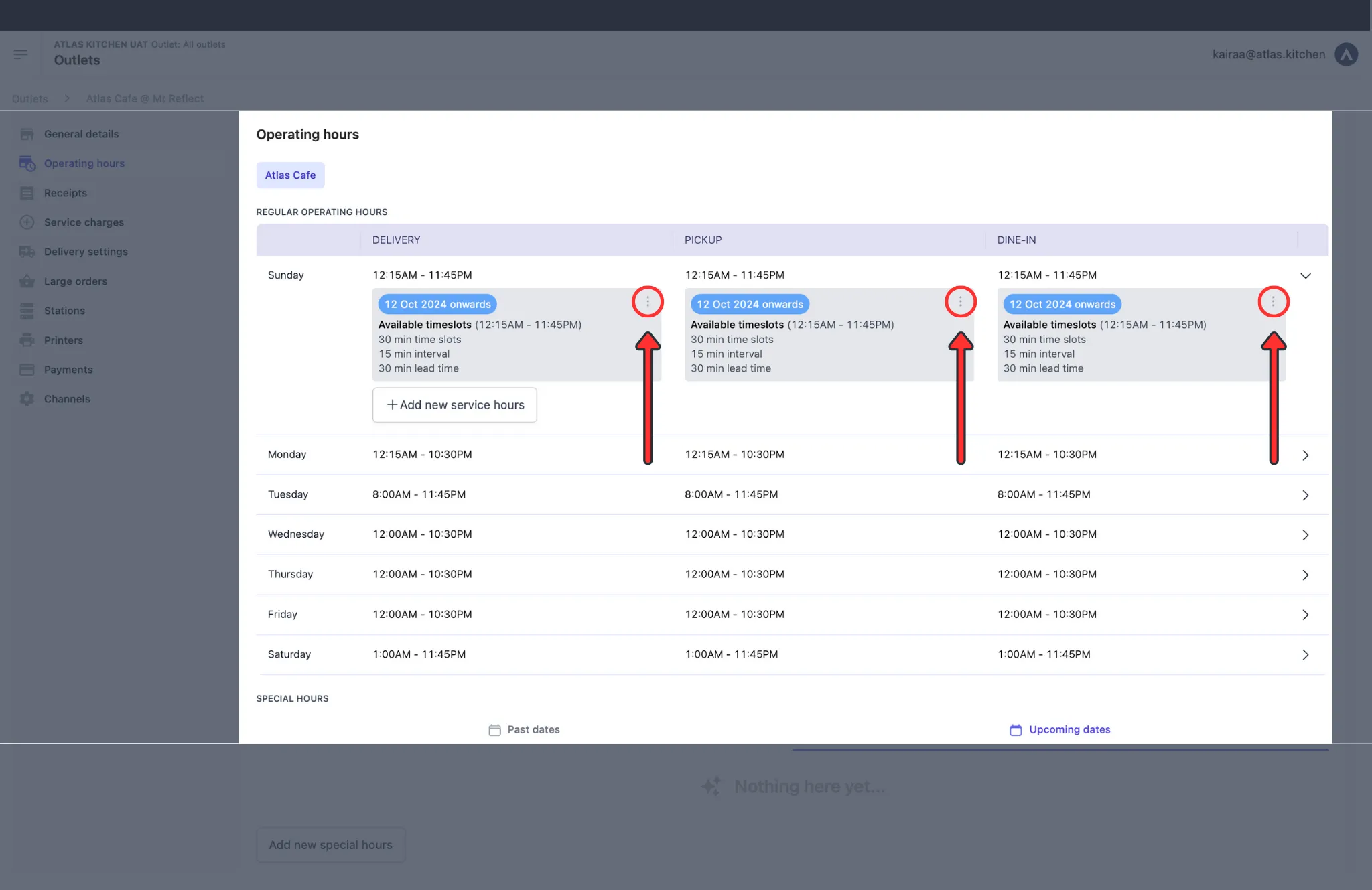
Update your regular operating hours whenever your schedule changes. You can easily adjust or remove time slots for Dine In, Pickup, or Delivery.
To edit existing operating hours, follow these steps:
* **Time range details** : Tick the option you wish to adjust the operation hours (Dine-in, Pickup, Delivery) - can tick multiple
* **Name**: Give a name for your time slots. (Regular, Lunch, Dinner etc)
* **Time range**: Select the opening and closing time
* **Operating days**: You may choose more than days if you wish the same time set to be applied to multiple days
* **Time slot adjustments**
* **Preview**: This will show how your customers view your operation hours. You may need to adjust 3 and 5 to get the correct timing.
**Extra note:** If your restaurant closes in the middle of the day and resume operation in the evening, you can tap on **"Add new service hours"** after above step is done to add another time slot.
## Edit operation hours
Update your regular operating hours whenever your schedule changes. You can easily adjust or remove time slots for Dine In, Pickup, or Delivery.
To edit existing operating hours, follow these steps:
 ## Add special hours
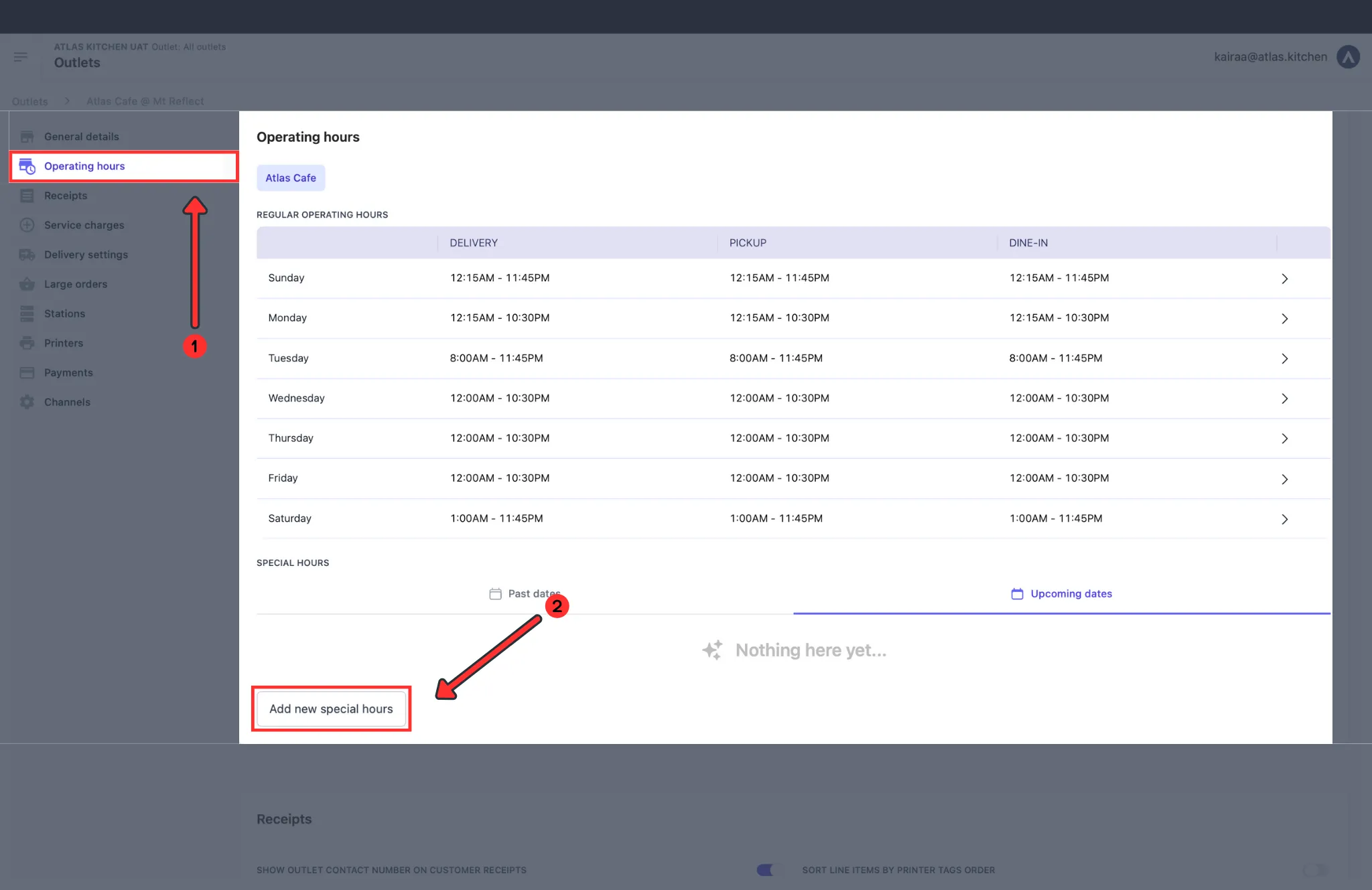
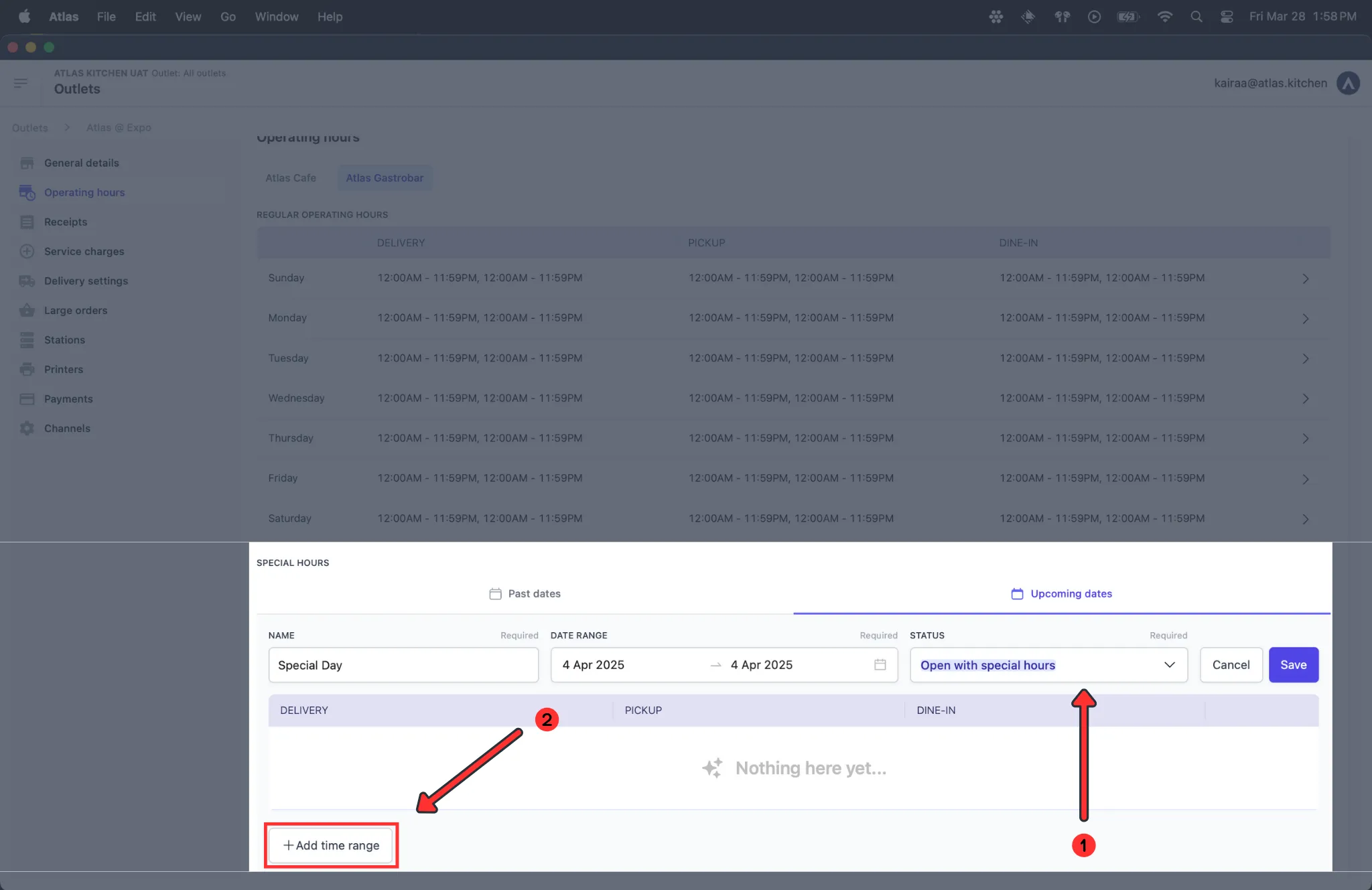
This section will guide you on how to close or add special hours for public holidays or special occasions when your restaurant operates on a different timing than regular hours. (i.e half day / early closure).
Follow these steps to add special hours:
## Add special hours
This section will guide you on how to close or add special hours for public holidays or special occasions when your restaurant operates on a different timing than regular hours. (i.e half day / early closure).
Follow these steps to add special hours:
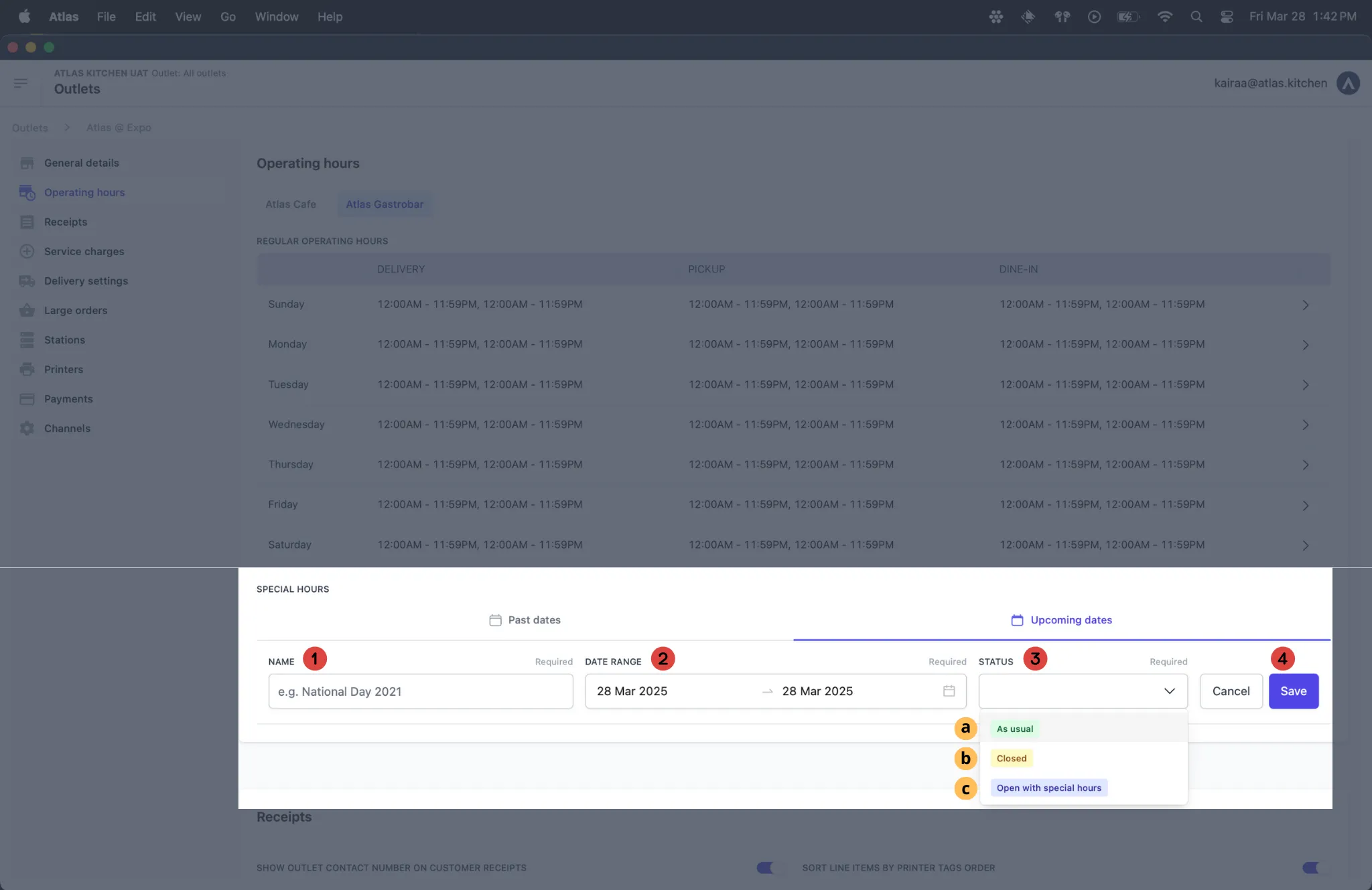 1. Name of the occasion or public holiday
2. Duration of the special hours apply
3. Status of your restaurant during these special days
a. As usual: operates same as regular hours
b. Closed: no operation
c. Open with special hours: operate with adjustable timing (halfday, early closure)
1. Name of the occasion or public holiday
2. Duration of the special hours apply
3. Status of your restaurant during these special days
a. As usual: operates same as regular hours
b. Closed: no operation
c. Open with special hours: operate with adjustable timing (halfday, early closure)
 ## What should happen
After saving your operating hours or special hours:
* **Operating hours**: Your regular hours appear in the Operating Hours section, organised by day
* **Special hours**: The special occasion appears in the Special Hours list with the correct date range and status
* **Customer-facing channels**: Hours update on Atlas Online, Scan to Order, and Kiosk
* **Order slots**: Customers can only select time slots within your operating hours when placing orders
For GrabFood, Deliveroo, and Foodpanda: You must manually update hours in their respective portals. Atlas does not sync operating hours to third-party platforms.
## If it doesn't work
1. Refresh the page and check the Operating Hours section again
2. Verify you selected the correct outlet before making changes
3. Check that you tapped "Save" after configuring the time range
4. Try adding the hours again — the first save may not have completed
1. Check that you set hours for the correct fulfilment type (Dine-in, Pickup, Delivery)
2. Verify the time range covers the times you want to accept orders
3. Check if any special hours are overriding your regular hours for today
4. For aggregator orders: Hours must be set on the aggregator platform separately
1. Check the date range — ensure it includes the correct holiday dates
2. Verify the status is set correctly (Closed, or Open with special hours)
3. Check if another special hour entry conflicts with this date
4. Refresh the page after saving
1. The preview shows an approximation — actual display may vary slightly
2. Check your time slot adjustments in the configuration
3. Test by opening Atlas Online or Scan to Order as a customer
4. Contact support if there's a significant mismatch
## Next steps
* [Set up your menu](/menu-builder/create-menus) — Configure what customers can order
* [Manage stocks](/merchant-portal/stocks) — Block items when you run out
* [View your orders](/merchant-portal/admin-orders) — Monitor incoming orders
## What should happen
After saving your operating hours or special hours:
* **Operating hours**: Your regular hours appear in the Operating Hours section, organised by day
* **Special hours**: The special occasion appears in the Special Hours list with the correct date range and status
* **Customer-facing channels**: Hours update on Atlas Online, Scan to Order, and Kiosk
* **Order slots**: Customers can only select time slots within your operating hours when placing orders
For GrabFood, Deliveroo, and Foodpanda: You must manually update hours in their respective portals. Atlas does not sync operating hours to third-party platforms.
## If it doesn't work
1. Refresh the page and check the Operating Hours section again
2. Verify you selected the correct outlet before making changes
3. Check that you tapped "Save" after configuring the time range
4. Try adding the hours again — the first save may not have completed
1. Check that you set hours for the correct fulfilment type (Dine-in, Pickup, Delivery)
2. Verify the time range covers the times you want to accept orders
3. Check if any special hours are overriding your regular hours for today
4. For aggregator orders: Hours must be set on the aggregator platform separately
1. Check the date range — ensure it includes the correct holiday dates
2. Verify the status is set correctly (Closed, or Open with special hours)
3. Check if another special hour entry conflicts with this date
4. Refresh the page after saving
1. The preview shows an approximation — actual display may vary slightly
2. Check your time slot adjustments in the configuration
3. Test by opening Atlas Online or Scan to Order as a customer
4. Contact support if there's a significant mismatch
## Next steps
* [Set up your menu](/menu-builder/create-menus) — Configure what customers can order
* [Manage stocks](/merchant-portal/stocks) — Block items when you run out
* [View your orders](/merchant-portal/admin-orders) — Monitor incoming orders