> ## Documentation Index
> Fetch the complete documentation index at: https://help.atlas.kitchen/llms.txt
> Use this file to discover all available pages before exploring further.
# Discount use cases
> Copy-and-use discount configs for 1-for-1 deals, happy hour, first-order promos, free delivery, loyalty rewards, and staff discounts.
**Who is this article for?**
* Atlas users setting up specific promotional campaigns
* Users who prefer copy-and-adapt configurations over building from scratch
This guide provides ready-to-use discount configurations. Pick a scenario, copy the settings, and adapt to your needs.
For an overview of how discounts work, see [**Discounts**](/merchant-portal/add-discounts).
## Customer acquisition
Get new customers through the door.
Give new customers a reason to try you out. Offer \$10 off their first order with a minimum spend to make sure it's worth it.
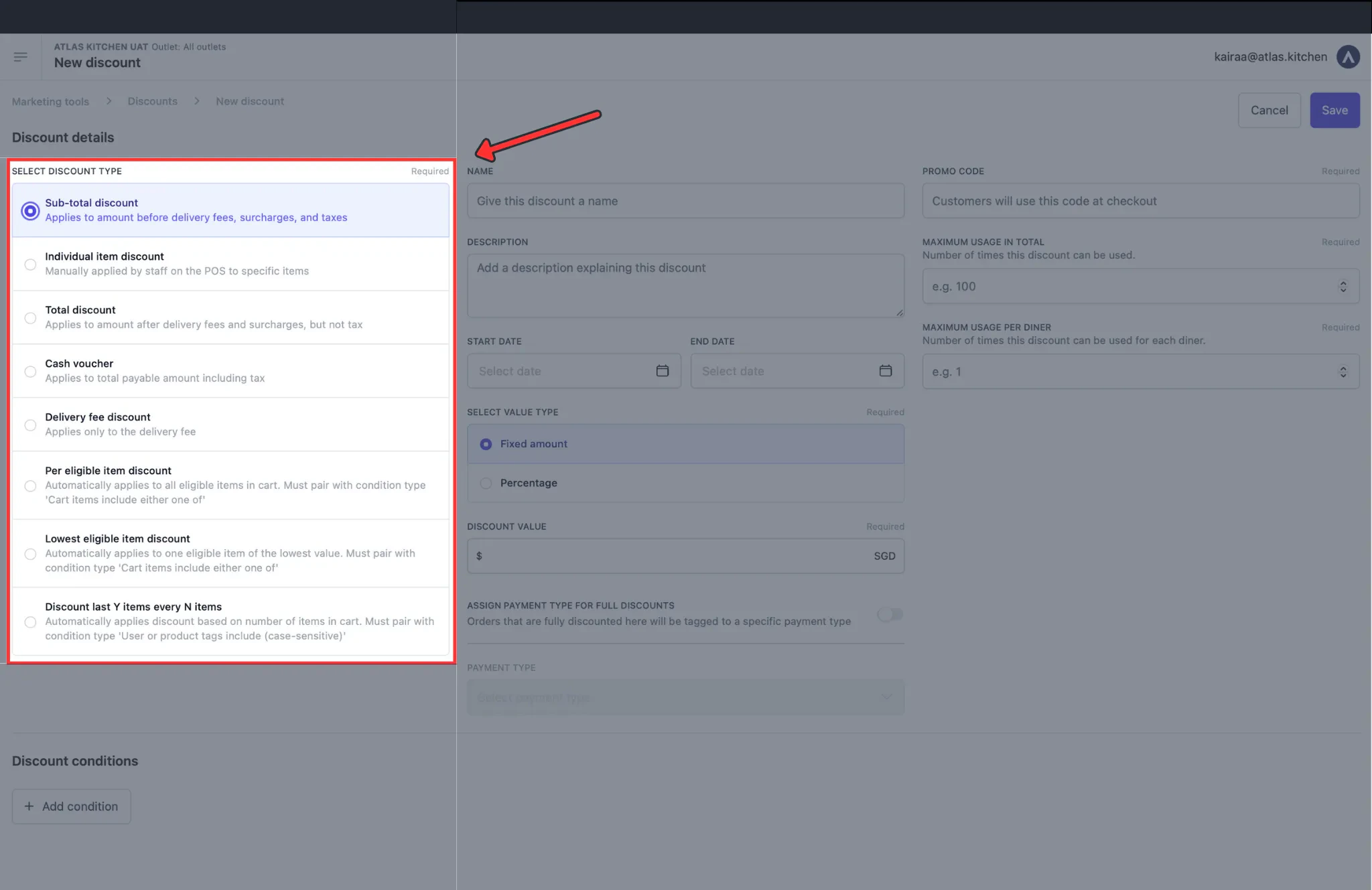 **Setup:** Create a **Sub-total discount** named "Welcome - 10 Off Your First Order" with a **fixed amount** of \$10. Set the promo code to `WELCOME10` and limit usage to 1 per diner.
**Add these conditions** so only first-time customers can use it:
* **User is registered** = Yes (required to track order history)
* **Number of orders is less than** = 1 (ensures it's their first order)
* **Cart total minimum spend** = \$30 (optional, prevents abuse on small orders)
**Setup:** Create a **Sub-total discount** named "Welcome - 10 Off Your First Order" with a **fixed amount** of \$10. Set the promo code to `WELCOME10` and limit usage to 1 per diner.
**Add these conditions** so only first-time customers can use it:
* **User is registered** = Yes (required to track order history)
* **Number of orders is less than** = 1 (ensures it's their first order)
* **Cart total minimum spend** = \$30 (optional, prevents abuse on small orders)
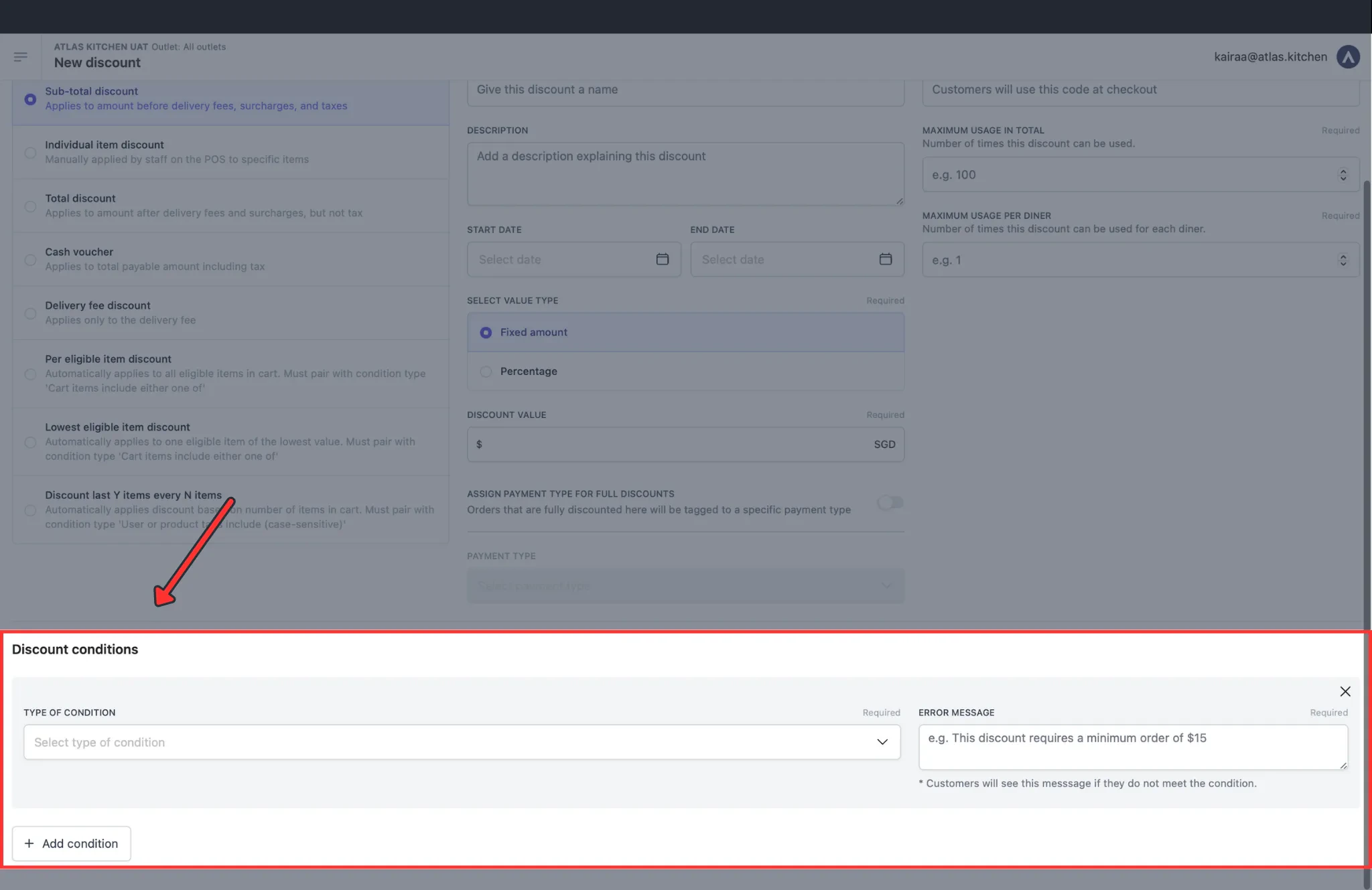 Both the login and order count conditions are required. Without login, Atlas can't verify if it's the customer's first order.
Delivery fees put people off. Waive them on the first order to remove that barrier.
**Setup:** Create a **Delivery fee discount** named "Free Delivery - First Order" with a **percentage** of 100%. Set the promo code to `FREEDELIVERY`.
**Add these conditions:**
* **User is registered** = Yes
* **Number of orders is less than** = 1
* **Fulfilment type is** = Delivery
## Loyalty & rewards
Keep your regulars coming back.
Reward logged-in customers with free delivery on every order. This gives people a good reason to create accounts.
**Setup:** Create a **Delivery fee discount** named "Member Free Delivery" with a **percentage** of 100%. Set the promo code to `MEMBER` or leave it blank for POS-only.
**Add these conditions:**
* **User is registered** = Yes
* **Fulfilment type is** = Delivery
If you set a promo code, customers enter it at checkout. If you leave it blank, only staff can apply it from the POS.
Customers like being remembered. Give them 15% off during their birthday month.
**Setup:** Create a **Sub-total discount** named "Birthday Treat - 15% Off" with a **percentage** of 15% and a **value cap** of \$20. Set the promo code to `BIRTHDAY` and limit usage to 1 per diner.
**Add these conditions:**
* **User is registered** = Yes
* **Serving date (calendar month)** = matches birth month
Customers must have their birthday saved in their account profile for this to work.
"Spend \$50, get \$10 off" — customers often add extra items to hit the threshold.
**Setup:** Create a **Sub-total discount** named "Spend 50 Get 10 Off" with a **fixed amount** of \$10. Set the promo code to `SPEND50`.
**Add this condition:**
* **Cart total minimum spend** = \$50
You can create tiered discounts (Spend \$50 get \$10, Spend \$80 get \$20, Spend \$120 get \$35) using different promo codes for each tier.
## Time-based promotions
Fill slower periods or create buzz around specific times.
Discount drinks between 5-8pm on weekdays.
**Setup:** Create a **Per eligible item discount** named "Happy Hour 20% Off Drinks" with a **percentage** of 20% and an optional **value cap** of \$10 per item. Set the promo code to `HAPPYHOUR` or leave it blank for POS-only.
**Add these conditions:**
* **Cart items include either one of** = (select all drink items)
* **Serving time is between** = 17:00 - 20:00
* **Serving day of the week is** = Mon, Tue, Wed, Thu, Fri
***
If you have too many drinks and don't want to add them 1 by 1, you could also do a setup this way:
**Setup:** Create a **Discount last Y items every N items** named "Happy Hour 20% Off Drinks". Set \*\*Last Y items **= 1 and**Every N items \*\* = 1. Use a percentage of 20%. Set the promo code to `HAPPYHOUR` or leave it blank for POS-only.
Add these conditions:
* **User or product tags include** = happy-hour
* **Serving time is between** = 17:00 - 20:00
* **Serving day of the week is** = Mon, Tue, Wed, Thu, Fri
Instead of selecting drinks one by one, tag them with "happy-hour" in the Menu Builder. Then use "User or product tags include" with the tag "happy-hour".
Buy one, get one free. Common for beers and appetizers during happy hour.
**Setup:** Create a **Discount last Y items every N items** discount named "1-for-1 Beer". Set **Last Y items** = 1 and **Every N items** = 2. Use a **percentage** of 100% and turn **Discount modifiers** OFF. Optionally set **Max redemptions per use** = 2 to limit free items per order.
**Add these conditions:**
* **User or product tags include** = 1for1-beer
* **Serving time is between** = 17:00 - 20:00 (optional)
Tag eligible products with "1for1-beer" in Menu Builder first. The discount only applies to tagged items.
**How it works:**
* 2 beers → cheapest one free
* 4 beers → 2 cheapest free
* 3 beers → 1 free (odd one is full price)
The system always discounts the cheapest item. A \$12 lager and a \$20 craft beer? The lager is free.
15% discount on Saturday and Sunday.
**Setup:** Create a **Sub-total discount** named "Weekend Special 15% Off" with a **percentage** of 15% and a **value cap** of \$20. Set the promo code to `WEEKEND15`.
**Make it work:** Add this condition:
* **Serving day of the week is** = Saturday, Sunday
## Channel & location
Target specific channels or outlets.
10% off for customers self-collecting their online orders. Encourage people to pick up directly the food in seasons where is difficult to find a driver.
**Setup:** Create a **Sub-total discount** named "Dine-in Special 10% Off" with a **percentage** of 10%. Set the promo code to `PICKUP10`.
**Make it work:** Add this condition:
* **Fulfilment type is** = Pickup
30% off at a new location. Set an end date and cap the discount to protect margins.
**Setup:** Create a **Sub-total discount** named "Grand Opening 30% Off" with a **percentage** of 30% and a **value cap** of \$30. Set the promo code to `GRANDOPEN` and set a **Redemption end date** for when the promotion ends.
**Make it work:** Add this condition:
* **Outlet is** = (select your new outlet)
## Staff & corporate
Discounts for employees and partners.
Give staff a discount when they self-order at any of your channels. They log in with their work email and enter the promo code.
**Setup:** Create a **Sub-total discount** named "Staff Discount" with a **percentage** of 25%. Set the promo code to `STAFF25` or leave it blank for POS-only.
**Make it work:** Add these conditions:
* **User is registered** = Yes
* **User's email domain contains** = @yourcompany.com
You can add multiple email domain conditions if you have staff from different companies or franchises.
Take note most restaurants that set this up for the POS, don't actually set any conditions - and let the staff control who can redeem it.
Give partners a promo code to share with their team.
**Setup:** Create a **Sub-total discount** named "Partner Discount" with a **percentage** of 15%. Set the promo code to `PARTNER15`.
**Make it work:** Add these conditions:
* **User is registered** = Yes
* **User's email domain contains** = @partnercompany.com
## Operational
Day-to-day discounts for your team.
Let staff comp items when something goes wrong. No manager code needed.
**Setup:** Create an **Individual item discount** named "Complimentary Item" with a **percentage** of 100%. Leave the promo code blank.
**How staff use it:**
* Add the item to the order
* Tap the "Complimentary Item" discount tile on POS
* Select which item to comp
* Item shows as free on the receipt
You'll need to [add this discount as a tile to your POS layout](/menu-builder/pos-layout#adding-tiles-to-your-pos) for staff to access it.
Run a 20% off promotion on everything except alcohol items.
**Setup:** Create a **Sub-total discount** named "20% Off Food" with a **percentage** of 20%. Set the promo code to `SAVE20`.
**Make it work:** Add this condition:
* **Cart items exclude all of** = (select all alcohol items)
The discount applies to the whole order except alcohol. \$50 of food and \$20 of beer? Only the food is discounted.
***
If you have too many alcoholic drinks and don't want to add them 1 by 1, you could also do a setup this way:
**Setup:** Create a **Discount last Y items every N items** named "20% Off Food". Set **Last Y items** = 1 and**Every N items** = 1. Use a percentage of 20%. Set the promo code to `FOOD20 `or leave it blank for POS-only.
Add these conditions:
* **User or product tags include** = food20
Instead of selecting alcoholic drinks one by one, tag the applicable items instead (food in this case) with "food20" in the Menu Builder. Then use "User or product tags include" with the tag "food20".
## Quick reference
| I want to... | Use this discount type |
| ---------------------------------------- | ----------------------------------- |
| Give % or \$ off the whole order | Sub-total discount |
| Discount including surcharges | Total discount |
| Discount including taxes (voucher-style) | Cash voucher |
| Give free or discounted delivery | Delivery fee discount |
| Let staff comp a specific item | Individual item discount |
| Auto-discount certain items in cart | Per eligible item discount |
| Give the cheapest item free | Lowest eligible item discount |
| Run a 1-for-1 or buy-X-get-Y promo | Discount last Y items every N items |
Both the login and order count conditions are required. Without login, Atlas can't verify if it's the customer's first order.
Delivery fees put people off. Waive them on the first order to remove that barrier.
**Setup:** Create a **Delivery fee discount** named "Free Delivery - First Order" with a **percentage** of 100%. Set the promo code to `FREEDELIVERY`.
**Add these conditions:**
* **User is registered** = Yes
* **Number of orders is less than** = 1
* **Fulfilment type is** = Delivery
## Loyalty & rewards
Keep your regulars coming back.
Reward logged-in customers with free delivery on every order. This gives people a good reason to create accounts.
**Setup:** Create a **Delivery fee discount** named "Member Free Delivery" with a **percentage** of 100%. Set the promo code to `MEMBER` or leave it blank for POS-only.
**Add these conditions:**
* **User is registered** = Yes
* **Fulfilment type is** = Delivery
If you set a promo code, customers enter it at checkout. If you leave it blank, only staff can apply it from the POS.
Customers like being remembered. Give them 15% off during their birthday month.
**Setup:** Create a **Sub-total discount** named "Birthday Treat - 15% Off" with a **percentage** of 15% and a **value cap** of \$20. Set the promo code to `BIRTHDAY` and limit usage to 1 per diner.
**Add these conditions:**
* **User is registered** = Yes
* **Serving date (calendar month)** = matches birth month
Customers must have their birthday saved in their account profile for this to work.
"Spend \$50, get \$10 off" — customers often add extra items to hit the threshold.
**Setup:** Create a **Sub-total discount** named "Spend 50 Get 10 Off" with a **fixed amount** of \$10. Set the promo code to `SPEND50`.
**Add this condition:**
* **Cart total minimum spend** = \$50
You can create tiered discounts (Spend \$50 get \$10, Spend \$80 get \$20, Spend \$120 get \$35) using different promo codes for each tier.
## Time-based promotions
Fill slower periods or create buzz around specific times.
Discount drinks between 5-8pm on weekdays.
**Setup:** Create a **Per eligible item discount** named "Happy Hour 20% Off Drinks" with a **percentage** of 20% and an optional **value cap** of \$10 per item. Set the promo code to `HAPPYHOUR` or leave it blank for POS-only.
**Add these conditions:**
* **Cart items include either one of** = (select all drink items)
* **Serving time is between** = 17:00 - 20:00
* **Serving day of the week is** = Mon, Tue, Wed, Thu, Fri
***
If you have too many drinks and don't want to add them 1 by 1, you could also do a setup this way:
**Setup:** Create a **Discount last Y items every N items** named "Happy Hour 20% Off Drinks". Set \*\*Last Y items **= 1 and**Every N items \*\* = 1. Use a percentage of 20%. Set the promo code to `HAPPYHOUR` or leave it blank for POS-only.
Add these conditions:
* **User or product tags include** = happy-hour
* **Serving time is between** = 17:00 - 20:00
* **Serving day of the week is** = Mon, Tue, Wed, Thu, Fri
Instead of selecting drinks one by one, tag them with "happy-hour" in the Menu Builder. Then use "User or product tags include" with the tag "happy-hour".
Buy one, get one free. Common for beers and appetizers during happy hour.
**Setup:** Create a **Discount last Y items every N items** discount named "1-for-1 Beer". Set **Last Y items** = 1 and **Every N items** = 2. Use a **percentage** of 100% and turn **Discount modifiers** OFF. Optionally set **Max redemptions per use** = 2 to limit free items per order.
**Add these conditions:**
* **User or product tags include** = 1for1-beer
* **Serving time is between** = 17:00 - 20:00 (optional)
Tag eligible products with "1for1-beer" in Menu Builder first. The discount only applies to tagged items.
**How it works:**
* 2 beers → cheapest one free
* 4 beers → 2 cheapest free
* 3 beers → 1 free (odd one is full price)
The system always discounts the cheapest item. A \$12 lager and a \$20 craft beer? The lager is free.
15% discount on Saturday and Sunday.
**Setup:** Create a **Sub-total discount** named "Weekend Special 15% Off" with a **percentage** of 15% and a **value cap** of \$20. Set the promo code to `WEEKEND15`.
**Make it work:** Add this condition:
* **Serving day of the week is** = Saturday, Sunday
## Channel & location
Target specific channels or outlets.
10% off for customers self-collecting their online orders. Encourage people to pick up directly the food in seasons where is difficult to find a driver.
**Setup:** Create a **Sub-total discount** named "Dine-in Special 10% Off" with a **percentage** of 10%. Set the promo code to `PICKUP10`.
**Make it work:** Add this condition:
* **Fulfilment type is** = Pickup
30% off at a new location. Set an end date and cap the discount to protect margins.
**Setup:** Create a **Sub-total discount** named "Grand Opening 30% Off" with a **percentage** of 30% and a **value cap** of \$30. Set the promo code to `GRANDOPEN` and set a **Redemption end date** for when the promotion ends.
**Make it work:** Add this condition:
* **Outlet is** = (select your new outlet)
## Staff & corporate
Discounts for employees and partners.
Give staff a discount when they self-order at any of your channels. They log in with their work email and enter the promo code.
**Setup:** Create a **Sub-total discount** named "Staff Discount" with a **percentage** of 25%. Set the promo code to `STAFF25` or leave it blank for POS-only.
**Make it work:** Add these conditions:
* **User is registered** = Yes
* **User's email domain contains** = @yourcompany.com
You can add multiple email domain conditions if you have staff from different companies or franchises.
Take note most restaurants that set this up for the POS, don't actually set any conditions - and let the staff control who can redeem it.
Give partners a promo code to share with their team.
**Setup:** Create a **Sub-total discount** named "Partner Discount" with a **percentage** of 15%. Set the promo code to `PARTNER15`.
**Make it work:** Add these conditions:
* **User is registered** = Yes
* **User's email domain contains** = @partnercompany.com
## Operational
Day-to-day discounts for your team.
Let staff comp items when something goes wrong. No manager code needed.
**Setup:** Create an **Individual item discount** named "Complimentary Item" with a **percentage** of 100%. Leave the promo code blank.
**How staff use it:**
* Add the item to the order
* Tap the "Complimentary Item" discount tile on POS
* Select which item to comp
* Item shows as free on the receipt
You'll need to [add this discount as a tile to your POS layout](/menu-builder/pos-layout#adding-tiles-to-your-pos) for staff to access it.
Run a 20% off promotion on everything except alcohol items.
**Setup:** Create a **Sub-total discount** named "20% Off Food" with a **percentage** of 20%. Set the promo code to `SAVE20`.
**Make it work:** Add this condition:
* **Cart items exclude all of** = (select all alcohol items)
The discount applies to the whole order except alcohol. \$50 of food and \$20 of beer? Only the food is discounted.
***
If you have too many alcoholic drinks and don't want to add them 1 by 1, you could also do a setup this way:
**Setup:** Create a **Discount last Y items every N items** named "20% Off Food". Set **Last Y items** = 1 and**Every N items** = 1. Use a percentage of 20%. Set the promo code to `FOOD20 `or leave it blank for POS-only.
Add these conditions:
* **User or product tags include** = food20
Instead of selecting alcoholic drinks one by one, tag the applicable items instead (food in this case) with "food20" in the Menu Builder. Then use "User or product tags include" with the tag "food20".
## Quick reference
| I want to... | Use this discount type |
| ---------------------------------------- | ----------------------------------- |
| Give % or \$ off the whole order | Sub-total discount |
| Discount including surcharges | Total discount |
| Discount including taxes (voucher-style) | Cash voucher |
| Give free or discounted delivery | Delivery fee discount |
| Let staff comp a specific item | Individual item discount |
| Auto-discount certain items in cart | Per eligible item discount |
| Give the cheapest item free | Lowest eligible item discount |
| Run a 1-for-1 or buy-X-get-Y promo | Discount last Y items every N items |