> ## Documentation Index
> Fetch the complete documentation index at: https://help.atlas.kitchen/llms.txt
> Use this file to discover all available pages before exploring further.
# Announcements
> Show a slim message strip at the top of your storefront to broadcast pricing notes, hours, promos, or operational updates.
An announcement bar is a slim strip across the top of your storefront that shows a short message to everyone who visits. It appears on Atlas Online, Kiosk, and Scan-to-Order.
## What announcement bars do
Use an announcement bar to tell all your customers something at once — a pricing note, holiday hours, a running promotion, a new item, or a quick operational heads-up.
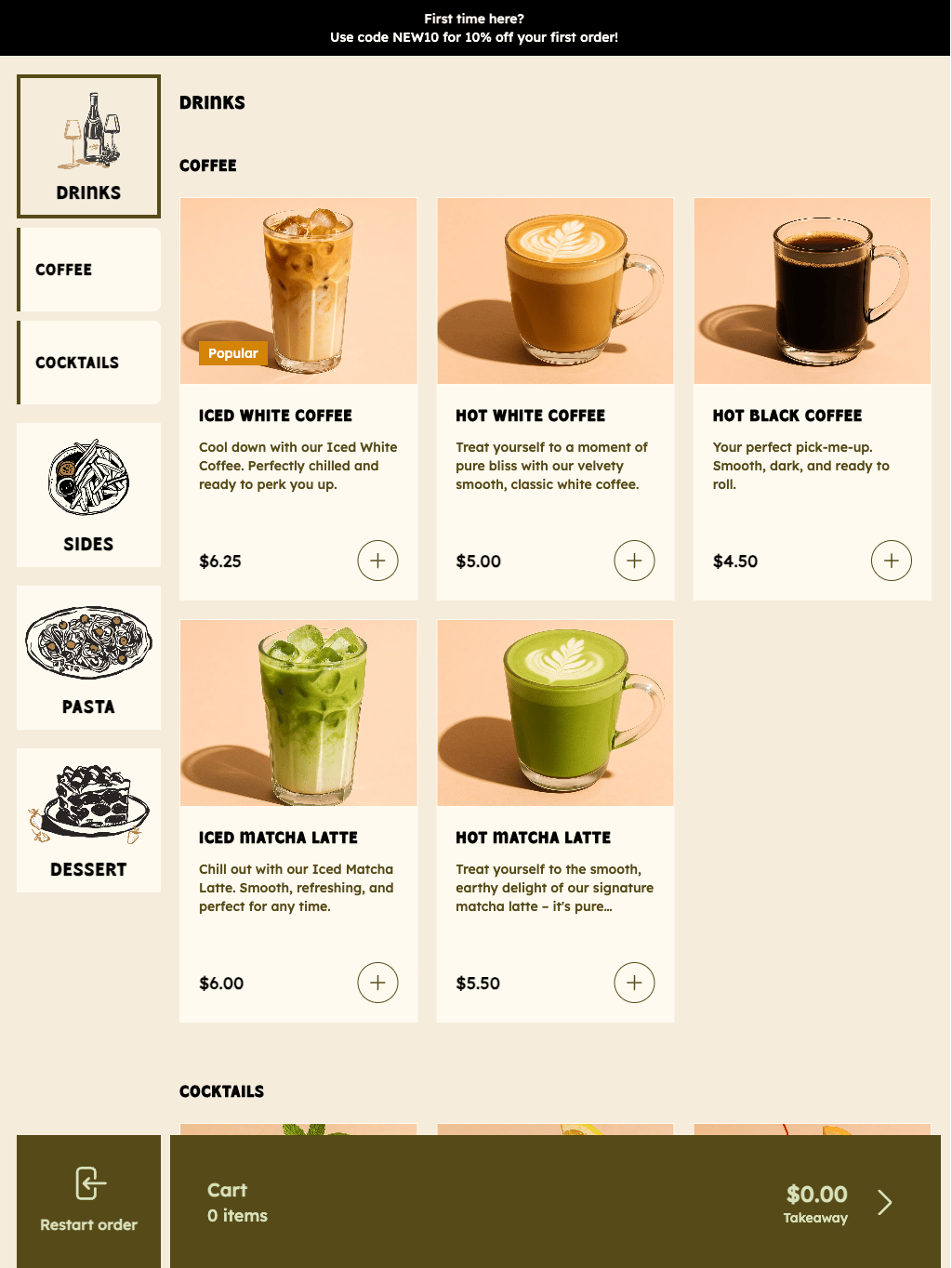
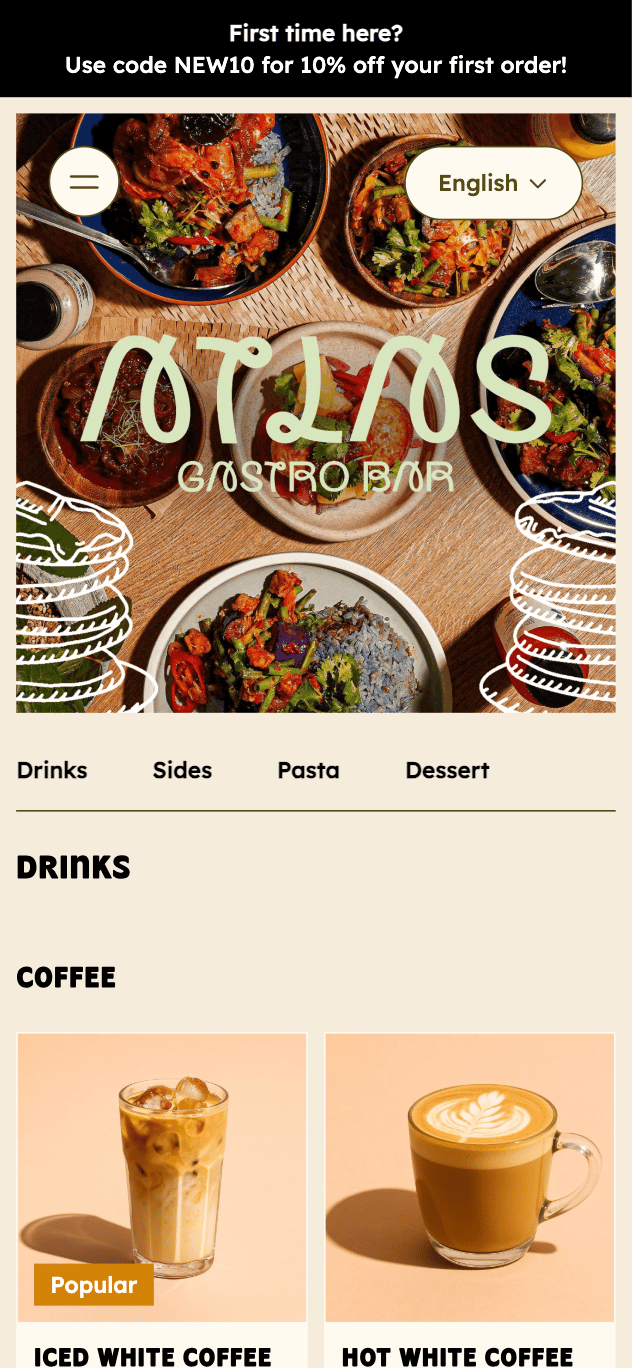 **Bar vs pop-up.** An announcement *bar* is the thin strip at the top. A [pop-up](/merchant-portal/pop-ups) is a separate, richer feature — a full-screen image with its own display rules and an optional button. This guide covers the bar.
## Where it appears
* **Atlas Online** — your online storefront
* **Kiosk** — self-order kiosk in-store
* **Scan-to-Order** — diners ordering from the QR menu
Announcement bars don't appear on GrabFood, Foodpanda, or other third-party apps, which run their own storefronts.
## Set up an announcement bar
1. In the Merchant Portal, go to **Marketing tools → Announcements**.
2. Click **Create new announcement**.
3. Select **Website** (Atlas Online) or **Channel** (Kiosk + STO).
4. Write the **title** and **message** (see [Writing the copy](#writing-the-copy) below).
5. Configure styling — background and text colour, optional link URL, and whether customers can dismiss the bar.
6. Pick the **channels, outlets, and storefronts** the bar should show on.
7. Set a **start** and **end** time. For long-term notices (like a pricing note), set the end date far in the future.
8. **Save as draft** to publish later, or **Save** to go live immediately.
## Writing the copy
A bar has a **title** and a **message**, and they display **together on one line**. Because there is only a space between them, write the two so they read as a single sentence — and **end the title with punctuation** (a colon works well) so they do not run together.
* **Good** — title `Note:` + message `Prices are not subject to GST` reads as **Note: Prices are not subject to GST**
* **Avoid** — title `Note` + message `Prices are not subject to GST` reads as **Note Prices are not subject to GST**
Keep it short and specific. The bar is narrow, and one clear message lands better than a long one.
## Styling
* **Colours** — the bar is **black with white text** by default. You can set a custom background and text colour; keep them high-contrast so the message stays readable.
* **Link** — you can make the bar clickable and send customers to a URL, such as an item or a menu section.
* **Dismissable** — choose whether customers can close the bar. Turn this **off** for notices you always want shown (like a pricing note) and **on** for time-limited messages.
## Common use cases
| You want to… | Example message |
| ------------------------------ | --------------------------------------------------- |
| Note pricing or tax | **Note: Prices are not subject to GST** |
| Share special or holiday hours | **Public Holiday: open 10am–6pm today** |
| Promote a running offer | **This weekend: 20% off with WEEKEND10** |
| Highlight a new item | **New: try our Laksa** |
| Give an operational heads-up | **Heads up: orders may take a little longer today** |
## Tips
* Show **one message at a time** — several bars compete for the same strip.
* For a promo bar, make sure the wording matches the actual discount (code, amount, and dates).
* To change or take down a bar, edit it from the Announcements screen in your portal.
Don't use announcement bars for full-screen campaigns or image-based promos. Use [Pop-ups](/merchant-portal/pop-ups) instead — they display as a splash page when diners land on your menu.
## Next steps
* [Pop-ups](/merchant-portal/pop-ups)
* [Cross-sell](/merchant-portal/cross-sell)
* [Discounts](/merchant-portal/add-discounts)
**Bar vs pop-up.** An announcement *bar* is the thin strip at the top. A [pop-up](/merchant-portal/pop-ups) is a separate, richer feature — a full-screen image with its own display rules and an optional button. This guide covers the bar.
## Where it appears
* **Atlas Online** — your online storefront
* **Kiosk** — self-order kiosk in-store
* **Scan-to-Order** — diners ordering from the QR menu
Announcement bars don't appear on GrabFood, Foodpanda, or other third-party apps, which run their own storefronts.
## Set up an announcement bar
1. In the Merchant Portal, go to **Marketing tools → Announcements**.
2. Click **Create new announcement**.
3. Select **Website** (Atlas Online) or **Channel** (Kiosk + STO).
4. Write the **title** and **message** (see [Writing the copy](#writing-the-copy) below).
5. Configure styling — background and text colour, optional link URL, and whether customers can dismiss the bar.
6. Pick the **channels, outlets, and storefronts** the bar should show on.
7. Set a **start** and **end** time. For long-term notices (like a pricing note), set the end date far in the future.
8. **Save as draft** to publish later, or **Save** to go live immediately.
## Writing the copy
A bar has a **title** and a **message**, and they display **together on one line**. Because there is only a space between them, write the two so they read as a single sentence — and **end the title with punctuation** (a colon works well) so they do not run together.
* **Good** — title `Note:` + message `Prices are not subject to GST` reads as **Note: Prices are not subject to GST**
* **Avoid** — title `Note` + message `Prices are not subject to GST` reads as **Note Prices are not subject to GST**
Keep it short and specific. The bar is narrow, and one clear message lands better than a long one.
## Styling
* **Colours** — the bar is **black with white text** by default. You can set a custom background and text colour; keep them high-contrast so the message stays readable.
* **Link** — you can make the bar clickable and send customers to a URL, such as an item or a menu section.
* **Dismissable** — choose whether customers can close the bar. Turn this **off** for notices you always want shown (like a pricing note) and **on** for time-limited messages.
## Common use cases
| You want to… | Example message |
| ------------------------------ | --------------------------------------------------- |
| Note pricing or tax | **Note: Prices are not subject to GST** |
| Share special or holiday hours | **Public Holiday: open 10am–6pm today** |
| Promote a running offer | **This weekend: 20% off with WEEKEND10** |
| Highlight a new item | **New: try our Laksa** |
| Give an operational heads-up | **Heads up: orders may take a little longer today** |
## Tips
* Show **one message at a time** — several bars compete for the same strip.
* For a promo bar, make sure the wording matches the actual discount (code, amount, and dates).
* To change or take down a bar, edit it from the Announcements screen in your portal.
Don't use announcement bars for full-screen campaigns or image-based promos. Use [Pop-ups](/merchant-portal/pop-ups) instead — they display as a splash page when diners land on your menu.
## Next steps
* [Pop-ups](/merchant-portal/pop-ups)
* [Cross-sell](/merchant-portal/cross-sell)
* [Discounts](/merchant-portal/add-discounts)