> ## Documentation Index
> Fetch the complete documentation index at: https://help.atlas.kitchen/llms.txt
> Use this file to discover all available pages before exploring further.
# Discounts
> Create and manage discounts and promo codes in Atlas to run promotions, reward loyal customers, and drive sales across all your ordering channels.
**Who is this article for?**
* Atlas users with Admin permissions. Set permissions from **Settings > Team members**.
* Atlas POS, Scan to order, Kiosk, Online and Aggregator users.
## Overview
Discounts let you reduce the price of an order or specific items. You can use discounts to run promotions ("20% off this weekend"), reward customers ("free delivery for members"), or handle service recovery ("complimentary dessert").
Once you create a discount, customers can apply it using a promo code at checkout, or your staff can apply it directly from the POS.
## Quick start
Open the sidebar menu and navigate to **Marketing Tools > Discounts**.
 In the top-right corner, click **Add Discount**.
 Select the type from the left panel. See [Discount types](#discount-types) below for guidance.
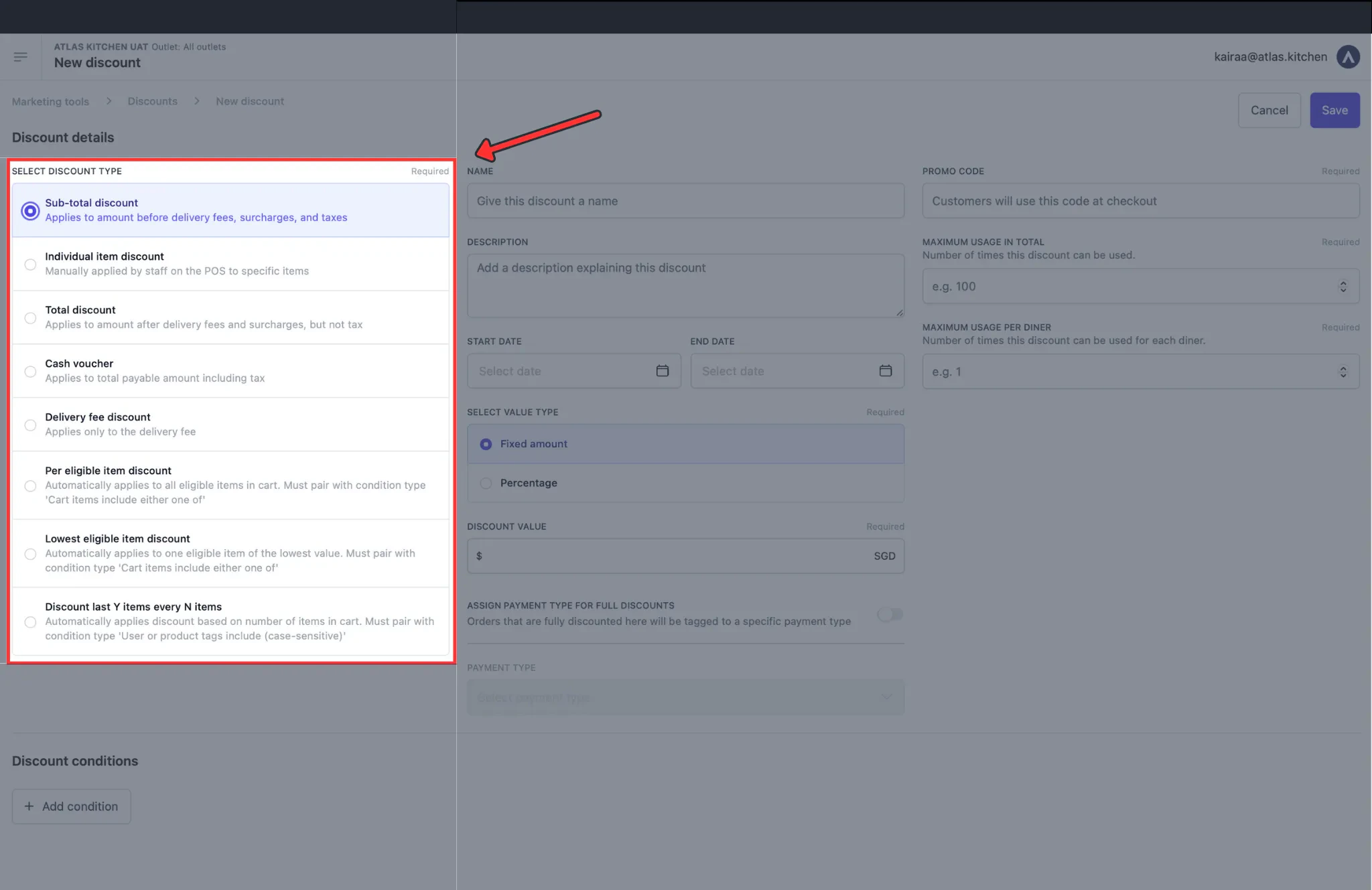 Fill in the name, value, and dates on the right panel.
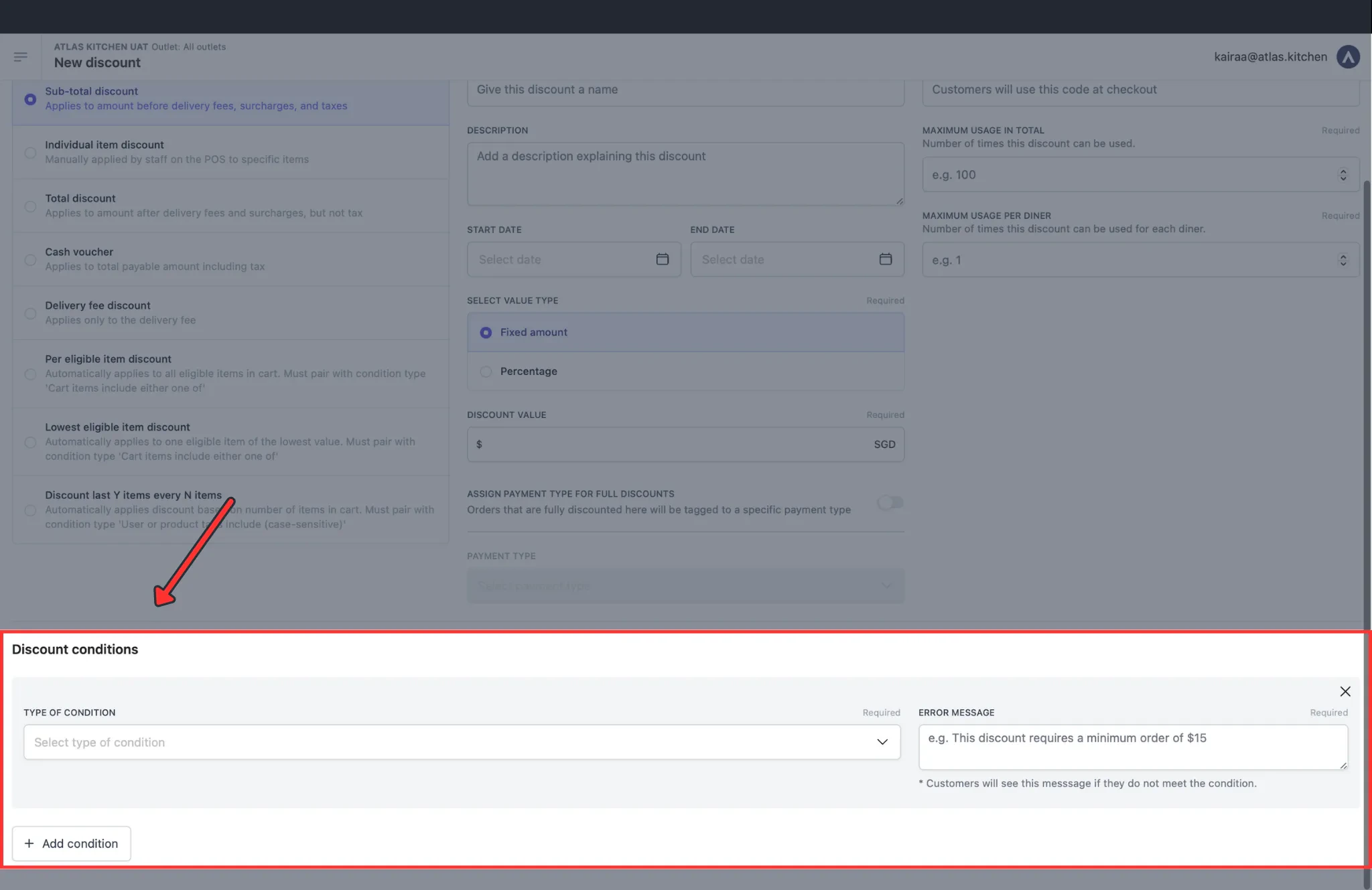
 Scroll to **Discount conditions** to specify who can use this discount and when.
 Your discount is now active and ready to use.
 To let staff apply this discount from the POS, [add it as a tile to your POS layout](/menu-builder/pos-layout#adding-tiles-to-your-pos).
## Discount types
Atlas offers several discount types. Choose based on what you want to discount and how you want to apply it.
### Order-level discounts
These discounts reduce the total price of an order.
* **Sub-total discount** is the most common choice. It reduces the order amount before delivery fees, surcharges, and taxes are added. Use this for most promotions like "\$5 off orders over \$30" or "15% off your order".
* **Total discount** reduces the order amount after fees and surcharges, but before tax. Use this when you want the discount to apply to surcharges too.
* **Cash voucher** reduces the final payable amount, including taxes. This works like a gift card — a \$20 voucher covers exactly \$20 of the final bill.
* **Delivery fee discount** reduces or removes the delivery fee. Use this for delivery promotions like "Free delivery for orders over \$25".
### Item-level discounts
These discounts reduce the price of specific items rather than the whole order.
* **Individual item discount** lets staff manually select which item to discount at the POS. Useful for service recovery when a manager wants to comp a guest's appetizer.
* **Per eligible item discount** automatically discounts all items that match your criteria. For example, "20% off all desserts" discounts every dessert in the cart.
* **Lowest eligible item discount** automatically discounts only the cheapest item that matches your criteria. For example, "Cheapest pizza free when you order 3 or more".
* **Discount last Y items every N items** is for buy-one-get-one promotions. Set Y=1 and N=2 to create a "Buy 1 beer, get 1 free" deal.
Note that **Per eligible** and **Lowest eligible** discounts must be paired with the condition "Cart items include either one of". And **Last Y every N** discounts must be paired with "User or product tags include". See [Discount conditions](#discount-conditions) for details.
### Stacking rules
Generally, you cannot stack multiple order-level discounts together. However, you can combine one order-level discount with one Individual item discount (applied only from the POS) on the same order.
## Configuration settings
When creating a discount, you'll configure these settings on the right panel.
### Name and description
The **Name** is shown to customers on receipts and at checkout. Use clear, promotional names like "Weekend Special 20% Off".
The **Description** is for internal notes only — your team can see it but customers can't. Use it to note campaign details like "Summer 2024 marketing campaign".
### Value
Choose a **Value type** of either **Fixed amount** (e.g., \$10 off) or **Percentage** (e.g., 20% off). Fixed amounts work well for vouchers, while percentages work better for promotions.
Enter the **Discount value** — the amount or percentage to discount.
For percentage discounts, set a **Value cap** to limit how much customers can save. For example, "20% off up to \$15" prevents large orders from getting excessive discounts.
### Dates
Set the **Redemption start date** to schedule when customers can start using this discount. This lets you set up future promotions in advance.
Set the **Redemption end date** to make the discount expire automatically. Always set an end date to avoid forgotten active discounts running indefinitely.
### Promo code
The **Promo code** is what customers enter to apply the discount. Use memorable codes like `WELCOME10` or `FREEDELIVERY`.
If you leave the promo code blank, the discount becomes POS-only — staff can apply it from a discount tile without needing a code. This is useful for manager discretion discounts or service recovery.
### Usage limits
**Maximum usage in total** limits how many times this discount can be redeemed across all customers. Use this for exclusive promotions like "First 100 customers only".
**Maximum usage per diner** limits how many times each customer can use this discount. Set to 1 for "one per customer" offers.
**Limit usage by mobile number** counts every order from the same mobile number against **Maximum usage per diner** — even across different accounts or guest checkouts. This stops a customer resetting a "one per customer" offer by signing up again with a new email.
This is turned **on** by default for new discounts. It also applies to bulk discount codes.
Turn it off for discounts where people share a number — for example a family on one phone number, or a customer who is assigned a recycled number that already used the code. With it off, Atlas counts usage per account instead.
To let staff apply this discount from the POS, [add it as a tile to your POS layout](/menu-builder/pos-layout#adding-tiles-to-your-pos).
## Discount types
Atlas offers several discount types. Choose based on what you want to discount and how you want to apply it.
### Order-level discounts
These discounts reduce the total price of an order.
* **Sub-total discount** is the most common choice. It reduces the order amount before delivery fees, surcharges, and taxes are added. Use this for most promotions like "\$5 off orders over \$30" or "15% off your order".
* **Total discount** reduces the order amount after fees and surcharges, but before tax. Use this when you want the discount to apply to surcharges too.
* **Cash voucher** reduces the final payable amount, including taxes. This works like a gift card — a \$20 voucher covers exactly \$20 of the final bill.
* **Delivery fee discount** reduces or removes the delivery fee. Use this for delivery promotions like "Free delivery for orders over \$25".
### Item-level discounts
These discounts reduce the price of specific items rather than the whole order.
* **Individual item discount** lets staff manually select which item to discount at the POS. Useful for service recovery when a manager wants to comp a guest's appetizer.
* **Per eligible item discount** automatically discounts all items that match your criteria. For example, "20% off all desserts" discounts every dessert in the cart.
* **Lowest eligible item discount** automatically discounts only the cheapest item that matches your criteria. For example, "Cheapest pizza free when you order 3 or more".
* **Discount last Y items every N items** is for buy-one-get-one promotions. Set Y=1 and N=2 to create a "Buy 1 beer, get 1 free" deal.
Note that **Per eligible** and **Lowest eligible** discounts must be paired with the condition "Cart items include either one of". And **Last Y every N** discounts must be paired with "User or product tags include". See [Discount conditions](#discount-conditions) for details.
### Stacking rules
Generally, you cannot stack multiple order-level discounts together. However, you can combine one order-level discount with one Individual item discount (applied only from the POS) on the same order.
## Configuration settings
When creating a discount, you'll configure these settings on the right panel.
### Name and description
The **Name** is shown to customers on receipts and at checkout. Use clear, promotional names like "Weekend Special 20% Off".
The **Description** is for internal notes only — your team can see it but customers can't. Use it to note campaign details like "Summer 2024 marketing campaign".
### Value
Choose a **Value type** of either **Fixed amount** (e.g., \$10 off) or **Percentage** (e.g., 20% off). Fixed amounts work well for vouchers, while percentages work better for promotions.
Enter the **Discount value** — the amount or percentage to discount.
For percentage discounts, set a **Value cap** to limit how much customers can save. For example, "20% off up to \$15" prevents large orders from getting excessive discounts.
### Dates
Set the **Redemption start date** to schedule when customers can start using this discount. This lets you set up future promotions in advance.
Set the **Redemption end date** to make the discount expire automatically. Always set an end date to avoid forgotten active discounts running indefinitely.
### Promo code
The **Promo code** is what customers enter to apply the discount. Use memorable codes like `WELCOME10` or `FREEDELIVERY`.
If you leave the promo code blank, the discount becomes POS-only — staff can apply it from a discount tile without needing a code. This is useful for manager discretion discounts or service recovery.
### Usage limits
**Maximum usage in total** limits how many times this discount can be redeemed across all customers. Use this for exclusive promotions like "First 100 customers only".
**Maximum usage per diner** limits how many times each customer can use this discount. Set to 1 for "one per customer" offers.
**Limit usage by mobile number** counts every order from the same mobile number against **Maximum usage per diner** — even across different accounts or guest checkouts. This stops a customer resetting a "one per customer" offer by signing up again with a new email.
This is turned **on** by default for new discounts. It also applies to bulk discount codes.
Turn it off for discounts where people share a number — for example a family on one phone number, or a customer who is assigned a recycled number that already used the code. With it off, Atlas counts usage per account instead.
 With **Limit usage by mobile number** on, Atlas tracks per-customer usage by phone number, even for guests who don't log in. To tie usage to a logged-in account instead, add the **"User is registered"** condition.
### Advanced settings
**Assign payment type for full discounts** tags fully comped items (100% off) with a specific payment type. This helps with accurate reporting on complimentary items.
**Discount modifiers** determines whether add-ons and modifiers are included in the discount. Turn this OFF for promotions like "1-for-1 oysters" so premium toppings aren't free too.
**Max redemptions per use** limits how many times a "Last Y every N" discount triggers per order. Set to 1 to prevent "buy 10 get 5 free" — you probably just want one free item per order.
## Discount conditions
Conditions let you specify exactly who can use a discount, what needs to be in the cart, and when it's valid. Add conditions by clicking **"+ Add condition"** at the bottom of the discount form.
### Who can use it
* **User is registered** requires customers to log into their account before they can use the discount. This is required if you want to track usage per customer or limit redemptions per person.
* **User has an account** checks if the customer has an account with your loyalty program. Use this for member-exclusive discounts.
* **User's email domain contains** checks if the customer's email matches a specific domain. For example, use `@yourcompany.com` to create a staff discount that only employees can use.
* **Number of orders is less than** checks the customer's order history. Set this to 1 to create a "first order only" promotion — only customers who haven't ordered before can use it.
### What's in the cart
* **Cart items include either one of** requires at least one of the specified items to be in the cart. This is required for Per eligible and Lowest eligible item discounts.
* **Cart items include all of** requires all specified items to be in the cart. Use this for bundle deals like "Buy burger AND fries, get free drink".
* **Cart items exclude all of** blocks the discount if any of the specified items are in the cart. Use this to exclude alcohol from a general discount.
* **Cart total minimum spend** requires the order to meet a minimum value. Use this for promotions like "\$5 off when you spend \$30".
### Where it works
* **Website is** limits the discount to specific websites. Use this if you run multiple brands and want different promotions for each.
* **Outlet is** limits the discount to specific locations. Use this for grand opening promotions at a new outlet.
* **Fulfilment type is** limits the discount to specific order types (dine-in, takeaway, delivery). Use this for promotions like "Free delivery" that should only work for delivery orders.
### When it's valid
* **Serving date is between** makes the discount valid only during specific dates. Use this for holiday promotions like "Valid Dec 1-25".
* **Serving day of the week is** makes the discount valid only on specific days. Use this for promotions like "Monday Blues 20% Off".
* **Serving time is between** makes the discount valid only during specific hours. Use this for happy hour promotions like "5-8pm only".
* **Serving date (calendar month)** matches the customer's birth month. Use this for birthday rewards — the discount only works during the month of the customer's birthday.
### Using tags
* **User or product tags include** is the most flexible way to target discounts. Instead of selecting items one by one, tag your products in Menu Builder (e.g., "happy-hour", "alcoholic", "desserts"). Then use this condition to target all tagged items with a single discount.
This makes maintenance easier — when you add new drinks to happy hour, just add the tag instead of updating every discount.
## Where discounts work
Customers can use promo codes on **Atlas Online**, **Kiosk**, and **Scan to Order** by entering the code at checkout.
On **POS**, staff can either enter the promo code or tap a discount tile (if you've added one to the POS layout).
Promo codes don't work on third-party platforms like GrabFood, Deliveroo, or other aggregators. Those platforms have their own promotion systems.
## Adding discounts to your POS
To let staff apply discounts without entering a code:
1. Go to **Menu Builder > POS layout**
2. Add a new tile and select **Discount**
3. Choose your discount
4. Save the layout
Learn more: [Adding tiles to your POS](/menu-builder/pos-layout#adding-tiles-to-your-pos)
## Organise your discounts
As your discount list grows, use tabs, filters, and search to keep things manageable.
### Active and archived tabs
The Discounts page has two tabs: **Active** and **Archived**.
* **Active** shows all discounts that are currently in use or available. This includes expired discounts that haven't been archived yet.
* **Archived** shows discounts you've put away. Archived discounts cannot be redeemed by customers or staff.
With **Limit usage by mobile number** on, Atlas tracks per-customer usage by phone number, even for guests who don't log in. To tie usage to a logged-in account instead, add the **"User is registered"** condition.
### Advanced settings
**Assign payment type for full discounts** tags fully comped items (100% off) with a specific payment type. This helps with accurate reporting on complimentary items.
**Discount modifiers** determines whether add-ons and modifiers are included in the discount. Turn this OFF for promotions like "1-for-1 oysters" so premium toppings aren't free too.
**Max redemptions per use** limits how many times a "Last Y every N" discount triggers per order. Set to 1 to prevent "buy 10 get 5 free" — you probably just want one free item per order.
## Discount conditions
Conditions let you specify exactly who can use a discount, what needs to be in the cart, and when it's valid. Add conditions by clicking **"+ Add condition"** at the bottom of the discount form.
### Who can use it
* **User is registered** requires customers to log into their account before they can use the discount. This is required if you want to track usage per customer or limit redemptions per person.
* **User has an account** checks if the customer has an account with your loyalty program. Use this for member-exclusive discounts.
* **User's email domain contains** checks if the customer's email matches a specific domain. For example, use `@yourcompany.com` to create a staff discount that only employees can use.
* **Number of orders is less than** checks the customer's order history. Set this to 1 to create a "first order only" promotion — only customers who haven't ordered before can use it.
### What's in the cart
* **Cart items include either one of** requires at least one of the specified items to be in the cart. This is required for Per eligible and Lowest eligible item discounts.
* **Cart items include all of** requires all specified items to be in the cart. Use this for bundle deals like "Buy burger AND fries, get free drink".
* **Cart items exclude all of** blocks the discount if any of the specified items are in the cart. Use this to exclude alcohol from a general discount.
* **Cart total minimum spend** requires the order to meet a minimum value. Use this for promotions like "\$5 off when you spend \$30".
### Where it works
* **Website is** limits the discount to specific websites. Use this if you run multiple brands and want different promotions for each.
* **Outlet is** limits the discount to specific locations. Use this for grand opening promotions at a new outlet.
* **Fulfilment type is** limits the discount to specific order types (dine-in, takeaway, delivery). Use this for promotions like "Free delivery" that should only work for delivery orders.
### When it's valid
* **Serving date is between** makes the discount valid only during specific dates. Use this for holiday promotions like "Valid Dec 1-25".
* **Serving day of the week is** makes the discount valid only on specific days. Use this for promotions like "Monday Blues 20% Off".
* **Serving time is between** makes the discount valid only during specific hours. Use this for happy hour promotions like "5-8pm only".
* **Serving date (calendar month)** matches the customer's birth month. Use this for birthday rewards — the discount only works during the month of the customer's birthday.
### Using tags
* **User or product tags include** is the most flexible way to target discounts. Instead of selecting items one by one, tag your products in Menu Builder (e.g., "happy-hour", "alcoholic", "desserts"). Then use this condition to target all tagged items with a single discount.
This makes maintenance easier — when you add new drinks to happy hour, just add the tag instead of updating every discount.
## Where discounts work
Customers can use promo codes on **Atlas Online**, **Kiosk**, and **Scan to Order** by entering the code at checkout.
On **POS**, staff can either enter the promo code or tap a discount tile (if you've added one to the POS layout).
Promo codes don't work on third-party platforms like GrabFood, Deliveroo, or other aggregators. Those platforms have their own promotion systems.
## Adding discounts to your POS
To let staff apply discounts without entering a code:
1. Go to **Menu Builder > POS layout**
2. Add a new tile and select **Discount**
3. Choose your discount
4. Save the layout
Learn more: [Adding tiles to your POS](/menu-builder/pos-layout#adding-tiles-to-your-pos)
## Organise your discounts
As your discount list grows, use tabs, filters, and search to keep things manageable.
### Active and archived tabs
The Discounts page has two tabs: **Active** and **Archived**.
* **Active** shows all discounts that are currently in use or available. This includes expired discounts that haven't been archived yet.
* **Archived** shows discounts you've put away. Archived discounts cannot be redeemed by customers or staff.
 ### Archive a discount
Archive discounts you no longer need. This removes them from the Active tab and blocks their promo codes from being redeemed.
On the **Active** tab, tick the checkbox next to one or more discounts.
A toolbar appears at the top of the page. Click **Archive**.
### Archive a discount
Archive discounts you no longer need. This removes them from the Active tab and blocks their promo codes from being redeemed.
On the **Active** tab, tick the checkbox next to one or more discounts.
A toolbar appears at the top of the page. Click **Archive**.
 A confirmation dialog appears. Click **Archive** to confirm.
 If you archive a bulk discount, all its generated codes are also archived.
### Unarchive a discount
Restore an archived discount to make it active again.
Click the **Archived** tab on the Discounts page.
Tick the checkbox next to one or more discounts.
Click **Unarchive** in the toolbar, then confirm.
The discount moves back to the Active tab. Its promo code works again immediately.
### Filter discounts
Click the **Filters** button to open the advanced filter modal. Use it to narrow down the discount list.
If you archive a bulk discount, all its generated codes are also archived.
### Unarchive a discount
Restore an archived discount to make it active again.
Click the **Archived** tab on the Discounts page.
Tick the checkbox next to one or more discounts.
Click **Unarchive** in the toolbar, then confirm.
The discount moves back to the Active tab. Its promo code works again immediately.
### Filter discounts
Click the **Filters** button to open the advanced filter modal. Use it to narrow down the discount list.
 Available filters:
* **Validity** — show or hide expired discounts and fully redeemed discounts
* **Category** — filter by single code, bulk, or referral discounts
* **Discount type** — filter by sub-total, total, cash voucher, delivery fee, or item-level types
Active filters show a badge count on the Filters button. Click **Clear all** inside the modal to reset.
### Search
Type in the search bar at the top of the Discounts page to find discounts by name or promo code.
Available filters:
* **Validity** — show or hide expired discounts and fully redeemed discounts
* **Category** — filter by single code, bulk, or referral discounts
* **Discount type** — filter by sub-total, total, cash voucher, delivery fee, or item-level types
Active filters show a badge count on the Filters button. Click **Clear all** inside the modal to reset.
### Search
Type in the search bar at the top of the Discounts page to find discounts by name or promo code.
 ## Best practices
* **Test before launching** by placing a small test order to verify the discount works as expected.
* **Use clear names** so staff instantly understand what "Weekend 20% Off" means without checking the details.
* **Set end dates** to avoid forgotten discounts running indefinitely.
* **Cap percentage discounts** to protect your margins on high-value orders.
* **Per-customer limits work by mobile number** — "Max 1 per customer" counts repeat orders from the same phone, even for guests. Add "User is registered" if you want to tie it to a logged-in account instead.
* **Archive old discounts** instead of leaving expired ones in the Active tab. This keeps your list clean and makes it easier to find current promotions.
## Common use cases
For step-by-step setup instructions for specific promotions, see [**Discount use cases**](/merchant-portal/discount-use-cases):
* Free delivery for registered customers
* 1-for-1 promotions
* Happy hour discounts
* First order discounts
* Birthday month promotions
* Corporate/staff discounts
## Why isn't my promo code applying?
Most "my code won't apply" problems come down to a condition the order doesn't meet. Check these first.
* **Minimum spend not met** — the order is below the discount's **Cart total minimum spend**. Ask the customer to add items.
* **Wrong fulfilment type** — the discount has a **Fulfilment type is** condition (for example, delivery only) that the order doesn't match.
* **Wrong items in the cart** — the discount needs specific items or tags (**Cart items include either one of** or **User or product tags include**), or it's blocked by **Cart items exclude all of**.
* **Outside the valid dates or times** — the order falls outside the **Redemption start/end date**, **Serving day of the week**, or **Serving time** conditions.
* **Usage limit reached** — the code hit its **Maximum usage in total**, or the customer hit **Maximum usage per diner**. Per-customer limits count by mobile number, so the same phone hits the cap across different accounts. If a customer is wrongly blocked (shared or recycled number), switch off **Limit usage by mobile number** on that discount.
* **Discount skips add-ons** — if the discount isn't covering modifiers, turn **Discount modifiers** on. When it's off, only the base item price is discounted.
* **Two order-level discounts clash** — you can't stack two order-level discounts on one order. Only one order-level discount plus one POS individual item discount can combine. Remove the other discount first.
## If it doesn't work
* **Staff can't find the discount on POS** — add it as a tile in **Menu Builder > POS layout**. Discounts with no promo code are POS-only and need a tile.
* **Discount not working at checkout** — check if it has been archived (look in the **Archived** tab), expired, or reached its usage limit.
* **Discount not showing in the list** — check which tab you're on (Active vs Archived). Check if any filters are hiding it — look for a badge on the Filters button and click **Clear all** to reset.
* **Cannot archive or unarchive** — you need Admin permissions. Check your role in **Settings > Team members**.
* **Bulk archive not responding** — make sure you've selected at least one discount using the checkboxes. The toolbar only appears when discounts are selected.
* **Archived code still working** — this shouldn't happen. If a customer can still redeem an archived code, contact support at [hello@atlas.kitchen](mailto:hello@atlas.kitchen) with the promo code and order number.
## Next steps
* [Discount use cases](/merchant-portal/discount-use-cases) — ready-to-use configs for common promotions
* [Adding tiles to your POS](/menu-builder/pos-layout#adding-tiles-to-your-pos) — let staff apply discounts from the POS
* [Discount report](/reports/marketing/discount-report) — track discount usage and revenue impact
## Best practices
* **Test before launching** by placing a small test order to verify the discount works as expected.
* **Use clear names** so staff instantly understand what "Weekend 20% Off" means without checking the details.
* **Set end dates** to avoid forgotten discounts running indefinitely.
* **Cap percentage discounts** to protect your margins on high-value orders.
* **Per-customer limits work by mobile number** — "Max 1 per customer" counts repeat orders from the same phone, even for guests. Add "User is registered" if you want to tie it to a logged-in account instead.
* **Archive old discounts** instead of leaving expired ones in the Active tab. This keeps your list clean and makes it easier to find current promotions.
## Common use cases
For step-by-step setup instructions for specific promotions, see [**Discount use cases**](/merchant-portal/discount-use-cases):
* Free delivery for registered customers
* 1-for-1 promotions
* Happy hour discounts
* First order discounts
* Birthday month promotions
* Corporate/staff discounts
## Why isn't my promo code applying?
Most "my code won't apply" problems come down to a condition the order doesn't meet. Check these first.
* **Minimum spend not met** — the order is below the discount's **Cart total minimum spend**. Ask the customer to add items.
* **Wrong fulfilment type** — the discount has a **Fulfilment type is** condition (for example, delivery only) that the order doesn't match.
* **Wrong items in the cart** — the discount needs specific items or tags (**Cart items include either one of** or **User or product tags include**), or it's blocked by **Cart items exclude all of**.
* **Outside the valid dates or times** — the order falls outside the **Redemption start/end date**, **Serving day of the week**, or **Serving time** conditions.
* **Usage limit reached** — the code hit its **Maximum usage in total**, or the customer hit **Maximum usage per diner**. Per-customer limits count by mobile number, so the same phone hits the cap across different accounts. If a customer is wrongly blocked (shared or recycled number), switch off **Limit usage by mobile number** on that discount.
* **Discount skips add-ons** — if the discount isn't covering modifiers, turn **Discount modifiers** on. When it's off, only the base item price is discounted.
* **Two order-level discounts clash** — you can't stack two order-level discounts on one order. Only one order-level discount plus one POS individual item discount can combine. Remove the other discount first.
## If it doesn't work
* **Staff can't find the discount on POS** — add it as a tile in **Menu Builder > POS layout**. Discounts with no promo code are POS-only and need a tile.
* **Discount not working at checkout** — check if it has been archived (look in the **Archived** tab), expired, or reached its usage limit.
* **Discount not showing in the list** — check which tab you're on (Active vs Archived). Check if any filters are hiding it — look for a badge on the Filters button and click **Clear all** to reset.
* **Cannot archive or unarchive** — you need Admin permissions. Check your role in **Settings > Team members**.
* **Bulk archive not responding** — make sure you've selected at least one discount using the checkboxes. The toolbar only appears when discounts are selected.
* **Archived code still working** — this shouldn't happen. If a customer can still redeem an archived code, contact support at [hello@atlas.kitchen](mailto:hello@atlas.kitchen) with the promo code and order number.
## Next steps
* [Discount use cases](/merchant-portal/discount-use-cases) — ready-to-use configs for common promotions
* [Adding tiles to your POS](/menu-builder/pos-layout#adding-tiles-to-your-pos) — let staff apply discounts from the POS
* [Discount report](/reports/marketing/discount-report) — track discount usage and revenue impact