> ## Documentation Index
> Fetch the complete documentation index at: https://help.atlas.kitchen/llms.txt
> Use this file to discover all available pages before exploring further.
# Pricing rules
> Set a different price for selected products on certain channels, without editing each item by hand.
Pricing rules change the price of selected products when a condition is met, without you editing each item or creating duplicate SKUs. A rule might add a markup on delivery apps, or set a flat promotional price. Find them at **Menu builder** > **Pricing rules**, or go straight to the [Pricing rules page](https://portal.atlas.kitchen/pricing-rules).
Rules are ranked. A rule higher in the list applies before the ones below it, which matters when more than one rule could touch the same item.
Pricing rules are still being expanded. Today they apply **by channel only**, and only **aggregator channels (GrabFood and Foodpanda)** can be selected. Support for all Atlas channels, individual outlets, time of day, and member pricing is on the way.
## Create a pricing rule
From **Menu builder** > **Pricing rules**, tap **Create new rule**, then fill in the form below.
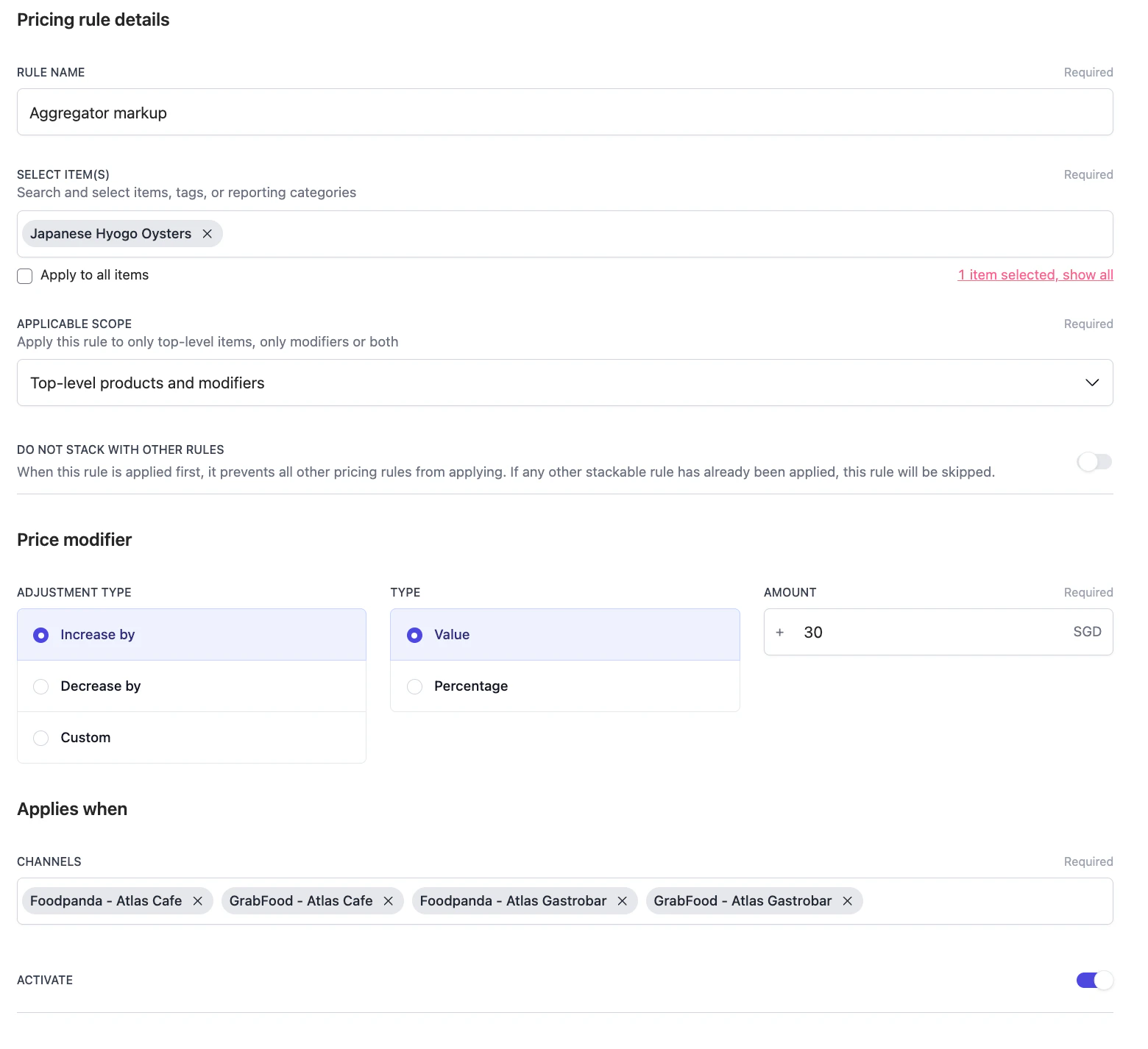 Give the rule a clear name in **Rule name**, such as "Aggregator markup" or "\$2 drinks". This is the name you'll see in the rules list.
Under **Select item(s)**, search and add what the rule applies to. You can mix three kinds of selection:
* **Single products**, added one at a time.
* **Reporting categories**, to cover a whole category at once (for example, all Drinks).
* **Tags**, to cover every product carrying a given product tag or printing tag.
To apply the rule to the entire menu, tick **Apply to all items** instead.
Give the rule a clear name in **Rule name**, such as "Aggregator markup" or "\$2 drinks". This is the name you'll see in the rules list.
Under **Select item(s)**, search and add what the rule applies to. You can mix three kinds of selection:
* **Single products**, added one at a time.
* **Reporting categories**, to cover a whole category at once (for example, all Drinks).
* **Tags**, to cover every product carrying a given product tag or printing tag.
To apply the rule to the entire menu, tick **Apply to all items** instead.
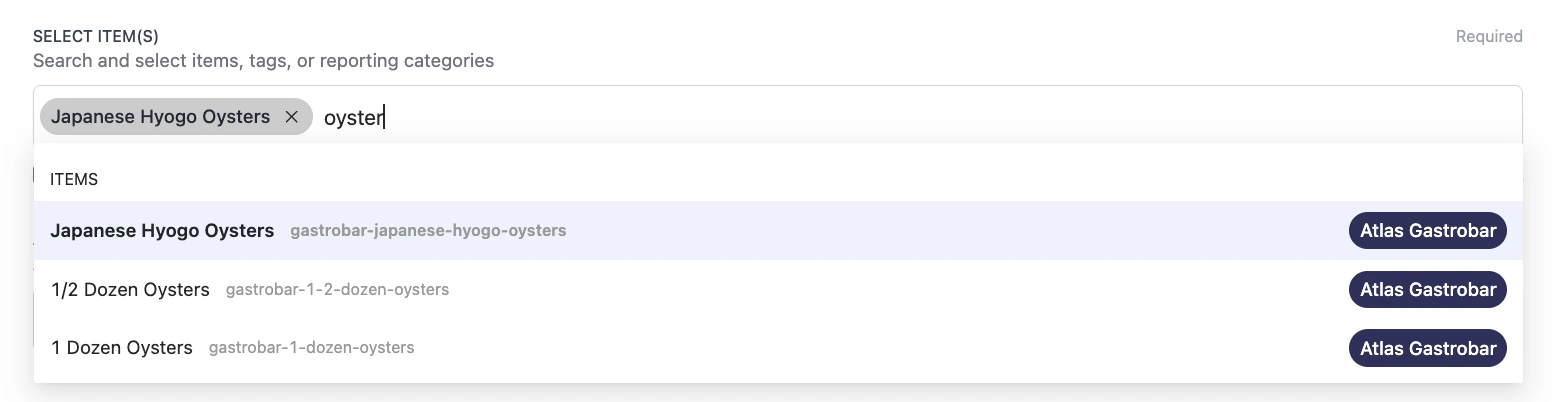
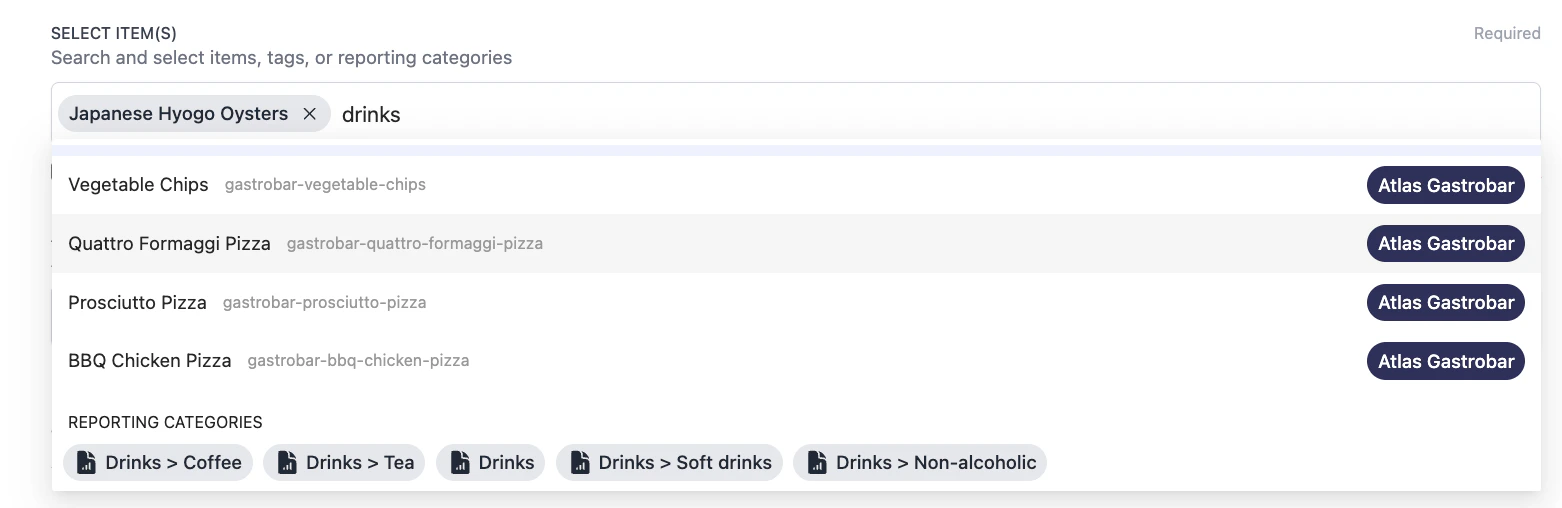 If your items aren't grouped yet, set that up first, then come back. See [Reporting categories](/menu-builder/reporting-categories) to group products, or add **Product tags** on each product (see [Create and configure menus](/menu-builder/create-menus)).
Under **Applicable scope**, choose what the rule touches:
* **Top-level products and modifiers** applies to both.
* **Top-level products only** leaves modifier prices alone.
* **Modifiers only** changes only the modifier prices.
If your items aren't grouped yet, set that up first, then come back. See [Reporting categories](/menu-builder/reporting-categories) to group products, or add **Product tags** on each product (see [Create and configure menus](/menu-builder/create-menus)).
Under **Applicable scope**, choose what the rule touches:
* **Top-level products and modifiers** applies to both.
* **Top-level products only** leaves modifier prices alone.
* **Modifiers only** changes only the modifier prices.
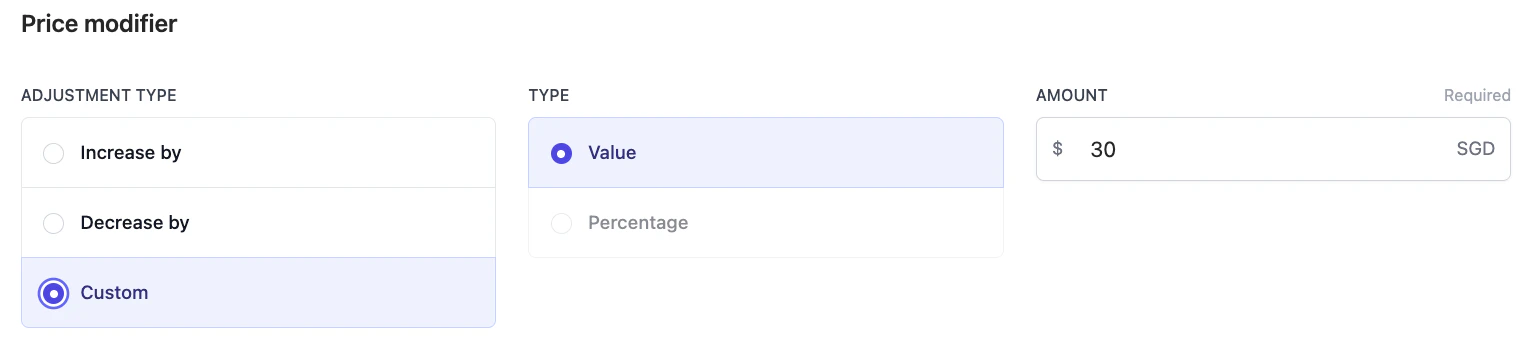
 Under **Price modifier**, choose the **Adjustment type**:
* **Increase by** or **Decrease by** changes the current price. Set **Type** to **Value** for a fixed amount, or **Percentage** for a percentage.
* **Custom** sets an exact price, whatever the item's current price is. For example, set all drinks to a flat \$2 on GrabFood.
Enter the figure in **Amount**.
Under **Price modifier**, choose the **Adjustment type**:
* **Increase by** or **Decrease by** changes the current price. Set **Type** to **Value** for a fixed amount, or **Percentage** for a percentage.
* **Custom** sets an exact price, whatever the item's current price is. For example, set all drinks to a flat \$2 on GrabFood.
Enter the figure in **Amount**.
 Under **Applies when** > **Channels**, add the aggregator channels the rule should run on, such as GrabFood or Foodpanda for a given brand. Channels are required, so a rule needs at least one.
Turn **Activate** on so the rule takes effect, then save. Leave it off to keep the rule as a draft.
### Stop a rule from stacking
By default, more than one rule can apply to the same item in rank order. Turn on **Do not stack with other rules** when a rule should be the final word. If it applies first, it blocks every rule below it. If a stackable rule already applied, this rule is skipped.
**Example.** You run a flat \$2 drinks price and a 10% aggregator markup, and both could land on the same coffee. To keep the coffee at \$2 and not mark it up, turn **Do not stack with other rules** on for the \$2 drinks rule and rank it above the markup. Once the \$2 price applies, the markup is skipped for that drink.
## Reorder and manage rules
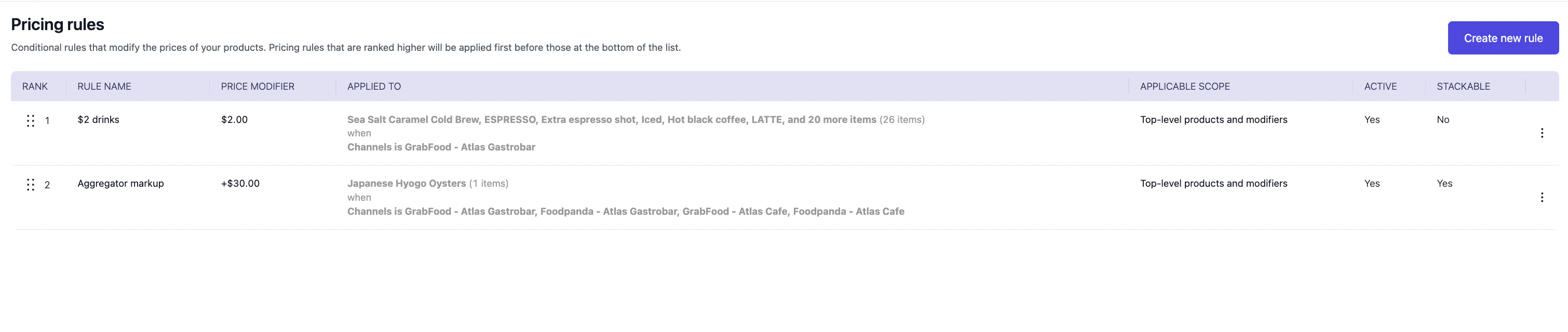
All your rules sit in one list at **Menu builder** > **Pricing rules**. Drag a rule by its handle to change its rank. A rule higher in the list applies first. The list also shows each rule's price modifier, what it applies to, its scope, whether it's active, and whether it stacks.
Under **Applies when** > **Channels**, add the aggregator channels the rule should run on, such as GrabFood or Foodpanda for a given brand. Channels are required, so a rule needs at least one.
Turn **Activate** on so the rule takes effect, then save. Leave it off to keep the rule as a draft.
### Stop a rule from stacking
By default, more than one rule can apply to the same item in rank order. Turn on **Do not stack with other rules** when a rule should be the final word. If it applies first, it blocks every rule below it. If a stackable rule already applied, this rule is skipped.
**Example.** You run a flat \$2 drinks price and a 10% aggregator markup, and both could land on the same coffee. To keep the coffee at \$2 and not mark it up, turn **Do not stack with other rules** on for the \$2 drinks rule and rank it above the markup. Once the \$2 price applies, the markup is skipped for that drink.
## Reorder and manage rules
All your rules sit in one list at **Menu builder** > **Pricing rules**. Drag a rule by its handle to change its rank. A rule higher in the list applies first. The list also shows each rule's price modifier, what it applies to, its scope, whether it's active, and whether it stacks.
 ## See which rules apply to an item
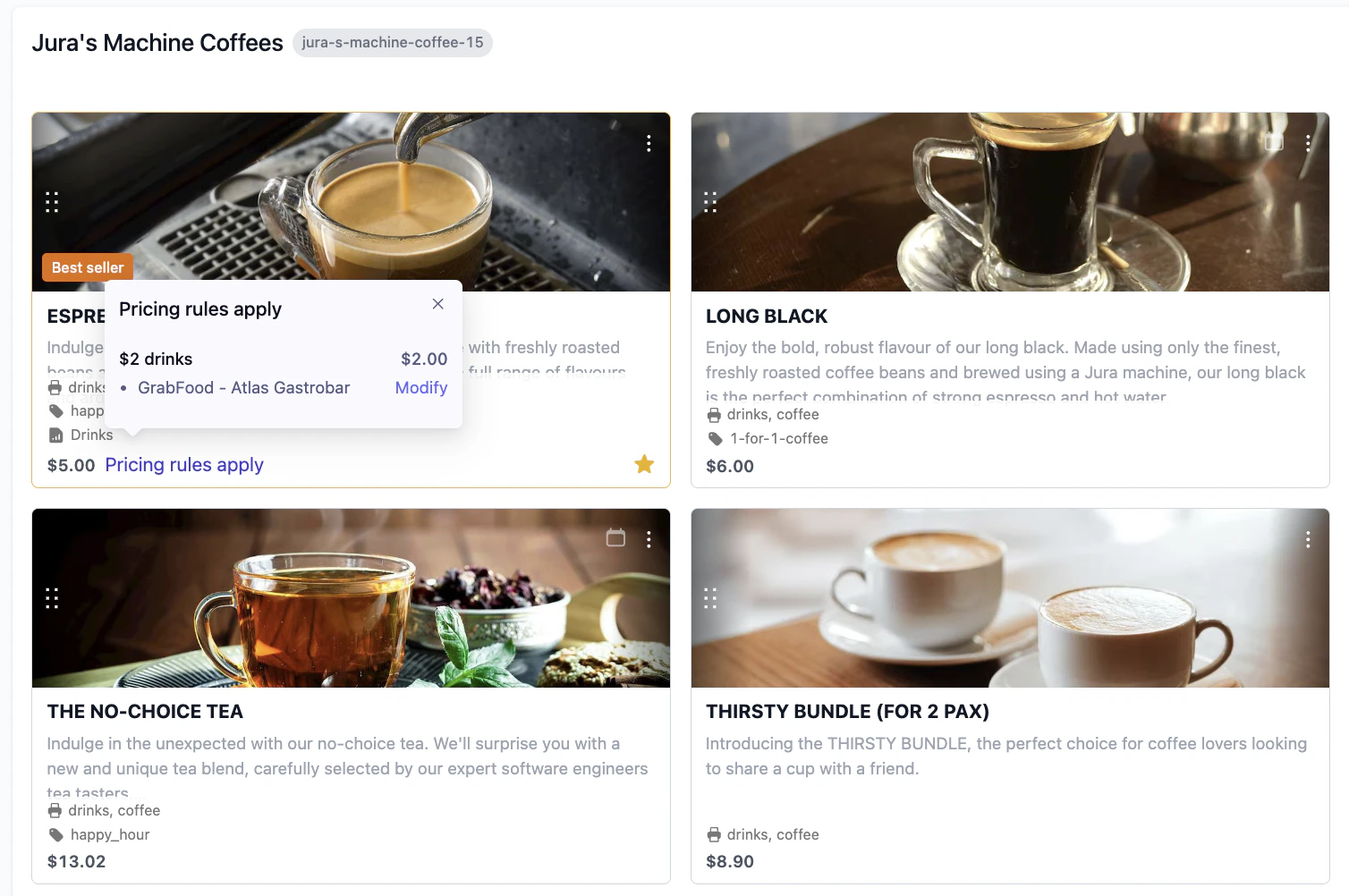
In the menu builder, a product that a rule touches shows a **Pricing rules apply** link by its price. Tap it to see which rules apply and on which channel, then tap **Modify** to open the rule.
## See which rules apply to an item
In the menu builder, a product that a rule touches shows a **Pricing rules apply** link by its price. Tap it to see which rules apply and on which channel, then tap **Modify** to open the rule.
 ## Troubleshooting
After you create a rule, you should see:
* The rule in the list at **Menu builder** > **Pricing rules**, marked **Active**.
* A **Pricing rules apply** link on each affected product in the menu builder.
* The adjusted price on the selected channels after you sync the menu. See [Aggregator menus](/menu-builder/aggregator-menus).
If something isn't right, check the matching scenario below.
1. Confirm **Activate** is on.
2. Confirm the item is in the rule, or that **Apply to all items** is ticked.
3. Confirm the **Applicable scope** covers the item. A product won't change under a Modifiers only rule.
4. Confirm the channel you're checking is in the rule's **Channels**.
Rank decides the order. A higher rule with **Do not stack with other rules** on blocks the rules below it. Drag the rule you want to win above the others, or adjust which rules stack.
Aggregator menus update after a sync. Sync the menu, then check again. See [Aggregator menus](/menu-builder/aggregator-menus).
If the issue persists, contact support at [hello@atlas.kitchen](mailto:hello@atlas.kitchen) with your outlet name and the rule affected.
## Next steps
* [Update menu item prices](/menu-builder/draft-update-prices): change a single price or update many at once.
* [Aggregator menus](/menu-builder/aggregator-menus): sync price changes to GrabFood and Foodpanda.
* [Reporting categories](/menu-builder/reporting-categories): group products so a rule can target a whole category.
## Troubleshooting
After you create a rule, you should see:
* The rule in the list at **Menu builder** > **Pricing rules**, marked **Active**.
* A **Pricing rules apply** link on each affected product in the menu builder.
* The adjusted price on the selected channels after you sync the menu. See [Aggregator menus](/menu-builder/aggregator-menus).
If something isn't right, check the matching scenario below.
1. Confirm **Activate** is on.
2. Confirm the item is in the rule, or that **Apply to all items** is ticked.
3. Confirm the **Applicable scope** covers the item. A product won't change under a Modifiers only rule.
4. Confirm the channel you're checking is in the rule's **Channels**.
Rank decides the order. A higher rule with **Do not stack with other rules** on blocks the rules below it. Drag the rule you want to win above the others, or adjust which rules stack.
Aggregator menus update after a sync. Sync the menu, then check again. See [Aggregator menus](/menu-builder/aggregator-menus).
If the issue persists, contact support at [hello@atlas.kitchen](mailto:hello@atlas.kitchen) with your outlet name and the rule affected.
## Next steps
* [Update menu item prices](/menu-builder/draft-update-prices): change a single price or update many at once.
* [Aggregator menus](/menu-builder/aggregator-menus): sync price changes to GrabFood and Foodpanda.
* [Reporting categories](/menu-builder/reporting-categories): group products so a rule can target a whole category.