> ## Documentation Index
> Fetch the complete documentation index at: https://help.atlas.kitchen/llms.txt
> Use this file to discover all available pages before exploring further.
# How menus work
> How Atlas organises menus, sections, products, and modifiers, and which parts can be shared across them.
Atlas uses a hierarchy to organise what you sell. Each level sits inside the one above it, from the menu a customer opens down to a single modifier. Learn the levels once and the rest of menu building follows.
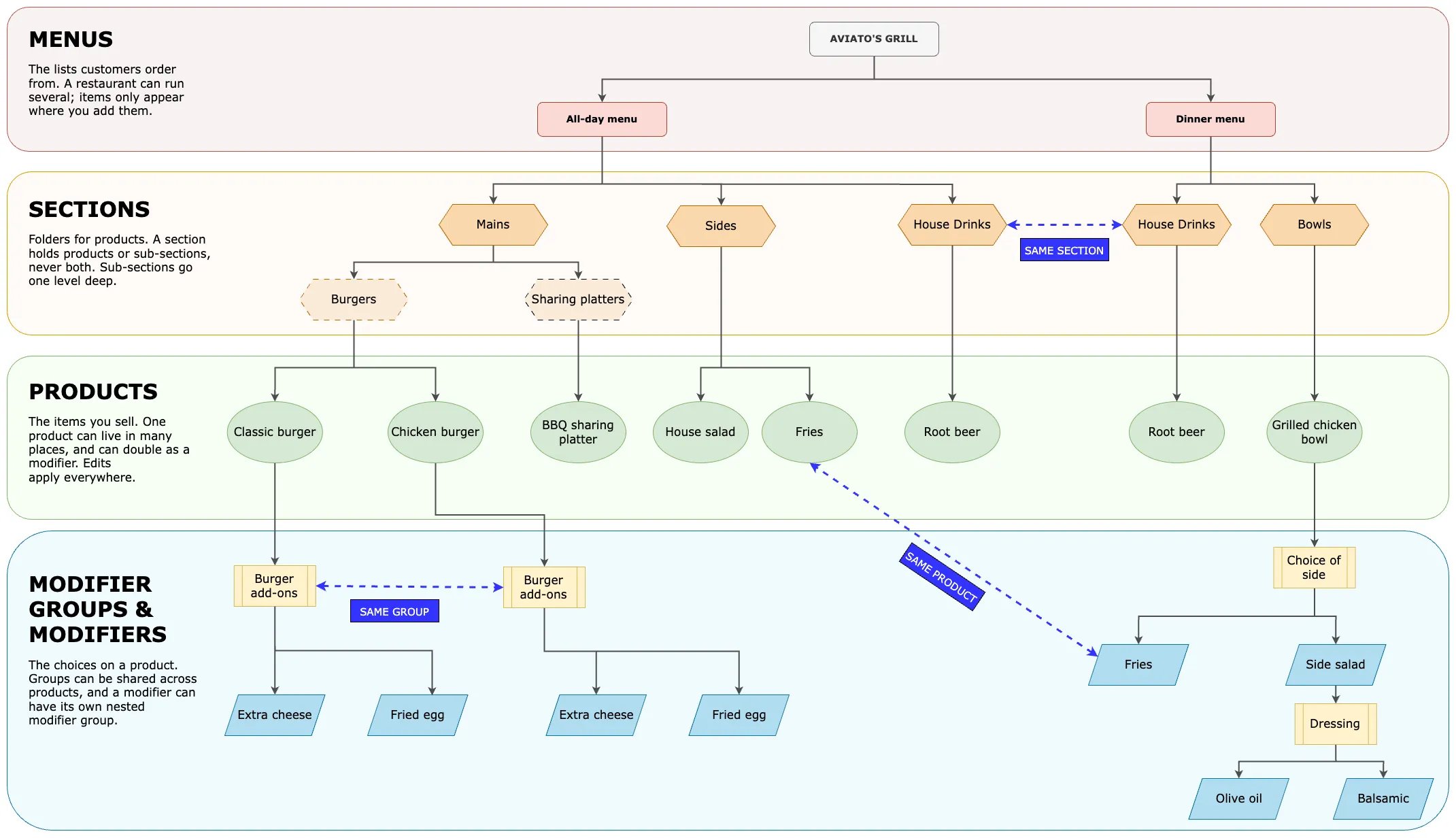 ## Menu hierarchy on Atlas
* **Menus** are the lists your customers order from, such as an All-day menu or a Dinner menu. A restaurant can run several. A product appears only on the menus you add it to.
* **Sections** are folders that group products inside a menu, such as Mains, Sides, or Drinks. A section holds either products or sub-sections, never both.
* **Sub-sections** split a section one level deeper, such as Burgers and Bowls inside Mains. Sub-sections go one level deep only.
* **Products** are the items you sell, such as Classic burger, Fries, or Root beer. The same product can sit in more than one section, and it can also act as a modifier.
* **Modifier groups** are the choices on a product, such as Burger add-ons or Choice of side. They set how many options a customer can pick.
* **Modifiers** are the options inside a group, such as Extra cheese or Fried egg. Every modifier is itself a product or component.
* **Nested modifier groups** are a modifier group attached to a modifier, such as Dressing on a Side salad. They work like any other modifier group, except their parent is a modifier instead of a product.
**Nested modifier groups have two limits:**
* They allow only one choice (a maximum selection of 1).
* Aggregator platforms such as GrabFood and Foodpanda do not support them.
## Sharing parts of the menu
Most parts of the hierarchy can be used in more than one place. You add an existing one instead of building a copy, so there is a single item to keep up to date.
* **A section can appear in more than one menu.** House Drinks can sit on both the All-day and Dinner menus.
* **A modifier group can be attached to more than one product.** Burger add-ons can apply to both the Classic burger and the Chicken burger.
* **A product can also be used as a modifier.** Fries can sell as a side and appear inside Choice of side.
Because it is the same item, editing it updates every place it appears. If you want a different price when a product is used as a modifier, set a **price override** on the modifier rather than creating a new product.
Products also carry **Printer / KDS / Dispatch tags**. These decide which printer or kitchen screen an item prints on. They do not change what the customer sees. See [Item routing and printers](/menu-builder/printer-routing).
## Where to go next
Build a menu from scratch with sections, products, and modifier groups.
Change a single price or update prices in bulk by CSV.
Set different prices by channel or outlet, such as higher prices on delivery apps.
Set up and sync your menu on GrabFood and Foodpanda.
Show or hide items by time, day, or other rules.
Group products so they roll up correctly in your reports.
Arrange how items appear on the POS screen for your staff.
Route each item to the right printer or kitchen screen using tags.
## Menu hierarchy on Atlas
* **Menus** are the lists your customers order from, such as an All-day menu or a Dinner menu. A restaurant can run several. A product appears only on the menus you add it to.
* **Sections** are folders that group products inside a menu, such as Mains, Sides, or Drinks. A section holds either products or sub-sections, never both.
* **Sub-sections** split a section one level deeper, such as Burgers and Bowls inside Mains. Sub-sections go one level deep only.
* **Products** are the items you sell, such as Classic burger, Fries, or Root beer. The same product can sit in more than one section, and it can also act as a modifier.
* **Modifier groups** are the choices on a product, such as Burger add-ons or Choice of side. They set how many options a customer can pick.
* **Modifiers** are the options inside a group, such as Extra cheese or Fried egg. Every modifier is itself a product or component.
* **Nested modifier groups** are a modifier group attached to a modifier, such as Dressing on a Side salad. They work like any other modifier group, except their parent is a modifier instead of a product.
**Nested modifier groups have two limits:**
* They allow only one choice (a maximum selection of 1).
* Aggregator platforms such as GrabFood and Foodpanda do not support them.
## Sharing parts of the menu
Most parts of the hierarchy can be used in more than one place. You add an existing one instead of building a copy, so there is a single item to keep up to date.
* **A section can appear in more than one menu.** House Drinks can sit on both the All-day and Dinner menus.
* **A modifier group can be attached to more than one product.** Burger add-ons can apply to both the Classic burger and the Chicken burger.
* **A product can also be used as a modifier.** Fries can sell as a side and appear inside Choice of side.
Because it is the same item, editing it updates every place it appears. If you want a different price when a product is used as a modifier, set a **price override** on the modifier rather than creating a new product.
Products also carry **Printer / KDS / Dispatch tags**. These decide which printer or kitchen screen an item prints on. They do not change what the customer sees. See [Item routing and printers](/menu-builder/printer-routing).
## Where to go next
Build a menu from scratch with sections, products, and modifier groups.
Change a single price or update prices in bulk by CSV.
Set different prices by channel or outlet, such as higher prices on delivery apps.
Set up and sync your menu on GrabFood and Foodpanda.
Show or hide items by time, day, or other rules.
Group products so they roll up correctly in your reports.
Arrange how items appear on the POS screen for your staff.
Route each item to the right printer or kitchen screen using tags.