> ## Documentation Index
> Fetch the complete documentation index at: https://help.atlas.kitchen/llms.txt
> Use this file to discover all available pages before exploring further.
# Import products via CSV
> Add or update many products at once by uploading a CSV file.
**Who is this article for?**
* Merchants setting up a menu for the first time
* Anyone who needs to add or update many products at once
## What this does
Upload a CSV file to create or update products in bulk. Atlas matches each row to a product by its **SKU**.
* If the SKU already exists, Atlas updates that product.
* If the SKU is new, Atlas creates a new product.
Atlas shows you a preview before anything changes, so you can check the import first.
## When to use this
* Setting up a menu for the first time, instead of adding products one by one.
* Updating many products at once, such as prices, names, categories, tags, or archived state.
* Only changing prices? See [Update item prices](/menu-builder/draft-update-prices) for a quicker flow.
* Changing one product? Edit it on the **Products** page instead.
**Read this before you start.**
* **Do not change SKUs unless you mean to.** A changed SKU creates a new product instead of updating the old one. You end up with duplicates.
* **Always download the latest template.** Atlas checks the column order. An old or edited header row fails the import.
* **Create modifier groups first.** The CSV can attach modifier groups, but they must already exist on the **Modifier groups** page.
## Steps
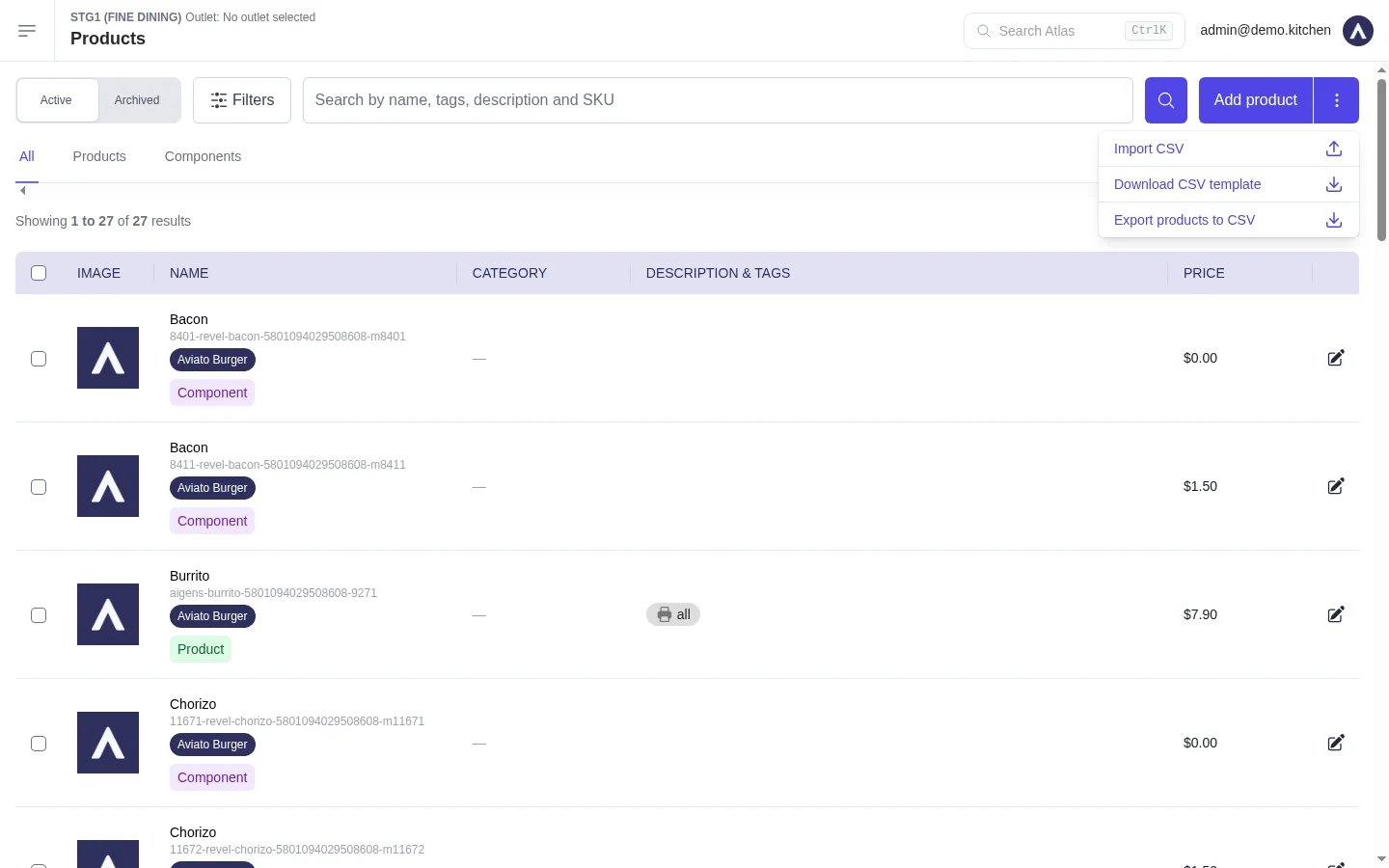
Go to **Menu builder** > **Products**. Tap the three dots in the top-right corner.
* Tap **Download CSV template** for a blank file with the correct columns.
* Or tap **Export products to CSV** for a file prefilled with your current products. Atlas emails you a download link when it is ready.
 Open the file in Excel or Google Sheets. Fill in one row per product.
See [Template columns](#template-columns) below for what each column does.
Open the file in Excel or Google Sheets. Fill in one row per product.
See [Template columns](#template-columns) below for what each column does.
 Some exported cells start with a single quote, such as `'size/spiciness`. Leave the quote in place. It stops your spreadsheet turning the value into a date. Atlas removes it during import.
Save the file as a CSV. Go to **Menu builder** > **Products**, tap the three dots, then tap **Import CSV** and select your file.
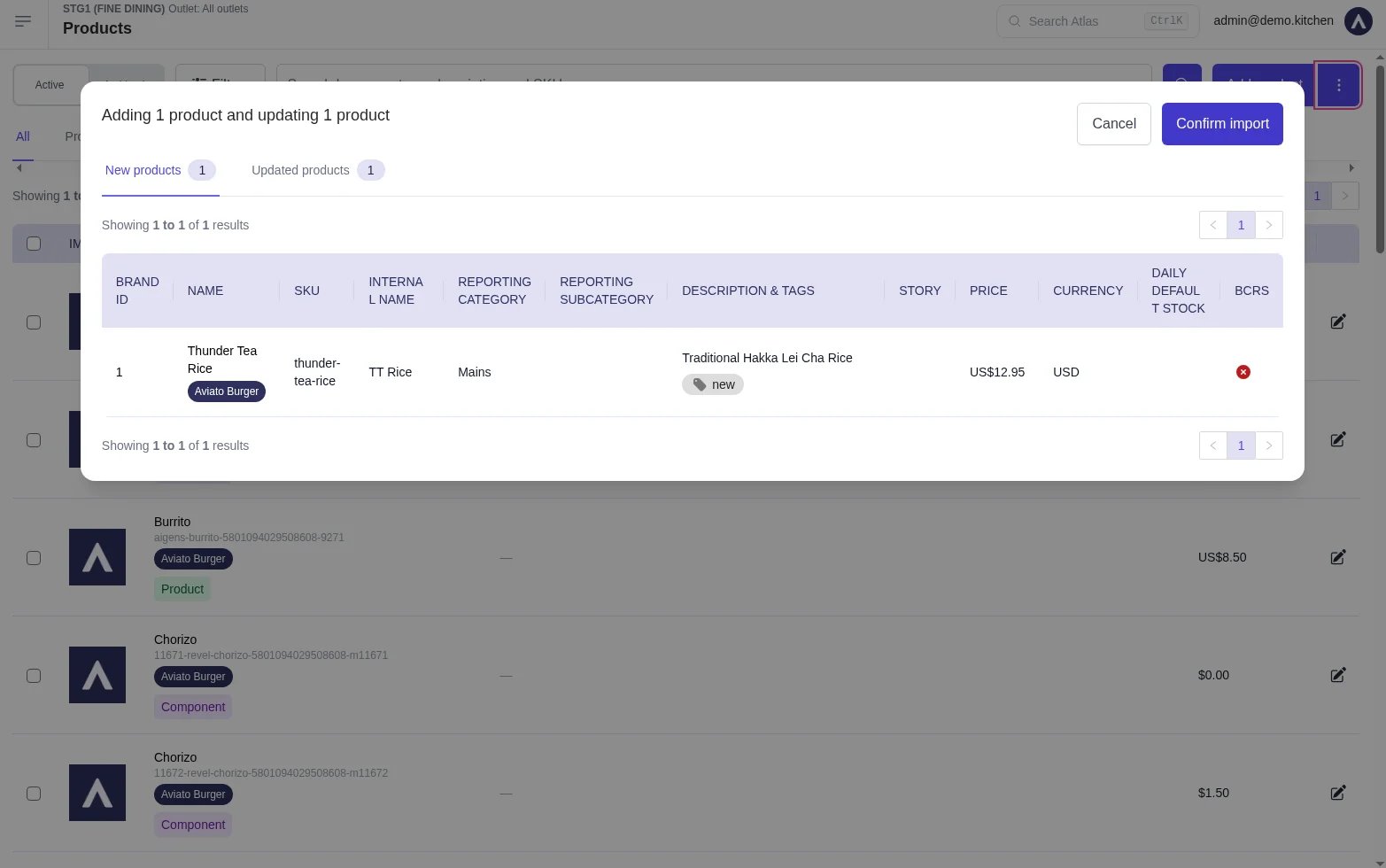
Atlas runs a preview before changing anything. The header shows what will happen, for example "Adding 1 product and updating 1 product".
* **New products** — rows with SKUs that do not exist yet.
* **Updated products** — rows matched to existing products by SKU.
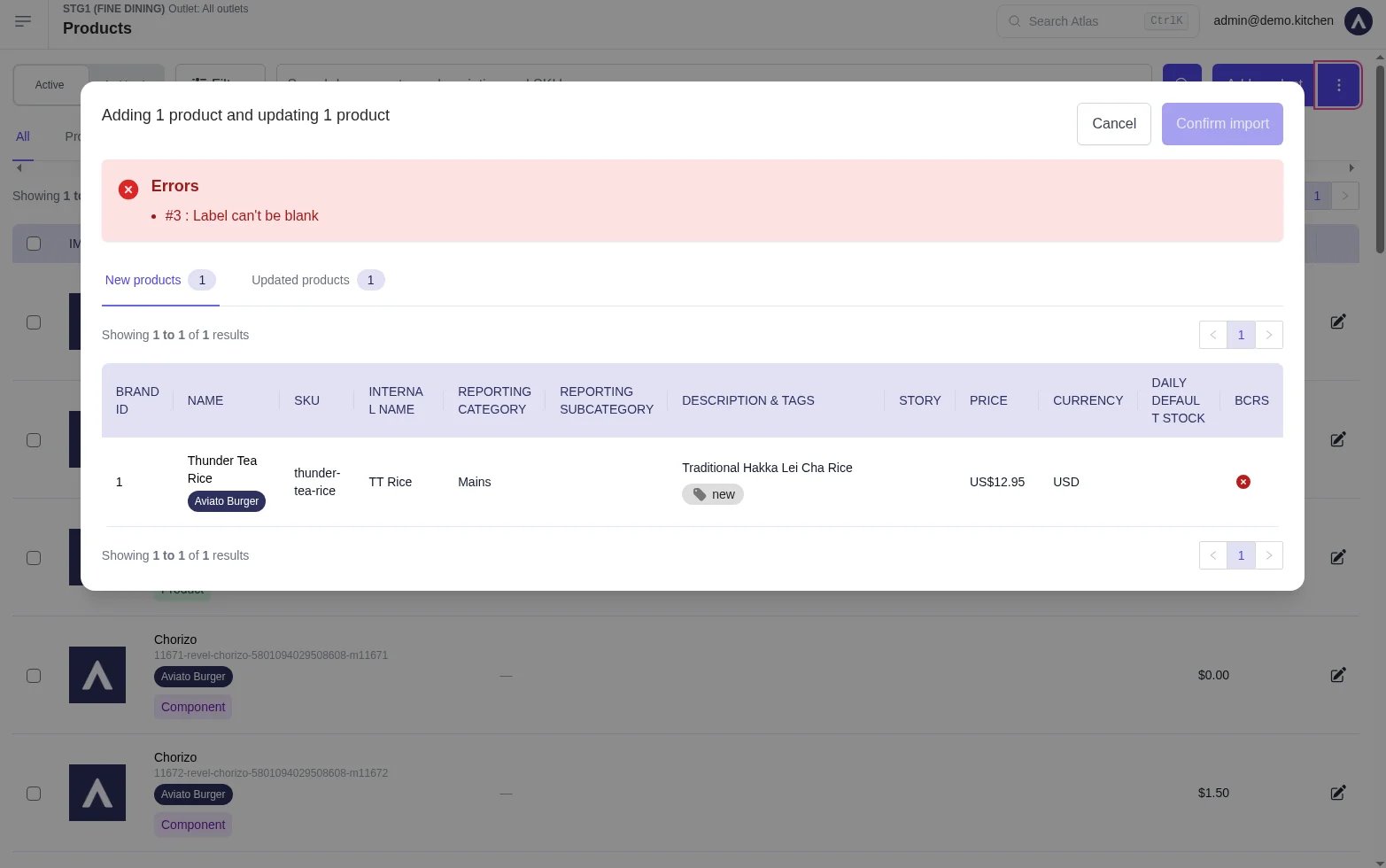
* **Errors** — rows Atlas could not process, shown at the top of the modal.
Some exported cells start with a single quote, such as `'size/spiciness`. Leave the quote in place. It stops your spreadsheet turning the value into a date. Atlas removes it during import.
Save the file as a CSV. Go to **Menu builder** > **Products**, tap the three dots, then tap **Import CSV** and select your file.
Atlas runs a preview before changing anything. The header shows what will happen, for example "Adding 1 product and updating 1 product".
* **New products** — rows with SKUs that do not exist yet.
* **Updated products** — rows matched to existing products by SKU.
* **Errors** — rows Atlas could not process, shown at the top of the modal.
 If the **Errors** list shows problems, the **Confirm import** button stays disabled. Fix the file and import again.
When the preview looks right, tap **Confirm import**.
If the **Errors** list shows problems, the **Confirm import** button stays disabled. Fix the file and import again.
When the preview looks right, tap **Confirm import**.
 ## Template columns
The template has 20 columns. Keep every column and keep them in order.
* **S/N** — the row number. Keep it sequential: 1, 2, 3, and so on.
* **Brand ID** — the number of the brand the product belongs to. Find it in the **Brand ID** column on the Products page or in an exported file.
* **Type** — `Product` for a normal sellable item, or `Component` for an item used inside a bundle. Components appear under the **Components** tab on the Products page.
* **Name** — the product name customers see on menus and receipts.
* **SKU** — the product's unique code. Atlas uses it to match each row to a product. SKUs are saved in lowercase with hyphens, so `Latte L` becomes `latte-l`.
* **Internal name** — the name staff see on kitchen dockets and internal lists. Customers never see it.
* **Description** — a short description shown on menus.
* **Story** — longer product text. Supports simple formatting.
* **Price** — the selling price as a decimal, such as `12.95`.
* **Cost** — what one unit costs you, used for margin reporting. Optional. Numbers only, or leave it blank.
* **Currency** — a three-letter currency code, such as `SGD`. Blank cells default to `SGD`.
* **Report category** — the category this product reports under. Atlas creates the category if it does not exist yet.
* **Report subcategory** — a category nested under the report category. Also created if new.
See [Reporting categories](/menu-builder/reporting-categories) for how categories work.
* **Daily default stock** — how many units are available each day. Leave blank for unlimited stock.
* **Printer tags** — tags that route the product to a printer. Separate multiple tags with a forward slash, such as `kitchen/bar`.
* **Product tags** — tags for grouping products on the Products page. Separate multiple tags with a forward slash.
* **Section identifier** — the identifier of the menu section to add the product to. Products join the end of the section. Find section identifiers in an exported file.
* **Modifier group identifiers** — the modifier groups to attach, in the order they should appear. Separate identifiers with a forward slash, such as `'size/spiciness`. Each one must match the **Identifier** of an existing modifier group.
* **Archived** — `TRUE` archives the product and removes it from menus and POS layouts. `FALSE` keeps it active or unarchives it. Leave blank for no change.
* **BCRS** — `TRUE` marks the product for the container deposit scheme. `FALSE` removes the marking. Leave blank for no change. Only relevant if your outlet uses BCRS. See [BCRS](/merchant-portal/bcrs).
## What should happen
* Atlas shows an "Import successful" message.
* New products appear on the **Products** page. Updated products show their new values.
* Products with a **Section identifier** appear at the end of that section in your menu.
## If it doesn't work
The header row does not match the current template. Download a fresh template and move your data into it. Do not rename, reorder, or delete columns.
The file contains a character Atlas cannot read. Re-save the file as a UTF-8 CSV, then import again. In Excel, choose **CSV UTF-8** when saving.
The same SKU appears on more than one row. Each SKU can only appear once. Remove or fix the duplicate rows.
A modifier group identifier in the file does not exist in Atlas. Check the exact **Identifier** on the **Modifier groups** page, then fix the cell.
The Errors list names the row and the problem, such as a missing name or a bad price. Fix those rows in the file and import again. Valid rows still cannot be confirmed until every error is resolved.
A SKU was changed in the file, so Atlas created new products instead of updating the existing ones. Archive the duplicates, then re-import with the original SKUs in place.
If the issue persists, contact support at [hello@atlas.kitchen](mailto:hello@atlas.kitchen) with your outlet name and the file you tried to import.
## Next steps
* [Update item prices](/menu-builder/draft-update-prices): bulk price changes with an export-edit-import flow.
* [Create and configure menus](/menu-builder/create-menus): add your imported products to menus.
* [Reporting categories](/menu-builder/reporting-categories): organise products for reporting.
## Template columns
The template has 20 columns. Keep every column and keep them in order.
* **S/N** — the row number. Keep it sequential: 1, 2, 3, and so on.
* **Brand ID** — the number of the brand the product belongs to. Find it in the **Brand ID** column on the Products page or in an exported file.
* **Type** — `Product` for a normal sellable item, or `Component` for an item used inside a bundle. Components appear under the **Components** tab on the Products page.
* **Name** — the product name customers see on menus and receipts.
* **SKU** — the product's unique code. Atlas uses it to match each row to a product. SKUs are saved in lowercase with hyphens, so `Latte L` becomes `latte-l`.
* **Internal name** — the name staff see on kitchen dockets and internal lists. Customers never see it.
* **Description** — a short description shown on menus.
* **Story** — longer product text. Supports simple formatting.
* **Price** — the selling price as a decimal, such as `12.95`.
* **Cost** — what one unit costs you, used for margin reporting. Optional. Numbers only, or leave it blank.
* **Currency** — a three-letter currency code, such as `SGD`. Blank cells default to `SGD`.
* **Report category** — the category this product reports under. Atlas creates the category if it does not exist yet.
* **Report subcategory** — a category nested under the report category. Also created if new.
See [Reporting categories](/menu-builder/reporting-categories) for how categories work.
* **Daily default stock** — how many units are available each day. Leave blank for unlimited stock.
* **Printer tags** — tags that route the product to a printer. Separate multiple tags with a forward slash, such as `kitchen/bar`.
* **Product tags** — tags for grouping products on the Products page. Separate multiple tags with a forward slash.
* **Section identifier** — the identifier of the menu section to add the product to. Products join the end of the section. Find section identifiers in an exported file.
* **Modifier group identifiers** — the modifier groups to attach, in the order they should appear. Separate identifiers with a forward slash, such as `'size/spiciness`. Each one must match the **Identifier** of an existing modifier group.
* **Archived** — `TRUE` archives the product and removes it from menus and POS layouts. `FALSE` keeps it active or unarchives it. Leave blank for no change.
* **BCRS** — `TRUE` marks the product for the container deposit scheme. `FALSE` removes the marking. Leave blank for no change. Only relevant if your outlet uses BCRS. See [BCRS](/merchant-portal/bcrs).
## What should happen
* Atlas shows an "Import successful" message.
* New products appear on the **Products** page. Updated products show their new values.
* Products with a **Section identifier** appear at the end of that section in your menu.
## If it doesn't work
The header row does not match the current template. Download a fresh template and move your data into it. Do not rename, reorder, or delete columns.
The file contains a character Atlas cannot read. Re-save the file as a UTF-8 CSV, then import again. In Excel, choose **CSV UTF-8** when saving.
The same SKU appears on more than one row. Each SKU can only appear once. Remove or fix the duplicate rows.
A modifier group identifier in the file does not exist in Atlas. Check the exact **Identifier** on the **Modifier groups** page, then fix the cell.
The Errors list names the row and the problem, such as a missing name or a bad price. Fix those rows in the file and import again. Valid rows still cannot be confirmed until every error is resolved.
A SKU was changed in the file, so Atlas created new products instead of updating the existing ones. Archive the duplicates, then re-import with the original SKUs in place.
If the issue persists, contact support at [hello@atlas.kitchen](mailto:hello@atlas.kitchen) with your outlet name and the file you tried to import.
## Next steps
* [Update item prices](/menu-builder/draft-update-prices): bulk price changes with an export-edit-import flow.
* [Create and configure menus](/menu-builder/create-menus): add your imported products to menus.
* [Reporting categories](/menu-builder/reporting-categories): organise products for reporting.