> ## Documentation Index
> Fetch the complete documentation index at: https://help.atlas.kitchen/llms.txt
> Use this file to discover all available pages before exploring further.
# Update item prices
> Change a single item's price, apply a pricing rule, or update many prices at once with a CSV upload.
You can change a menu price in Atlas three ways, depending on how many items you need to update. This page covers each one.
* **Update a single item price.** The fastest way to change one product.
* **Apply a pricing rule.** Set a different price for a channel or outlet without editing each item.
* **Bulk update prices with a CSV.** Change many prices at once by exporting, editing, and re-uploading a file.
Most day-to-day changes only need the first one. Changing a price affects new orders only. Orders already placed keep the price they were ordered at.
## Update a single item price
A product's price lives on the product itself, so changing it updates the price everywhere that product appears. You can reach the product two ways.
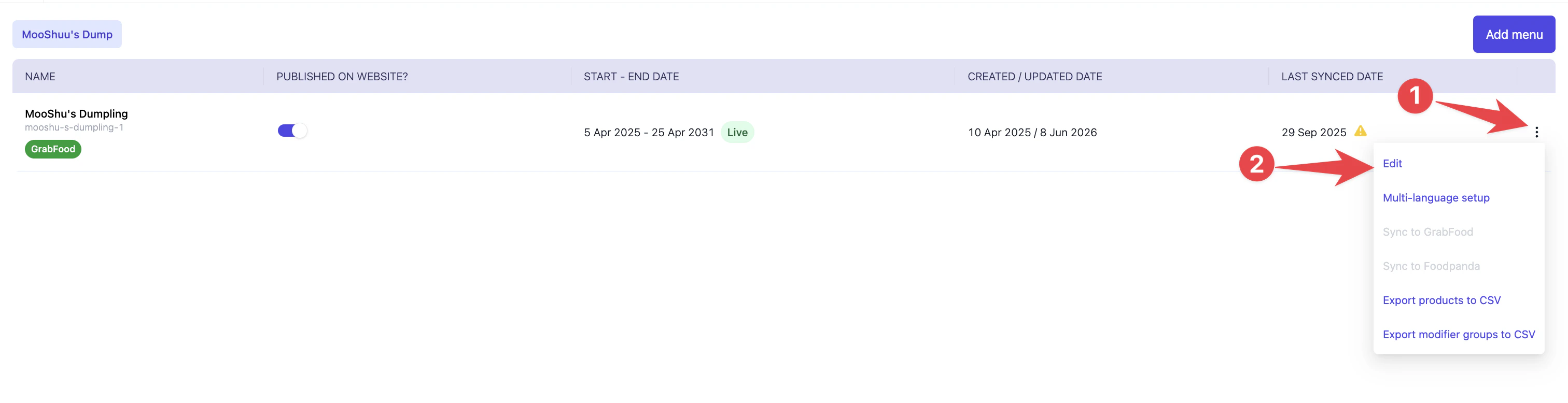
Go to **Menu builder** > **Menus**. Open the brand folder, tap the three dots next to the menu, then tap **Edit**.
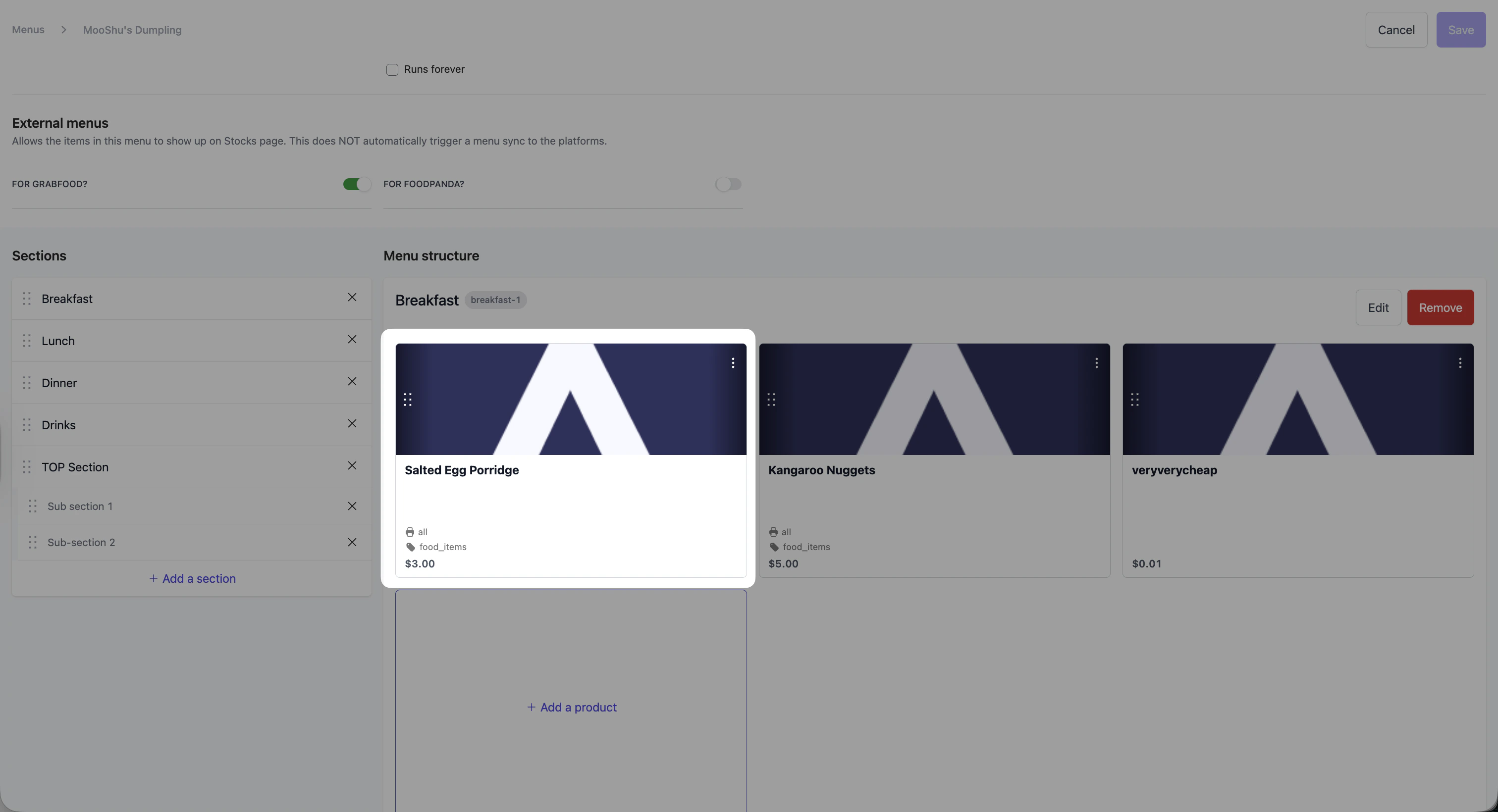
 Find the product in the menu and tap on its product tile to open **Product details**.
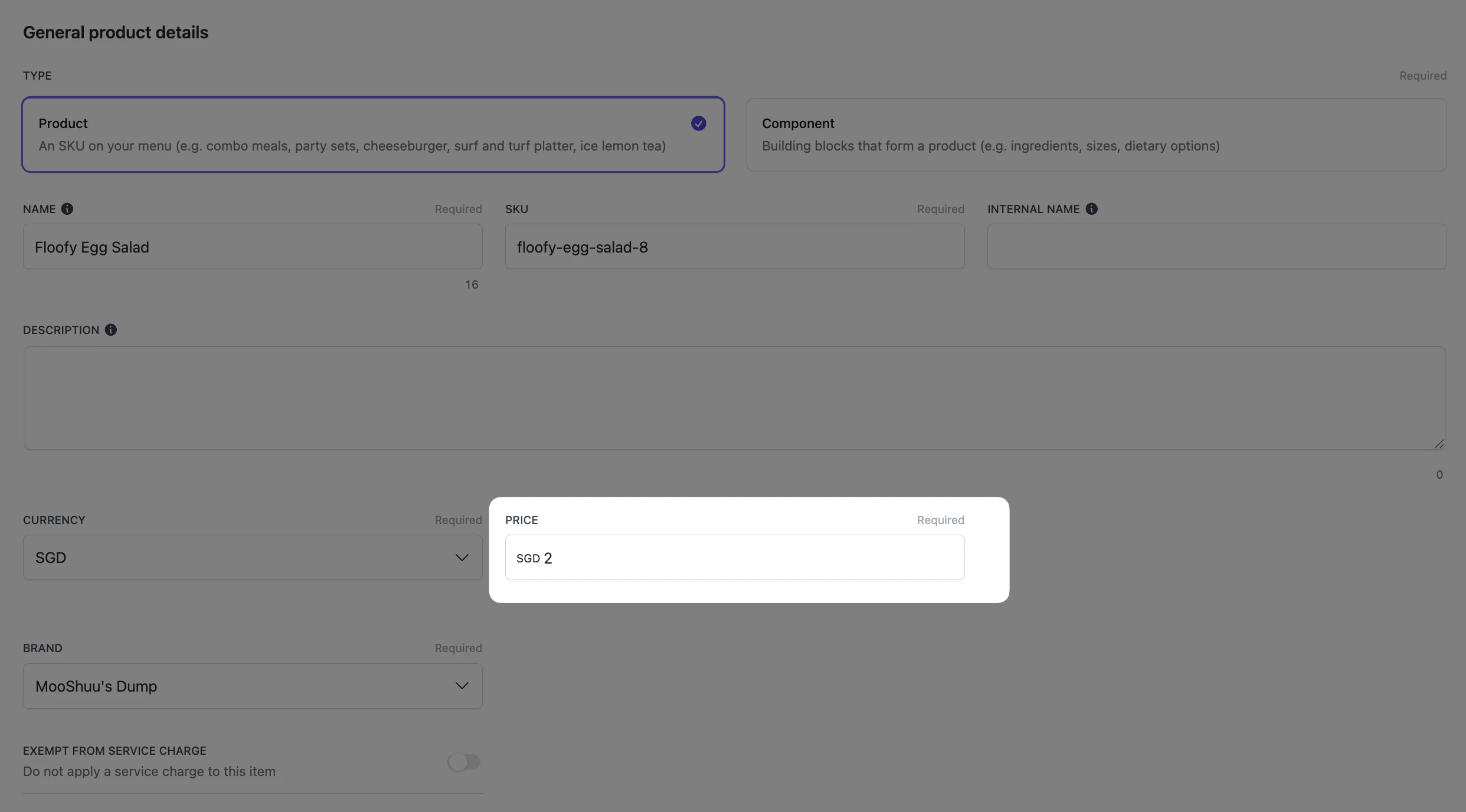
 In the **Price** field, enter the new price, then tap **Save**.
 Go to **Menu builder** > **Products**.
Search for the product by name or SKU, then tap the edit (pencil) icon on its row.
In the **Price** field, enter the new price, then tap **Save**.
## Apply a pricing rule
When a price should differ by **channel** or **outlet**, for example a higher price on delivery aggregators than dine-in, use a **pricing rule** instead of editing each item. A rule sets the difference once and applies it automatically, so you don't keep two prices in sync by hand.
See the dedicated guide: **[Pricing rules](/menu-builder/pricing-rules)**.
## Bulk update prices with a CSV
Use a CSV when you need to change many prices at once. You export your products to a file, edit the prices in a spreadsheet, then upload the file back.
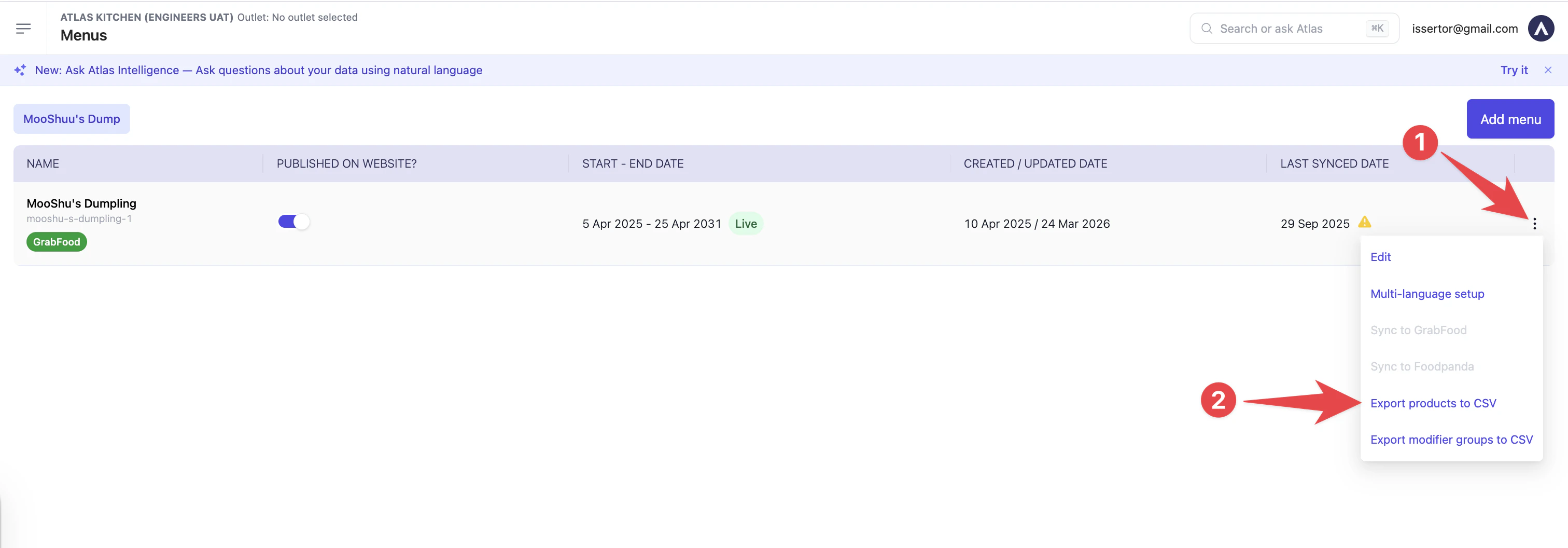
Go to **Menu builder** > **Menus**. Tap the three dots next to the menu, then tap **Export products to CSV**.
Go to **Menu builder** > **Products**.
Search for the product by name or SKU, then tap the edit (pencil) icon on its row.
In the **Price** field, enter the new price, then tap **Save**.
## Apply a pricing rule
When a price should differ by **channel** or **outlet**, for example a higher price on delivery aggregators than dine-in, use a **pricing rule** instead of editing each item. A rule sets the difference once and applies it automatically, so you don't keep two prices in sync by hand.
See the dedicated guide: **[Pricing rules](/menu-builder/pricing-rules)**.
## Bulk update prices with a CSV
Use a CSV when you need to change many prices at once. You export your products to a file, edit the prices in a spreadsheet, then upload the file back.
Go to **Menu builder** > **Menus**. Tap the three dots next to the menu, then tap **Export products to CSV**.
 Open the file in Excel or Google Sheets. Change the values in the **Price** column, then save the file as a CSV.
 Keep the **SKU** column exactly as it is. Atlas matches each row to a product by its SKU. If you change a SKU, Atlas treats the row as a new product and creates a duplicate instead of updating the original.
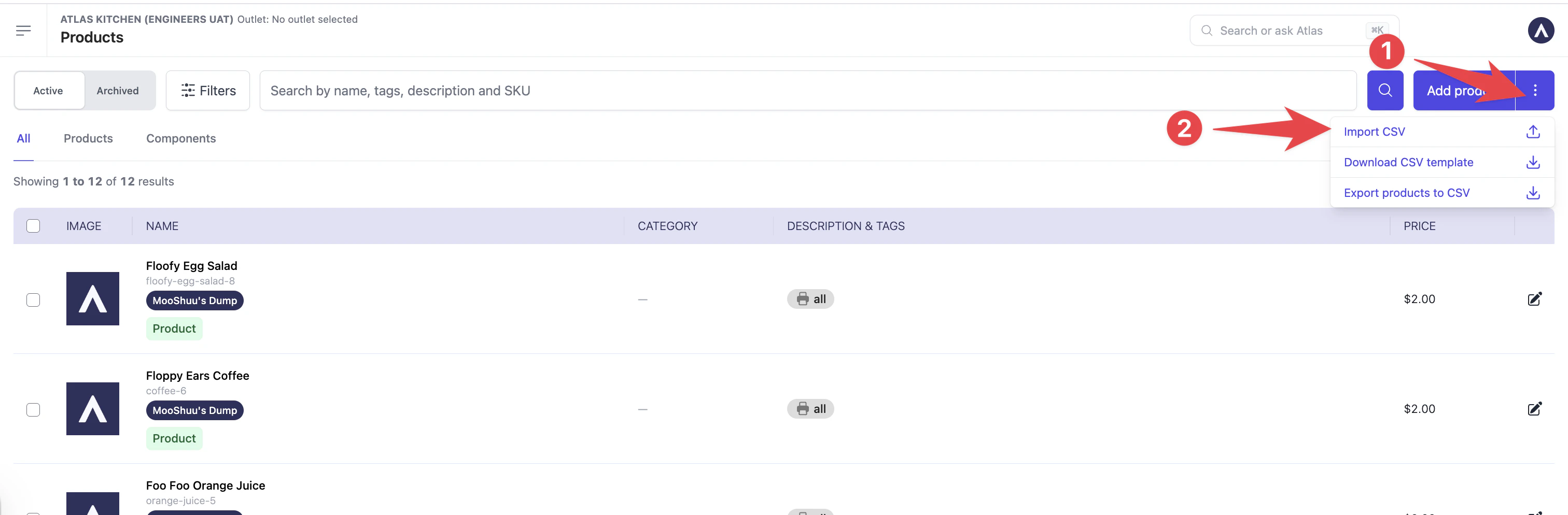
Go to **Menu builder** > **Products**. Tap the three dots in the top-right corner, then tap **Import CSV** and select your edited file.
Keep the **SKU** column exactly as it is. Atlas matches each row to a product by its SKU. If you change a SKU, Atlas treats the row as a new product and creates a duplicate instead of updating the original.
Go to **Menu builder** > **Products**. Tap the three dots in the top-right corner, then tap **Import CSV** and select your edited file.
 Atlas shows a preview before anything changes. Check the **Updated products** tab to confirm the new prices look right, and that **New products** is `0` unless you meant to add items. When it looks correct, tap **Confirm import**.
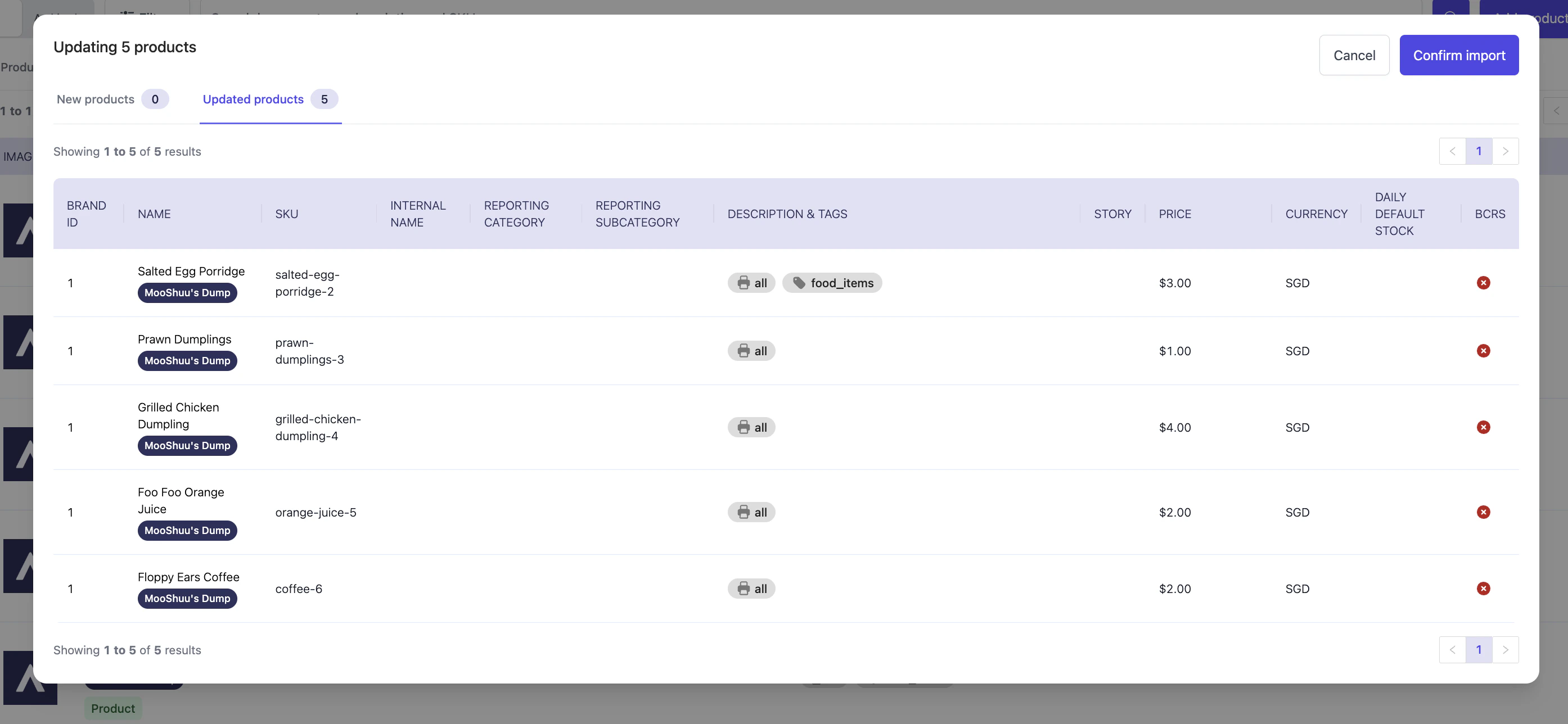 If **New products** shows items you expected to update, a SKU was changed in the file. Cancel, fix the SKU, and import again.
## Troubleshooting
After a price change, you should see:
* The new price on your menu straight away, once you save or confirm the import.
* The new price on new orders. Orders already placed keep their old price.
* Aggregator menus (GrabFood, Foodpanda) update after you sync the menu. See [Aggregator menus](/menu-builder/aggregator-menus).
If something isn't right, check the matching scenario below.
Most import problems come from edits to the file beyond the prices. Open your exported file and check:
* **SKU column unchanged.** A changed SKU creates a duplicate product instead of updating the original.
* **S/N column is a clean ascending list** (1, 2, 3, and so on). A gap or out-of-order value can break the import.
* **Every row has a currency** (for example `SGD`). A blank currency stops that row.
* **No columns were deleted or renamed.** Atlas expects the full set of columns from the export.
* **No stray blank spaces** were added inside cells.
Best practice: export the file and change as little as you can. Edit only the prices you need and leave everything else alone.
A SKU was changed in the file, so Atlas created new products instead of updating the existing ones. Archive the duplicates, then re-import with the original SKUs in place.
Aggregator menus update after a sync. Sync the menu, then check again. See [Aggregator menus](/menu-builder/aggregator-menus).
If the issue persists, contact support at [hello@atlas.kitchen](mailto:hello@atlas.kitchen) with your outlet name and the item(s) affected.
## Next steps
* [How menus work](/menu-builder/overview): the building blocks, if you're new to menus.
* [Create and configure menus](/menu-builder/create-menus): add items and sections.
* [Set availability conditions](/menu-builder/availability-conditions): show or hide items by time or rule.
If **New products** shows items you expected to update, a SKU was changed in the file. Cancel, fix the SKU, and import again.
## Troubleshooting
After a price change, you should see:
* The new price on your menu straight away, once you save or confirm the import.
* The new price on new orders. Orders already placed keep their old price.
* Aggregator menus (GrabFood, Foodpanda) update after you sync the menu. See [Aggregator menus](/menu-builder/aggregator-menus).
If something isn't right, check the matching scenario below.
Most import problems come from edits to the file beyond the prices. Open your exported file and check:
* **SKU column unchanged.** A changed SKU creates a duplicate product instead of updating the original.
* **S/N column is a clean ascending list** (1, 2, 3, and so on). A gap or out-of-order value can break the import.
* **Every row has a currency** (for example `SGD`). A blank currency stops that row.
* **No columns were deleted or renamed.** Atlas expects the full set of columns from the export.
* **No stray blank spaces** were added inside cells.
Best practice: export the file and change as little as you can. Edit only the prices you need and leave everything else alone.
A SKU was changed in the file, so Atlas created new products instead of updating the existing ones. Archive the duplicates, then re-import with the original SKUs in place.
Aggregator menus update after a sync. Sync the menu, then check again. See [Aggregator menus](/menu-builder/aggregator-menus).
If the issue persists, contact support at [hello@atlas.kitchen](mailto:hello@atlas.kitchen) with your outlet name and the item(s) affected.
## Next steps
* [How menus work](/menu-builder/overview): the building blocks, if you're new to menus.
* [Create and configure menus](/menu-builder/create-menus): add items and sections.
* [Set availability conditions](/menu-builder/availability-conditions): show or hide items by time or rule.