> ## Documentation Index
> Fetch the complete documentation index at: https://help.atlas.kitchen/llms.txt
> Use this file to discover all available pages before exploring further.
# Availability conditions
> Control when and where your menu sections and products are available across outlets, dates, times, and fulfilment types.
**Who is this article for?**
* Atlas users with Manager or above permissions. Set permissions from **Settings > Team members**.
* Users managing menu item visibility across times, dates, outlets, and fulfilment types.
## What this does
This feature allows you to control the availability of your menu sections and/or products automatically. You can restrict items based on time of day, calendar dates, specific outlets, or fulfilment types. This ensures customers can only order items when they are active.
## When to use this
Use availability conditions to show sections or products only when you want customers to order them. You can set conditions by:
* **Time of day**. For example, breakfast platters before 11am or lunch deals from 12–3pm.
* **Specific dates**. For one-off events, holidays, or seasonal menus that turn on and off automatically.
* **Outlet**. Show items only at certain outlets (for example, a bar menu only at your flagship location).
* **Fulfilment type**. Show items only for dine-in, pickup, or delivery (for example, hide sharing platters from delivery).
You can combine these conditions with **and** / **or** to get the exact result you want. For example: show a dish only at the Orchard outlet **and** only for dine-in between 6pm and 10pm.
## Steps
You can apply conditions to a whole **section** or to individual **products**. A condition set on a section applies to every product inside it, so the entire section appears or hides together.
### Open the Availability panel
Follow these steps to access the Availability panel:
Go to **Menu builder** > **Menus** on the [Atlas Merchant Portal](https://portal.atlas.kitchen).
Find the menu where your product or section lives. Tap the three-dot menu and select **Edit**.
Open the one you want to set conditions on:
* **For a section**. Tap the **Edit** button on the section header.
* **For a product**. Tap the three-dot menu on the product card and select **Edit**.
Scroll to the **Availability** section in the settings panel.
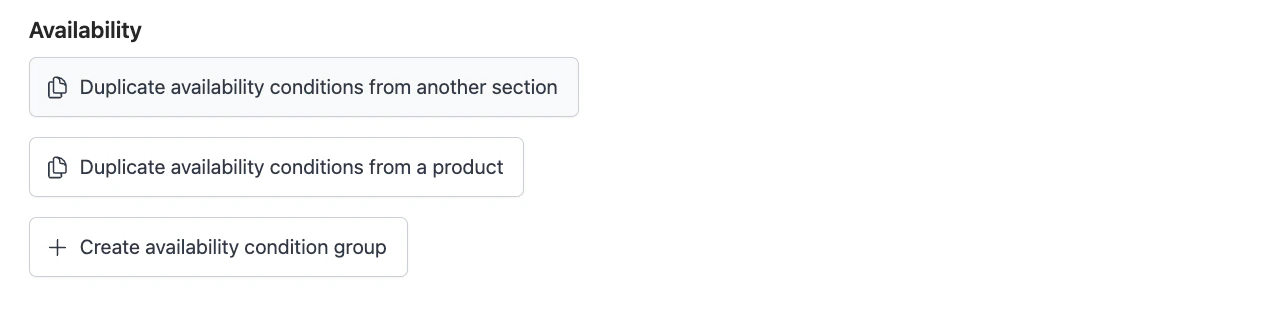 You have three ways to start:
* **Duplicate availability conditions from another section**. Copy conditions from a section that already has them set up.
* **Duplicate availability conditions from a product**. Copy conditions from a product that already has them set up.
* **Create availability condition group**. Start fresh and build your own conditions.
Use duplicate when several sections or products share the same conditions (for example, all breakfast items follow the same time and outlet condition).
### Fill in the availability fields
You have three ways to start:
* **Duplicate availability conditions from another section**. Copy conditions from a section that already has them set up.
* **Duplicate availability conditions from a product**. Copy conditions from a product that already has them set up.
* **Create availability condition group**. Start fresh and build your own conditions.
Use duplicate when several sections or products share the same conditions (for example, all breakfast items follow the same time and outlet condition).
### Fill in the availability fields
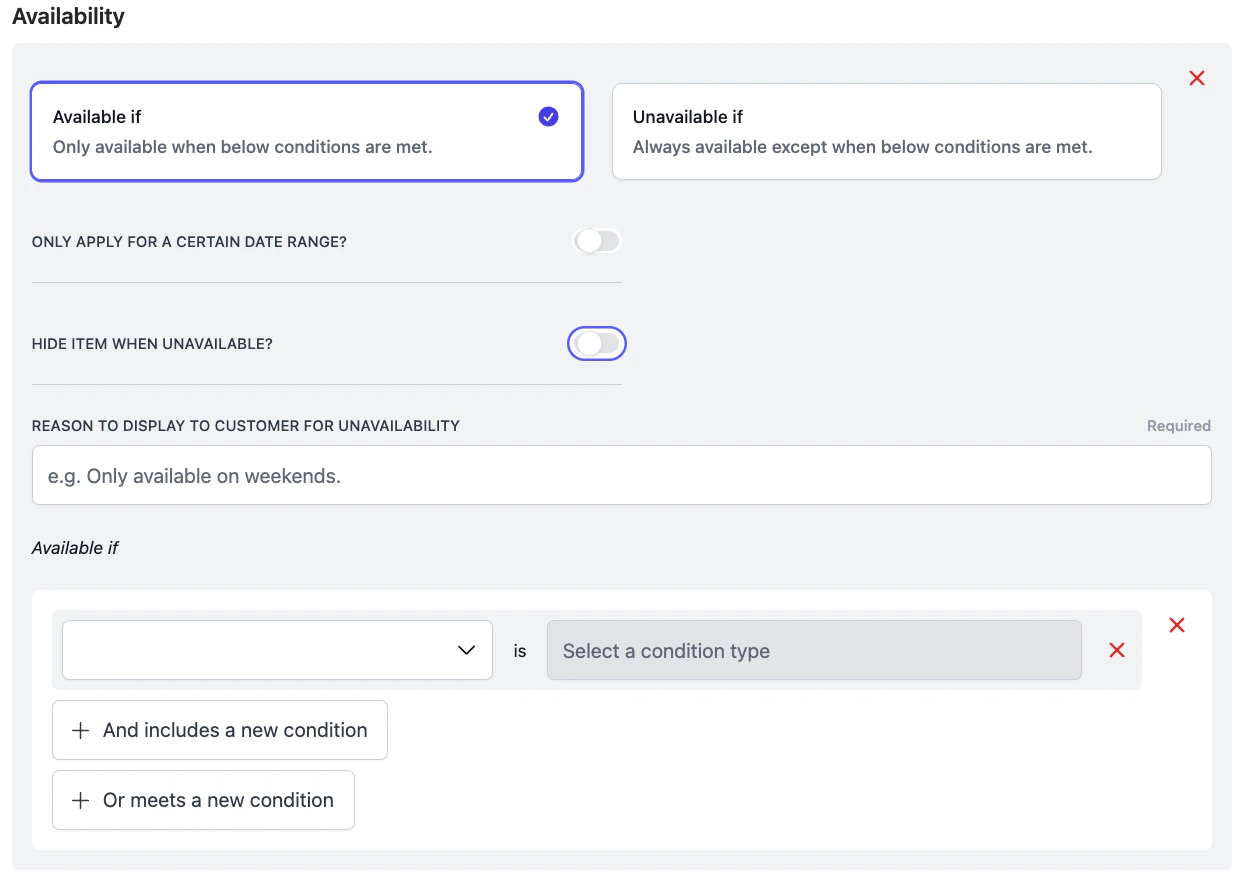 Once you create a condition group, fill in these fields:
* **Available if / Unavailable if**. Pick the logic that matches your goal:
* **Available if**. The item shows **only** when your conditions are met.
* **Unavailable if**. Hides the item when your conditions are met. Must be paired with an empty **Available if** group. See the warning below.
* **Only apply for a certain date range?**. Toggle on to run the condition only between specific dates (for example, a Christmas menu from 1 Dec to 31 Dec).
* **Hide item when unavailable?**. Toggle on to remove the item from the menu entirely when unavailable. Leave off to keep it visible but greyed out and not orderable.
* **Reason to display to customer for unavailability**. Required when **Hide item** is off. Write a short, clear message customers will see. Be specific so they understand why the item isn't available.
* Good: *Only available at McNair outlet, Monday to Friday.*
* Avoid: *Not available right now.*
If you pick **Unavailable if**, add a second condition group set to **Available if** and leave its conditions blank. Atlas needs an explicit "always available" baseline to fall back to.
Read the full condition as: "Unavailable when X, **and** available the rest of the time."
### Build your conditions
Add one or more conditions under **Available if** (or **Unavailable if**). Each condition has a **type** (Outlet, Fulfilment type, Serving day of week, time of day, and so on) and a **value**.
Once you create a condition group, fill in these fields:
* **Available if / Unavailable if**. Pick the logic that matches your goal:
* **Available if**. The item shows **only** when your conditions are met.
* **Unavailable if**. Hides the item when your conditions are met. Must be paired with an empty **Available if** group. See the warning below.
* **Only apply for a certain date range?**. Toggle on to run the condition only between specific dates (for example, a Christmas menu from 1 Dec to 31 Dec).
* **Hide item when unavailable?**. Toggle on to remove the item from the menu entirely when unavailable. Leave off to keep it visible but greyed out and not orderable.
* **Reason to display to customer for unavailability**. Required when **Hide item** is off. Write a short, clear message customers will see. Be specific so they understand why the item isn't available.
* Good: *Only available at McNair outlet, Monday to Friday.*
* Avoid: *Not available right now.*
If you pick **Unavailable if**, add a second condition group set to **Available if** and leave its conditions blank. Atlas needs an explicit "always available" baseline to fall back to.
Read the full condition as: "Unavailable when X, **and** available the rest of the time."
### Build your conditions
Add one or more conditions under **Available if** (or **Unavailable if**). Each condition has a **type** (Outlet, Fulfilment type, Serving day of week, time of day, and so on) and a **value**.
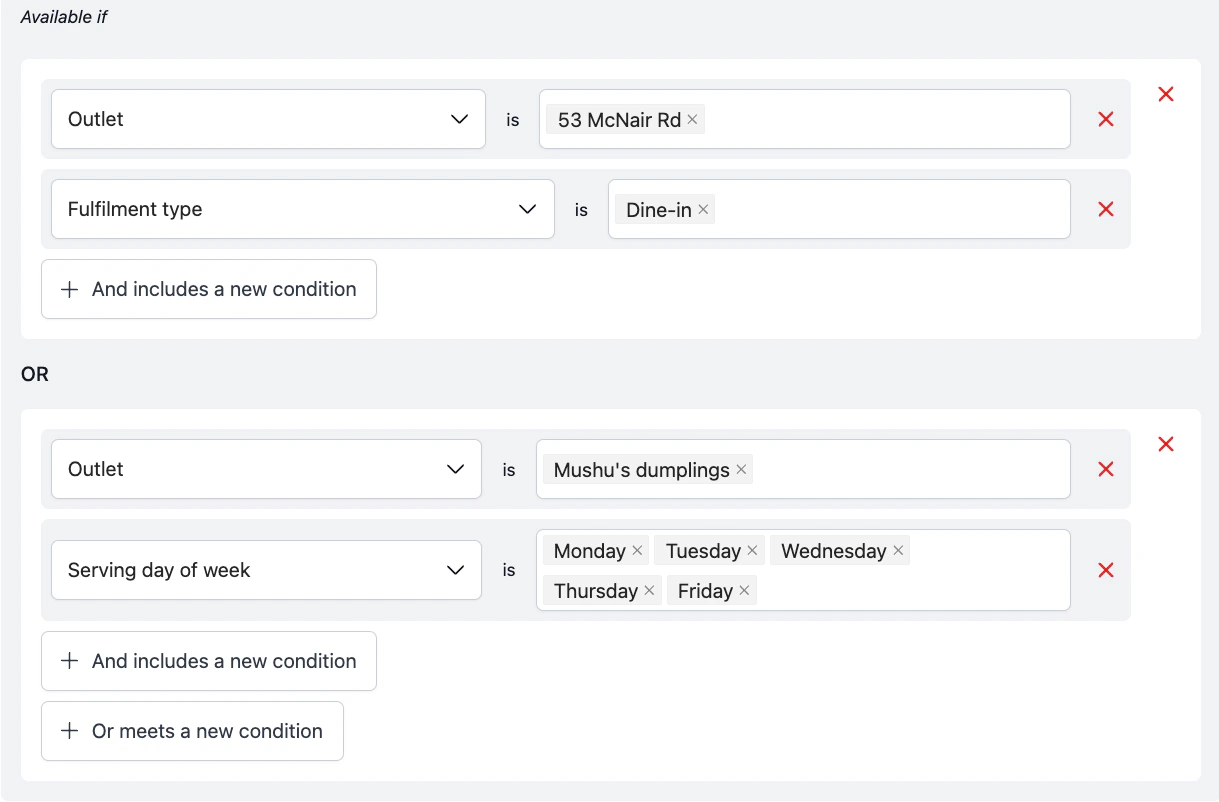 Combine conditions using two buttons:
* **+ And includes a new condition**. Adds a condition that must **also** be true. Use **and** when **every** condition in the group needs to be met (for example, outlet **is** McNair Rd **and** fulfilment **is** dine-in).
* **+ Or meets a new condition**. Adds a separate condition group joined by **or**. The item is available if **any** group is fully satisfied. Use **or** when you want alternative combinations to qualify.
The example above reads: "Available at McNair Rd for dine-in, **or** available at Mushu's dumplings on Monday–Friday."
### Save your changes
Tap **Save** to apply the conditions. Changes take effect immediately on POS and QR ordering. Connected aggregators (such as GrabFood and Foodpanda) may take a few minutes to sync.
## Common examples
**Goal:** show a "Happy Hour" section only Monday to Friday from 5pm to 7pm.
Apply the condition to the **section** so the whole section hides outside those hours.
* **Logic**. Available if
* **Hide item when unavailable?**. On
* **Conditions** (joined by **and**):
* Serving day of week **is** Monday, Tuesday, Wednesday, Thursday, Friday
* Serving time of day **is** between 5:00pm and 7:00pm
**Goal:** a "Mother's Day specials" section runs from 10 May to 16 May.
Apply the condition to the **section** containing the special items.
* **Logic**. Available if
* **Only apply for a certain date range?**. On. Set 10 May to 16 May.
* **Hide item when unavailable?**. On
* **Conditions**. Leave blank to make the section available throughout that window, or add a Serving day of week condition if you want to restrict further (for example, only the final weekend).
**Goal:** a "Specials" section shows at both your outlets, but one signature dish only shows at the McNair outlet.
Apply the condition to the **product**, not the section. Leave the section open to both outlets so the rest of the items still appear at both.
* **Logic**. Available if
* **Hide item when unavailable?**. On
* **Conditions**:
* Outlet **is** McNair Rd
**Goal:** one menu with a Lunch section (11:30am–3pm) and a Dinner section (5:30pm–10pm) that auto-swap.
Set conditions on each section separately.
**Lunch section**
* **Logic**. Available if
* **Hide item when unavailable?**. On
* **Conditions**. Serving time of day **is** between 11:30am and 3:00pm
**Dinner section**
* **Logic**. Available if
* **Hide item when unavailable?**. On
* **Conditions**. Serving time of day **is** between 5:30pm and 10:00pm
**Goal:** hide alcohol or fragile items from delivery orders, but keep them visible for dine-in and pickup.
Apply the condition to each **product** (or to a section if every item inside follows the same condition).
* **Logic**. Unavailable if
* **Hide item when unavailable?**. Off (so customers on dine-in or pickup still see it, and customers on delivery see a clear reason instead)
* **Reason to display**. *Not available for delivery. Please choose dine-in or pickup.*
* **Conditions**. Fulfilment type **is** Delivery
**Goal:** a "Weekend Brunch" section that only appears on Saturday and Sunday from 9am to 2pm.
Apply the condition to the **section**.
* **Logic**. Available if
* **Hide item when unavailable?**. On
* **Conditions** (joined by **and**):
* Serving day of week **is** Saturday, Sunday
* Serving time of day **is** between 9:00am and 2:00pm
**Goal:** a new menu section goes live on 1 July, not before.
Apply the condition to the **section**.
* **Logic**. Available if
* **Only apply for a certain date range?**. On. Set start date 1 July, leave end date open (or set far in the future).
* **Hide item when unavailable?**. On
**Goal:** show a product only to dine-in customers. For example, an optional "Serve later" modifier on desserts that only makes sense when the customer is eating in.
Apply the condition to the **product**.
* **Logic**. Available if
* **Hide item when unavailable?**. On
* **Conditions**: Fulfilment type **is** Dine-in
## What should happen
Once you save, the condition applies as follows:
* **Diner-facing storefronts (Kiosk, QR, Atlas Online)**. Fully sync to your conditions. Items appear, hide, or grey out exactly as configured.
* **POS (staff-facing)**. Conditions do **not** apply. Staff always see the item and decide whether to serve it on the spot. Use the POS for in-the-moment availability calls (for example, an item runs out mid-service).
* **Aggregators (GrabFood, Foodpanda, etc.)**. Only **time-based** conditions (such as serving time of day or day of week) sync to the aggregator. Outlet and fulfilment-type conditions are handled by the aggregator's own setup, not by Atlas conditions.
* **Stocks page**. When a condition makes an item unavailable, it's also hidden from the Stocks page during that period, so staff aren't shown items they can't actually toggle.
## If it doesn't work
Check the following common issues:
* **Menu not published**. If you configured conditions on a draft item, you must publish the menu changes before they take effect.
* **Timezone mismatch**. Ensure your outlet timezone is configured correctly under **Settings** > **Outlet settings**. Conditions use the local outlet timezone.
* **Inherited conditions**. Check if the section containing the product has a condition. Products inherit conditions from their parent section.
* **Aggregator sync delayed**. External channels like GrabFood and Foodpanda may take up to 10 minutes to sync and reflect changes.
No, this is expected. Availability conditions only apply to diner-facing storefronts (Kiosk, QR, Atlas Online). POS is staff-facing, so the item stays visible there and your team decides whether to serve it. If you want the item gone from POS too, archive the product or remove it from the menu instead.
Aggregators only sync **time-based** conditions (serving time of day, serving day of week, date ranges). Outlet and fulfilment-type conditions don't carry over. You need to configure those directly in the aggregator's dashboard.
This is expected. When a condition marks an item as unavailable, it's hidden from the Stocks page during that period so staff don't see items they can't toggle. The item will reappear automatically once it's back in its available window.
Walk through your condition one group at a time:
* **And** stacks conditions inside the **same group**. Every condition in that group must be true.
* **Or** creates a **separate group**. The item is available if any group is fully satisfied.
* If you mix them up, the condition may either be too strict (and-ed too much) or too loose (or-ed alternatives you didn't intend). Read each group out loud as a sentence to sanity-check it.
Duplicating only copies the conditions. You still need to:
* Review the copied conditions and adjust any outlet, time, or date values that should differ.
* Tap **Save** on the section or product. Duplicating doesn't auto-save.
Atlas blocks them from checking out. The diner sees a prompt that the item is no longer available and is asked to remove it before proceeding. This stops your kitchen from receiving orders for items it can't actually serve.
You're missing the paired **Available if** group. Atlas needs an explicit "always available" baseline; without it, the item has no default available state to fall back to.
Set it up as two condition groups:
* **Group 1**. Unavailable if \[your conditions]
* **Group 2**. Available if (leave conditions blank)
This reads as: "unavailable when X, **and** available the rest of the time."
No. Availability conditions only apply to **sections** and **products**. If you need a modifier or component to follow availability conditions, convert it into a standalone product first and apply the condition there.
If the issue persists, contact support at [hello@atlas.kitchen](mailto:hello@atlas.kitchen).
## Next steps
* [Create and configure menus](/menu-builder/create-menus)
* [Set up operating hours](/merchant-portal/operating-hours)
* [Configure POS layout](/menu-builder/pos-layout)
Combine conditions using two buttons:
* **+ And includes a new condition**. Adds a condition that must **also** be true. Use **and** when **every** condition in the group needs to be met (for example, outlet **is** McNair Rd **and** fulfilment **is** dine-in).
* **+ Or meets a new condition**. Adds a separate condition group joined by **or**. The item is available if **any** group is fully satisfied. Use **or** when you want alternative combinations to qualify.
The example above reads: "Available at McNair Rd for dine-in, **or** available at Mushu's dumplings on Monday–Friday."
### Save your changes
Tap **Save** to apply the conditions. Changes take effect immediately on POS and QR ordering. Connected aggregators (such as GrabFood and Foodpanda) may take a few minutes to sync.
## Common examples
**Goal:** show a "Happy Hour" section only Monday to Friday from 5pm to 7pm.
Apply the condition to the **section** so the whole section hides outside those hours.
* **Logic**. Available if
* **Hide item when unavailable?**. On
* **Conditions** (joined by **and**):
* Serving day of week **is** Monday, Tuesday, Wednesday, Thursday, Friday
* Serving time of day **is** between 5:00pm and 7:00pm
**Goal:** a "Mother's Day specials" section runs from 10 May to 16 May.
Apply the condition to the **section** containing the special items.
* **Logic**. Available if
* **Only apply for a certain date range?**. On. Set 10 May to 16 May.
* **Hide item when unavailable?**. On
* **Conditions**. Leave blank to make the section available throughout that window, or add a Serving day of week condition if you want to restrict further (for example, only the final weekend).
**Goal:** a "Specials" section shows at both your outlets, but one signature dish only shows at the McNair outlet.
Apply the condition to the **product**, not the section. Leave the section open to both outlets so the rest of the items still appear at both.
* **Logic**. Available if
* **Hide item when unavailable?**. On
* **Conditions**:
* Outlet **is** McNair Rd
**Goal:** one menu with a Lunch section (11:30am–3pm) and a Dinner section (5:30pm–10pm) that auto-swap.
Set conditions on each section separately.
**Lunch section**
* **Logic**. Available if
* **Hide item when unavailable?**. On
* **Conditions**. Serving time of day **is** between 11:30am and 3:00pm
**Dinner section**
* **Logic**. Available if
* **Hide item when unavailable?**. On
* **Conditions**. Serving time of day **is** between 5:30pm and 10:00pm
**Goal:** hide alcohol or fragile items from delivery orders, but keep them visible for dine-in and pickup.
Apply the condition to each **product** (or to a section if every item inside follows the same condition).
* **Logic**. Unavailable if
* **Hide item when unavailable?**. Off (so customers on dine-in or pickup still see it, and customers on delivery see a clear reason instead)
* **Reason to display**. *Not available for delivery. Please choose dine-in or pickup.*
* **Conditions**. Fulfilment type **is** Delivery
**Goal:** a "Weekend Brunch" section that only appears on Saturday and Sunday from 9am to 2pm.
Apply the condition to the **section**.
* **Logic**. Available if
* **Hide item when unavailable?**. On
* **Conditions** (joined by **and**):
* Serving day of week **is** Saturday, Sunday
* Serving time of day **is** between 9:00am and 2:00pm
**Goal:** a new menu section goes live on 1 July, not before.
Apply the condition to the **section**.
* **Logic**. Available if
* **Only apply for a certain date range?**. On. Set start date 1 July, leave end date open (or set far in the future).
* **Hide item when unavailable?**. On
**Goal:** show a product only to dine-in customers. For example, an optional "Serve later" modifier on desserts that only makes sense when the customer is eating in.
Apply the condition to the **product**.
* **Logic**. Available if
* **Hide item when unavailable?**. On
* **Conditions**: Fulfilment type **is** Dine-in
## What should happen
Once you save, the condition applies as follows:
* **Diner-facing storefronts (Kiosk, QR, Atlas Online)**. Fully sync to your conditions. Items appear, hide, or grey out exactly as configured.
* **POS (staff-facing)**. Conditions do **not** apply. Staff always see the item and decide whether to serve it on the spot. Use the POS for in-the-moment availability calls (for example, an item runs out mid-service).
* **Aggregators (GrabFood, Foodpanda, etc.)**. Only **time-based** conditions (such as serving time of day or day of week) sync to the aggregator. Outlet and fulfilment-type conditions are handled by the aggregator's own setup, not by Atlas conditions.
* **Stocks page**. When a condition makes an item unavailable, it's also hidden from the Stocks page during that period, so staff aren't shown items they can't actually toggle.
## If it doesn't work
Check the following common issues:
* **Menu not published**. If you configured conditions on a draft item, you must publish the menu changes before they take effect.
* **Timezone mismatch**. Ensure your outlet timezone is configured correctly under **Settings** > **Outlet settings**. Conditions use the local outlet timezone.
* **Inherited conditions**. Check if the section containing the product has a condition. Products inherit conditions from their parent section.
* **Aggregator sync delayed**. External channels like GrabFood and Foodpanda may take up to 10 minutes to sync and reflect changes.
No, this is expected. Availability conditions only apply to diner-facing storefronts (Kiosk, QR, Atlas Online). POS is staff-facing, so the item stays visible there and your team decides whether to serve it. If you want the item gone from POS too, archive the product or remove it from the menu instead.
Aggregators only sync **time-based** conditions (serving time of day, serving day of week, date ranges). Outlet and fulfilment-type conditions don't carry over. You need to configure those directly in the aggregator's dashboard.
This is expected. When a condition marks an item as unavailable, it's hidden from the Stocks page during that period so staff don't see items they can't toggle. The item will reappear automatically once it's back in its available window.
Walk through your condition one group at a time:
* **And** stacks conditions inside the **same group**. Every condition in that group must be true.
* **Or** creates a **separate group**. The item is available if any group is fully satisfied.
* If you mix them up, the condition may either be too strict (and-ed too much) or too loose (or-ed alternatives you didn't intend). Read each group out loud as a sentence to sanity-check it.
Duplicating only copies the conditions. You still need to:
* Review the copied conditions and adjust any outlet, time, or date values that should differ.
* Tap **Save** on the section or product. Duplicating doesn't auto-save.
Atlas blocks them from checking out. The diner sees a prompt that the item is no longer available and is asked to remove it before proceeding. This stops your kitchen from receiving orders for items it can't actually serve.
You're missing the paired **Available if** group. Atlas needs an explicit "always available" baseline; without it, the item has no default available state to fall back to.
Set it up as two condition groups:
* **Group 1**. Unavailable if \[your conditions]
* **Group 2**. Available if (leave conditions blank)
This reads as: "unavailable when X, **and** available the rest of the time."
No. Availability conditions only apply to **sections** and **products**. If you need a modifier or component to follow availability conditions, convert it into a standalone product first and apply the condition there.
If the issue persists, contact support at [hello@atlas.kitchen](mailto:hello@atlas.kitchen).
## Next steps
* [Create and configure menus](/menu-builder/create-menus)
* [Set up operating hours](/merchant-portal/operating-hours)
* [Configure POS layout](/menu-builder/pos-layout)