> ## Documentation Index
> Fetch the complete documentation index at: https://help.atlas.kitchen/llms.txt
> Use this file to discover all available pages before exploring further.
# Accept ShopBack payments
> Let customers pay with the ShopBack app at your POS and kiosk. They scan a QR code on your Atlas Pay terminal and earn cashback.
**Who is this article for?**
Restaurant operators who want to accept ShopBack payments on Atlas POS and Atlas Kiosk.
## What this does
ShopBack is a cashback and rewards app. Customers pay through the app using a linked card or wallet, and earn cashback at your store.
With this integration, ShopBack appears as a payment type on your Atlas POS and Kiosk. When ShopBack is selected at checkout, a QR code appears on your Atlas Pay terminal. The customer scans the code with the ShopBack app and pays. Atlas marks the order as paid automatically.
## Before you start
Enabling the payment type is only half the setup. The Atlas team must also connect your account to ShopBack. Until both are done, ShopBack is greyed out on the POS and does not show on the kiosk.
ShopBack needs an Atlas Pay terminal, because the QR code is shown on the terminal screen. Stations without a terminal cannot take ShopBack payments.
## Turn on ShopBack
Two things must happen before ShopBack works at checkout. You enable the payment type, and the Atlas team completes your account setup.
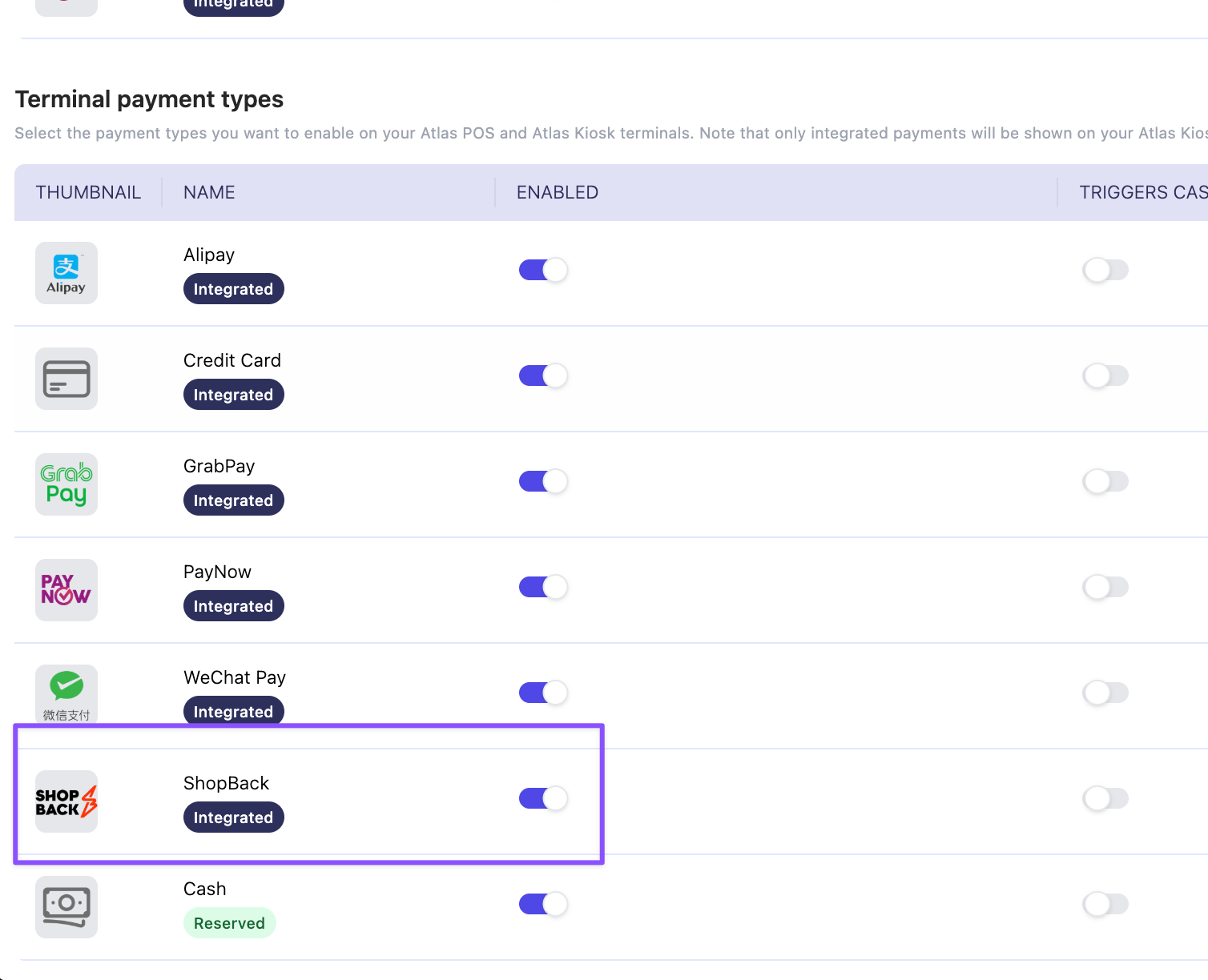
In the merchant portal, go to **Settings** > **Payment types**.
In the **Terminal payment types** section, switch the **Enabled** toggle on next to **ShopBack**.
 Email your account manager or [hello@atlas.kitchen](mailto:hello@atlas.kitchen). The Atlas team connects your account to ShopBack and confirms when it is live.
Once the Atlas team confirms, ShopBack appears in the payment method selection on your POS and Kiosk.
## Taking a ShopBack payment
Take the order as usual. Tap **Charge**, then select **ShopBack** as the payment method.
On the kiosk, the customer selects **ShopBack** on the payment screen themselves.
A QR code appears on the Atlas Pay terminal. It does not appear on the POS or kiosk screen.
The customer scans the code with the ShopBack app and confirms the payment in the app.
After the customer pays, the terminal takes a couple of seconds to show **Approved**. Atlas then marks the order as paid. Print receipts and fire the order as usual.
## What should happen
* The QR code appears on the terminal within a few seconds of selecting ShopBack.
* The terminal shows **Approved** a couple of seconds after the customer pays in the app.
* The order is marked as paid in Atlas.
* The customer sees a payment confirmation and their cashback in the ShopBack app.
Email your account manager or [hello@atlas.kitchen](mailto:hello@atlas.kitchen). The Atlas team connects your account to ShopBack and confirms when it is live.
Once the Atlas team confirms, ShopBack appears in the payment method selection on your POS and Kiosk.
## Taking a ShopBack payment
Take the order as usual. Tap **Charge**, then select **ShopBack** as the payment method.
On the kiosk, the customer selects **ShopBack** on the payment screen themselves.
A QR code appears on the Atlas Pay terminal. It does not appear on the POS or kiosk screen.
The customer scans the code with the ShopBack app and confirms the payment in the app.
After the customer pays, the terminal takes a couple of seconds to show **Approved**. Atlas then marks the order as paid. Print receipts and fire the order as usual.
## What should happen
* The QR code appears on the terminal within a few seconds of selecting ShopBack.
* The terminal shows **Approved** a couple of seconds after the customer pays in the app.
* The order is marked as paid in Atlas.
* The customer sees a payment confirmation and their cashback in the ShopBack app.
 ## Good to know
* **Payment limits**: ShopBack accepts payments between \$0.10 and \$9,999. For totals outside this range, ShopBack cannot be selected at checkout.
* **Where it works**: ShopBack is available on Atlas POS and Kiosk only. It is not available on Atlas Online or Scan to Order.
* **Refunds**: Refund the order in Atlas as usual. The refund is triggered on ShopBack automatically. See [Issue refunds](/merchant-portal/refunds).
* **Payouts**: ShopBack pays you directly, under your ShopBack agreement. ShopBack payments are not included in your Atlas payouts, and Atlas does not deduct a payment processing fee on them.
* **ShopBack discounts and cashback**: These are handled inside the ShopBack app. They do not appear on the POS and do not change the order total in Atlas.
## Turn off ShopBack at one outlet
If some of your outlets take ShopBack and others do not, limit it per outlet.
If an outlet has no POS payment types selected, it uses all your globally enabled payment types, including ShopBack. To exclude ShopBack, you must select every payment type the outlet does accept.
In the merchant portal, go to **Outlet settings** > **Outlets**. Click **Edit** next to the outlet, then find the **Payments** section.
Under **POS payment types**, select all the payment types this outlet accepts, and leave ShopBack out.
## Good to know
* **Payment limits**: ShopBack accepts payments between \$0.10 and \$9,999. For totals outside this range, ShopBack cannot be selected at checkout.
* **Where it works**: ShopBack is available on Atlas POS and Kiosk only. It is not available on Atlas Online or Scan to Order.
* **Refunds**: Refund the order in Atlas as usual. The refund is triggered on ShopBack automatically. See [Issue refunds](/merchant-portal/refunds).
* **Payouts**: ShopBack pays you directly, under your ShopBack agreement. ShopBack payments are not included in your Atlas payouts, and Atlas does not deduct a payment processing fee on them.
* **ShopBack discounts and cashback**: These are handled inside the ShopBack app. They do not appear on the POS and do not change the order total in Atlas.
## Turn off ShopBack at one outlet
If some of your outlets take ShopBack and others do not, limit it per outlet.
If an outlet has no POS payment types selected, it uses all your globally enabled payment types, including ShopBack. To exclude ShopBack, you must select every payment type the outlet does accept.
In the merchant portal, go to **Outlet settings** > **Outlets**. Click **Edit** next to the outlet, then find the **Payments** section.
Under **POS payment types**, select all the payment types this outlet accepts, and leave ShopBack out.
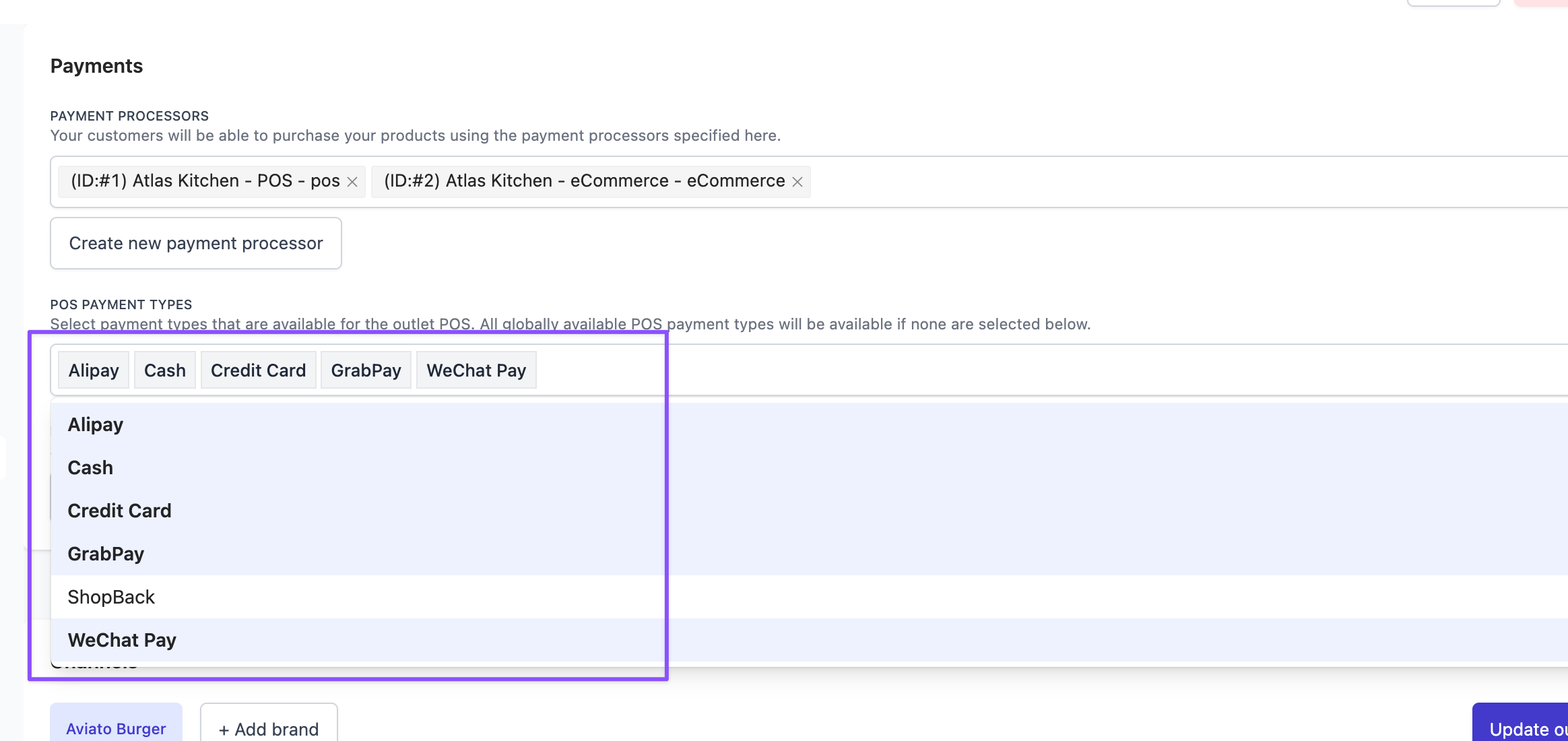 Click **Update outlet**. ShopBack no longer appears at checkout for this outlet.
## If it doesn't work
1. Check the order total. ShopBack cannot be selected below \$0.10 or above \$9,999.
2. Check ShopBack is switched on under **Settings** > **Payment types**, in the **Terminal payment types** section.
3. Check the outlet's **POS payment types** under **Outlet settings** > **Outlets**. If payment types are selected there, ShopBack must be one of them.
4. Check the station has an Atlas Pay terminal.
5. If ShopBack is still greyed out on the POS, or missing on the kiosk, the Atlas setup may not be complete. Contact support.
1. Wait a few seconds. The terminal takes a moment to confirm the payment.
2. Check your ShopBack merchant dashboard to verify whether the payment went through.
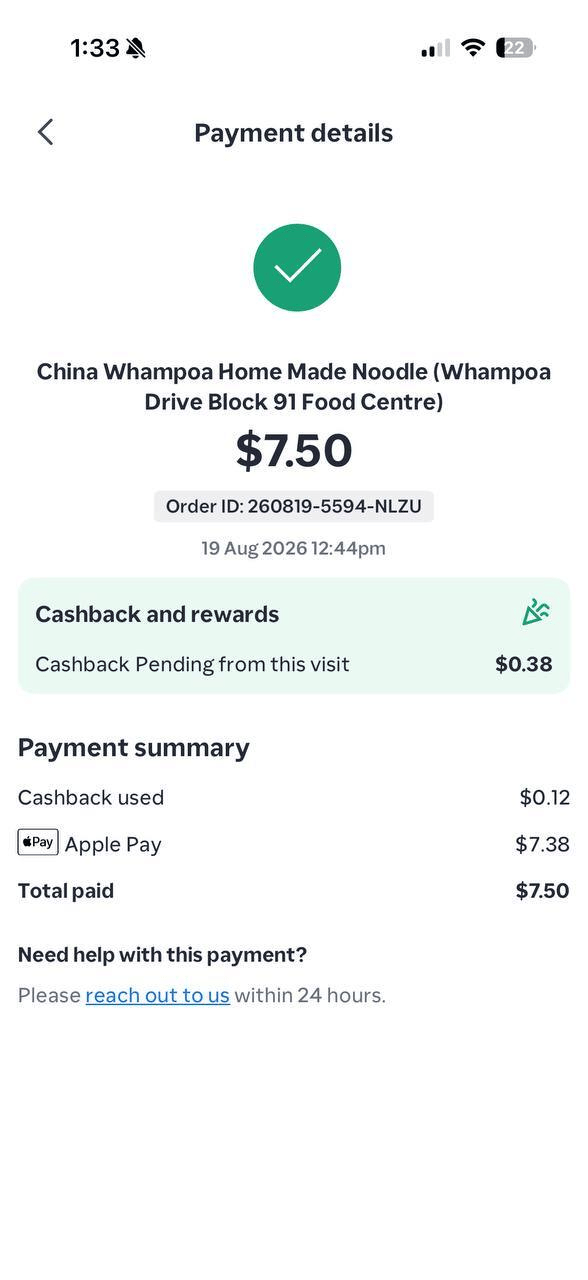
3. Ask the customer to show the **Payment details** screen in their ShopBack app.
4. If the payment went through but the order isn't marked as paid, follow the steps in the next section.
1. Check the terminal is switched on and connected.
2. Cancel the payment and select **ShopBack** again.
3. If the terminal is unresponsive, see [Terminal troubleshooting](/hardware/terminal-troubleshooting).
4. Take another payment method in the meantime. Service is not blocked.
The customer's ShopBack app is the source of truth for the payment.
1. Ask the customer to open the payment in the ShopBack app and show the **Payment details** screen.
2. Take a photo or screenshot of that screen.
3. If a screenshot isn't possible, note down the ShopBack Order ID (e.g. 260819-5594-NLZU), the date and time, the amount, and the store name.
4. Send this to support at [hello@atlas.kitchen](mailto:hello@atlas.kitchen) so the team can reconcile the payment.
If the issue persists, contact support at [hello@atlas.kitchen](mailto:hello@atlas.kitchen).
## What's next
* [Add or remove payment types](/merchant-portal/payment-methods)
* [Issue refunds](/merchant-portal/refunds)
* [Terminal troubleshooting](/hardware/terminal-troubleshooting)
Click **Update outlet**. ShopBack no longer appears at checkout for this outlet.
## If it doesn't work
1. Check the order total. ShopBack cannot be selected below \$0.10 or above \$9,999.
2. Check ShopBack is switched on under **Settings** > **Payment types**, in the **Terminal payment types** section.
3. Check the outlet's **POS payment types** under **Outlet settings** > **Outlets**. If payment types are selected there, ShopBack must be one of them.
4. Check the station has an Atlas Pay terminal.
5. If ShopBack is still greyed out on the POS, or missing on the kiosk, the Atlas setup may not be complete. Contact support.
1. Wait a few seconds. The terminal takes a moment to confirm the payment.
2. Check your ShopBack merchant dashboard to verify whether the payment went through.
3. Ask the customer to show the **Payment details** screen in their ShopBack app.
4. If the payment went through but the order isn't marked as paid, follow the steps in the next section.
1. Check the terminal is switched on and connected.
2. Cancel the payment and select **ShopBack** again.
3. If the terminal is unresponsive, see [Terminal troubleshooting](/hardware/terminal-troubleshooting).
4. Take another payment method in the meantime. Service is not blocked.
The customer's ShopBack app is the source of truth for the payment.
1. Ask the customer to open the payment in the ShopBack app and show the **Payment details** screen.
2. Take a photo or screenshot of that screen.
3. If a screenshot isn't possible, note down the ShopBack Order ID (e.g. 260819-5594-NLZU), the date and time, the amount, and the store name.
4. Send this to support at [hello@atlas.kitchen](mailto:hello@atlas.kitchen) so the team can reconcile the payment.
If the issue persists, contact support at [hello@atlas.kitchen](mailto:hello@atlas.kitchen).
## What's next
* [Add or remove payment types](/merchant-portal/payment-methods)
* [Issue refunds](/merchant-portal/refunds)
* [Terminal troubleshooting](/hardware/terminal-troubleshooting)