> ## Documentation Index
> Fetch the complete documentation index at: https://help.atlas.kitchen/llms.txt
> Use this file to discover all available pages before exploring further.
# Troubleshooting Atlas Pay terminals
> Fix an Atlas Pay card terminal that is frozen, not showing the payment amount, or has lost connection to the POS.
**Who is this article for?**
* Atlas merchants using an Atlas Pay card terminal.
* Staff taking payments at the counter or kiosk.
Atlas Pay card terminals occasionally lose connection, freeze, or fail to show the payment amount. This guide is organised by the problem you are seeing. Find your issue below and work through the fixes in order.
## The terminal won't connect or show the payment amount
If the terminal shows "no signal", nothing appears when you tap Charge, or you see **"Error occurred while initiating payment"**, work through these in order.
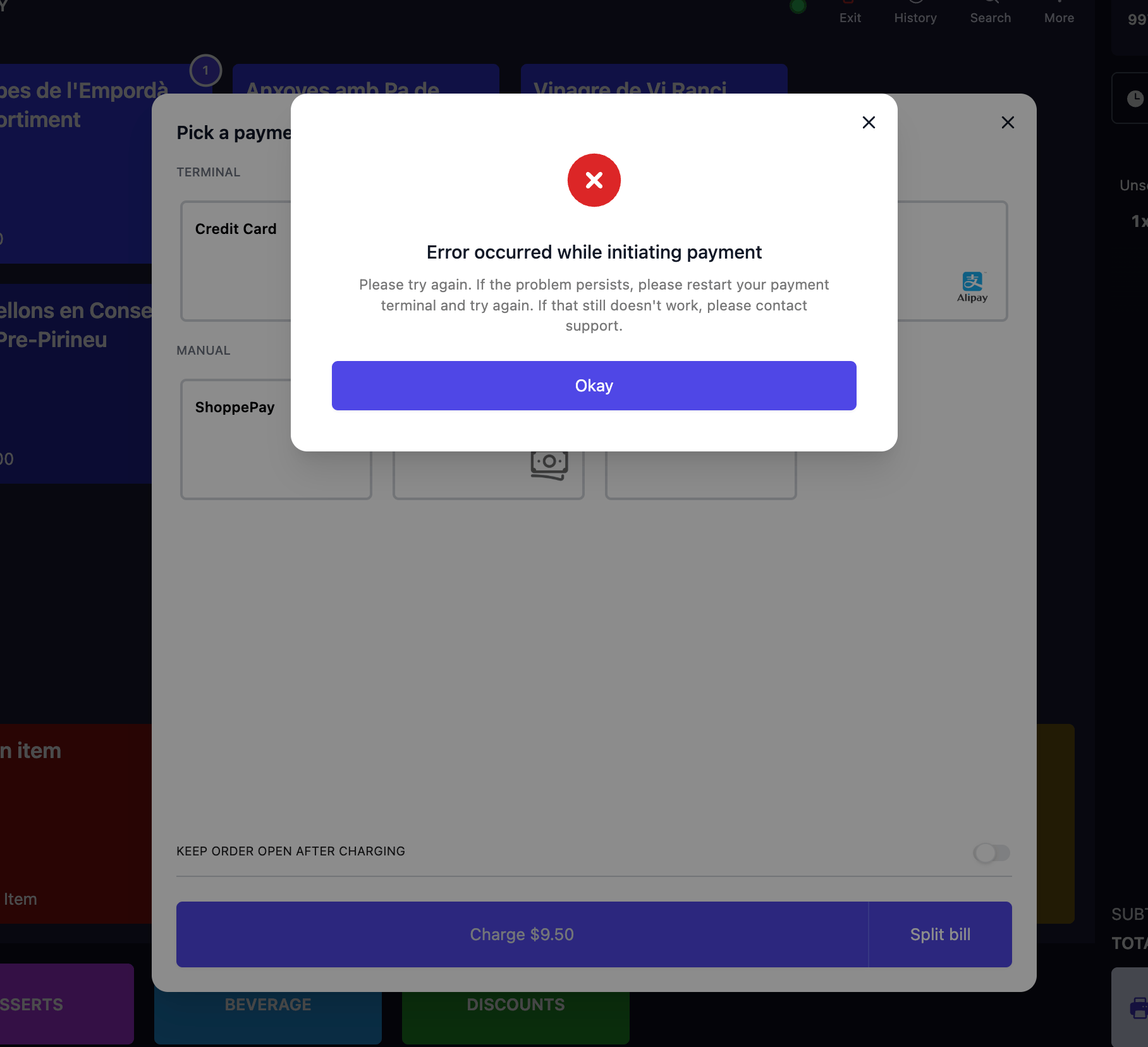 The error is often a one-off. Re-select the payment method and tap **Charge** again.
If it keeps happening, the cause is usually WiFi instability. The terminal has a built-in 4G backup that is more reliable during service.
On the terminal, go to **Settings > Network** and turn off **WiFi**. The terminal switches to 4G automatically. Go back to the POS and tap **Charge** again.
Press and hold the power button on the side of the terminal until the power options appear, then tap **Restart**. Once it is back on the home screen, close and reopen the Atlas POS app on the tablet, then try the charge again.
Create a small test order, tap **Charge**, select **Credit Card**, and confirm the amount appears on the terminal.
Take payment with a manual method for now, then contact support (see [The terminal is faulty or won't power on](#the-terminal-is-faulty-or-wont-power-on)).
**What should happen:** the terminal displays the order amount and is ready for the customer to tap, insert, or scan.
## The customer paid but the order didn't complete
If the terminal or POS dropped connection mid-payment, the customer's card may have gone through while the order stays open on the POS. Before charging again, confirm whether the payment actually went through.
### Check the payment on the terminal
1. On the terminal, go to **Transactions > History**.
2. Enter the terminal password.
3. Find the transaction by time and amount, and tap it to open the details.
The **Merchant reference** field shows the last digits of the Atlas order ID. Use it to match the transaction to the order. A successful payment shows **"Approved"** with a green tick.
### Force checkout
When the POS can't confirm a payment, it shows a force checkout screen asking you to verify manually.
* **If the terminal shows "Approved":** the customer paid. Tap **"I understand, force checkout"** to close the order.
* **If it does not show Approved:** the payment did not go through. Do not force checkout, and take payment again.
Do not force checkout without verifying the terminal. If the payment failed but you force checkout, the order is marked as paid and the customer could walk away without paying.
## The terminal is frozen or the screen is black
1. Press and hold the power button on the side of the terminal for about 15 seconds to force a restart. Wait for the home screen to load, then try the charge again.
2. If the terminal does not respond to the power button at all, remove the cover on the back, unplug the battery, and wait about 10 seconds. Reconnect the battery, replace the cover, and power the terminal back on.
If the screen stays black, or the terminal keeps freezing after these steps, the unit likely needs replacing. See [The terminal is faulty or won't power on](#the-terminal-is-faulty-or-wont-power-on) below.
## The terminal is faulty or won't power on
Restarting won't fix a faulty unit. Contact support for a replacement if:
* The terminal won't power on, even when plugged in.
* The battery drains in under 2 hours, or won't charge.
* The casing or battery looks swollen or deformed.
* The card slot or tap reader is physically damaged.
* The same issue recurs across service periods despite restarting.
When you contact [hello@atlas.kitchen](mailto:hello@atlas.kitchen), include:
* The terminal **serial number** (on the back of the terminal, beside the barcode sticker).
* The **date and time** of the issue.
* The **affected order number**, if any.
* A **photo** of the terminal screen.
* **What you have already tried** (e.g. switched to 4G, restarted).
To request a **loaner terminal** while yours is being replaced, say so and include your outlet name and preferred delivery date.
## Other terminal errors
The terminal is usually still on a previous session. Restart the terminal. If the wrong amount appears for a specific order, void that order in Atlas POS and re-create it before charging.
Check that PayNow is enabled in the Merchant Portal under **Settings > Payment types**. If it is on, restart the terminal and try again. If the QR still doesn't appear, contact support.
The POS station does not have a terminal assigned to it. This is a back-end setting, so contact support at [hello@atlas.kitchen](mailto:hello@atlas.kitchen).
## Next steps
* [Using Atlas POS](/stations/pos) — charging orders, force checkout, and splitting bills.
* [Refunds](/merchant-portal/refunds) — refund or recharge an order.
The error is often a one-off. Re-select the payment method and tap **Charge** again.
If it keeps happening, the cause is usually WiFi instability. The terminal has a built-in 4G backup that is more reliable during service.
On the terminal, go to **Settings > Network** and turn off **WiFi**. The terminal switches to 4G automatically. Go back to the POS and tap **Charge** again.
Press and hold the power button on the side of the terminal until the power options appear, then tap **Restart**. Once it is back on the home screen, close and reopen the Atlas POS app on the tablet, then try the charge again.
Create a small test order, tap **Charge**, select **Credit Card**, and confirm the amount appears on the terminal.
Take payment with a manual method for now, then contact support (see [The terminal is faulty or won't power on](#the-terminal-is-faulty-or-wont-power-on)).
**What should happen:** the terminal displays the order amount and is ready for the customer to tap, insert, or scan.
## The customer paid but the order didn't complete
If the terminal or POS dropped connection mid-payment, the customer's card may have gone through while the order stays open on the POS. Before charging again, confirm whether the payment actually went through.
### Check the payment on the terminal
1. On the terminal, go to **Transactions > History**.
2. Enter the terminal password.
3. Find the transaction by time and amount, and tap it to open the details.
The **Merchant reference** field shows the last digits of the Atlas order ID. Use it to match the transaction to the order. A successful payment shows **"Approved"** with a green tick.
### Force checkout
When the POS can't confirm a payment, it shows a force checkout screen asking you to verify manually.
* **If the terminal shows "Approved":** the customer paid. Tap **"I understand, force checkout"** to close the order.
* **If it does not show Approved:** the payment did not go through. Do not force checkout, and take payment again.
Do not force checkout without verifying the terminal. If the payment failed but you force checkout, the order is marked as paid and the customer could walk away without paying.
## The terminal is frozen or the screen is black
1. Press and hold the power button on the side of the terminal for about 15 seconds to force a restart. Wait for the home screen to load, then try the charge again.
2. If the terminal does not respond to the power button at all, remove the cover on the back, unplug the battery, and wait about 10 seconds. Reconnect the battery, replace the cover, and power the terminal back on.
If the screen stays black, or the terminal keeps freezing after these steps, the unit likely needs replacing. See [The terminal is faulty or won't power on](#the-terminal-is-faulty-or-wont-power-on) below.
## The terminal is faulty or won't power on
Restarting won't fix a faulty unit. Contact support for a replacement if:
* The terminal won't power on, even when plugged in.
* The battery drains in under 2 hours, or won't charge.
* The casing or battery looks swollen or deformed.
* The card slot or tap reader is physically damaged.
* The same issue recurs across service periods despite restarting.
When you contact [hello@atlas.kitchen](mailto:hello@atlas.kitchen), include:
* The terminal **serial number** (on the back of the terminal, beside the barcode sticker).
* The **date and time** of the issue.
* The **affected order number**, if any.
* A **photo** of the terminal screen.
* **What you have already tried** (e.g. switched to 4G, restarted).
To request a **loaner terminal** while yours is being replaced, say so and include your outlet name and preferred delivery date.
## Other terminal errors
The terminal is usually still on a previous session. Restart the terminal. If the wrong amount appears for a specific order, void that order in Atlas POS and re-create it before charging.
Check that PayNow is enabled in the Merchant Portal under **Settings > Payment types**. If it is on, restart the terminal and try again. If the QR still doesn't appear, contact support.
The POS station does not have a terminal assigned to it. This is a back-end setting, so contact support at [hello@atlas.kitchen](mailto:hello@atlas.kitchen).
## Next steps
* [Using Atlas POS](/stations/pos) — charging orders, force checkout, and splitting bills.
* [Refunds](/merchant-portal/refunds) — refund or recharge an order.